Introduction
We’ve made product imports simple on Bumpa. Merchants can upload CSV files directly from platforms like Shopify and WooCommerce, or use the Bumpa CSV template for a smoother setup.
Our system also takes care of the heavy lifting, automatically organising your data, reducing formatting errors, and helping ensure your products are uploaded correctly.
This article explains how to import and manage your product listings within the Getbumpa platform.
Get Started
Go to app.getbumpa.com and log in to your account.
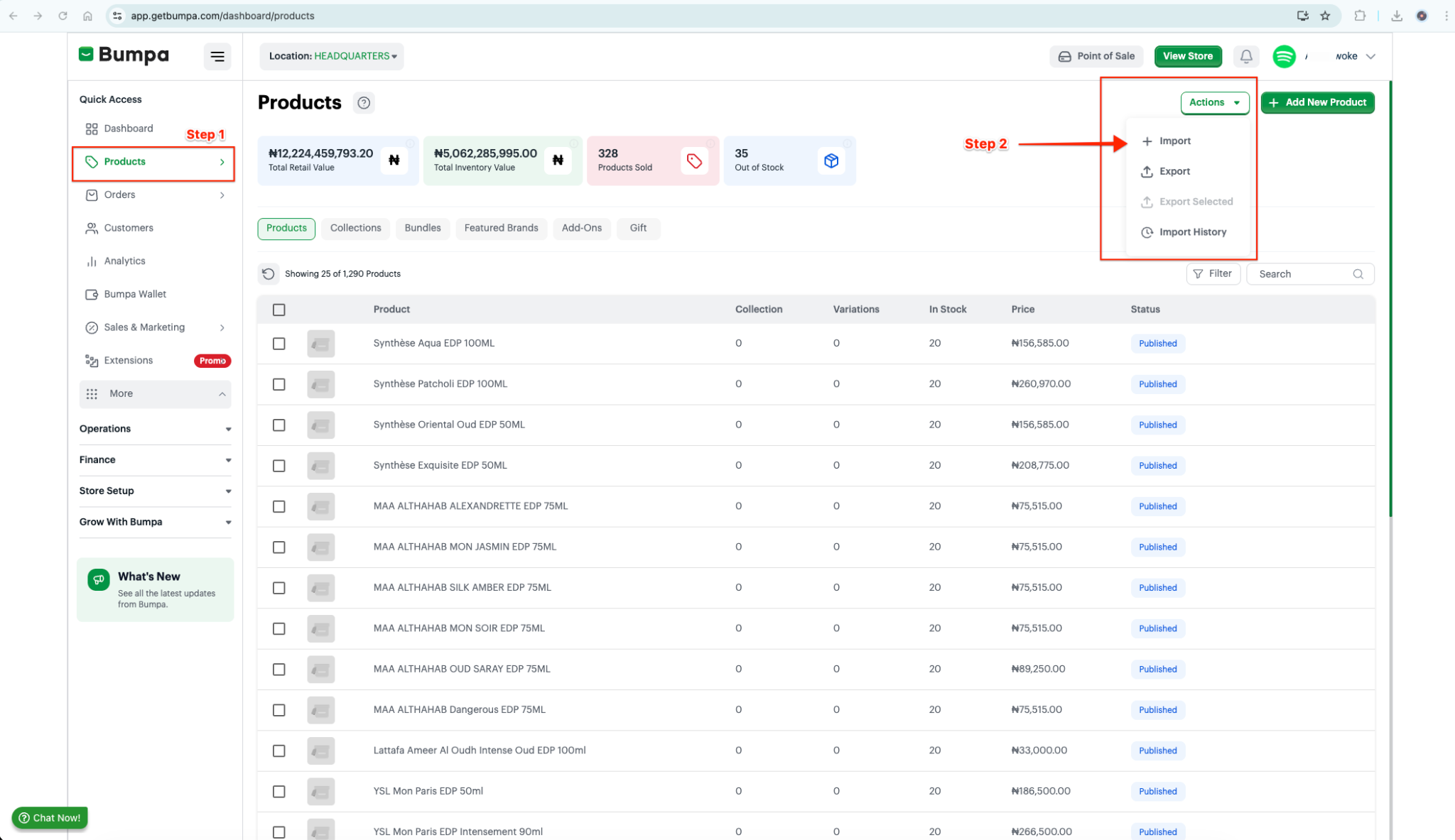
Step 1: Open the Products Section
Click Products from the main menu to access your inventory dashboard.
This is where you can view, edit, and manage all your products.
Step 2: Open the Import Menu
Click Actions
From the dropdown, select Import
This will open the product import options.
Note:
Select the Import button to begin the process of importing new product data into your Bumpa’s inventory.
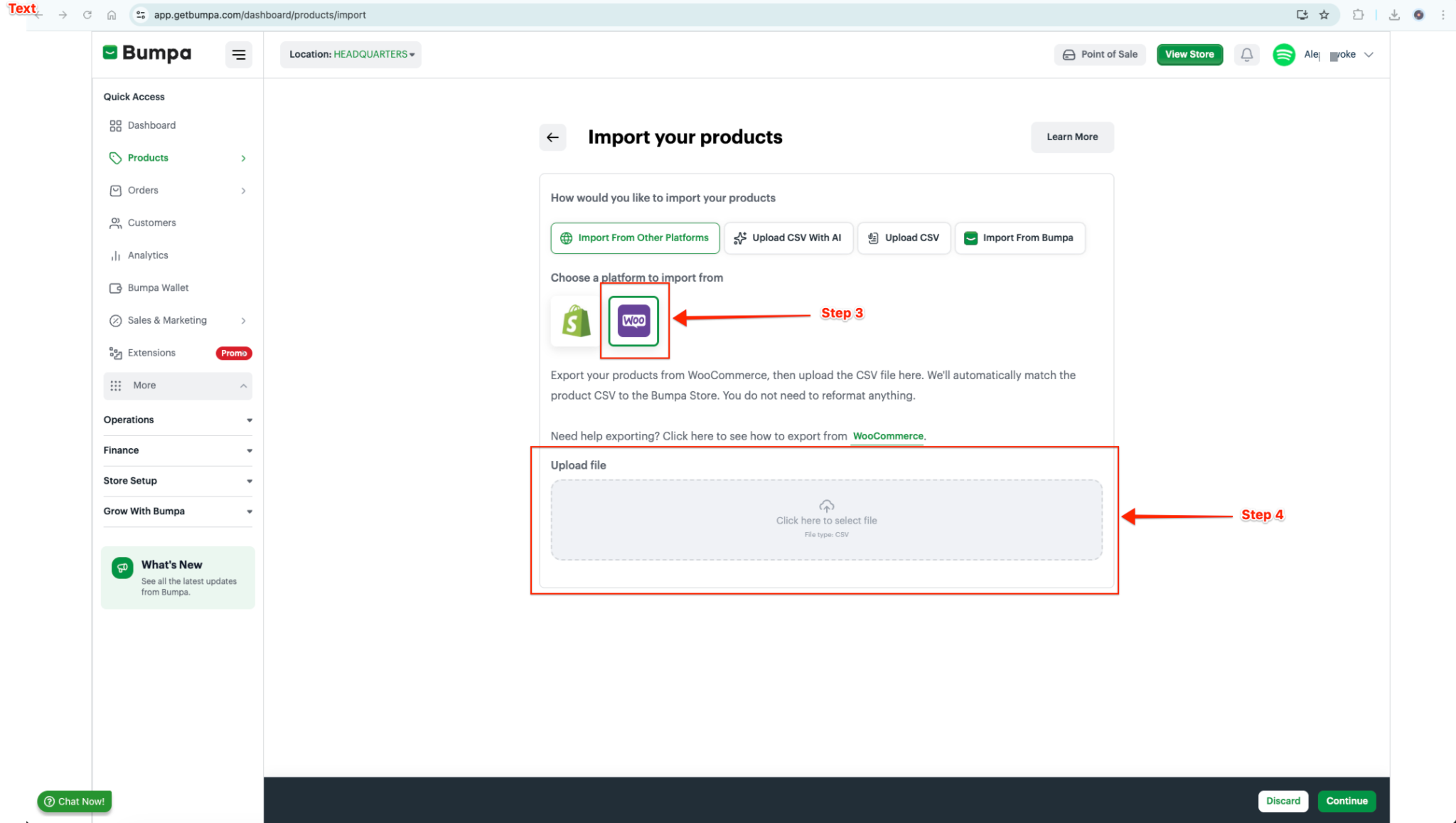
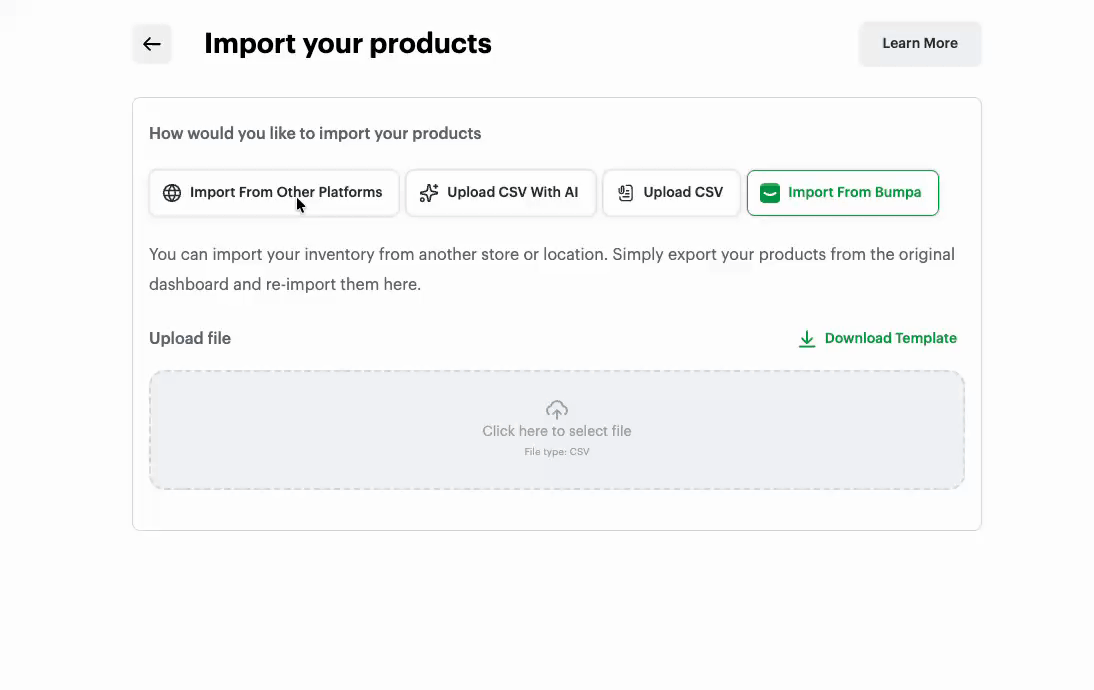
Step 3: Choose Your Import Method
Select how you want to upload your product data:
Import from Shopify
Import from WooCommerce
Upload CSV with AI
Upload CSV
Import from Bumpa
Notes:
Shopify imports must use the original CSV export format
For Bumpa imports, use the official Bumpa CSV template
Step 4: Upload Your Product File
Select your file (CSV format)
Upload your product inventory
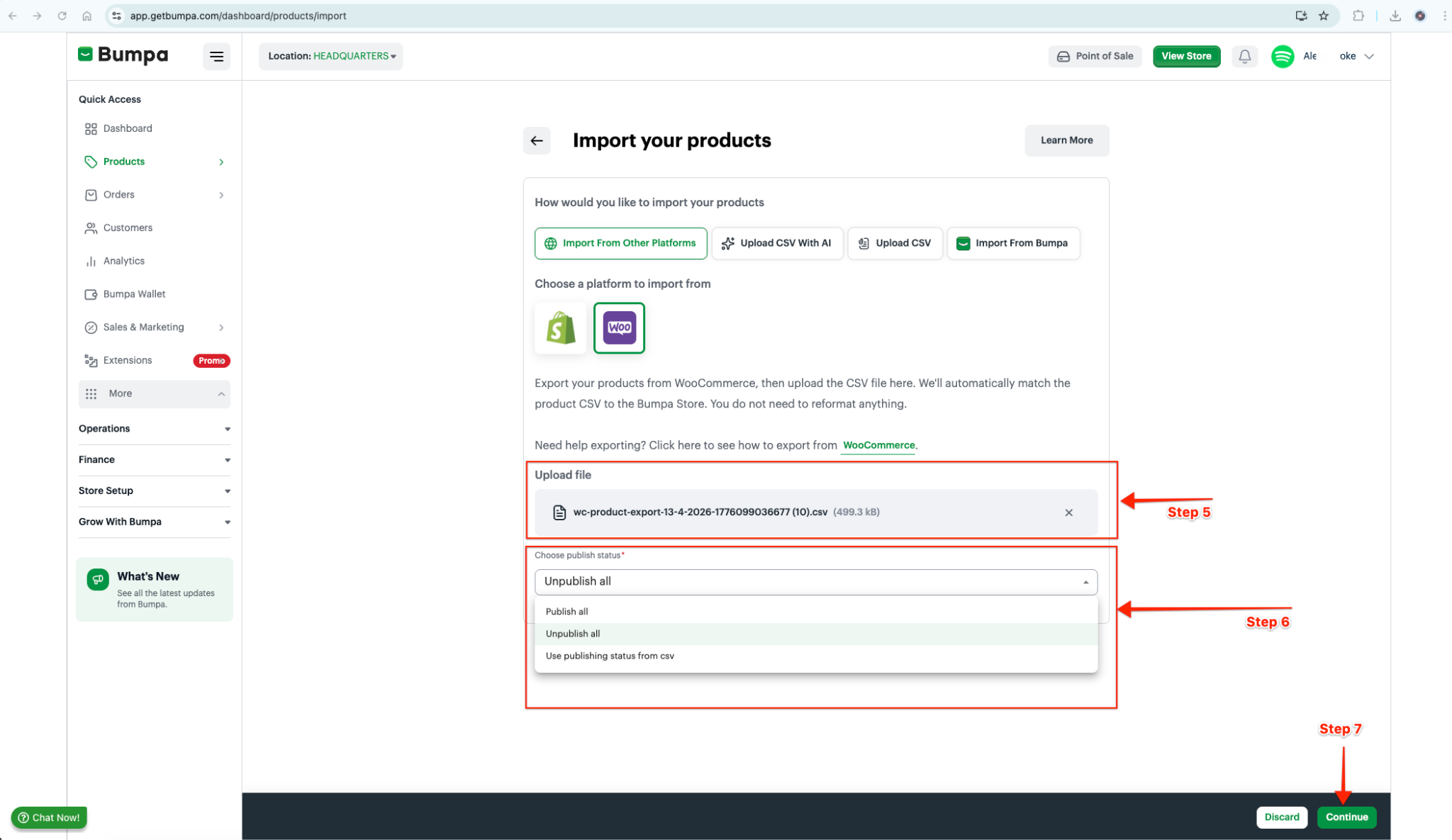
Step 5: Confirm File Upload
Make sure the correct file has been uploaded before proceeding.
Step 6: Choose Product Visibility
Decide how you want your products to appear after import:
Published: Products go live immediately
Unpublished: Products remain hidden until you’re ready
Step 7: Continue Import
Click Continue to proceed with the import process.
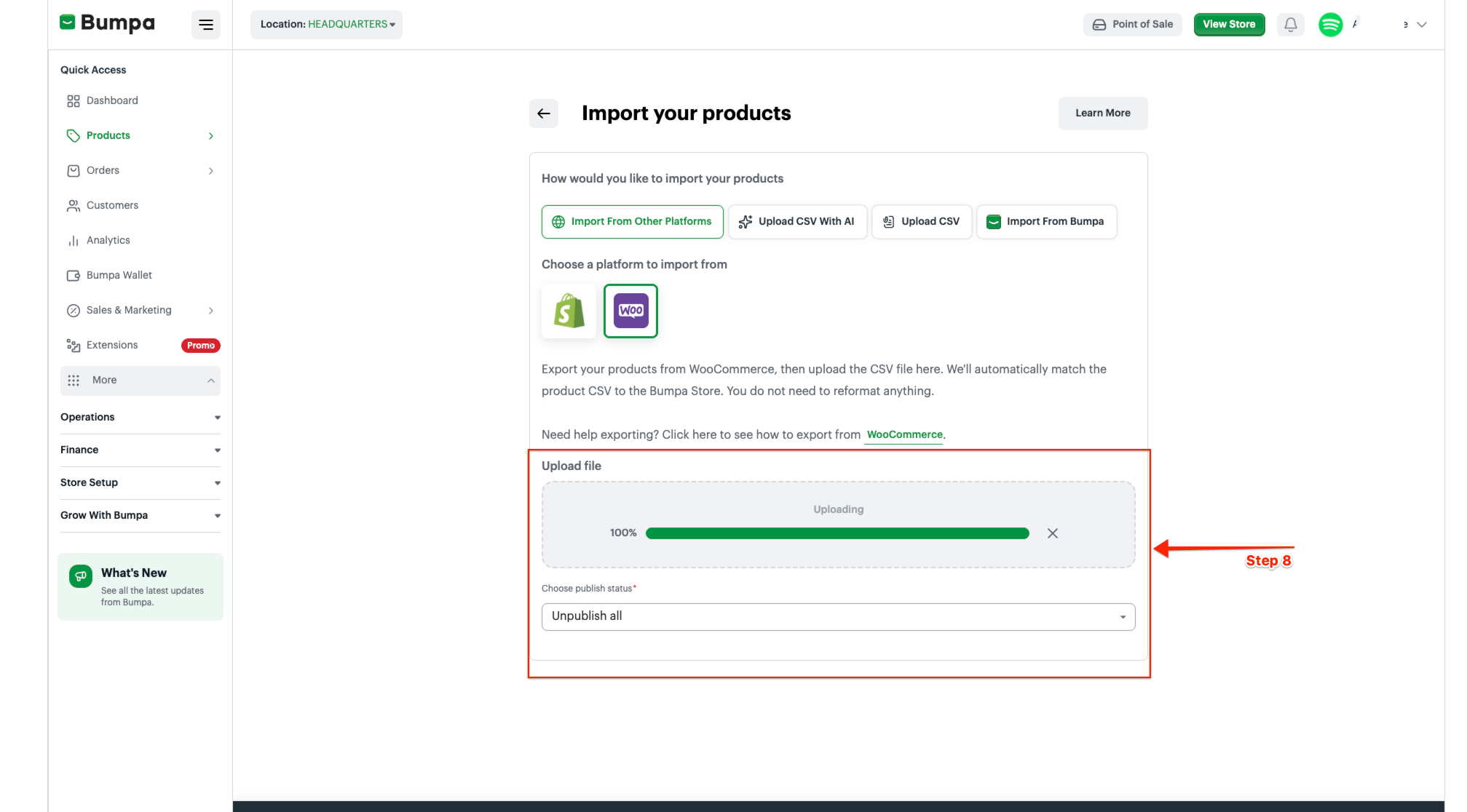
Step 8: Wait for Upload Completion
Ensure the upload reaches 100% before moving forward.
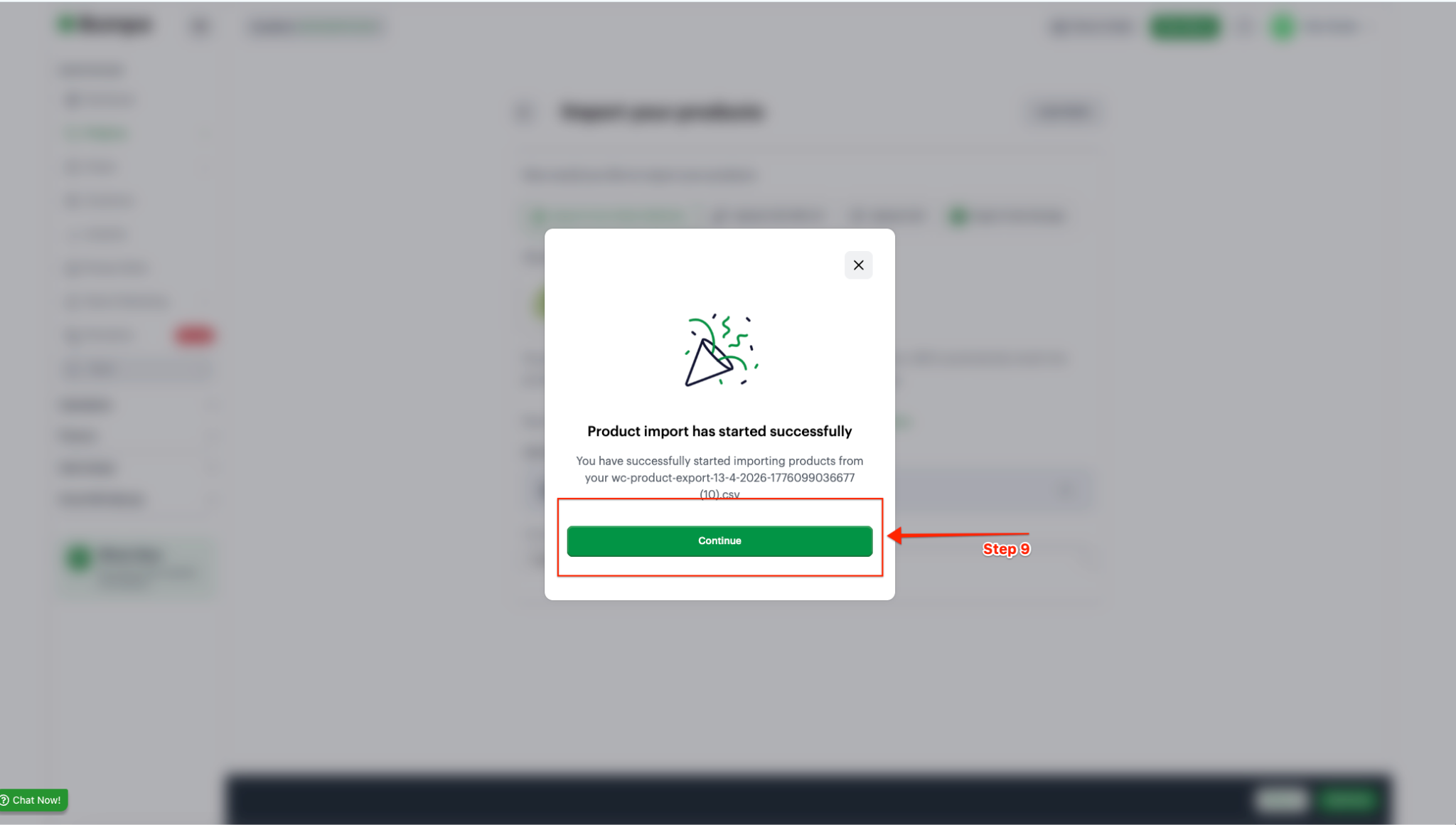
Step 9: Import Processing
Once the upload is complete:
Click Continue
Your import will begin processing
You’ll see a Processing status while your data is being handled.
Note: Import time depends on file size. This may take a few minutes.
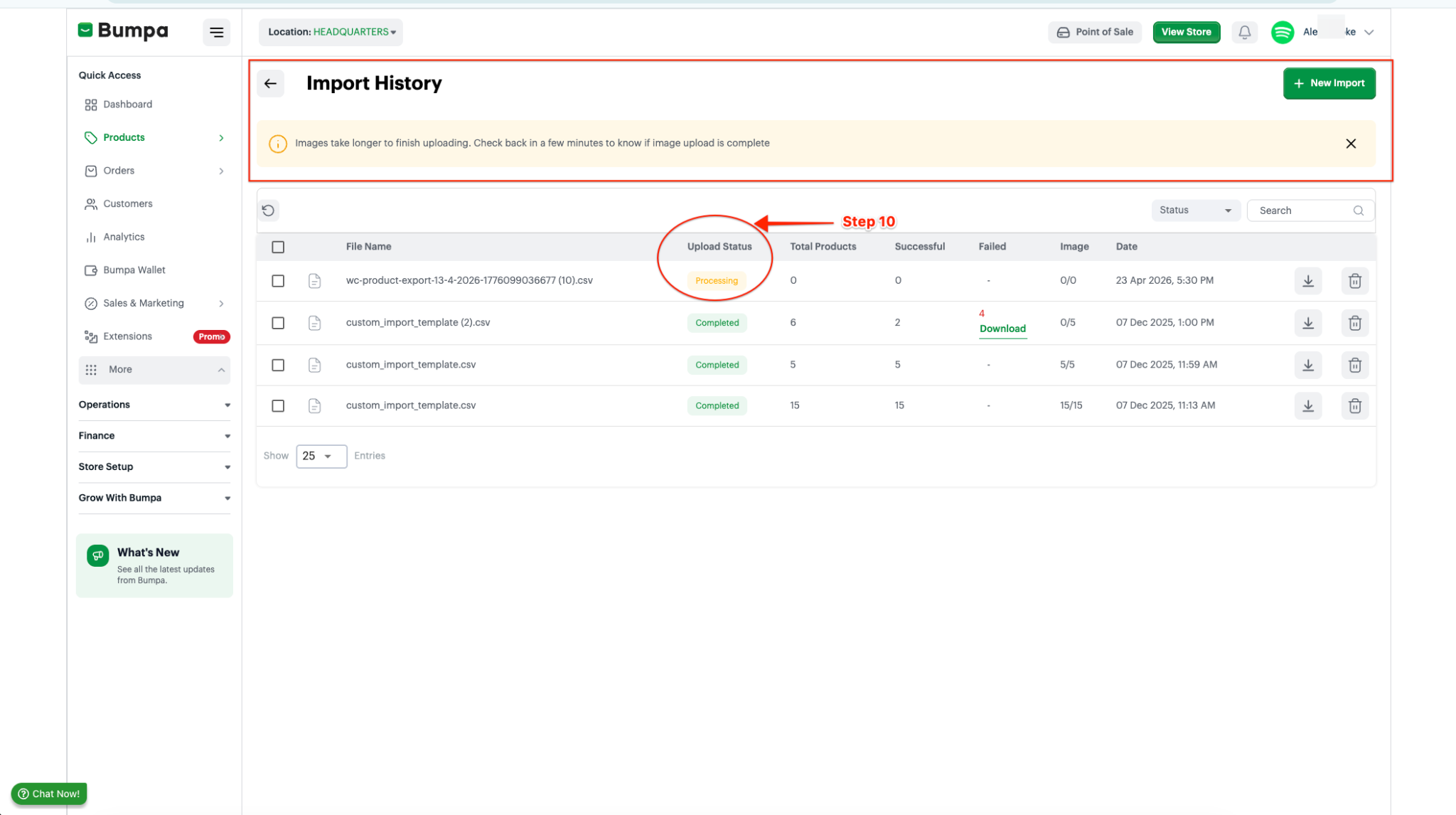
Step 10: Import Completion
When the process is finished, the status will change to Completed.
Note:
If the status doesn’t update, refresh the page after 5–7 minutes.
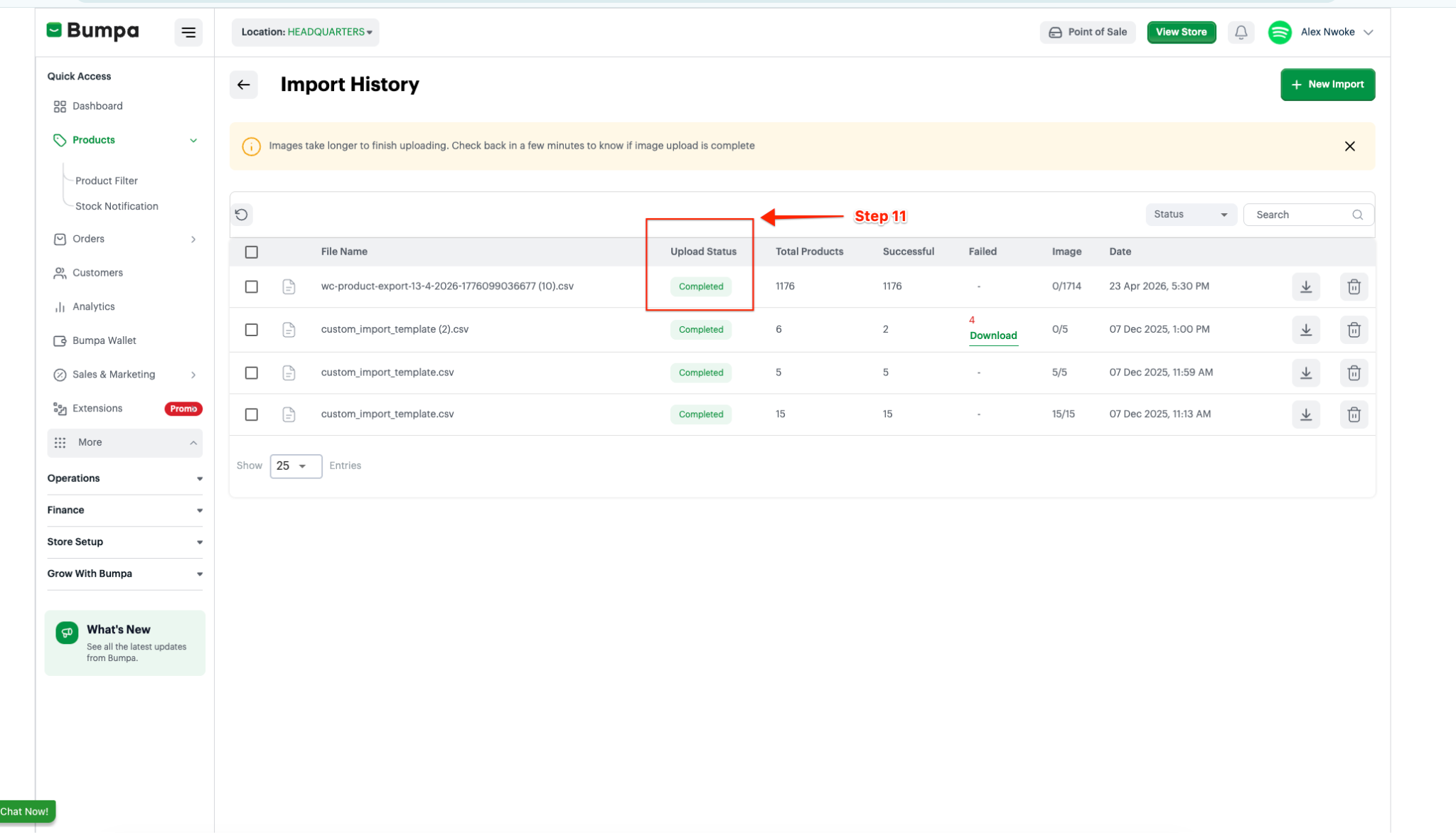
Step 11: View Imported Products
Click on the Completed status to see the list of successfully imported products.
Note: If the status does not change, please refresh the page after 5-7 minutes
Step 12: you can click on the completed Product status to see a list of the imported product
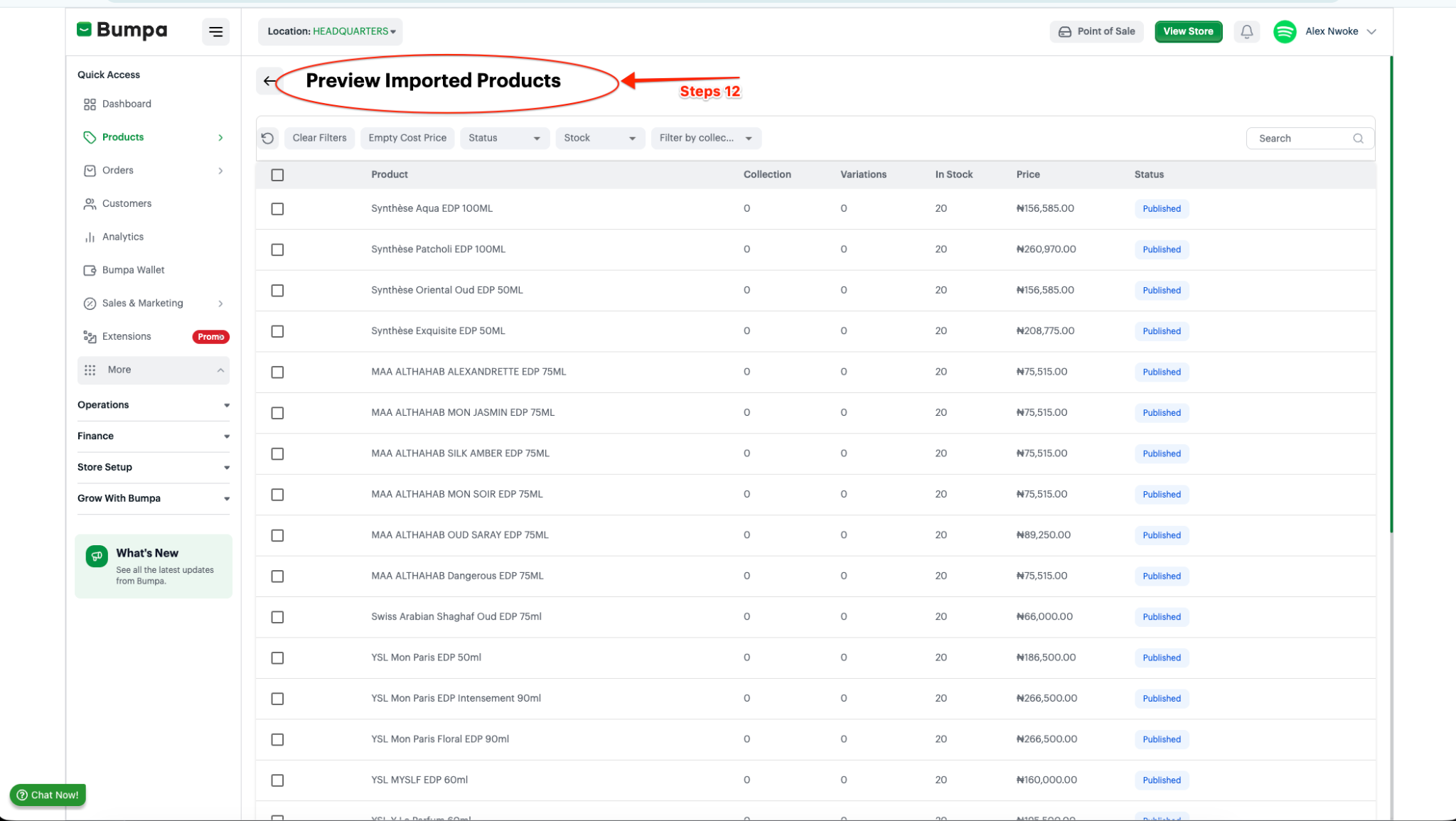
You’re Done
Your products have now been successfully imported into Bumpa.
To keep things running smoothly:
Use clean, well-structured CSV files
Double-check your data before uploading
Review imported products before publishing
Was this article helpful?
That’s Great!
Thank you for your feedback
Sorry! We couldn't be helpful
Thank you for your feedback
Feedback sent
We appreciate your effort and will try to fix the article