Track your business transactions by exporting your transaction history from your Bumpa App as a CSV file. You can filter transactions by date range and business location to get the specific records you need for accounting, record-keeping, reconciliation, and business performance tracking.
This guide walks you through how to filter and export your transaction history from your Bumpa dashboard.
To export your transaction history, login to the Bumpa Web App - app.getbumpa.com
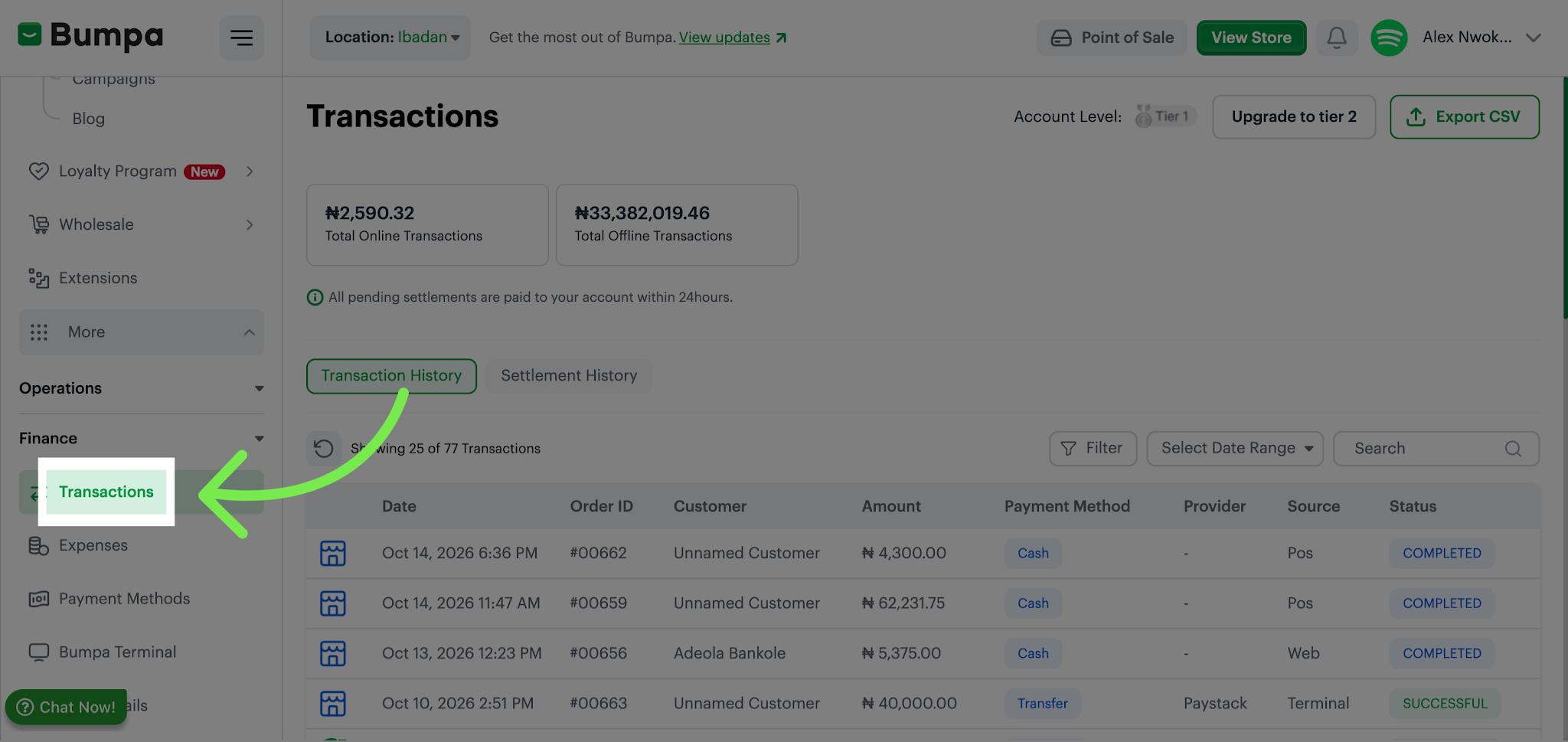
1. Navigate to Transactions
Click the Transactions tab to view all your business transactions records
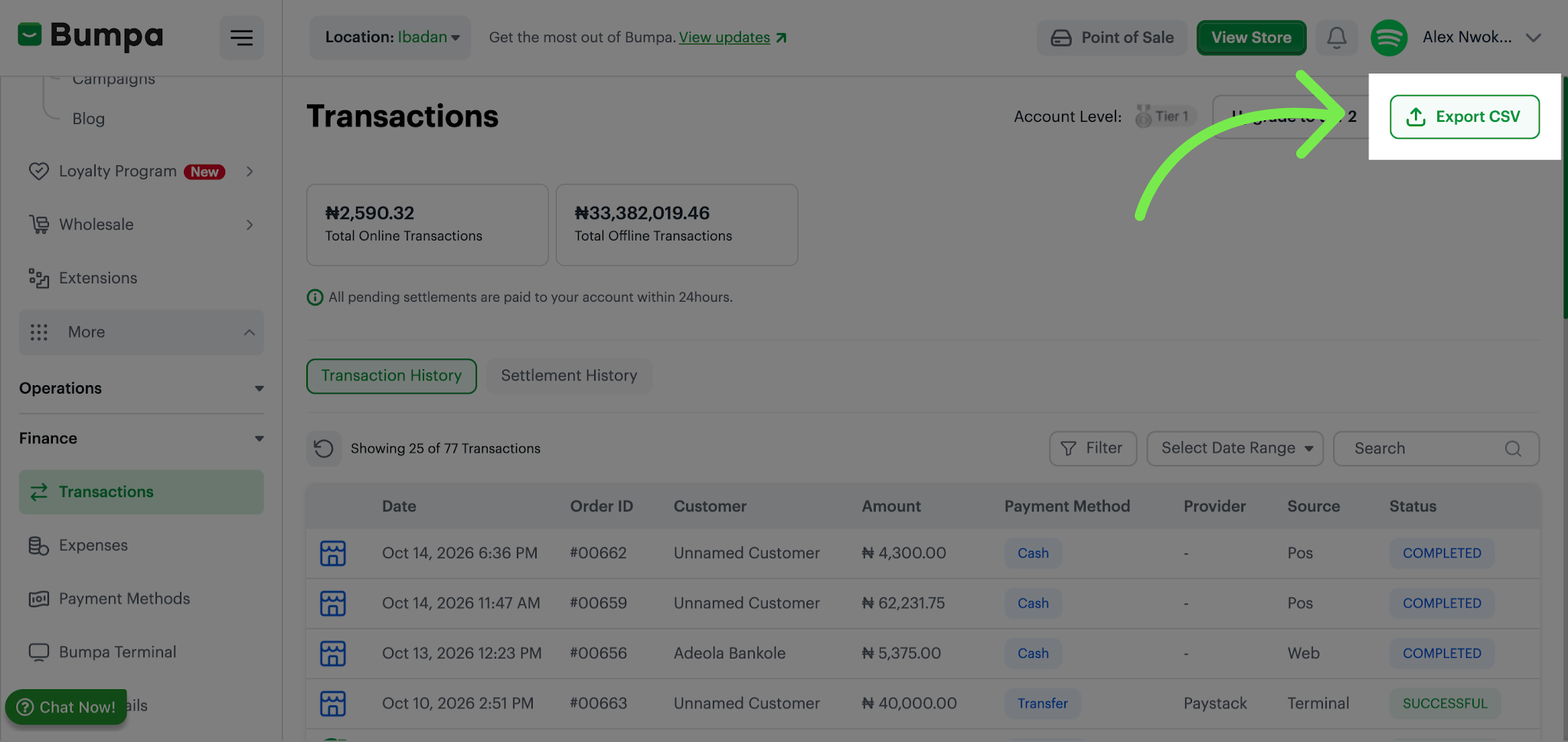
2. Open Export CSV Option
Click the Export CSV button to prepare your transaction data for export
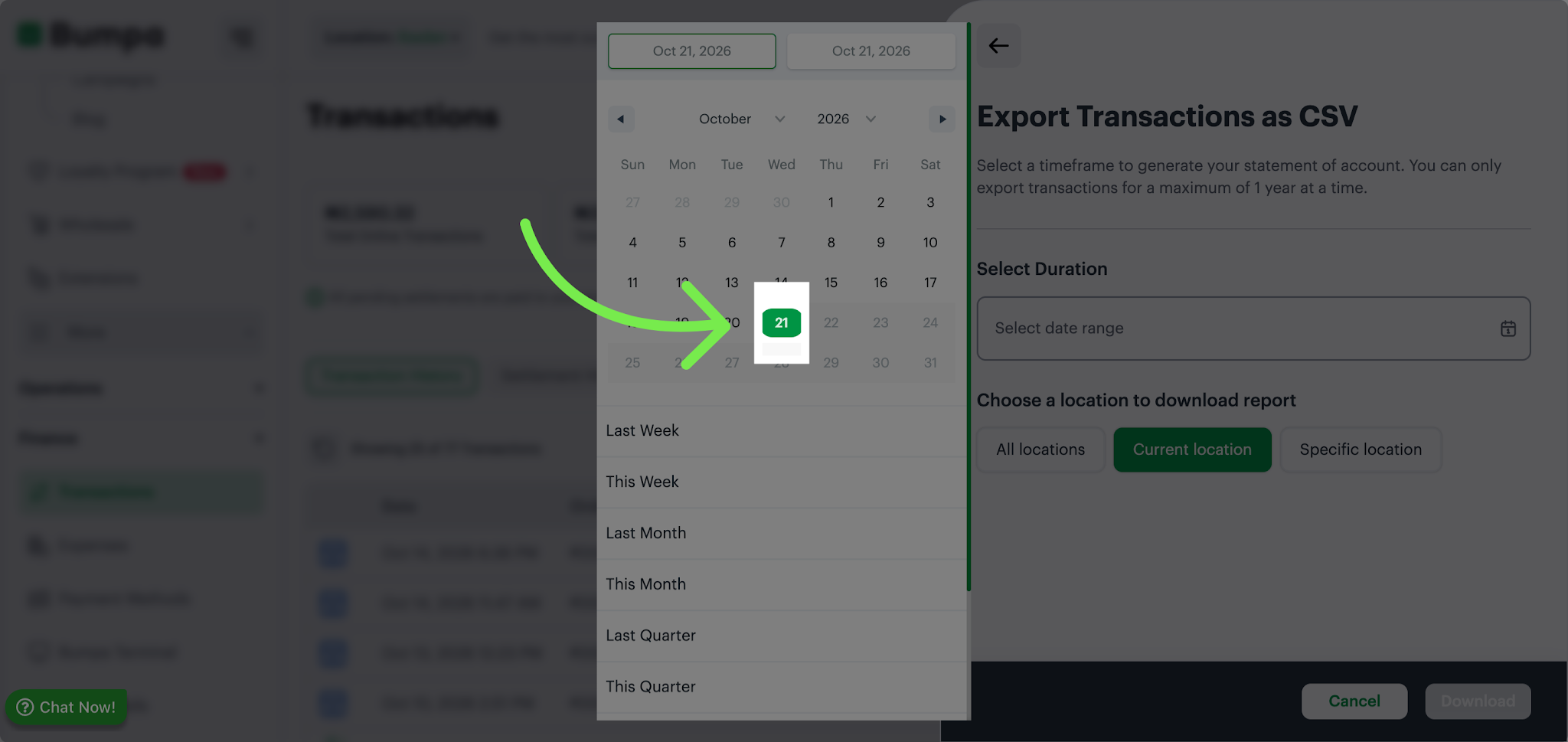
3. Set Transaction Date Range
Select the date range for transactions by clicking the date range selector and choosing the desired start date to filter your data accordingly.
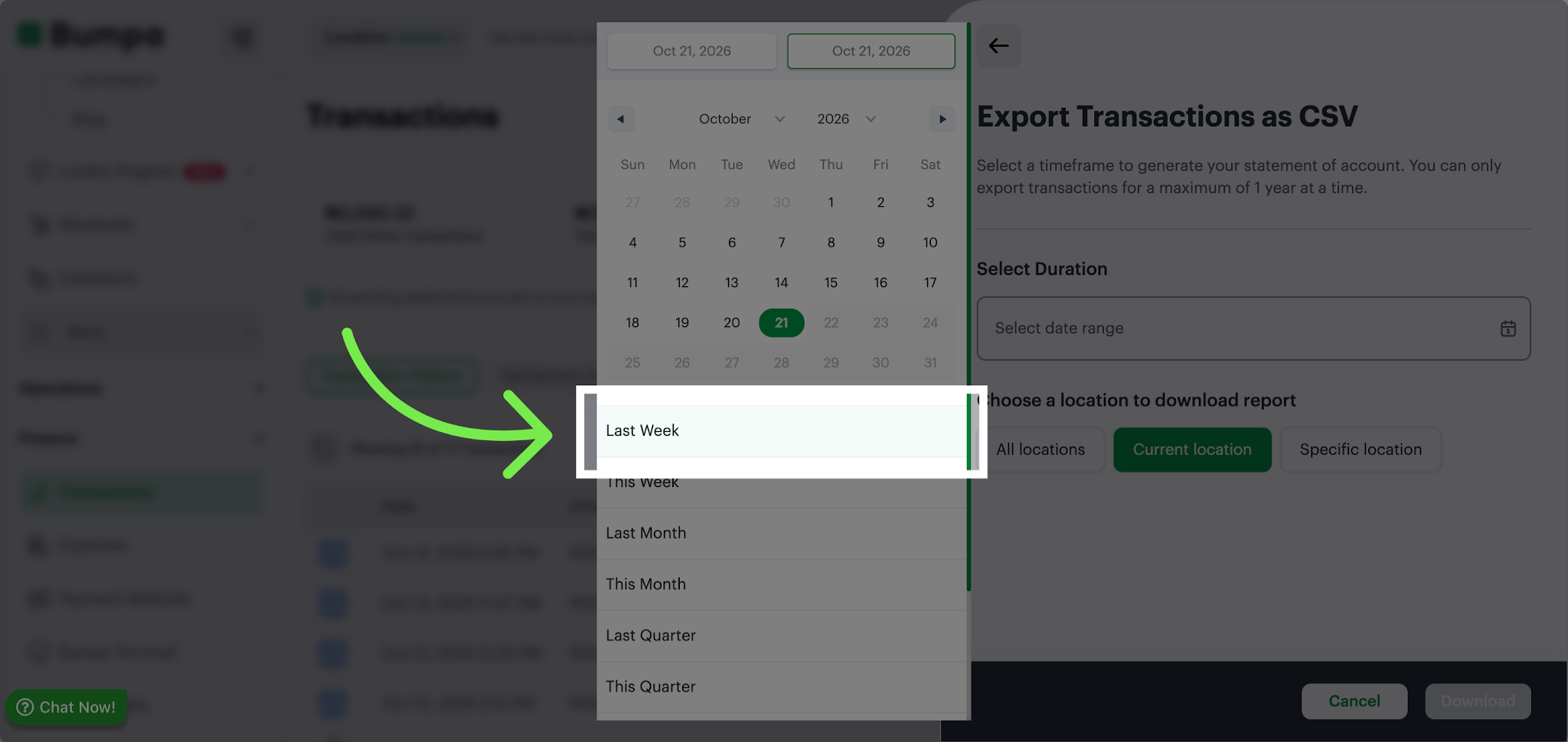
4. Choose Last Week Date Range
Click the Last Week option to quickly filter transactions from the previous week for review.
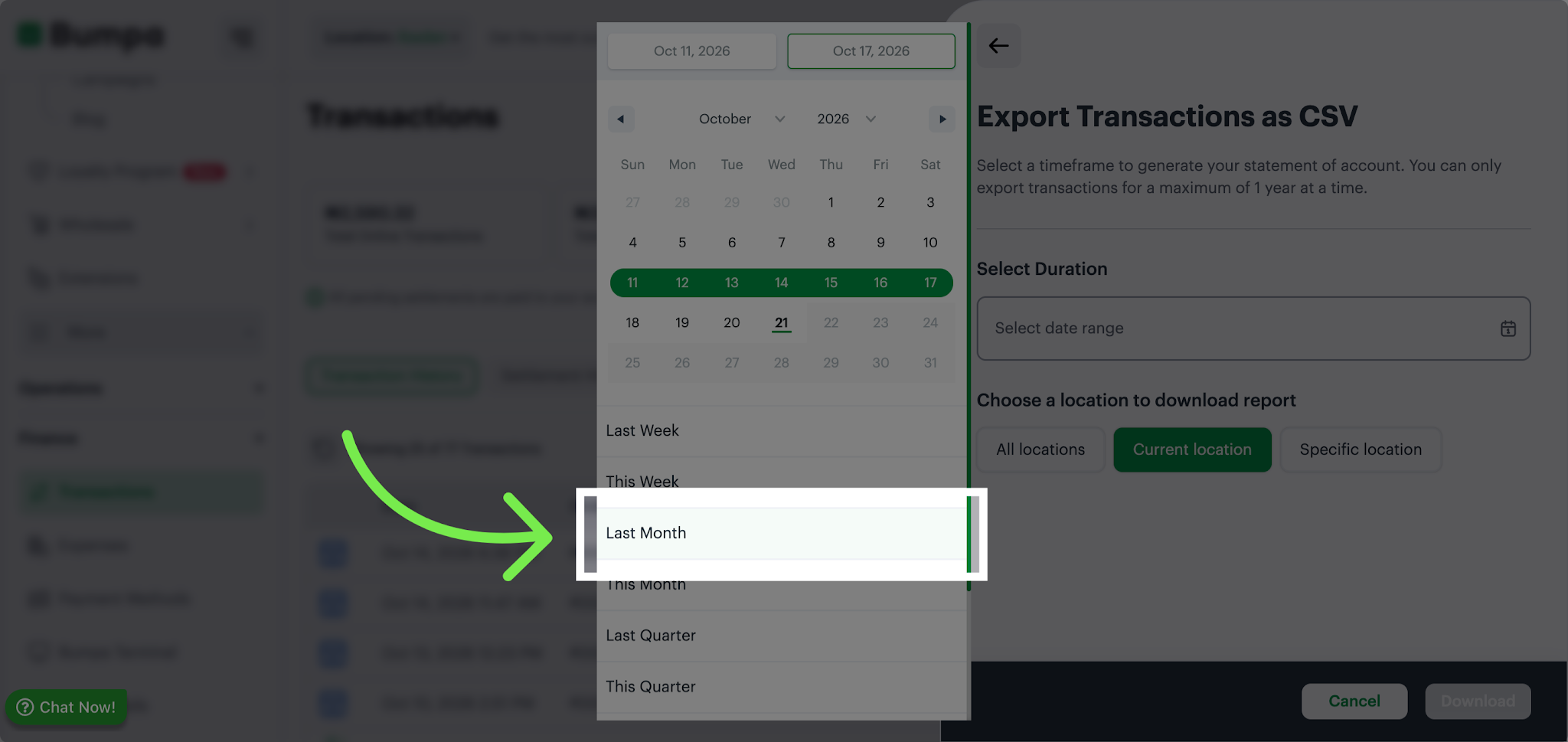
5. Select Last Month Date Range
Click the Last Month option to filter transactions from the previous month.
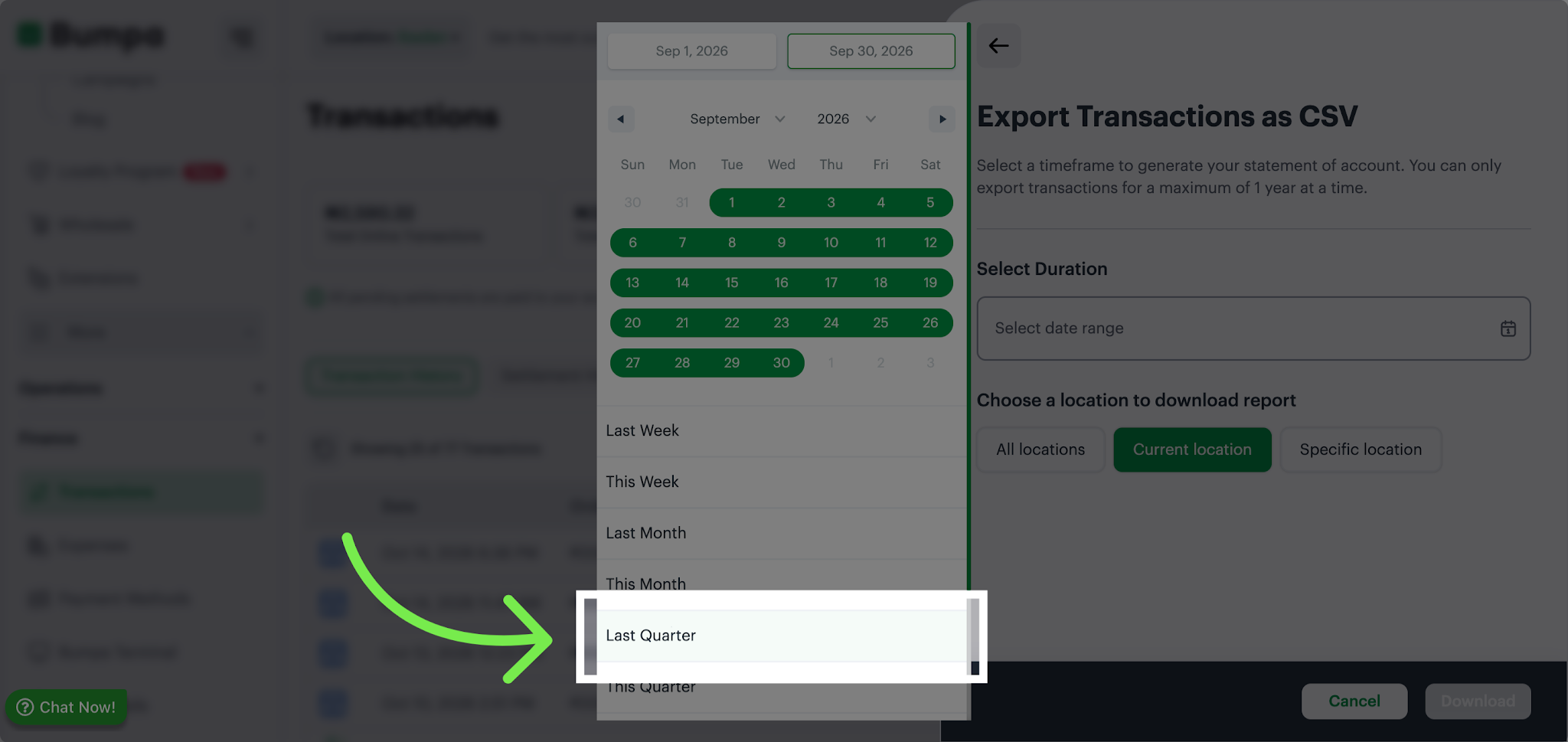
6. Pick Last Quarter Date Range
Click the Last Quarter option to view transactions from the last quarter(3 months)
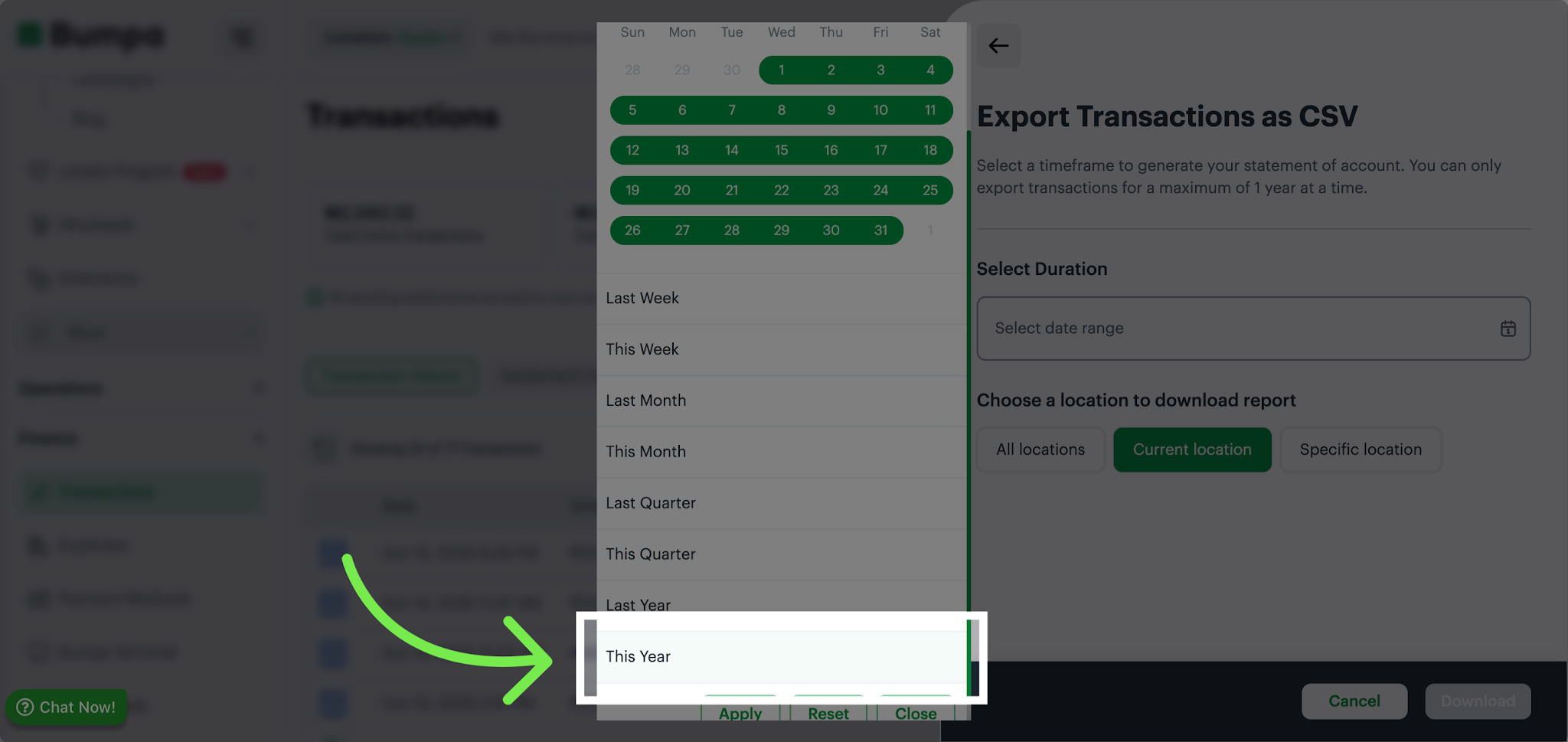
7. Filter Transactions This Year
Click the This Year option to display all transactions recorded during the current year.
Last Week: View transactions from the Previous week
Last Month: View transactions from the previous month
Last Quarter: View transactions from the previous Quarter
This Year: View transactions for the current year
Custom Date Range: Select your preferred start and end dates to view transactions for a specific period, if available.
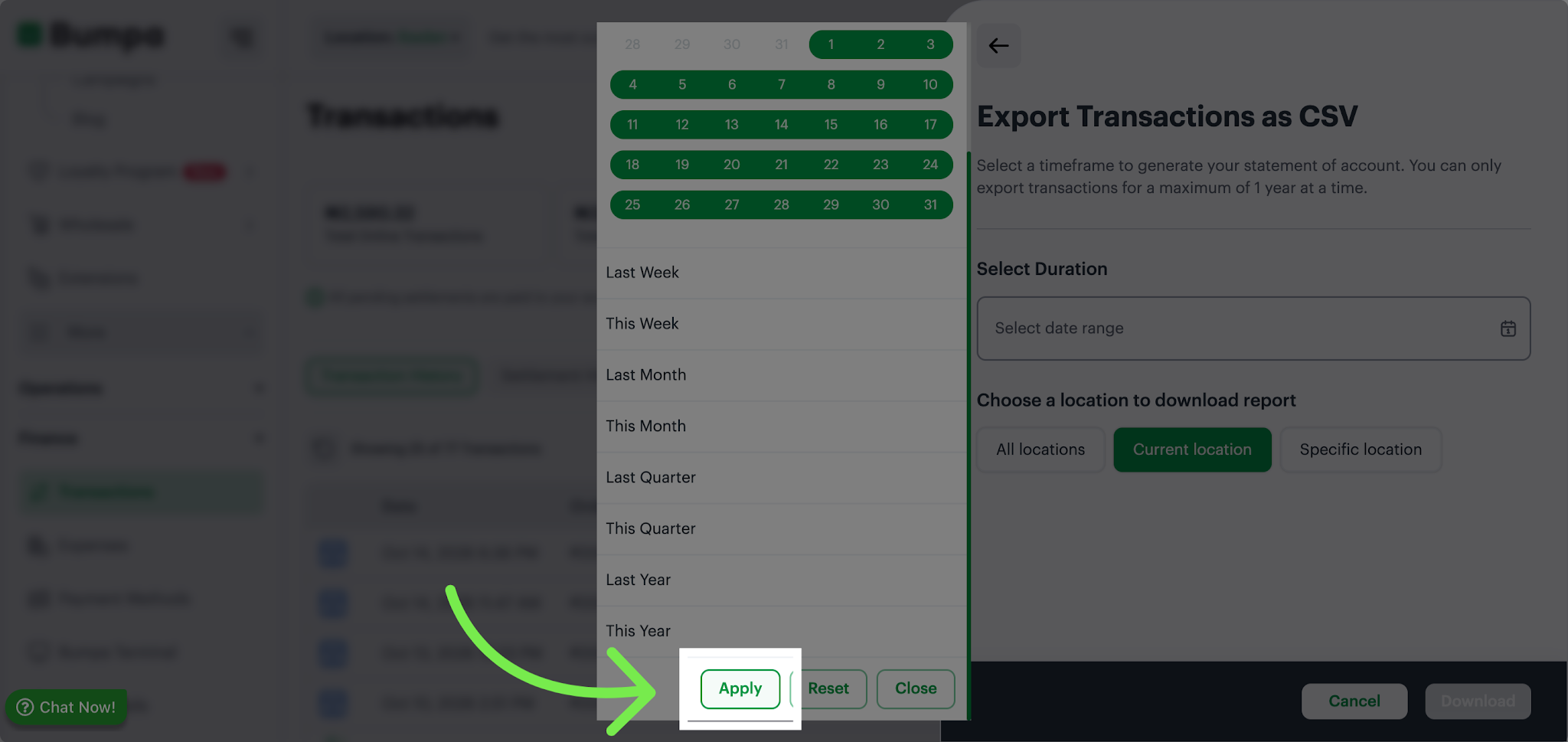
8. Apply Date Range Filter
Click the Apply button to confirm your selected date range and update the transaction list accordingly.
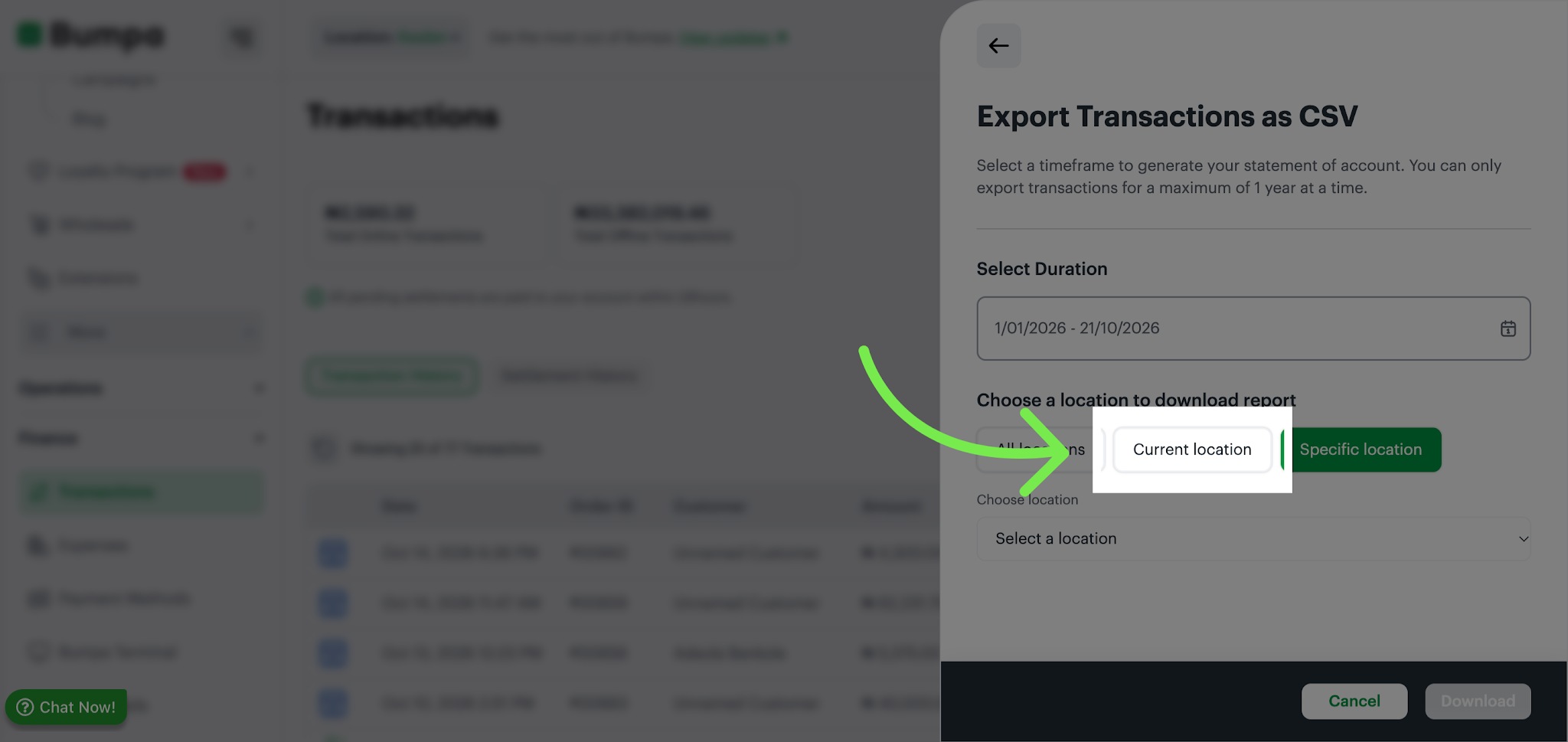
9. Filter by Business Location (for merchants with multi-location)
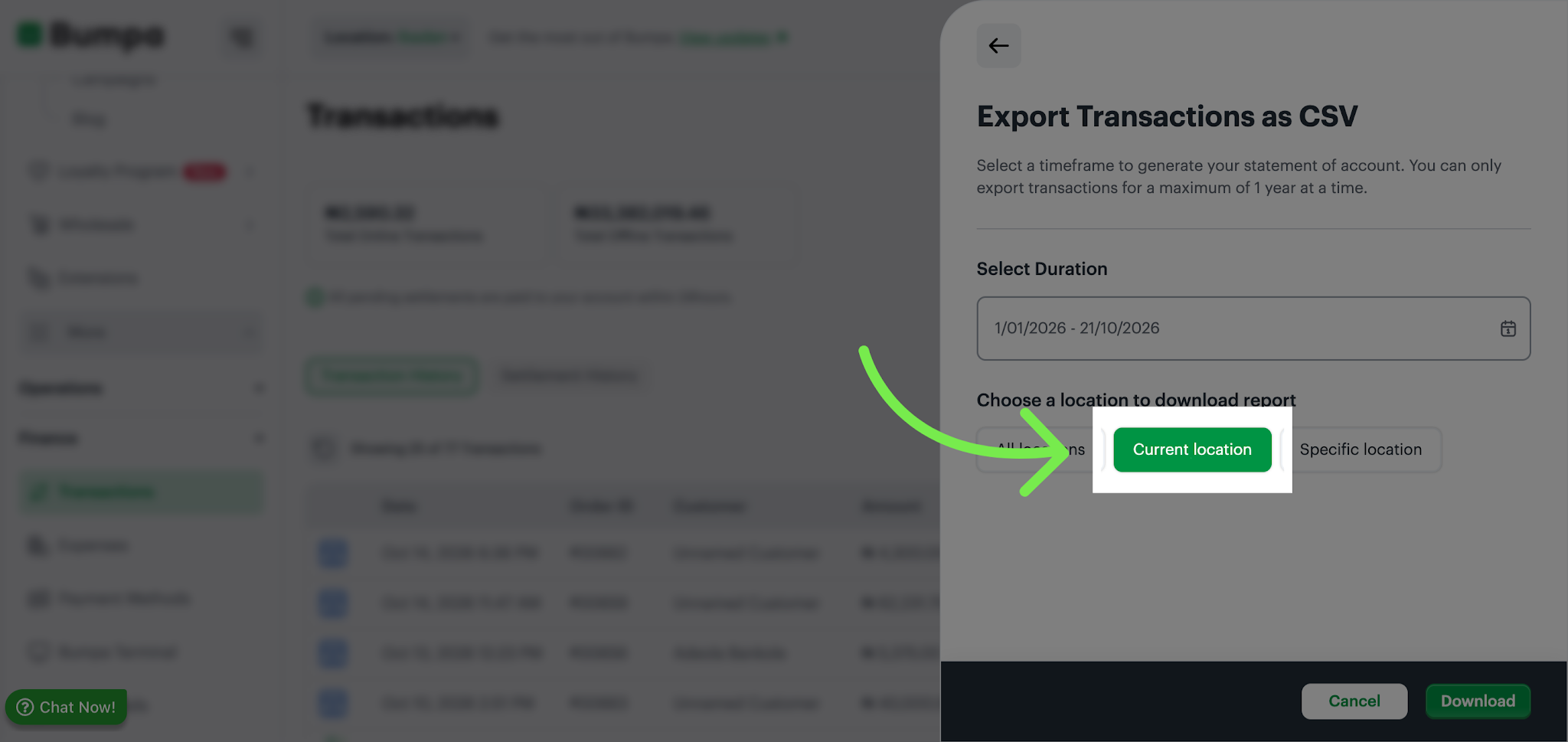
Choose the location you want to include in your transaction report. Depending on your needs, select one of the following options:
Current Location: Export transactions for your currently selected business location.
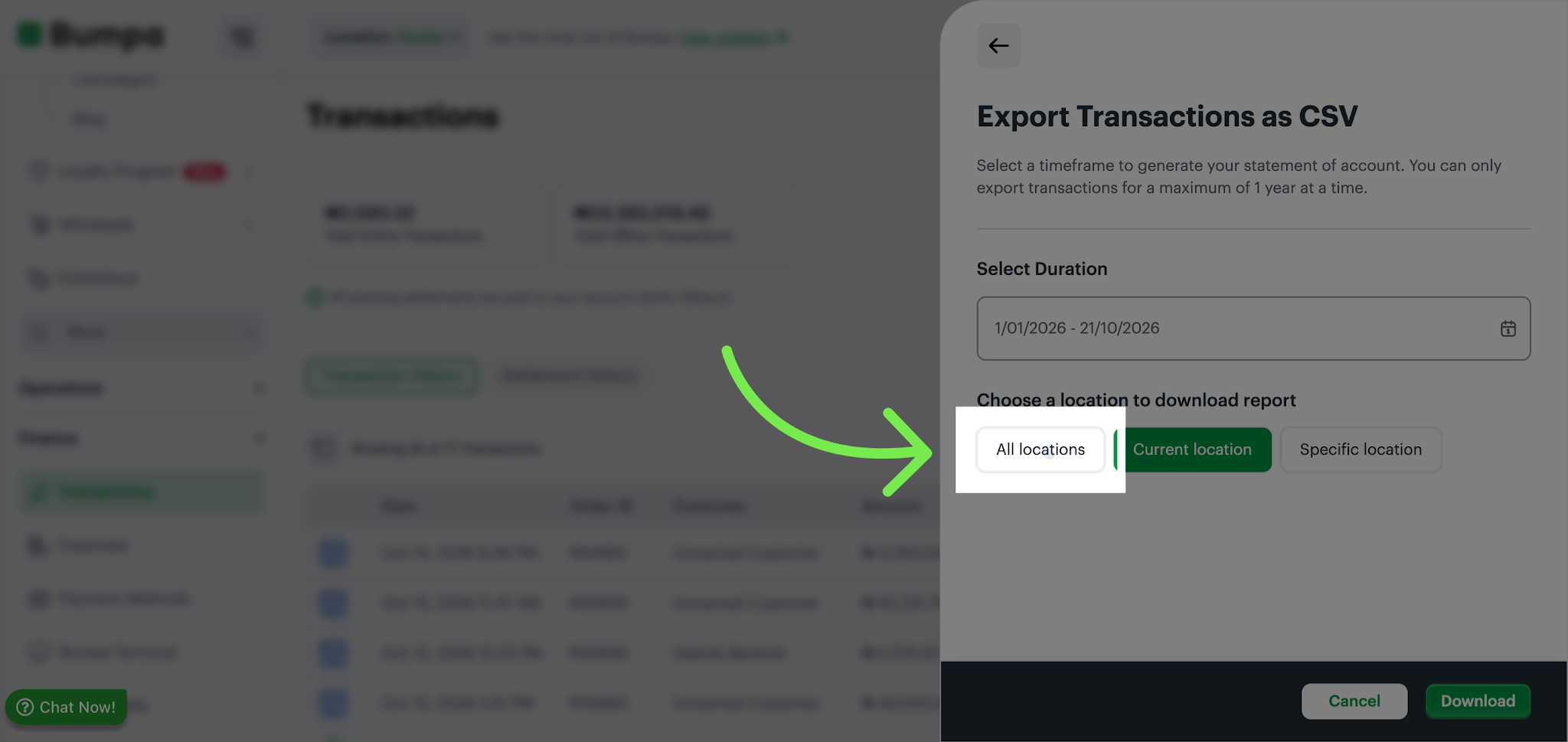
All Locations: Include transactions across all your business locations.
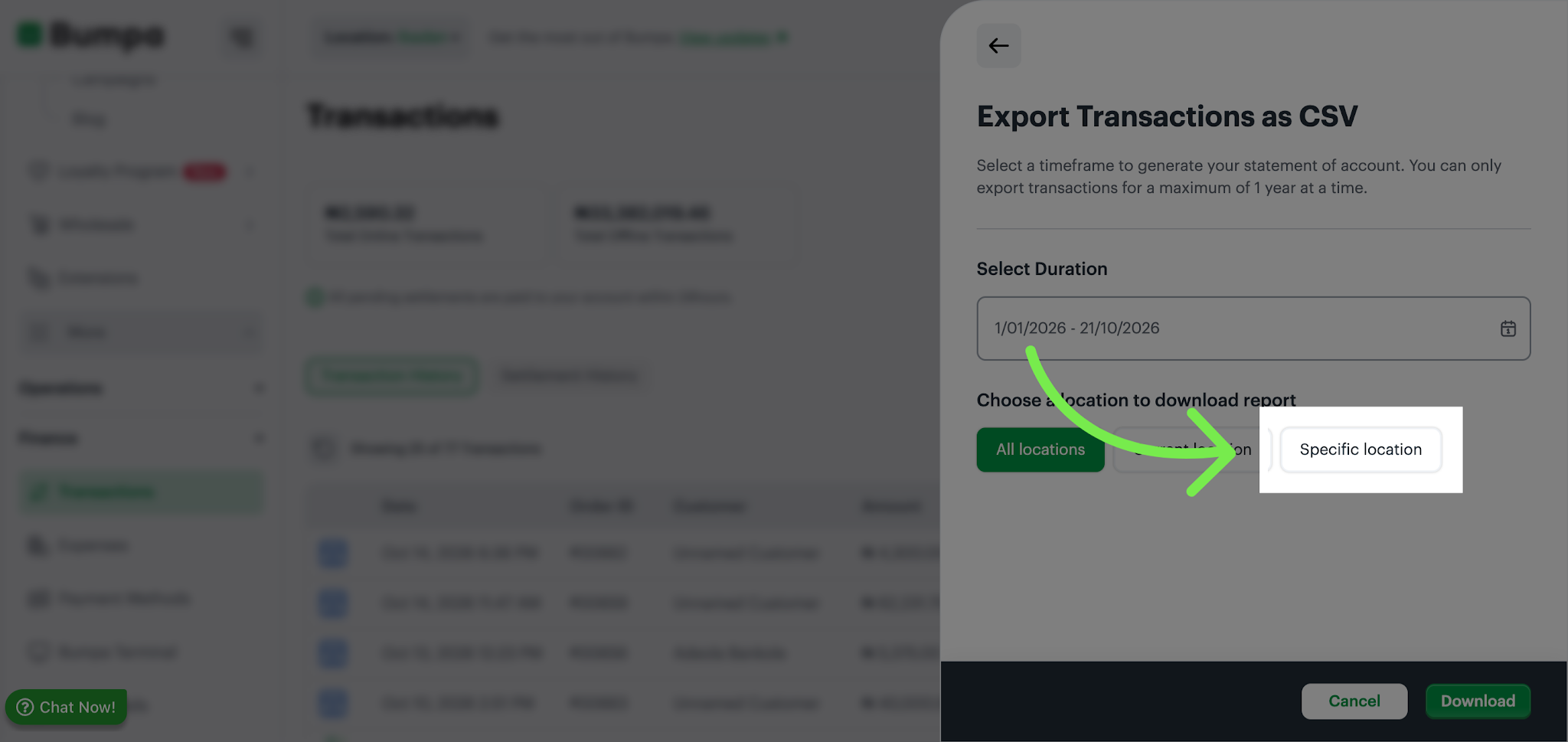
Specific Location: Select a particular business location to narrow down your transaction records.
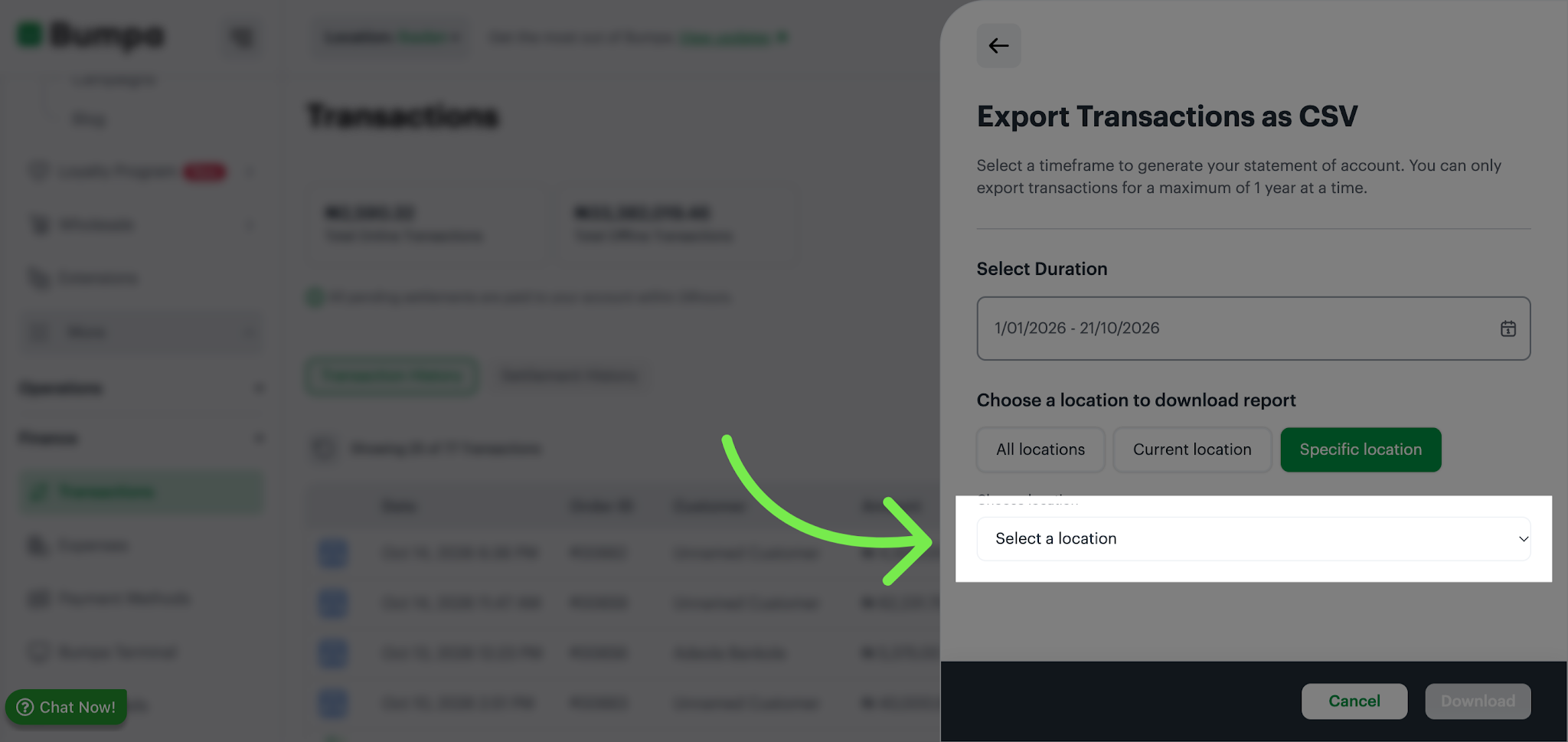
If you select Specific Location, click Choose Location and select the location you want to include in your report.
10. Click the Current Location option to filter transactions specific to your present business location.
11. Choose All Locations Filter
Click the All Locations option to include transactions from every business location in your report.
12. Select Specific Location Filter
Click the Specific Location option to narrow down transactions to a particular business location.
13. Choose a Location
Click the Choose Location button to pick the exact location for which you want to view transaction history
14. Reconfirm Current Location
Click the Current Location option again to ensure your transaction filter is set to your active business site.
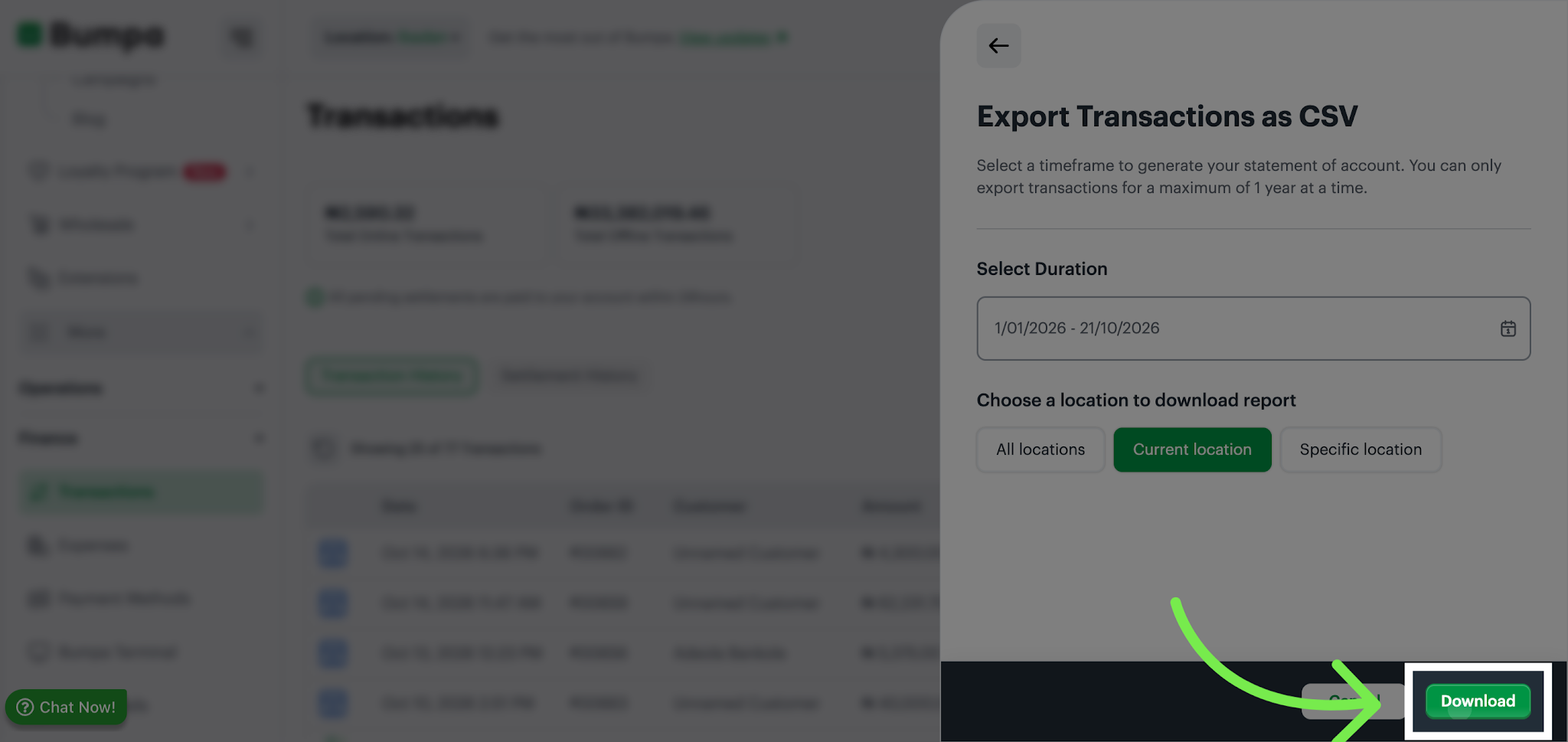
15. Download Transaction Export
Review your selected date range and location filters, then click Download to initiate the export.
16. Export Confirmation
The confirmation page indicates the transaction export was successful and sent to your registered email address.
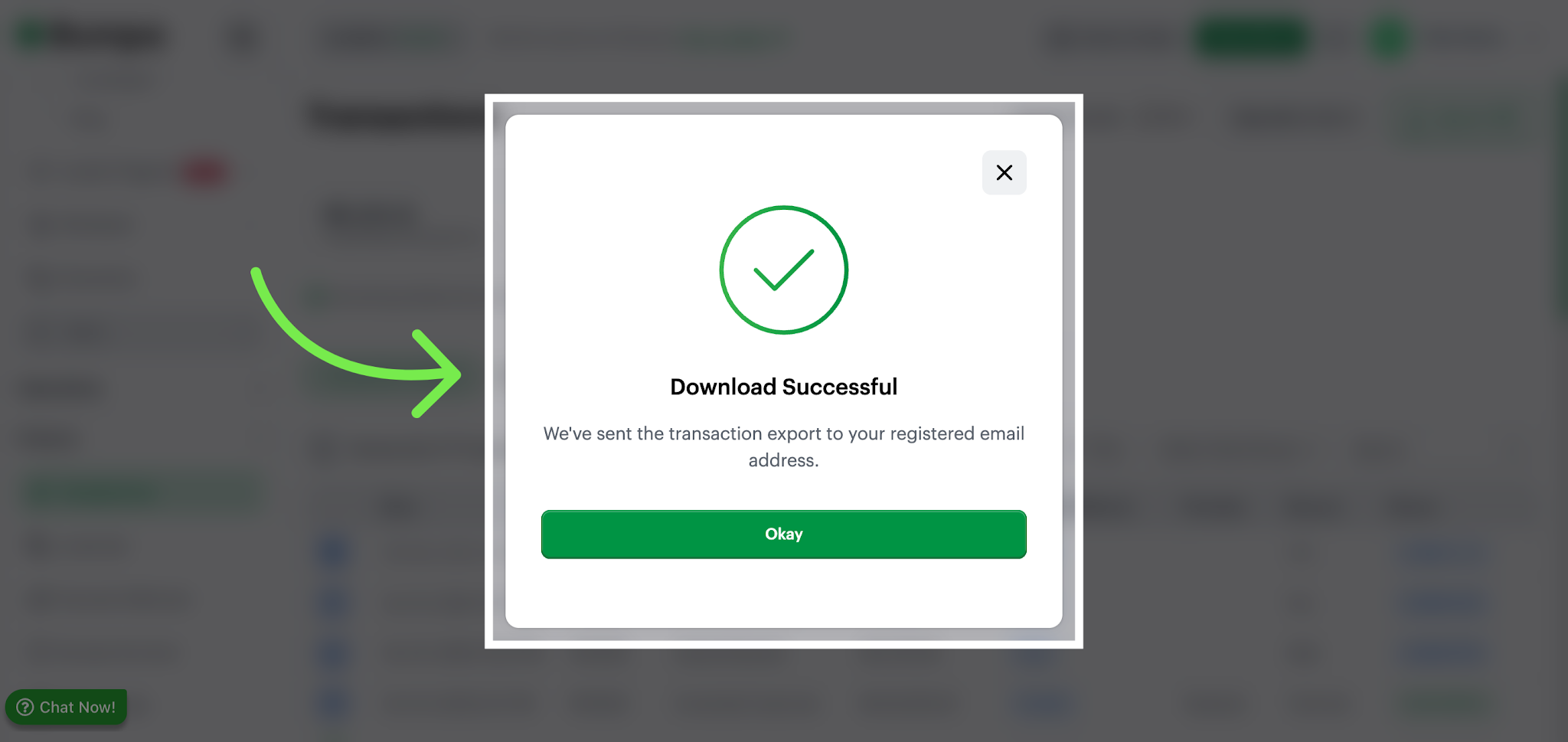
17. Check Your Email
Once the export is successful, a confirmation message appears, and the CSV file is sent as an email attachment to your registered email address.
Open the email and download the attached CSV file to access your transaction history.
Note: What to Know About Your Transaction Export


The exported file contains the following columns:

• Sales Channel

• Date

• Order

• Customer

• Amount

• Payment Method

• Transaction Status

• Transaction Source

• Location

Review these columns to confirm that the exported data meets the requirements of your accounting or record-keeping system
Additional information:
Email delivery: The exported CSV file is sent as an attachment to your registered email address.
No transactions found: If no transactions match your selected date range and location filters, Bumpa will notify you.
Export failure: If the export fails, you will receive an in-app notification prompting you to retry.
Was this article helpful?
That’s Great!
Thank you for your feedback
Sorry! We couldn't be helpful
Thank you for your feedback
Feedback sent
We appreciate your effort and will try to fix the article