Custom Checkout makes it easier to collect useful information about your customers directly from your online store. With this extension, you can choose the details you want customers to provide when placing an order, helping you understand them better and create more personalised shopping experiences.
With the latest update, you can now collect your customers birthday and gender information at checkout, in addition to existing fields such as WhatsApp numbers, Instagram handles, and how customers heard about your business.
This gives you more insight into your customers and helps you engage with them in more meaningful ways.
Here's how to set it up on your Bumpa account:
Please note that you need to purchase the Custom Checkout extension to access this feature. If you haven't purchased yet, follow the steps below to get started:
Subscribe to the Custom Checkout extension
Log in to your Bumpa dashboard.
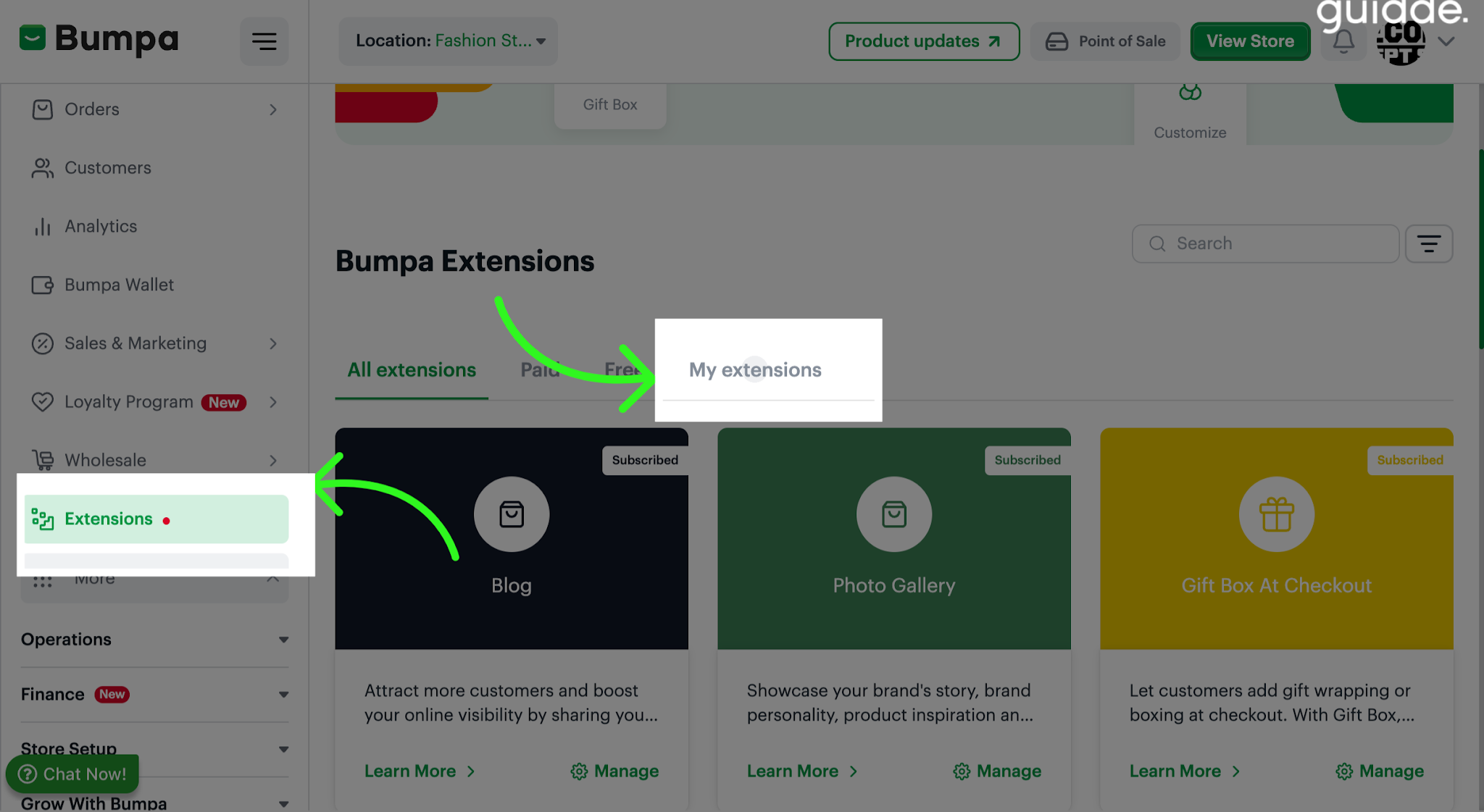
Navigate to Extensions on the left-hand menu.
Find and select Custom Checkout.
Purchase the extension.
Once your purchase is complete, you'll find it under My Extensions.
To configure Custom Checkout settings
- Log in to app.getbumpa.com
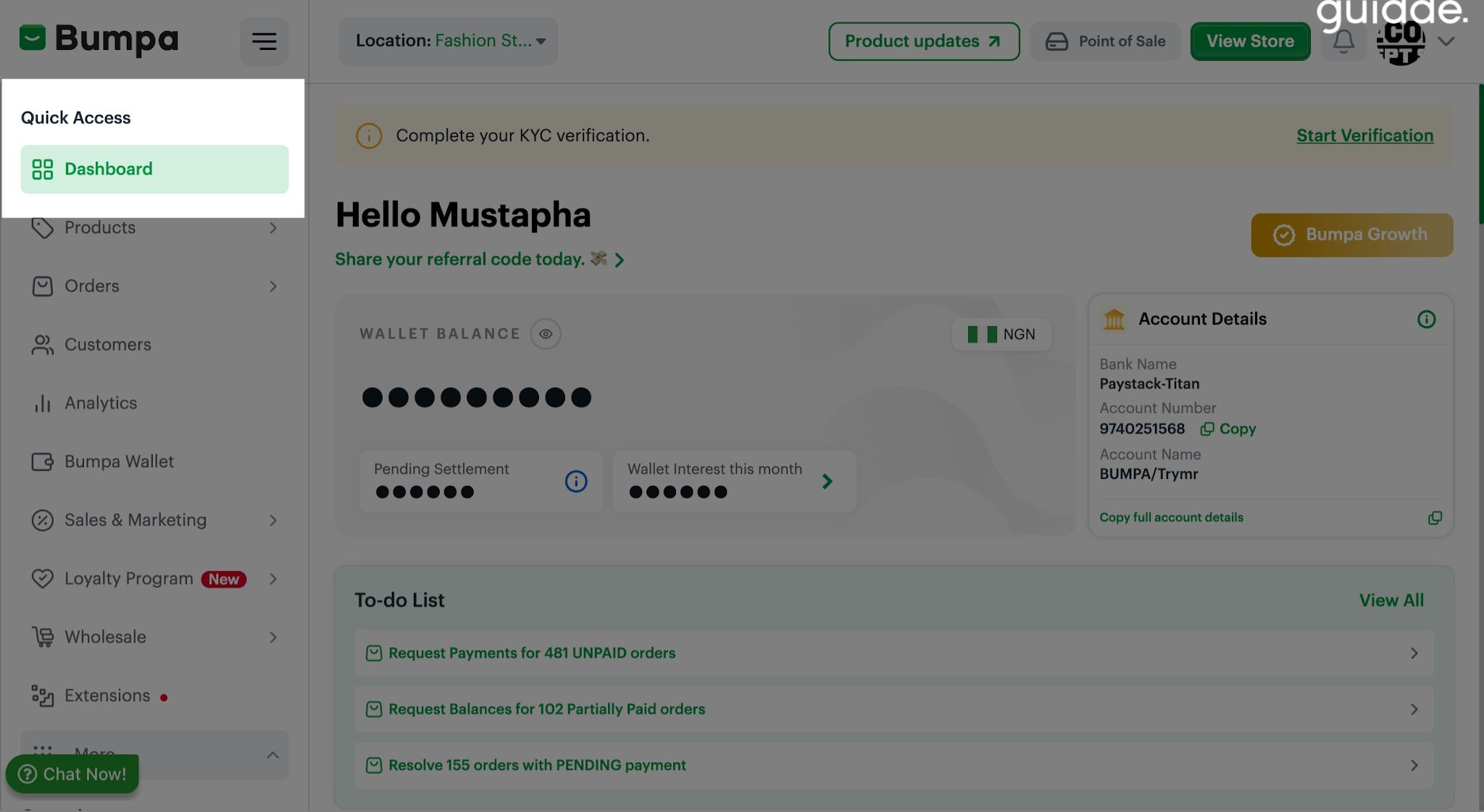
Navigate to Extension and click on My Extensions to view and manage the extensions currently installed in your account.
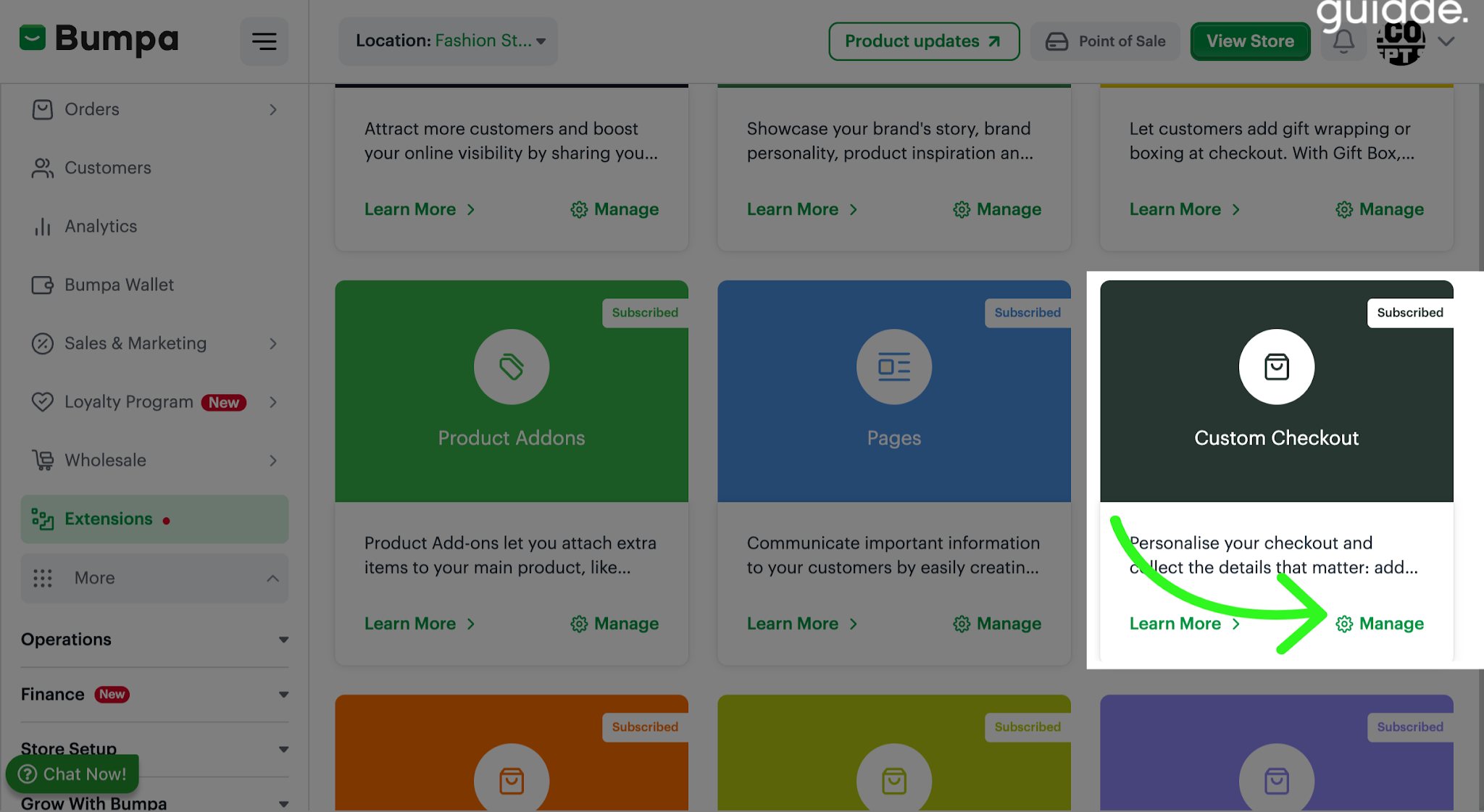
Choose the Custom Checkout extension and click on Manage to personalize your checkout experience and collect important customer details.
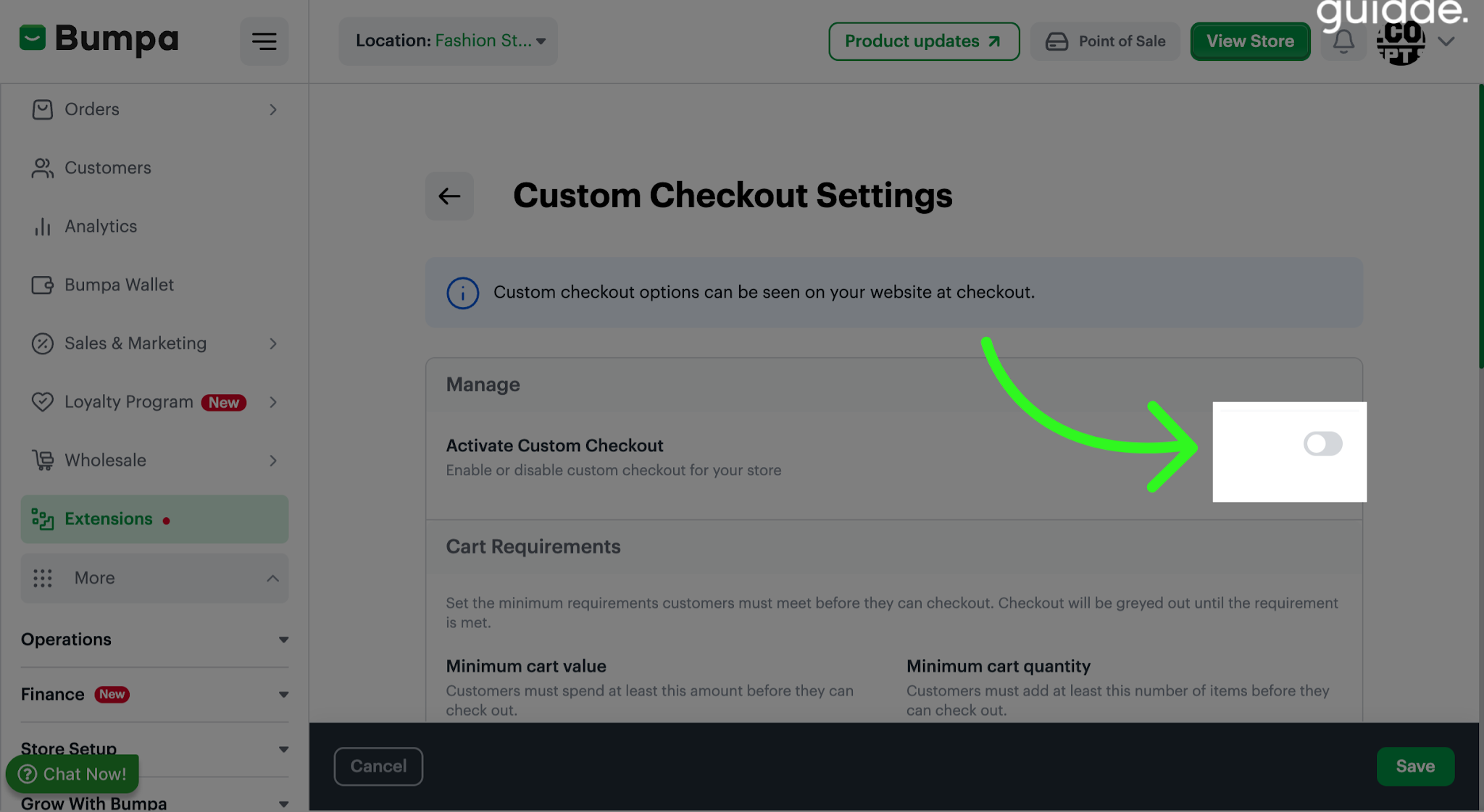
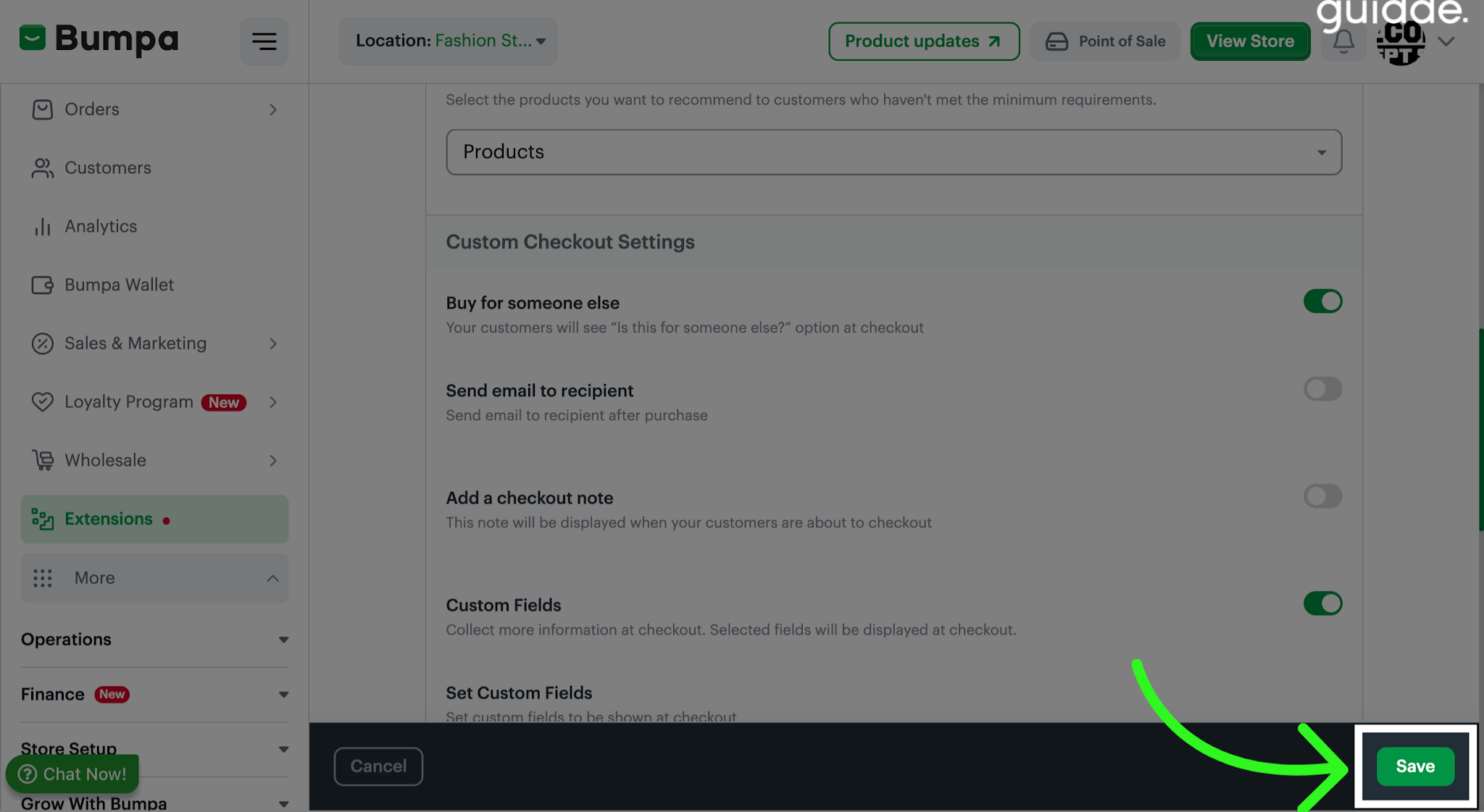
Toggle on the Custom Checkout option to activate the feature. Once activated, you can choose the additional information and options you want customers to see during checkout.
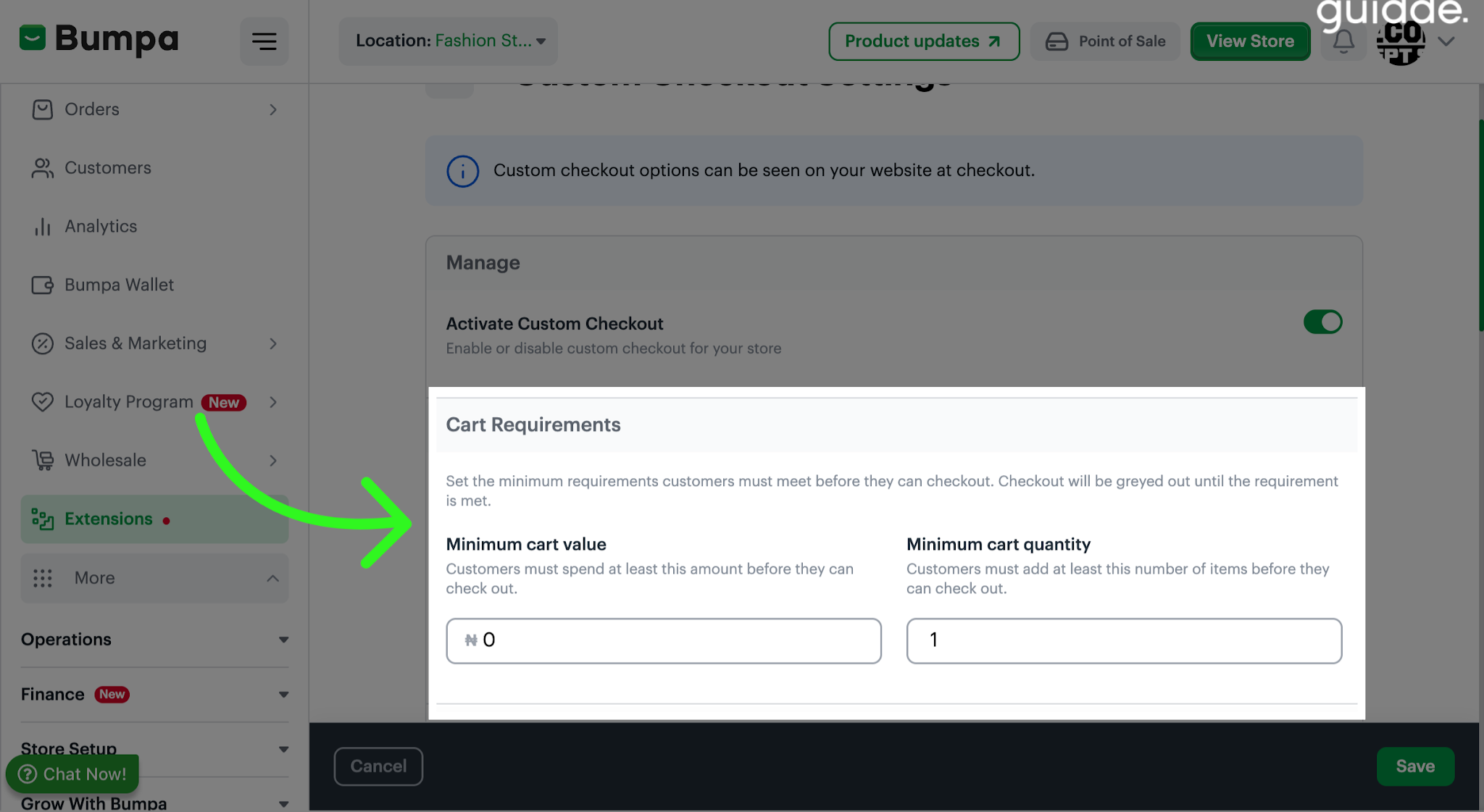
Cart requirements - You can set the minimum requirement customers must meet before they can check out
Minimum Cart value- Sets the least amount a customer must spend before they proceed to checkout. For example, if you set it to N20,000, customers must have at least N20,000 worth of products in their cart in order to place an order.
Minimum Cart Value -Sets the minimum number of items a customer must add to their cart before they can proceed to checkout. For example, If you set it to 3, customers must add at least 3 items to their cart before placing an order.
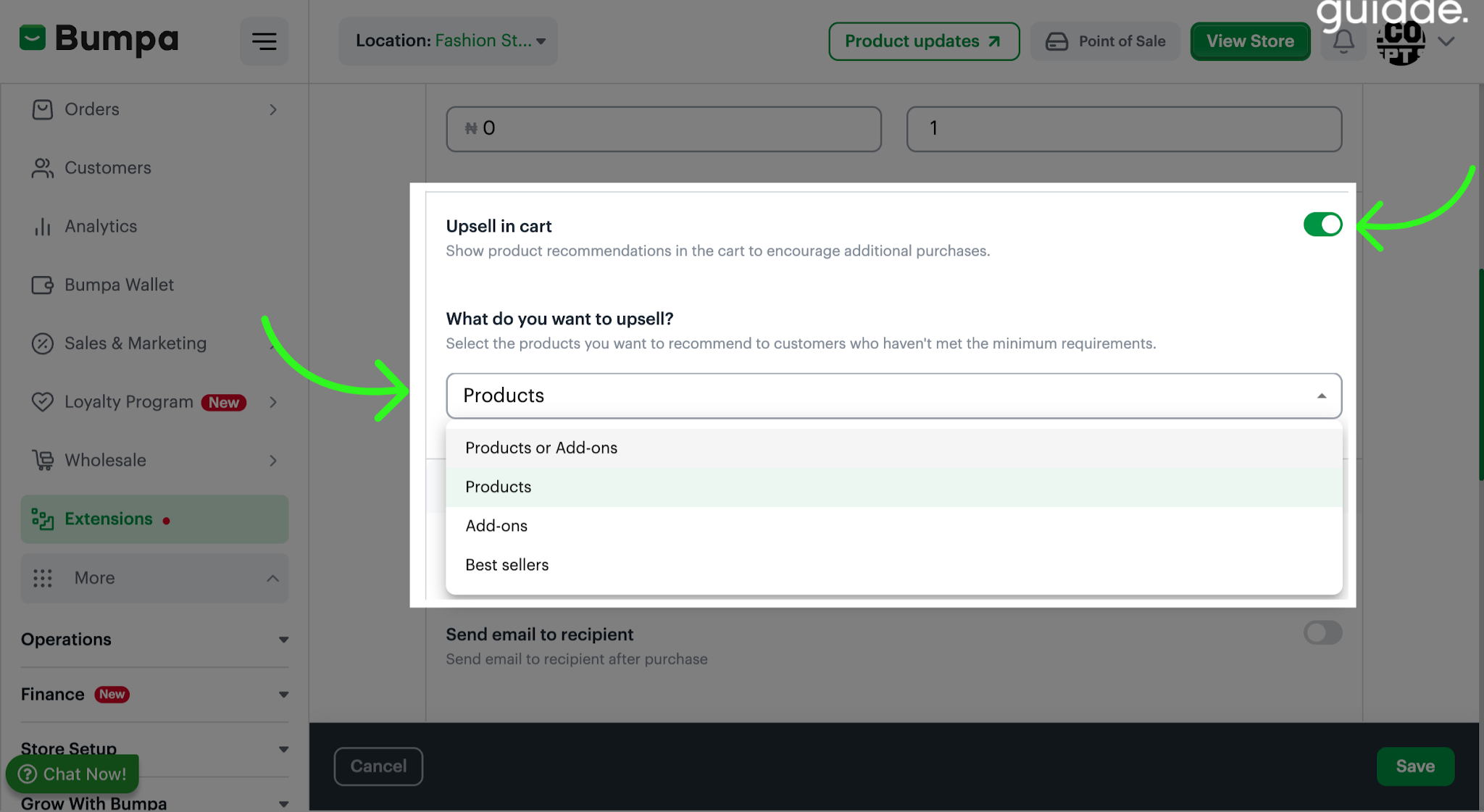
Upsell in Cart - Simply allows you show more product recommendations in the cart to encourage customers to buy more. Select Products or Add-ons you want to recommend to customers who have not met the minimum requirement to checkout
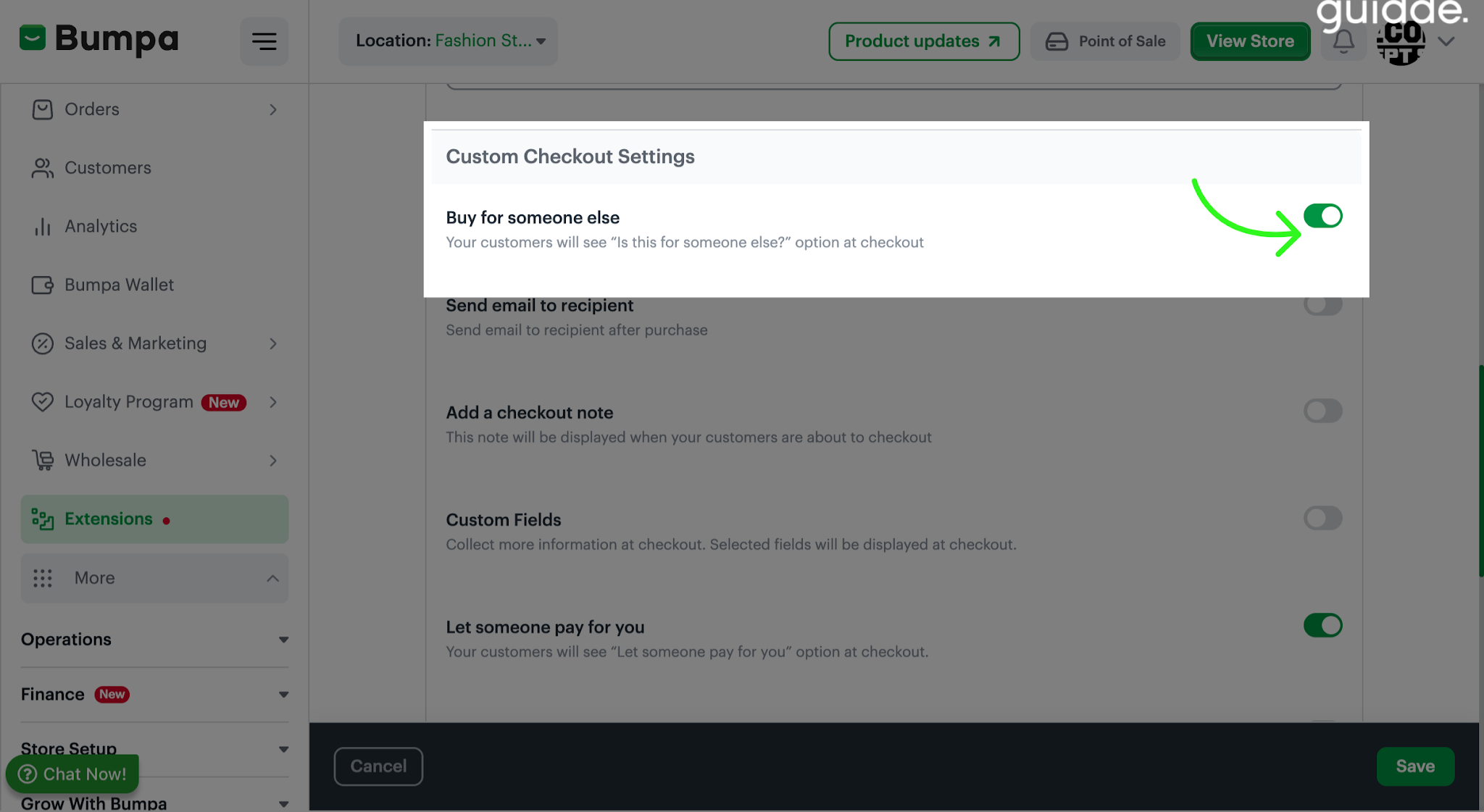
Enable the Buy for Someone else field to allow customers purchase items for another person.
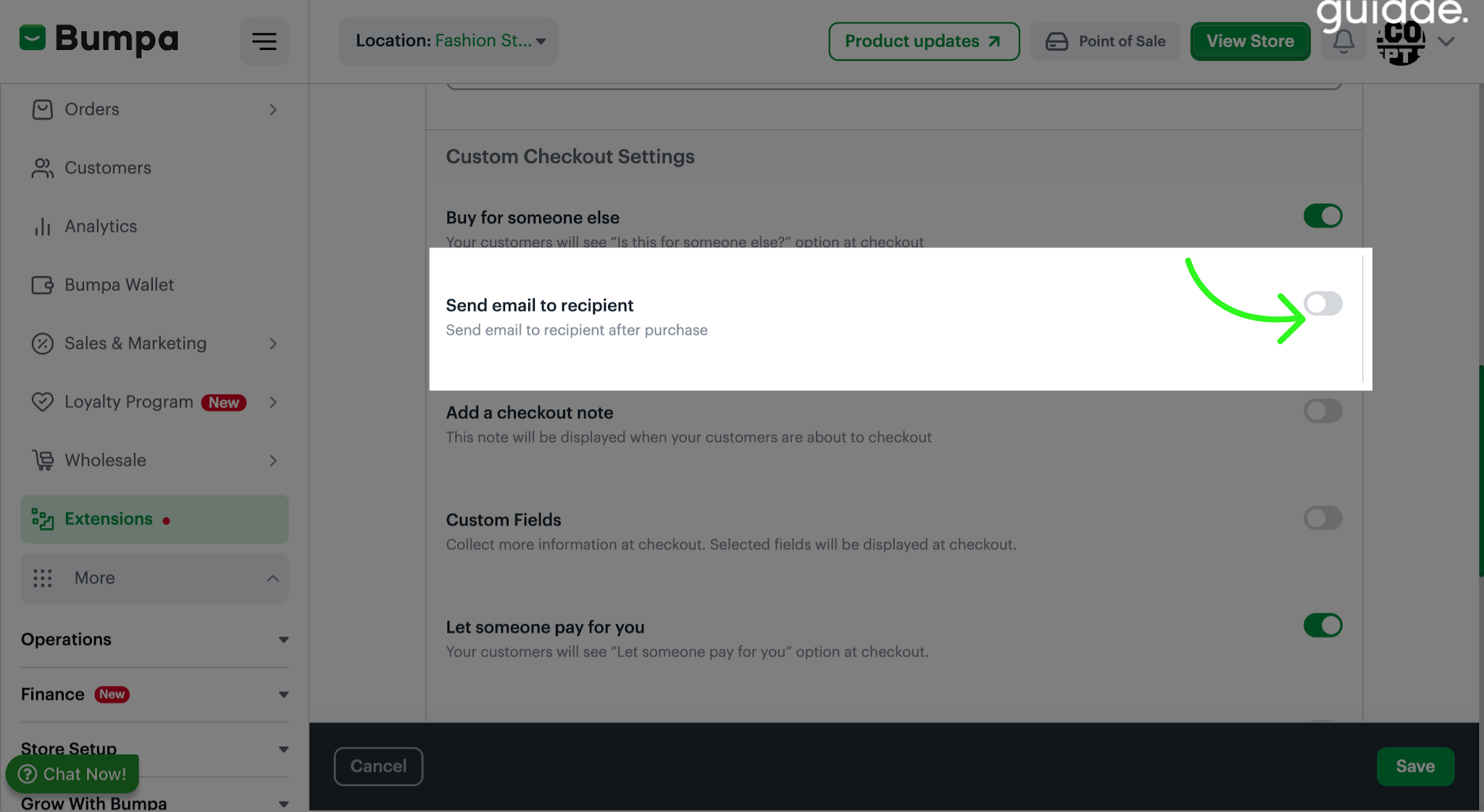
You can also choose whether an email notification should be sent to the customer after they've paid for someone else.
Use the Checkout note field to display important information to customers during checkout. For example, you can include your business operating hours, delivery information, or other important notices.
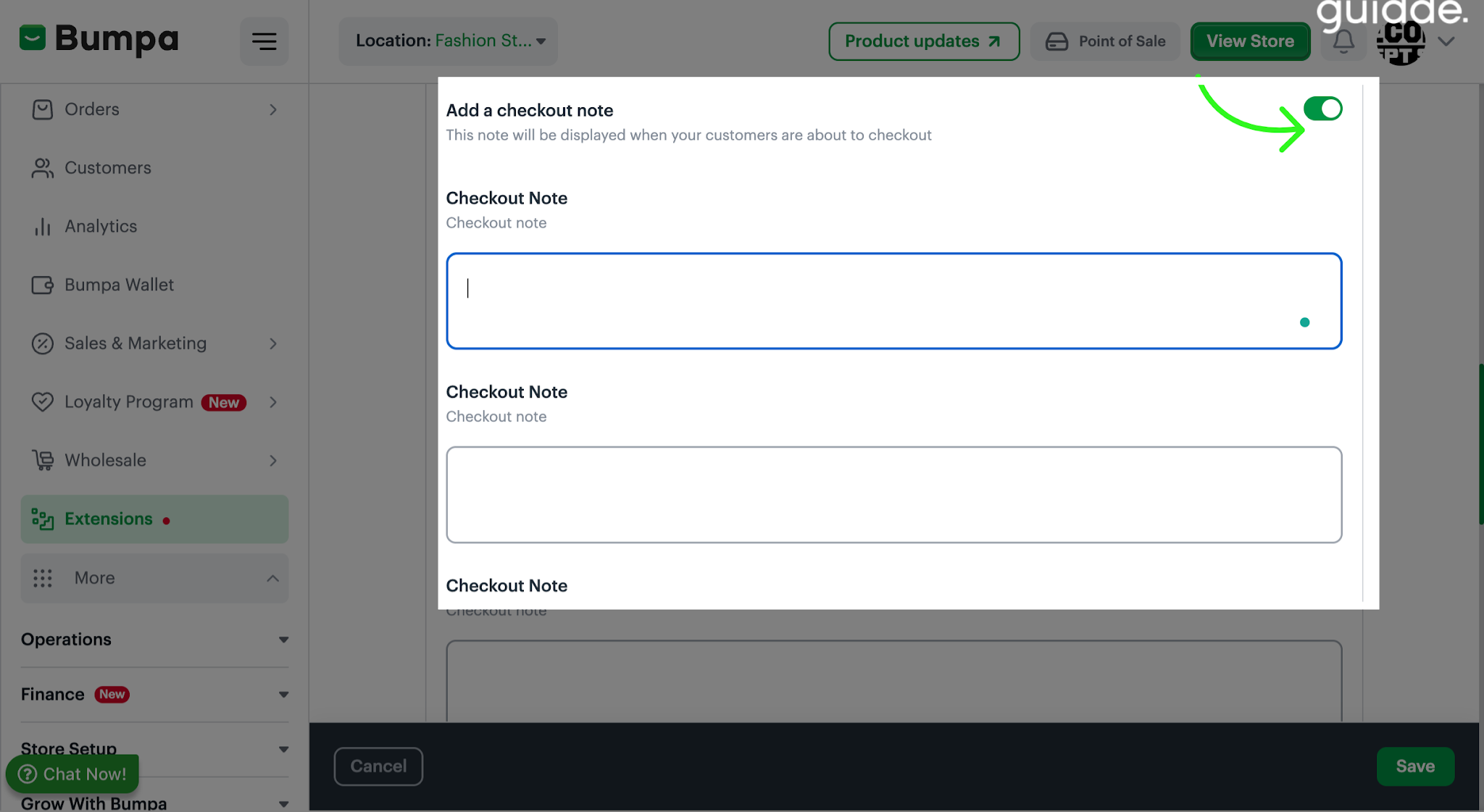
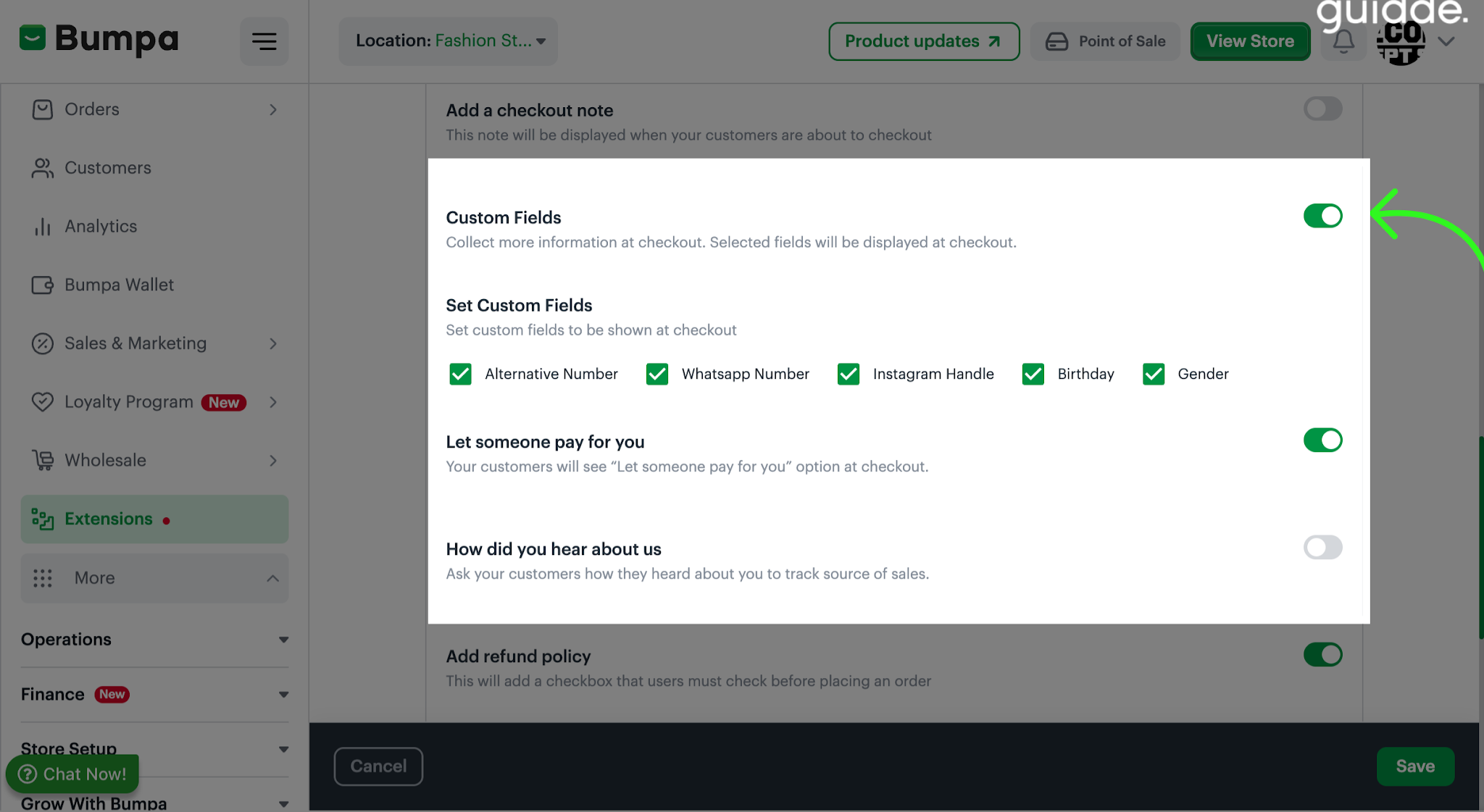
Toggle on the Custom fields icon to select the additional customer information you want to collect at checkout. Available fields include:
Alternative phone number: Collect an additional phone number in case you cannot reach the customer on their primary number.
WhatsApp number: Collect the customer's WhatsApp contact.
Instagram handle: Collect the customer's Instagram username.
Let Someone Pay for You: Allow customers to send their order to someone else to make payment on their behalf.
How They Heard About You: Find out how customers discovered your business.
Simply tick the boxes beside the fields you want to include.
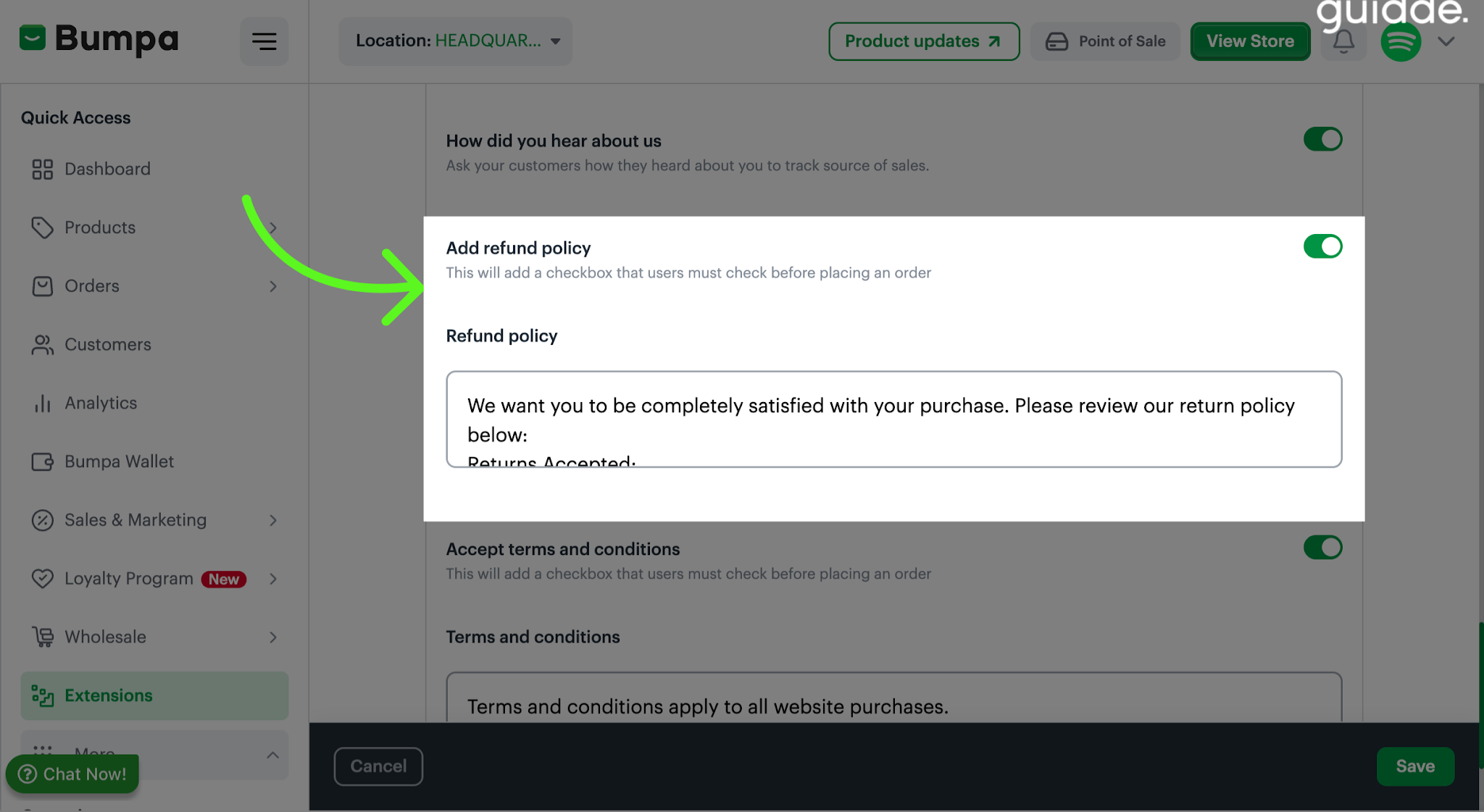
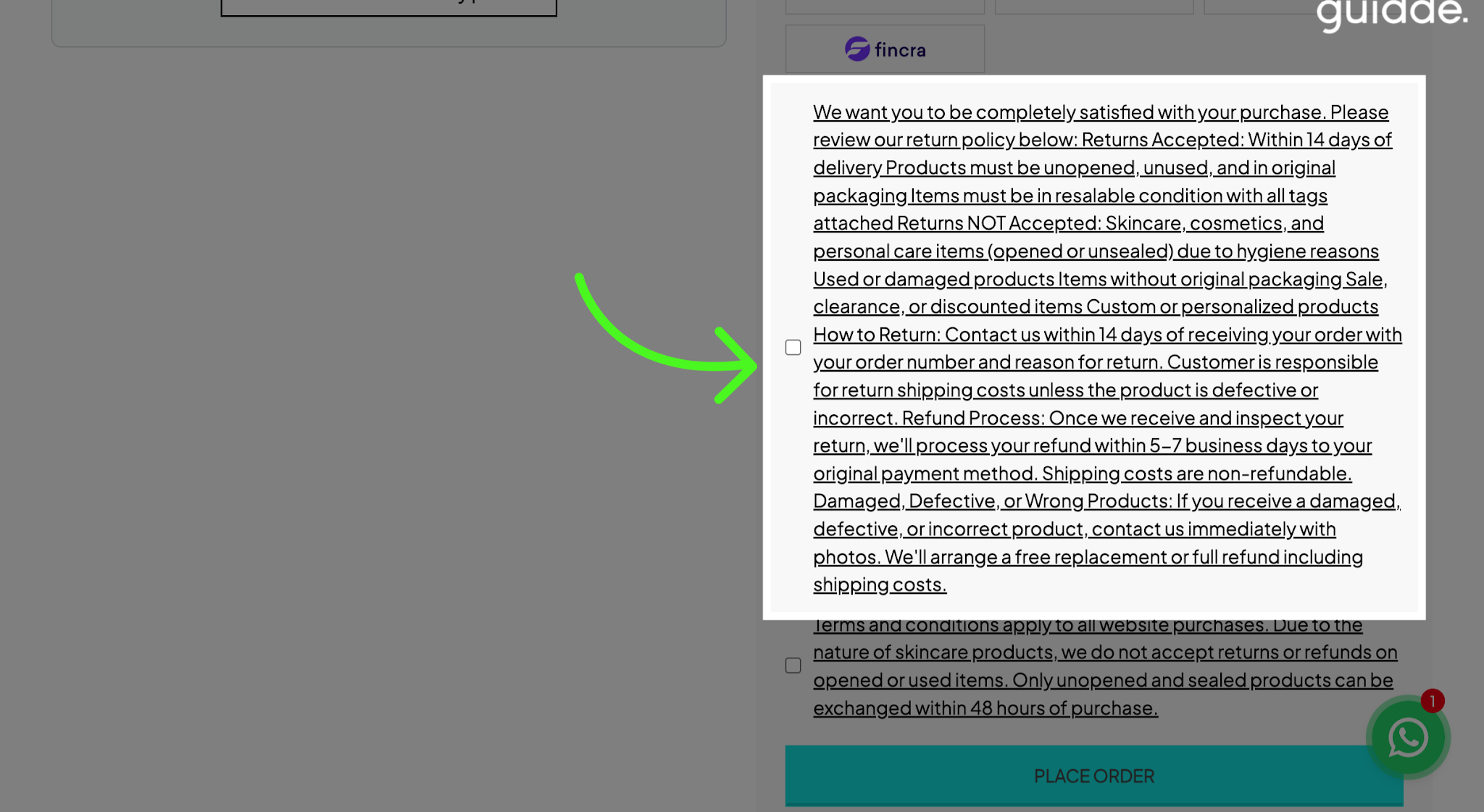
Toggle on the Add refund Policy field, to display your refund policy at checkout. Customers will be required to confirm that they have read and agreed to your refund policy before proceeding with their order.
You can edit the text to reflect your business's refund policy.
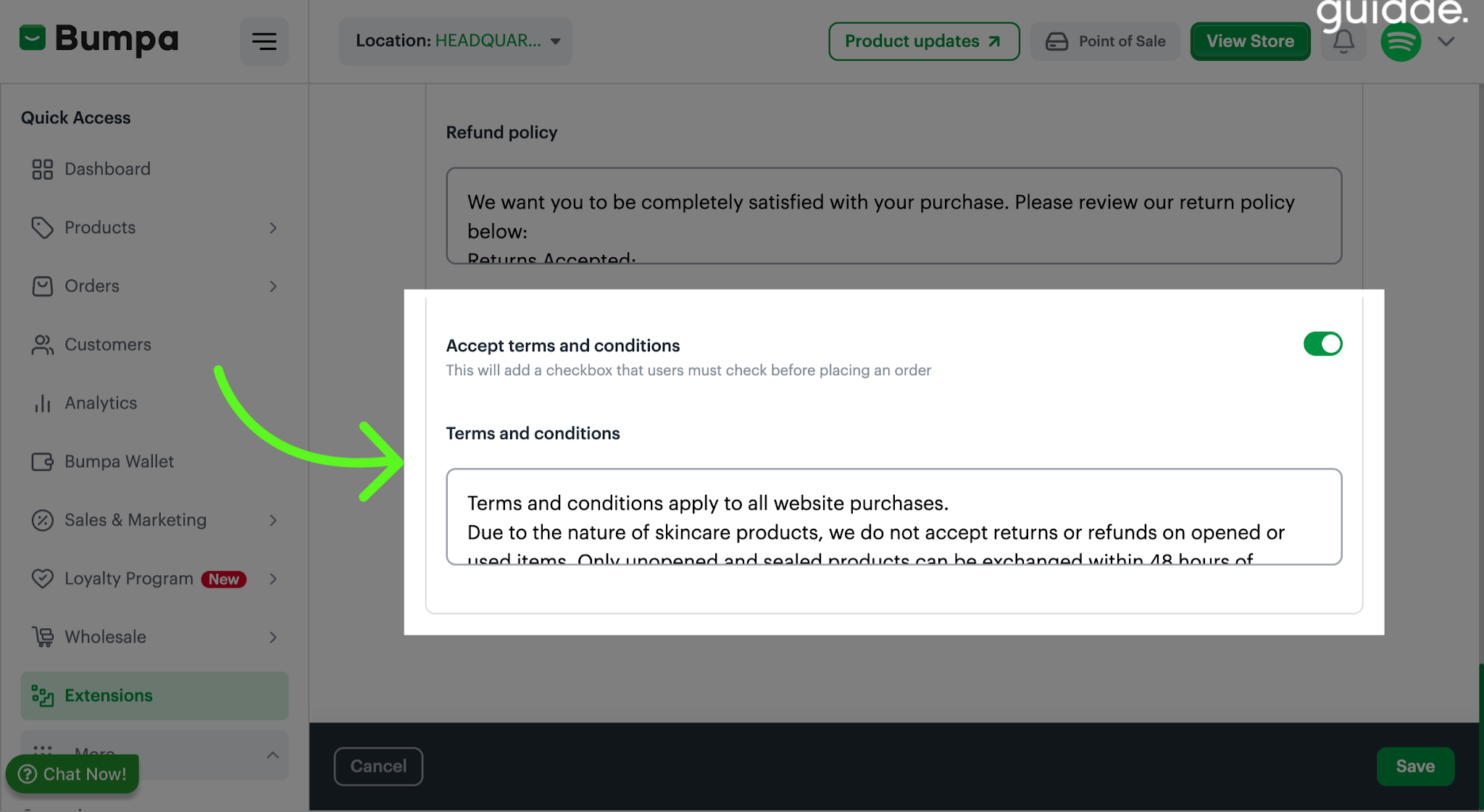
Enable the Accept terms and condition field to display your business's terms and conditions during checkout. Customers will need to confirm that they agree to the terms before completing their order.
You can also edit the text to reflect your business's specific terms and conditions.
Once you've selected and configured your preferred options, click Save to apply your changes.
How to View Your Custom Checkout
After saving your settings, you can check how the updated checkout page appears to your customers.
Navigate to your online store, add a product to your cart
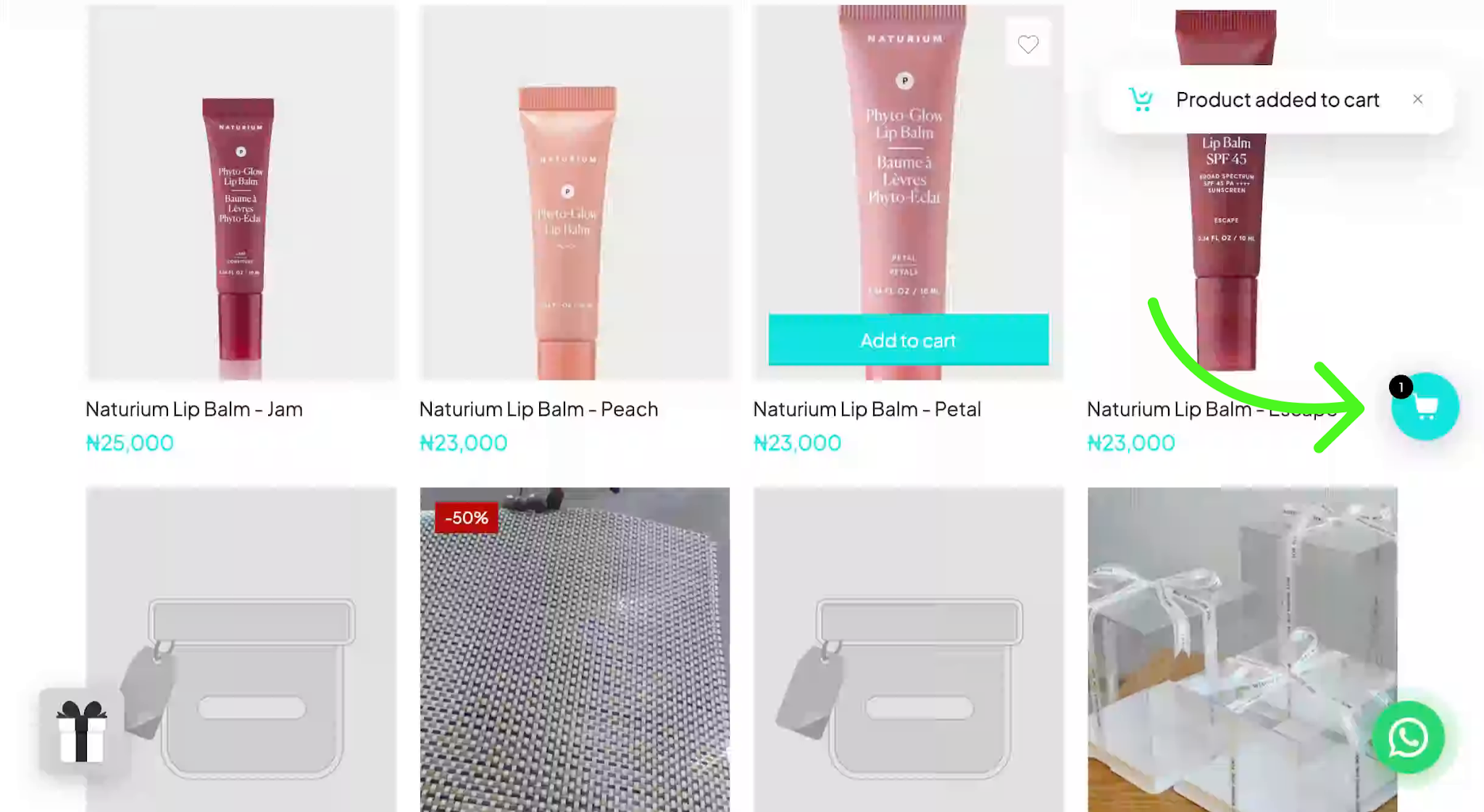
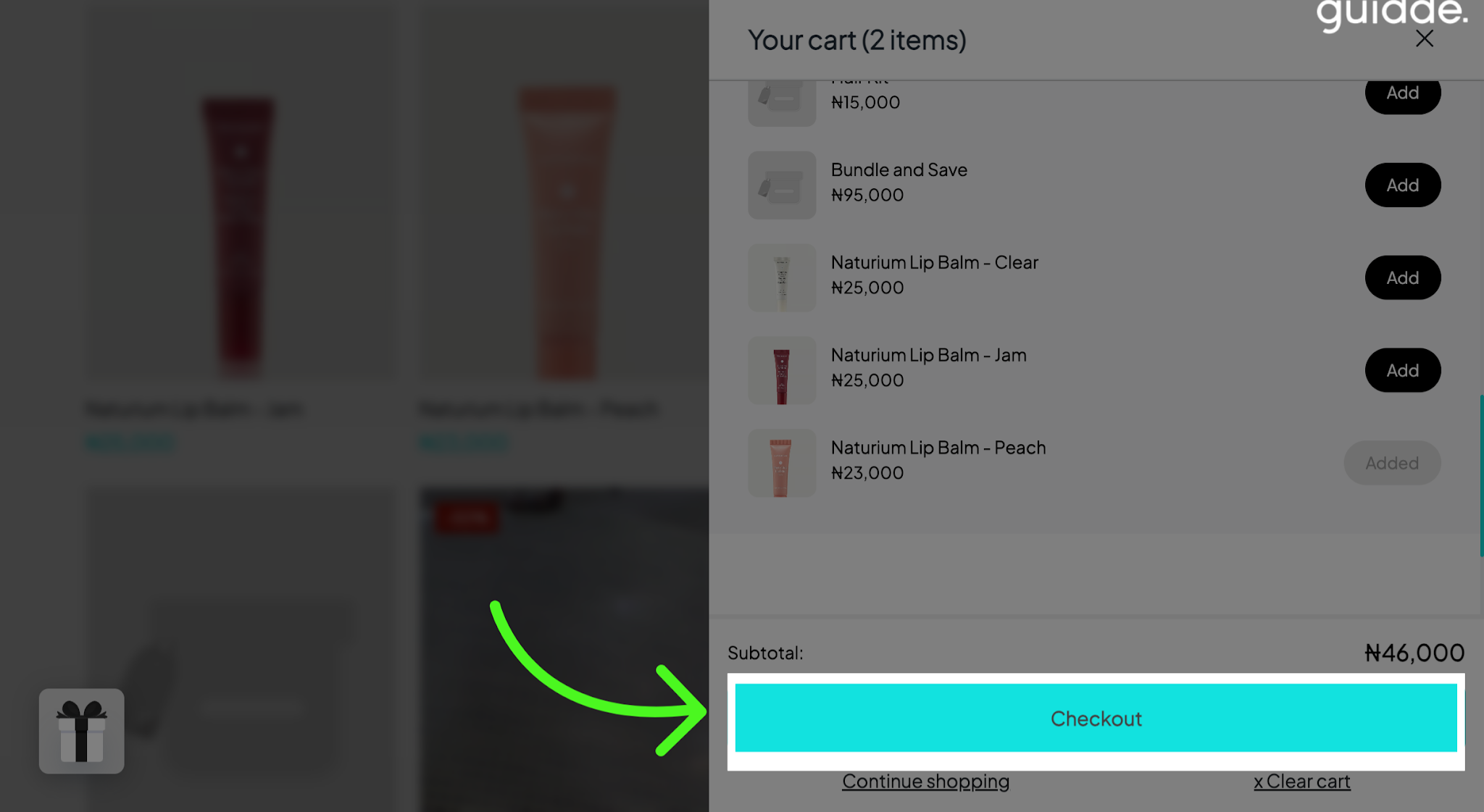
Proceed to Checkout
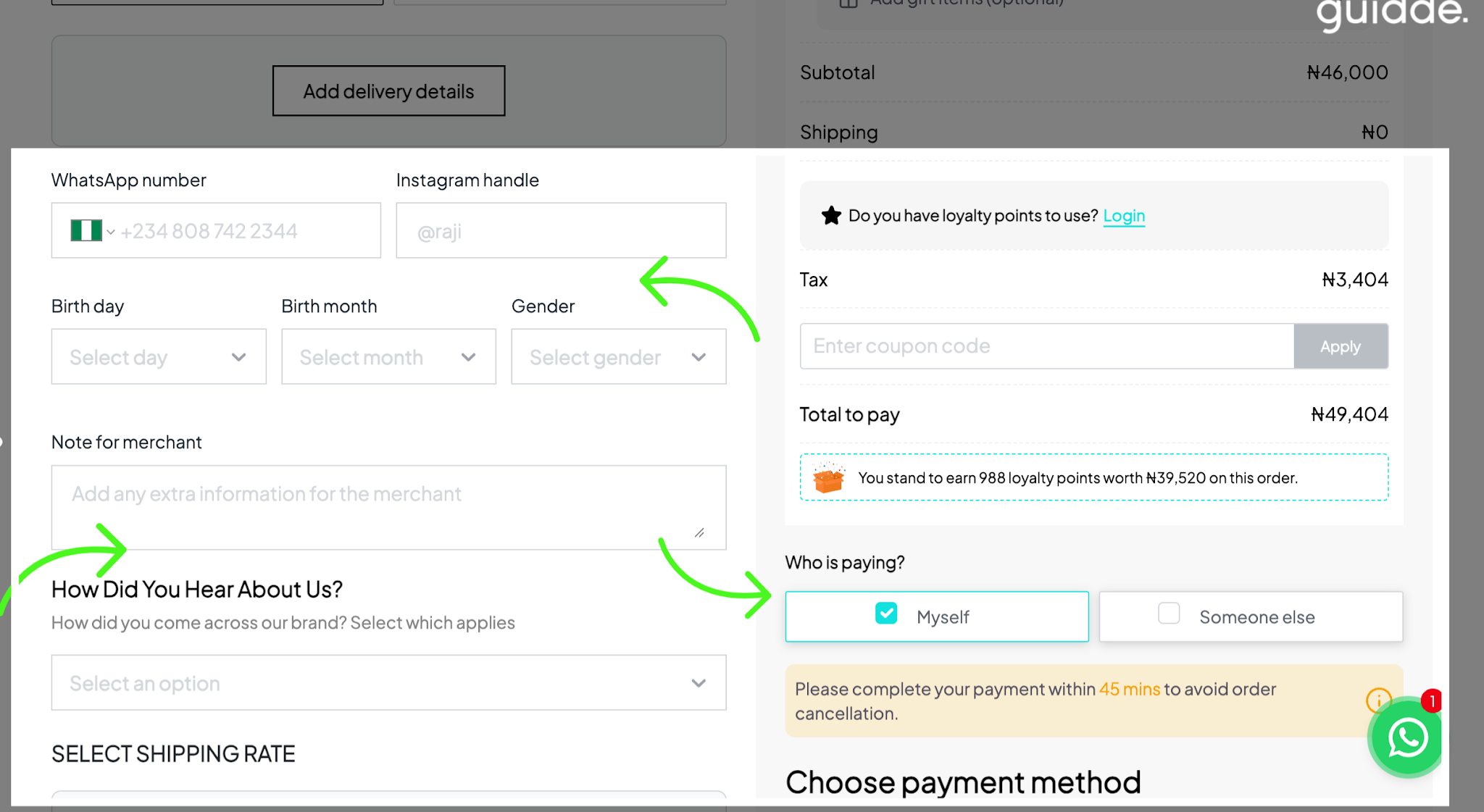
You should now see the additional fields and options you've enabled.
For example, customers may be able to:
Provide their WhatsApp number and Instagram handle.
Leave additional notes about their orders.
Tell you how they heard about your business.
Choose to pay for themselves, or ask someone else to pay for their order.
You can also view the return policy, which customers need to tick before proceeding to place an order
Customers will also need to tick that they understand and agree to your Terms and conditions before placing an order.
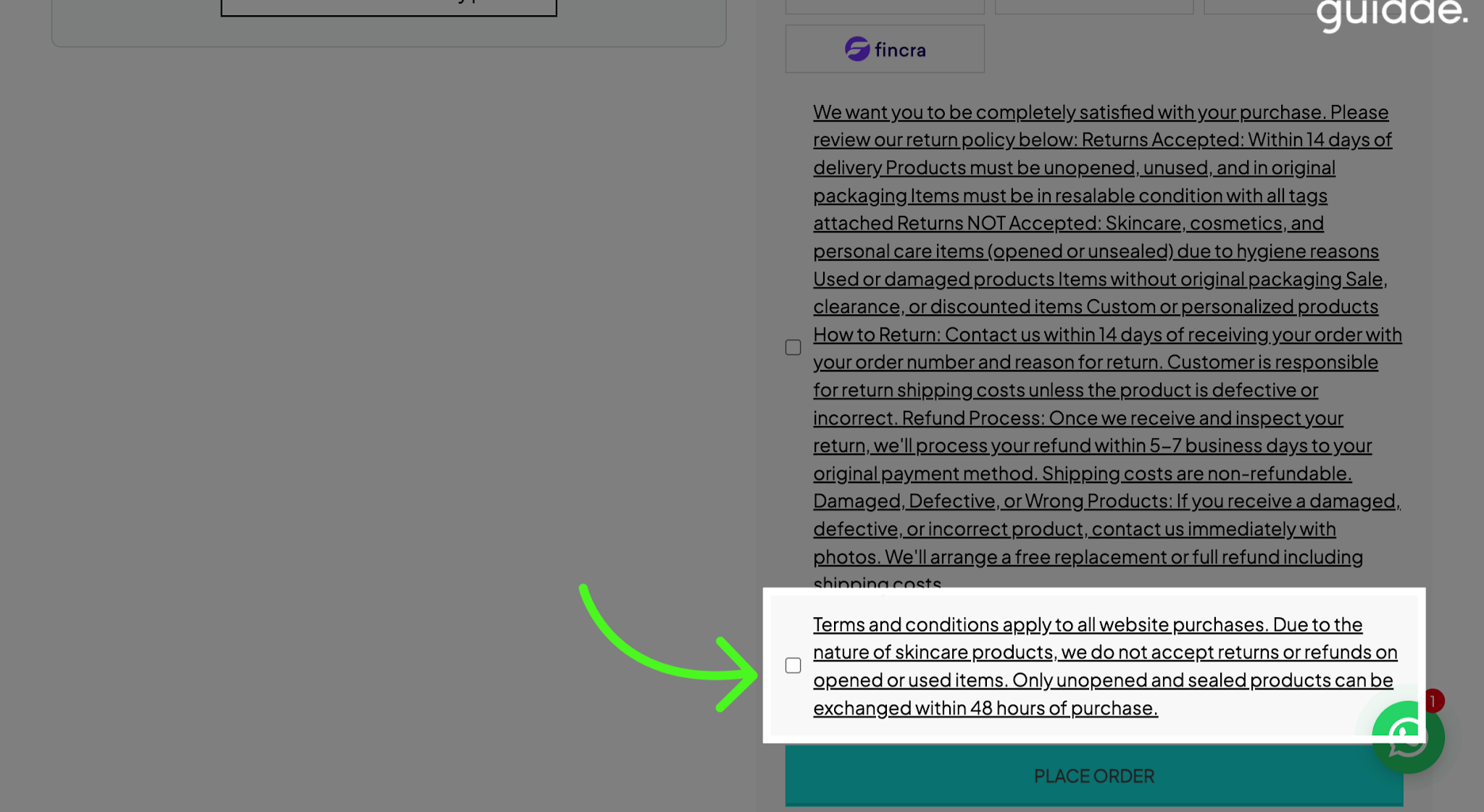
Note: The Terms and Conditions fields are only available to merchants using Premium themes.
And that's it! You've successfully set up Custom Checkout on your Bumpa store. You can always return to the extension settings to update your preferences or change the information you want to collect from customers.
Was this article helpful?
That’s Great!
Thank you for your feedback
Sorry! We couldn't be helpful
Thank you for your feedback
Feedback sent
We appreciate your effort and will try to fix the article