Keeping track of your business expenses just got easier! With Bumpa, you can now export your expense records as a CSV file and filter them by date range and business location. Whether you're preparing your accounts, reconciling expenses, or sharing records with your accountant, you can quickly download the information you need without sorting through everything manually.
In this guide, we'll show you how to filter and export your business expenses from your Bumpa dashboard.
How to Export Your Business Expenses as a Csv
Login to your Bumpa Dashboard via app.getbumpa.com
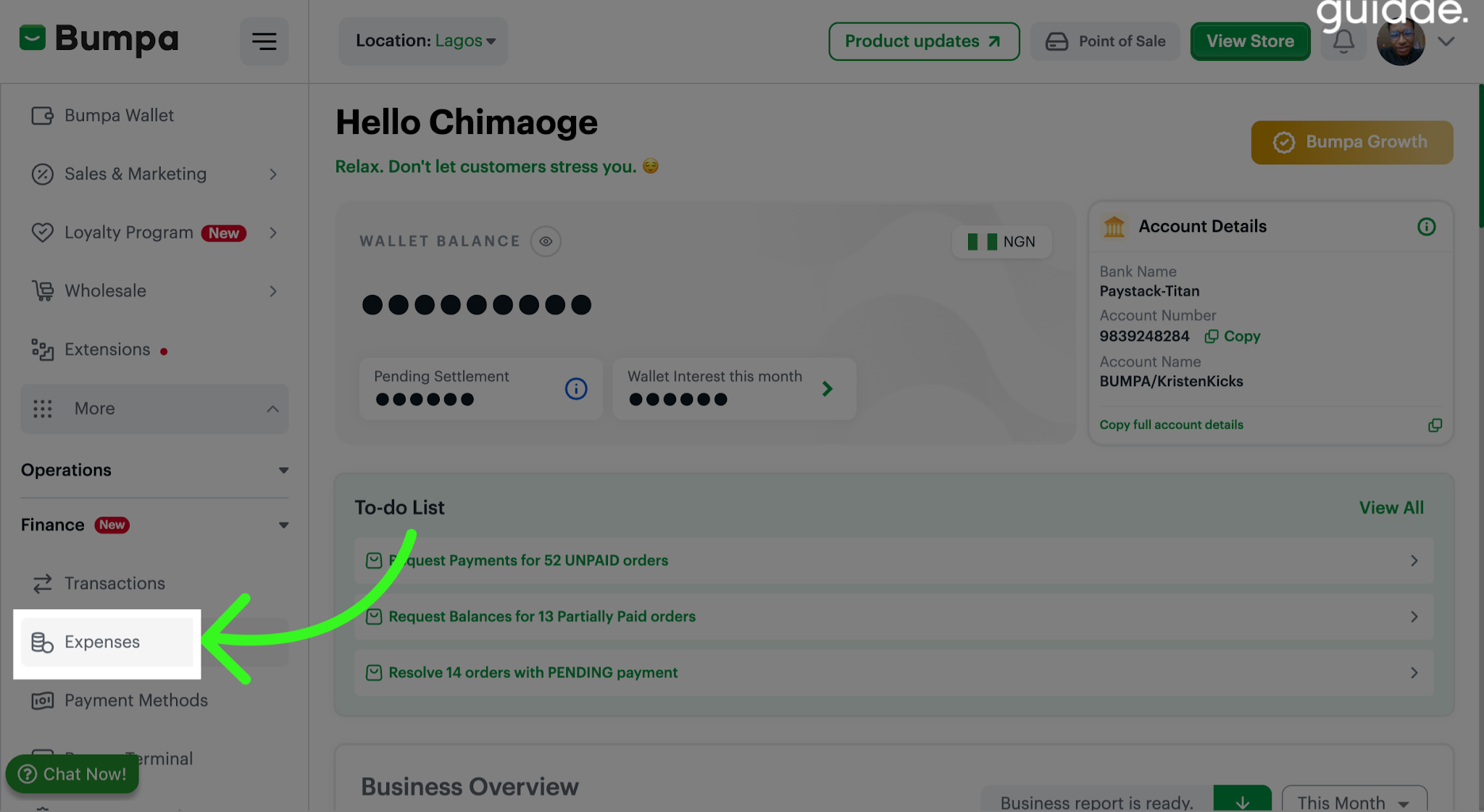
From your dashboard, navigate to the Expenses tab to view your business expenses record
On the Expenses page, select Export CSV to open the export settings.
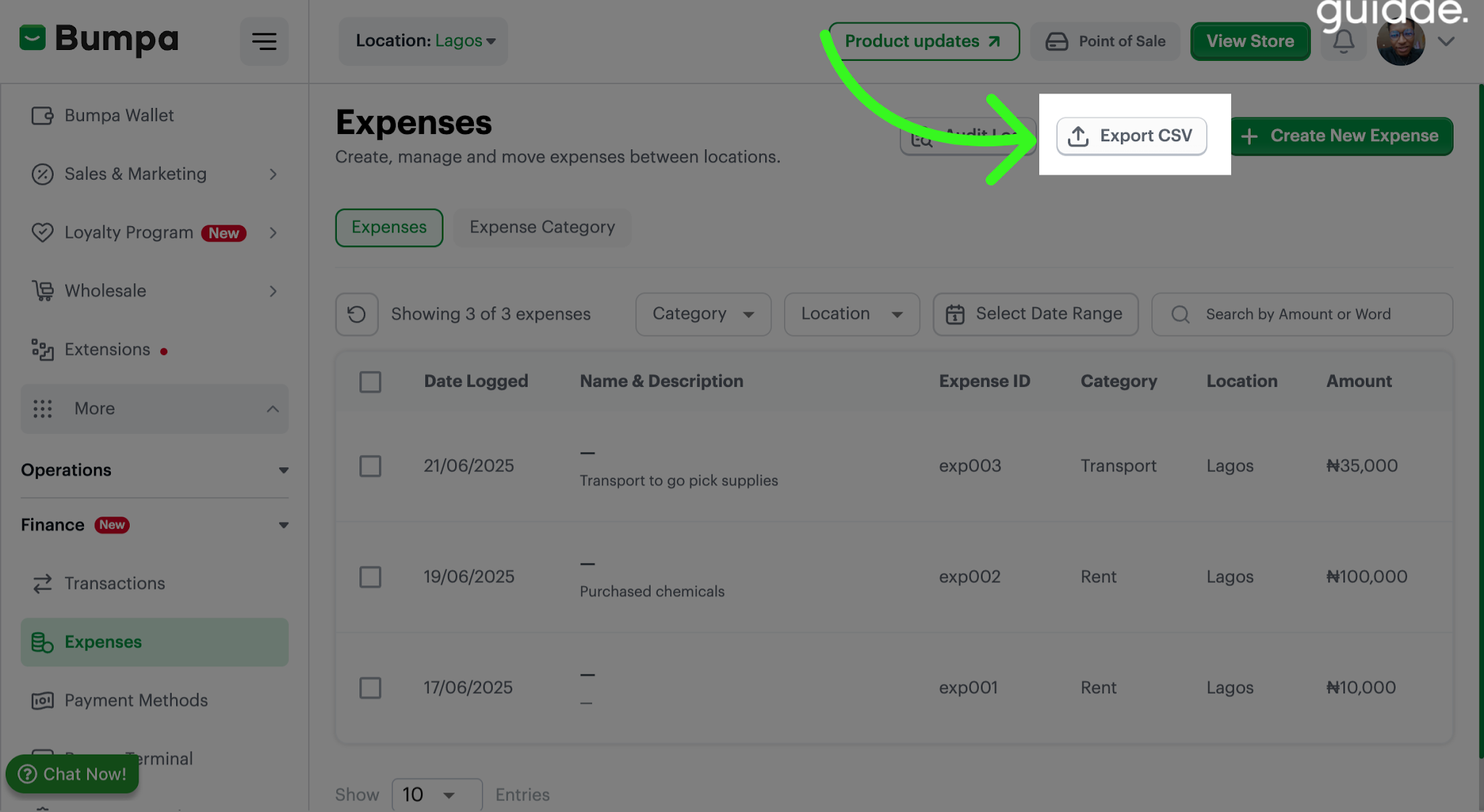
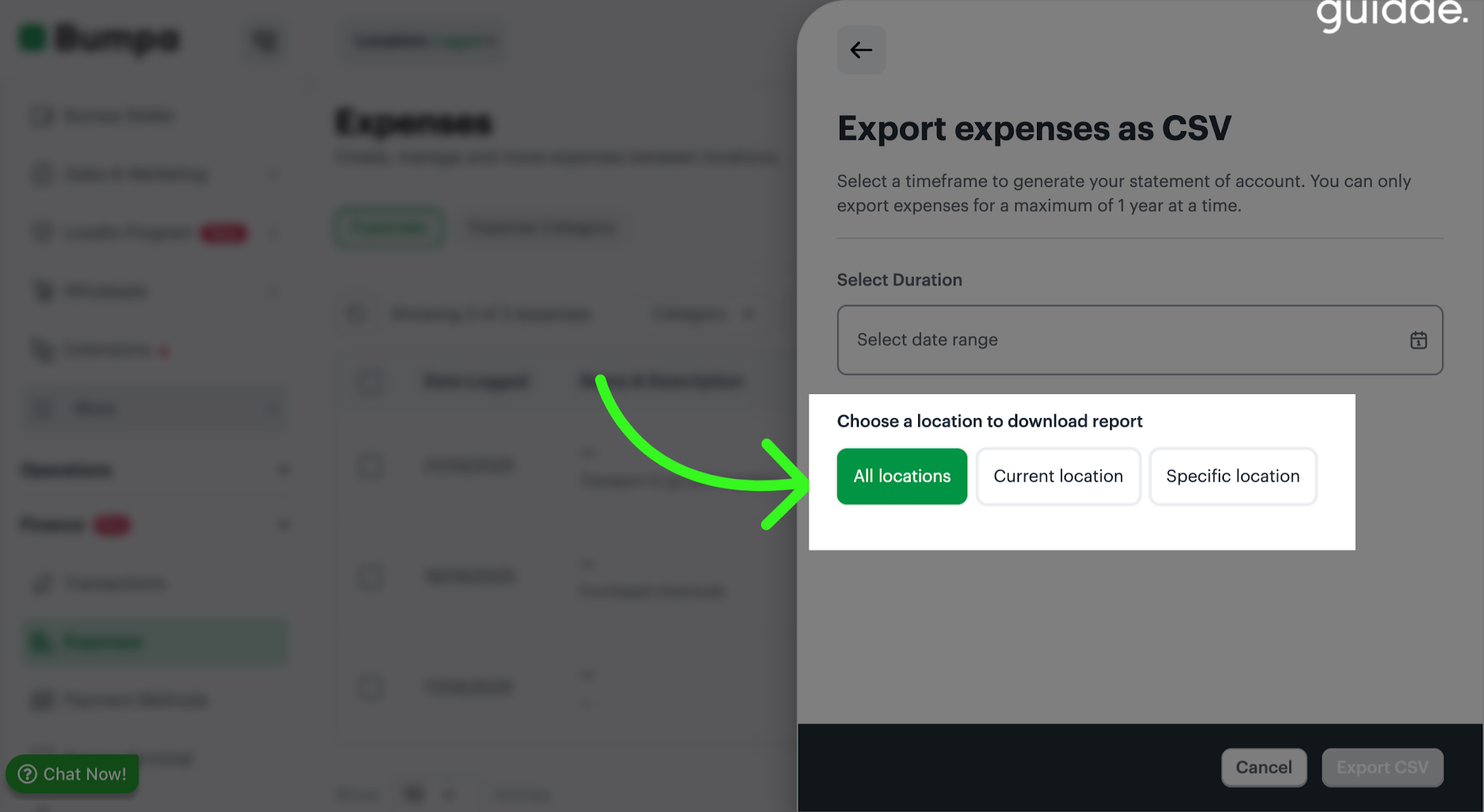
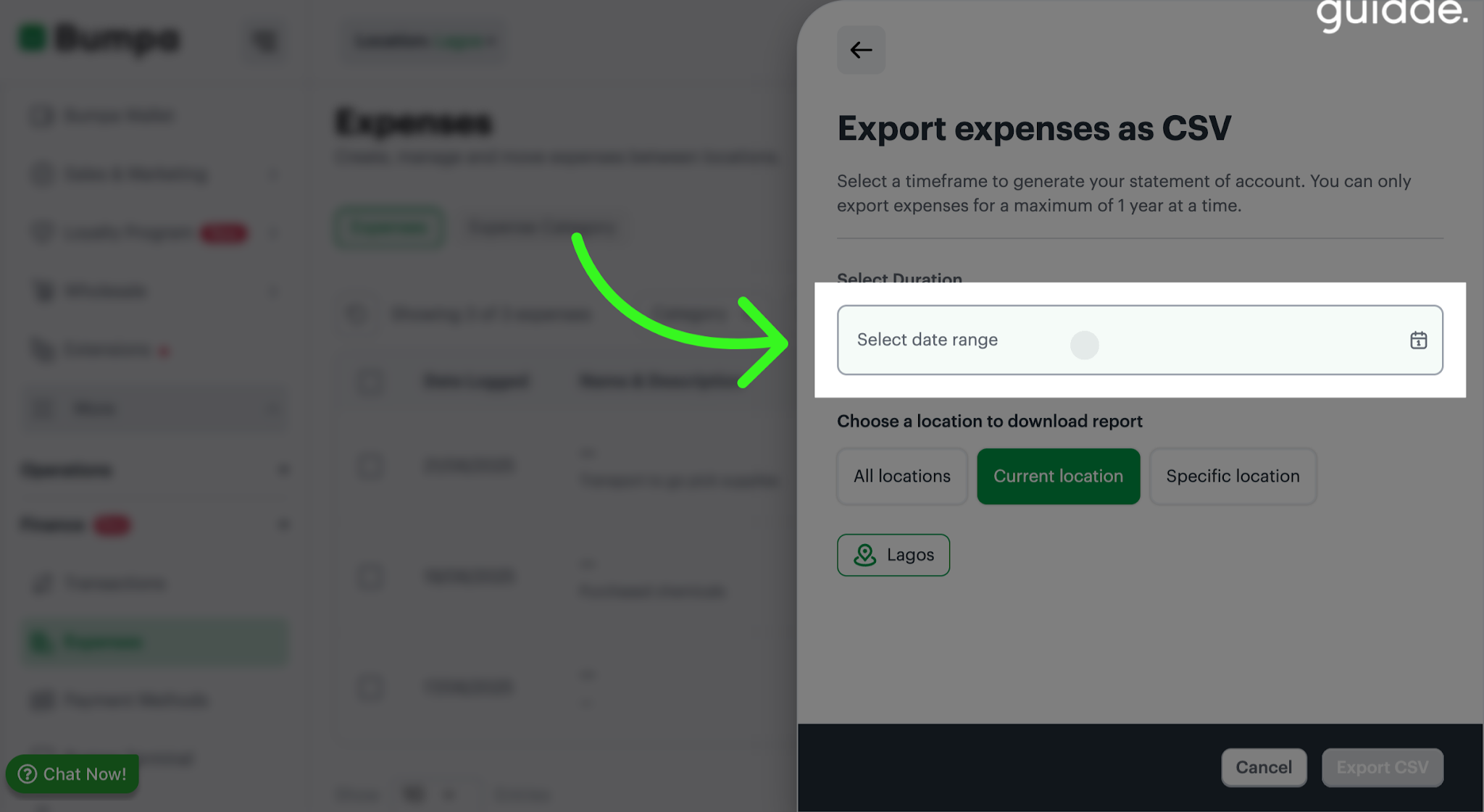
- Choose the location you want to include in the export:
All Locations: Includes expenses across all your business locations.
Current Location: Exports expenses for the location you're currently viewing.
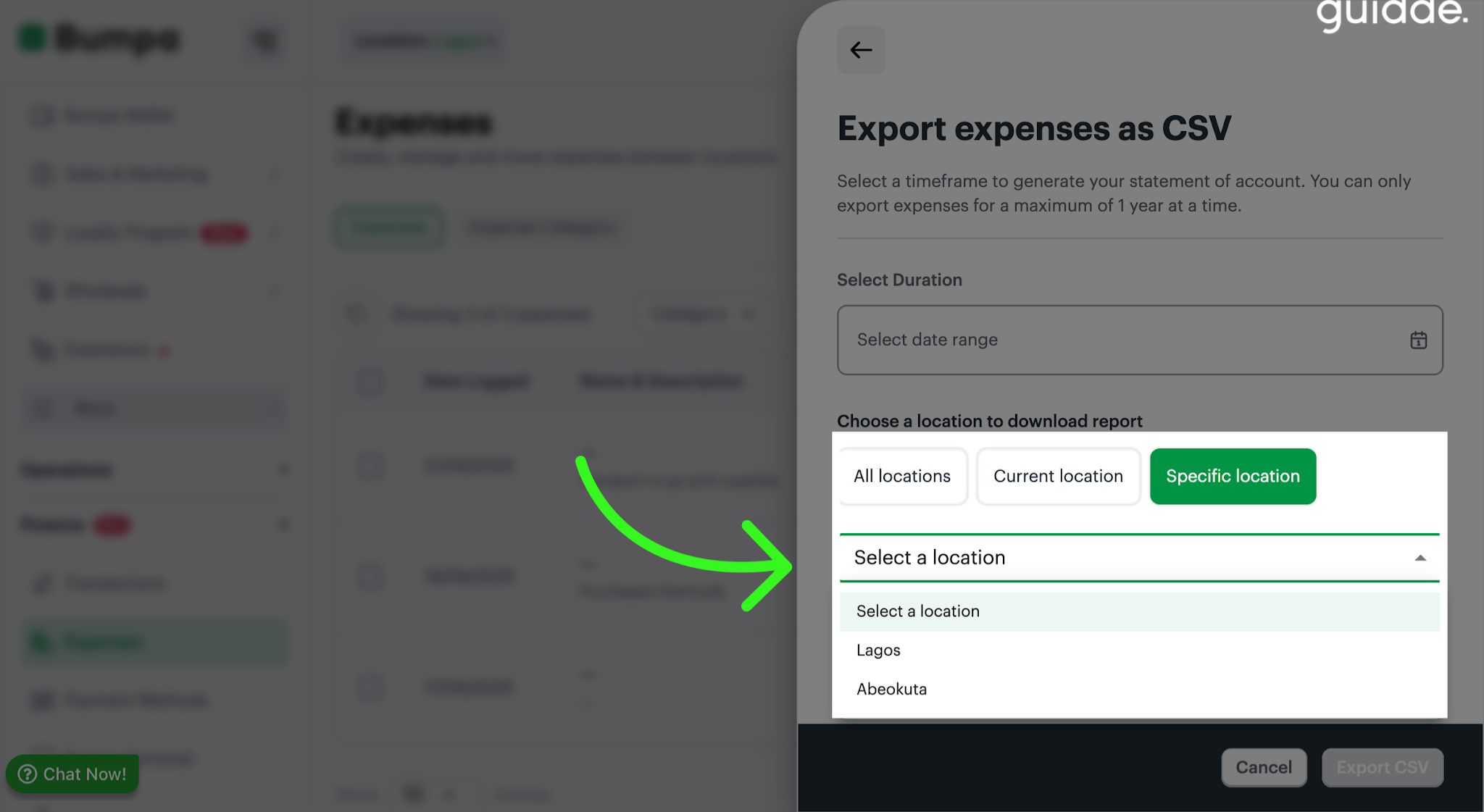
Specific Location: Allows you to select a particular business location.
Select a Date range
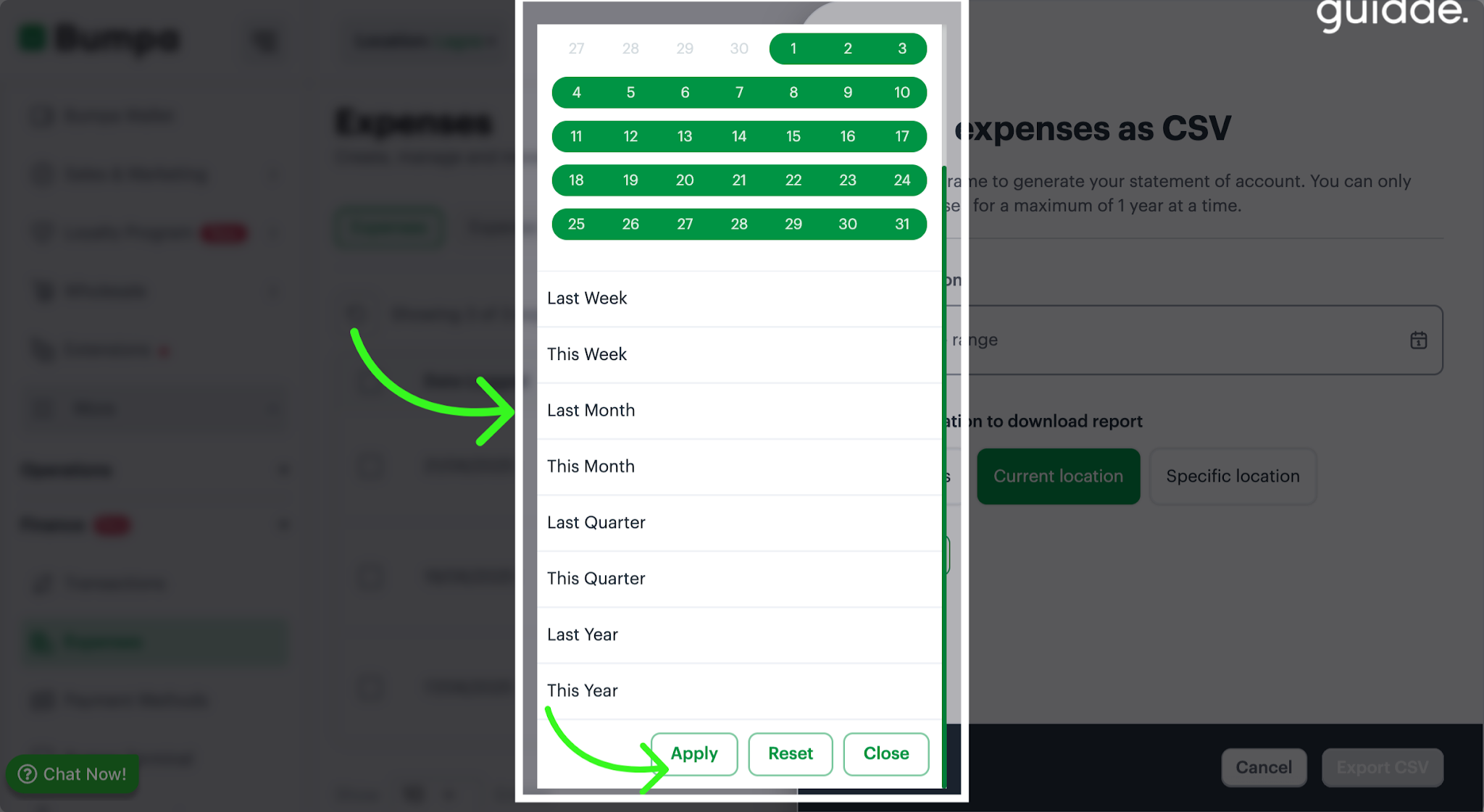
Choose your preferred date range using the available preset options, such as Today, Last 7 Days, This Month, or Last Month. You can also select a custom date range up to 1 year.
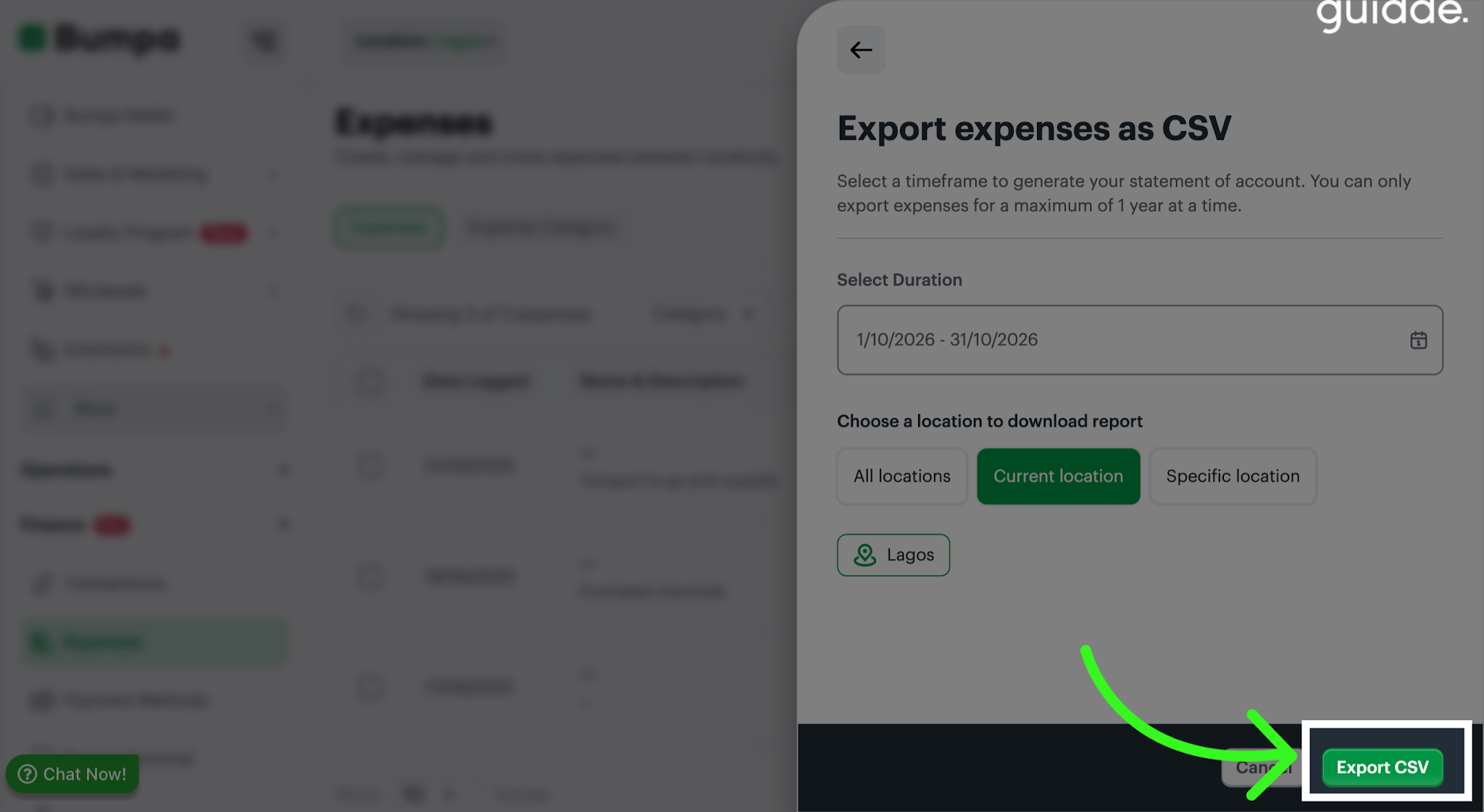
Review your selected date range and location, then proceed with the export.
Once the export is complete, the CSV file will be sent as an attachment to your registered email address. The email and file name will include the selected date range and location.
What's Included in the Exported CSV?
Your exported file contains the following details:
Date: The date the expense was recorded.
Category: The category assigned to the expense.
Amount: The expense amount.
Location: The business location associated with the expense.
Notes: Any additional information recorded for the expense.
The records are arranged from the most recent to the oldest and match the expenses displayed on your Expenses page.
Note:

If there are no expenses matching your selected filters, you'll receive a notification.

If an export fails, you'll receive a push notification and an email, with an option to retry.

Staff members with Manage Expense permission can also export business expenses.
Related Articles:
Was this article helpful?
That’s Great!
Thank you for your feedback
Sorry! We couldn't be helpful
Thank you for your feedback
Feedback sent
We appreciate your effort and will try to fix the article