As a business owner, you need to know what happens after you send an email campaign. Email campaign reports on Bumpa show who received, opened and clicked your emails. In this article, you will learn how to open a campaign report and read Open Rate, Click-Through Rate and Bounce Rate.
For example: Amaka runs a skincare brand in Enugu. She emails her “Repeat buyers” group about a new serum. From the report she sees that many people opened the email but few clicked. She rewrites the subject and puts the Shop Now button higher for the next send.
This article covers email campaign reports only. It does not cover how to create a campaign from scratch.
1. Open Campaigns
Login via app.getbumpa.com.
Go to Sales & Marketing.
Click Campaigns.
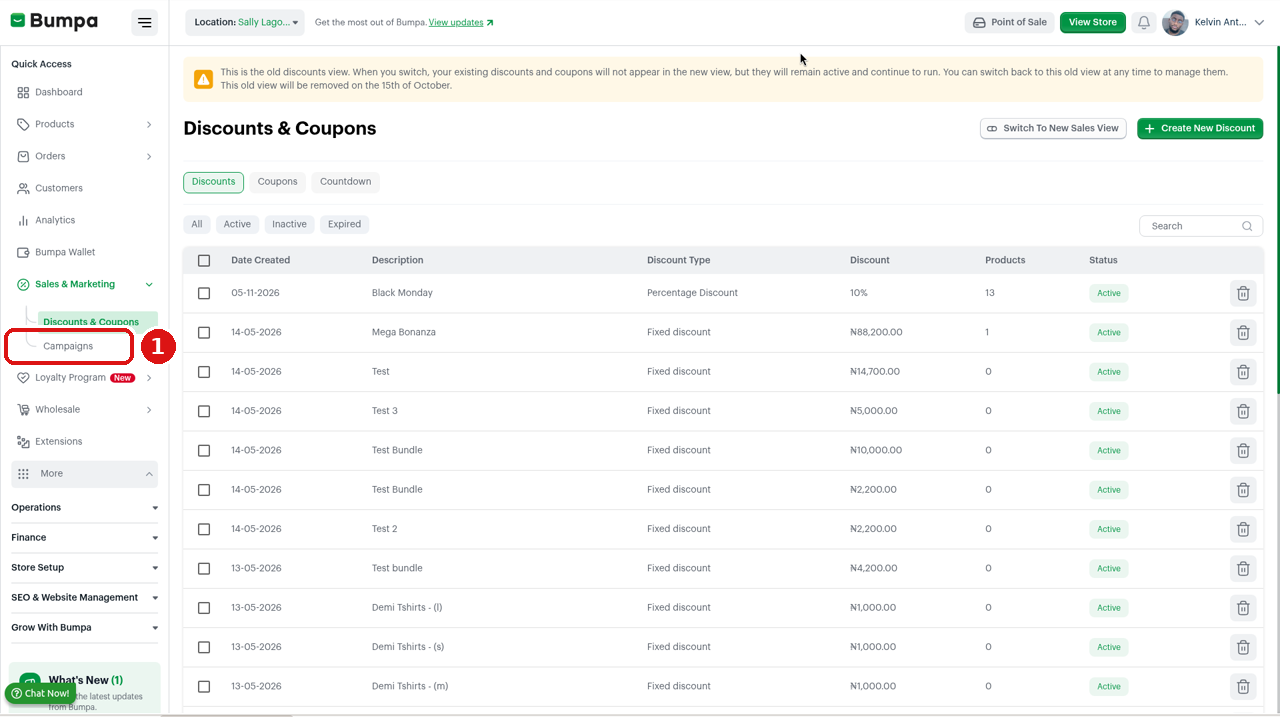
① Click Campaigns under Sales & Marketing in the left sidebar.
2. Open the Emails Tab
The Emails tab lists every email campaign you have sent, with delivery counts.
Find the campaign you want to review in the list. On the campaign list you will see counts such as:
Recipient
Delivered
Waiting
Failed
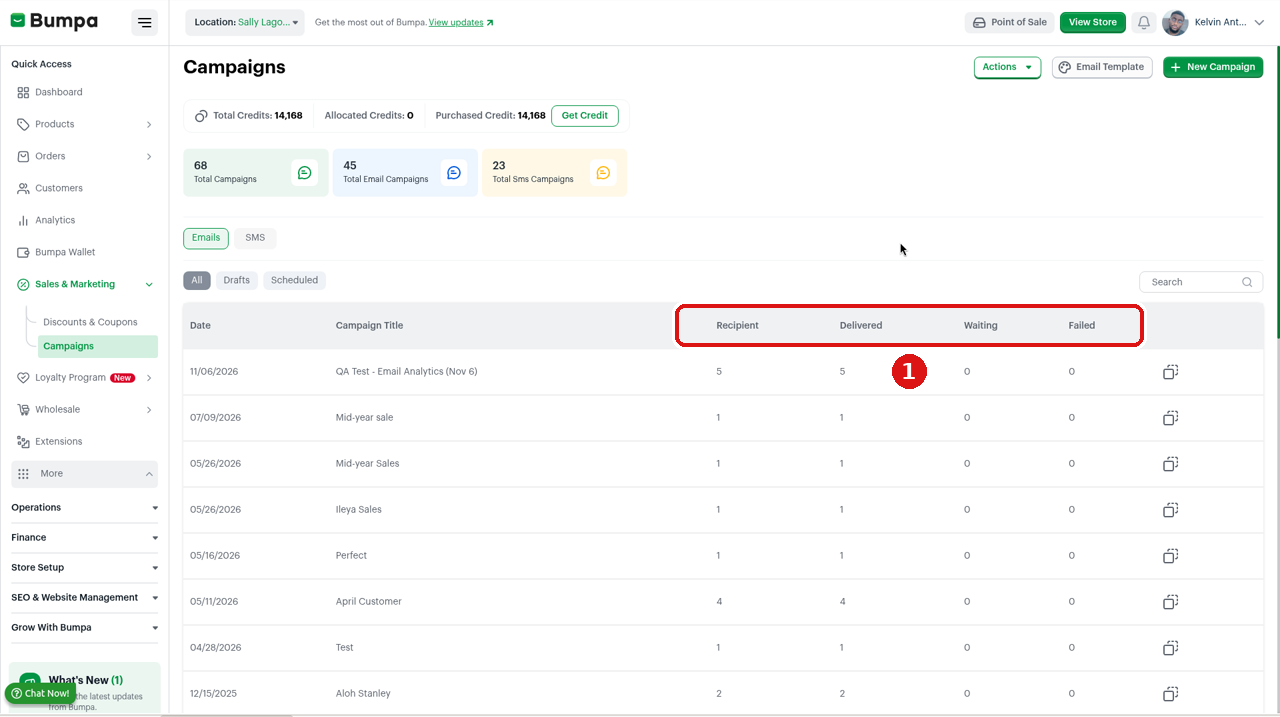
① Recipient, Delivered, Waiting and Failed on the Emails campaign list.
3. Open the Campaign and View Reports
Each campaign has its own report in a side panel.
To open the report, follow these steps:
Click the campaign name to view its details.
Click View reports. The report opens as a Campaign Report side panel.
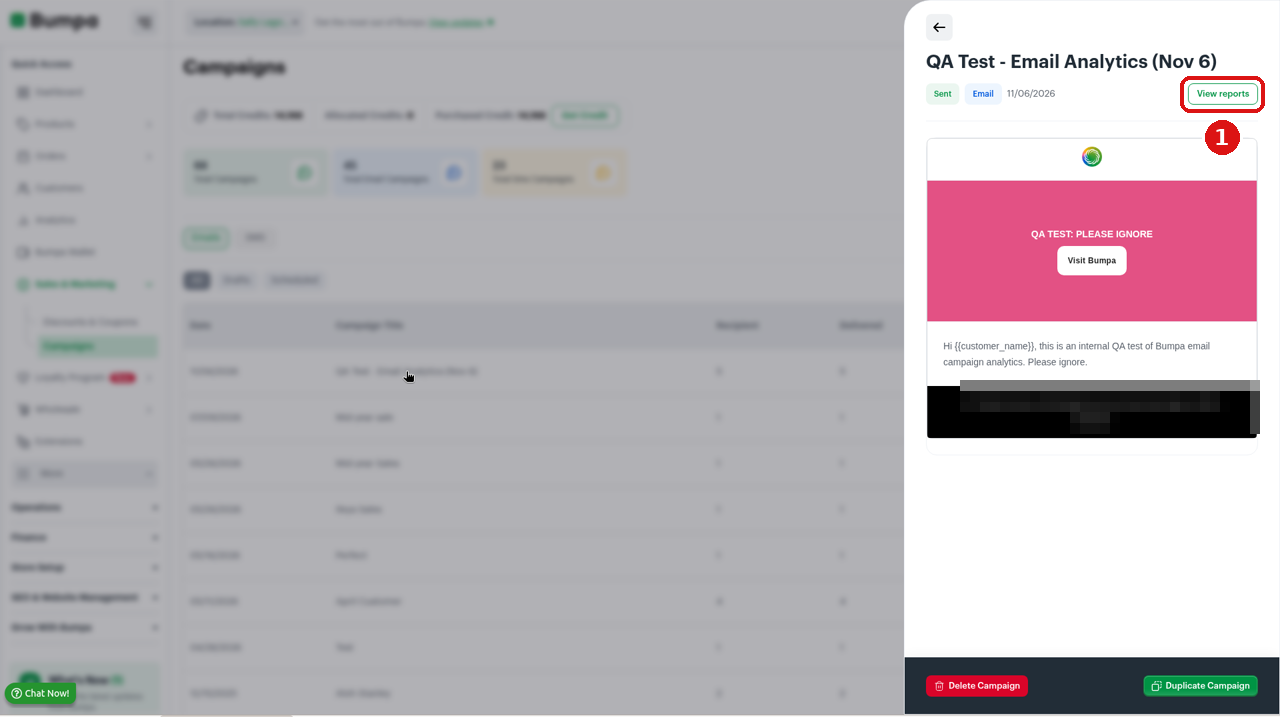
① Click View reports to open the Campaign Report side panel.
4. Read the Headline Metrics
The Campaign Report side panel displays 3 key metrics: Open Rate, Click-Through Rate and Bounce Rate. The recipient count is shown separately under Recipients (N) heading above the list. The metrics and heading represents:
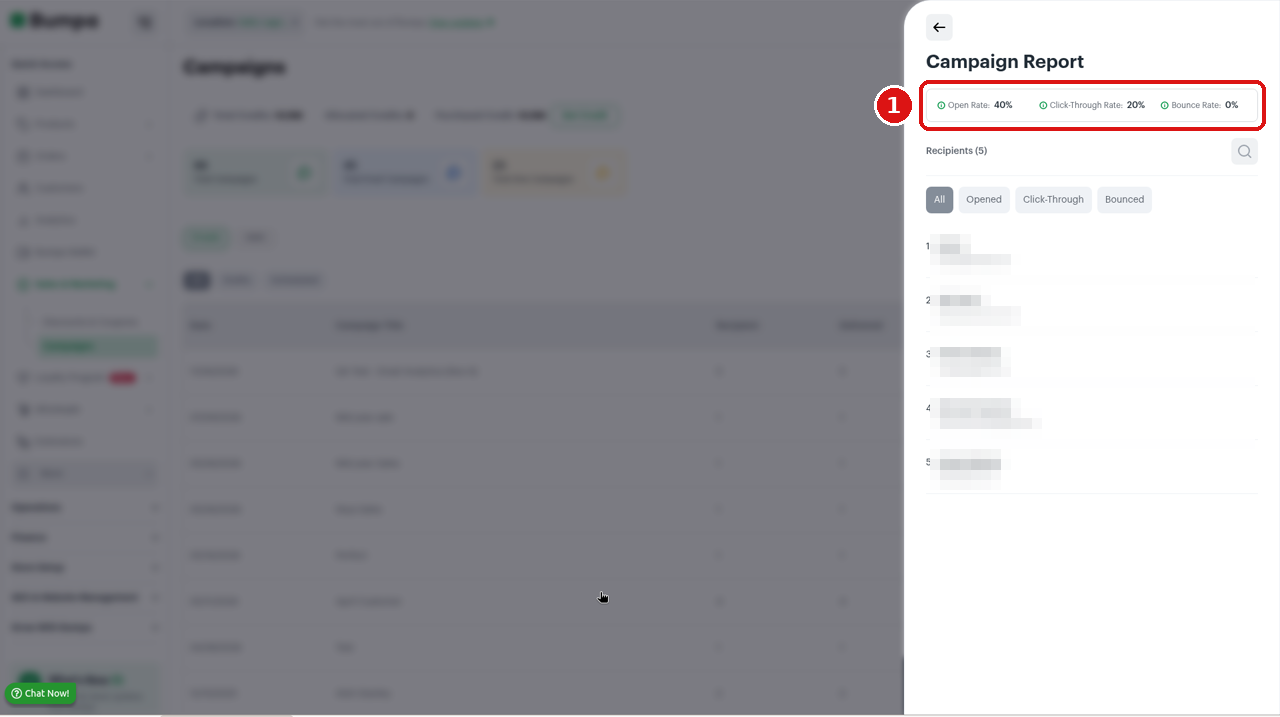
Compare Open Rate to Click-Through Rate. High opens with low clicks often means the button is hard to find, or the subject promised too much. A 0% Bounce Rate with all emails Delivered is a good sign for that send.
5. See Who Opened or Clicked
The report lists your customer's names and emails, so you can see exactly who opened or clicked and follow up with them.
To see who opened or clicked, follow these steps:
Use the filter chips on the report (All, Opened, Click-Through and Bounced) to narrow the recipient list.
Review the list of customer names and emails under each filter.
Use that list to follow up. For example, message clickers who did not buy, or clean addresses that bounced.
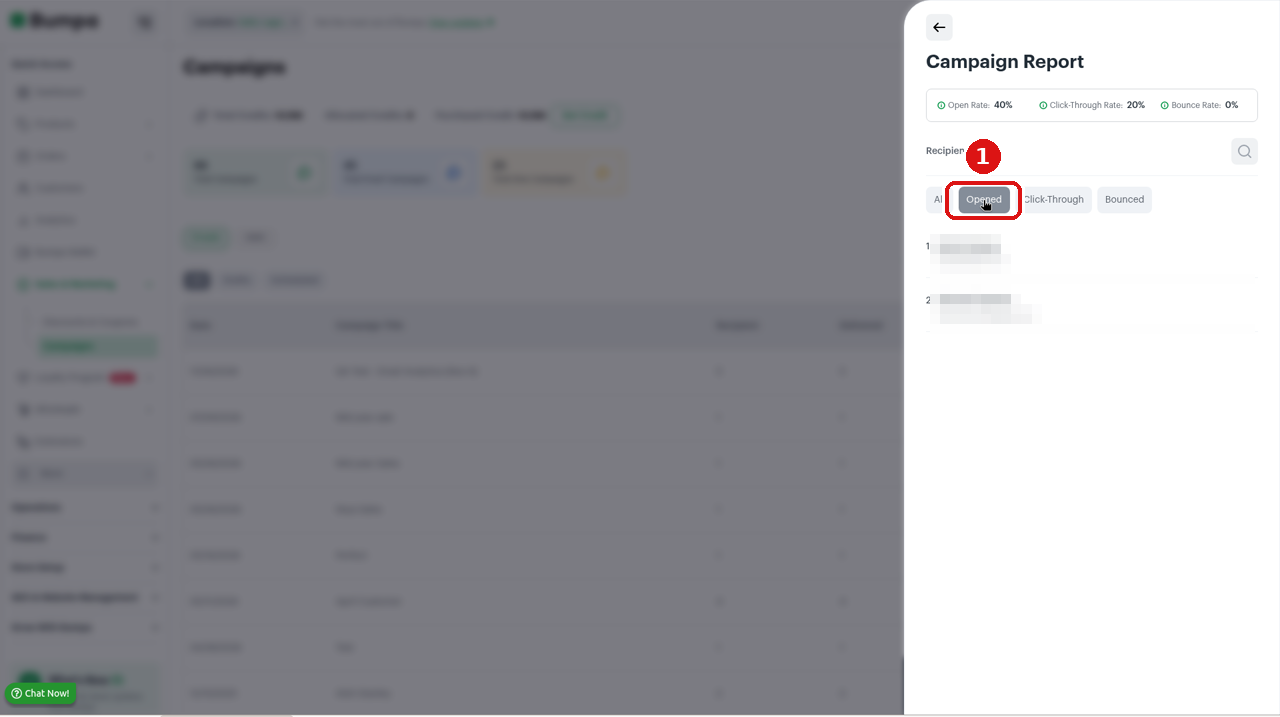
① Filter chips: All, Opened, Click-Through, Bounced (Opened is highlighted). Recipient names and emails are blurred.
Don't ignore Failed or Bounced emails. Bad addresses waste credits and hurt future sends. Update or remove them.
6. Personalize Your Next Send
You can personalize the email body with {{customer_name}}. At send time, Bumpa fills in the name from the customer record.
To personalize your email, follow these steps:
In the email body, type {{customer_name}} where you want the name to appear. There is no button to insert it.
Keep customer names tidy (no ALL CAPS nicknames) so greetings look professional.
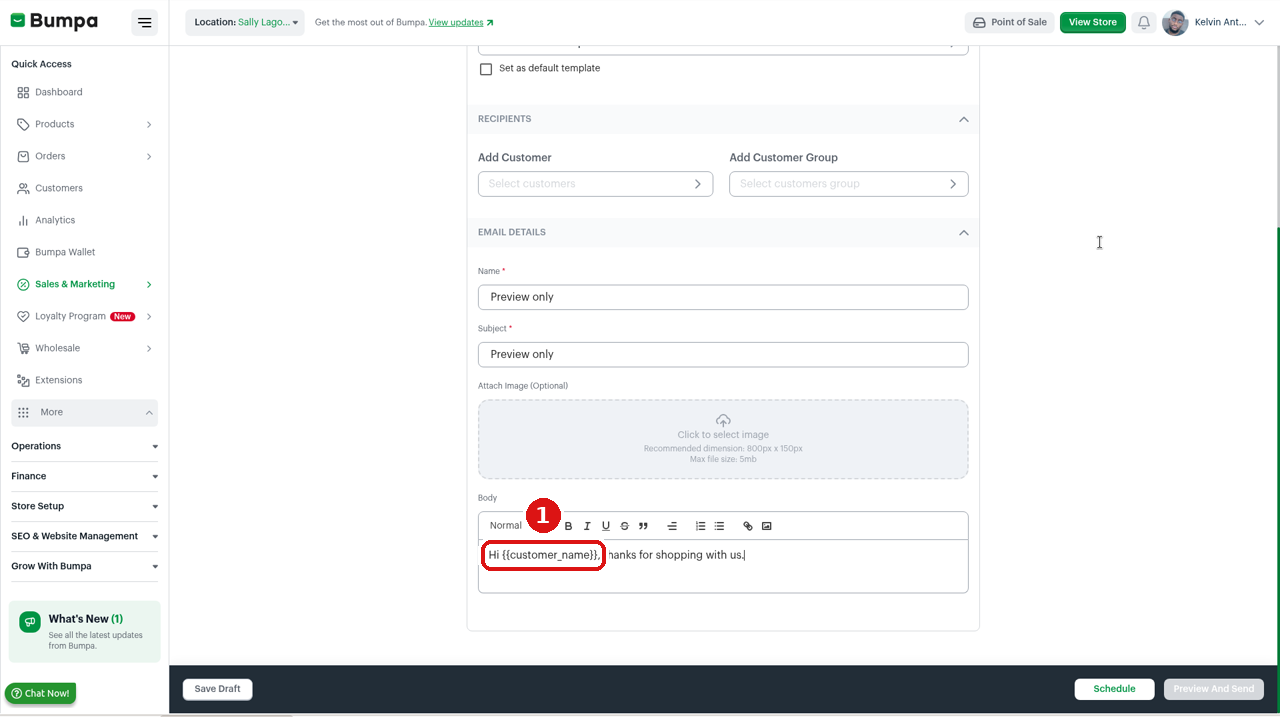
① Type {{customer_name}} into the email body. There is no insert-variable button.
Preview may still show the raw {{customer_name}} text. That is expected in preview. The sent email uses the name saved on the customer record.Related Articles:
Was this article helpful?
That’s Great!
Thank you for your feedback
Sorry! We couldn't be helpful
Thank you for your feedback
Feedback sent
We appreciate your effort and will try to fix the article