This article provides a step-by-step guide on how to edit your staff account.
Log in to your Bumpa account via app.getbumpa.com
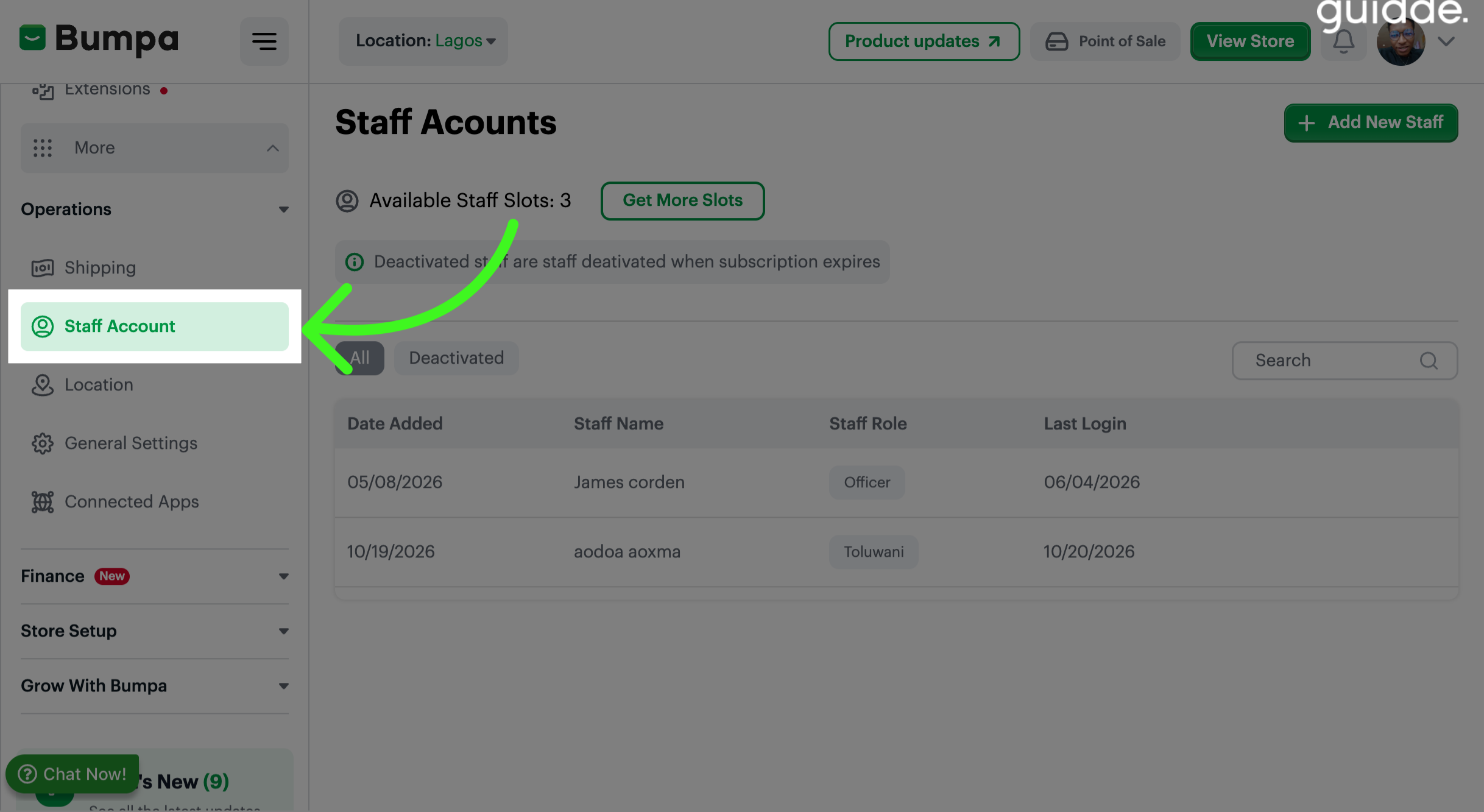
Navigate to Operations
Click on Staff Accounts
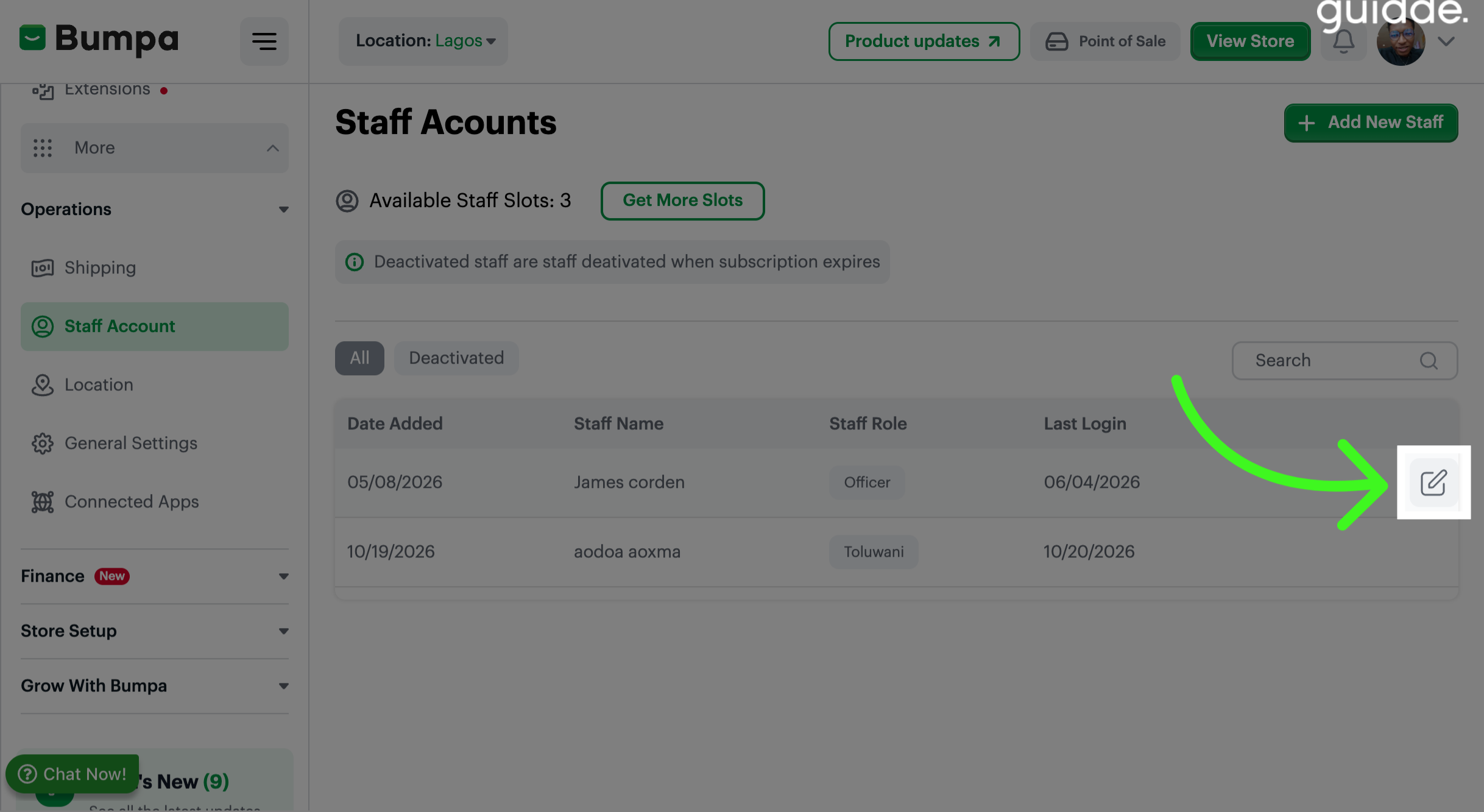
Click on the edit icon to update staff member details and permissions.
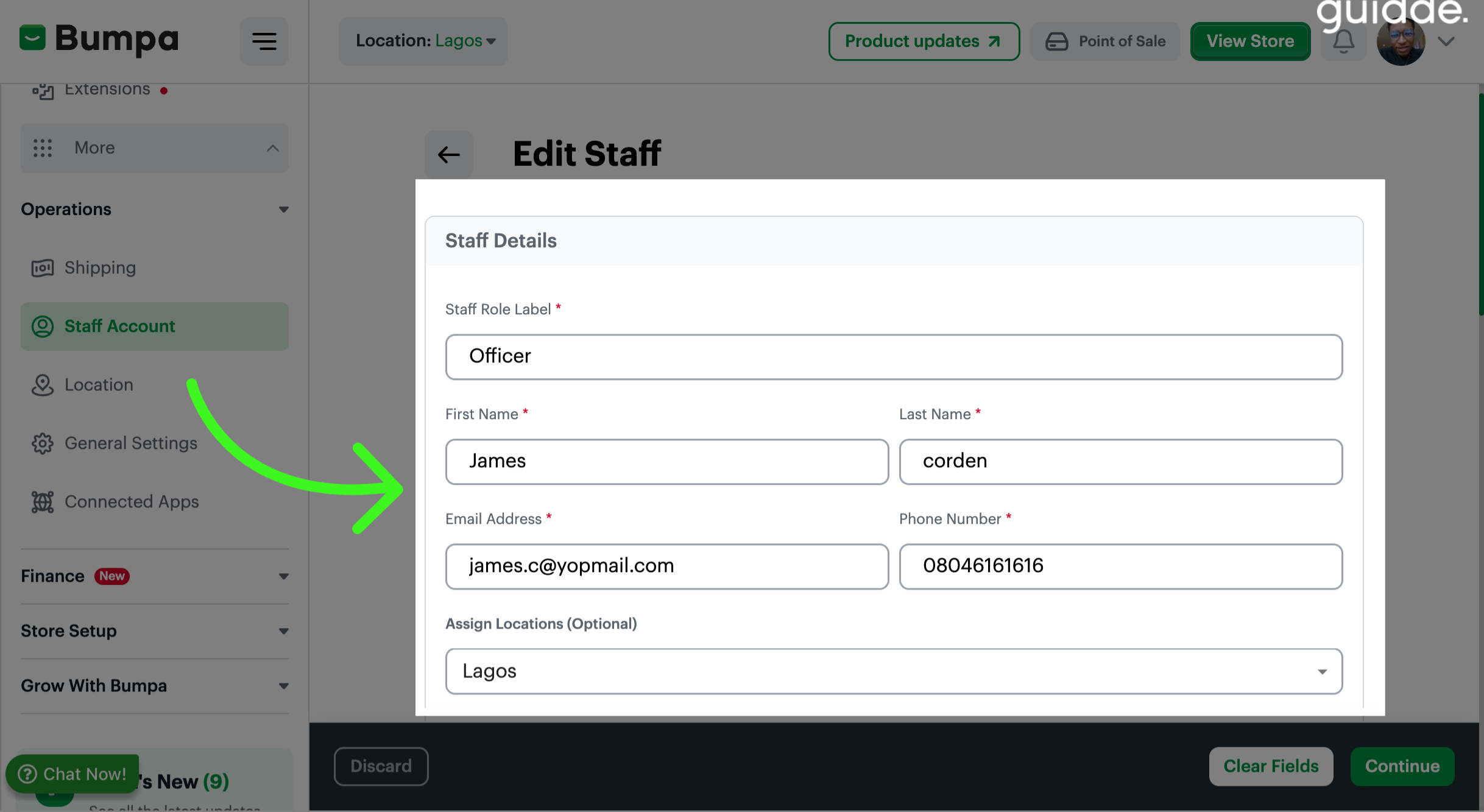
Staff Permission
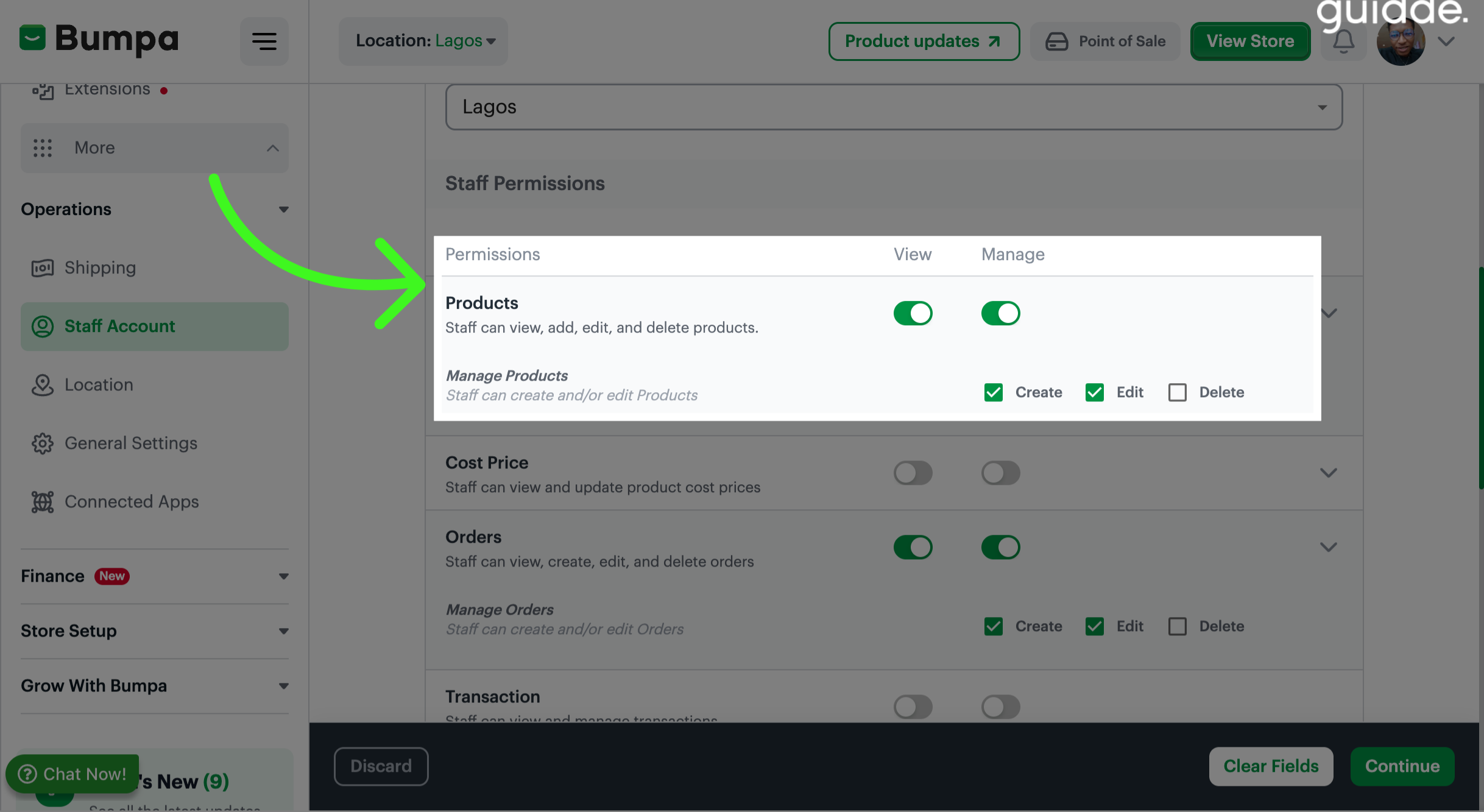
To grant permissions to your staff, to manage staff access related to product viewing, adding, editing and deleting
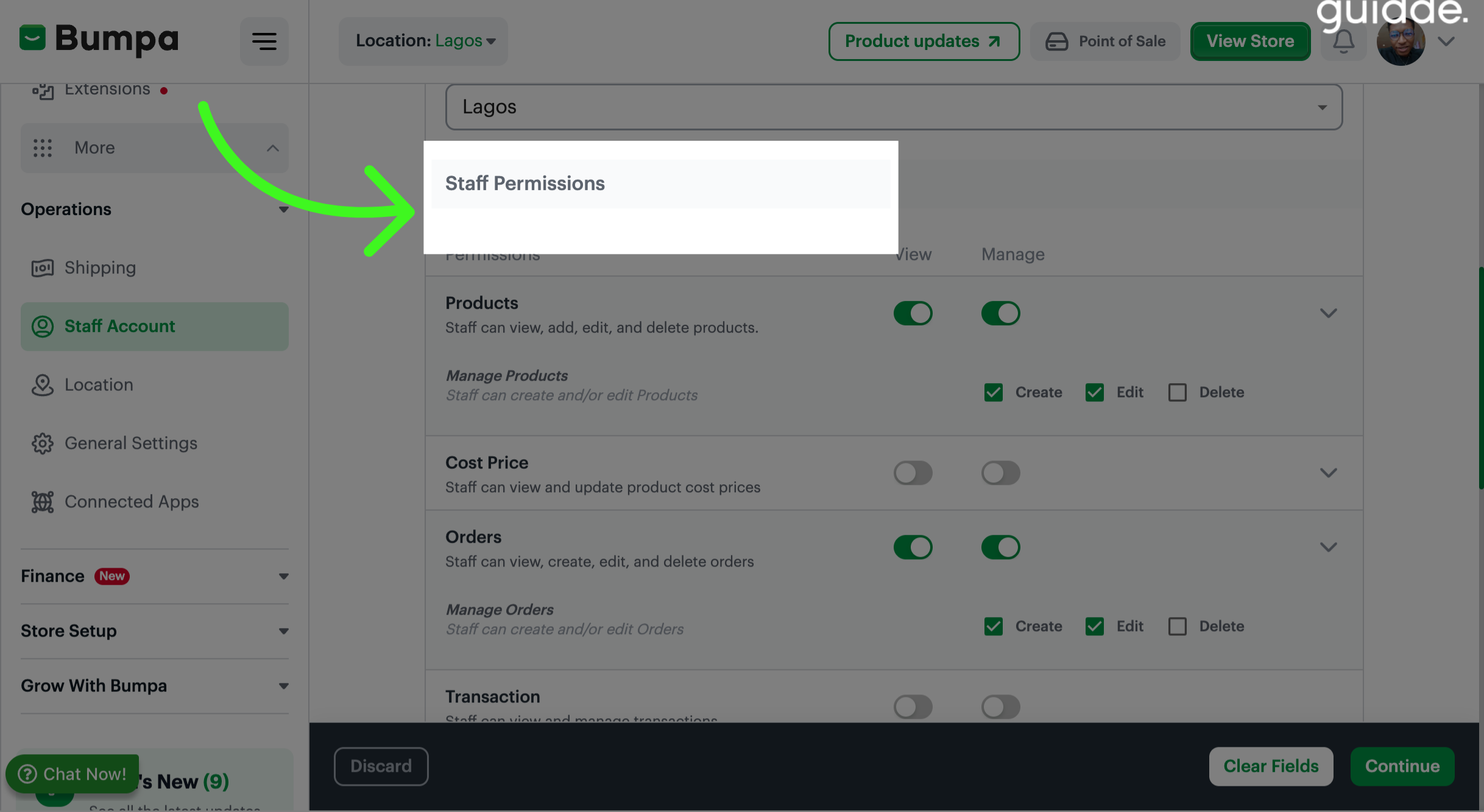
To grant Staff access to View, add, edit and delete products, toggle on the view and manage icons.
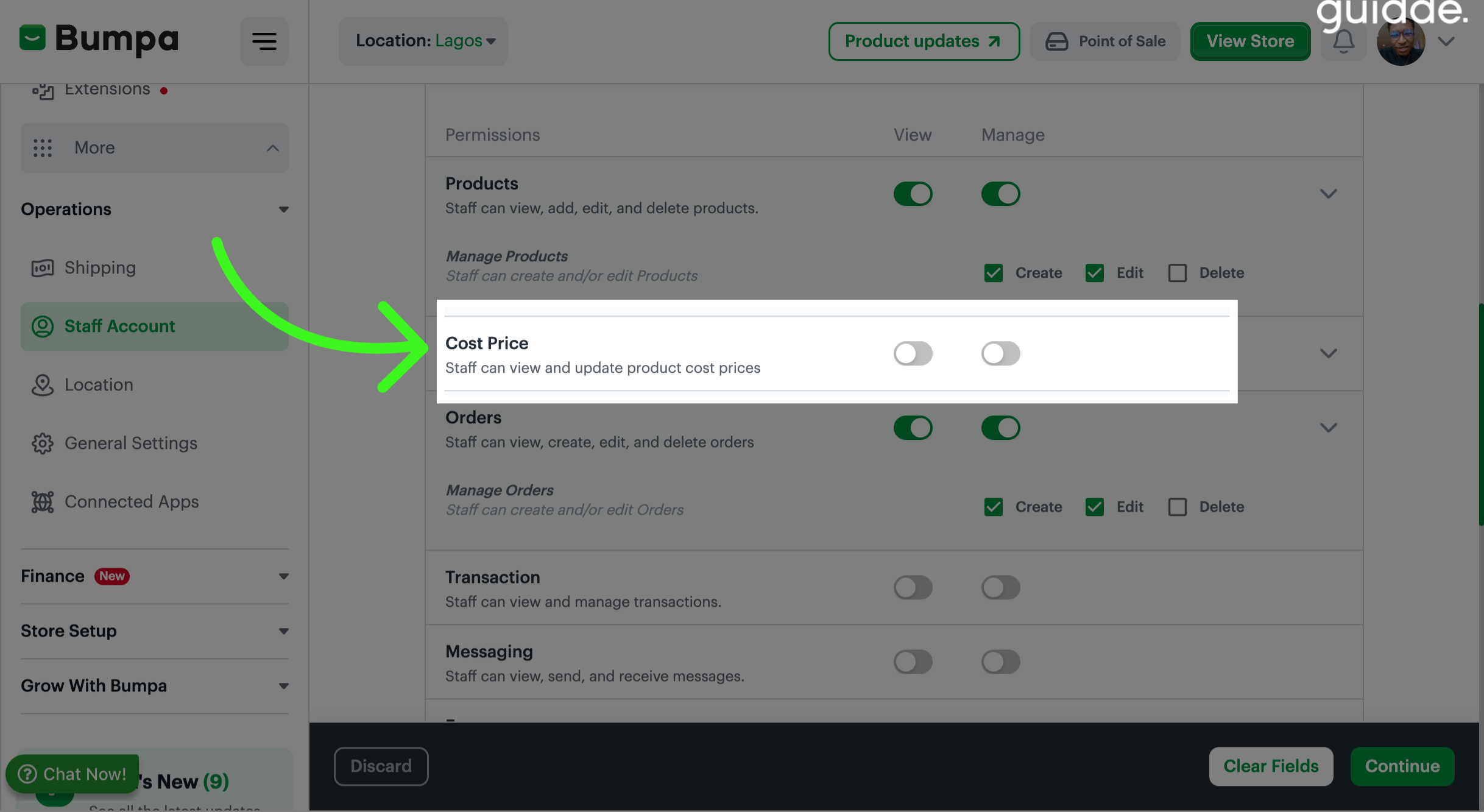
Toggle on the view and manage icons to grant staff access to view and update product cost prices
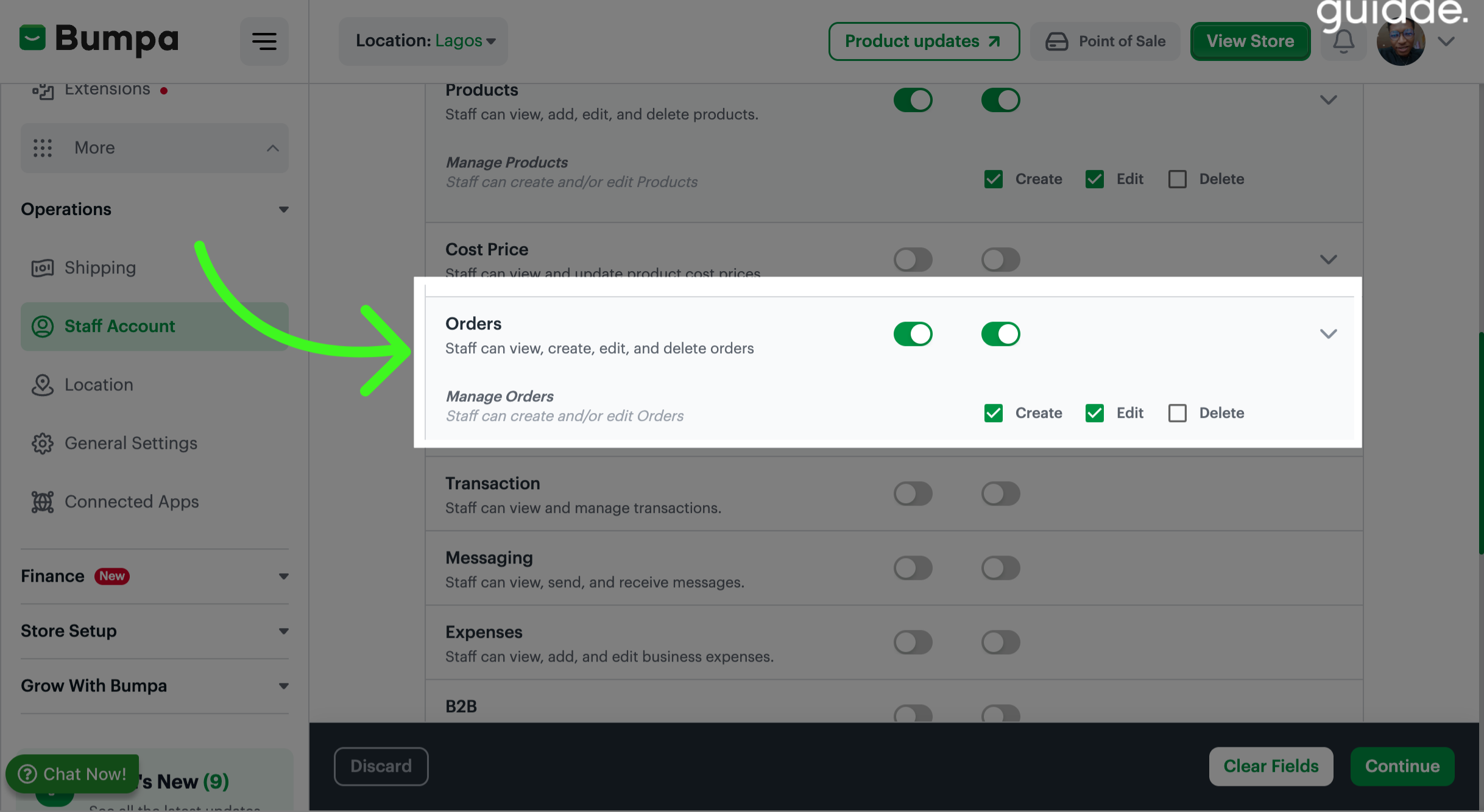
Select options to grant staff access to View, create, edit and delete orders
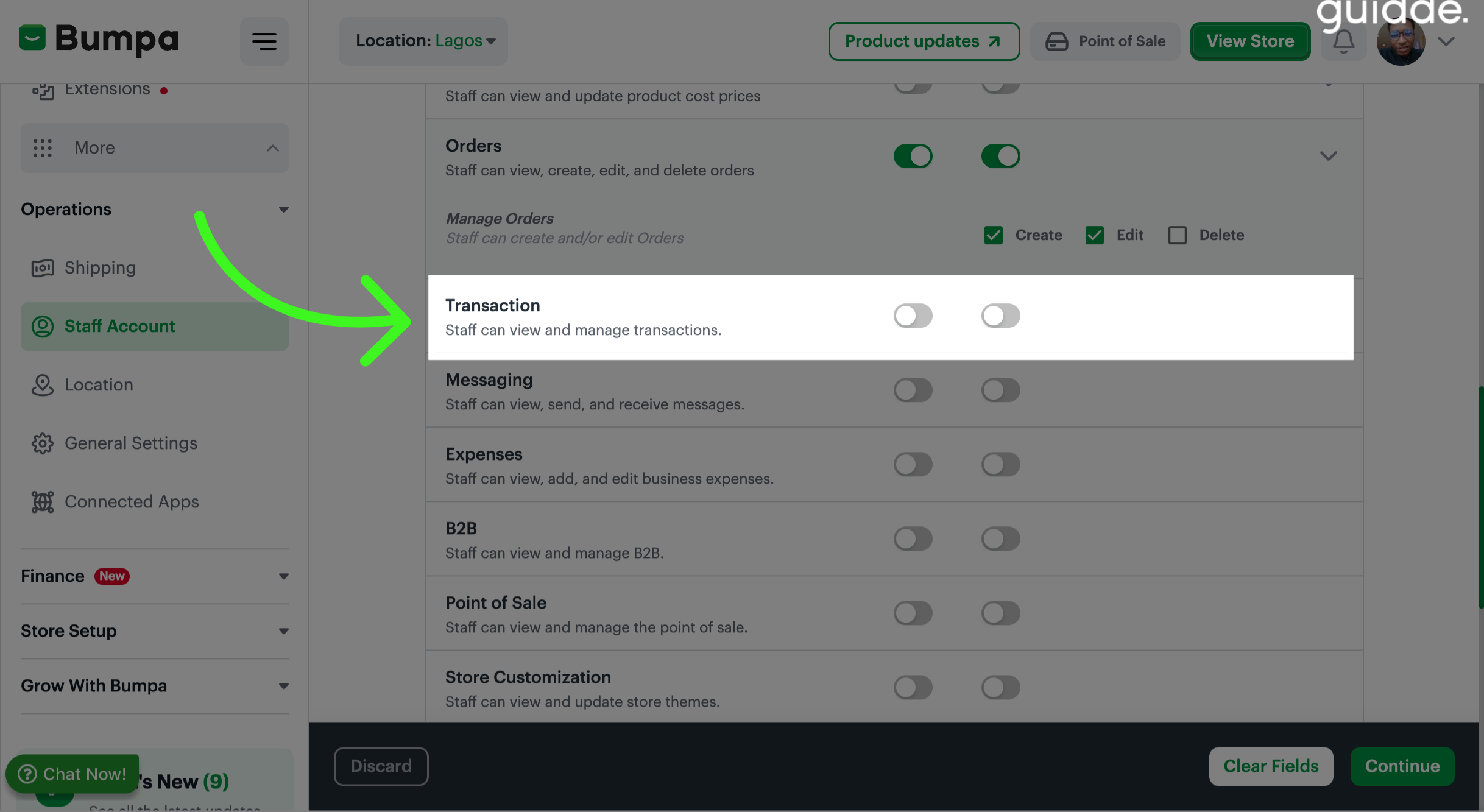
Toggle on options to allow Staff View and Manage transactions
Select options to grant staff access to View, send and receive messages
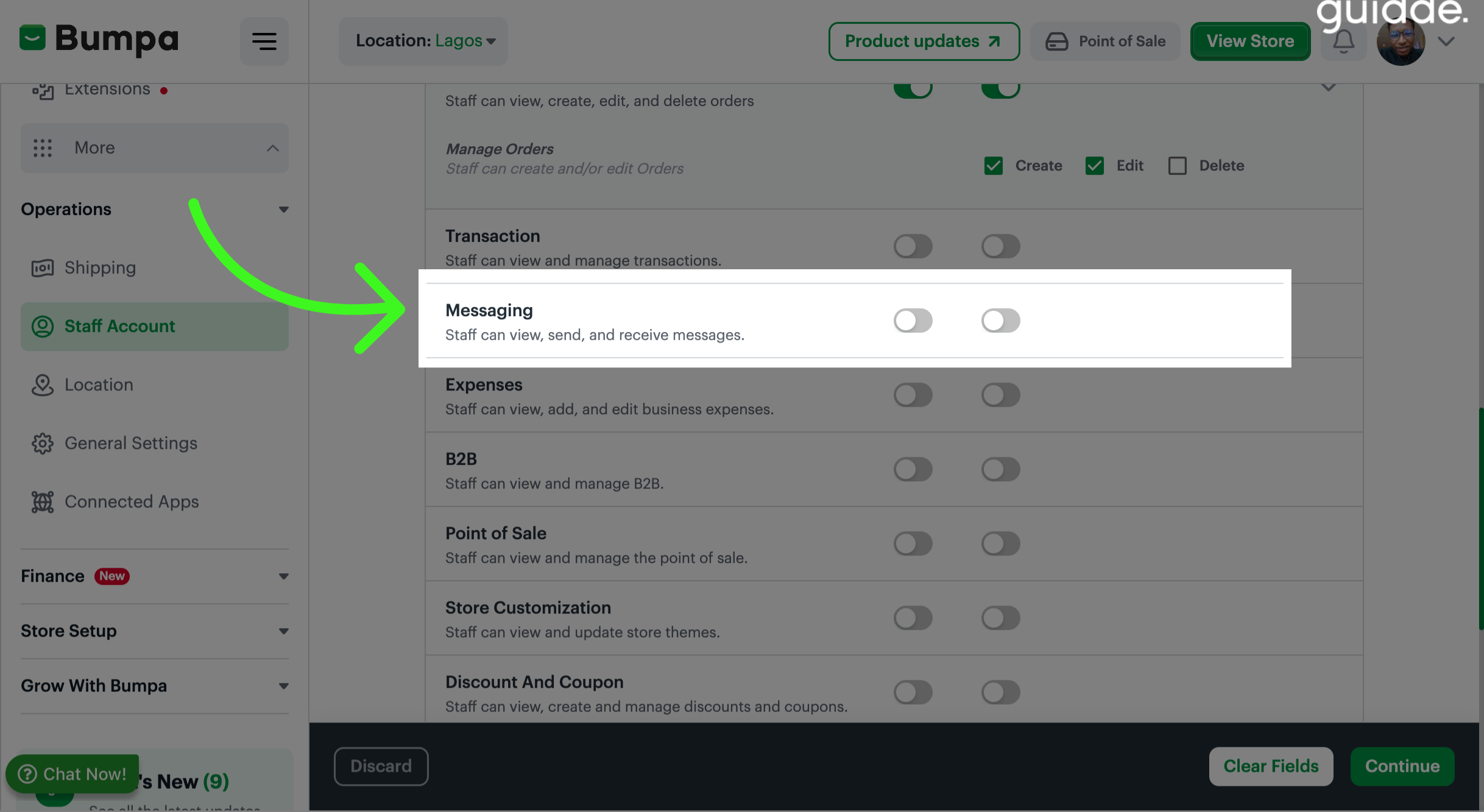
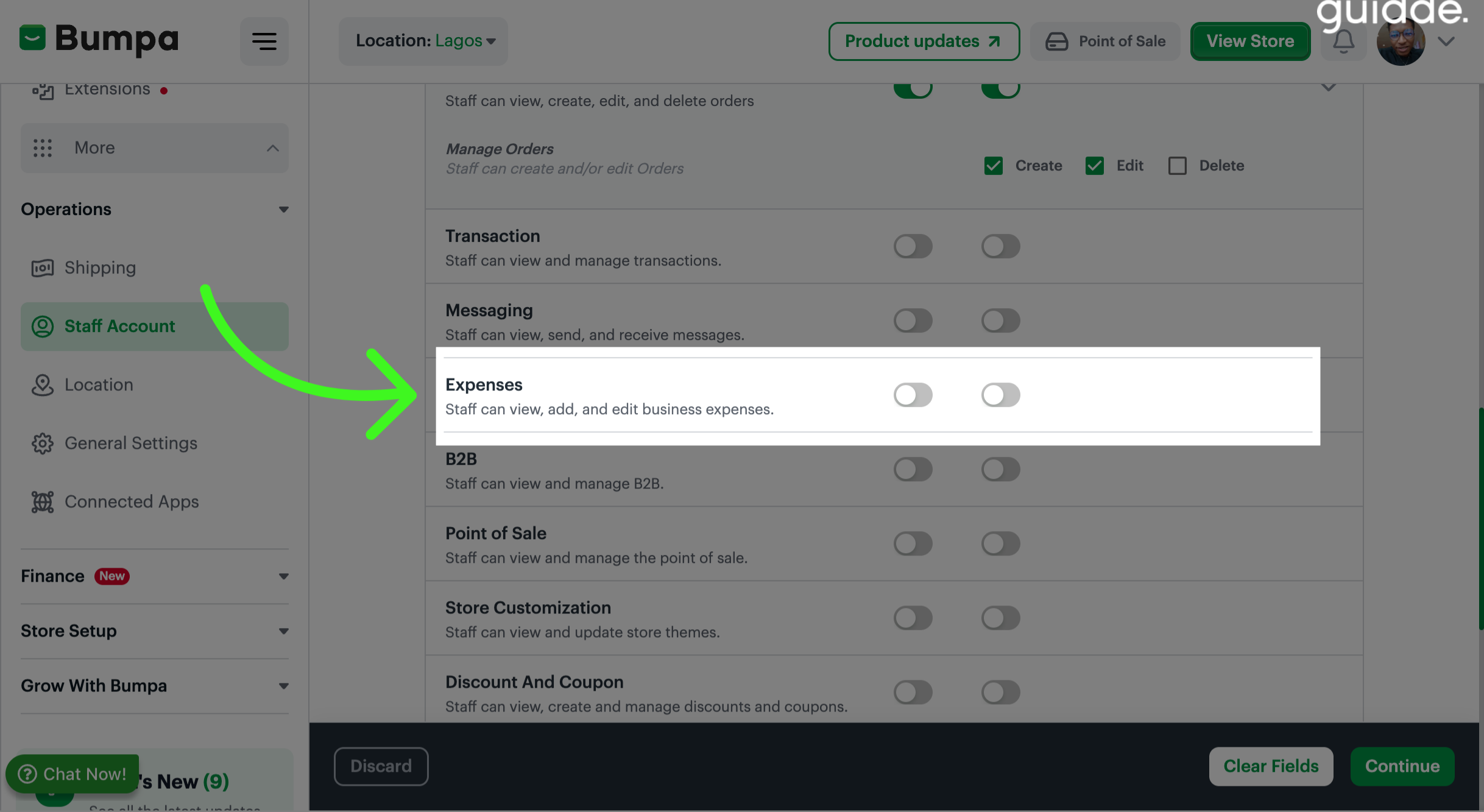
Toggle on options to grant staff access to View, add and edit business expenses
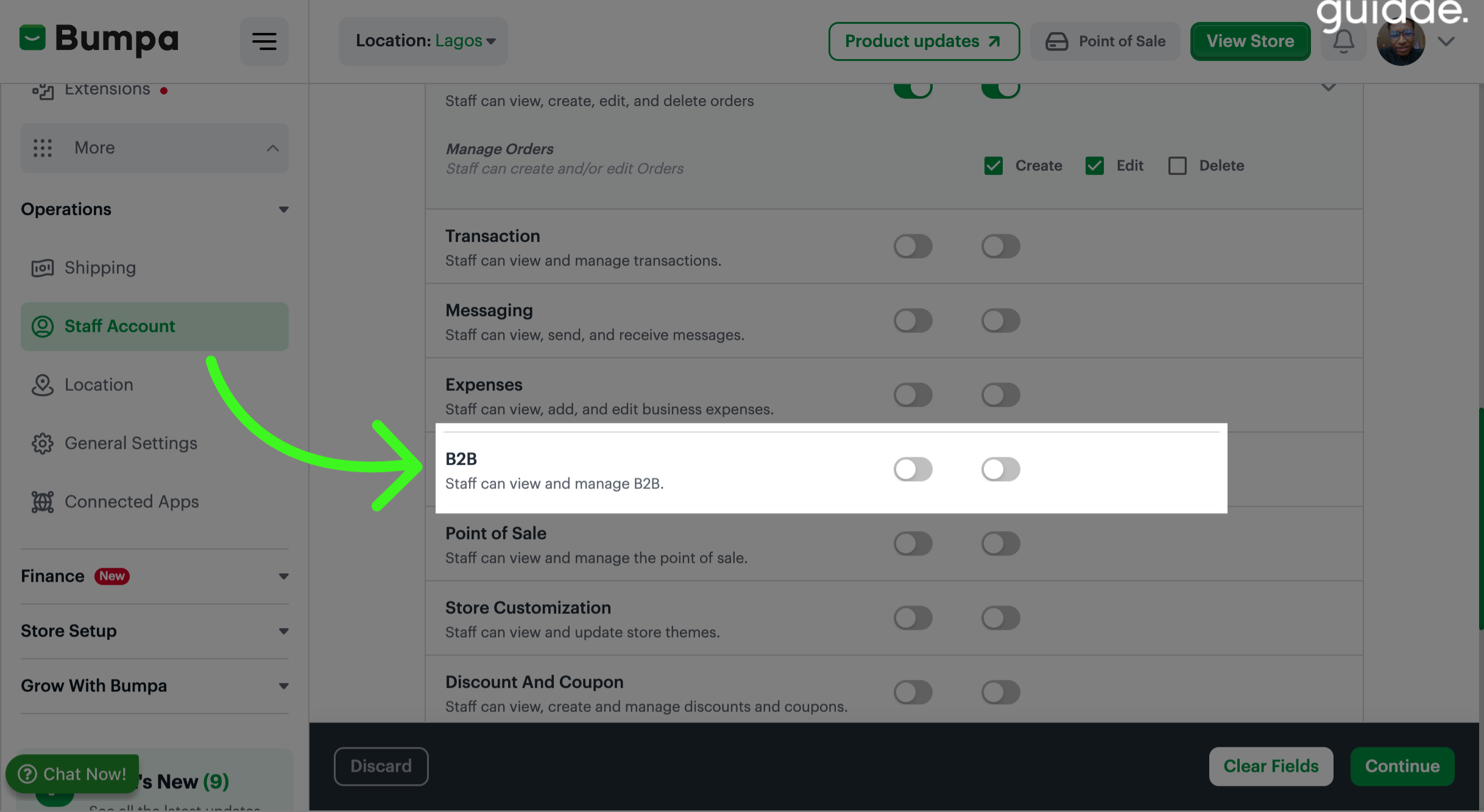
Staff can view and manage B2B, toggle on options for staff to view and manage
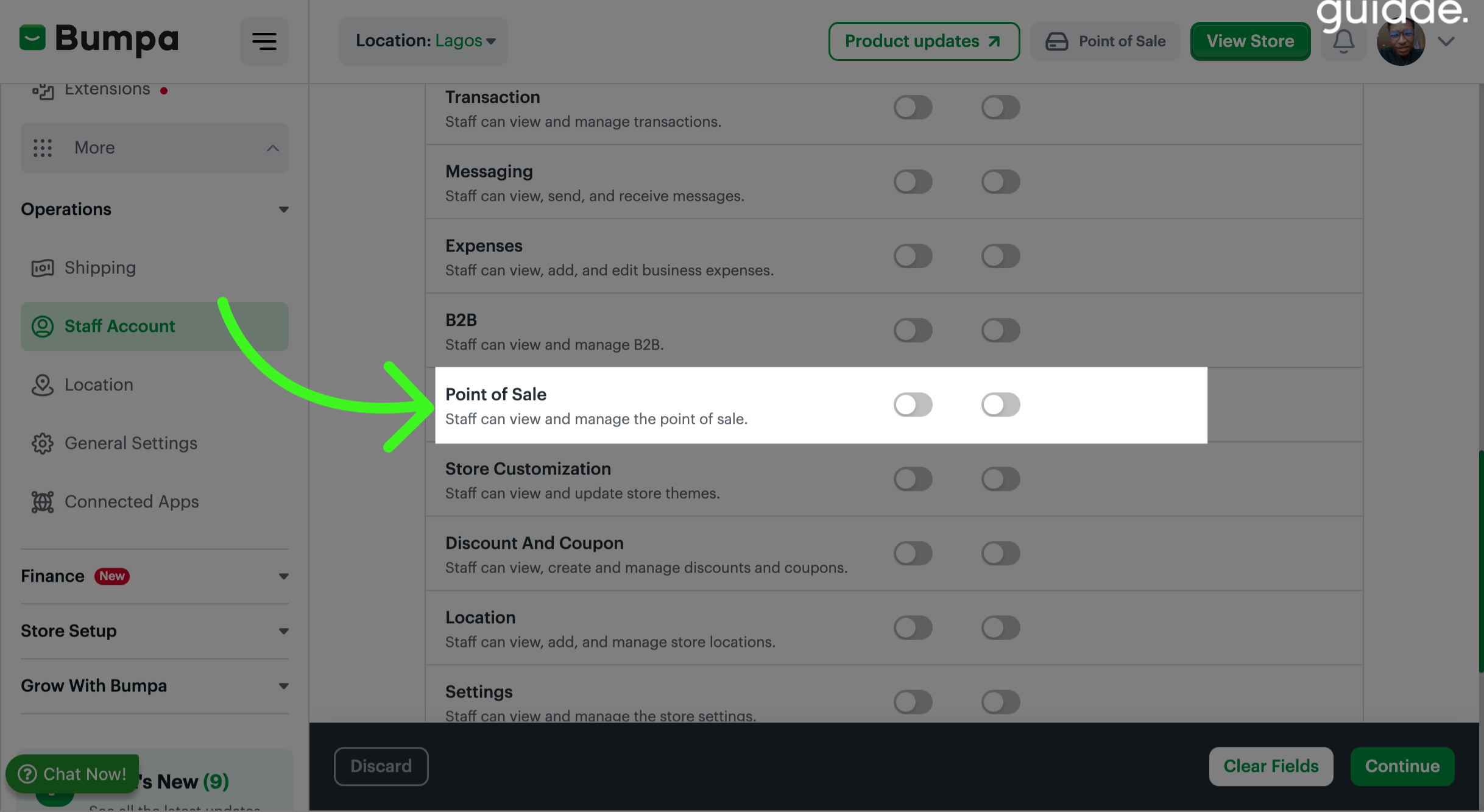
Select options to give staff access to view and manage the Point of Sale
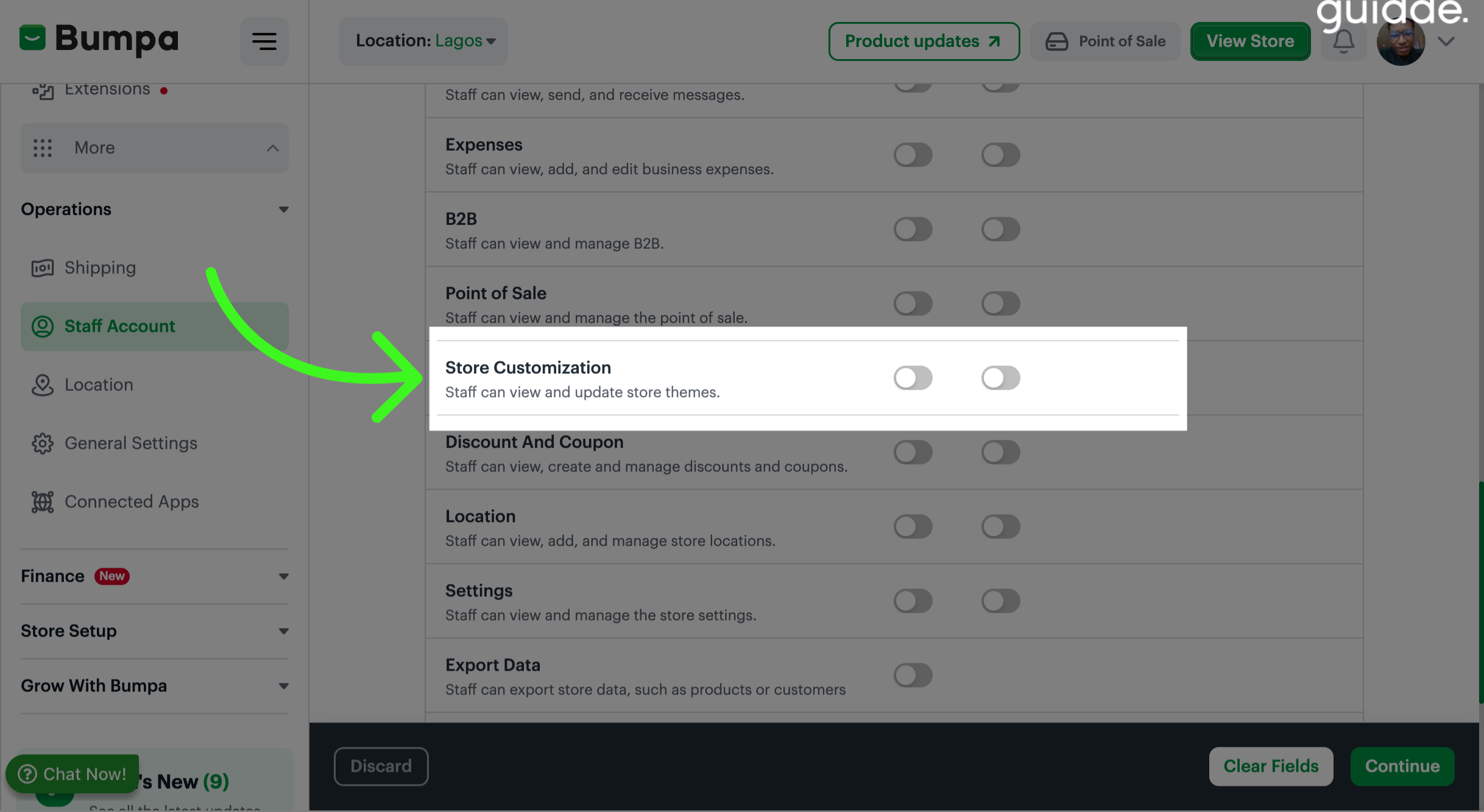
Select options to grant staff access to view and update store themes
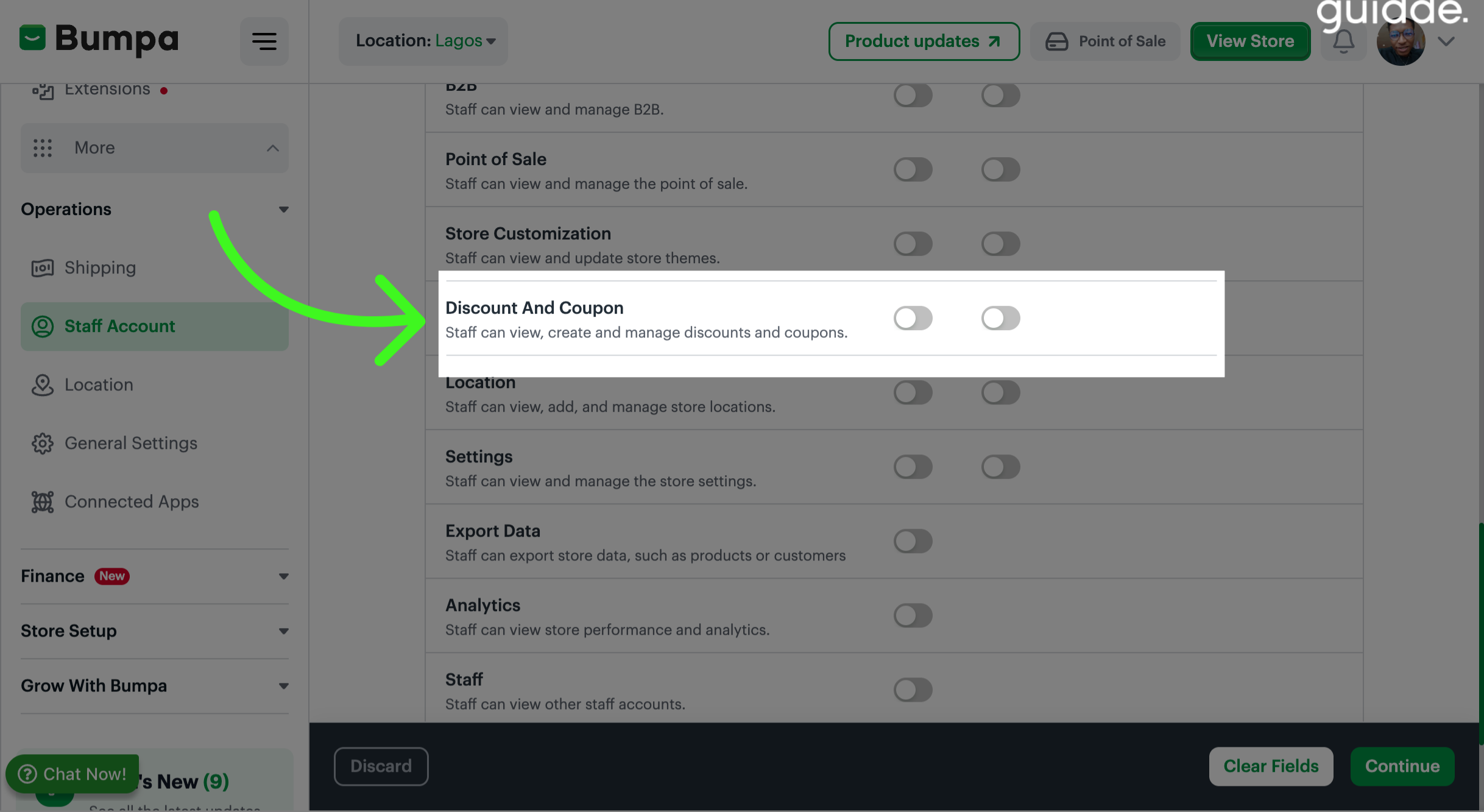
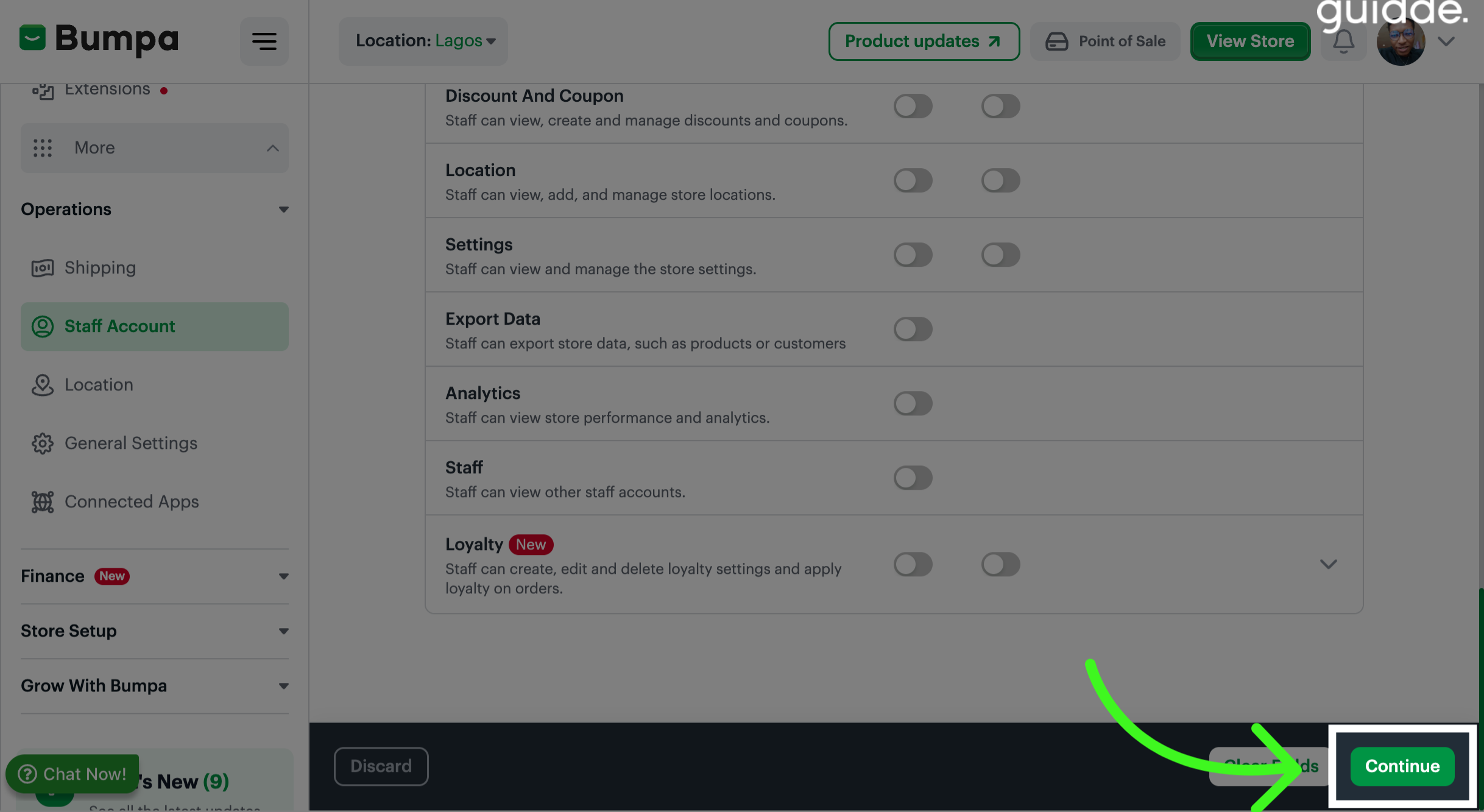
Toggle on view and manage options to give staff access to view, create and manage discounts and coupons
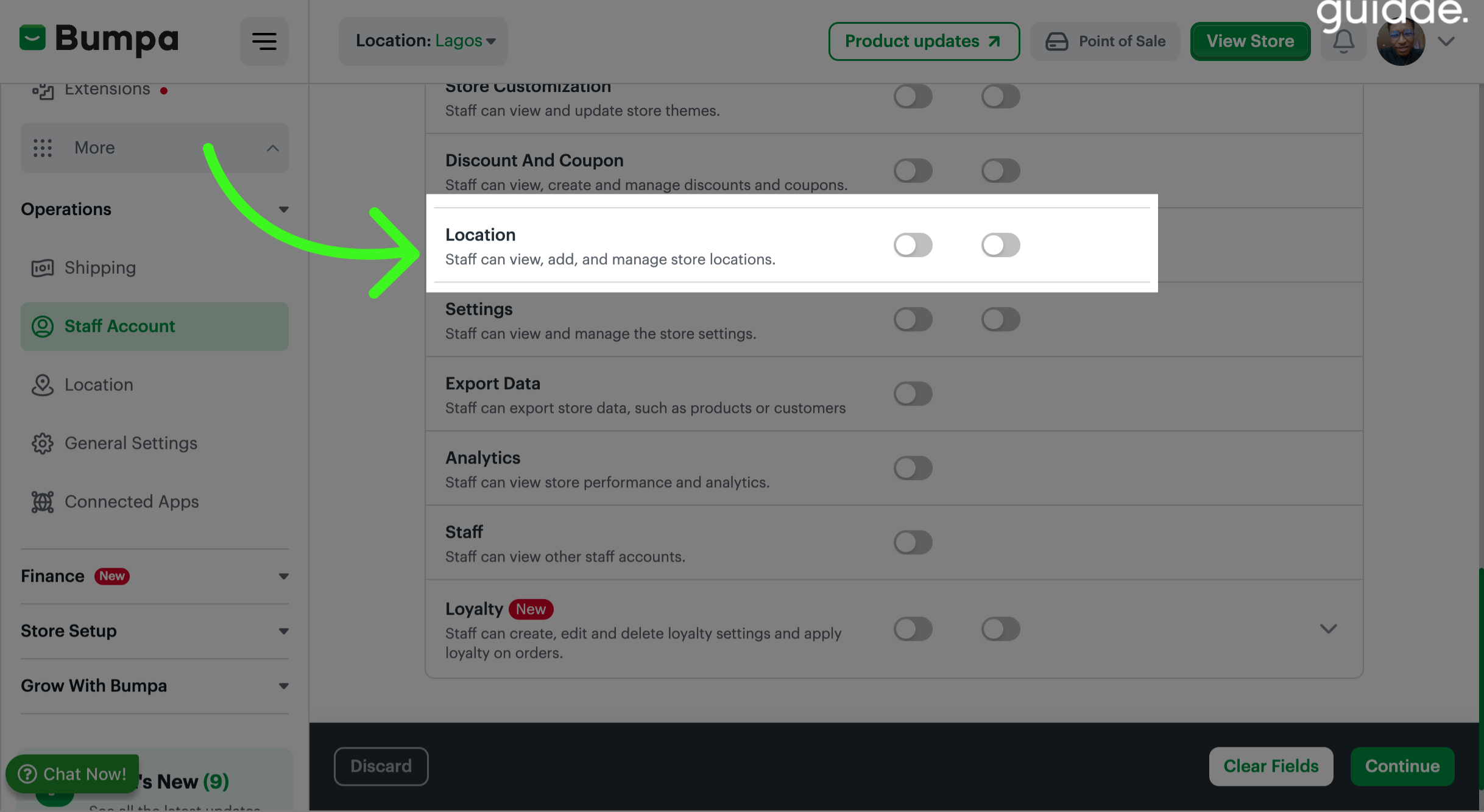
Grant staff the access to view, add and manage store locations
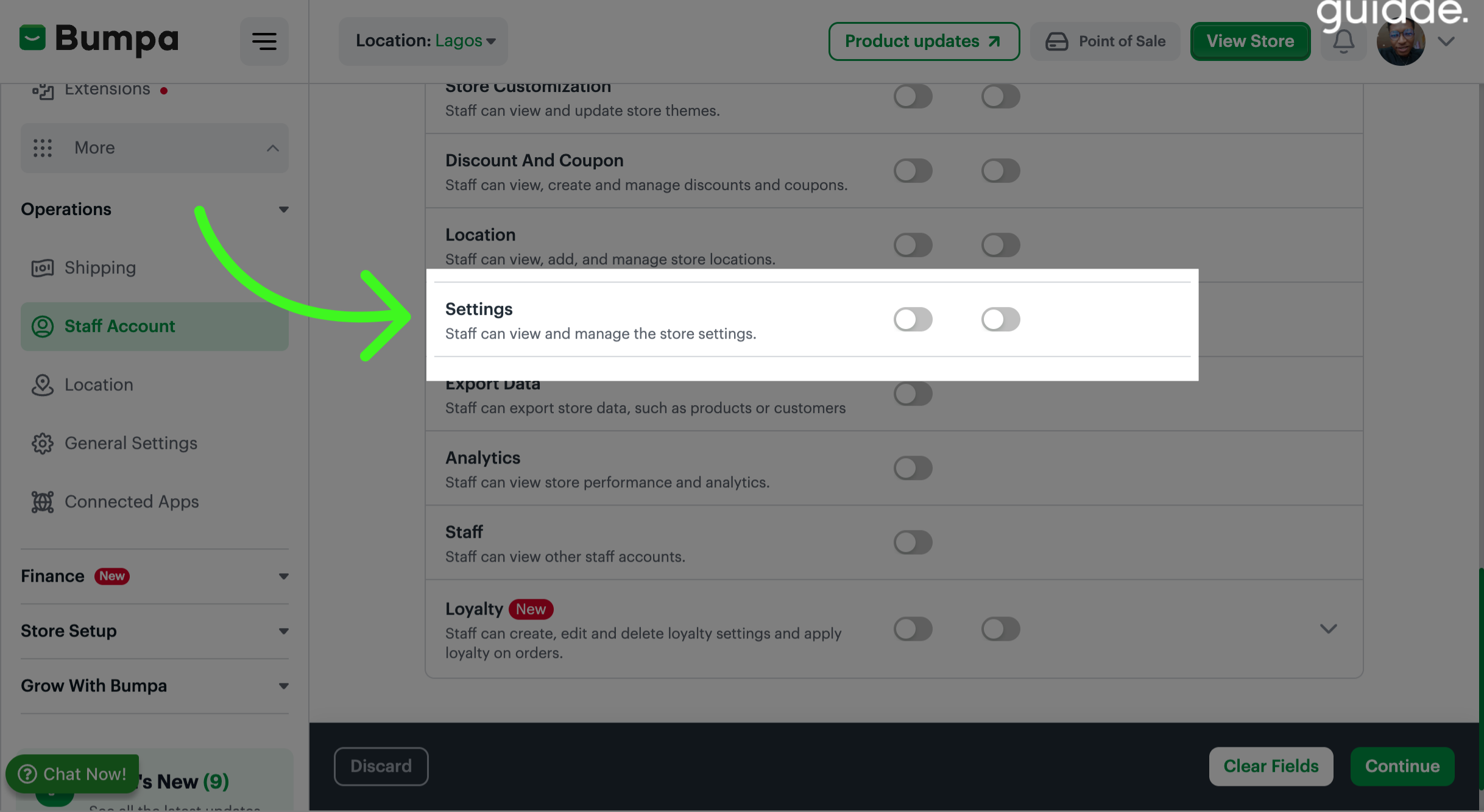
Grant staff access to view and manage store settings
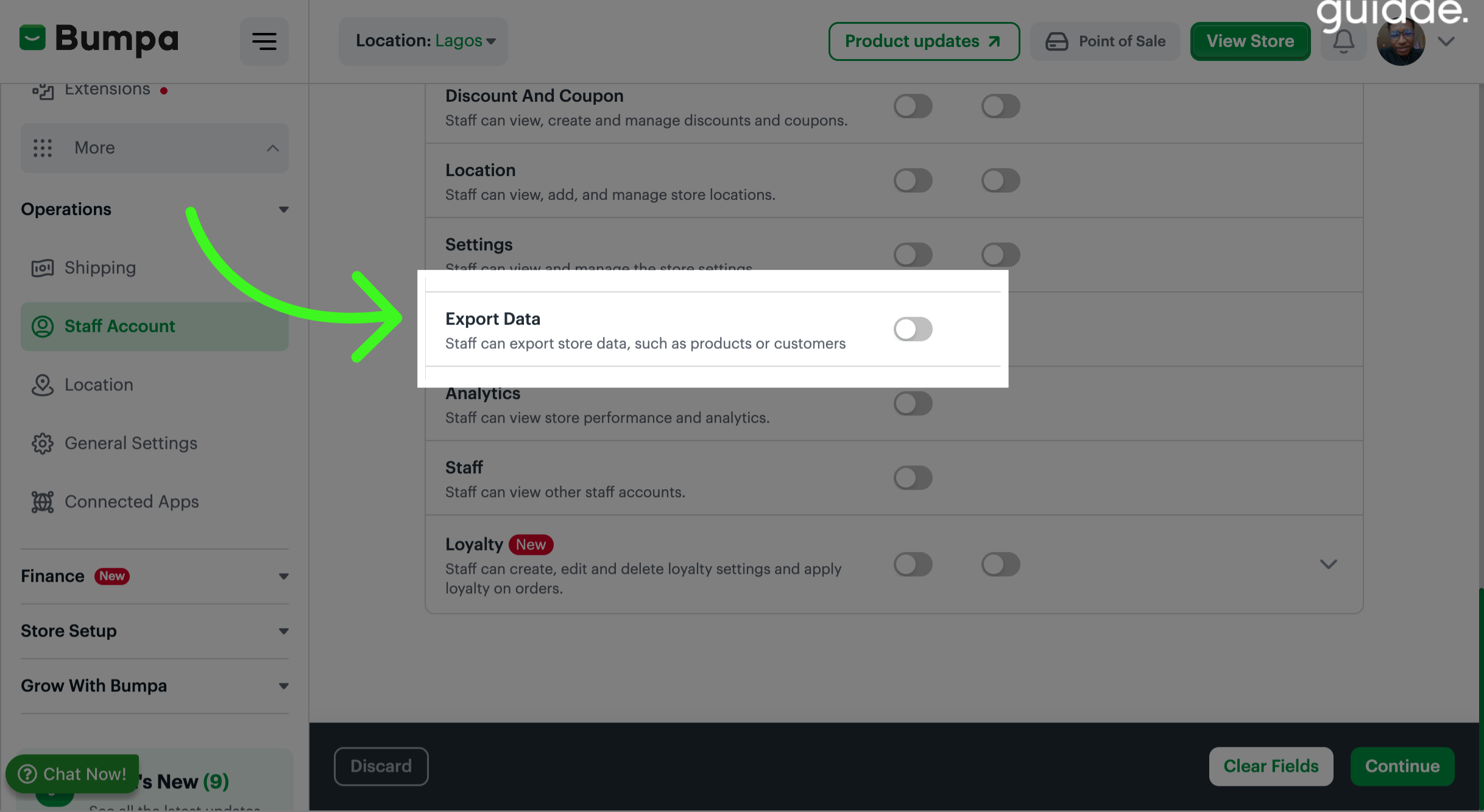
Toggle on option to give staff access to export store data
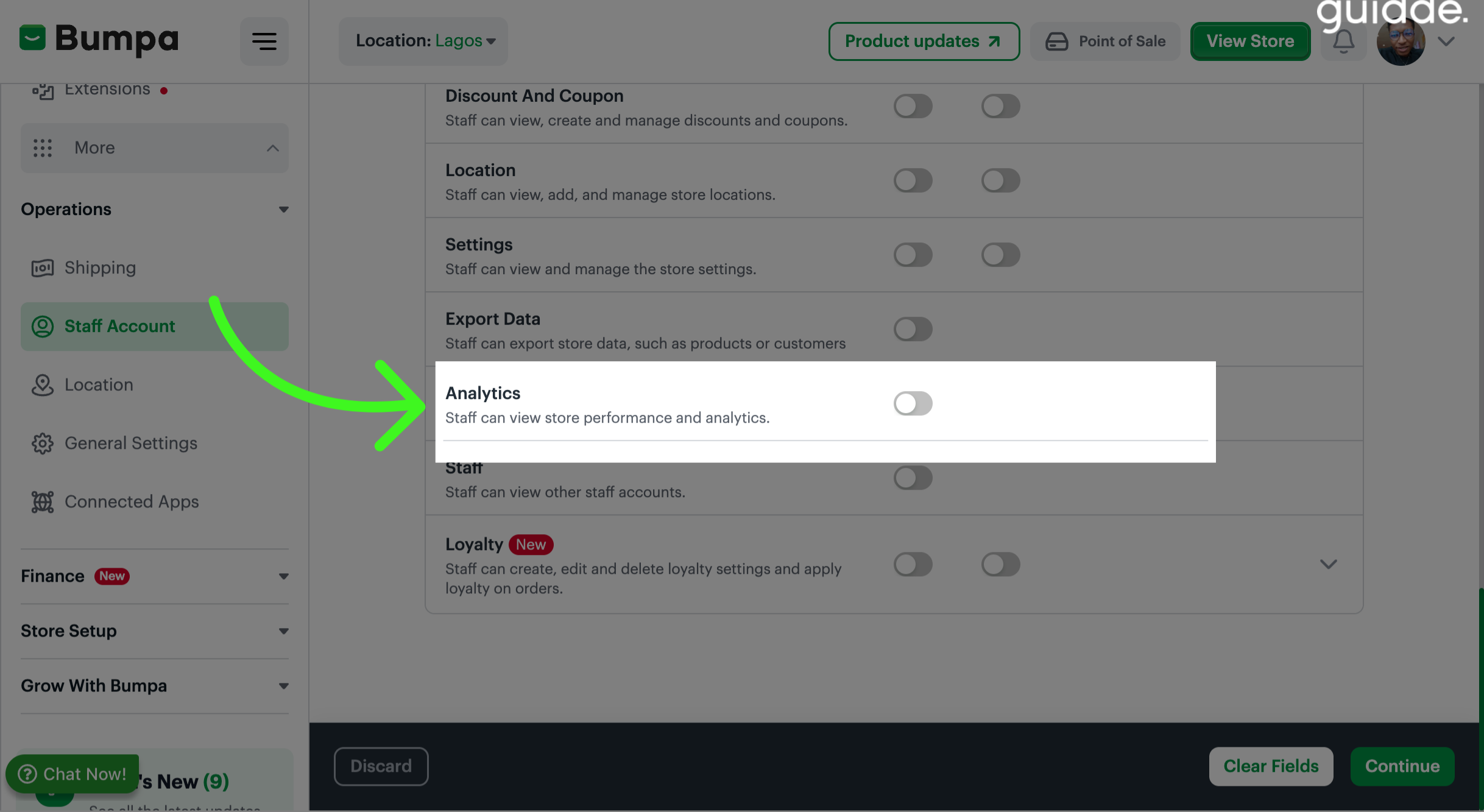
Select option to grant staff access to view store performance and analytics
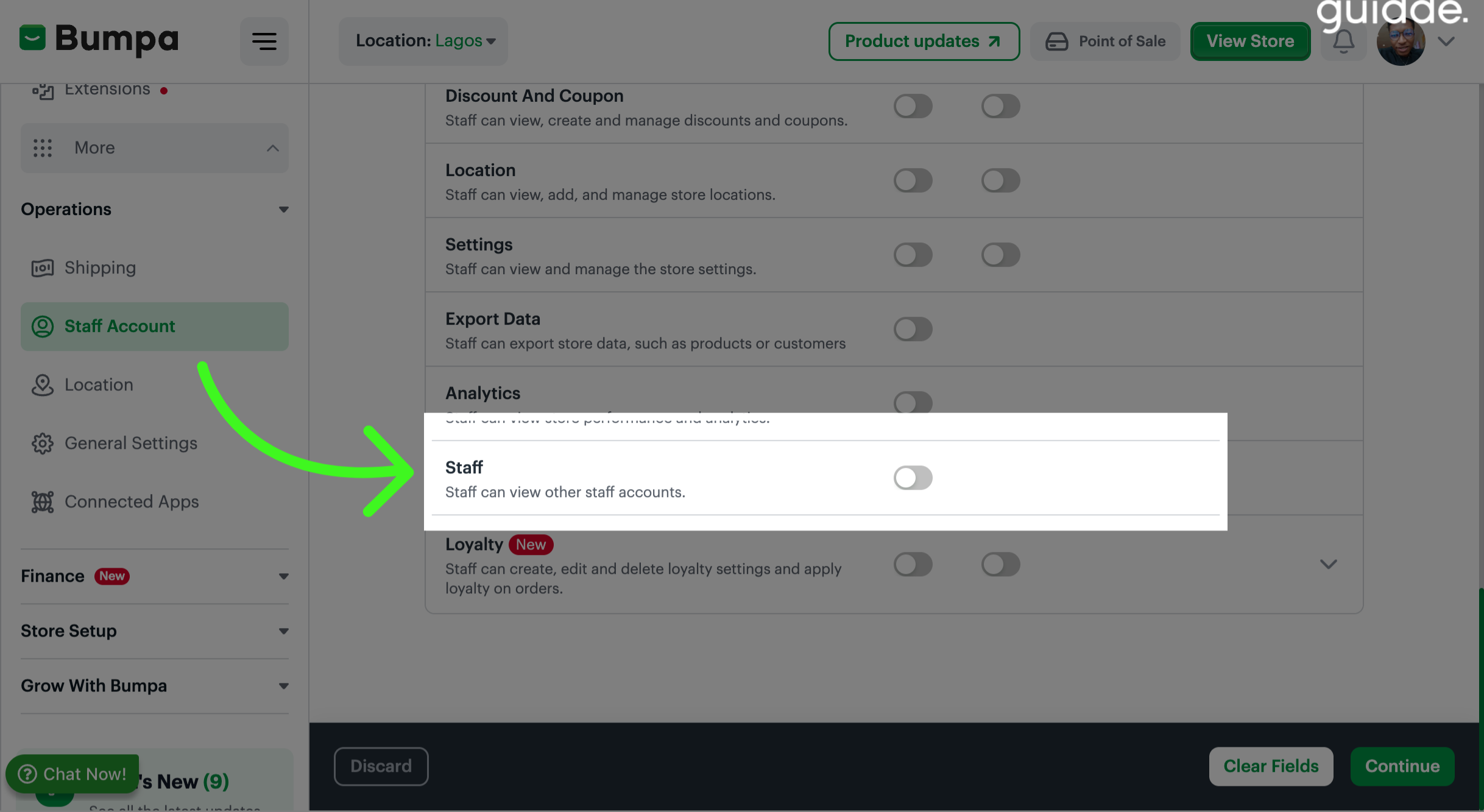
Grant staff access to View other staff account
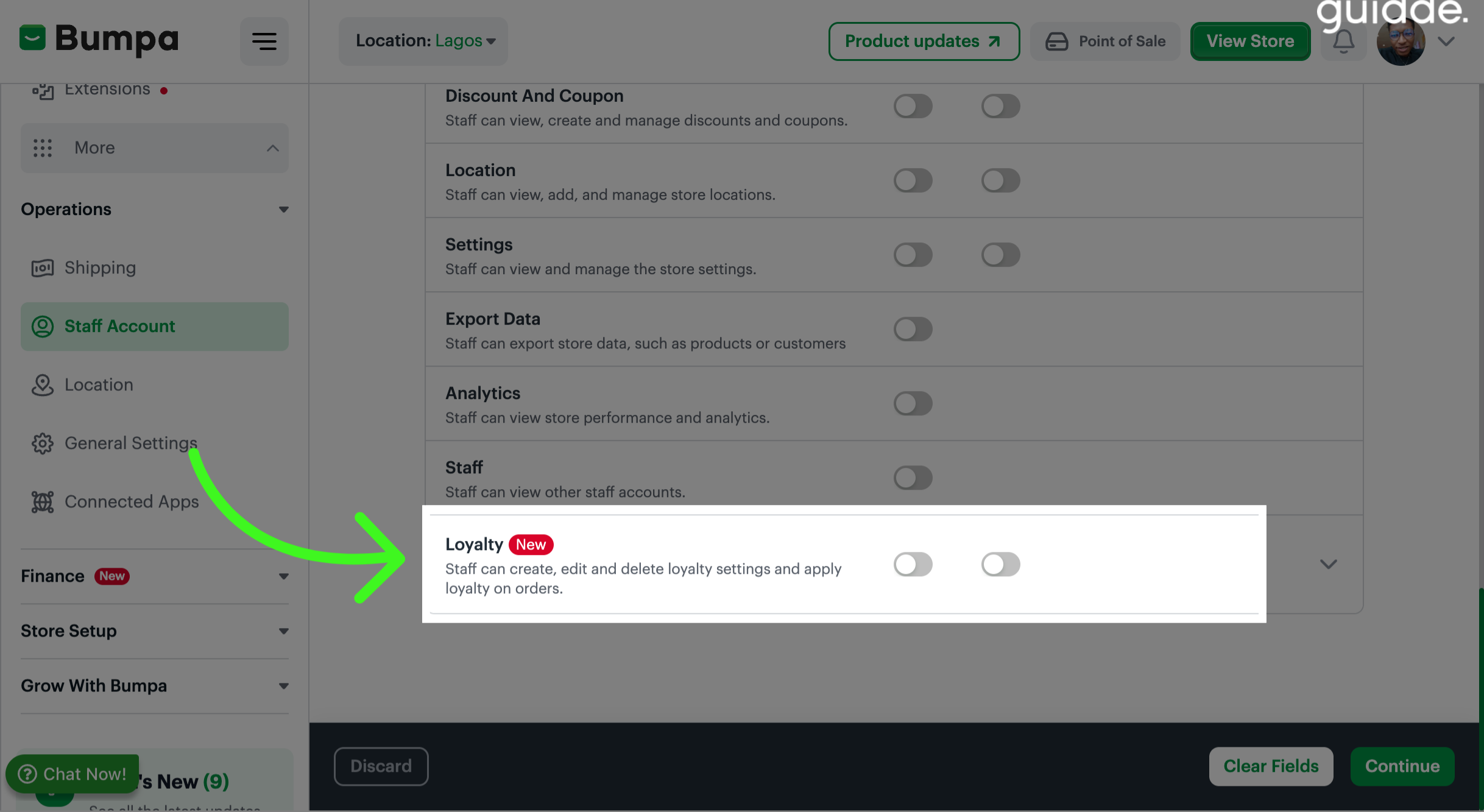
Toggle on options to grant staff access to create, edit and delete loyalty settings and apply loyalty on orders
Click on Continue to Save changes made to Staff Permission
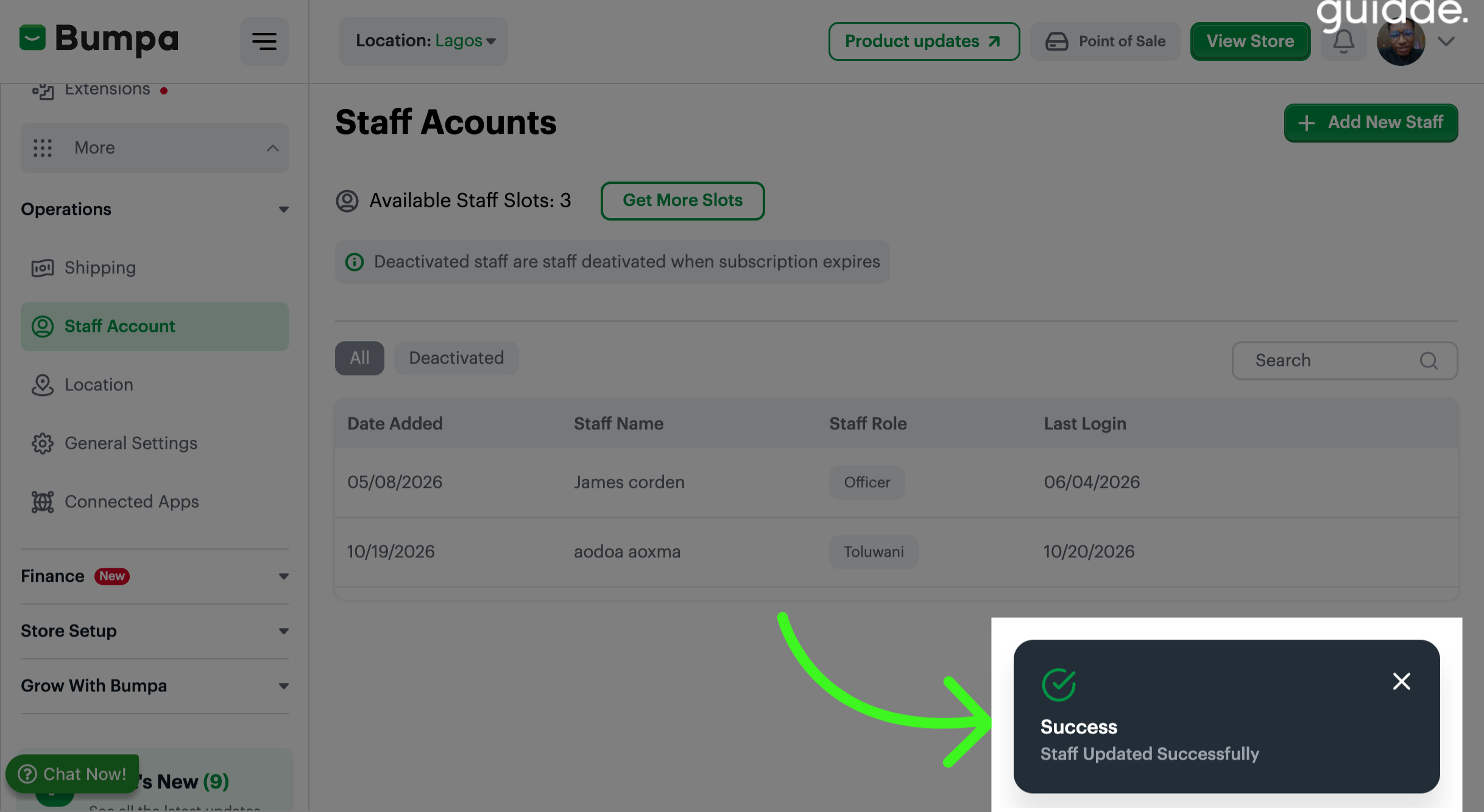
Success notification pops up to show Staff details has been updated successfully
Related Articles:
Was this article helpful?
That’s Great!
Thank you for your feedback
Sorry! We couldn't be helpful
Thank you for your feedback
Feedback sent
We appreciate your effort and will try to fix the article