As a premium user, your store's appearance is not limited to a fixed design, customizing your store's theme allows you to tailor its visual layout, typography, and promotional sections to reflect your brand's unique identity. With this guide, You'll learn how to upload images, adjust colors, and configure key website elements to enhance your brand presence.
To customize your Porto theme, log into your Web app - app.getbumpa.com
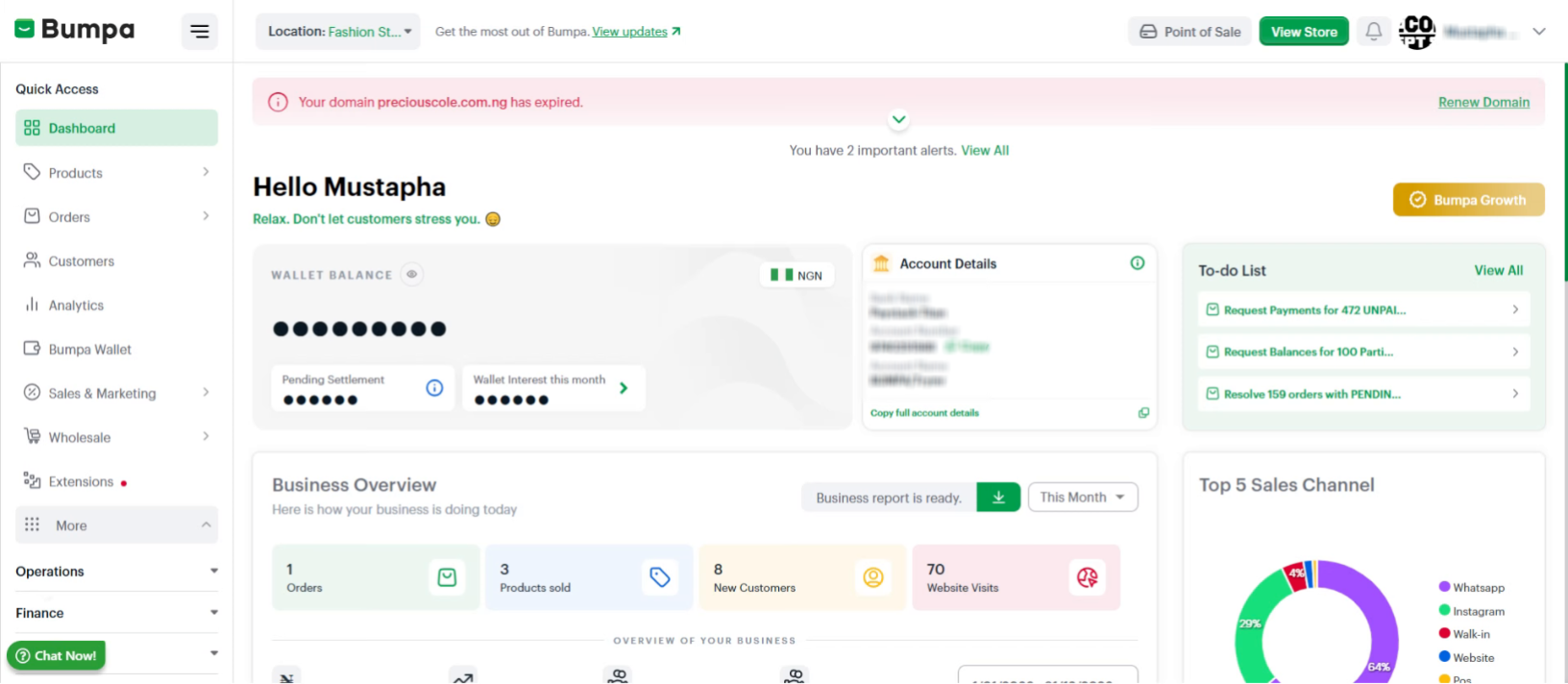
Click the Store Setup option to begin customizing your online store's settings and appearance.
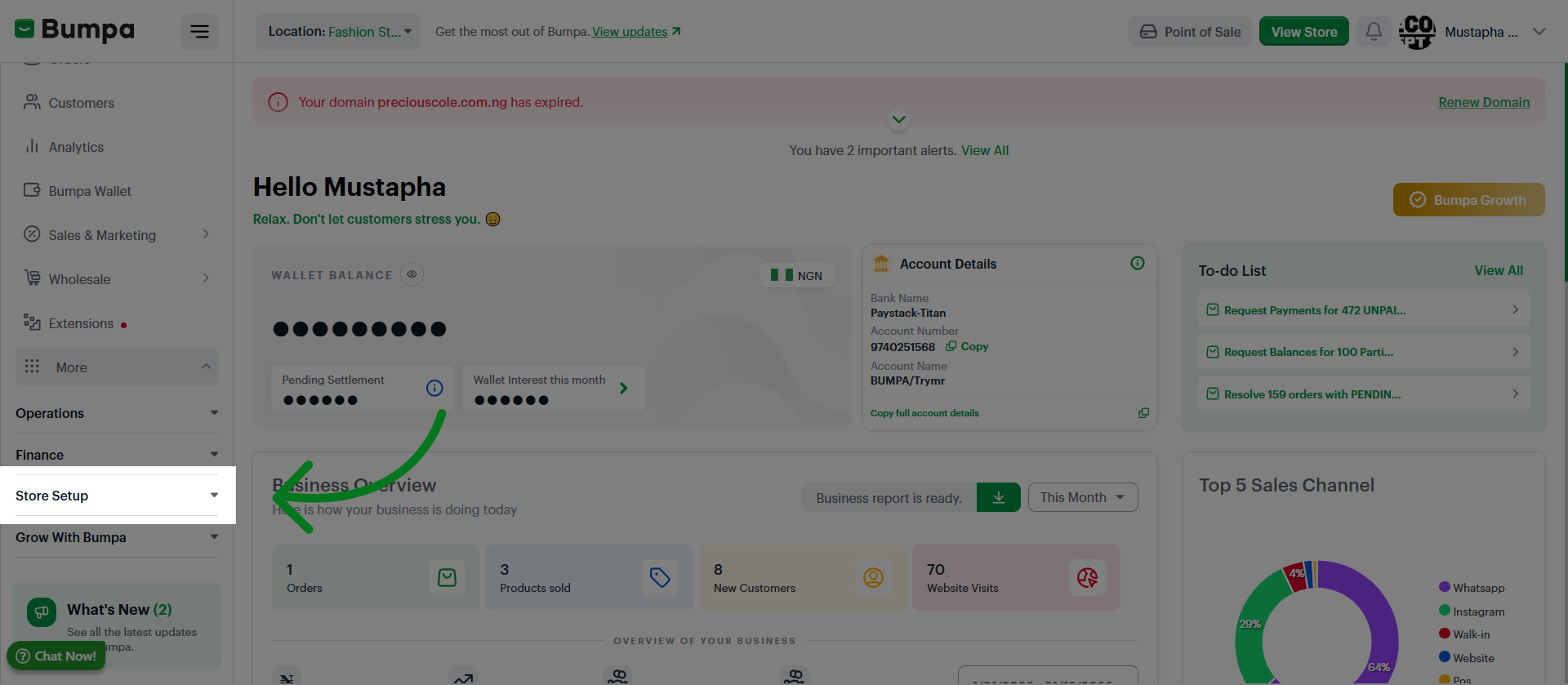
Select Site Customization to modify your website's look and feel according to your brand.
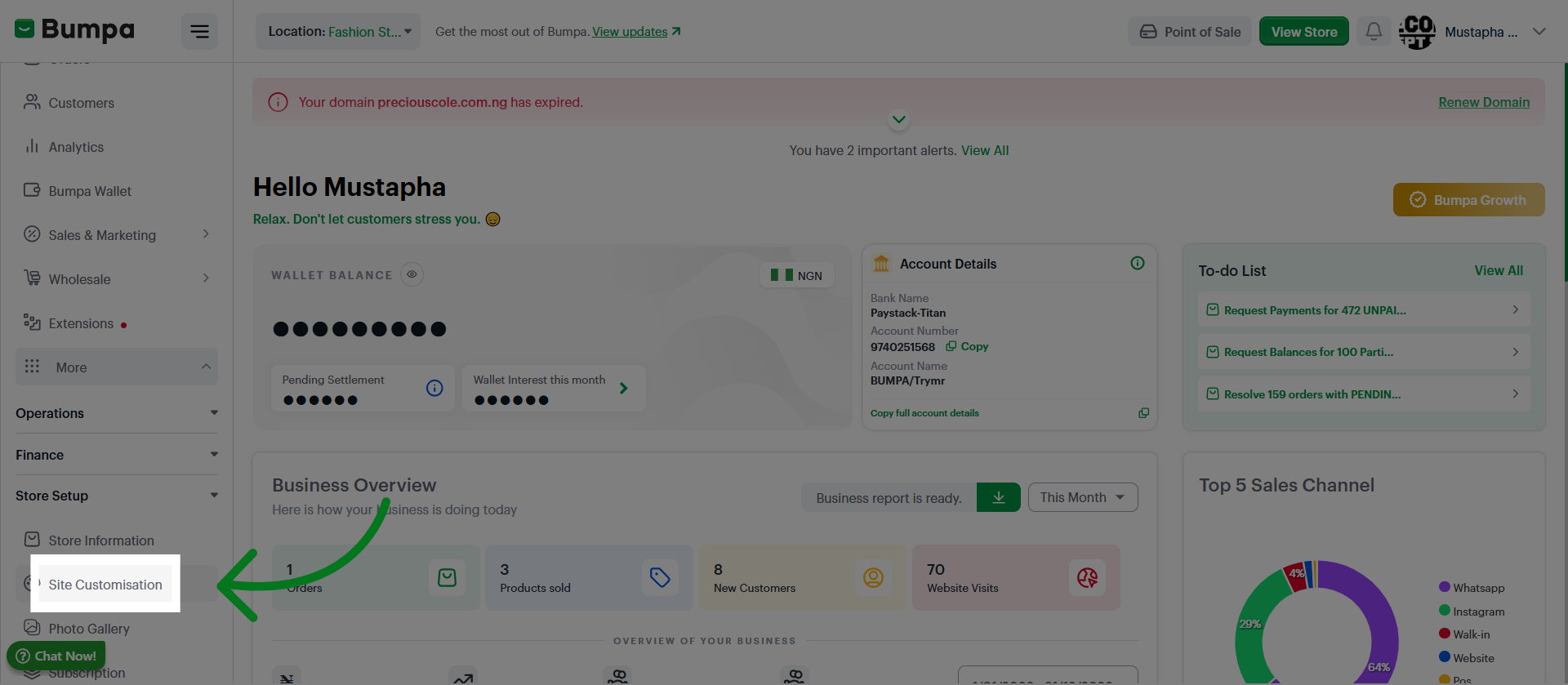
Click Customize to adjust color schemes and visual elements on your website.
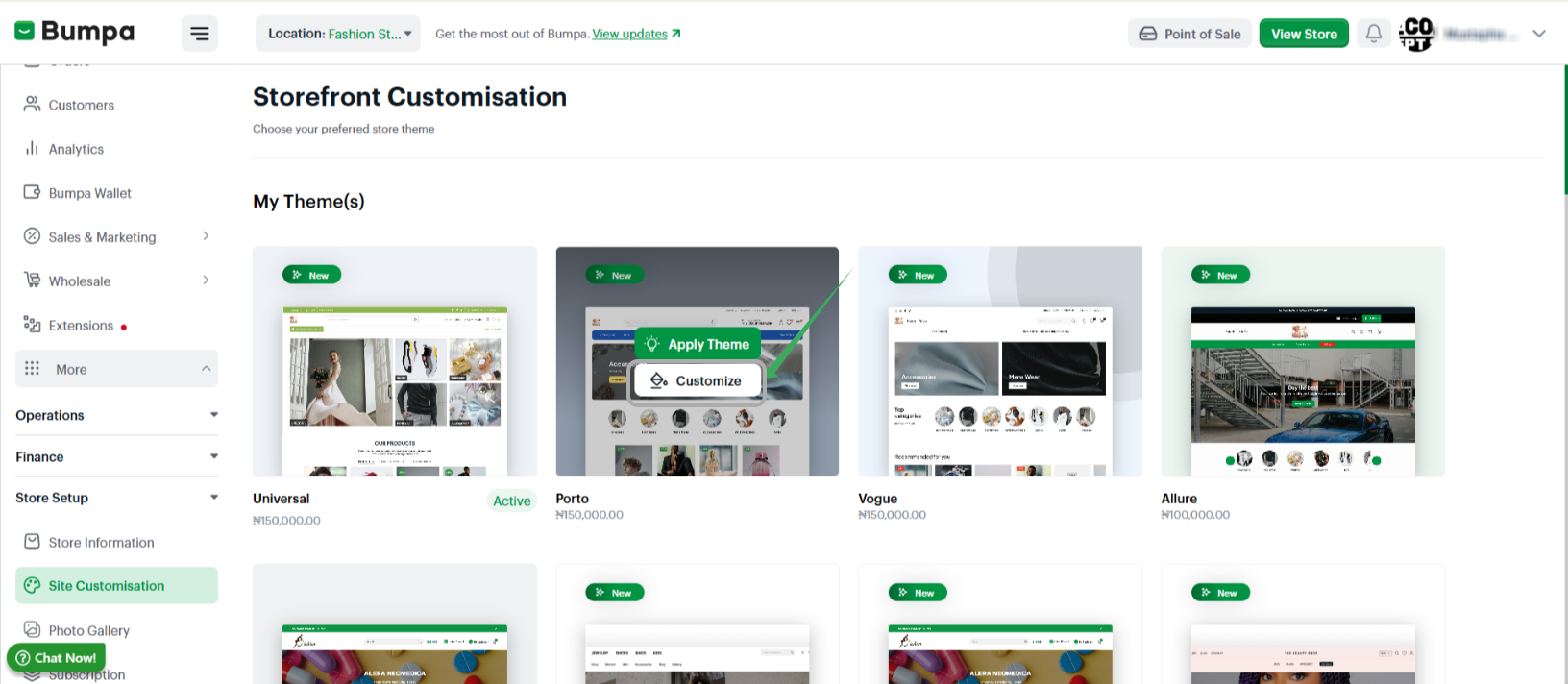
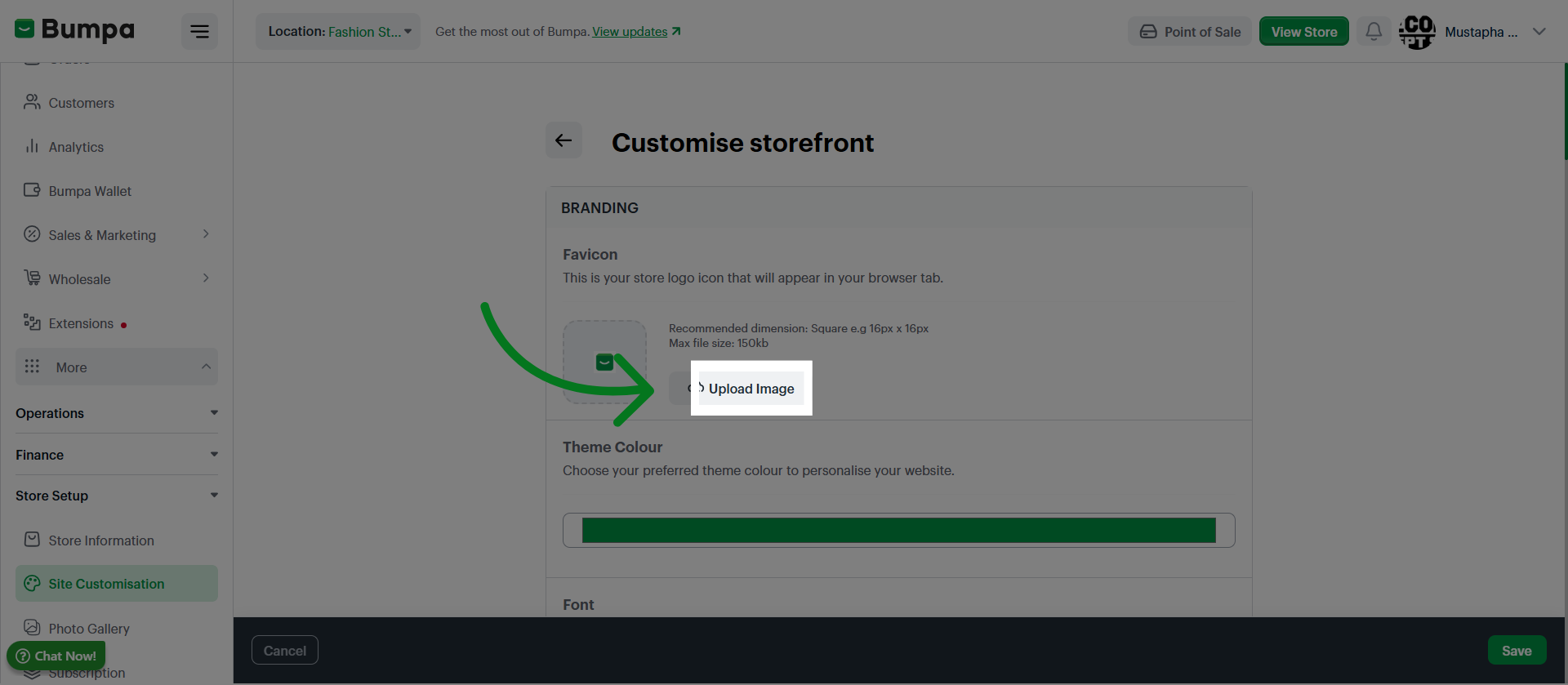
Click Upload Image to add a favicon to your website
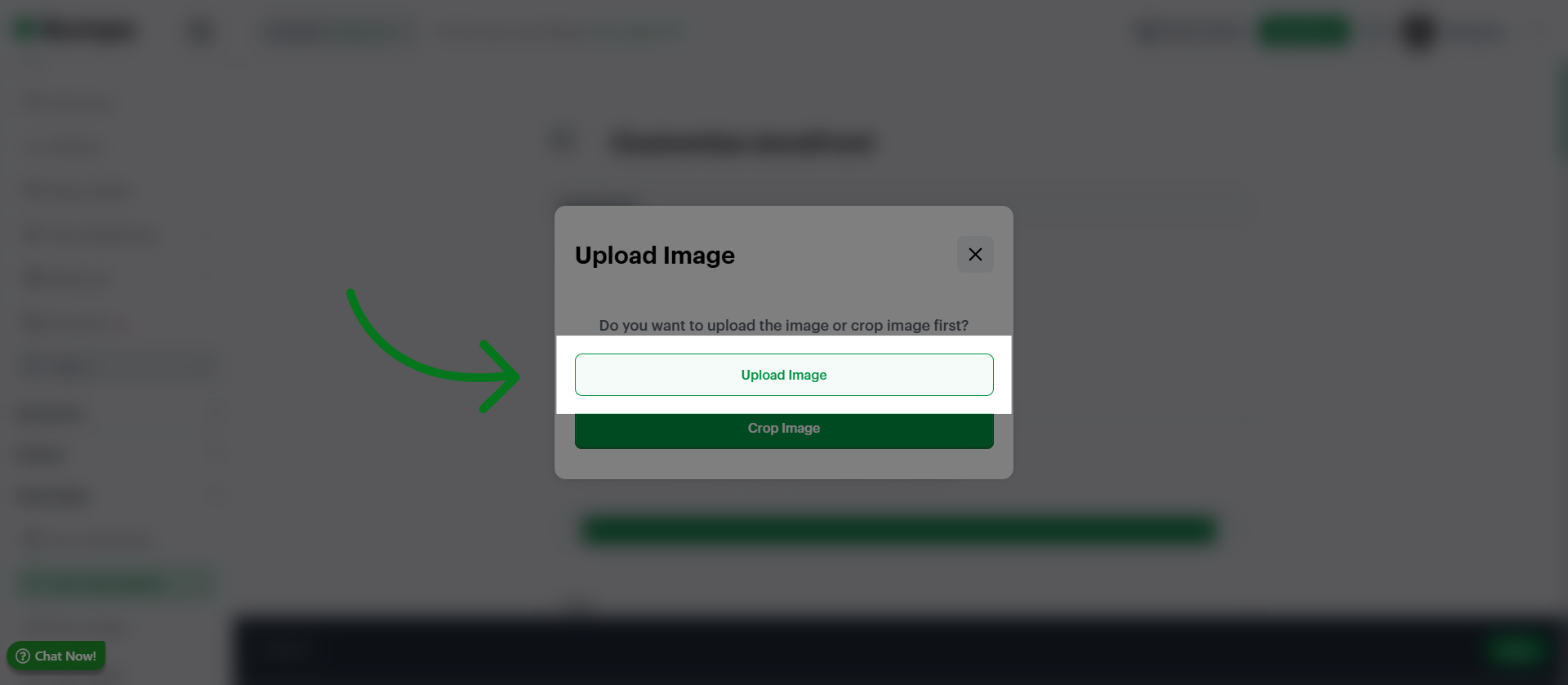
Click Upload Image to confirm and add the selected image to your website
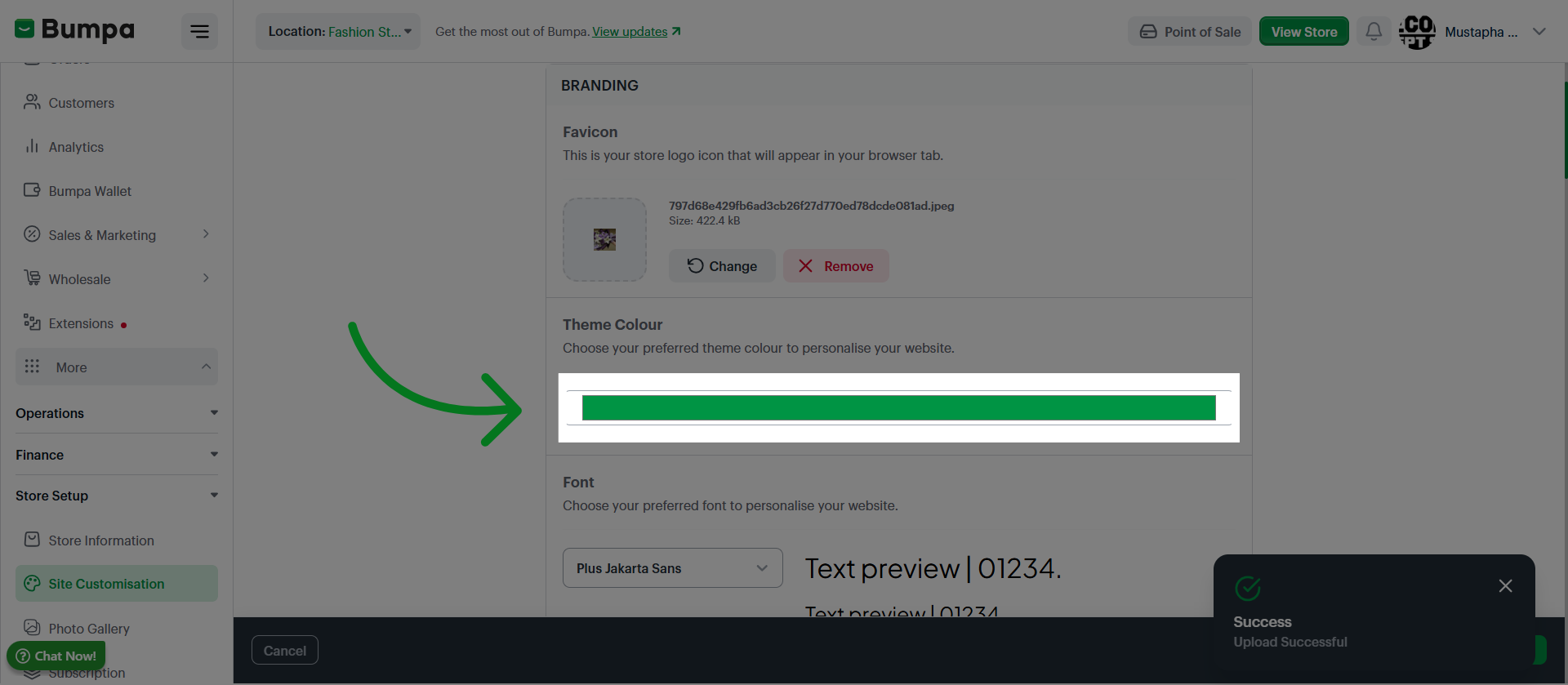
Click the color option to apply it to your website's design
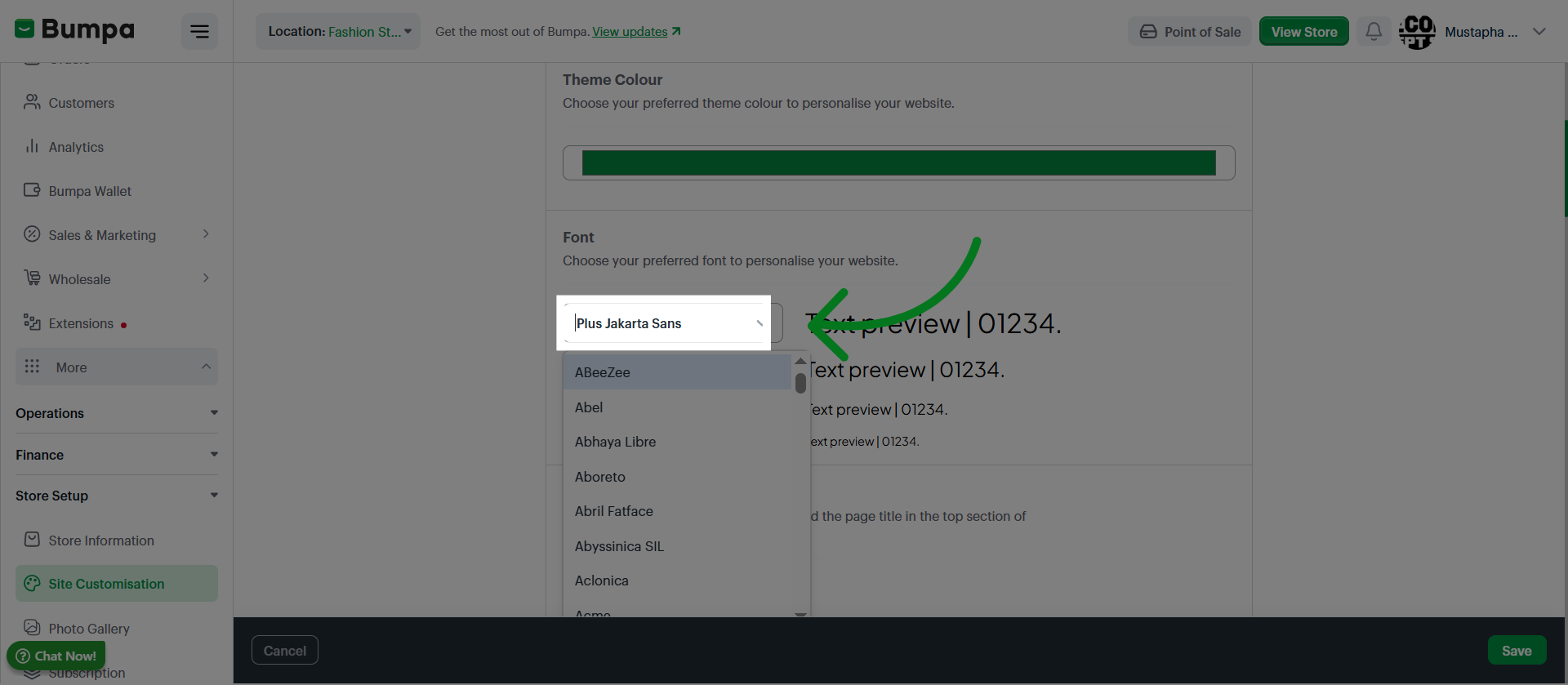
Select your preferred website font
Click to select an image from your device folder for your page tile banner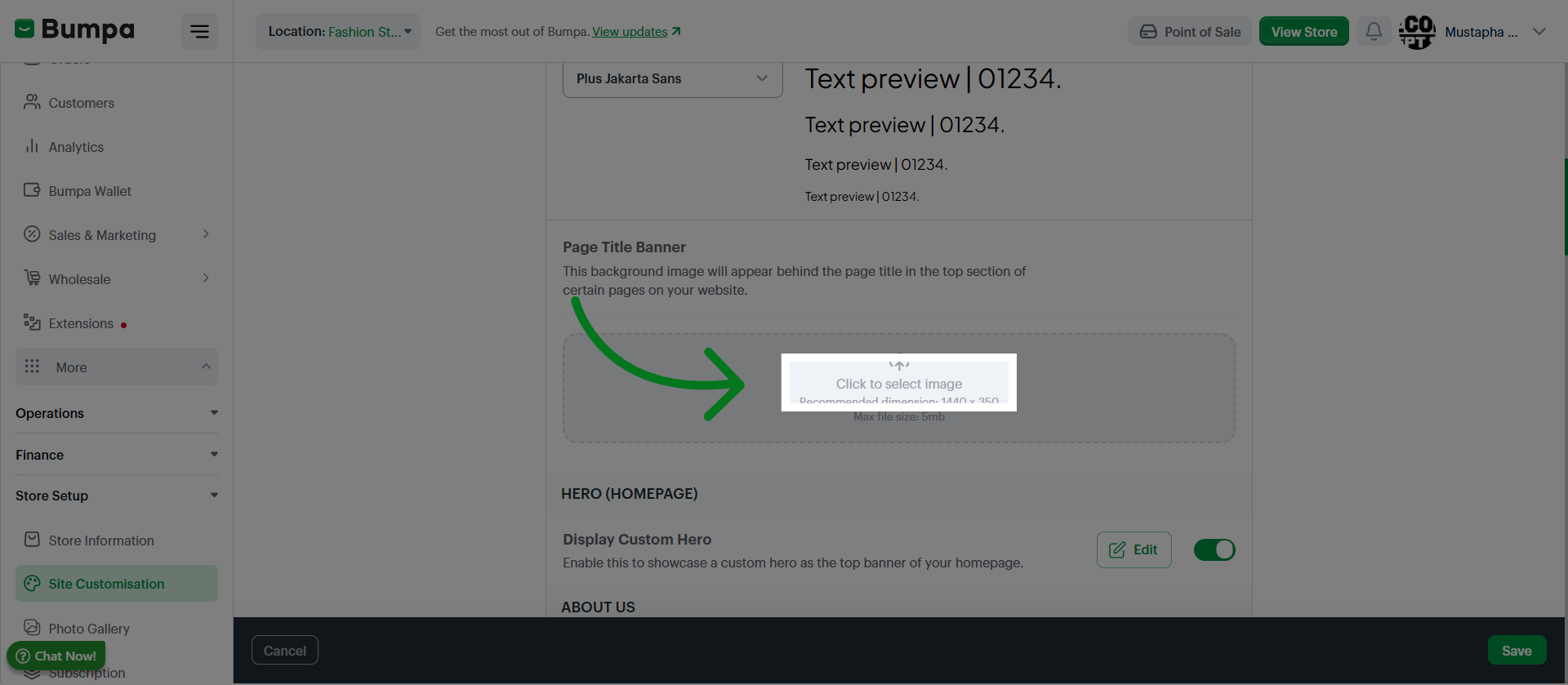
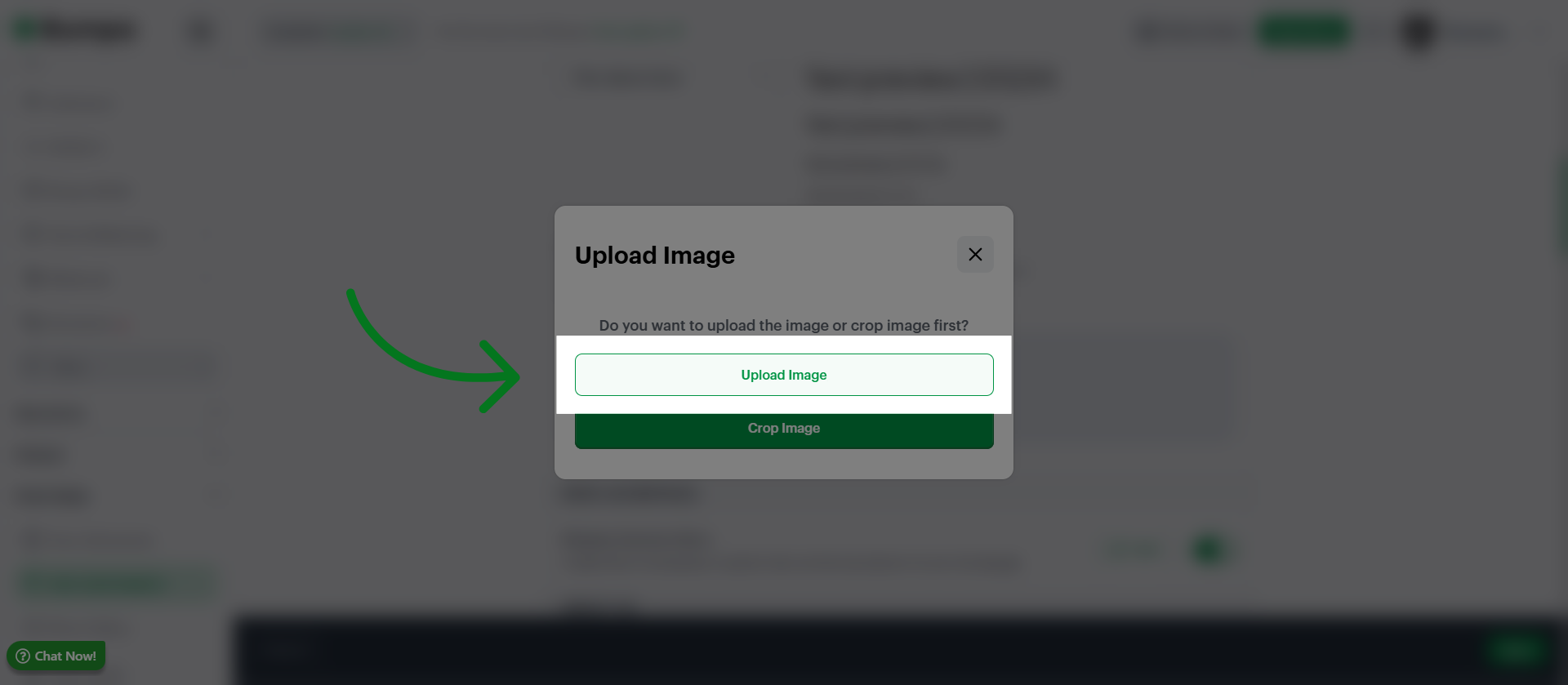
Click Upload Image to add the image to your website's branding
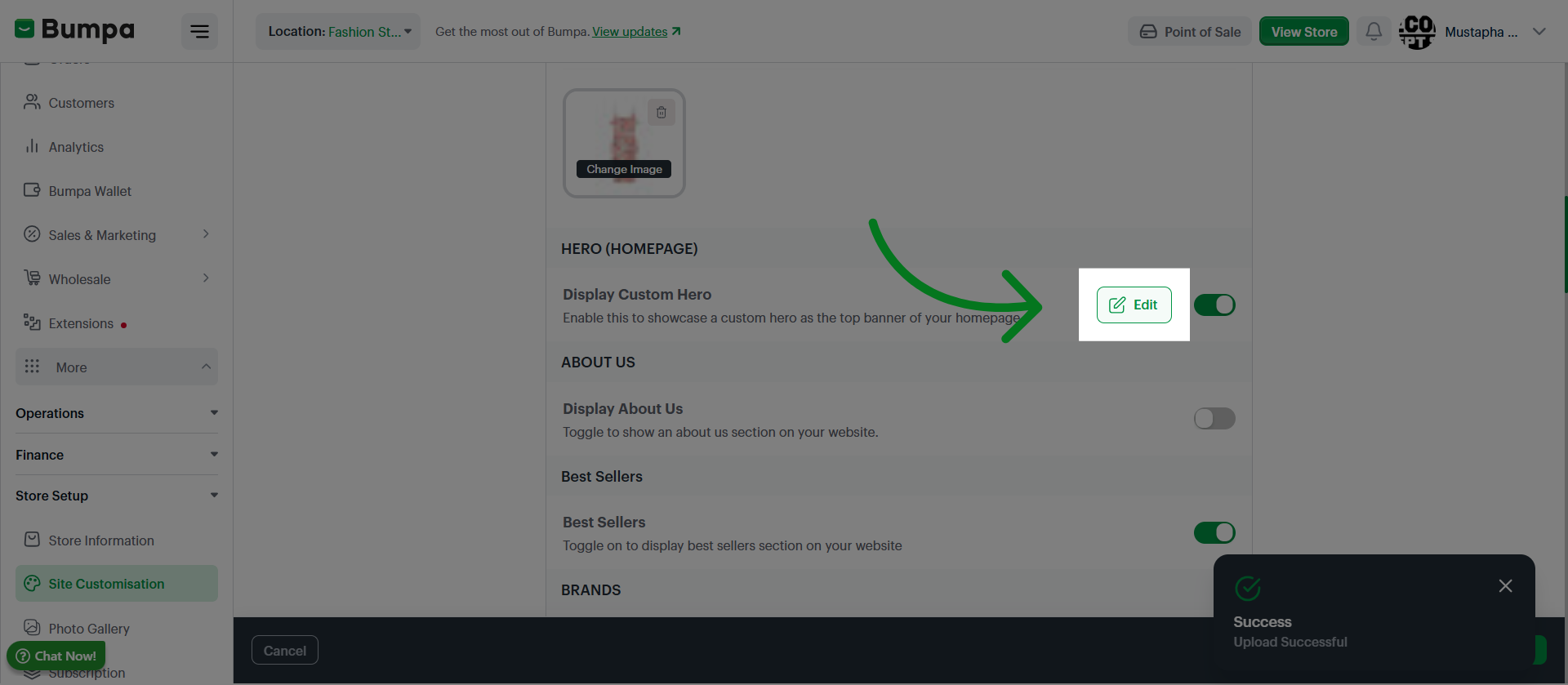
Click Edit to add up to 3 Hero banners to your Homepage as a slideshow or carousel
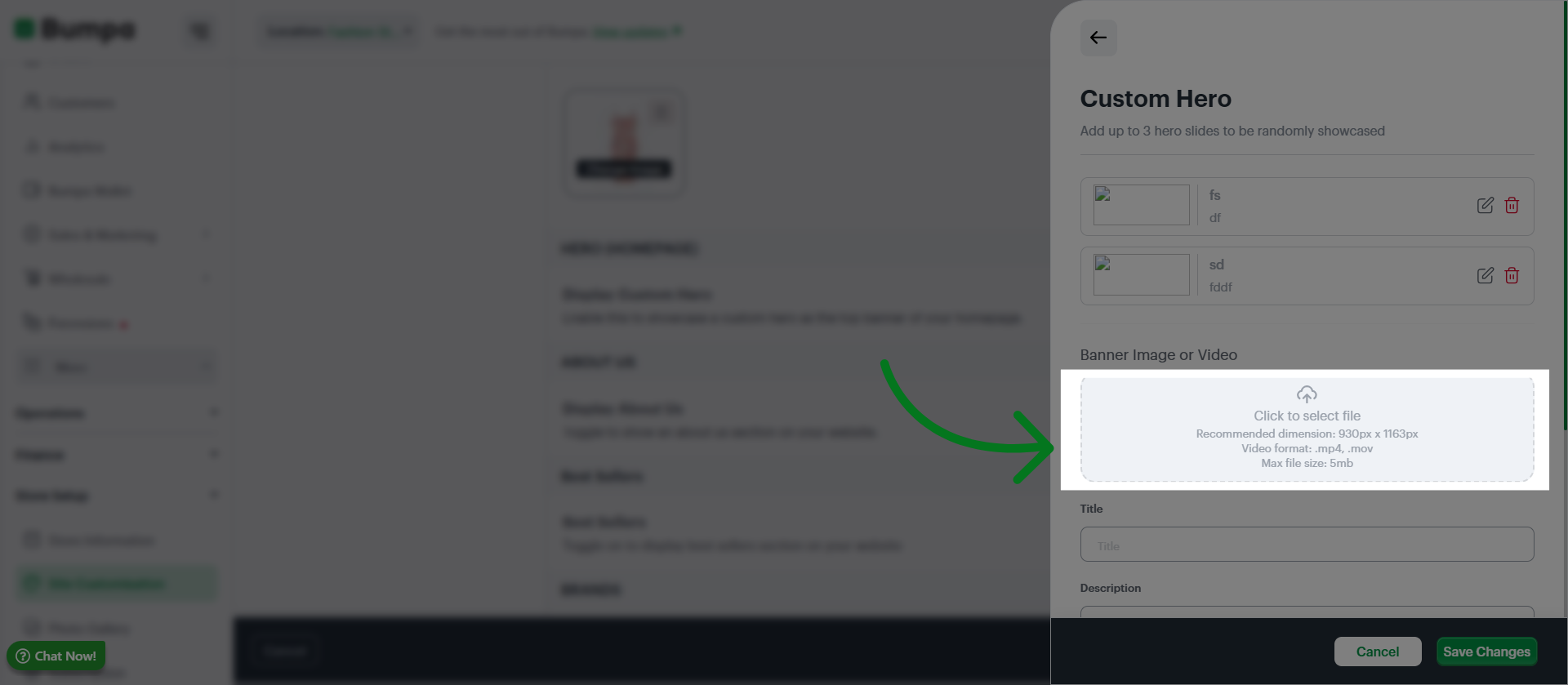
Upload image
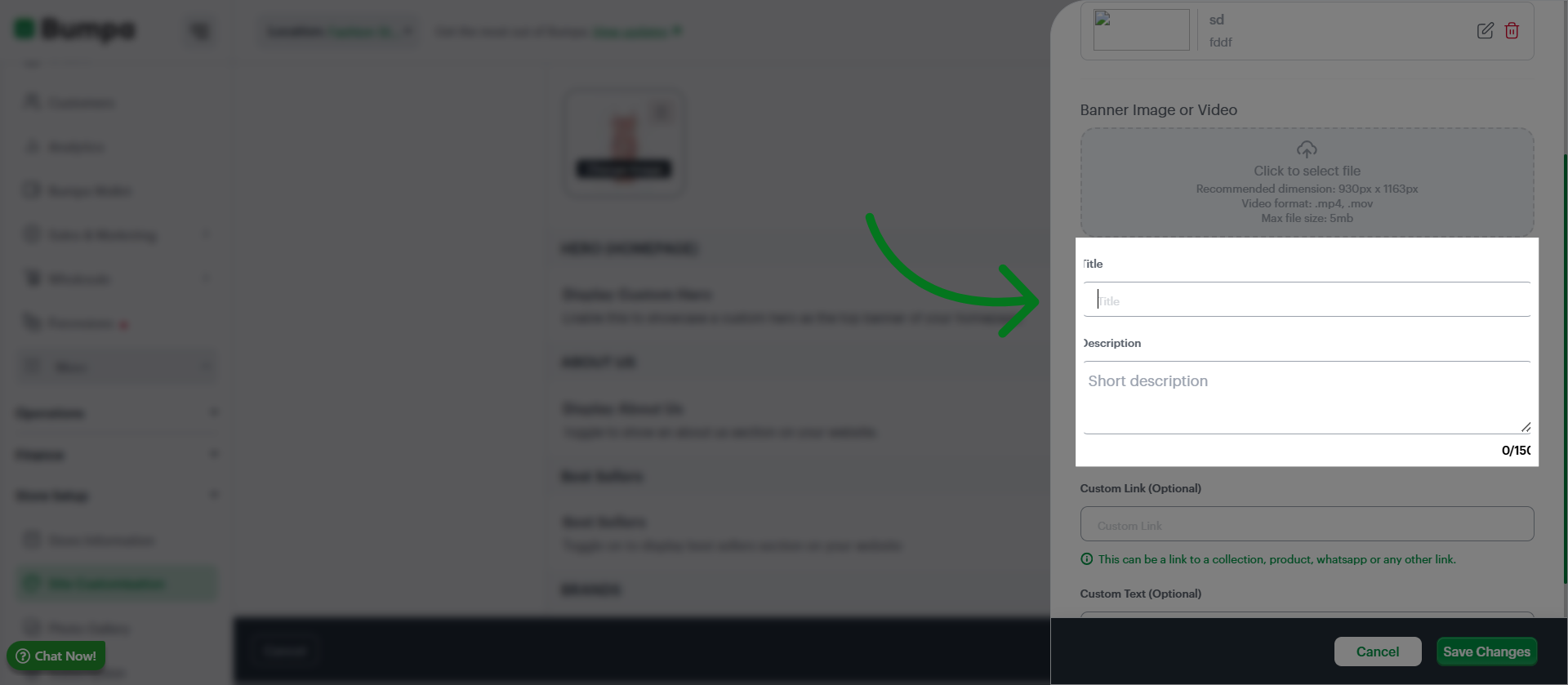
Input tile and Content for the Hero section.
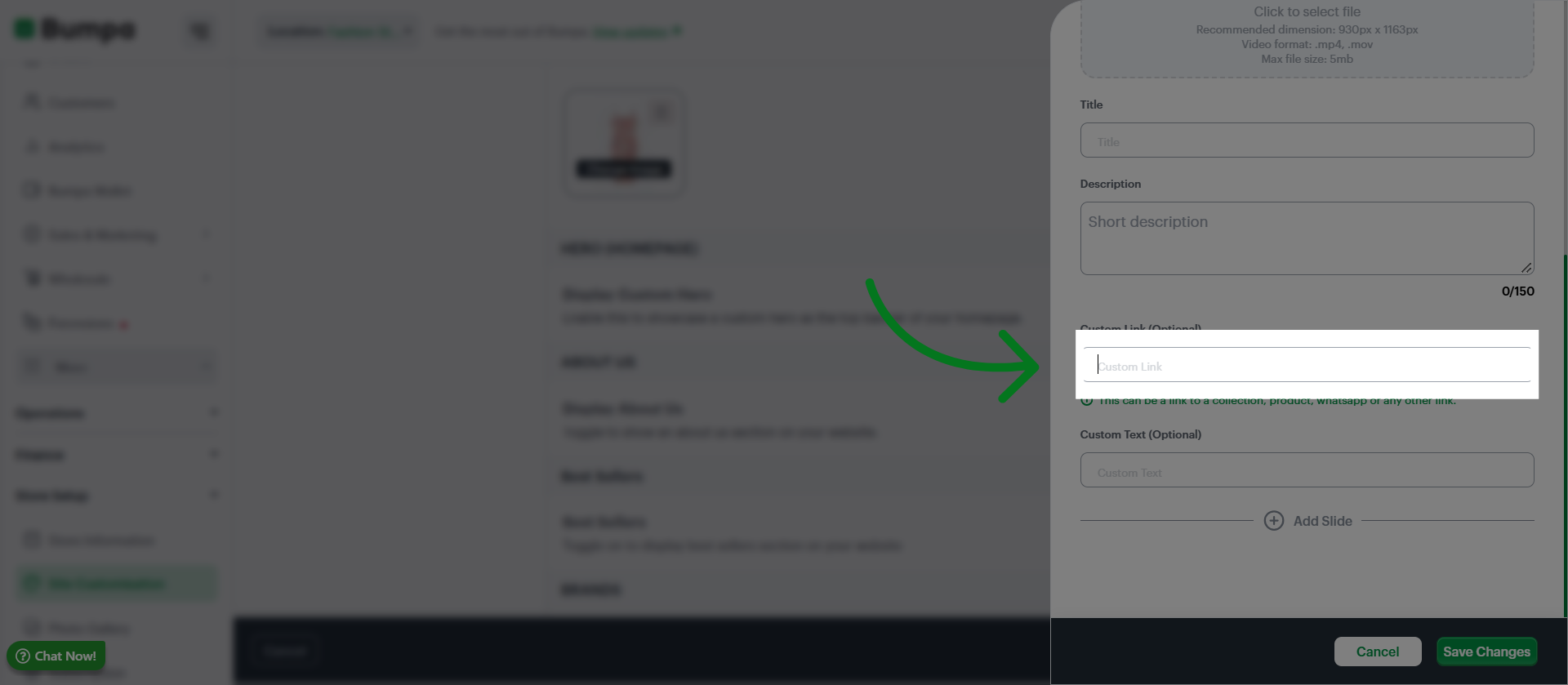
Click Custom Link to add a hyperlink associated with your website content.
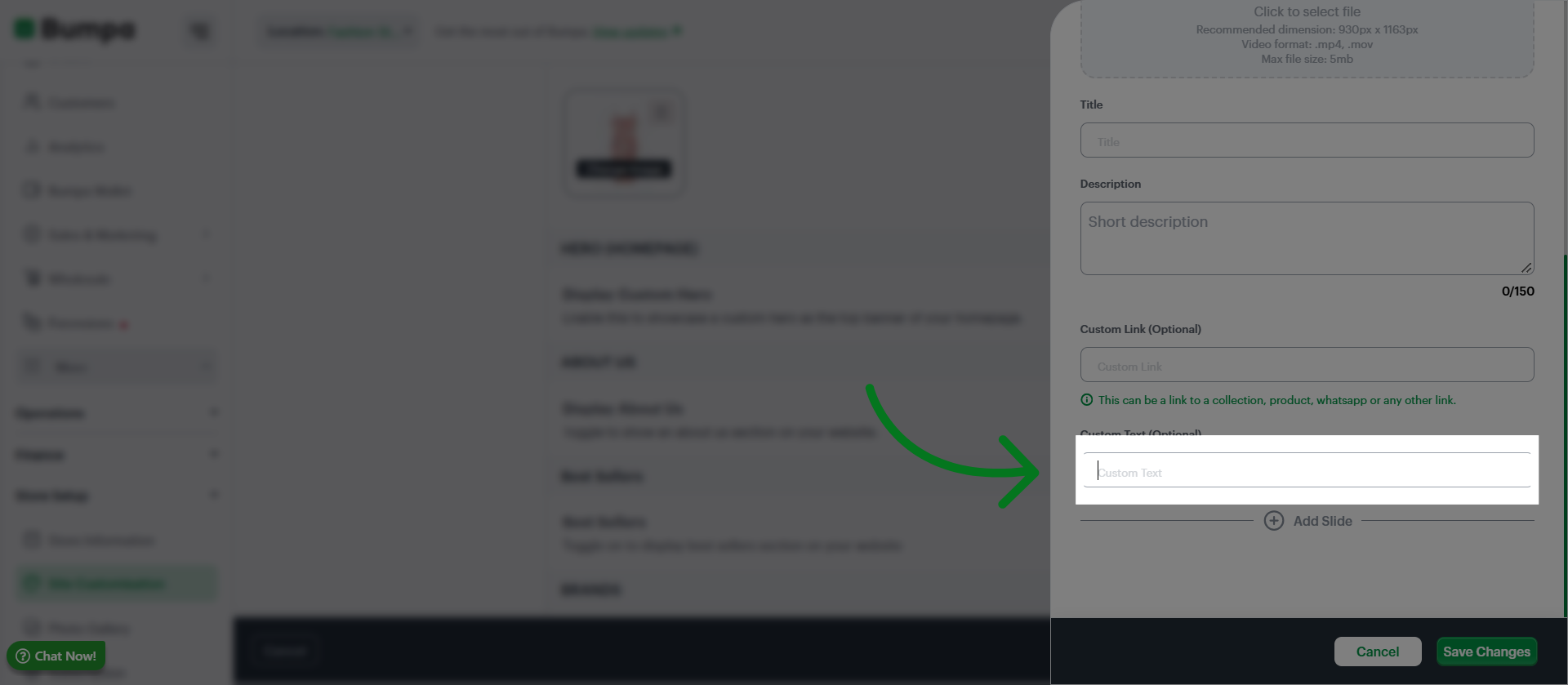
Click Custom Text to add personalized text to your hero banner
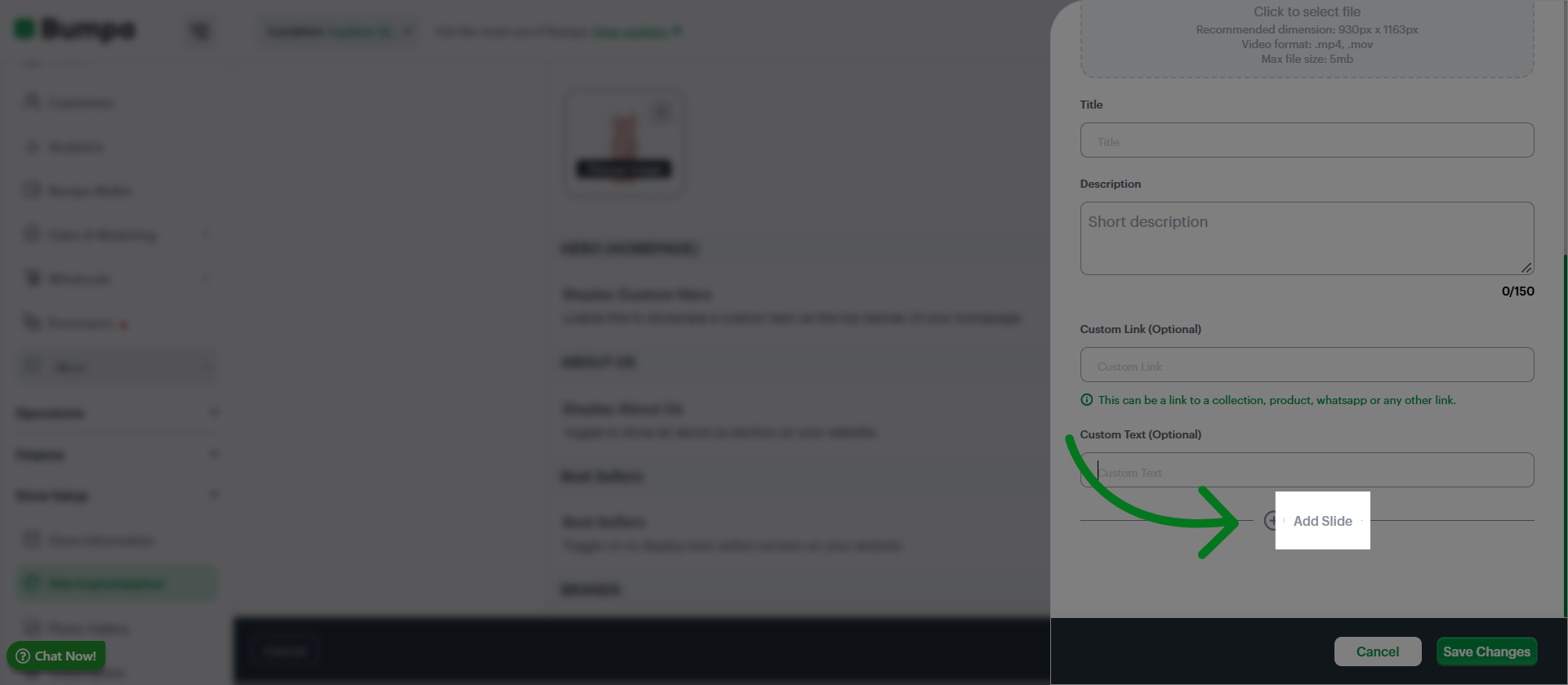
Click Add Slide to include an additional slide in your website's slideshow or carousel.
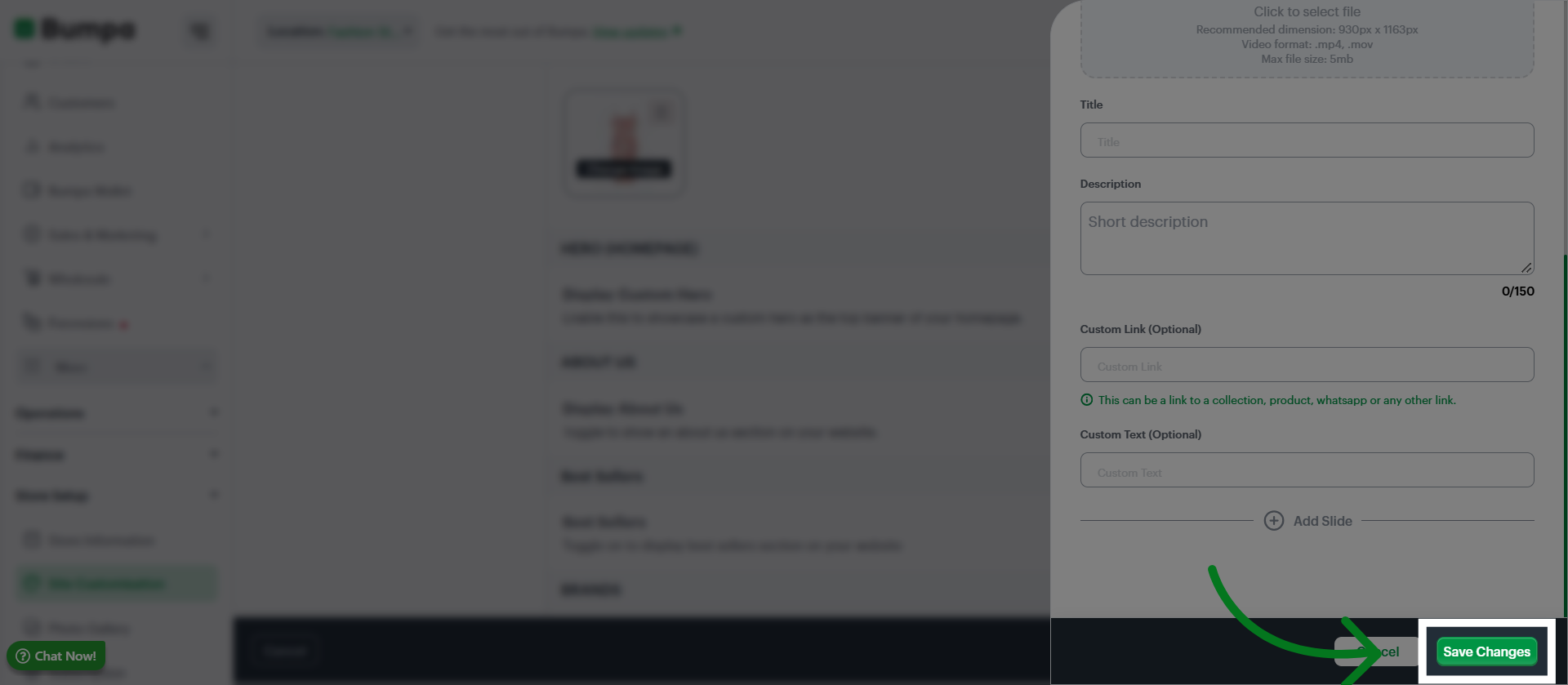
Click Save Changes to apply and store all modifications made to your hero banner
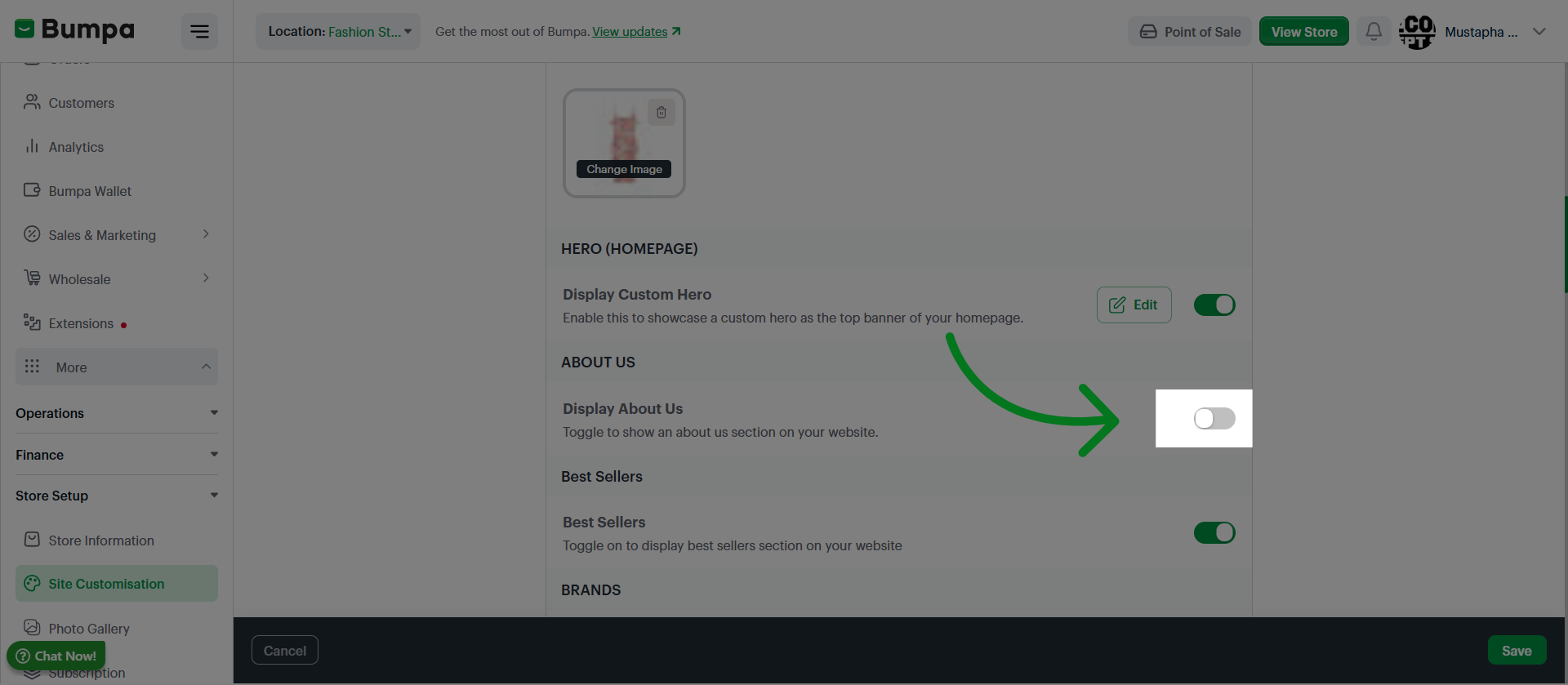
Toggle to Add an About Us Page to your website
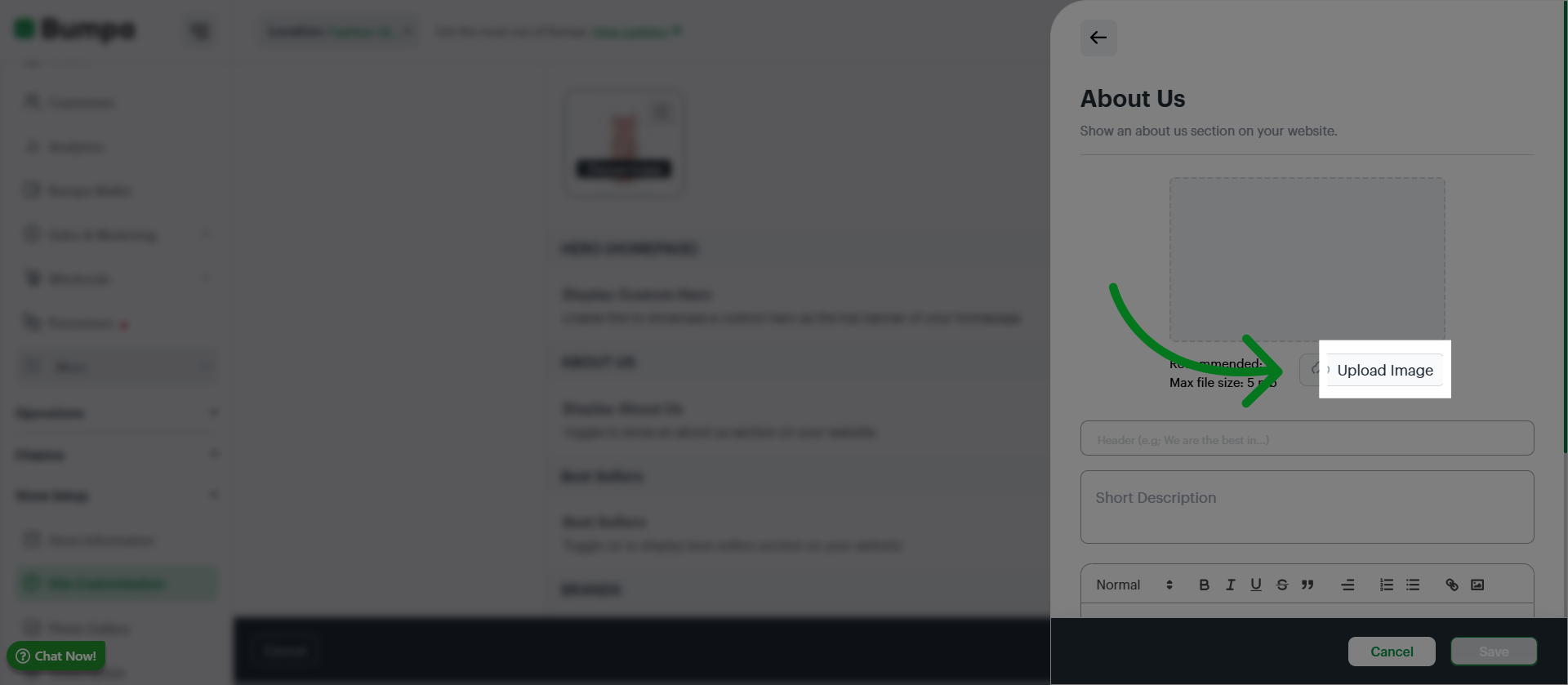
Click Upload Image to add an image to your About us page
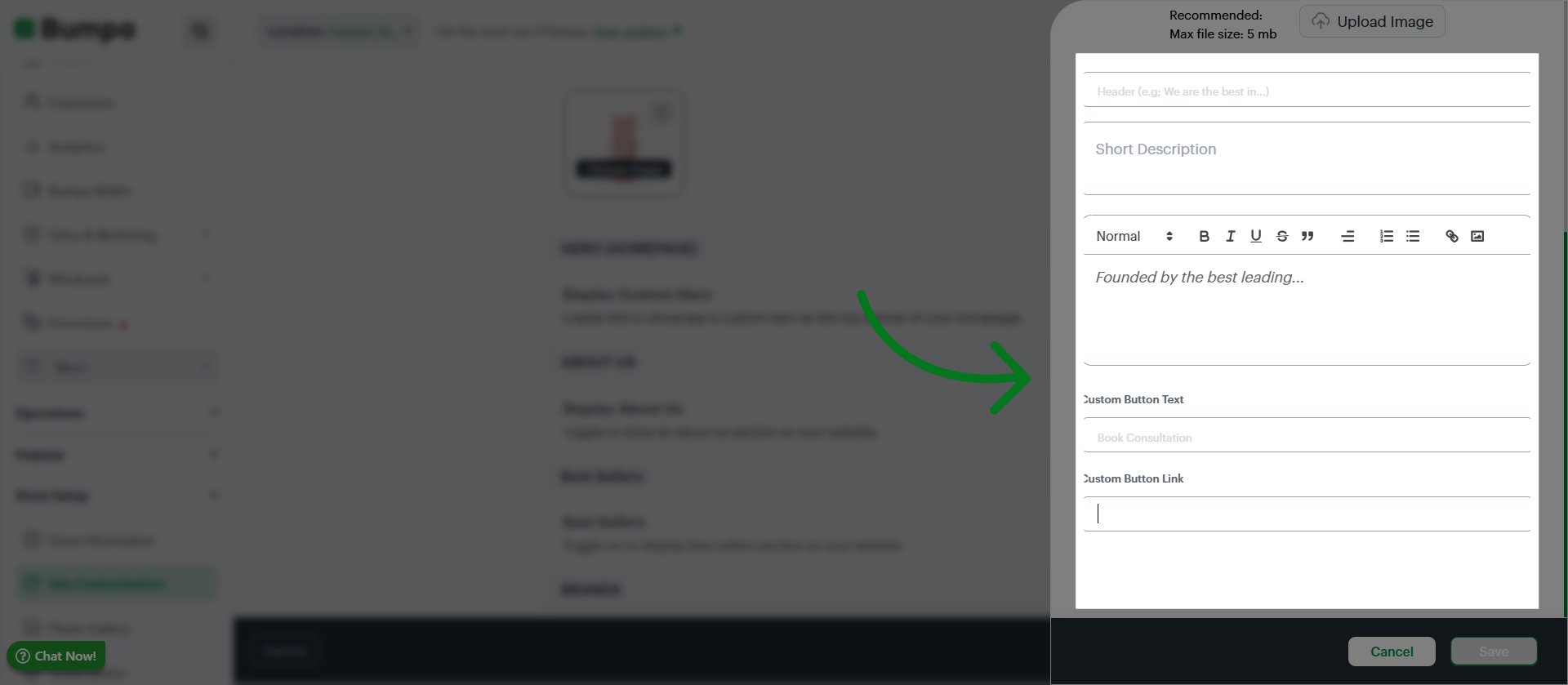
Input a title, descriptions and custom link to your About us page
Click Save to save your About us details
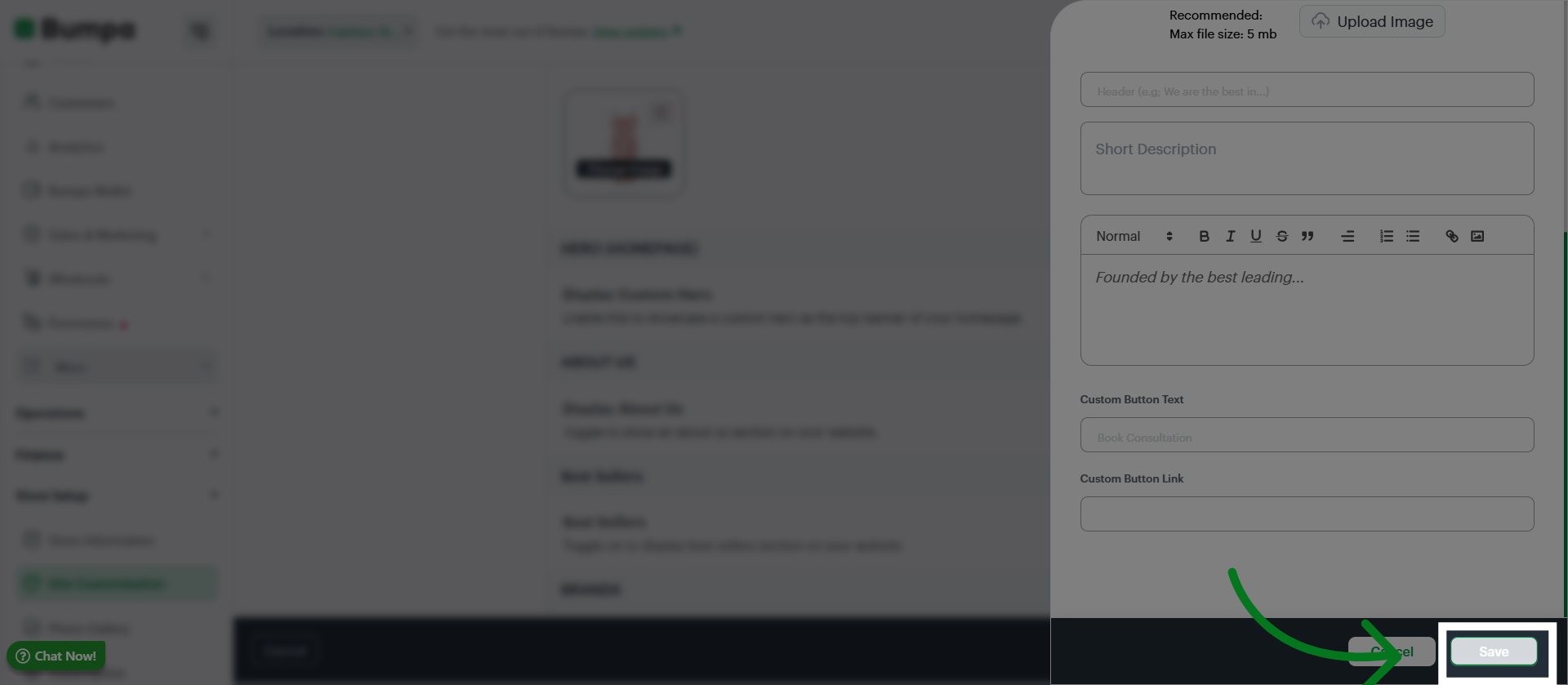
Click to turn on Best seller feature on your website
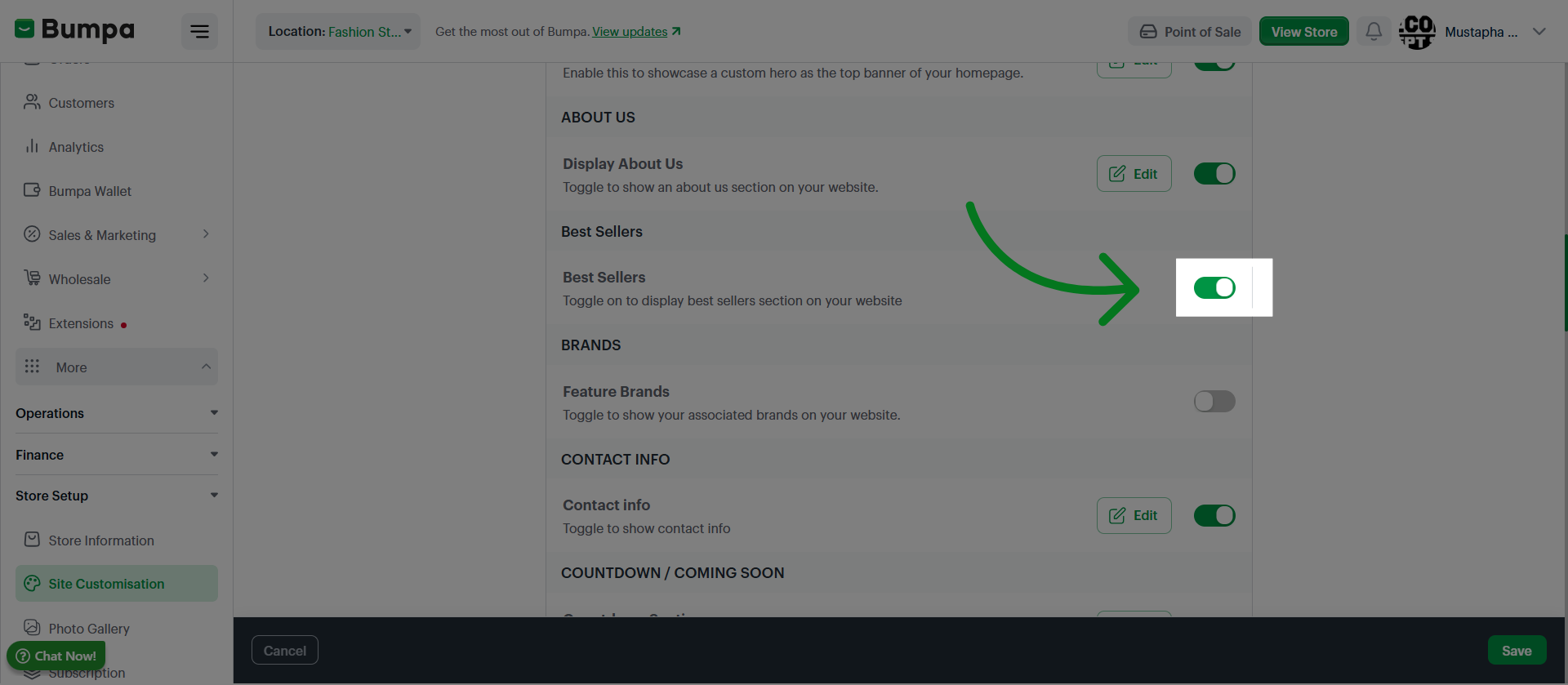
Toggle and click on Edit to set up a featured brands section on your website.
Featured brands can be created using the featured brands extension. This extension is free on the scale plan and can be purchased on other plans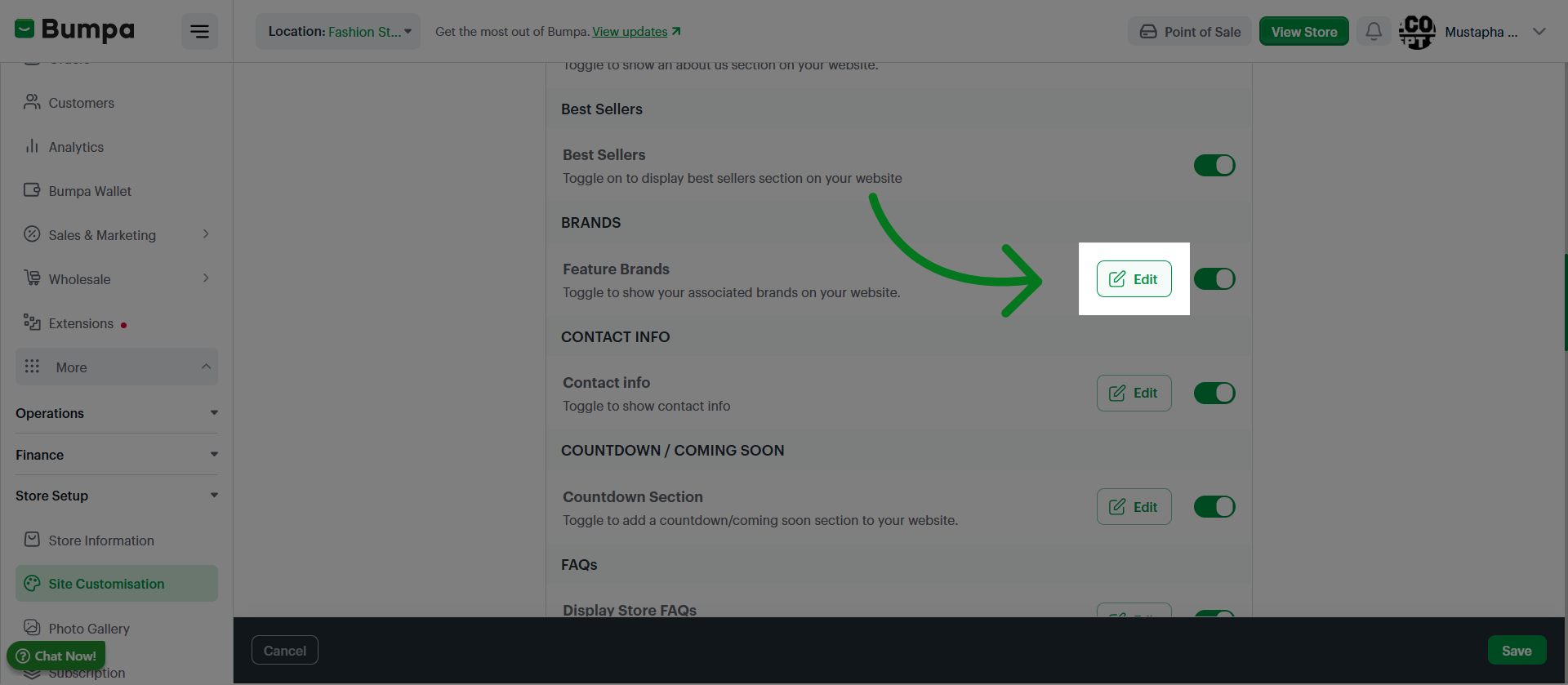
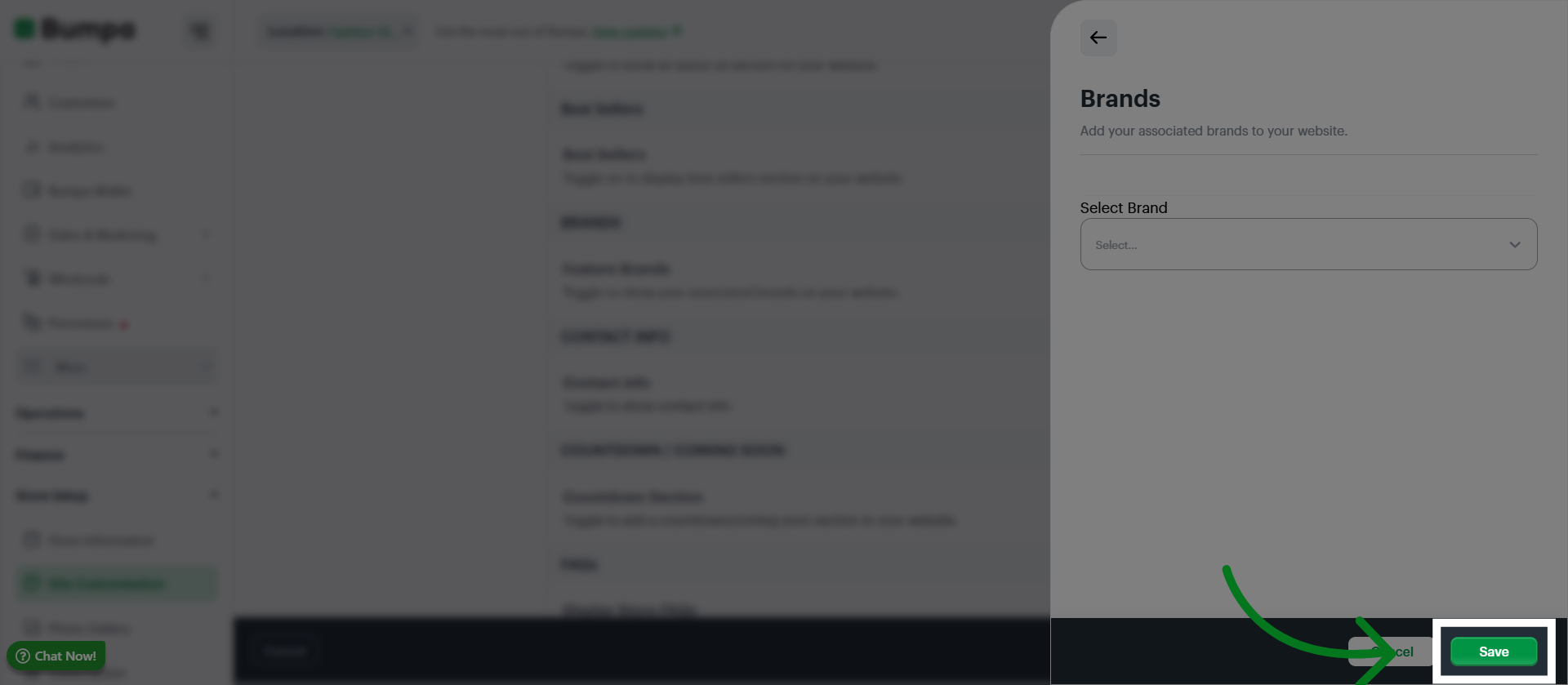
Select the brands you would like to be featured on your website
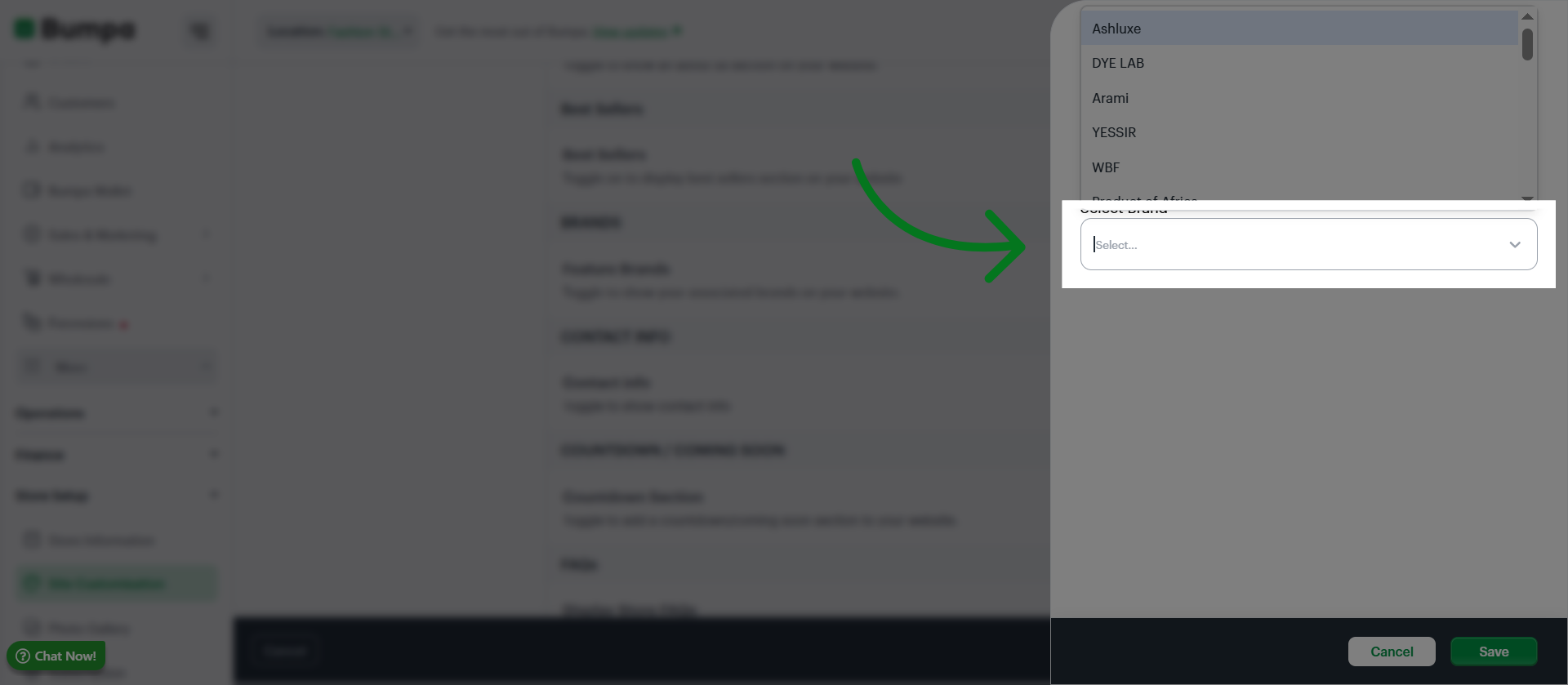
Click Save to apply and confirm your recent edits to the website configuration.
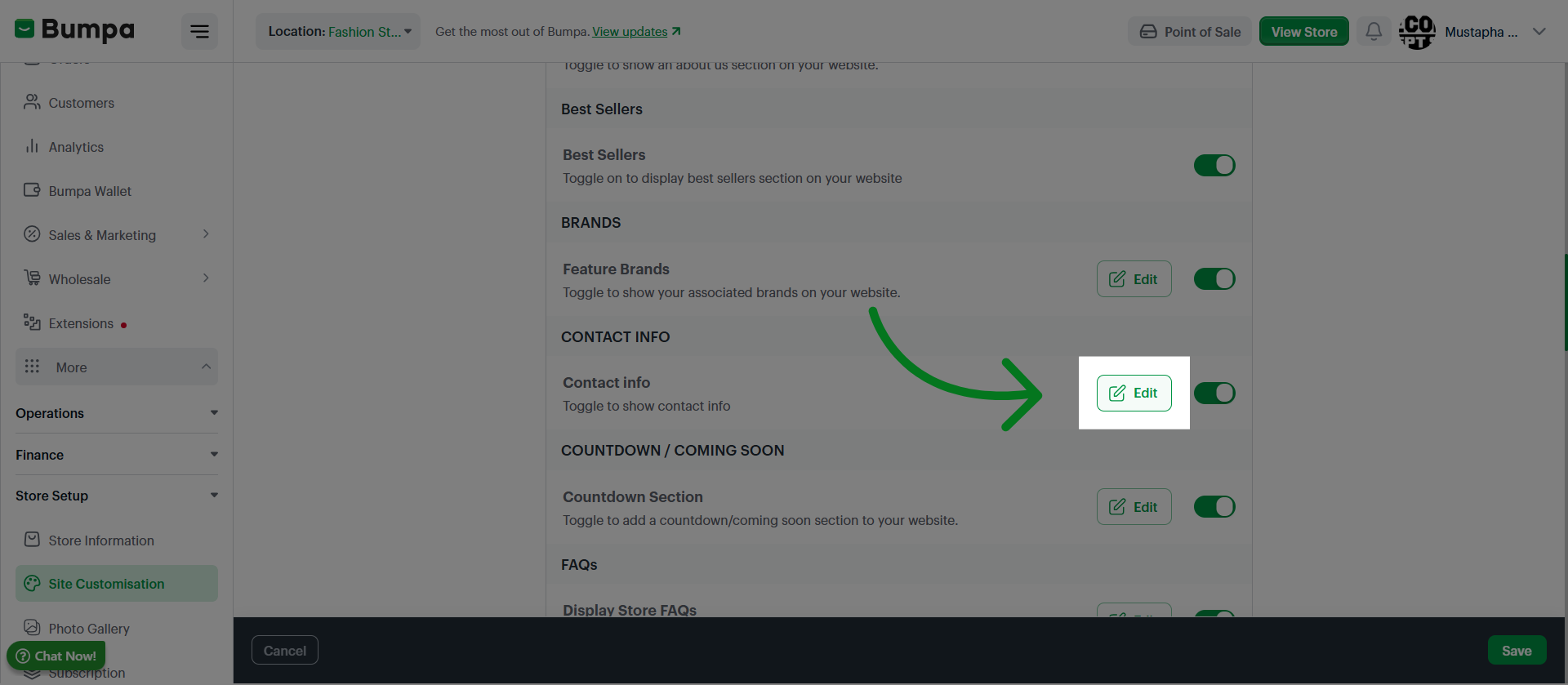
Click Edit to access and modify your contact information on the website
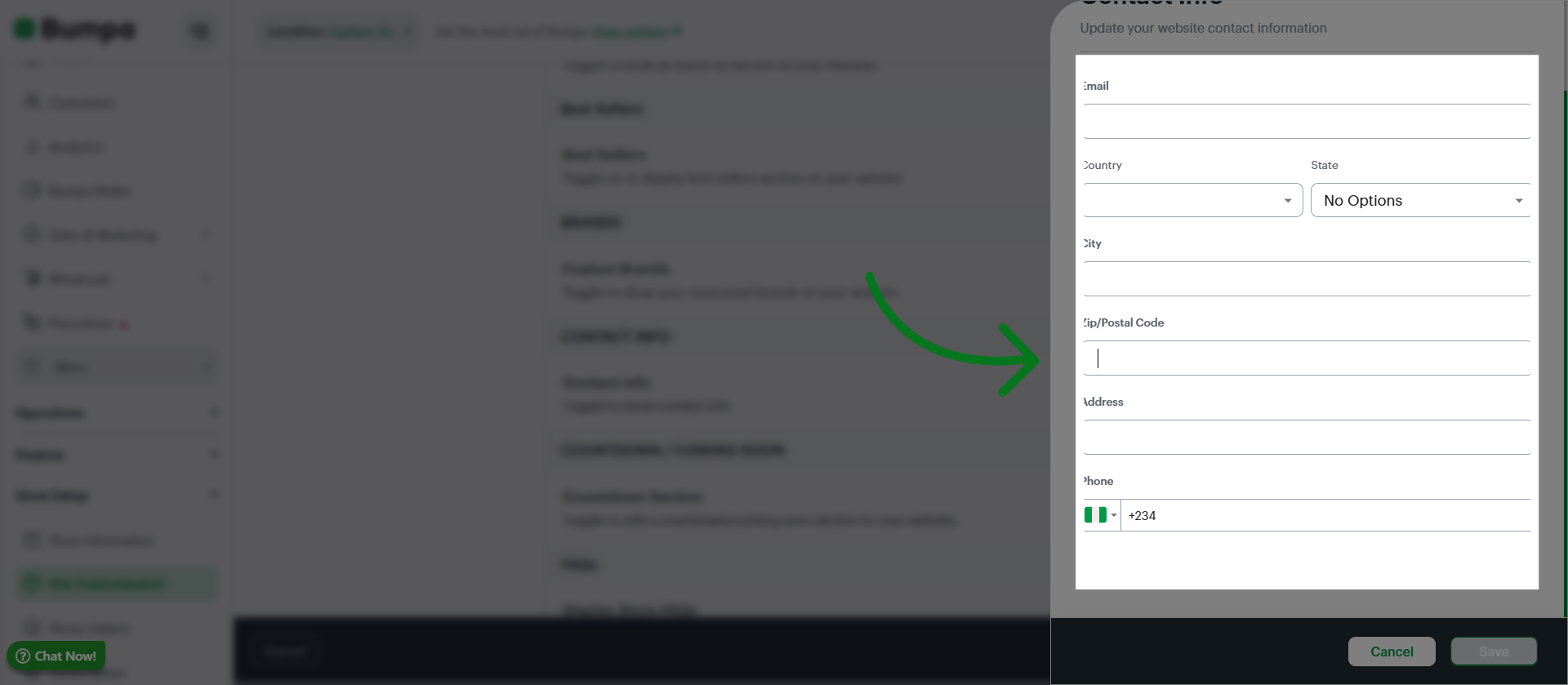
Input all necessary information
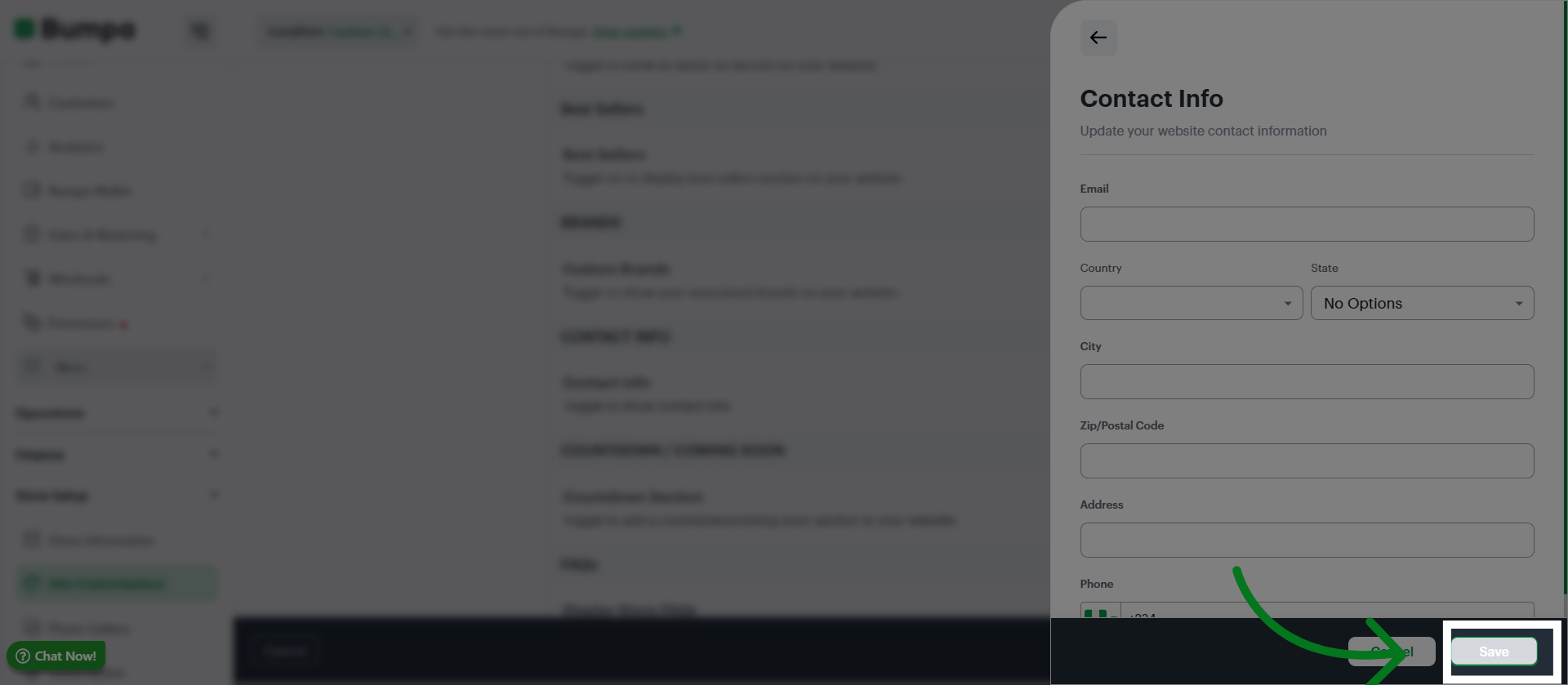
Click Save
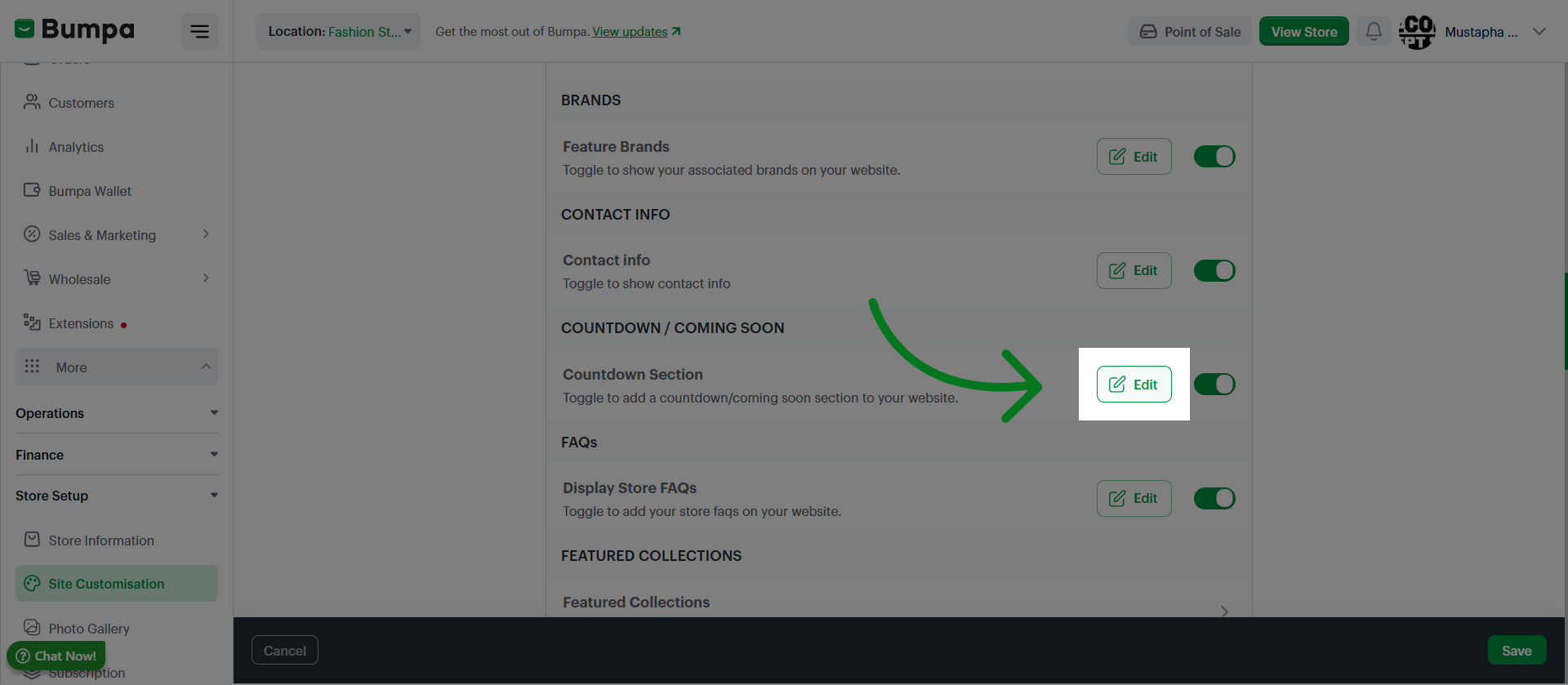
Click Edit to add a Countdown promotional banner to your website
Select the countdown you would like to display
You can create countdowns using the Countdown Extension. This is available to all plans except the Starter plan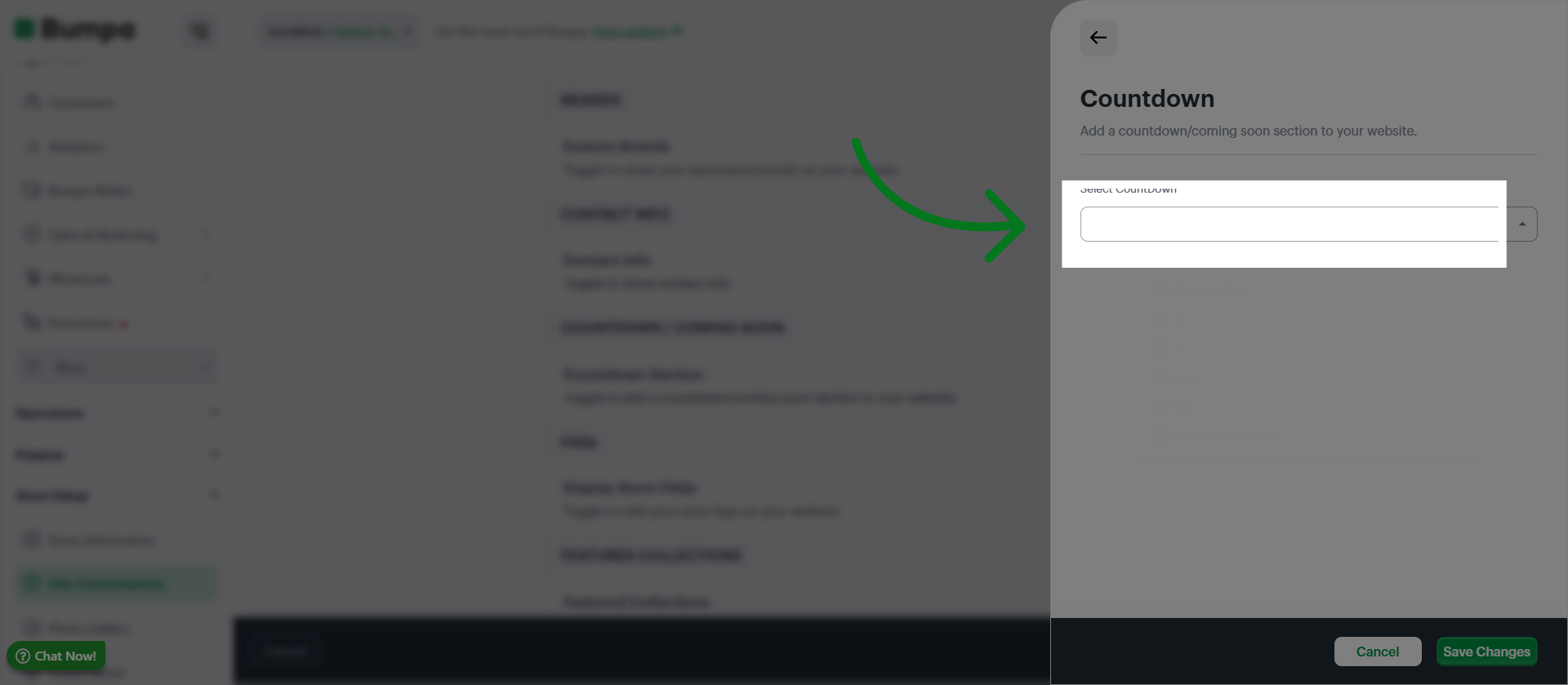
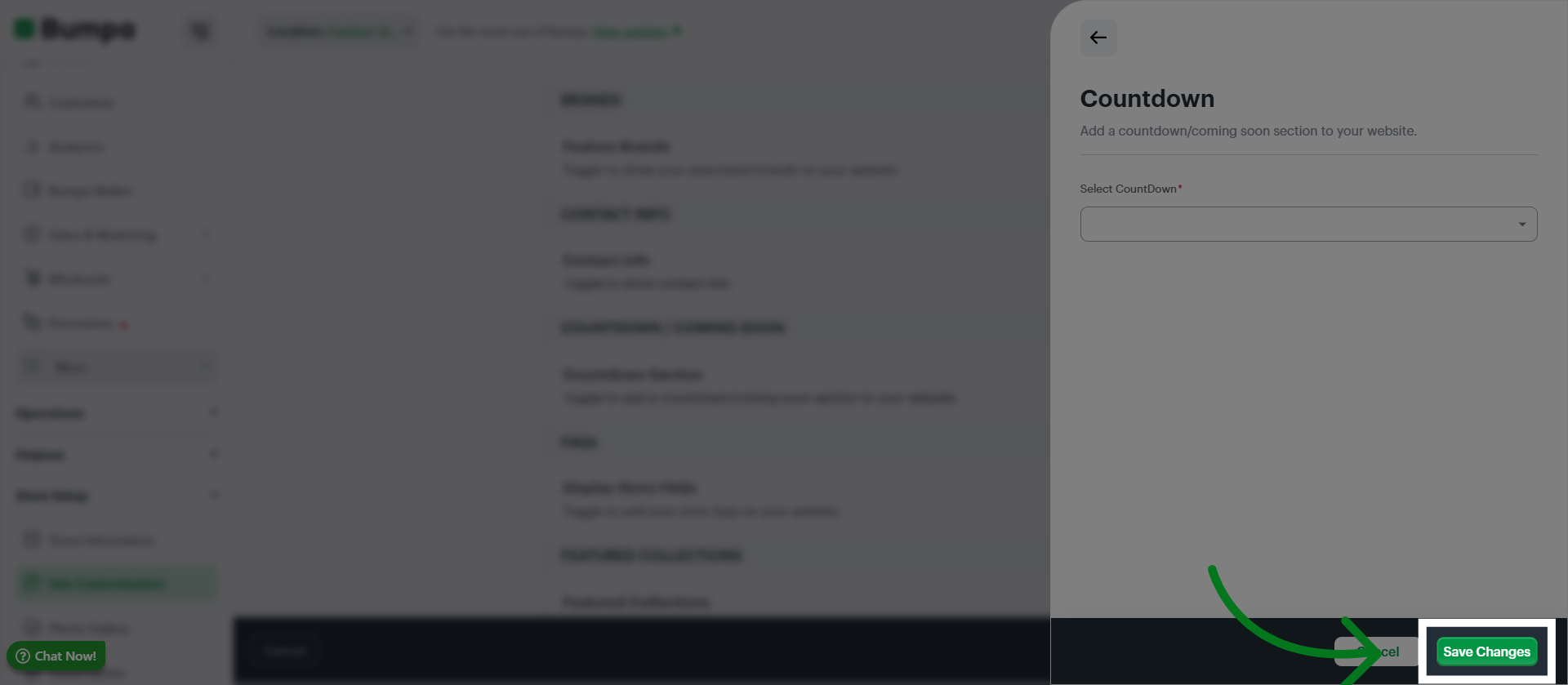
Click Save Changes to apply the countdown feature to your website
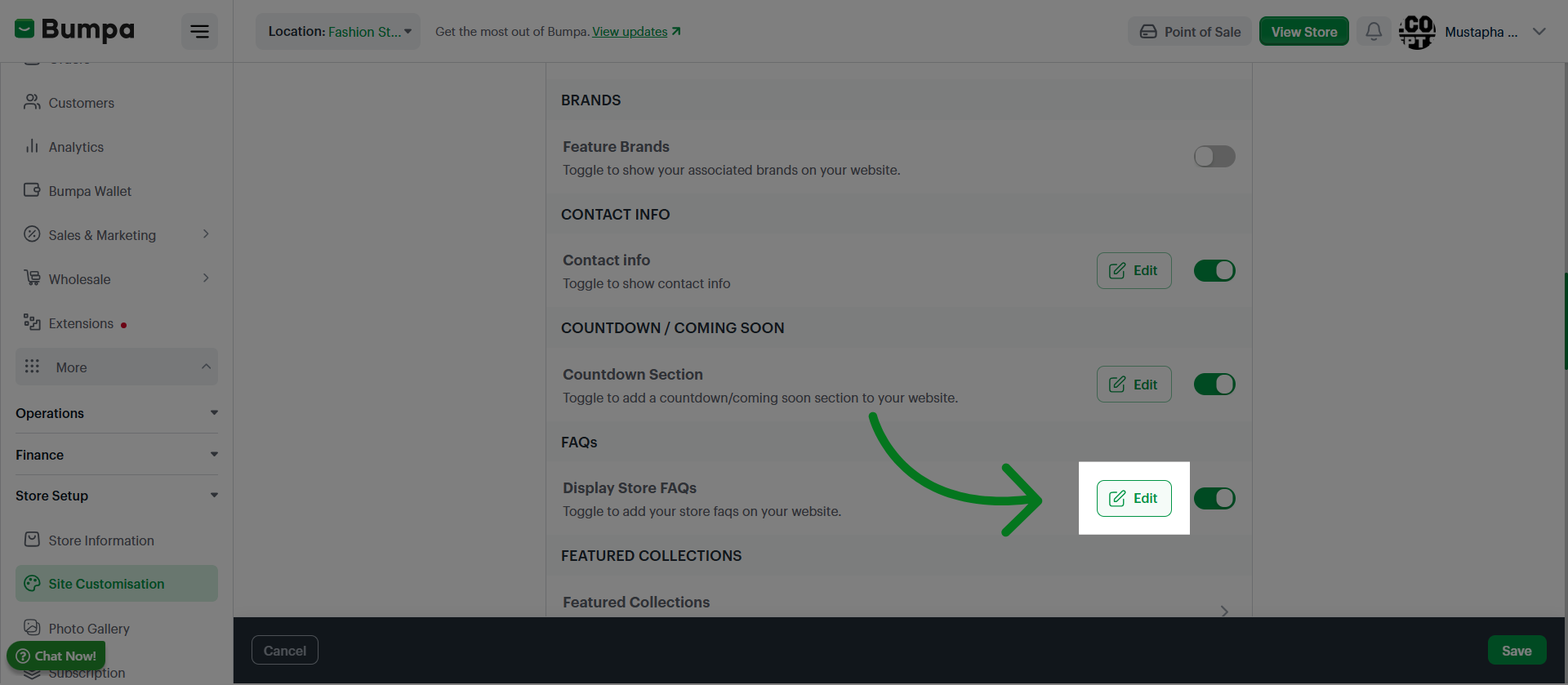
Click Edit to access and modify the Frequently Asked Questions section of your store's website.
Input the question(s) and answer(s) for your website's FAQ section.
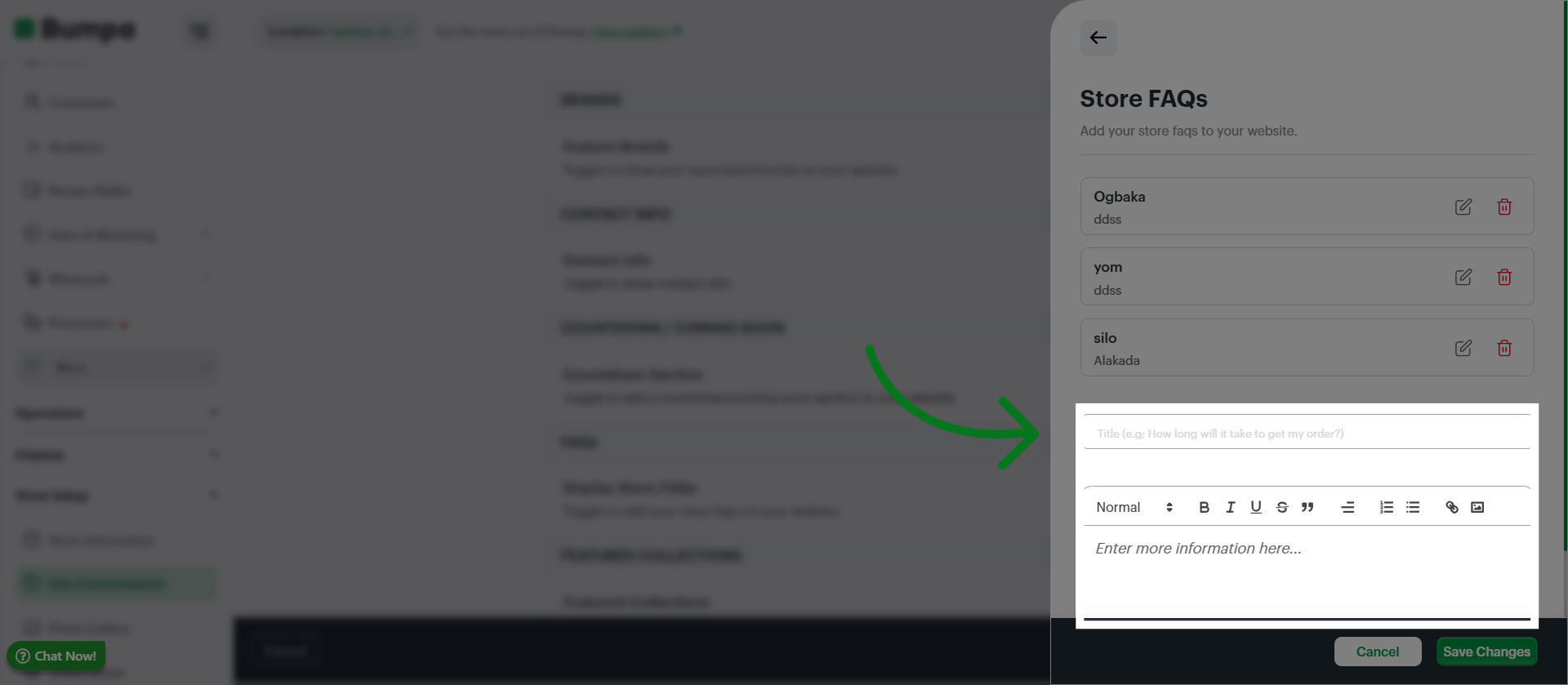
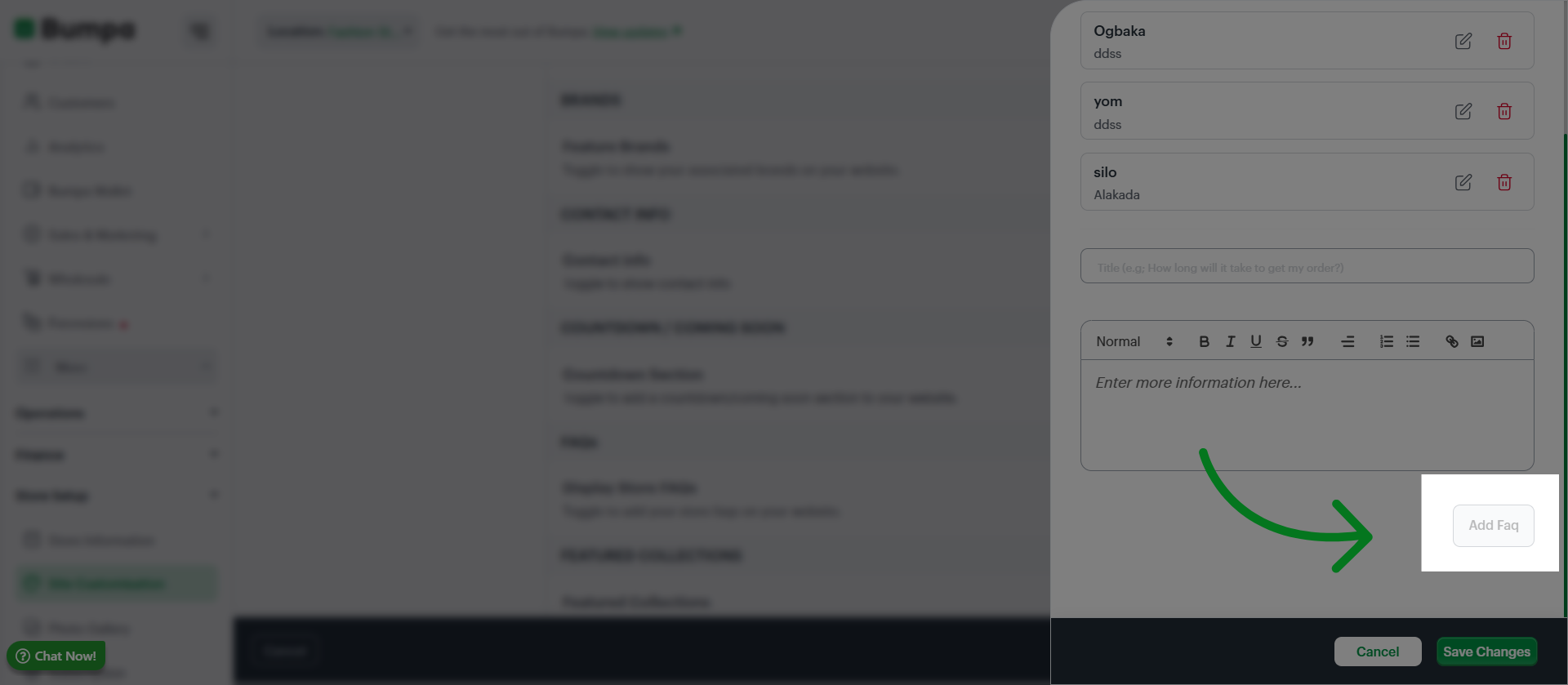
Click Add FAQ to include a new question and answer in your website's FAQ section.
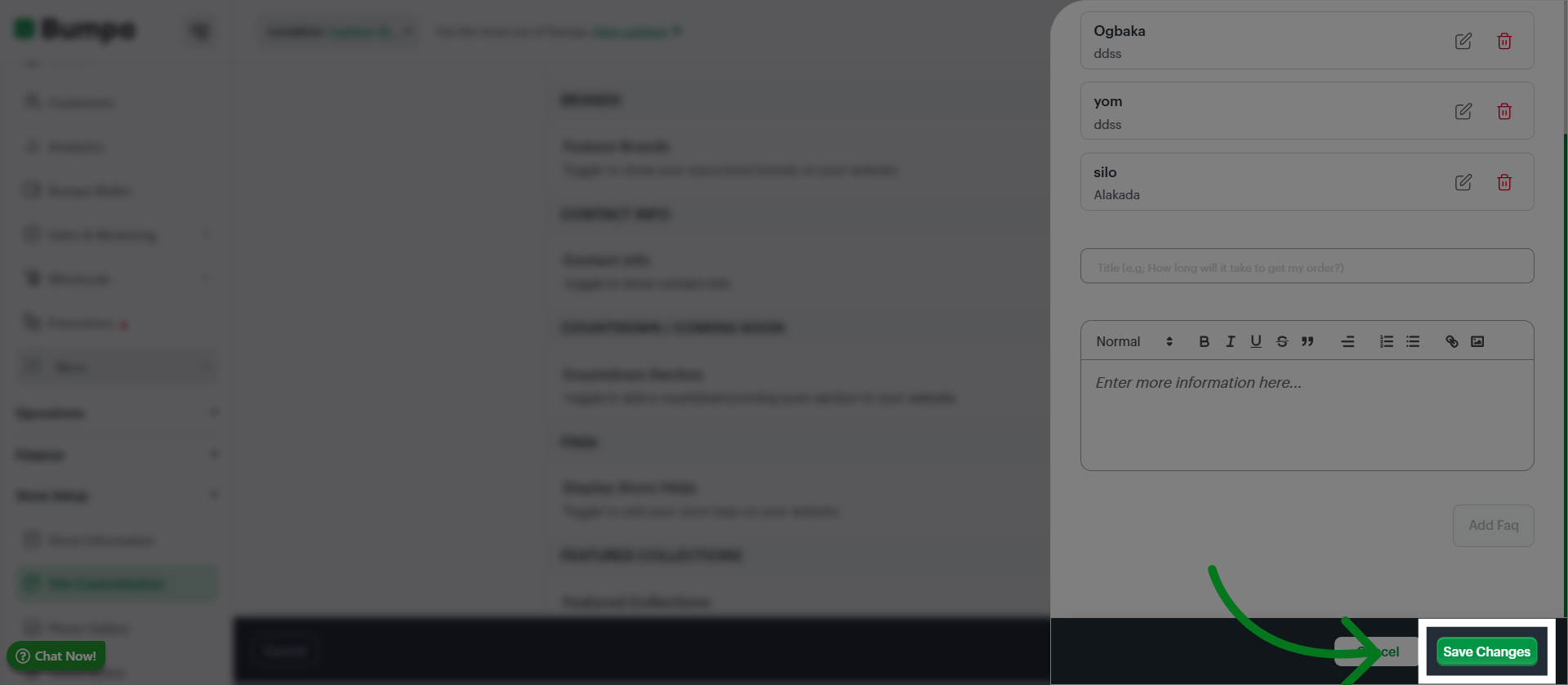
Click Save Changes to apply updates made to your FAQ section on the website.
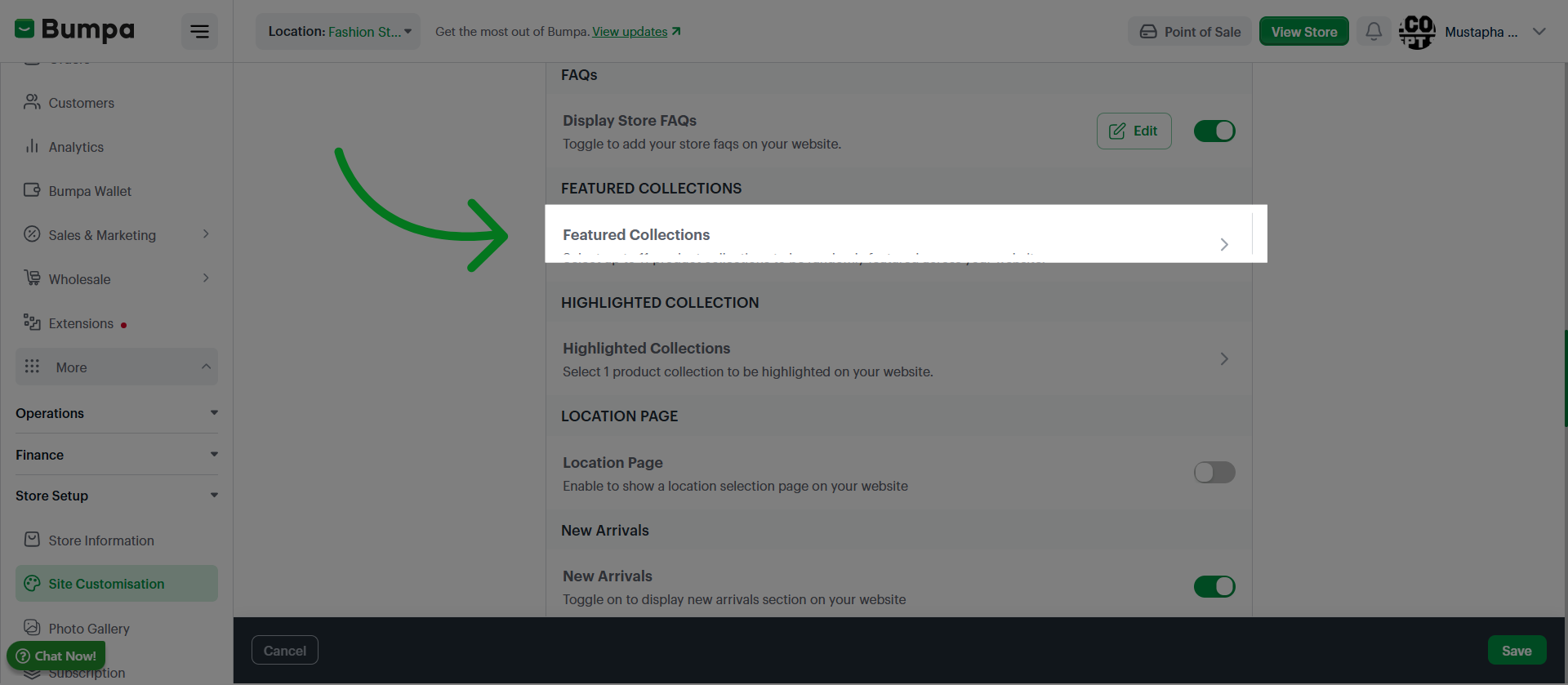
Click Featured Collections to randomly feature up to 11 products across your website.
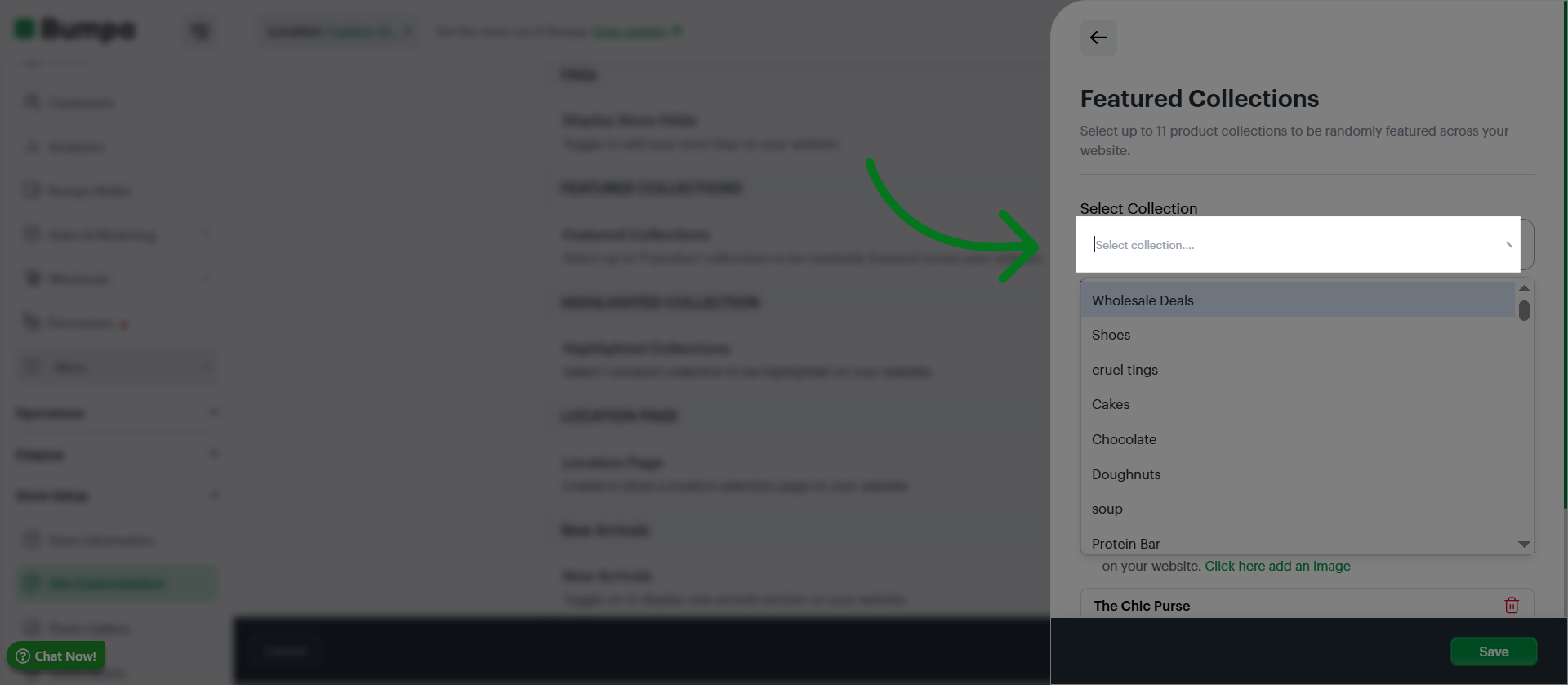
Select the collections you would like to be featured on your website
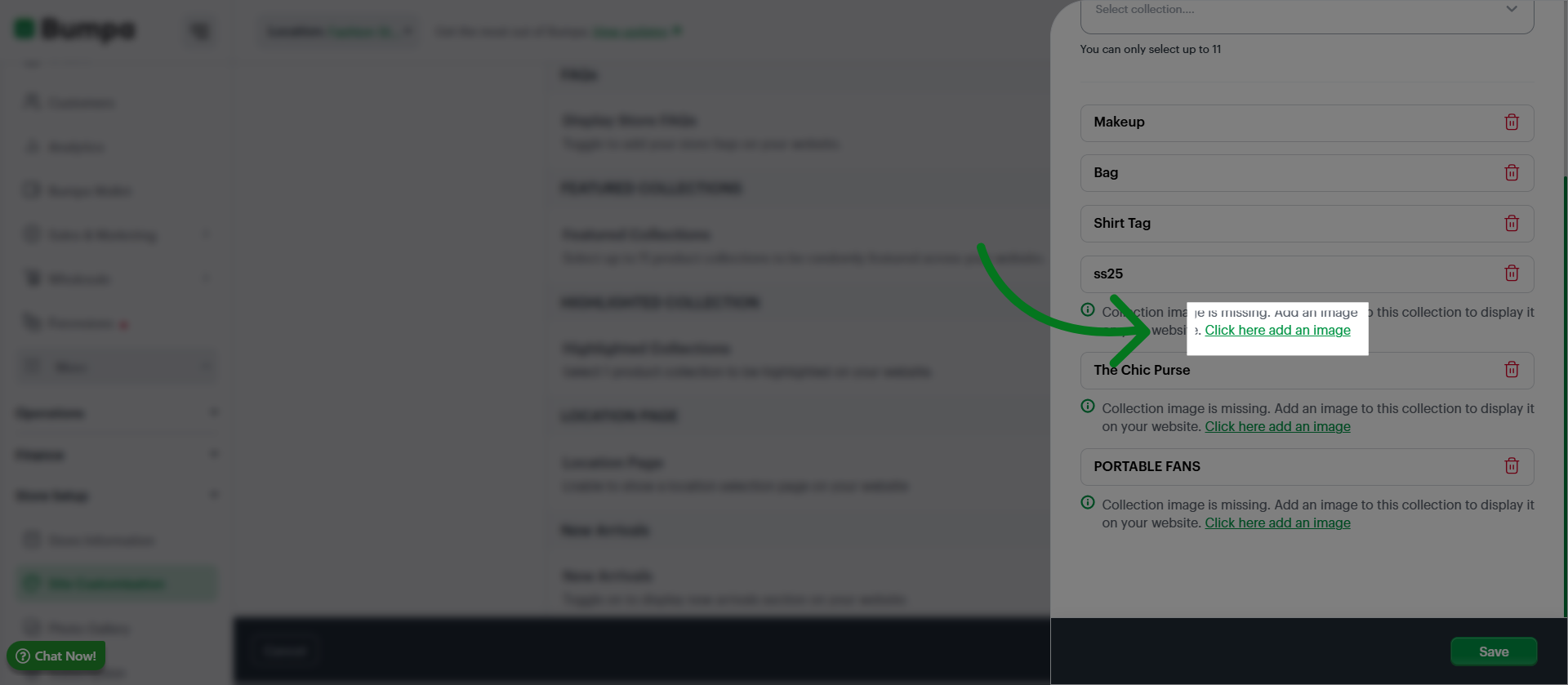
You can add an image for your featured collection.
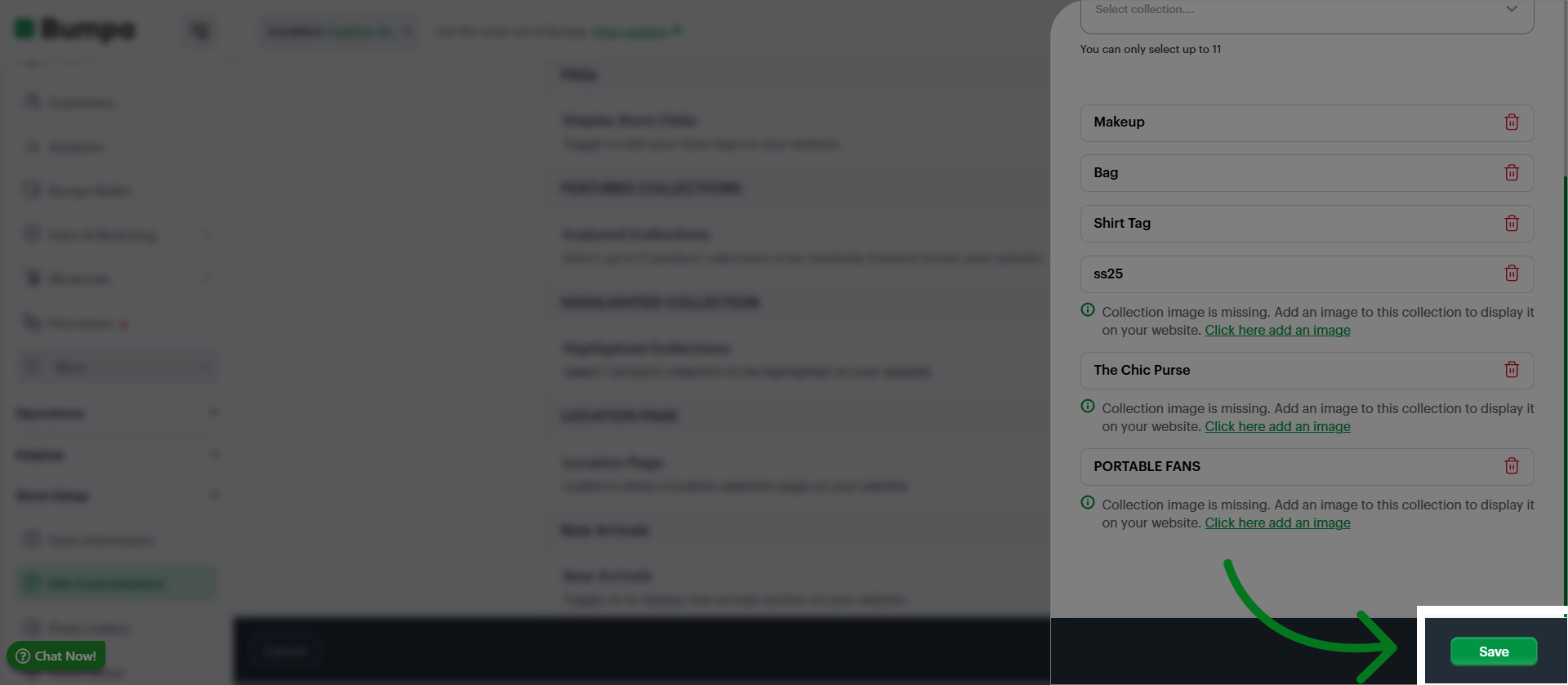
Click to save changes
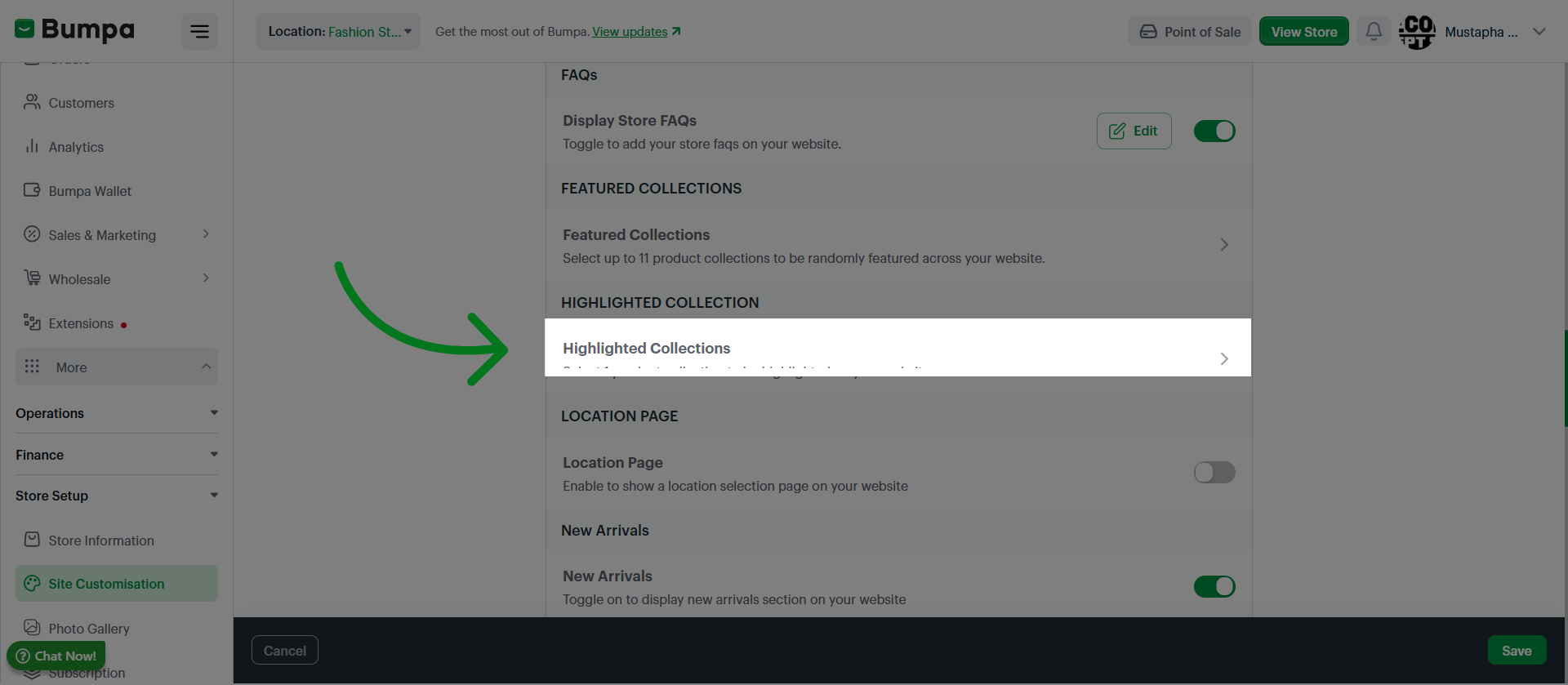
Click Highlighted Collections to highlight 1 specific collection on your website
Select your preferred collection to be highlighted.
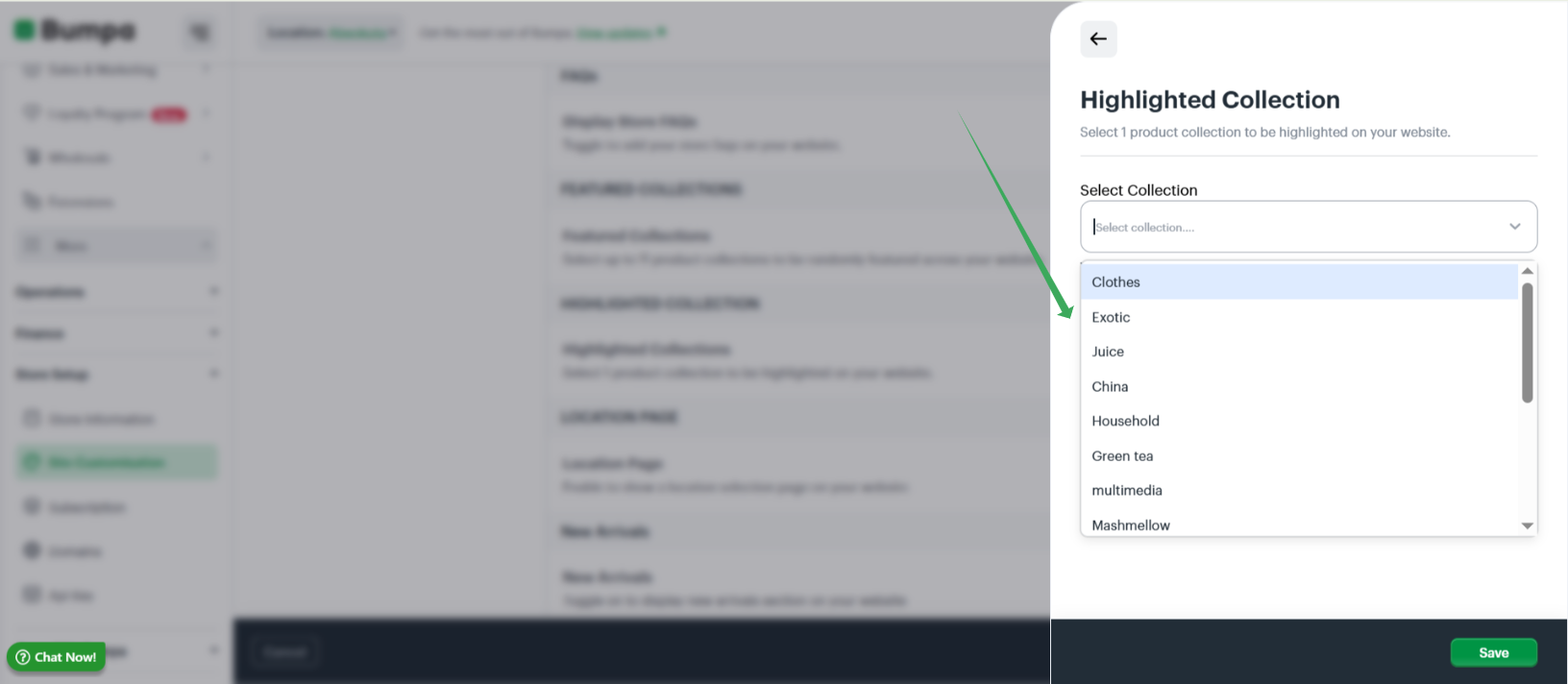
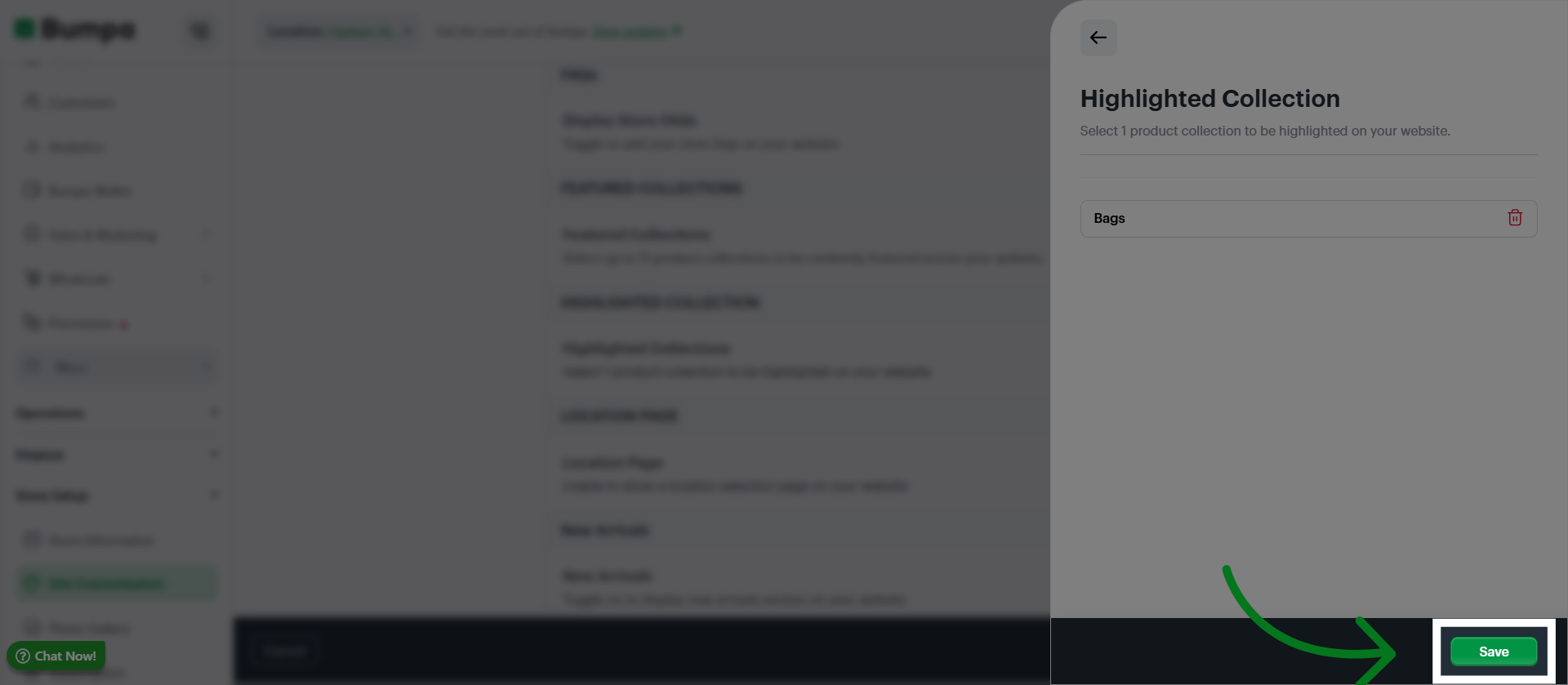
Click Save to confirm and apply changes made to the selected collection group.
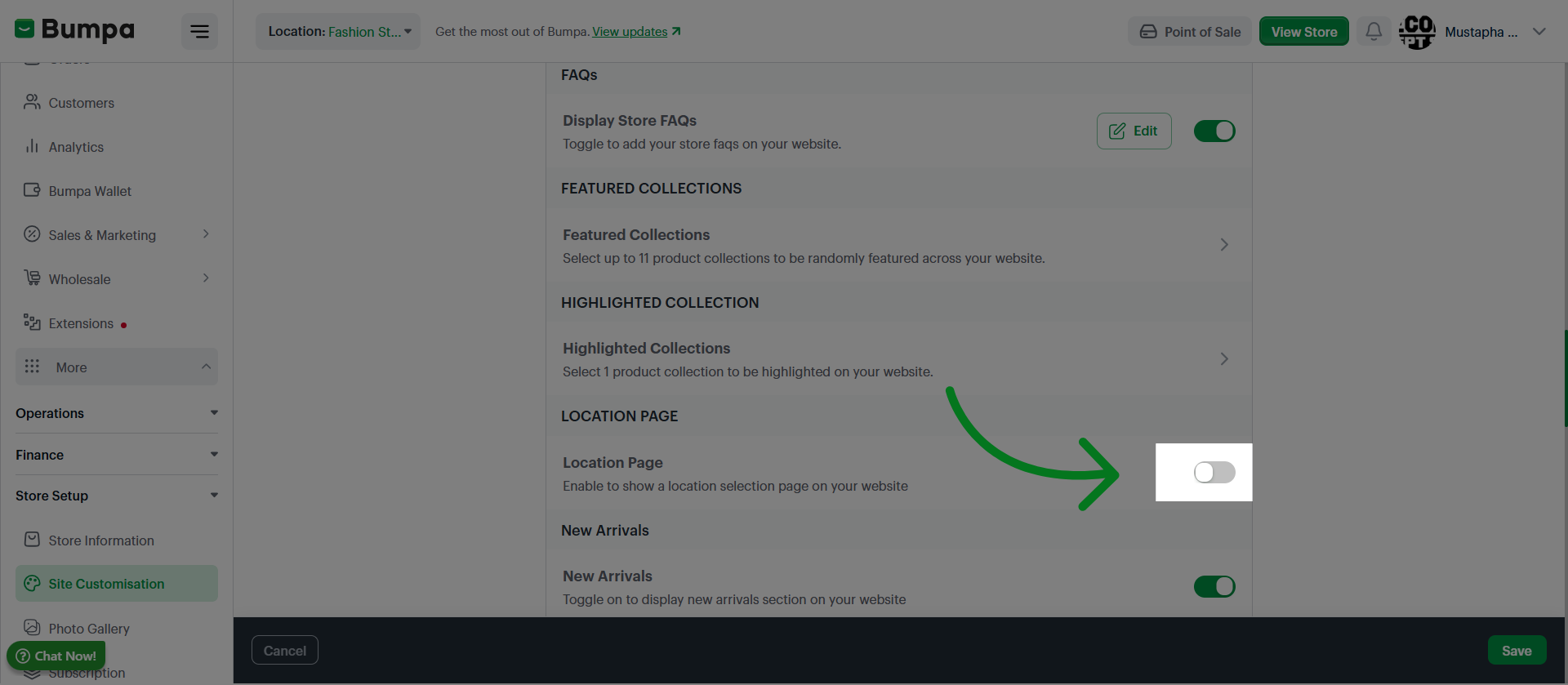
Toggle to Add a Location Selection Page to your website (for merchants with multi-location)
Choose the display format for the location selector, either a full page or a popup
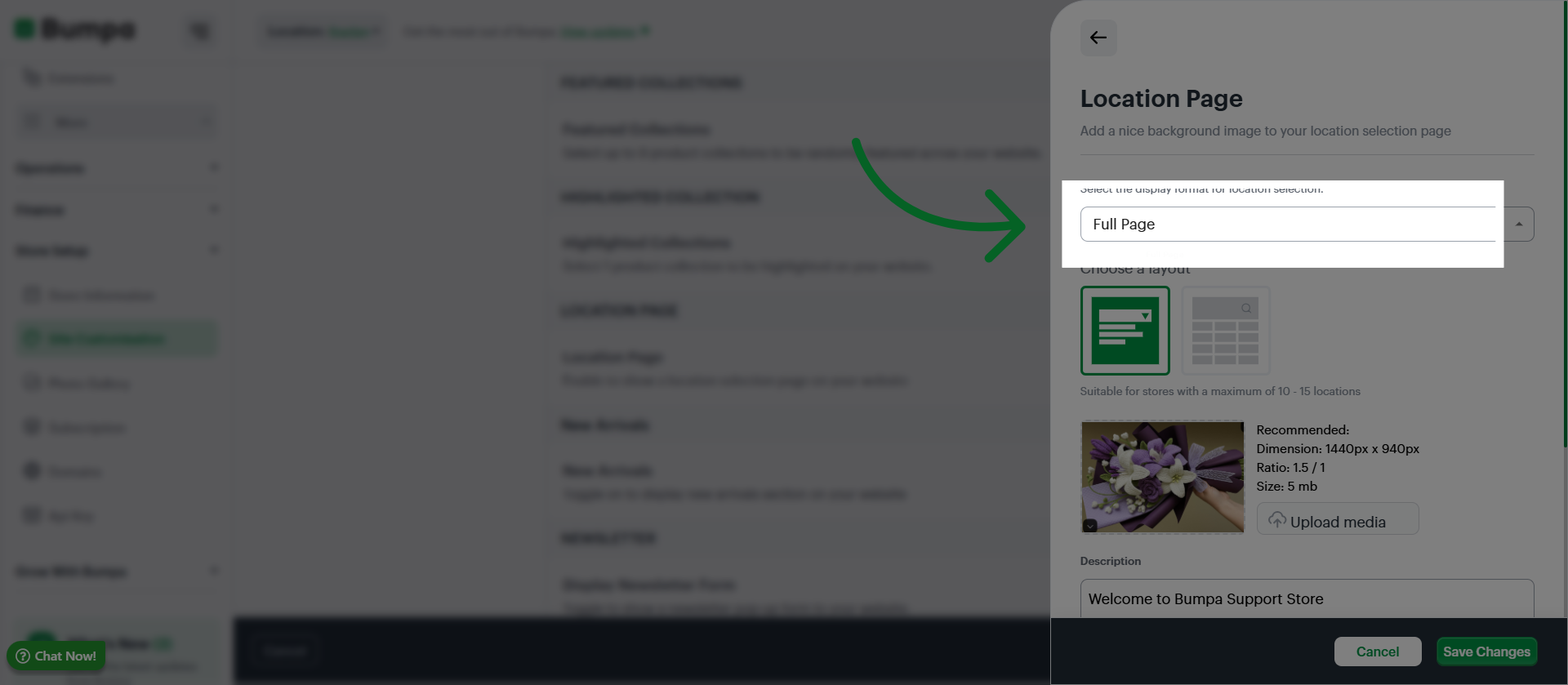
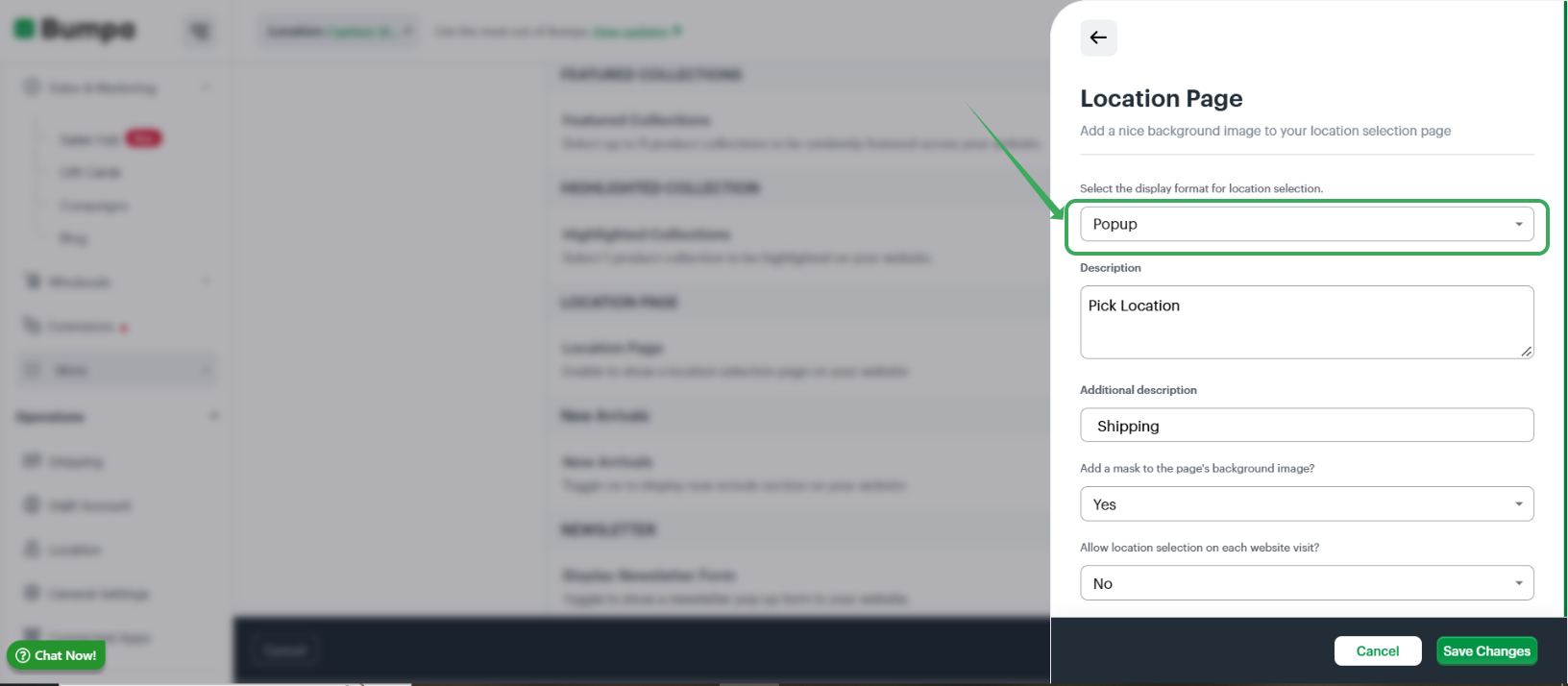
For a full page, choose the display layout
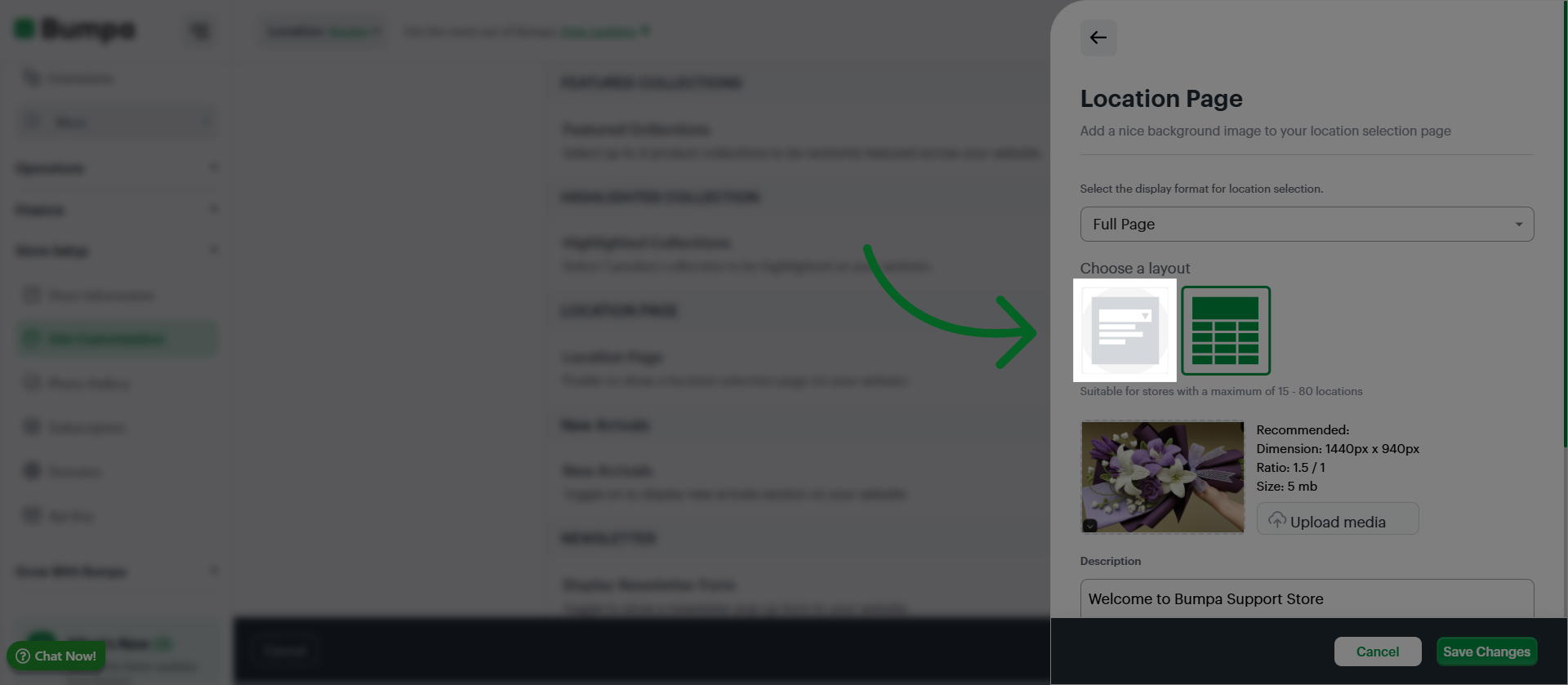
Click Upload to add the background image for the page
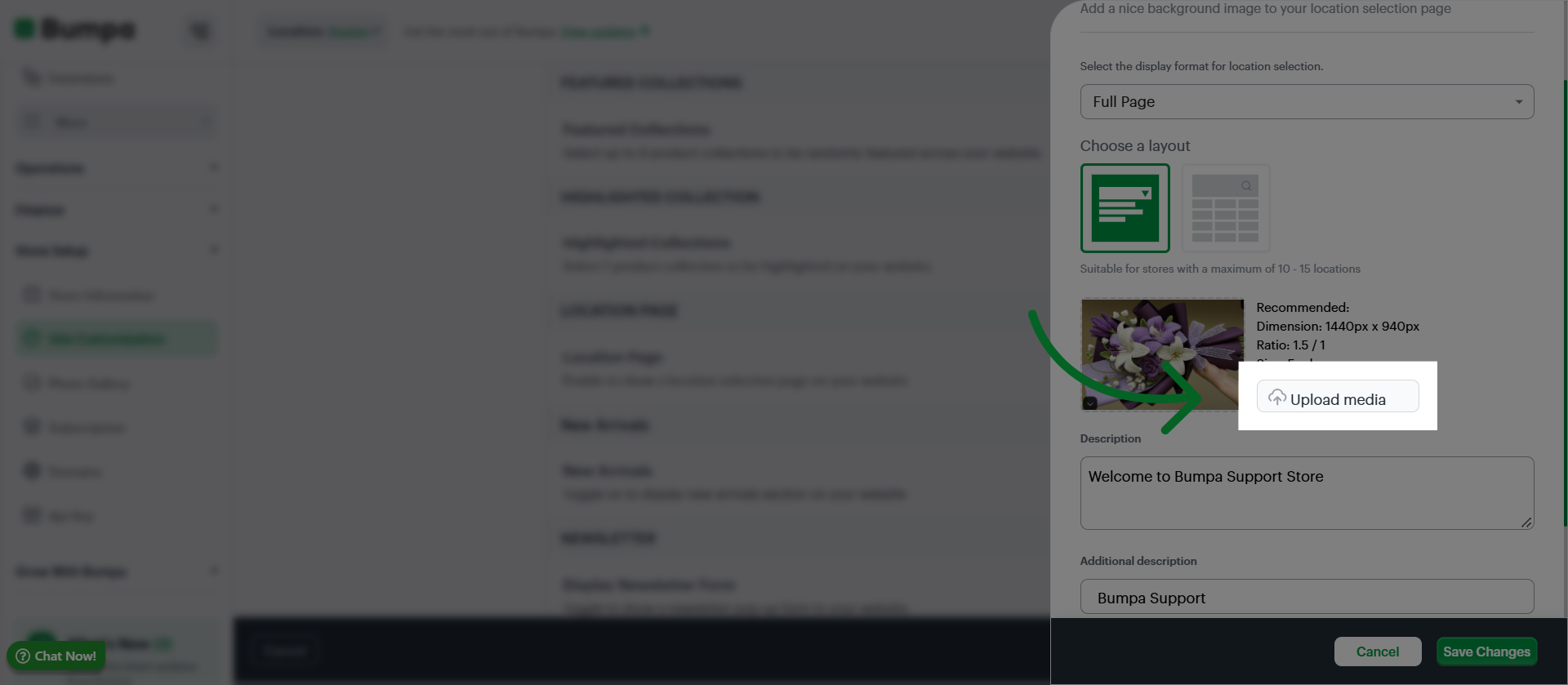
Input a description for the location selector page
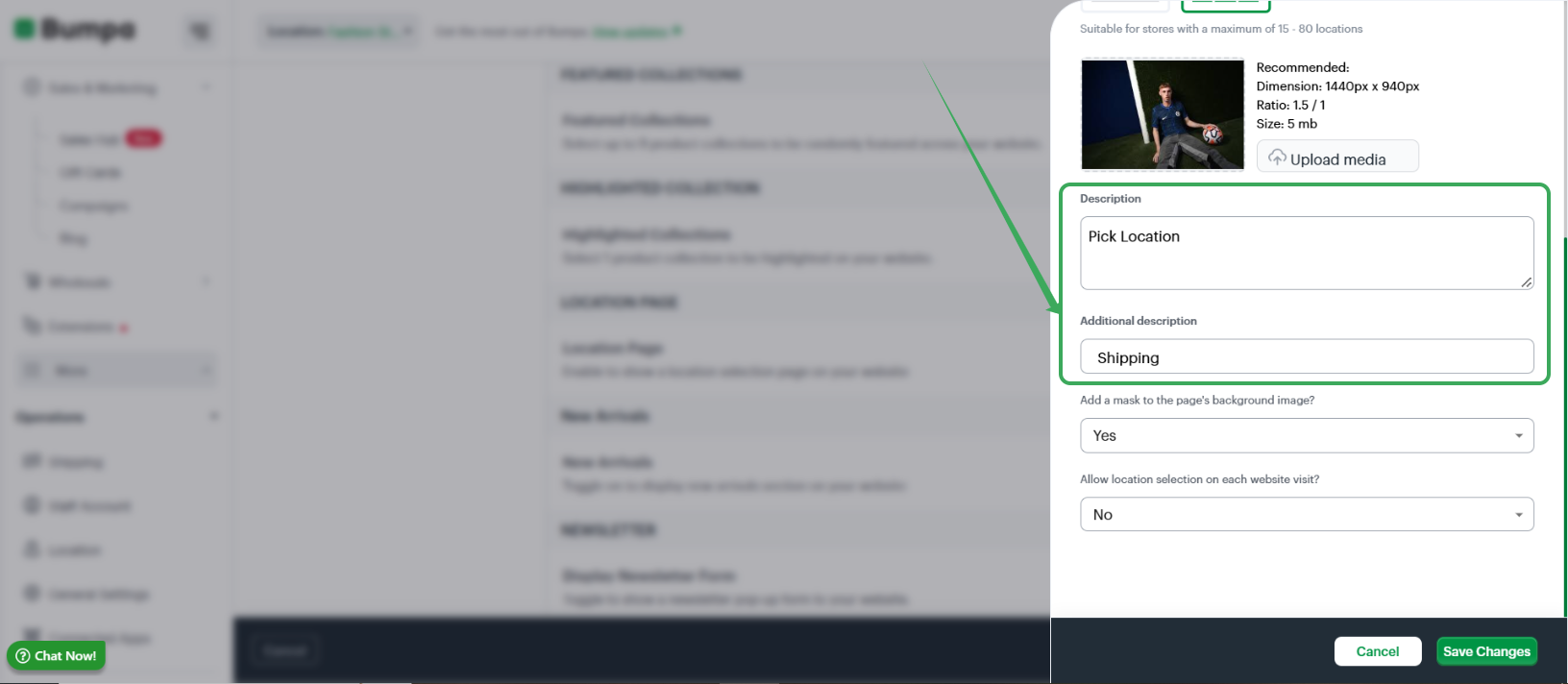
Confirm if you would like to add a Mask to the location selector display
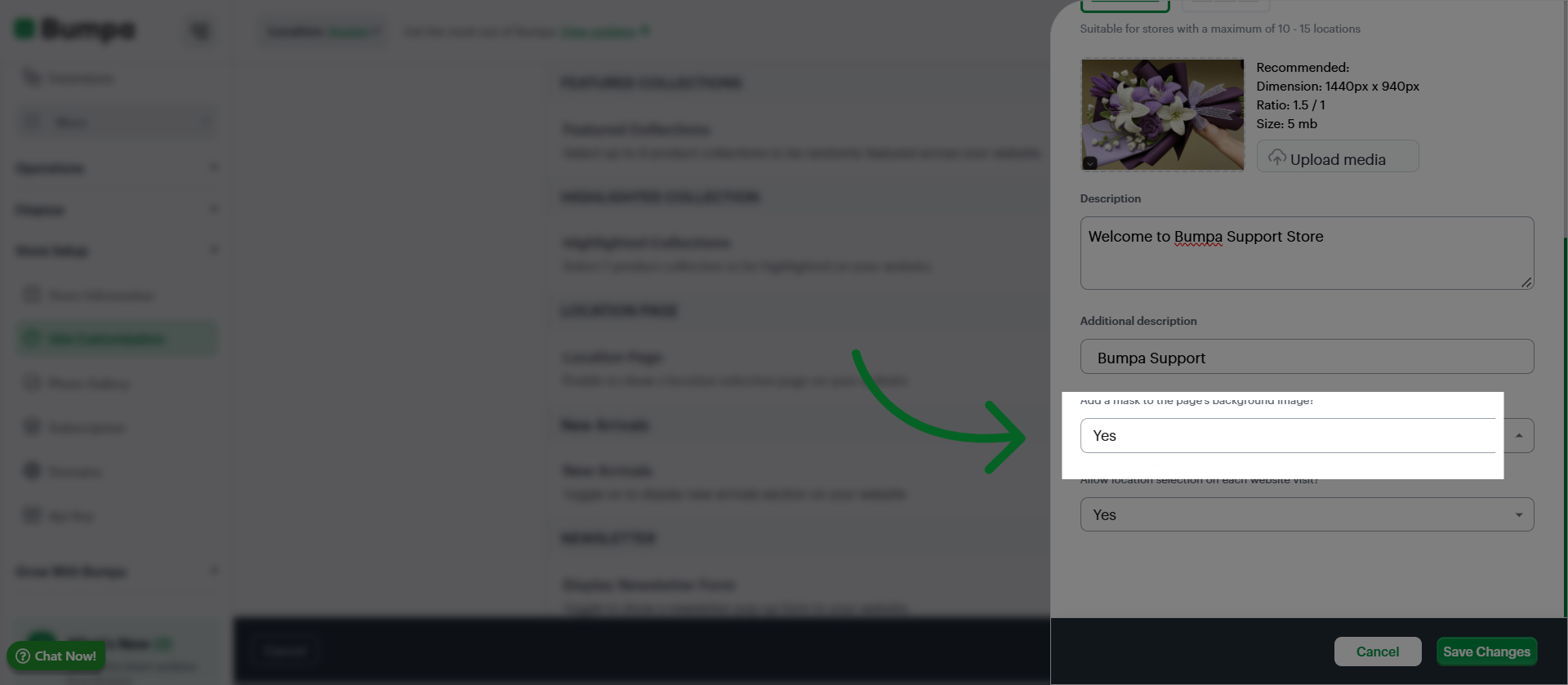
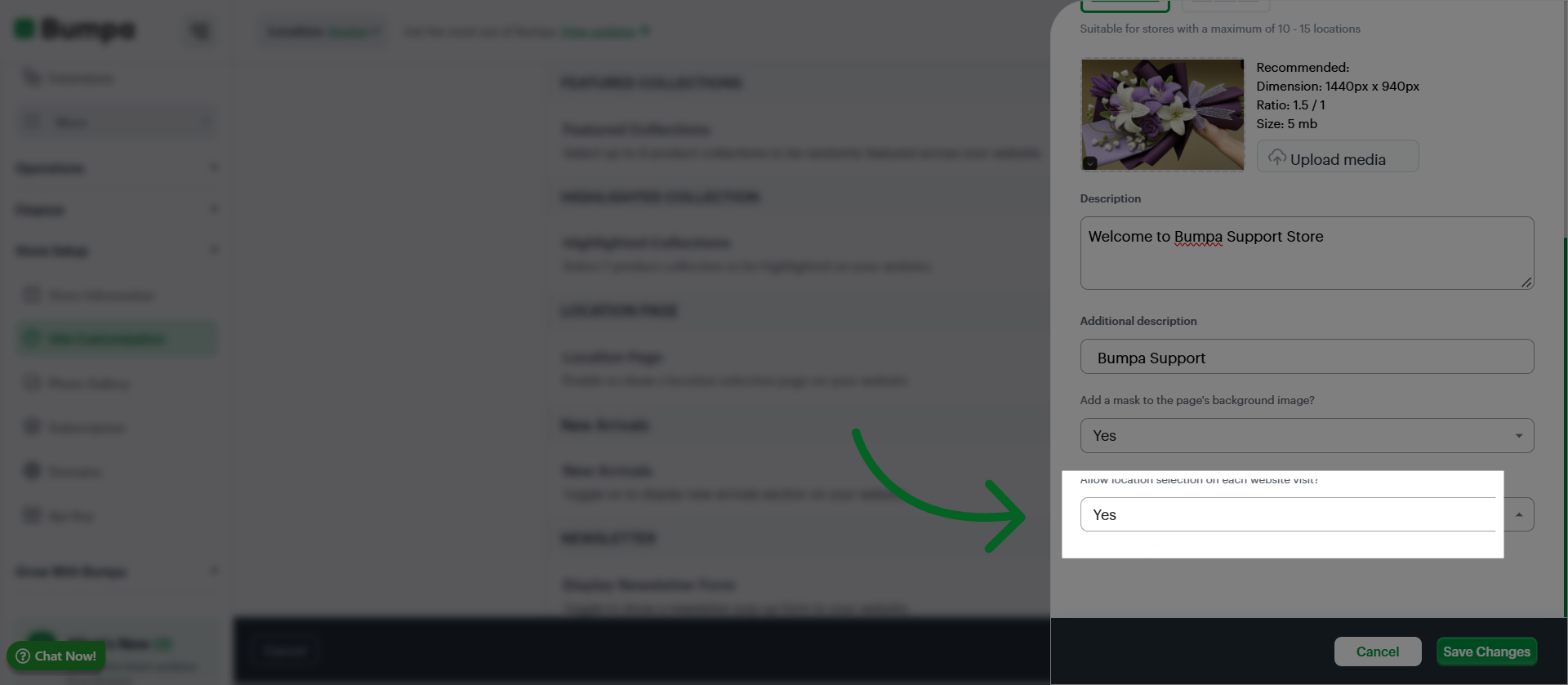
Confirm if you would like the selector to come up every time a customer visits the website
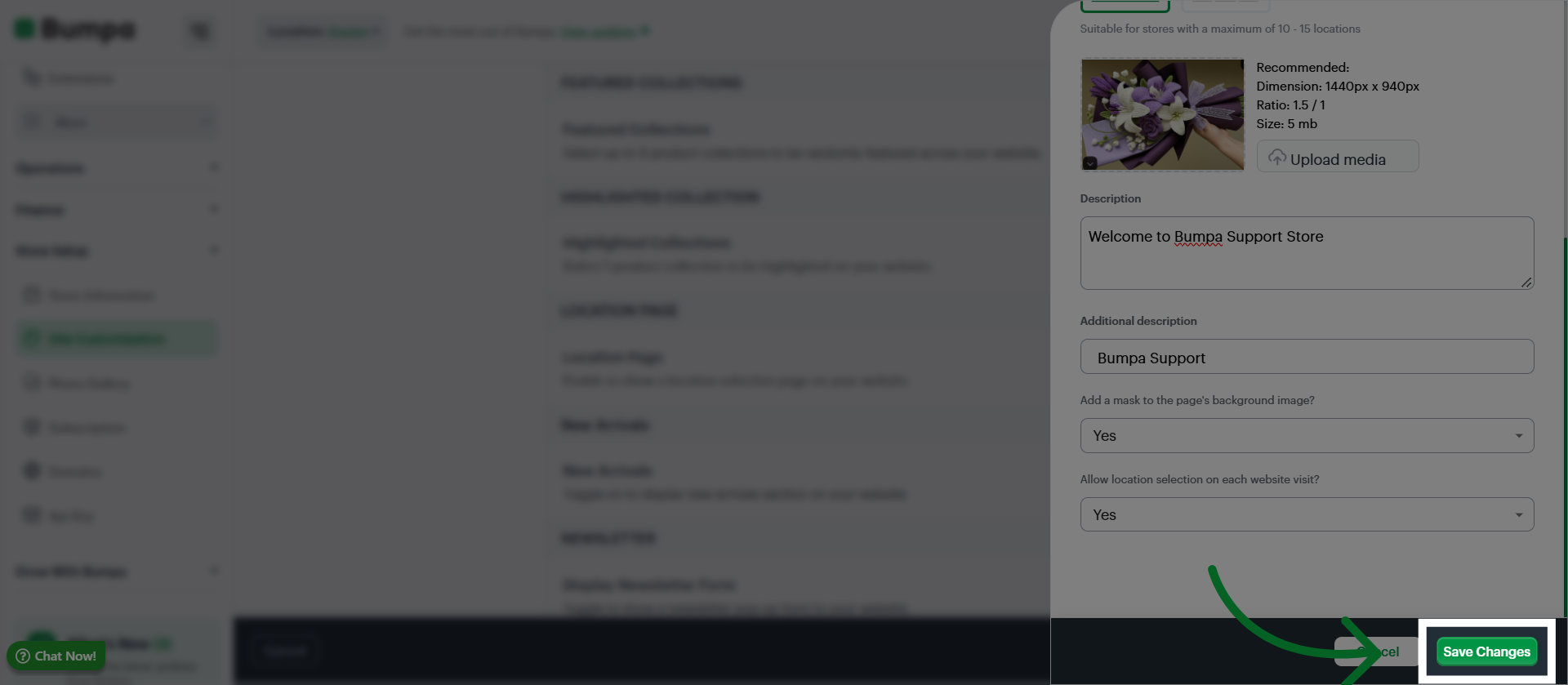
Click Save Changes to apply and save all updates made to your website's location selector
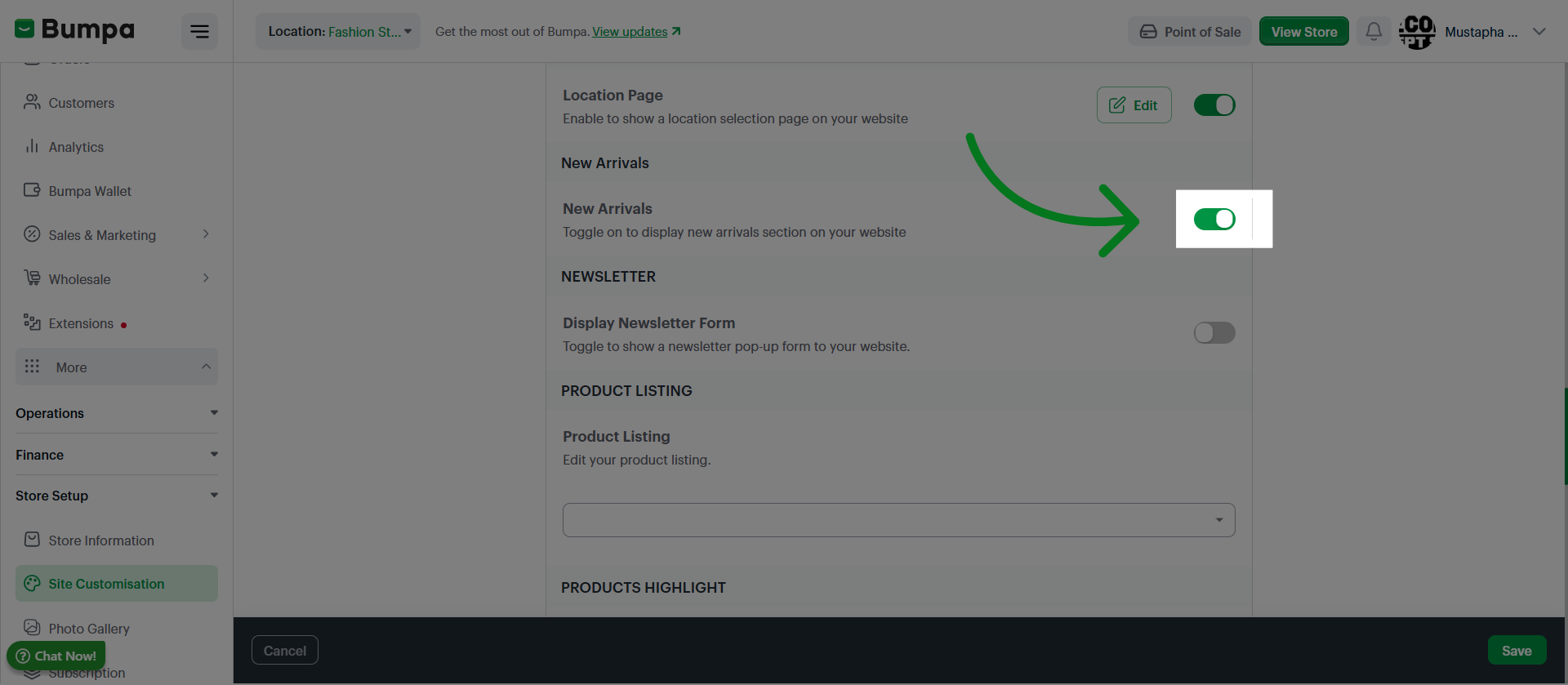
Toggle to Add a New arrival section to your website
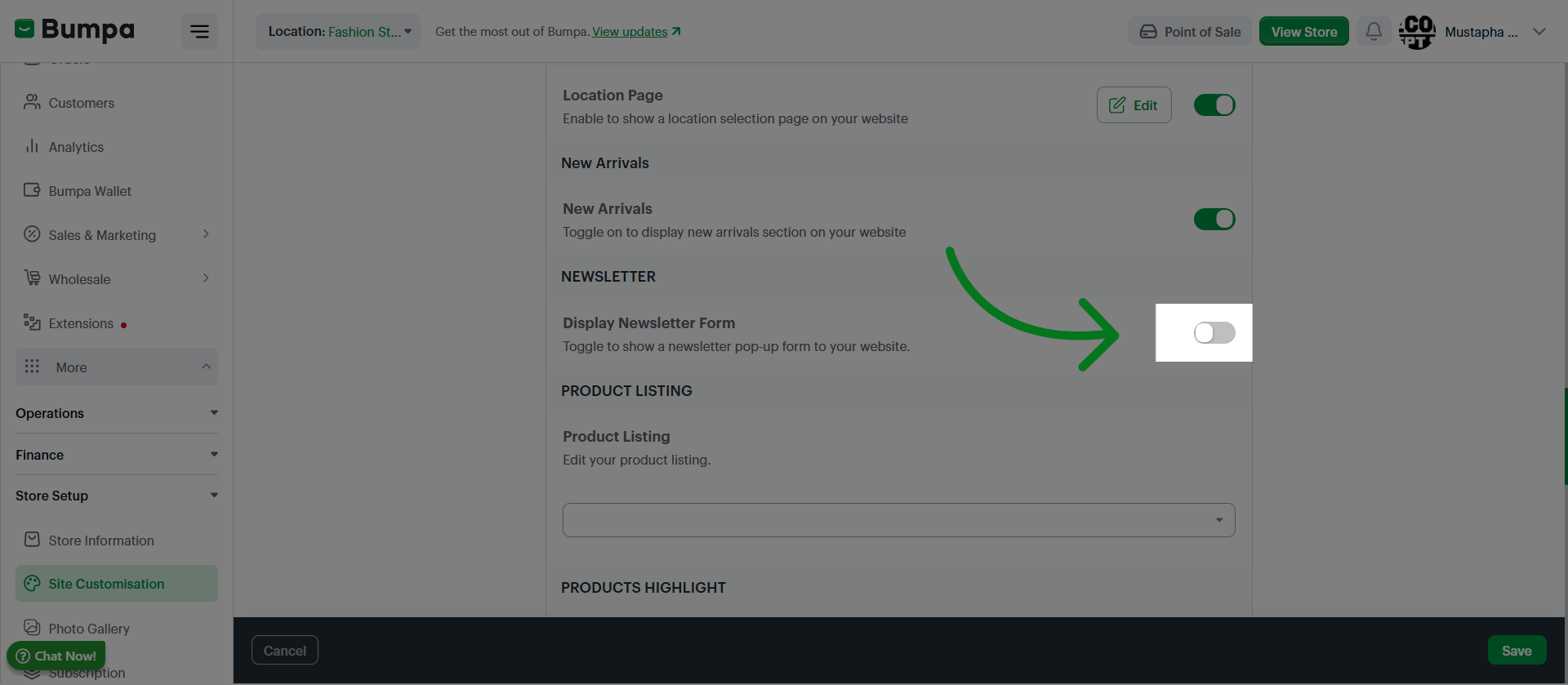
Toggle to add a newsletter section on your website
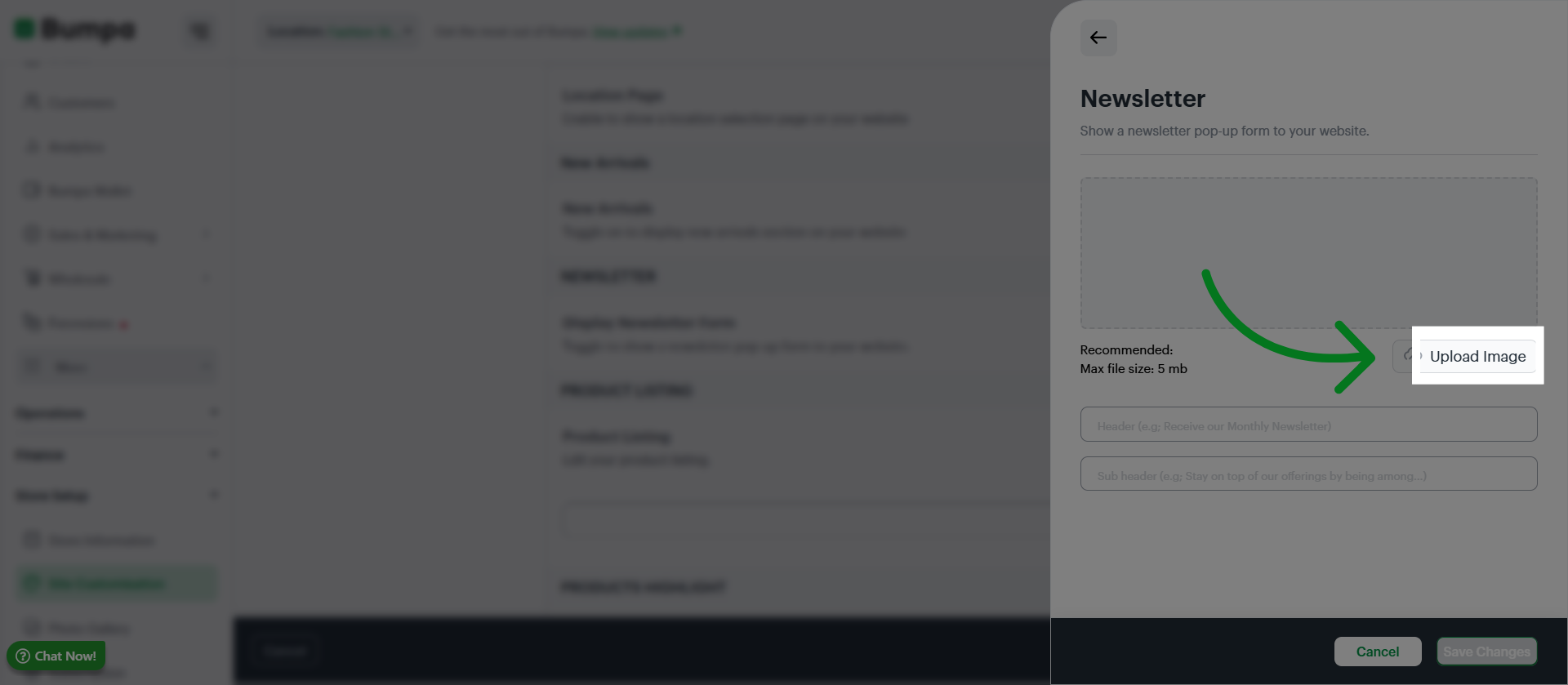
Click Upload Image to add an image to the newsletter feature
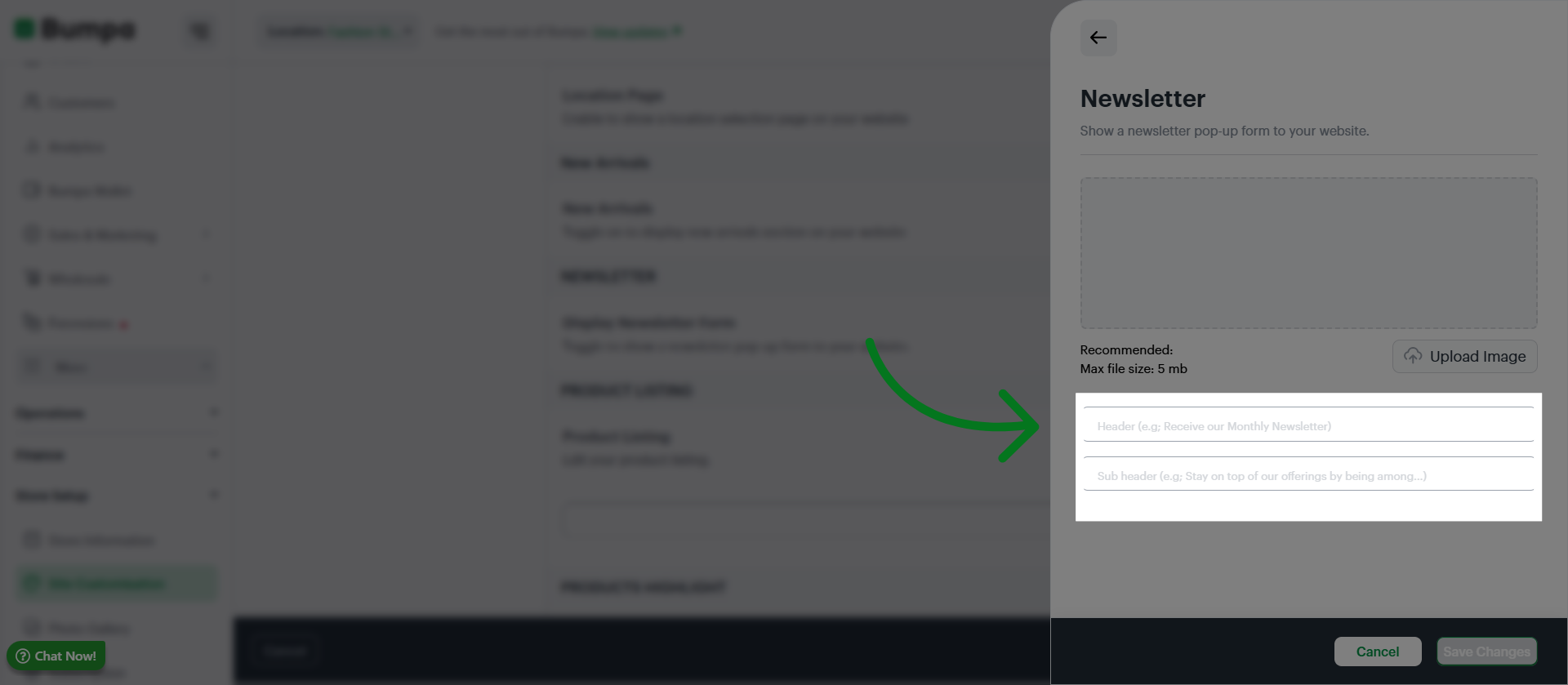
Input the header and content of your newsletter page
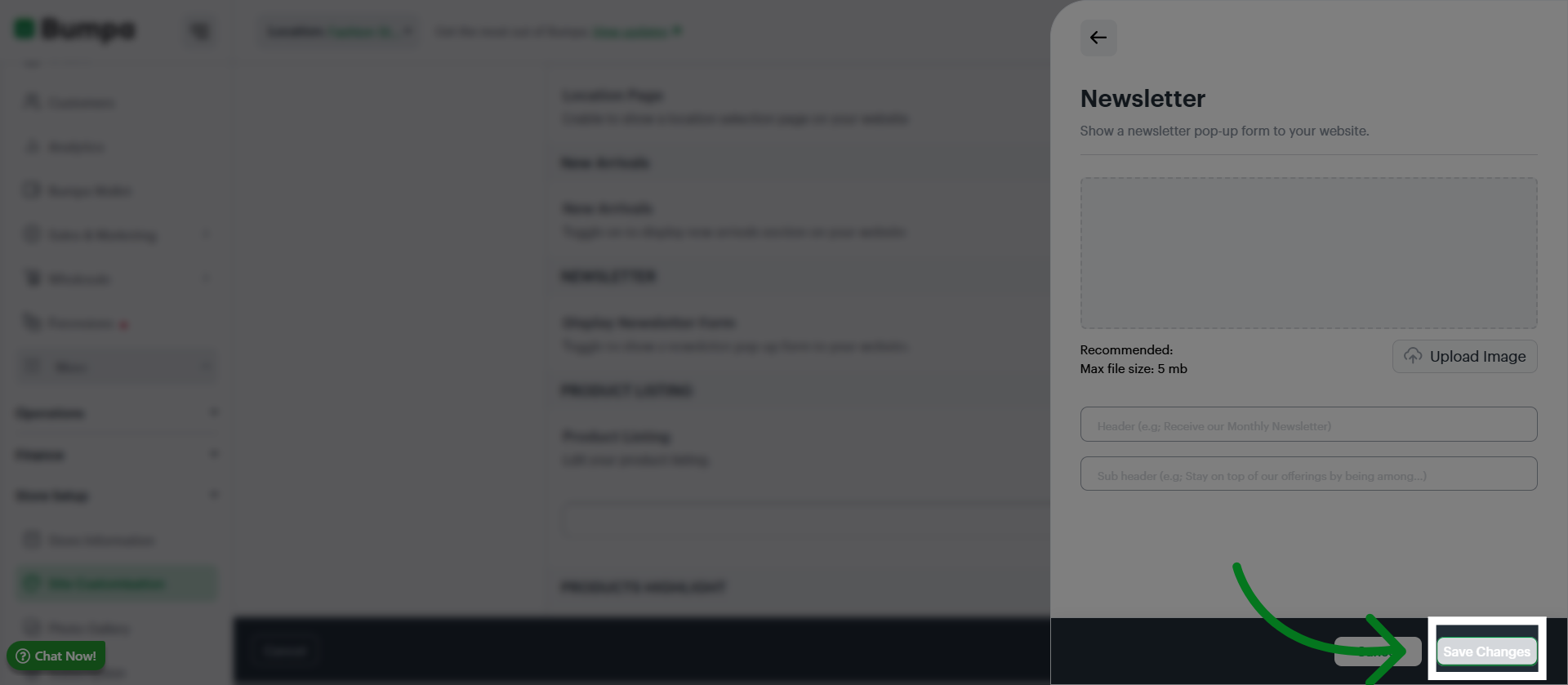
Click Save Changes to confirm and save the newsletter feature
Click the dropdown to select how you would like your product listing to be displayed
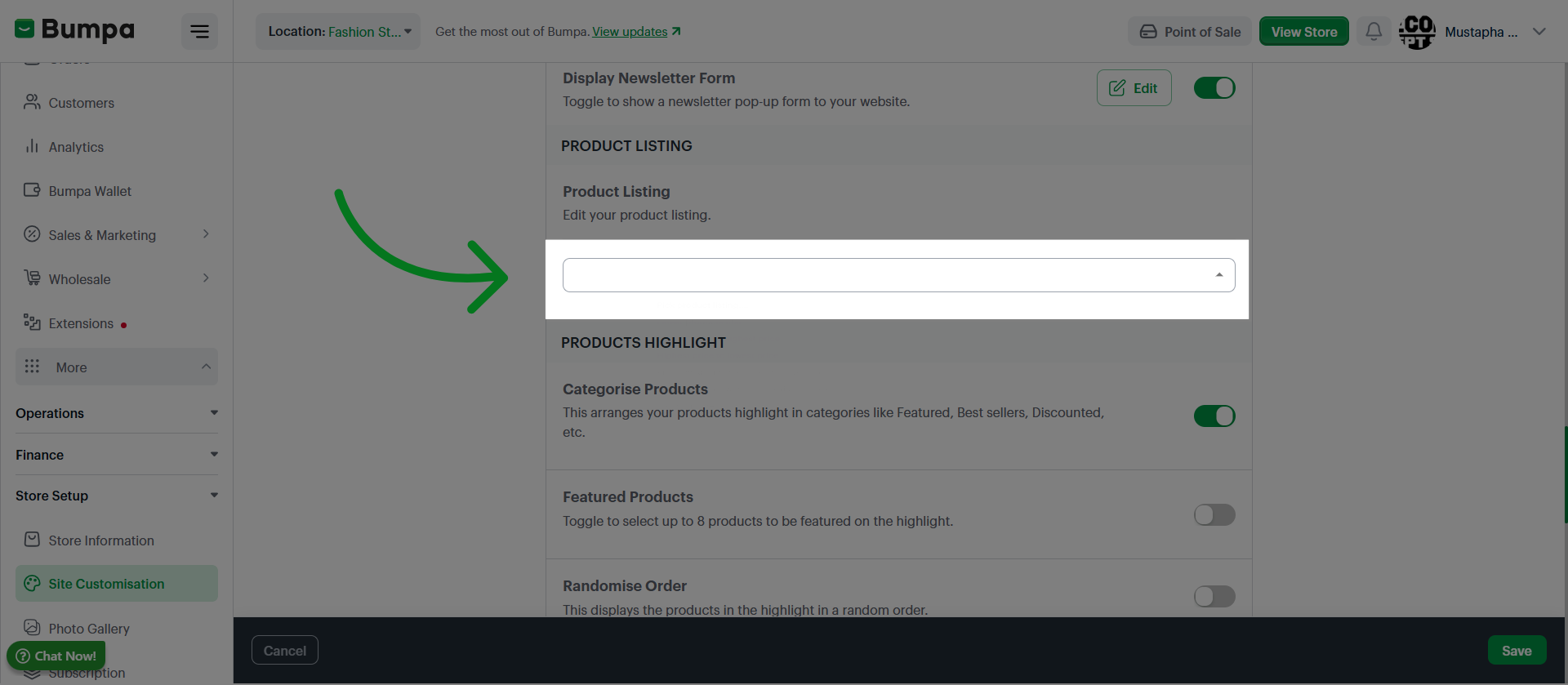
Move on to the Product Highlight Section
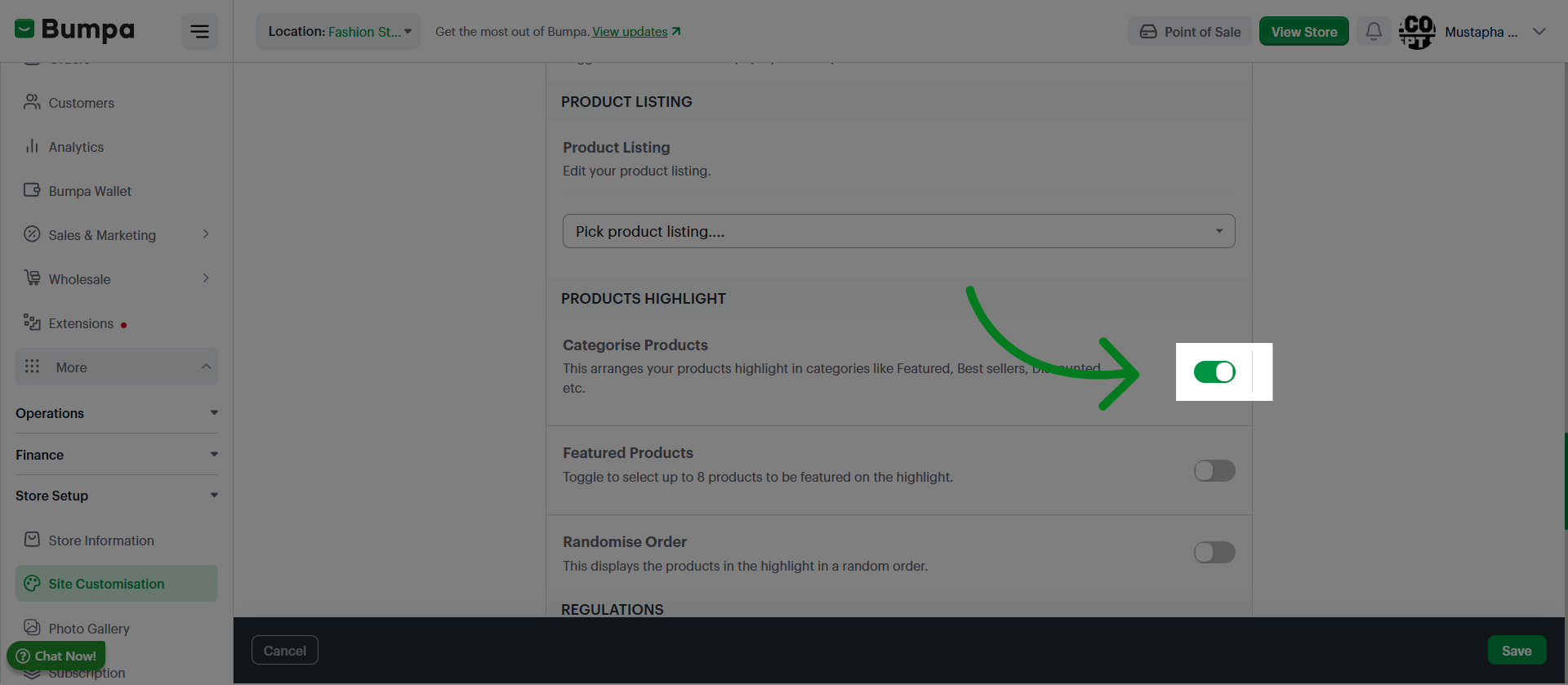
Toggle to apply the Categorize products feature to arrange your product highlights on the website
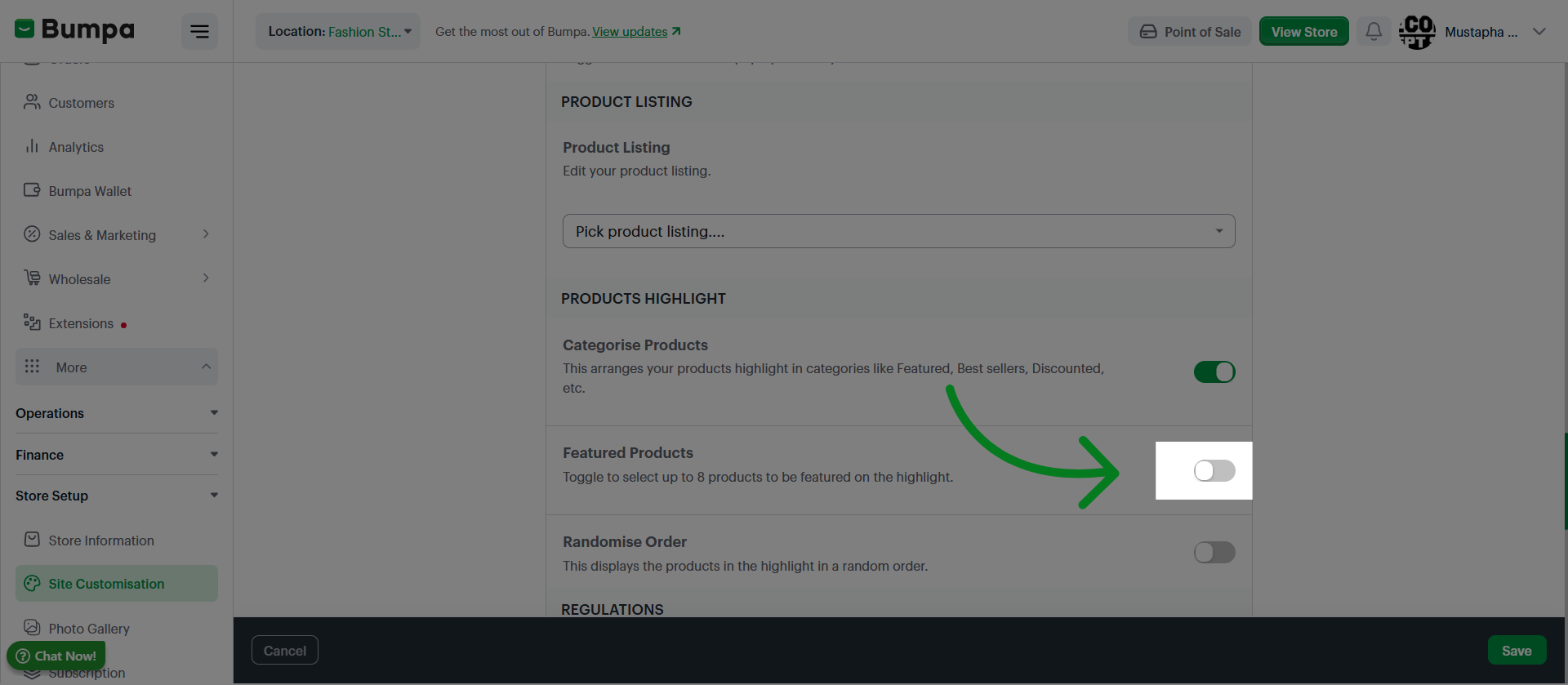
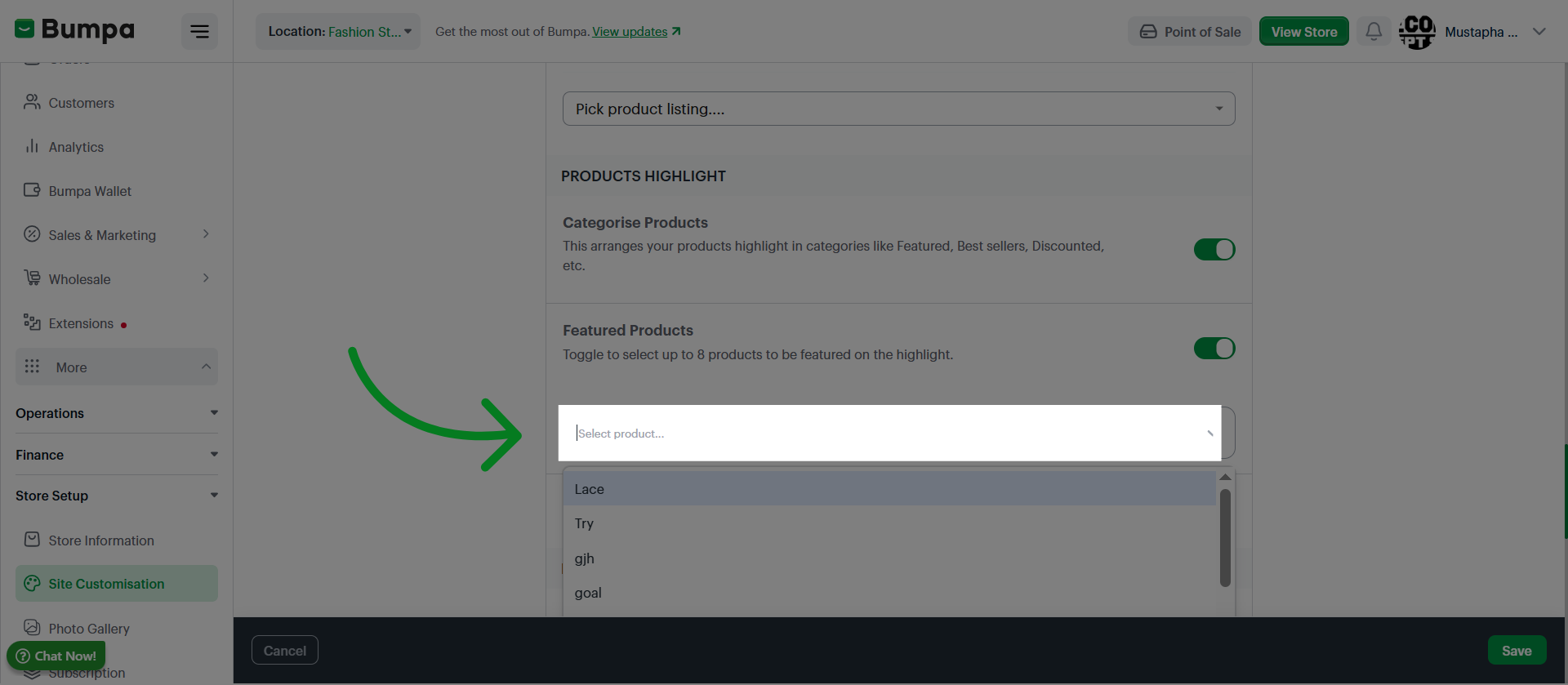
Toggle to activate Featured products and select up to 8 products you would like to be featured on your website
Enable the Randomize Order option to display products in the highlight section in a random sequence, enhancing product visibility.
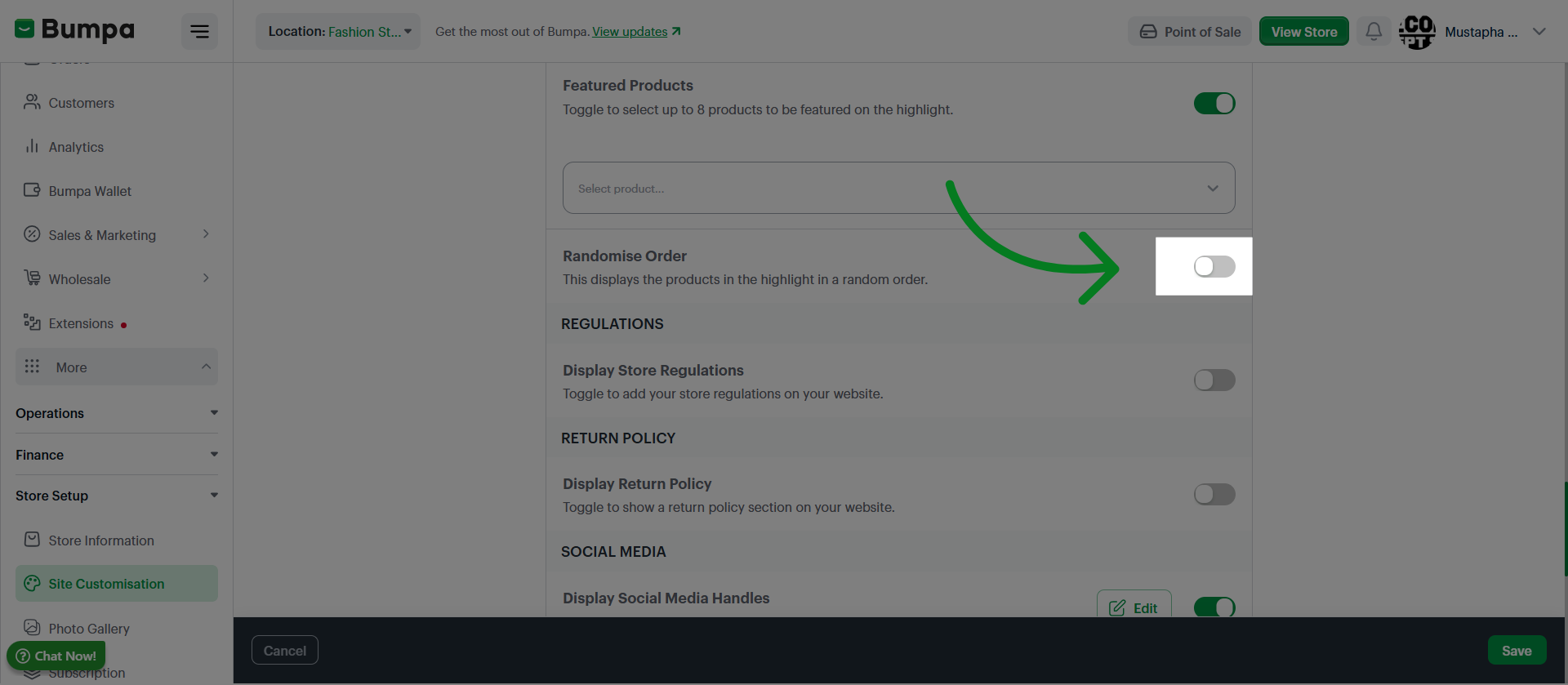
Toggle to add up to 4 Store regulations to your website
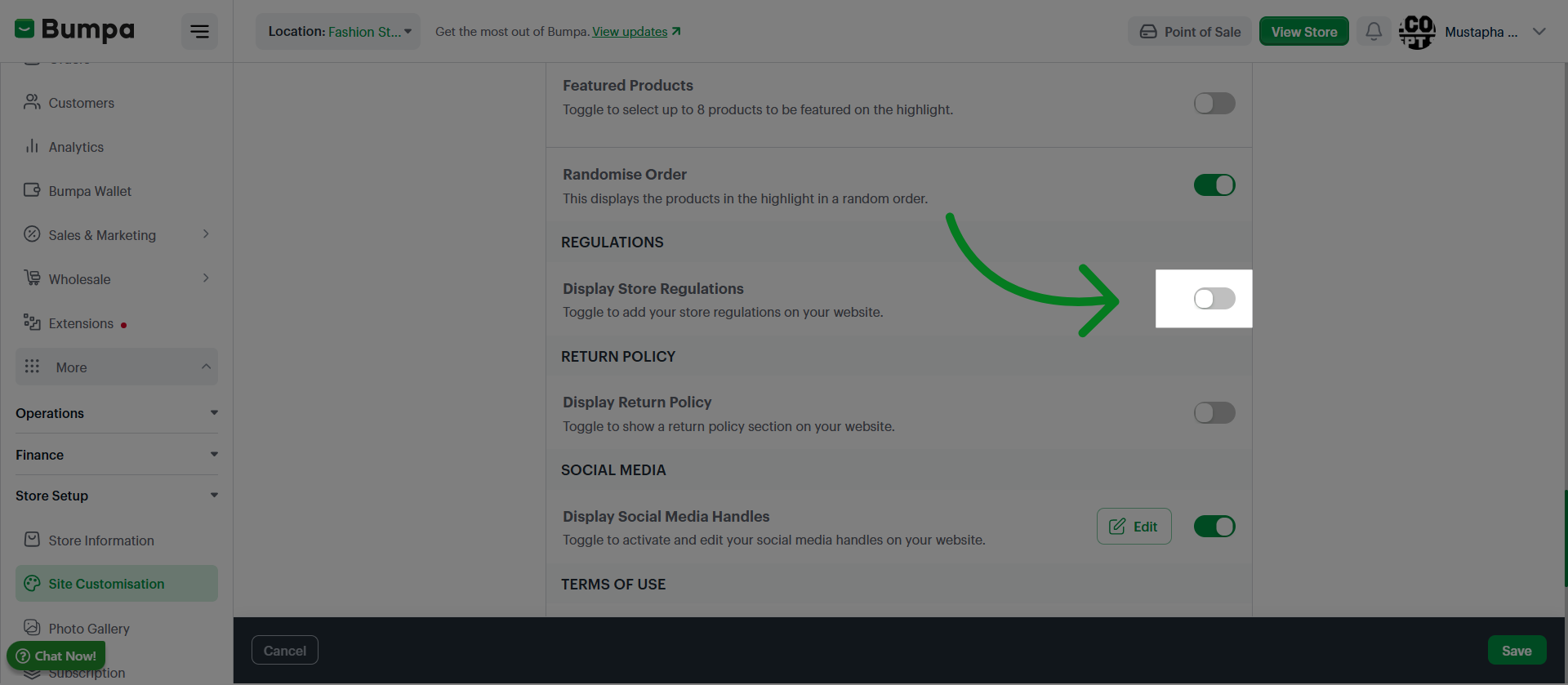
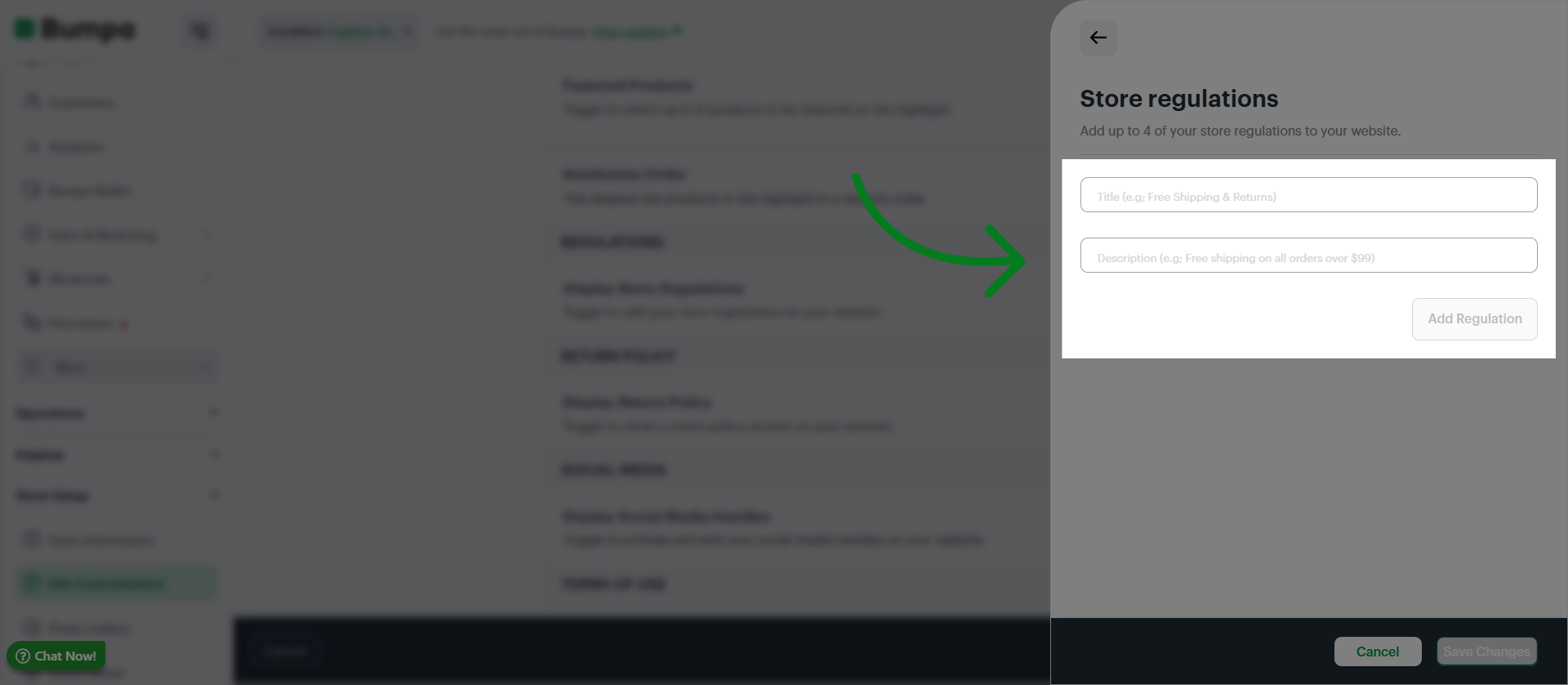
Input the header and content of your store regulation and Click "Add Regulation" to include a new compliance rule or policy to your website
Click "Save Changes" to save your store regulations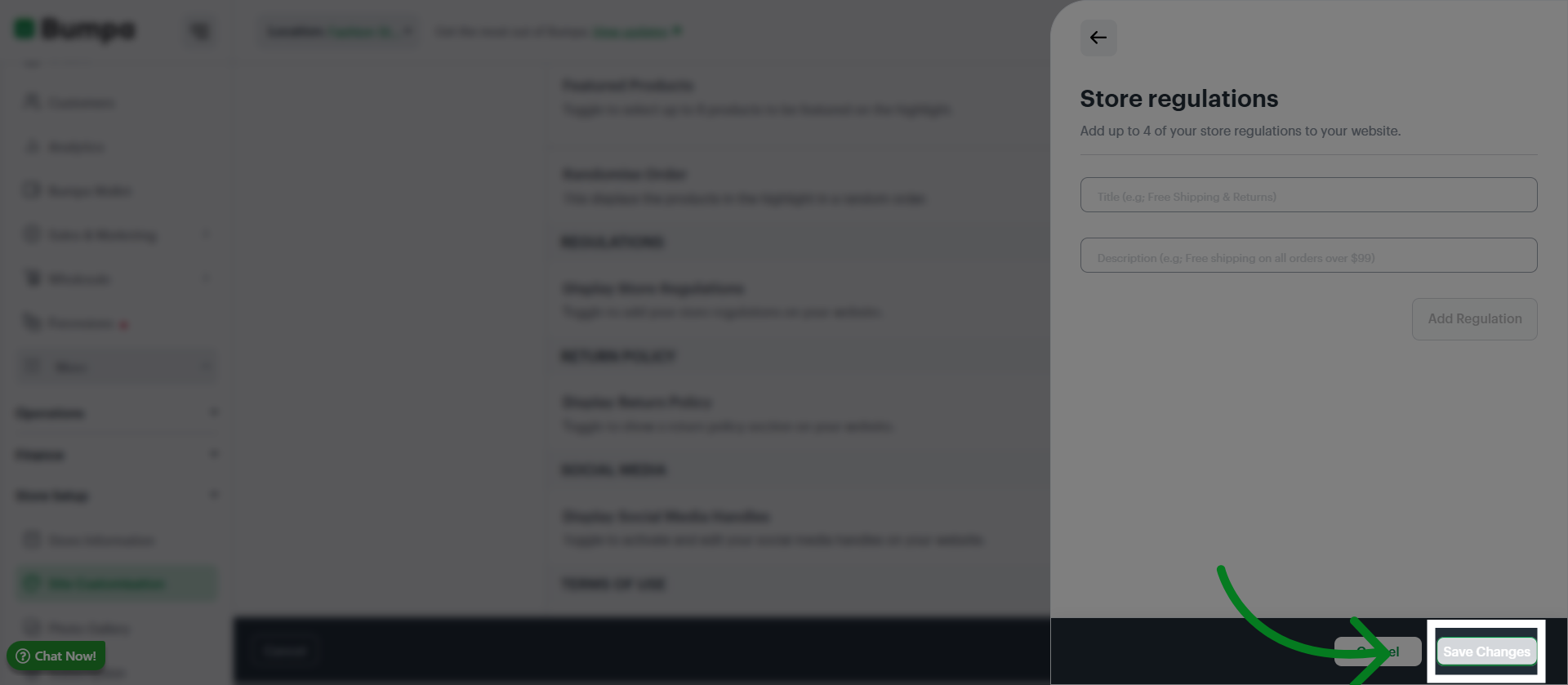
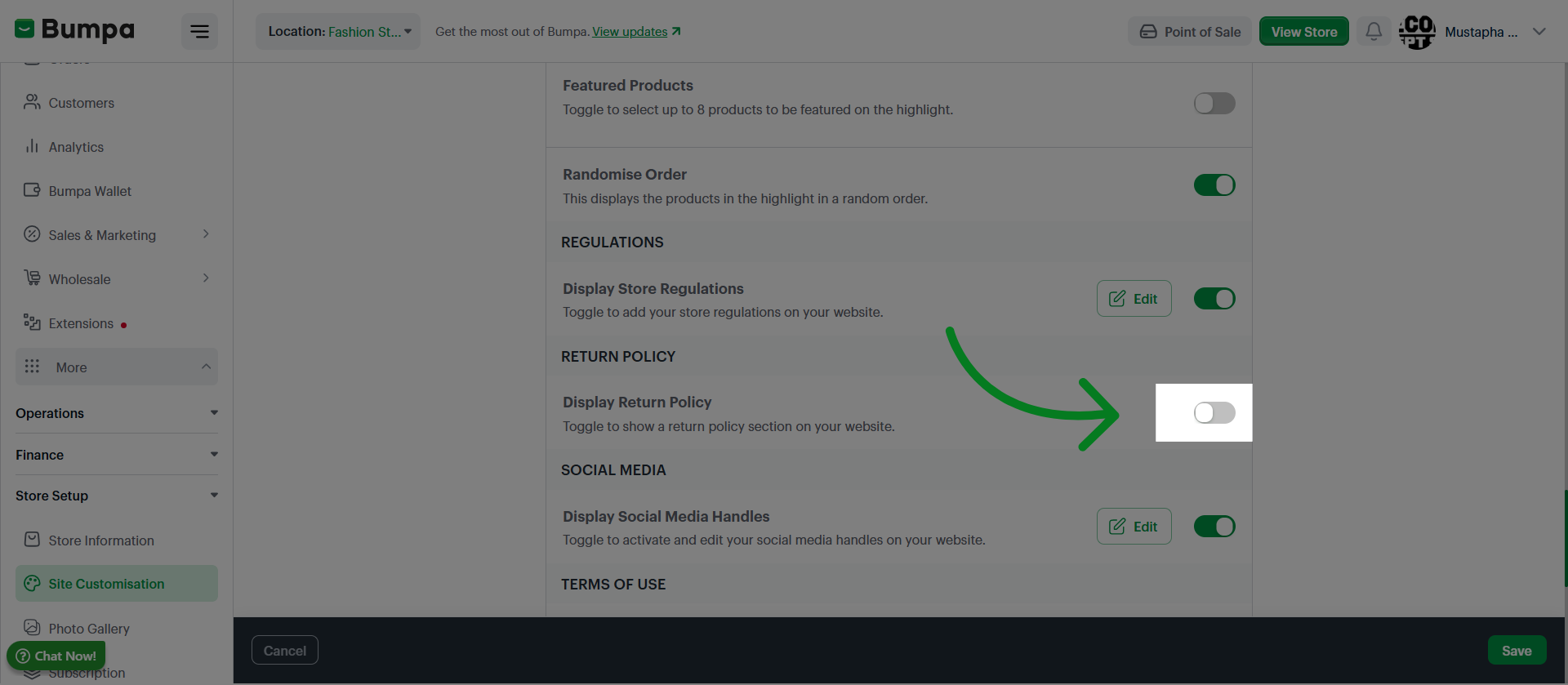
Toggle to include a return Policy to your store set up
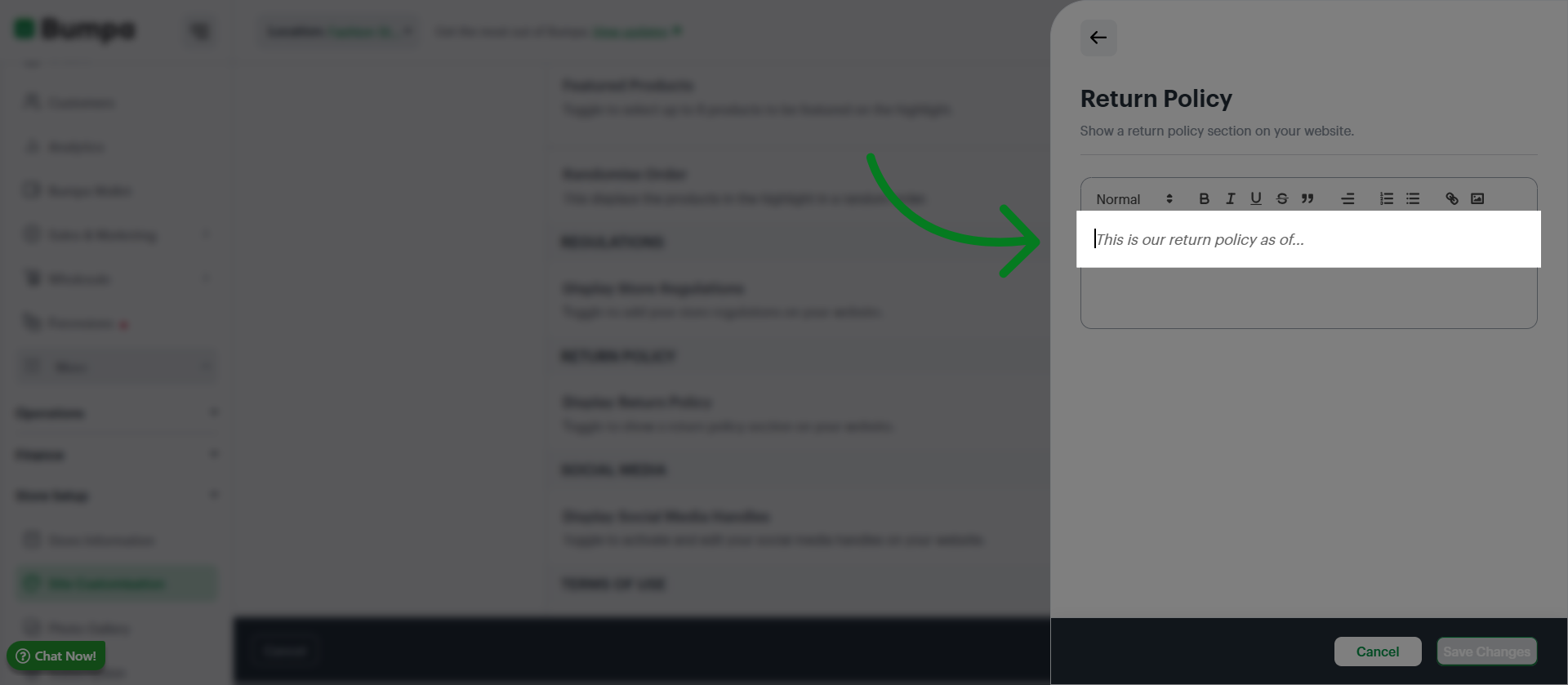
Input your Return Policy
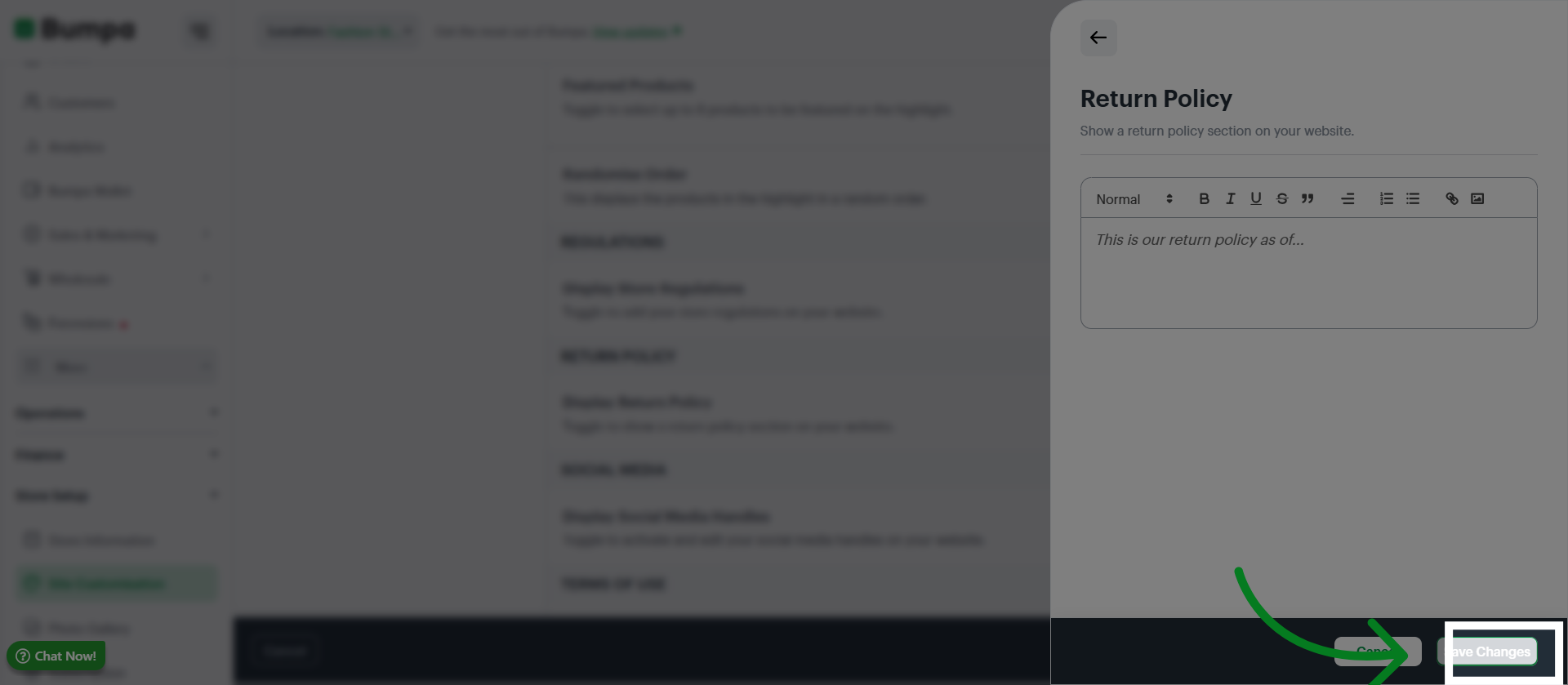
Click "Save Changes" to apply the return policy to your store settings.
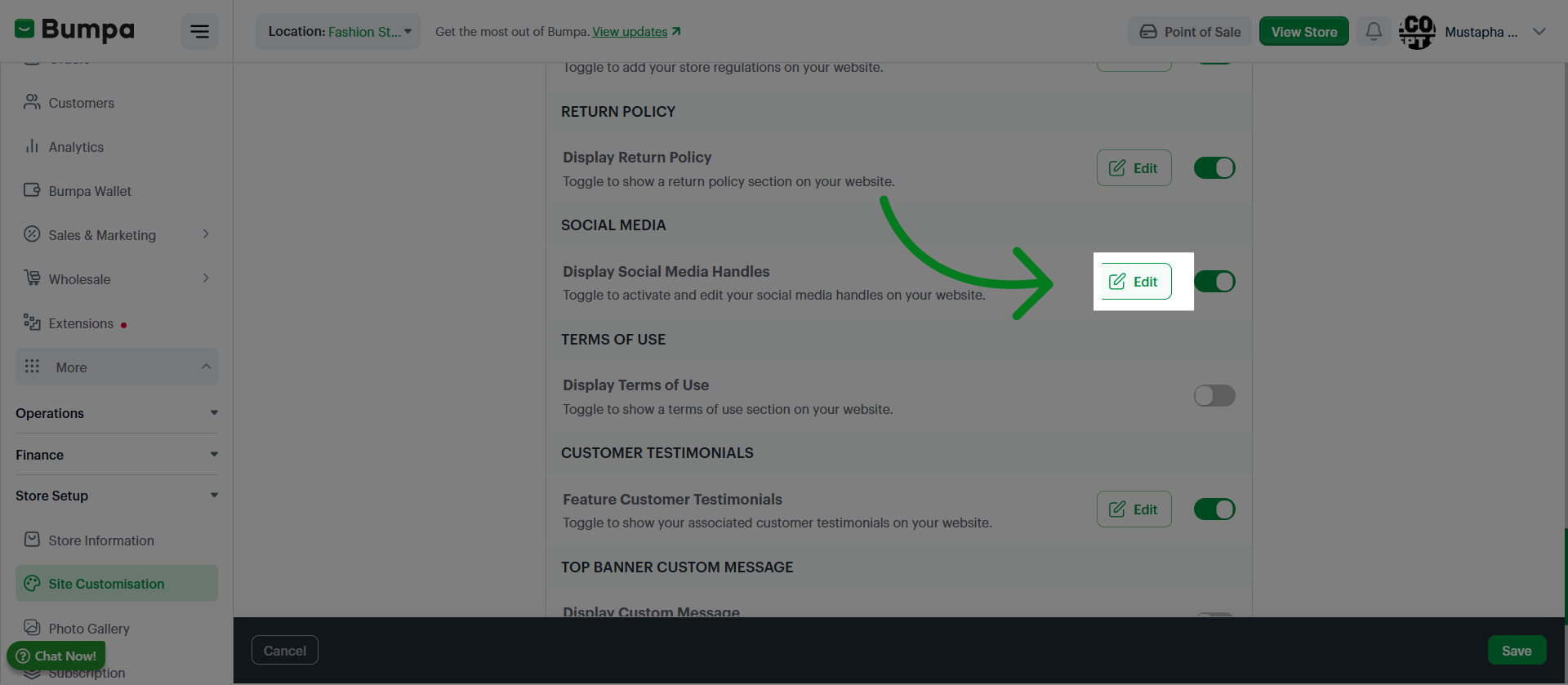
Click Edit to access the Social Media Setup
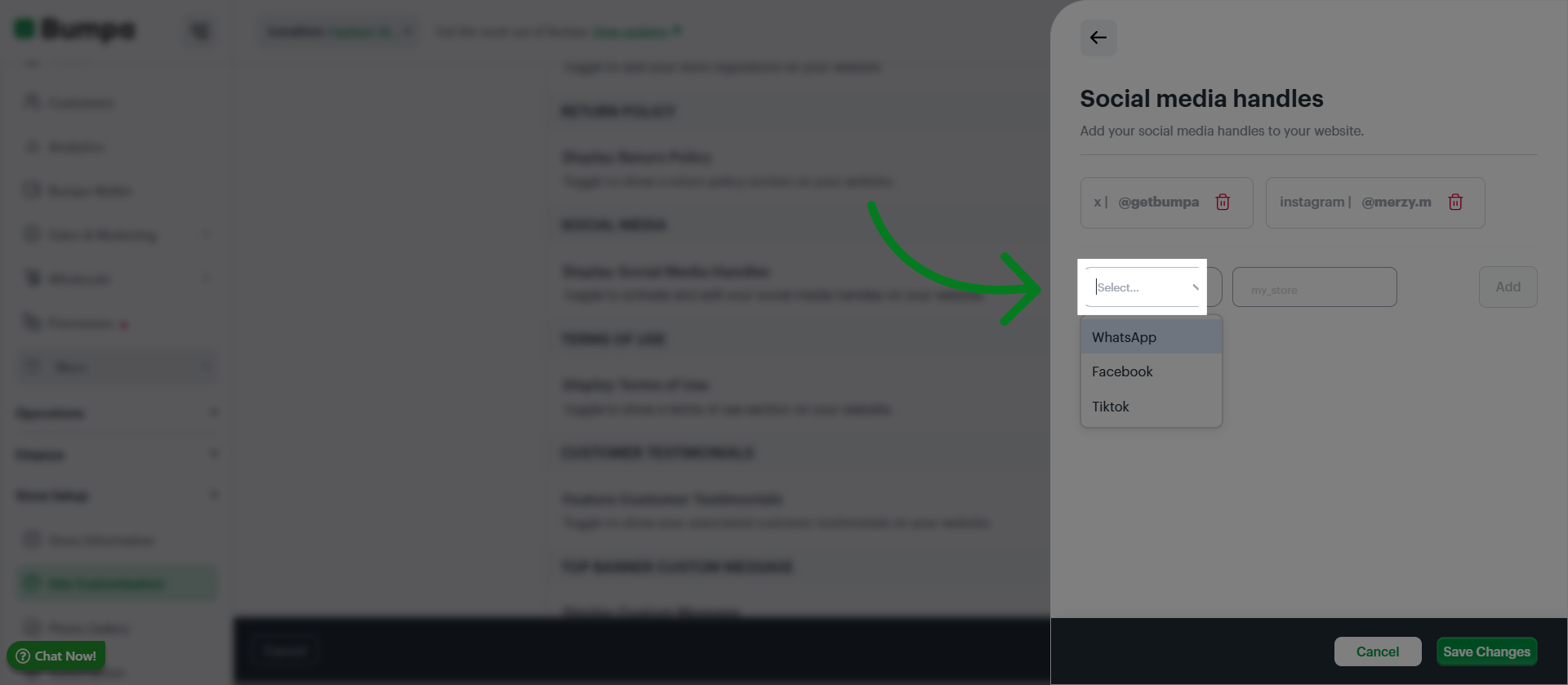
Select the social media platform
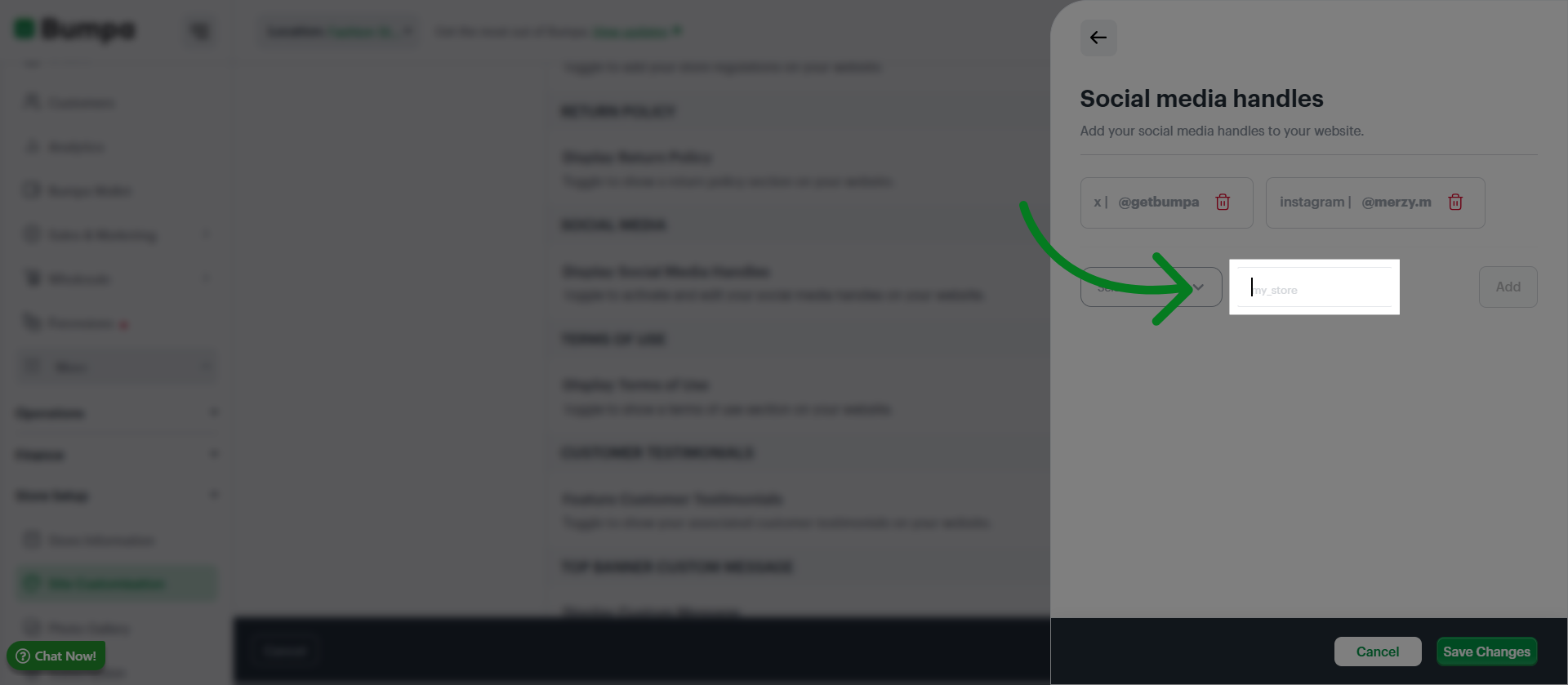
Input your handle
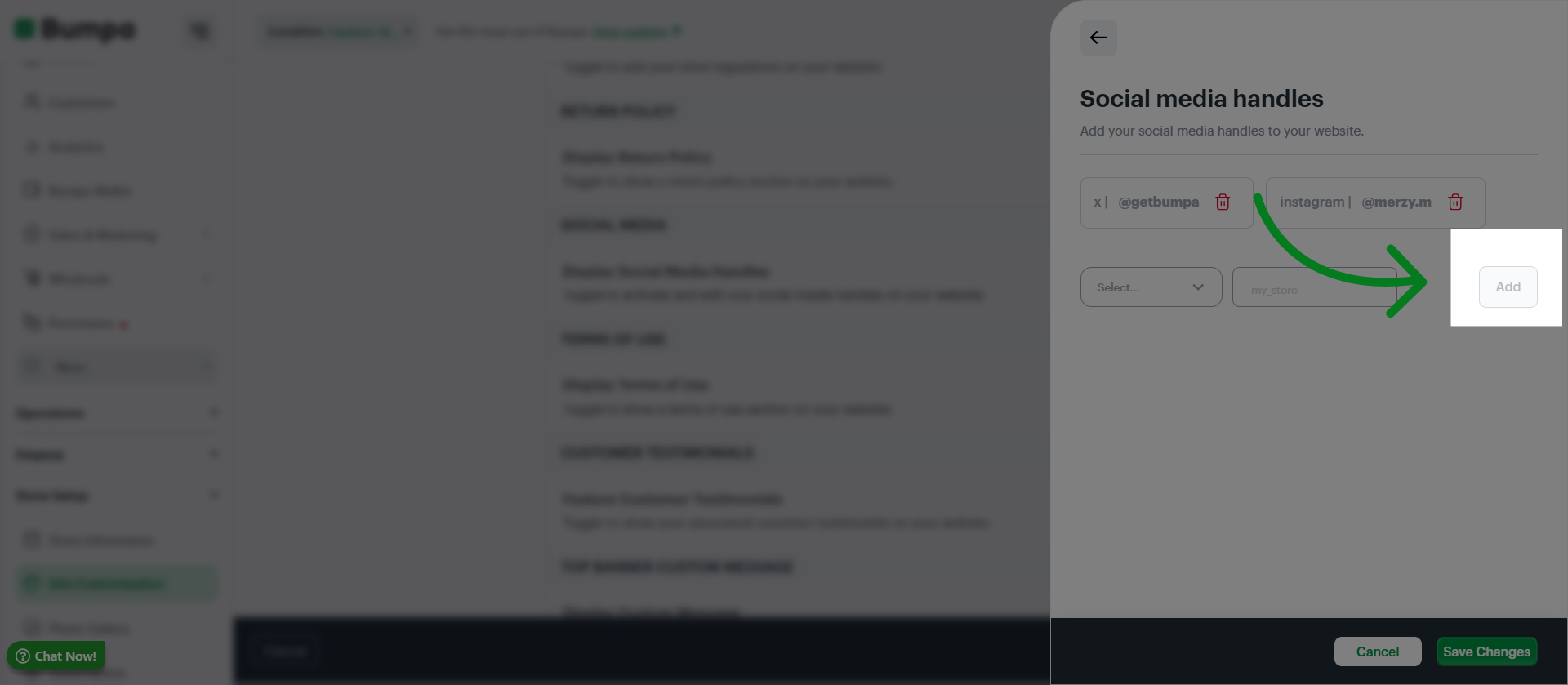
Click "Add" to save and add more options
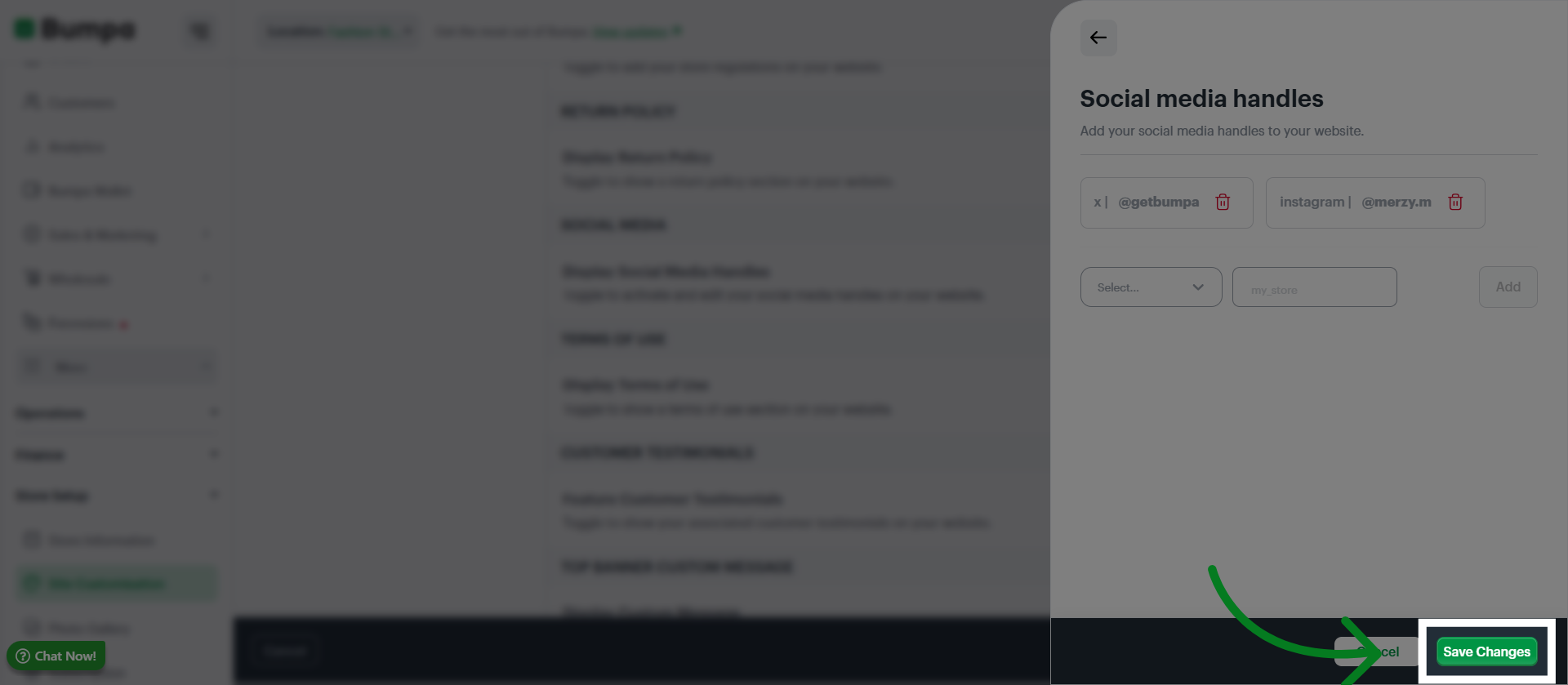
Click "Save Changes" to apply and save all modifications made to your social media settings.
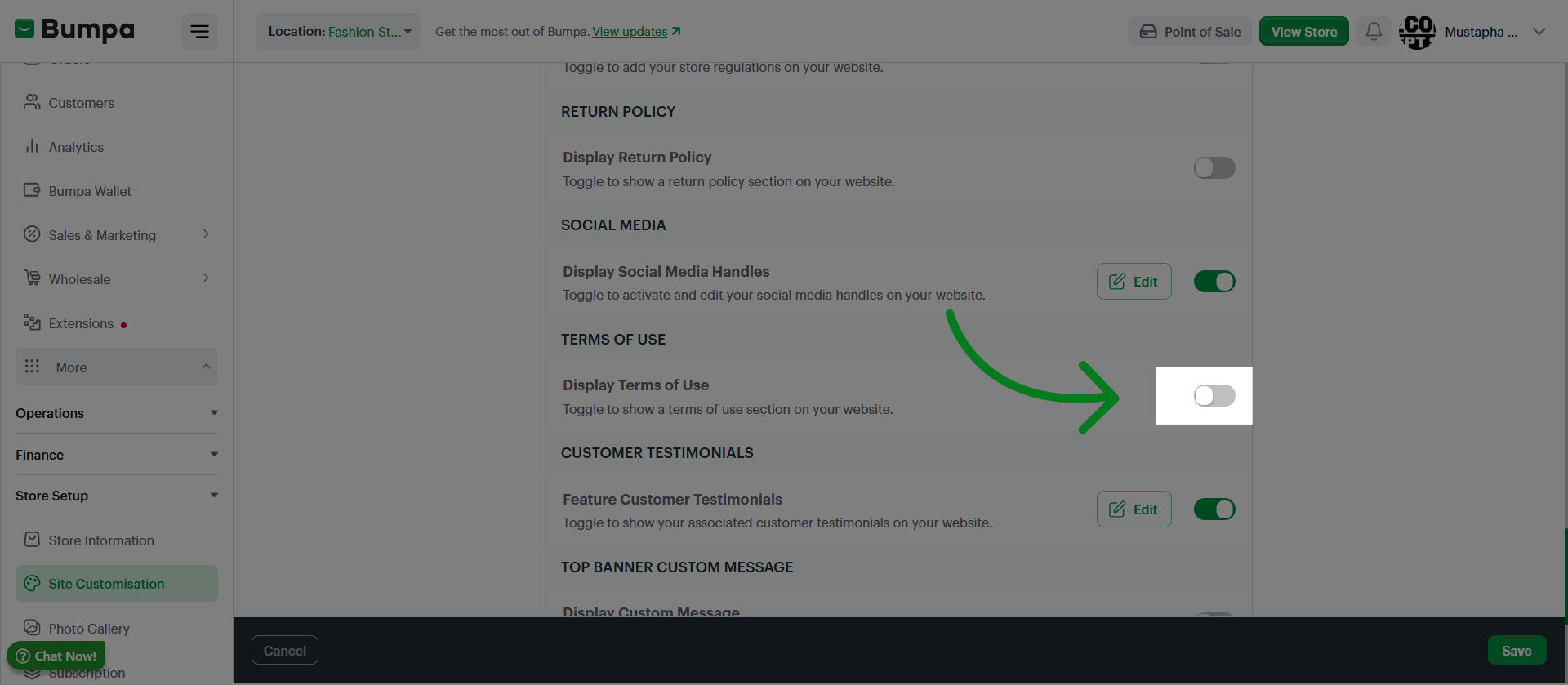
Togglet to add a Terms of Use Section to your website
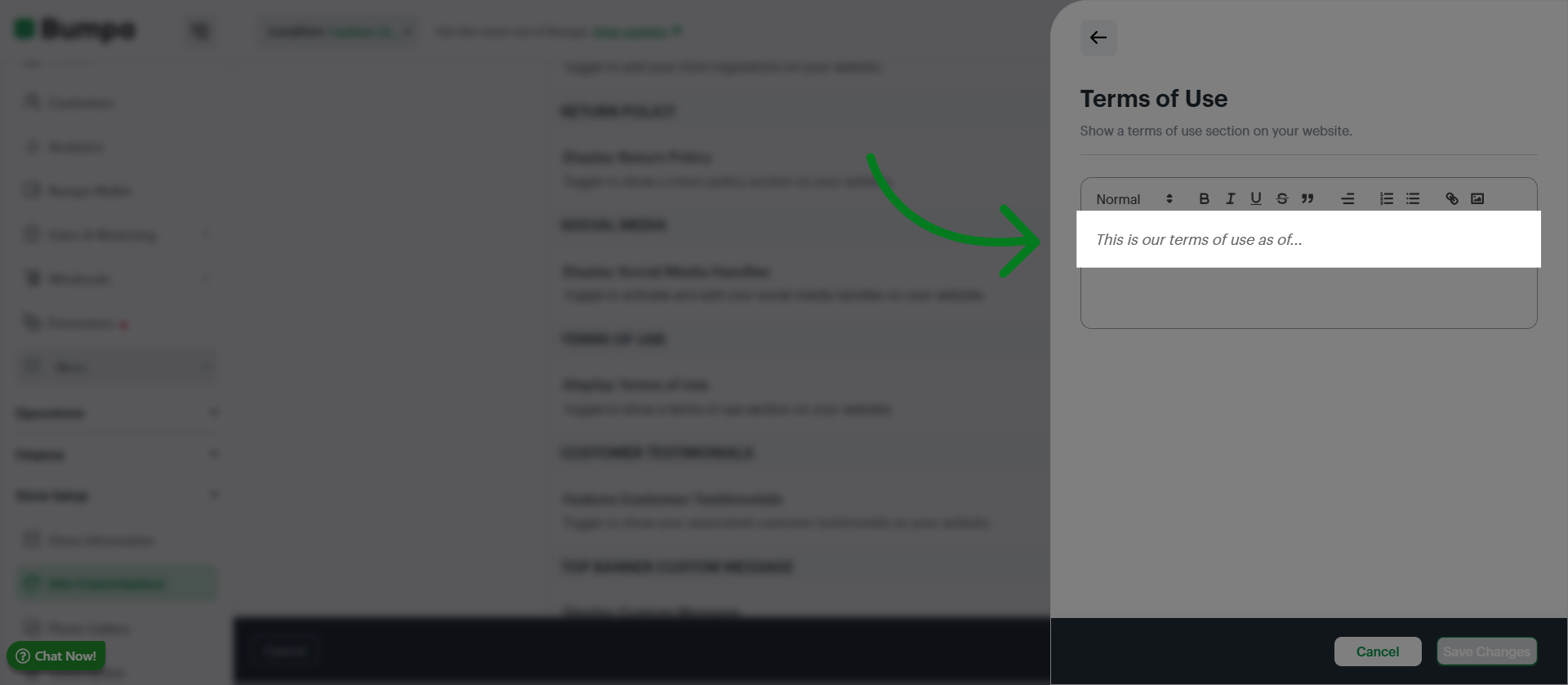
Input the content of your Terms of Use
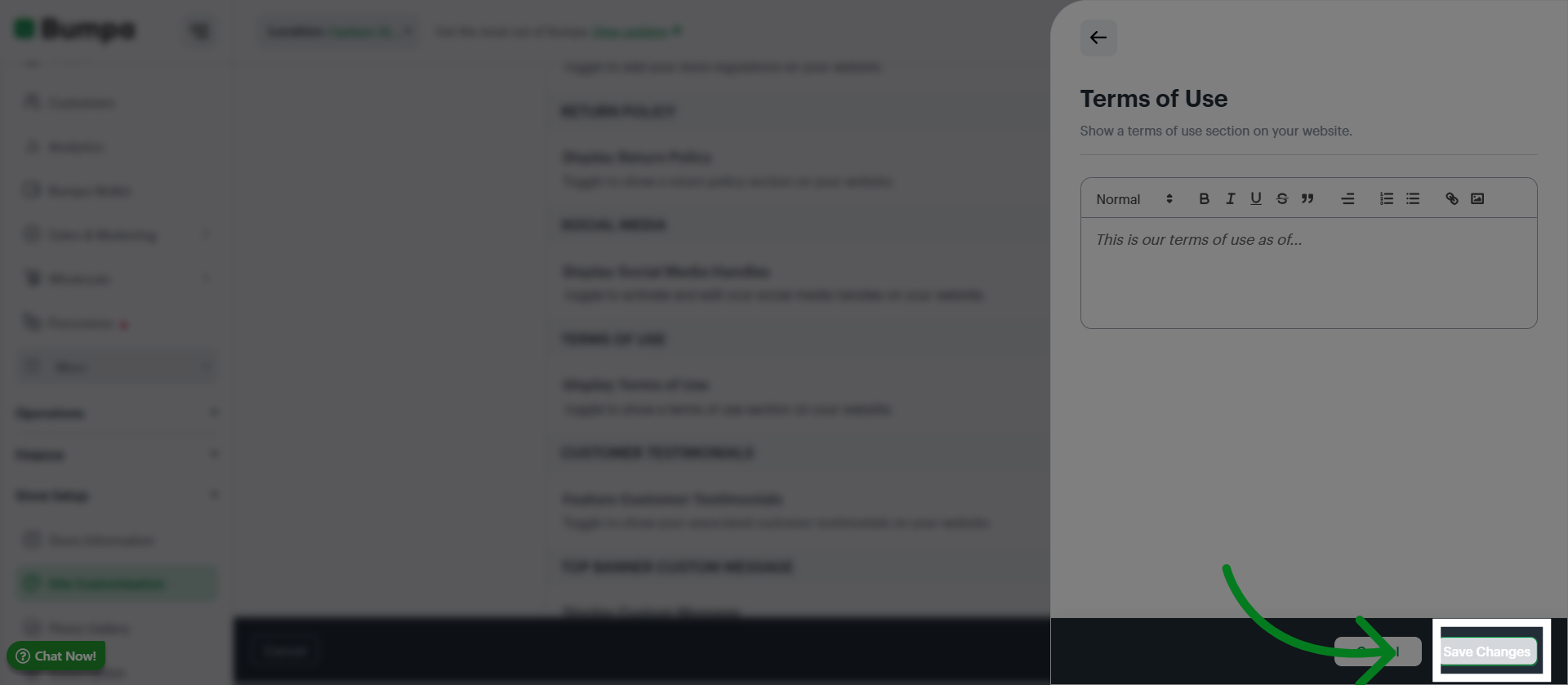
Click Save Changes to confirm and apply the information entered in the Terms of Use to your store configuration.
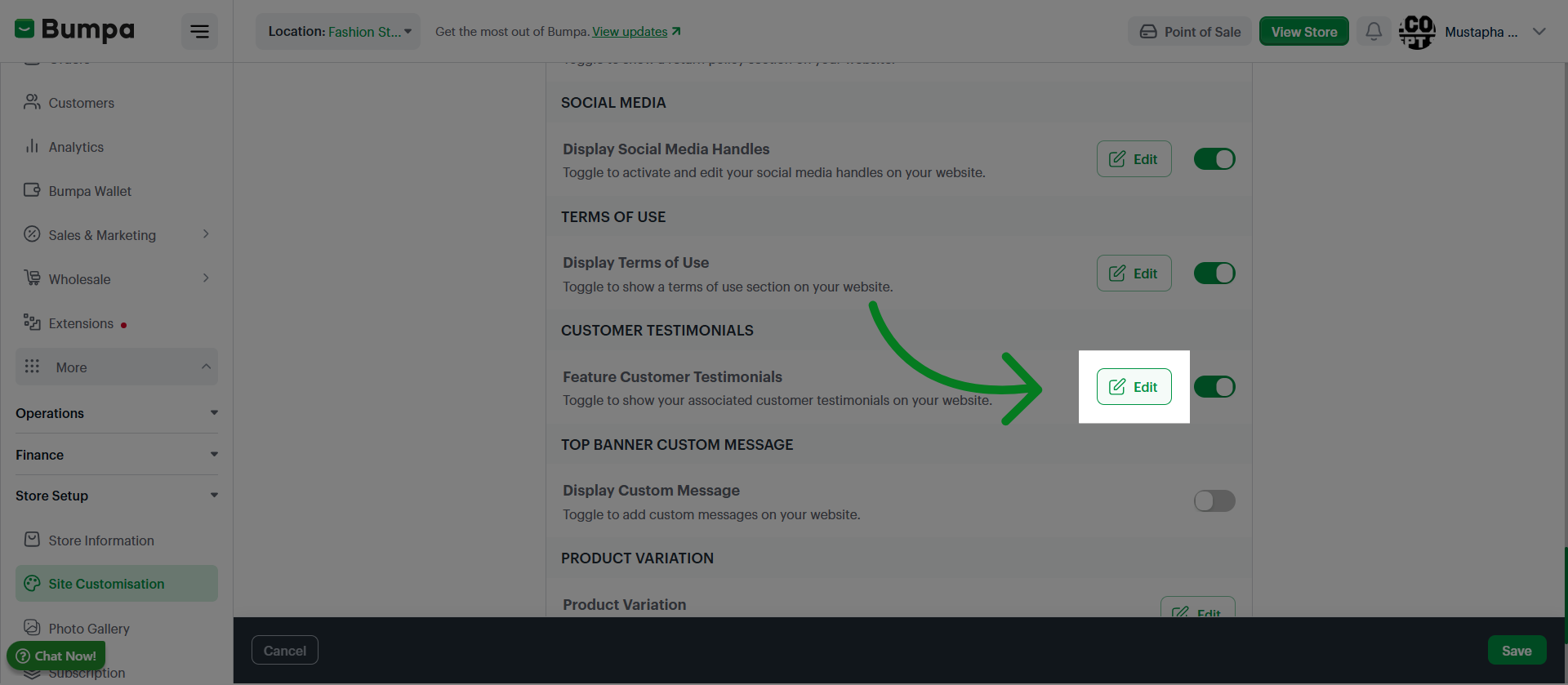
Click Edit to enable Customer testimonial Section on the website
Click Upload logo to add an image for the testimonial
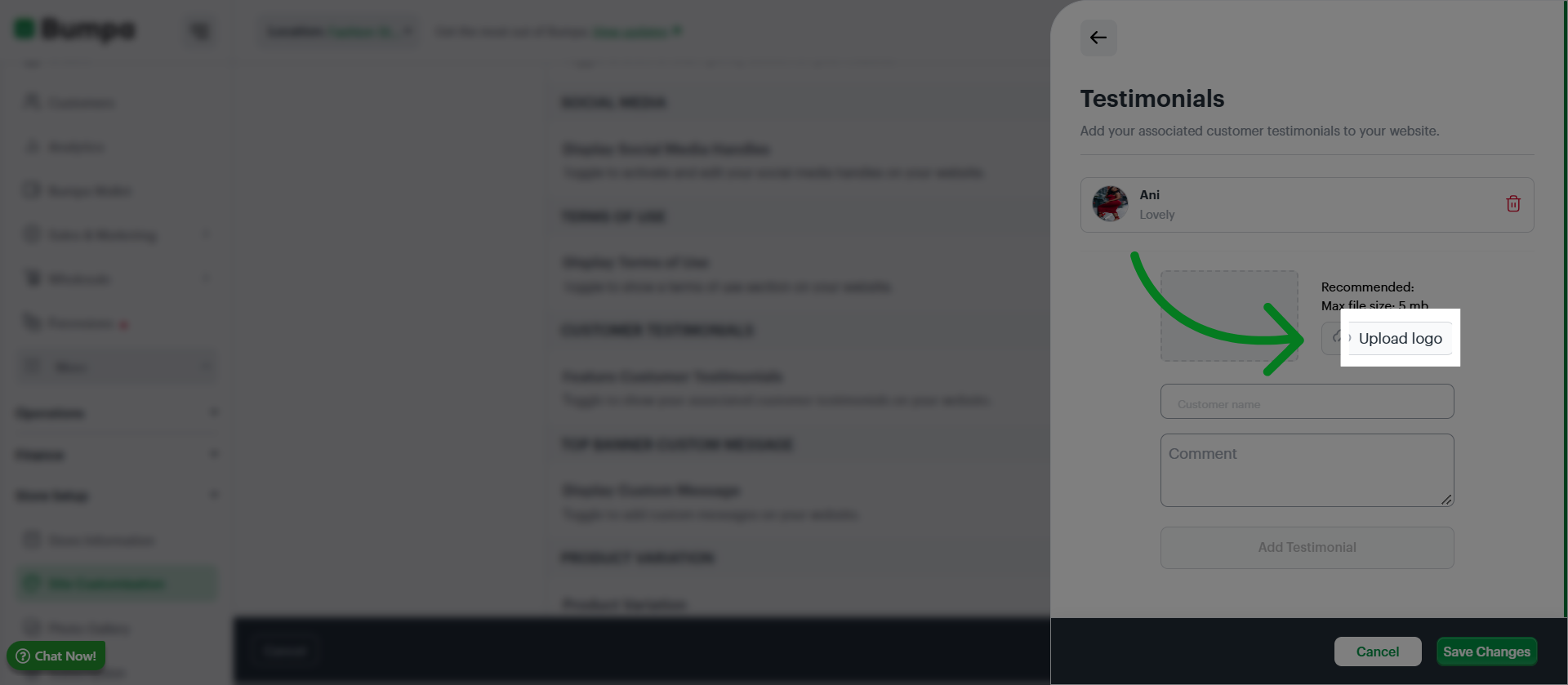
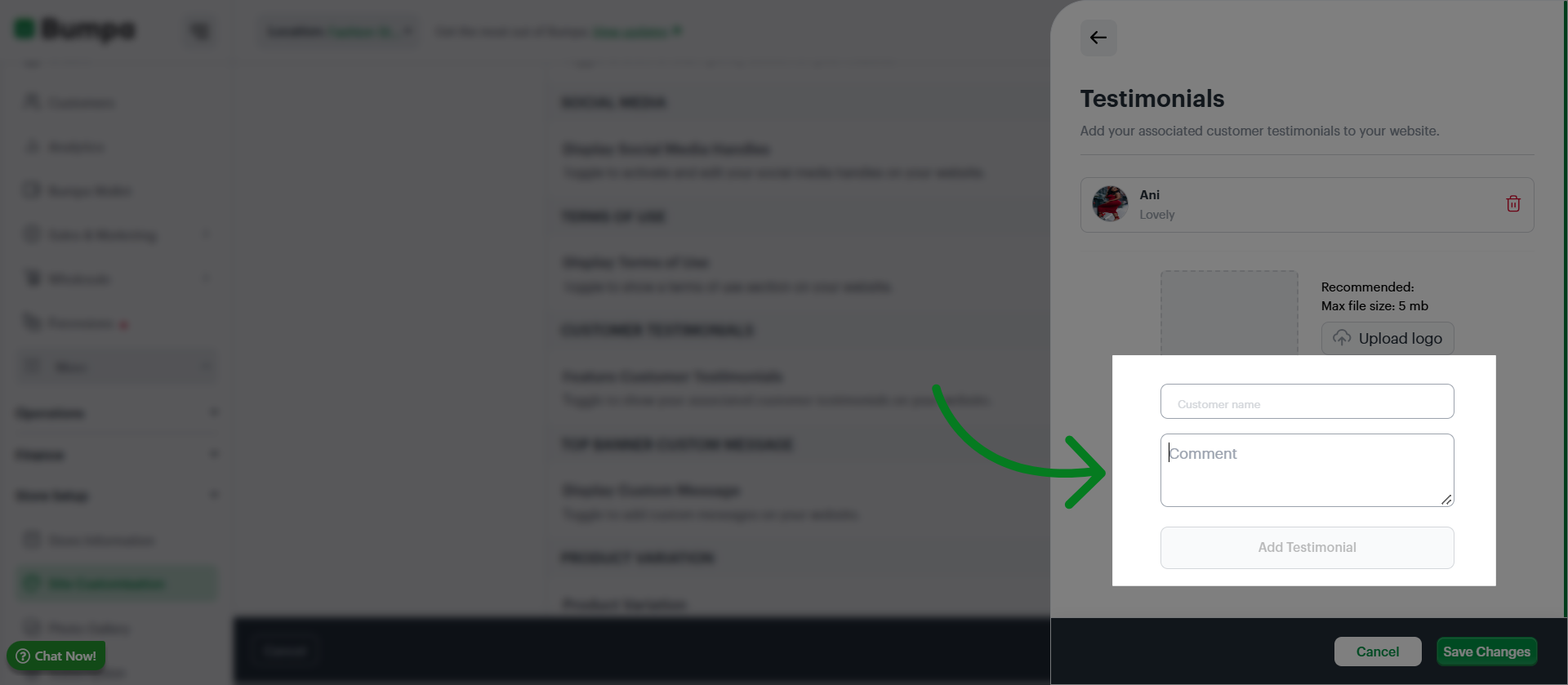
Input the header and content and Click Add testimonial to include a new customer review or feedback on your store's website.
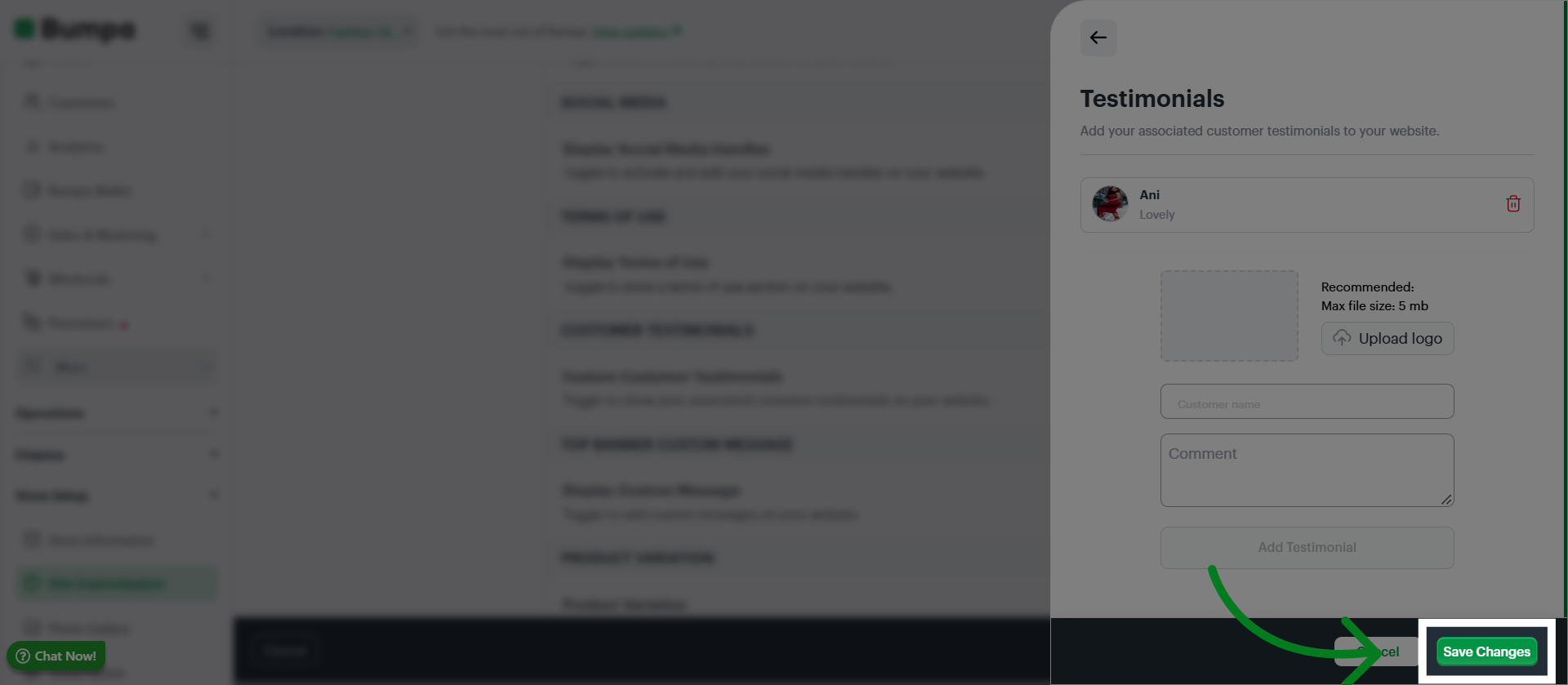
Click "Save Changes" to apply and save the testimonial you have added
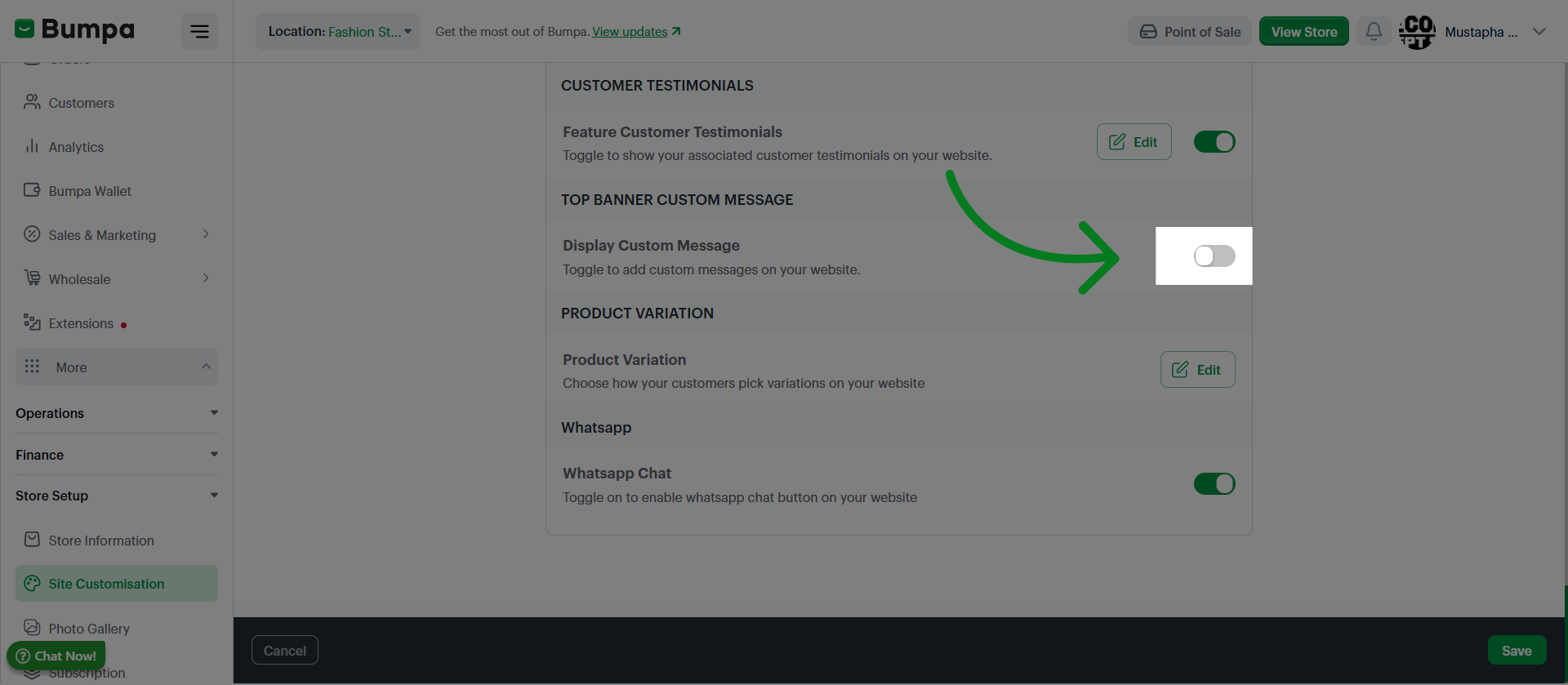
Toggle to access Custom message setting and add up to 4 message banners to your website
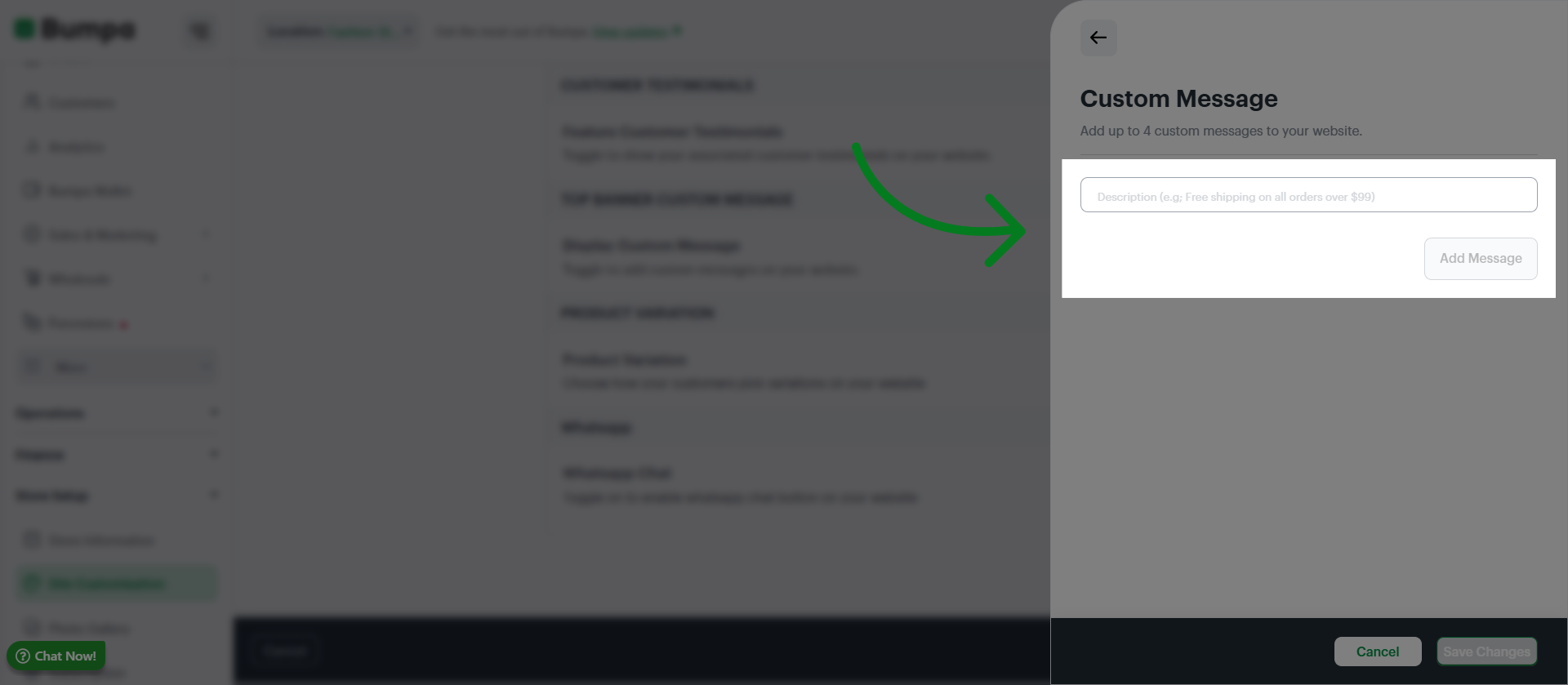
Input your content and Click "Add Message" to create a new promotional message or announcement for your customers.
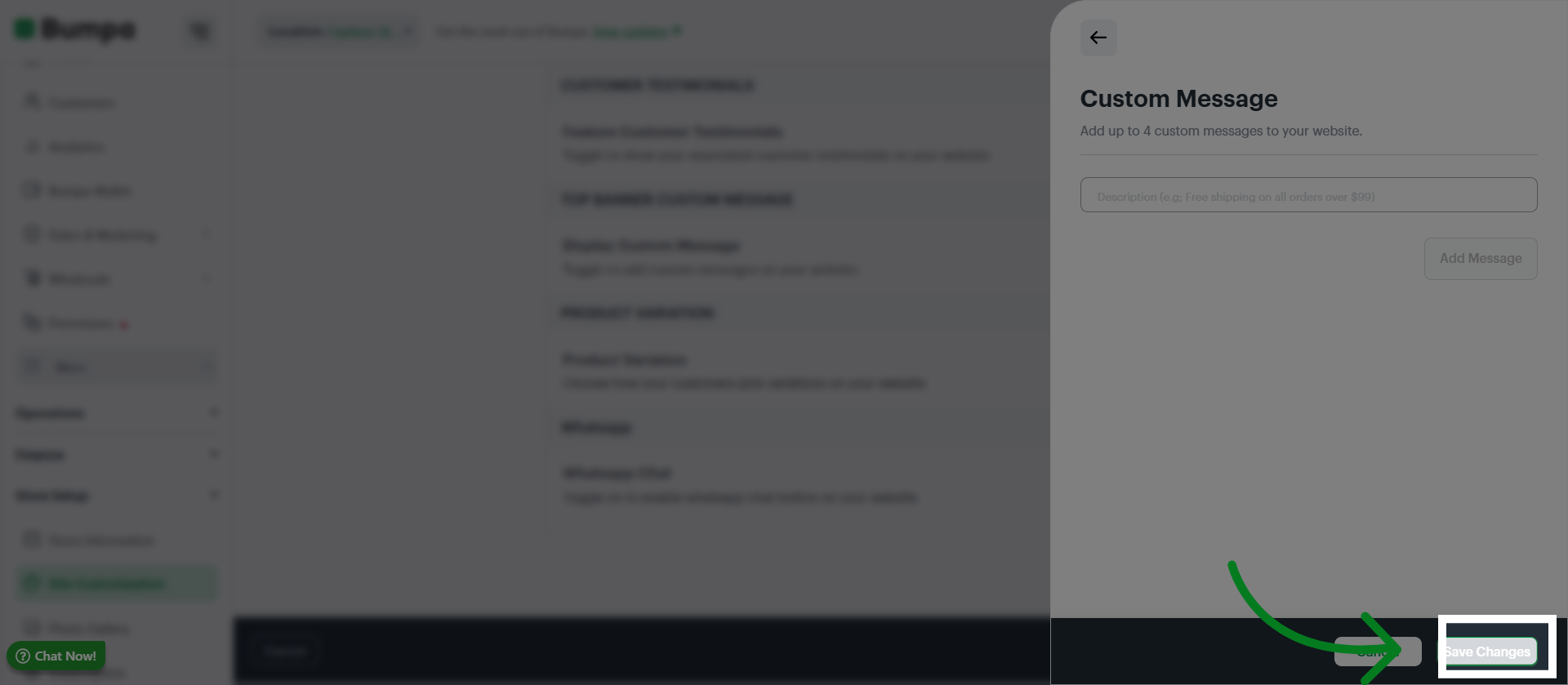
Click "Save Changes" to save your promotional message
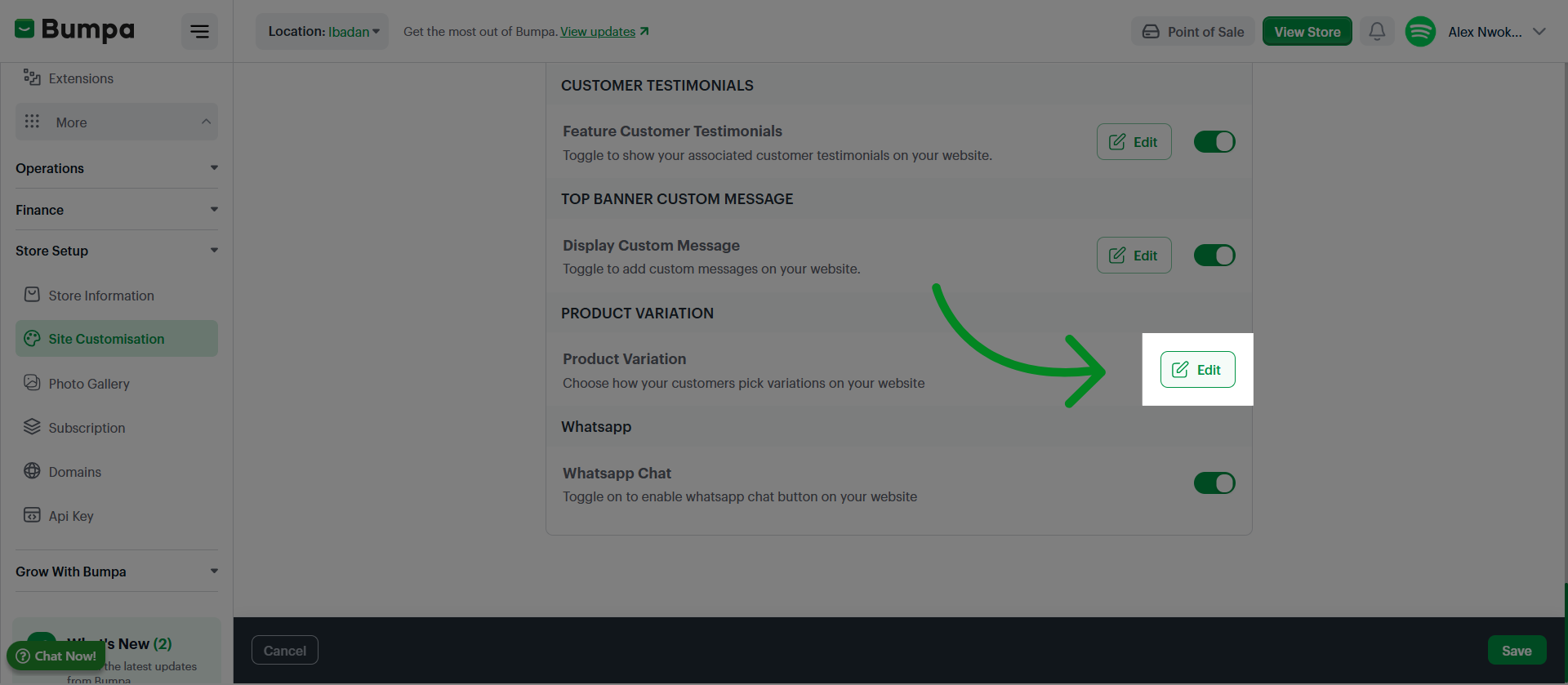
Click Edit to modify your product variation display on the website
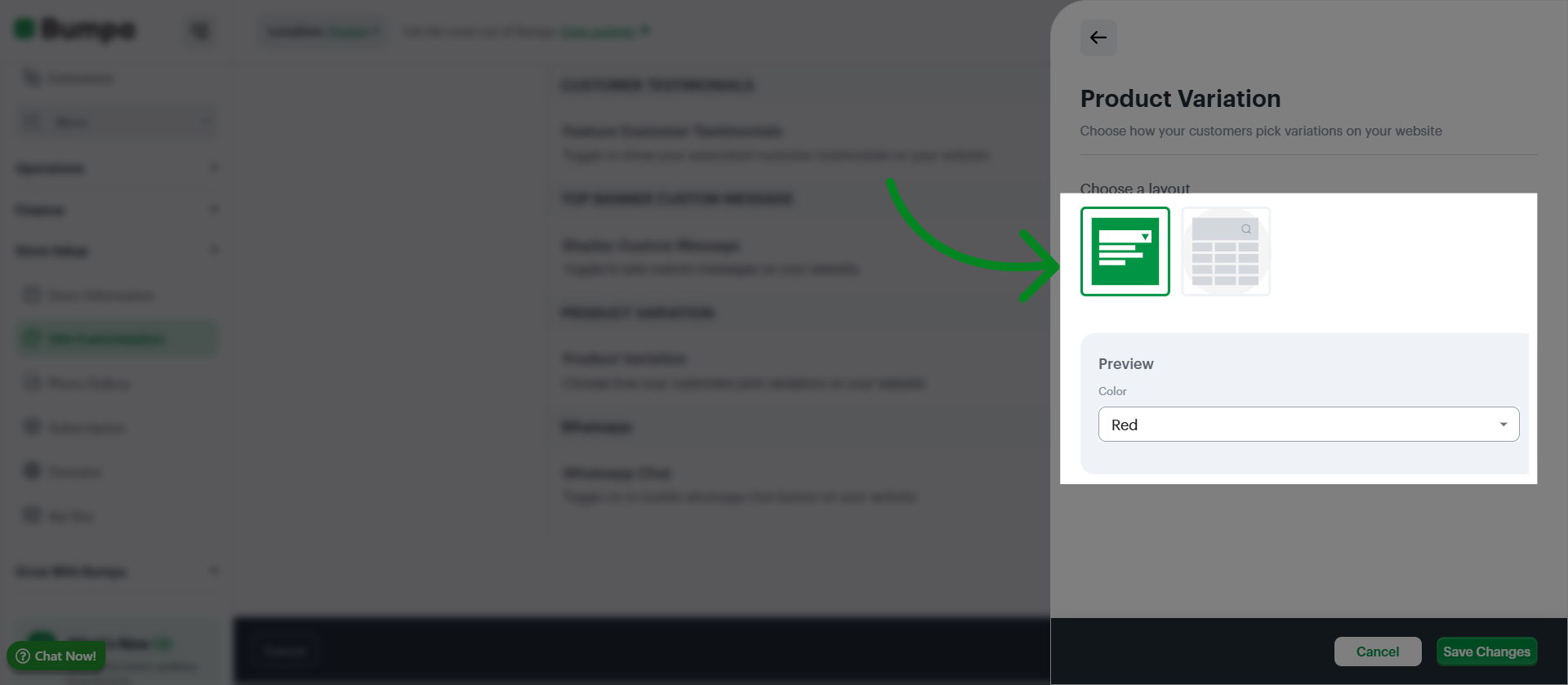
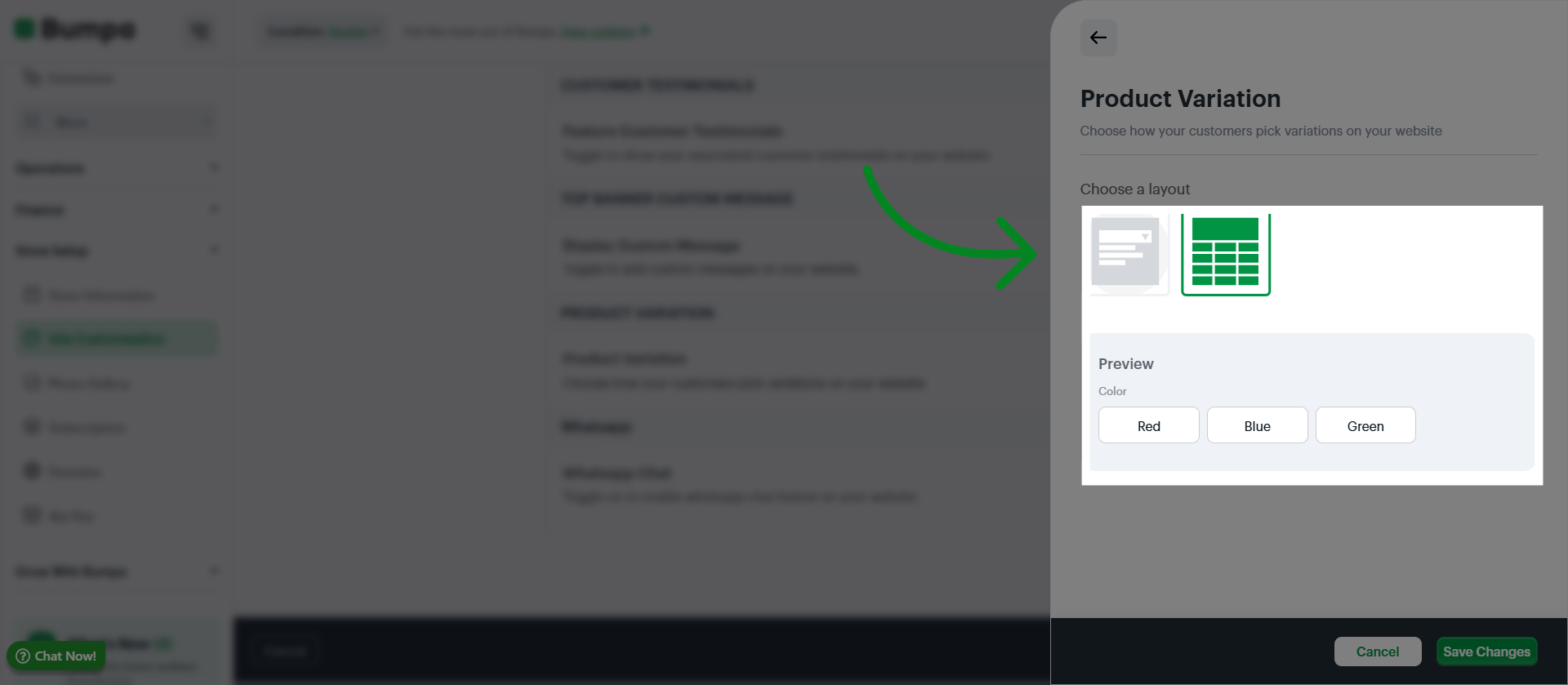
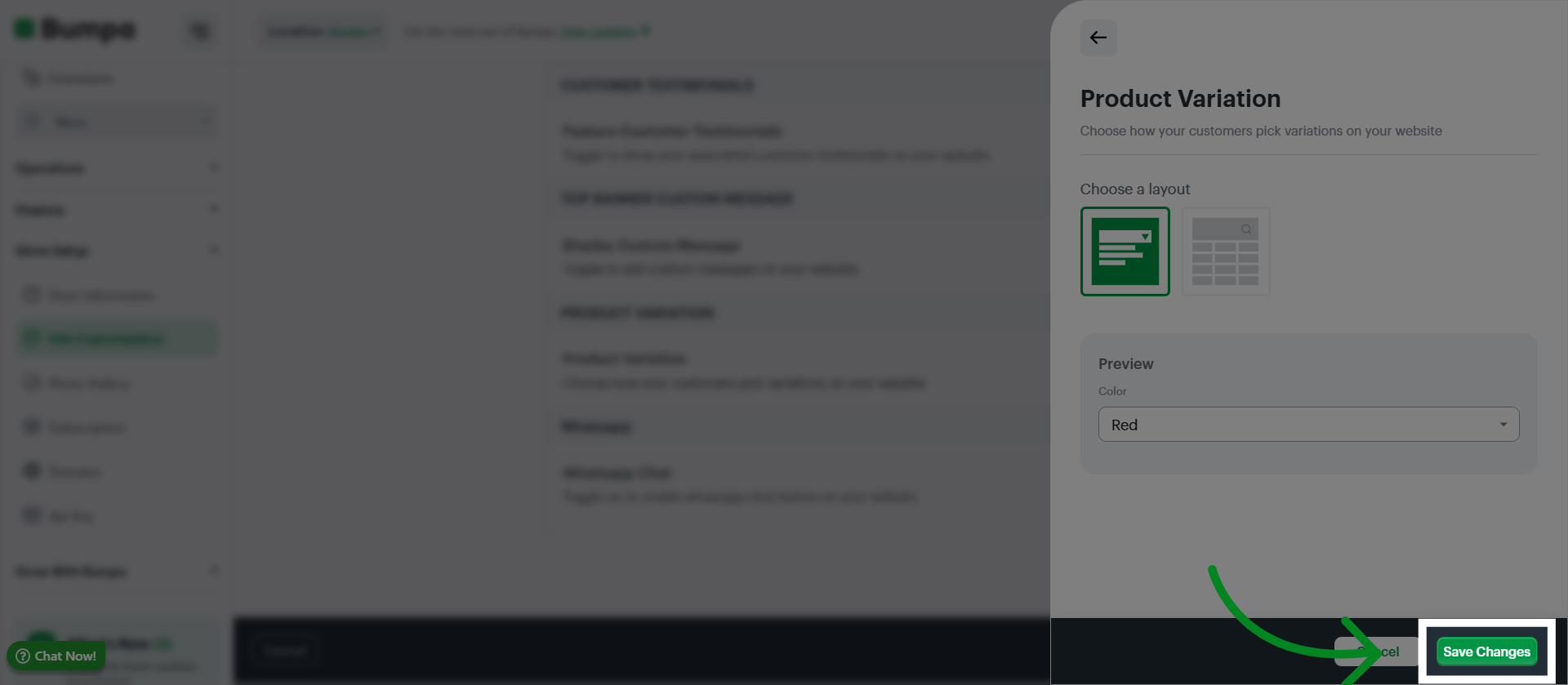
Select your preferred layout, either List or Grid
Click Save Changes to apply the selected layout
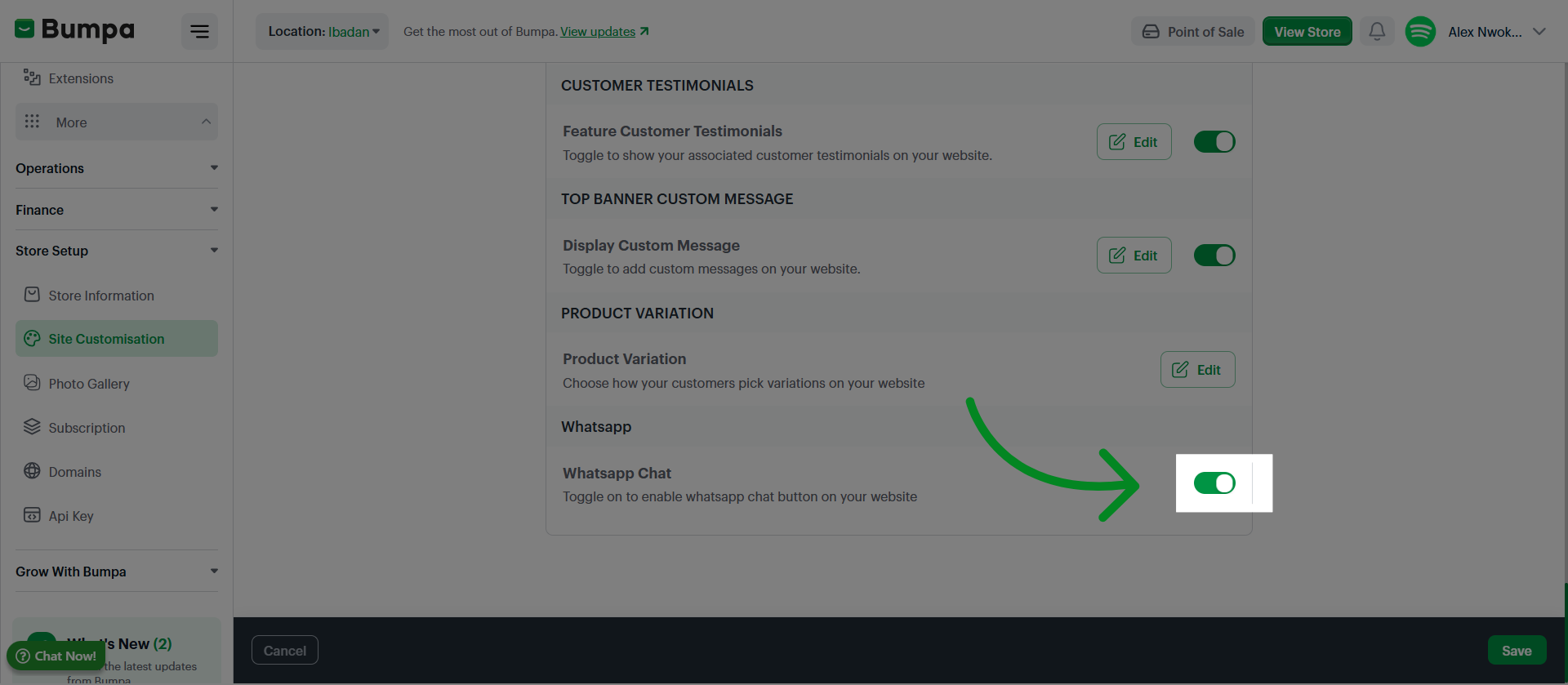
Toggle on to have a floating WhatsApp icon on your website to enable customers contact your direct on WhatsApp from your website
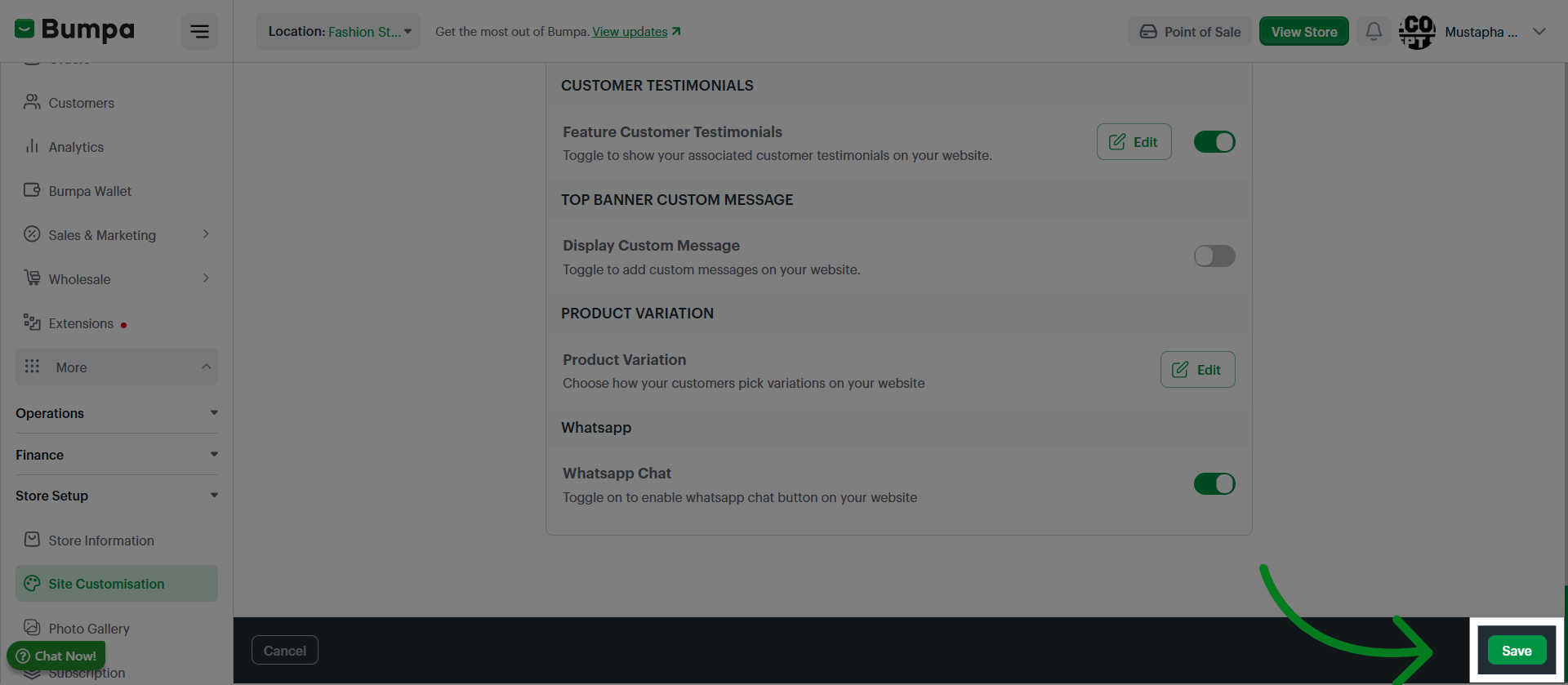
Click "Save" to confirm and save your theme configuration
Congratulations, you have successfully completed the Porto theme customization
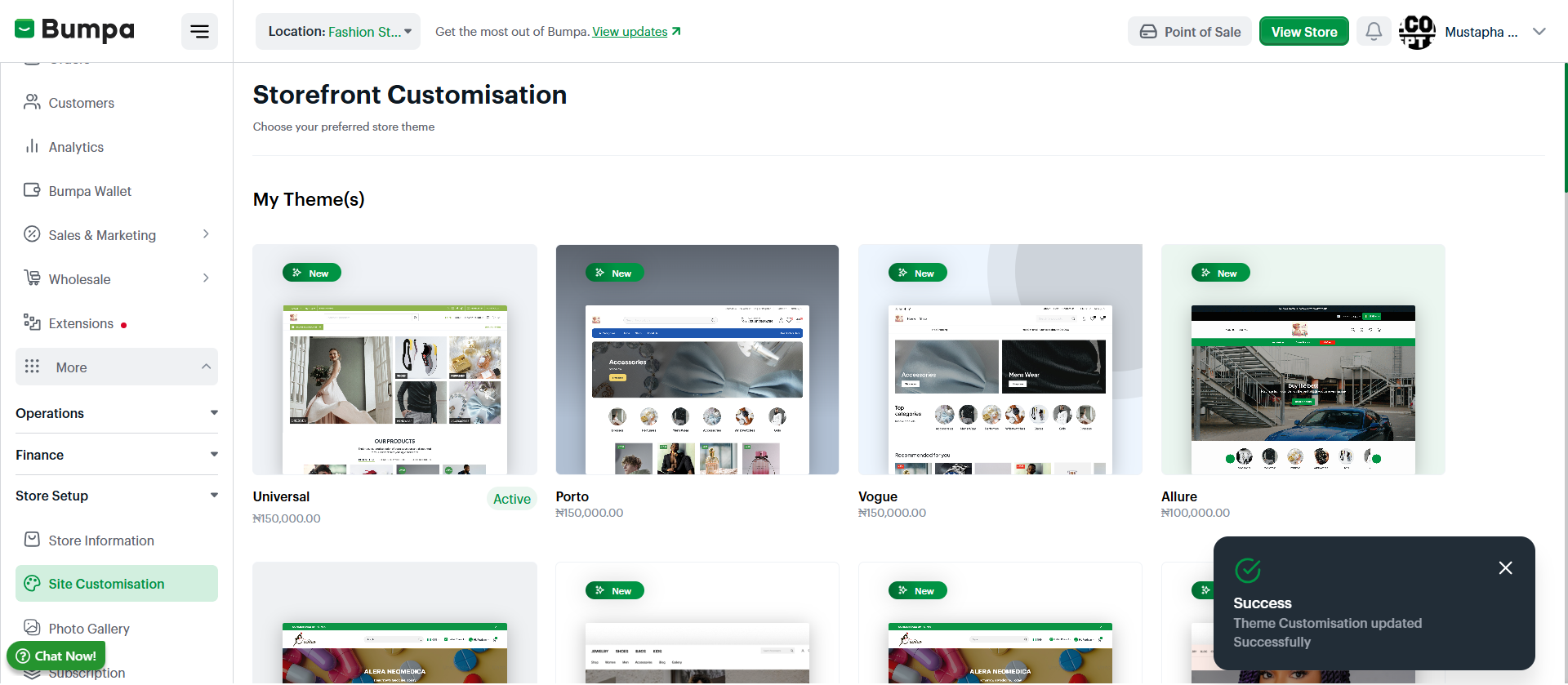
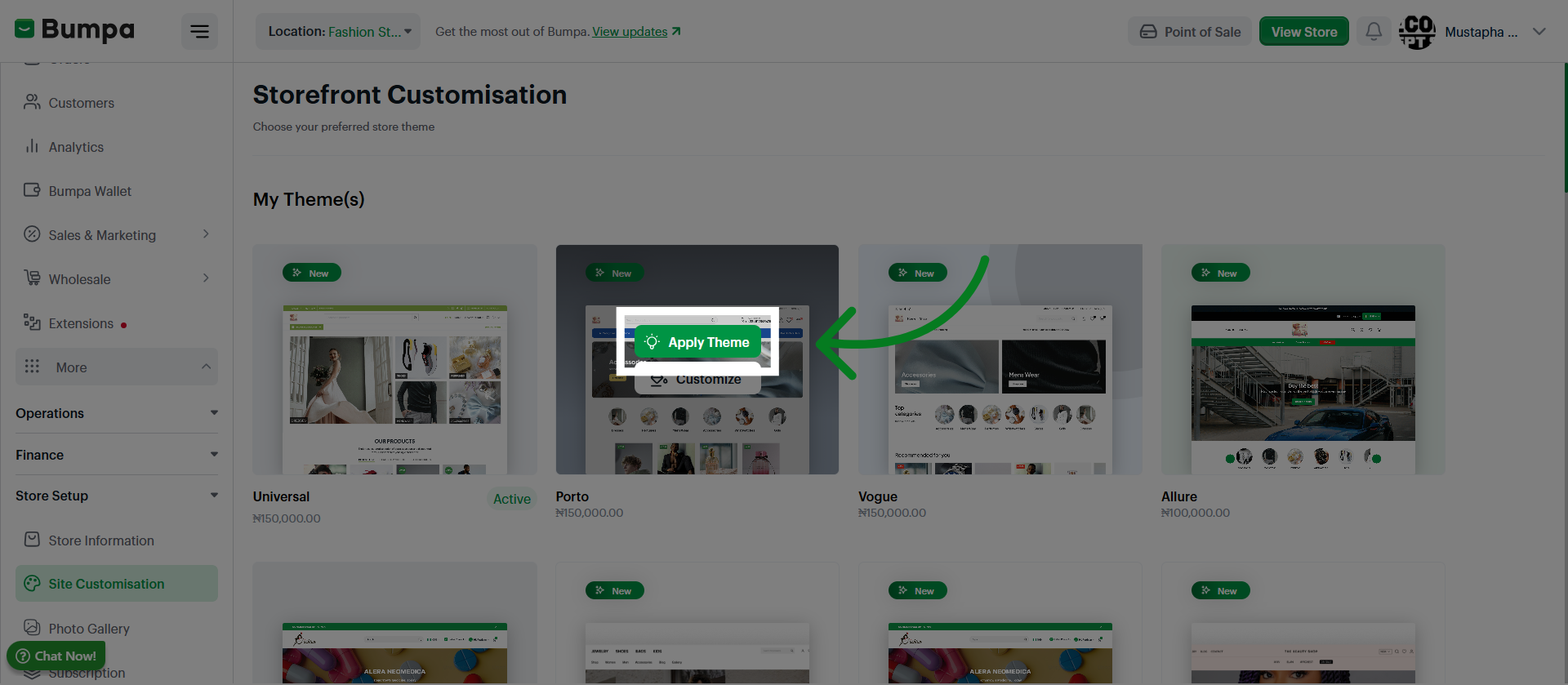
Proceed to click on Apply theme
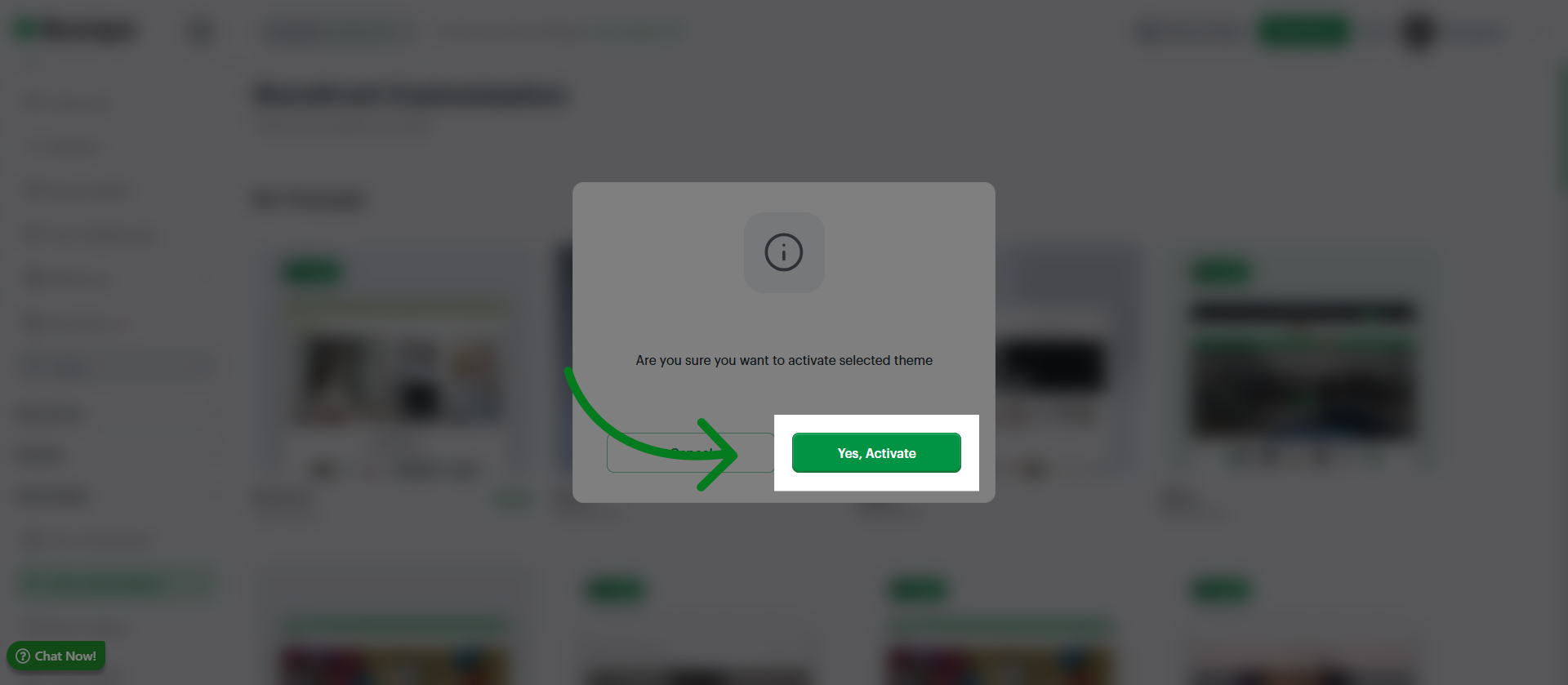
Click "Yes, activate" to confirm and activate the theme on your website
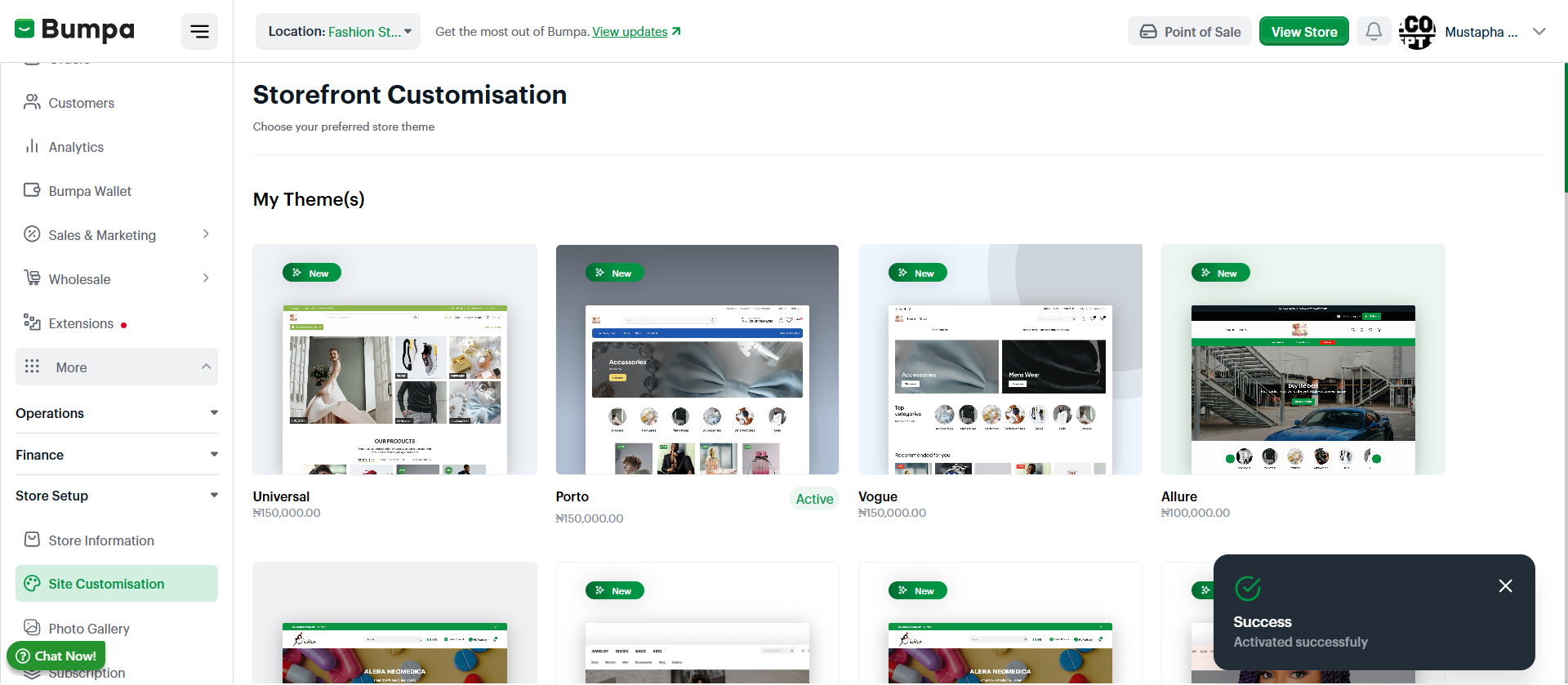
There!! You have applied the Porto theme to your Storefront
Was this article helpful?
That’s Great!
Thank you for your feedback
Sorry! We couldn't be helpful
Thank you for your feedback
Feedback sent
We appreciate your effort and will try to fix the article