Taxes may change as your business grows, and you may need to update existing tax rates or remove taxes that no longer apply. With Bumpa, you can easily manage your store taxes from the Taxes page, ensuring customers are charged the correct amount. In this guide, we'll walk you through how to edit or delete a tax on your Bumpa dashboard.
To Edit a tax
You can change a tax's name, description, percentage, and where it applies. Taxes are tied to store locations, so first switch to the location that has the tax.
To edit a tax, follow these steps:
- Log in to your Bumpa dashboard at https://app.getbumpa.com.
- Navigate to More, Finance, then Taxes in the sidebar
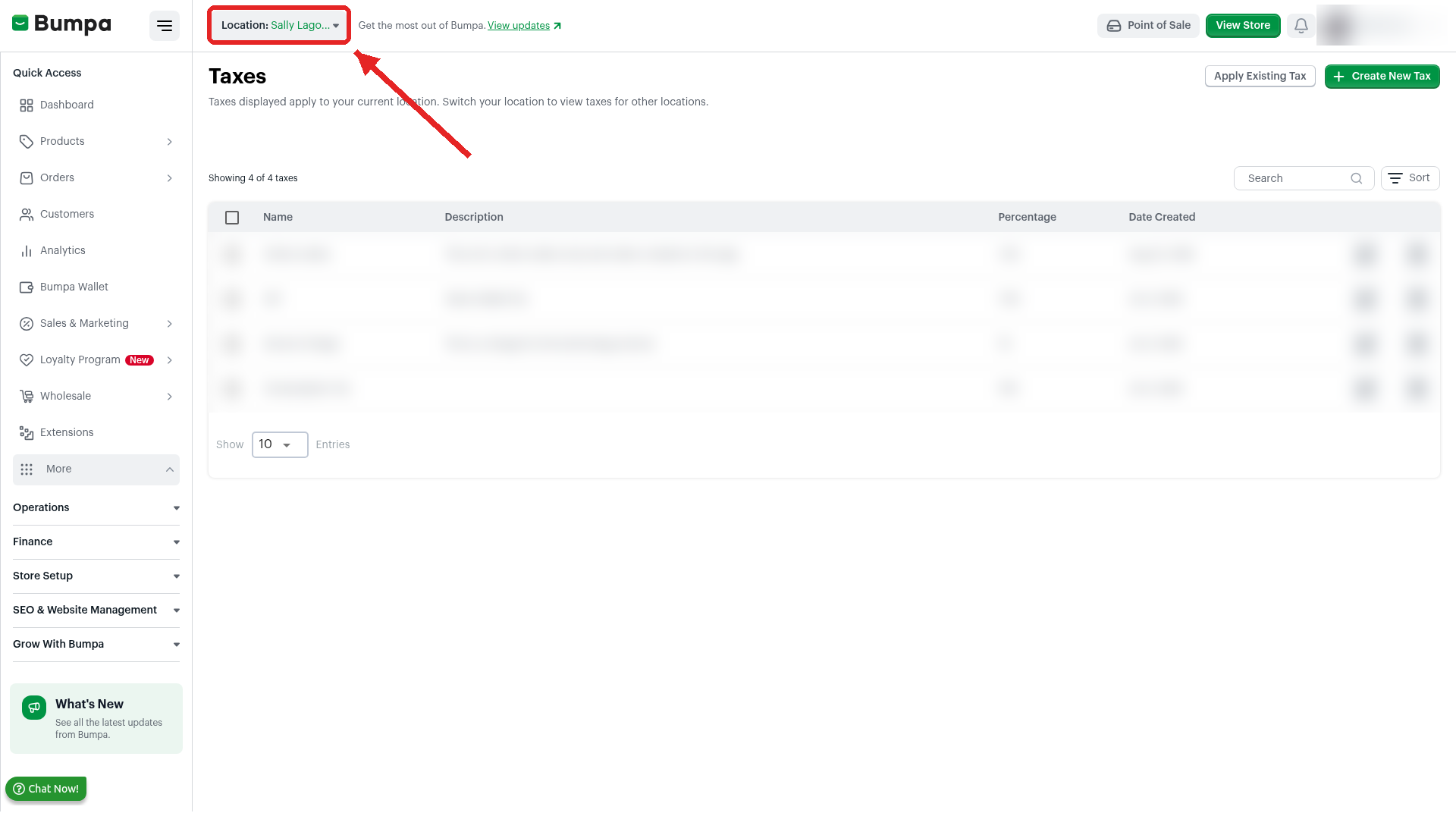
- Click Location at the top left and choose the location that has the tax. The page shows only the taxes for that location.
- Click the tax you want to change. The Tax Details panel opens.
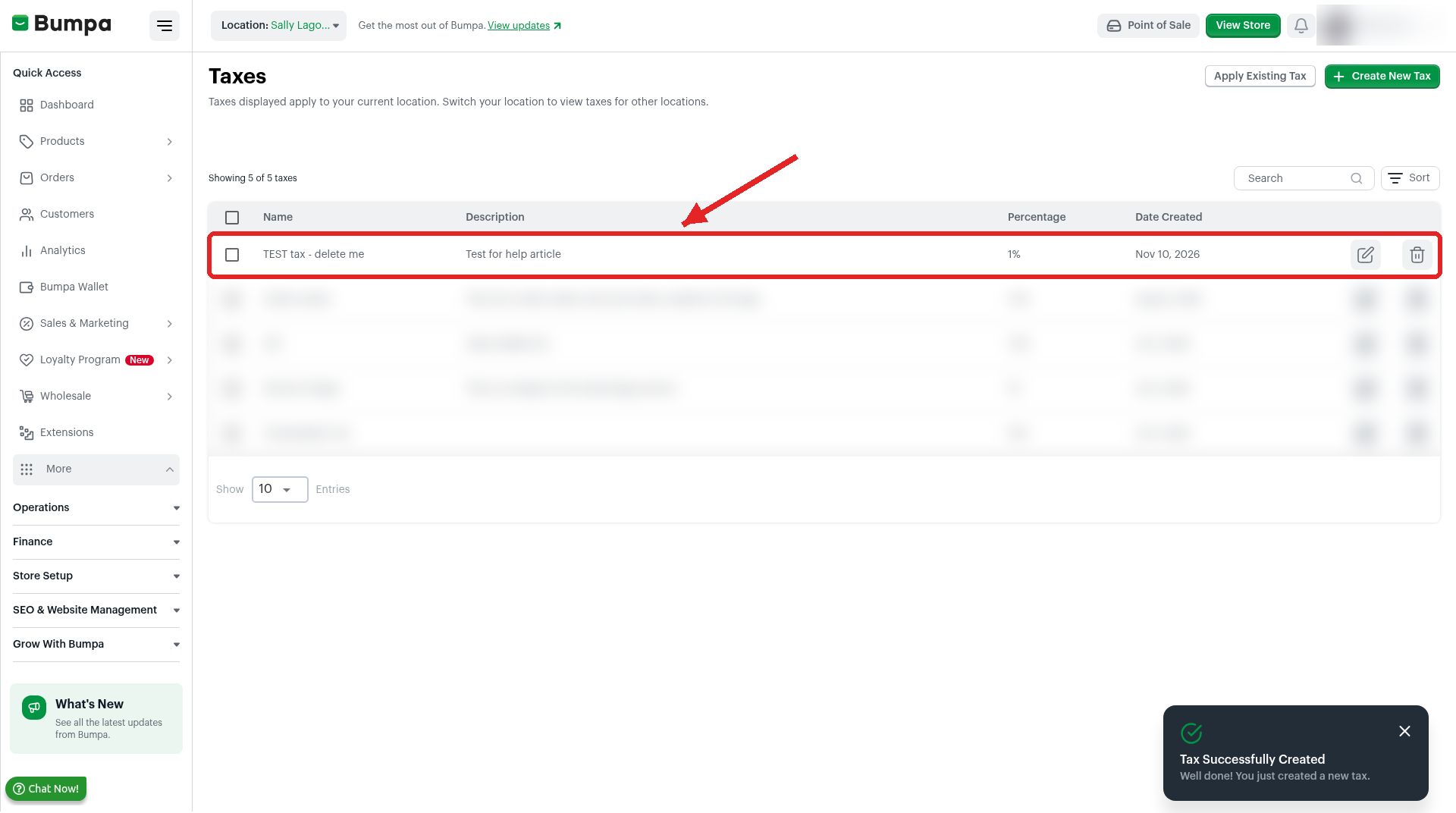
Note: Alternatively, to edit or delete a tax, click on the edit or delete icon to complete the action.
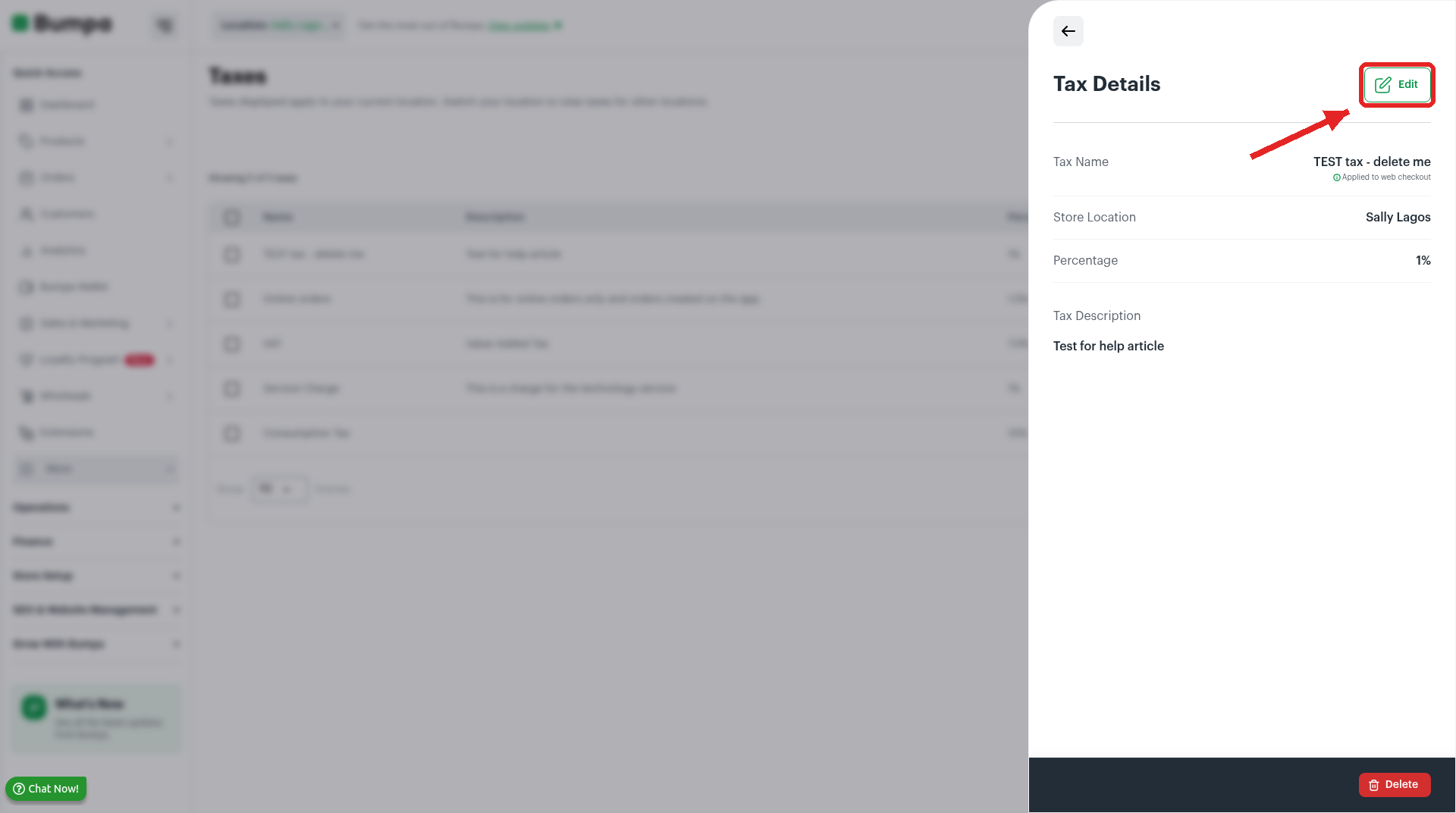
- Click Edit at the top of the panel.
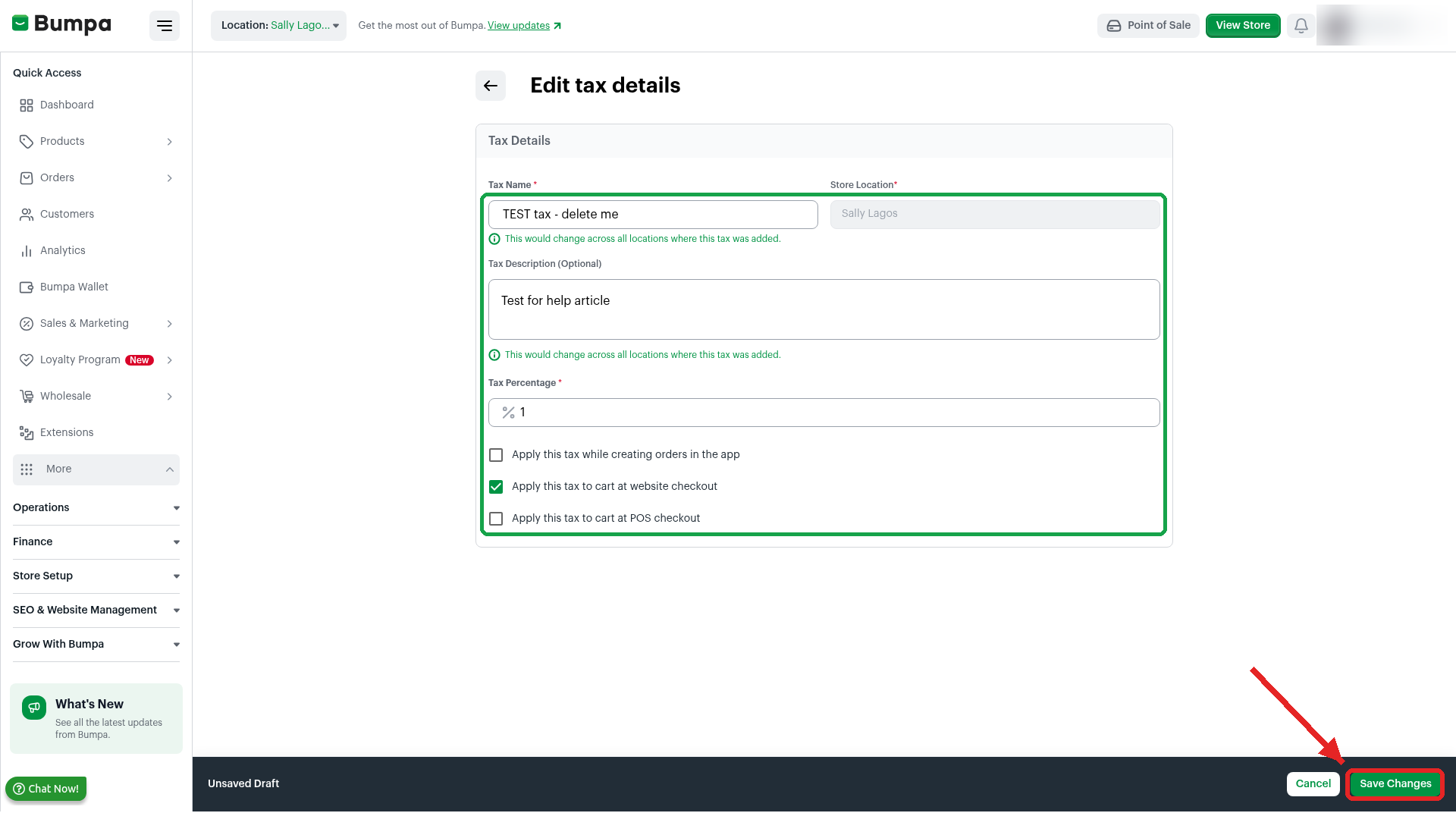
- Change the Tax Name, Tax Description or Tax Percentage.
- Tick or untick the boxes to choose where the tax applies: Apply this tax while creating orders in the app, Apply this tax to cart at website checkout, or Apply this tax to cart at POS checkout.
- Click Save Changes.
- You will see the message "Updated successfully", and the list shows the new details.
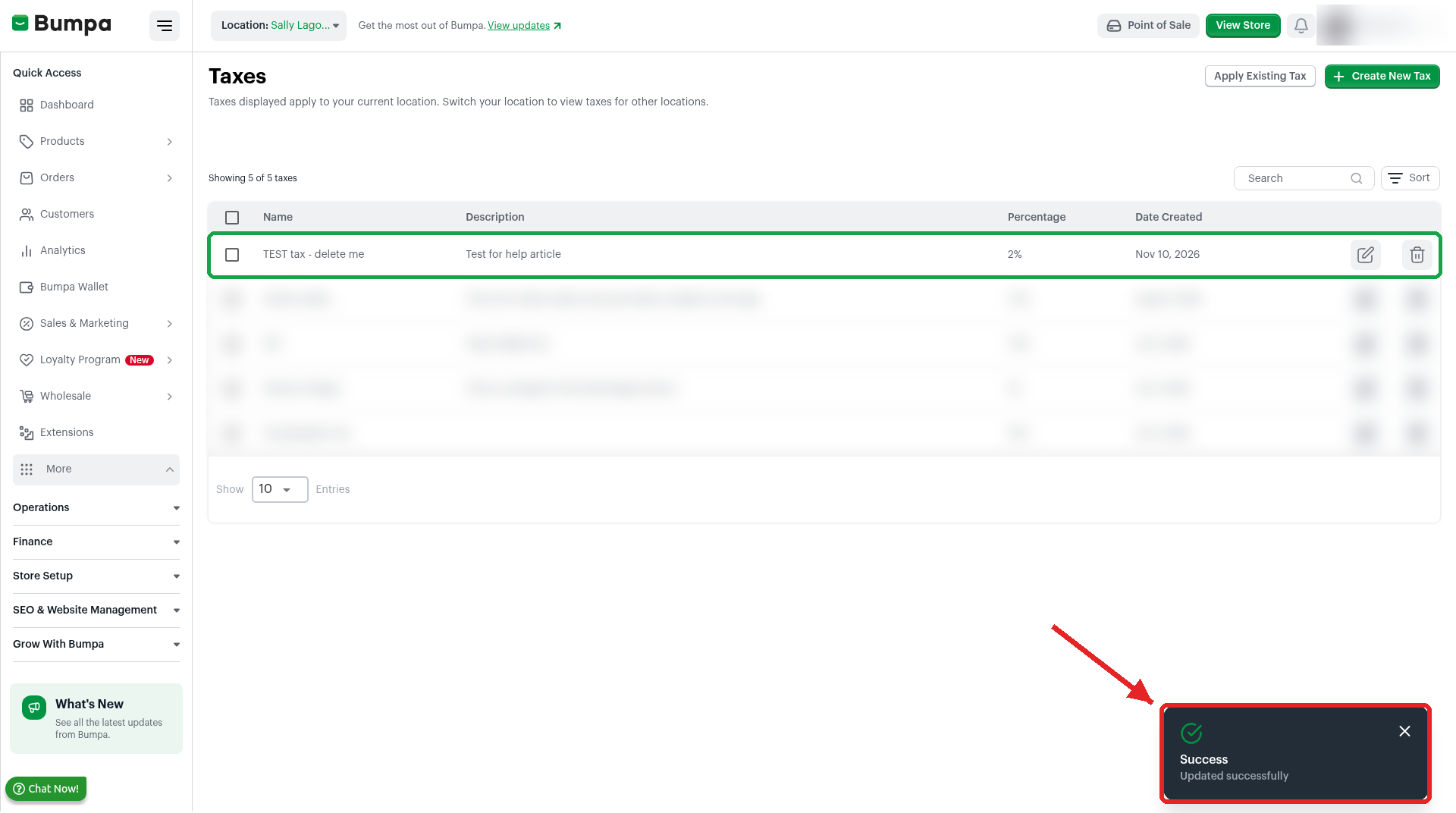
Note: A new Tax Name or Tax Description changes in every location where you added this tax. The page says: "This would change across all locations where this tax was added." You can't change the Store Location of a tax. To charge the tax in another location, add it to that location. See How to create Tax
To Delete a tax
Delete a tax when you no longer charge it. As with editing, switch to the location that has the tax first.
- Click the tax you want to delete. The Tax Details panel opens.
- Click Delete at the bottom of the panel.
Or
Use the delete icon on the tax to delete it directly.
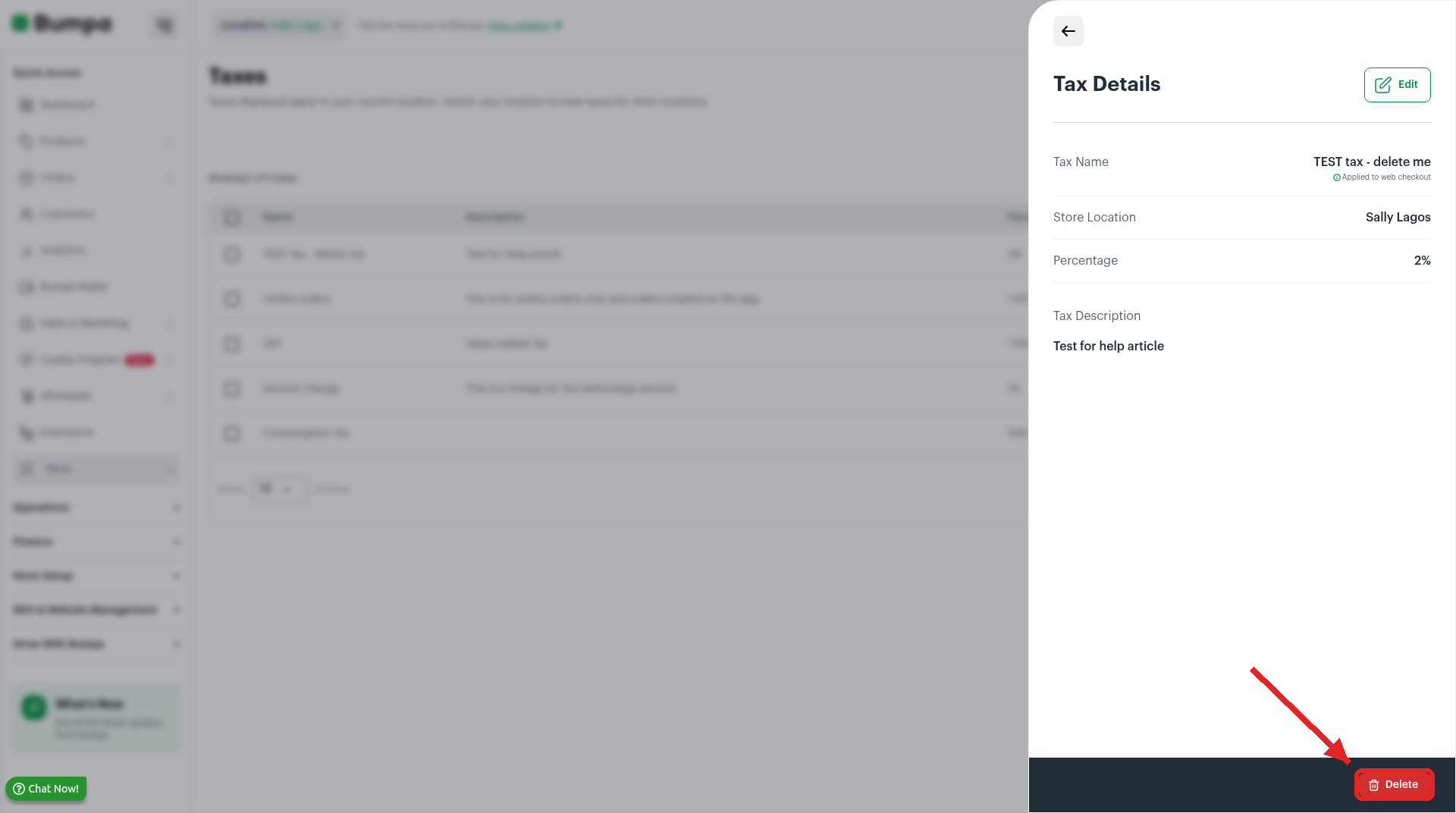
You will see the message "Deleted successfully", and the tax is removed from the list.
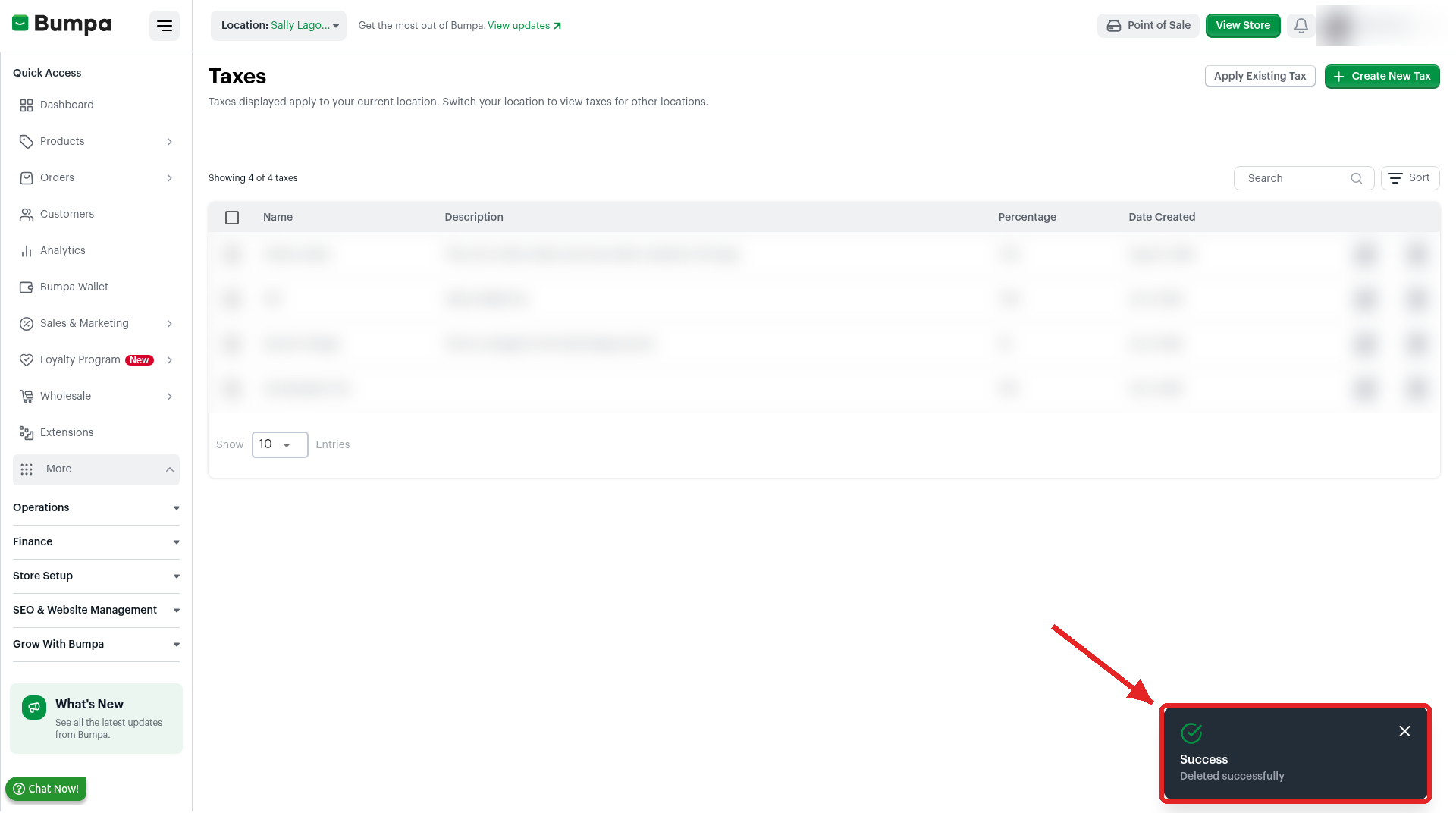
Note: Bumpa deletes the tax as soon as you click Delete. There is no confirmation step and no undo. Check the tax name and location before you click. If you delete a tax by mistake, create it again.
Related articles:
How to create Tax & Set Different Rates for Each Location
Was this article helpful?
That’s Great!
Thank you for your feedback
Sorry! We couldn't be helpful
Thank you for your feedback
Feedback sent
We appreciate your effort and will try to fix the article