A welcome email is often the first message a new customer gets from your business. Bumpa sends it for you when you add a customer to your list. In this article, learn how to find your welcome email, change what it says and plan for its credit cost.
How the welcome email works
Welcome Email Settings
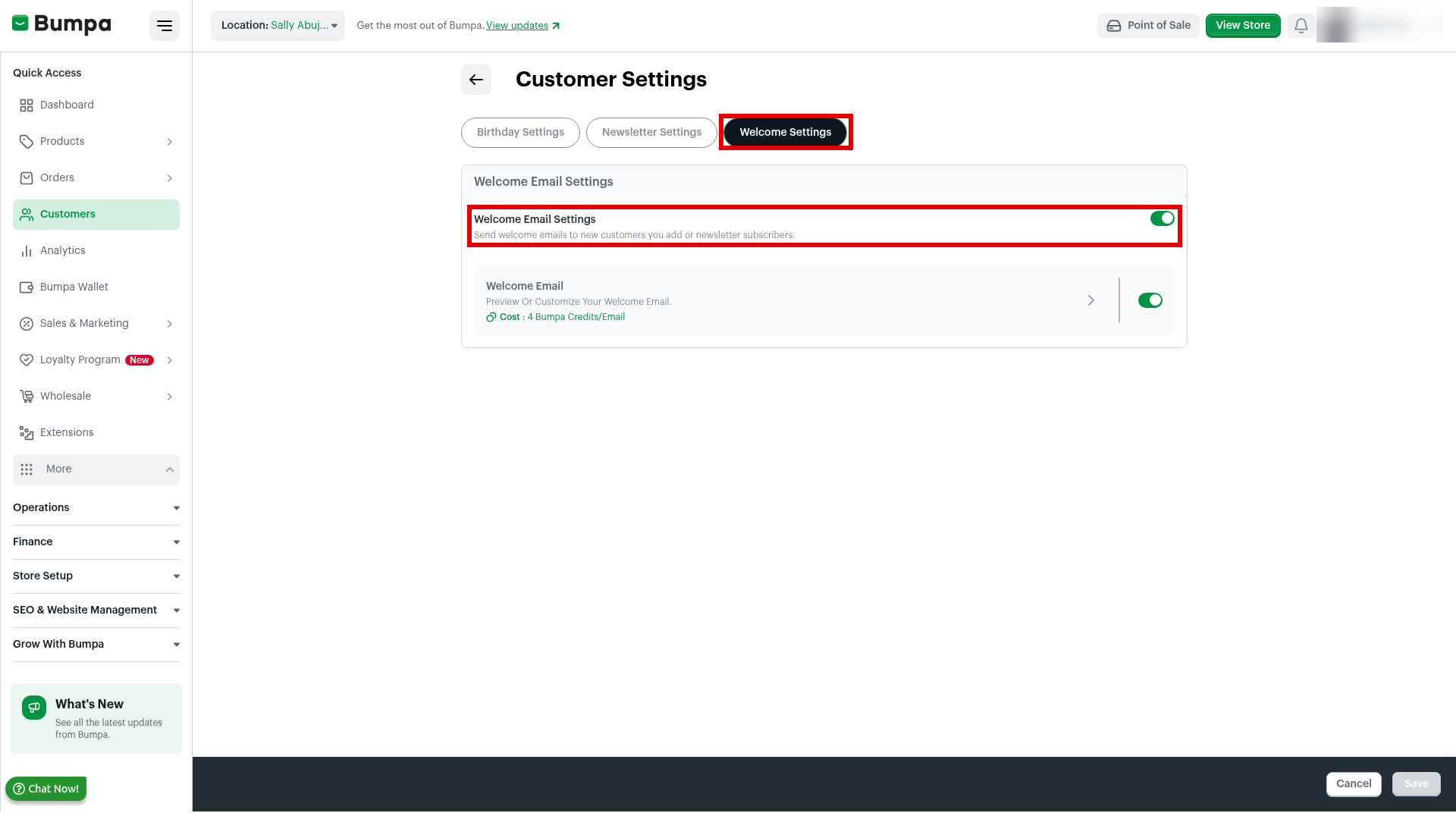
Your welcome email lives on the Welcome Settings tab of Customer Settings.
Who gets the welcome email
Bumpa sends the welcome email when you add a new customer yourself. This works on the Bumpa web dashboard and the mobile app.
Welcome email content
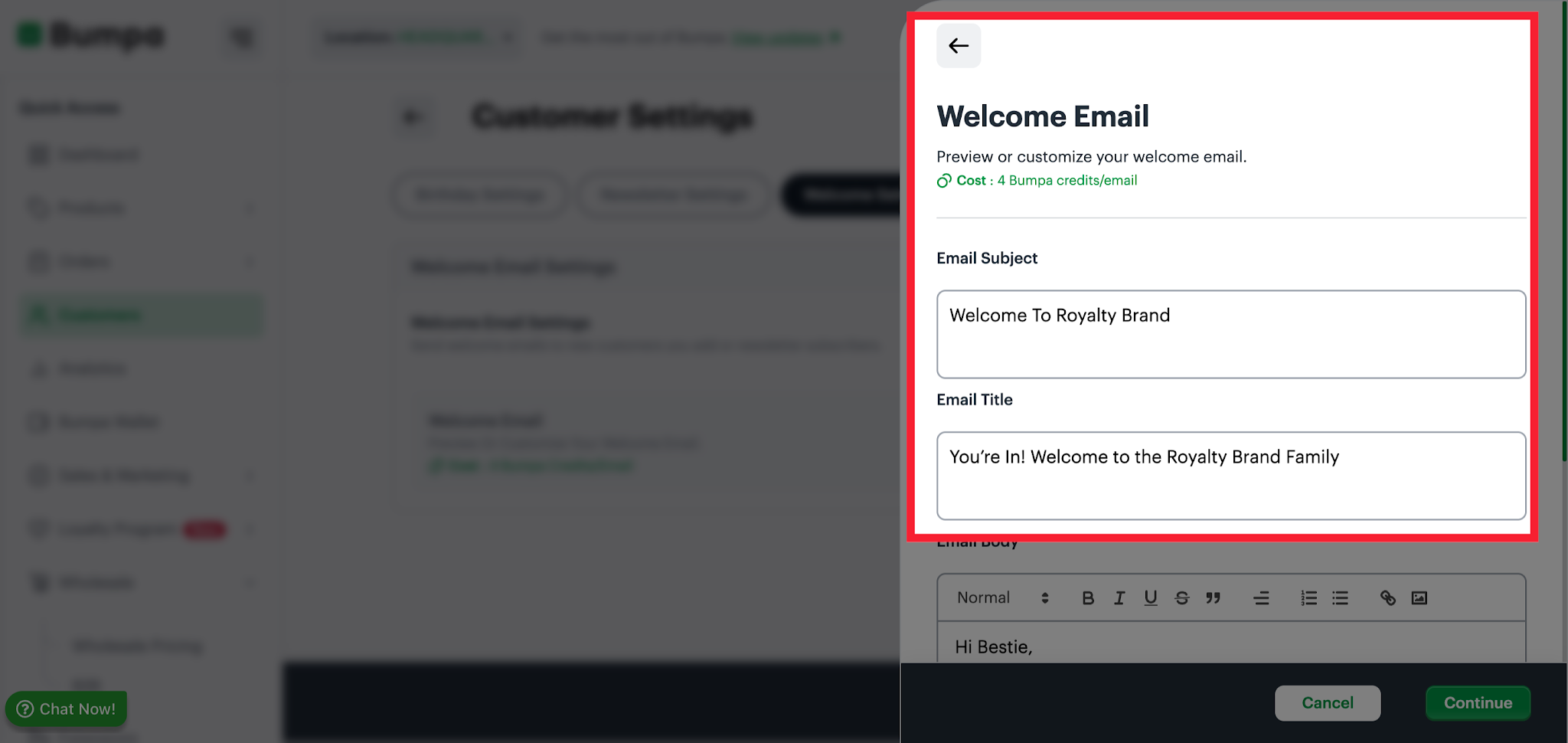
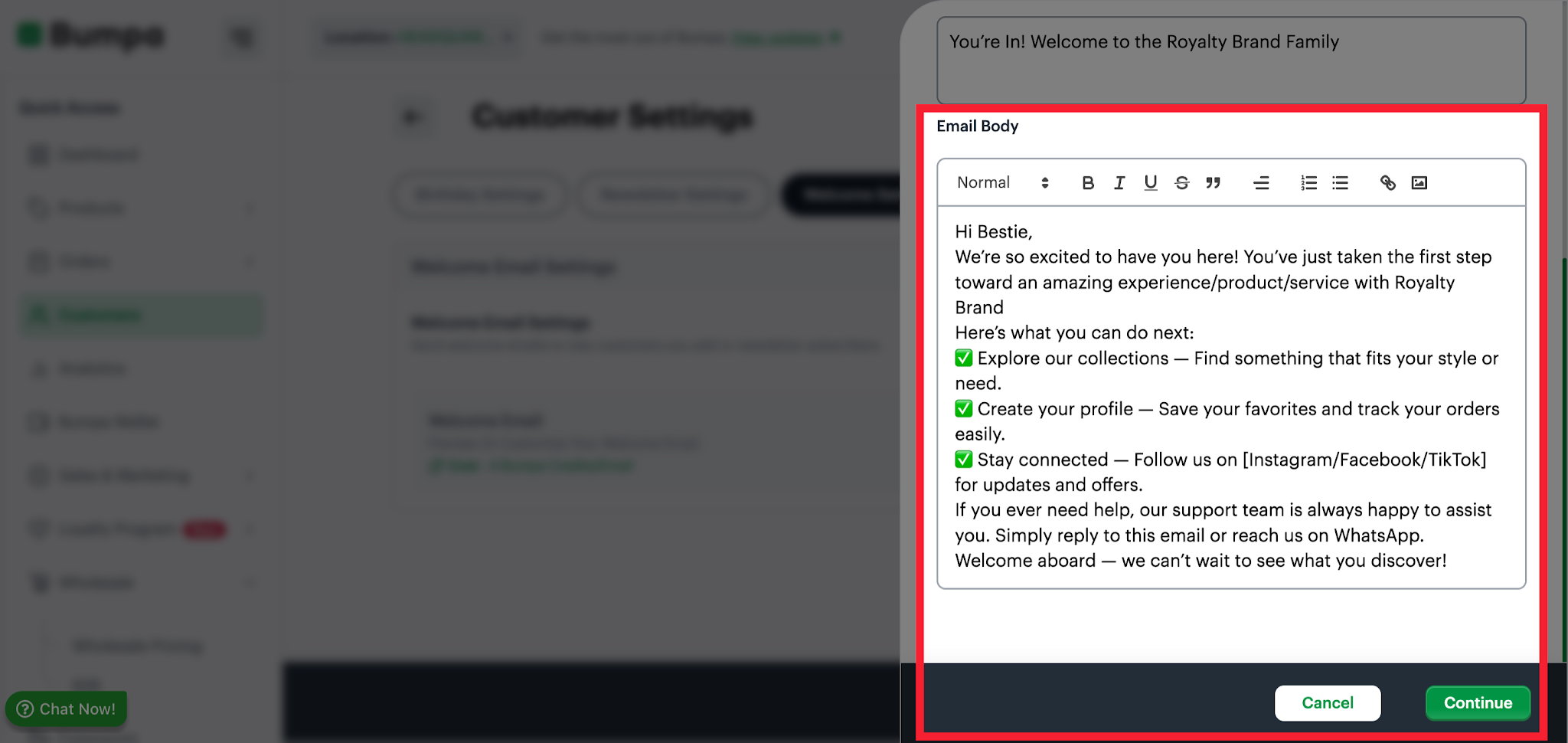
The welcome email has three parts you can change: Email Subject, Email Title and Email Body. Bumpa fills them with a standard message first. You can change them to match your brand.
Welcome email and newsletter email
People who join your newsletter can get a separate newsletter email, with an optional discount. You set it up on the Newsletter Settings tab.
Note: Each welcome email costs 4 Bumpa Credits. If you run out of credits, you can still add customers, but the welcome email is not delivered.
To get started with customizing your welcome emails:
- Log in to your Bumpa dashboard at app.getbumpa.com.
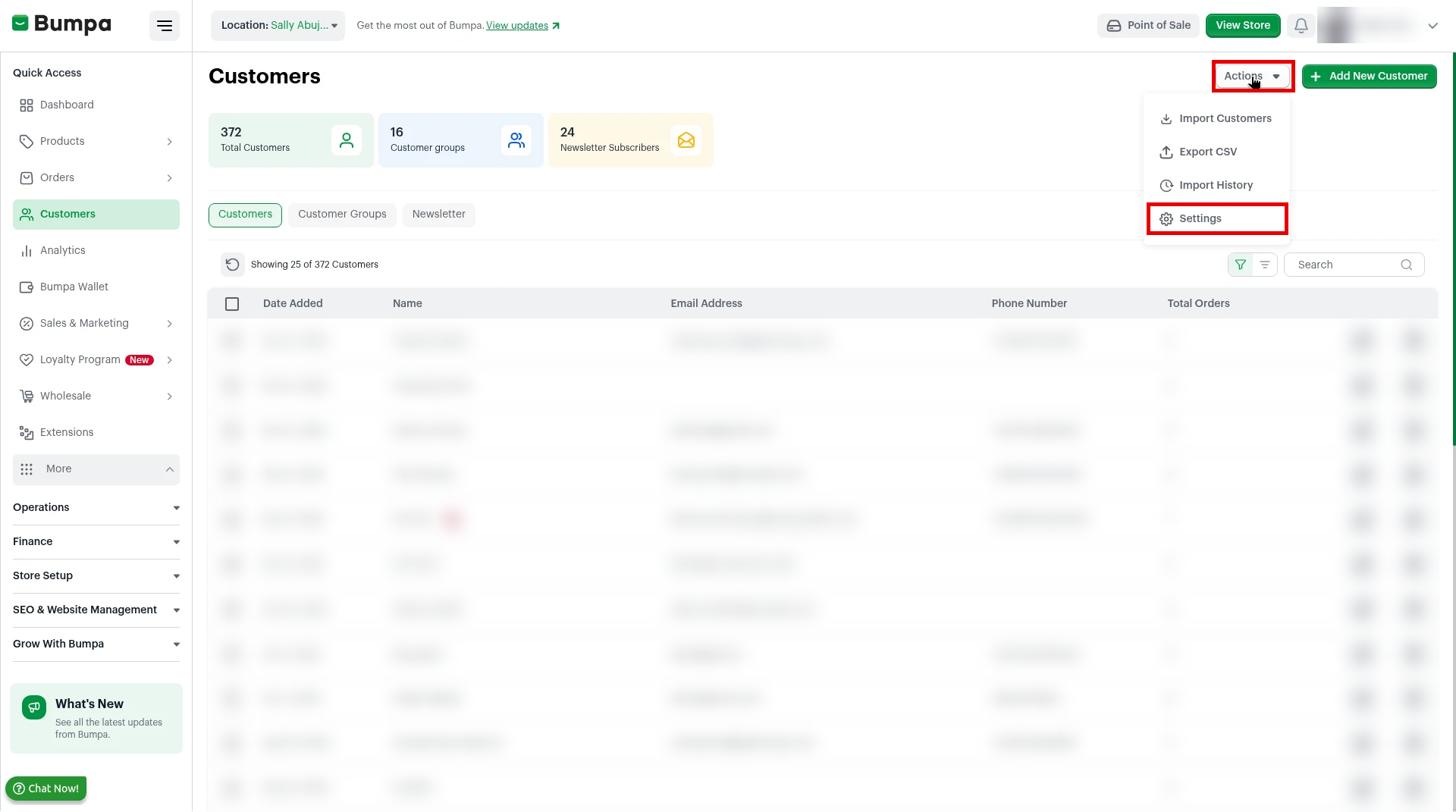
- Click Customers on the left sidebar.
- Click Actions at the top right, then click Settings.
- Click the Welcome Settings tab.
Check that the welcome email is on
Make sure Bumpa can send your welcome email.
- Check that the Welcome Email Settings switch is on.
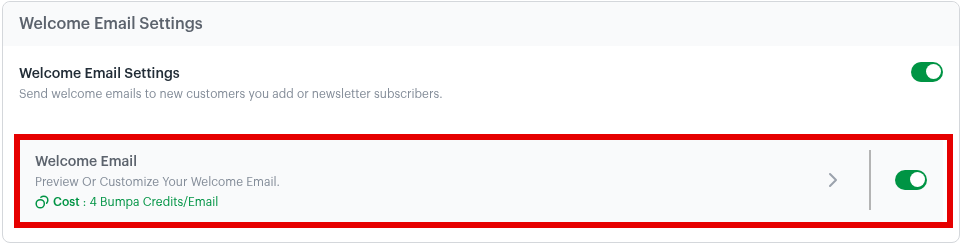
- Check that the Welcome Email switch is on.
Edit the welcome email and save
Make the email sound like your business.
- Click the arrow (>) on the Welcome Email row. The Welcome Email panel opens.
- Type your subject in Email Subject.
- Type your heading in Email Title.
- Type your message in Email Body. Use the toolbar to add bold text, lists, links or an image.
- Click Continue.
- Click Save at the bottom of Customer Settings.
Note: Buy Bumpa Credits before you add many customers at once, so every welcome email gets delivered.
Additional info:
- Welcome emails are now automatically sent to customers who are manually added to your customer list, helping you introduce your business and keep new customers informed from the start.
- This feature is available on all plans.
Related articles:
How To View Newsletter Subscribers
How To Send Email To The Newsletter Subscribers
Was this article helpful?
That’s Great!
Thank you for your feedback
Sorry! We couldn't be helpful
Thank you for your feedback
Feedback sent
We appreciate your effort and will try to fix the article