The Order Filters feature helps you quickly find specific orders in your Bumpa app. Instead of scrolling through all your orders, you can narrow your search using details like date, payment status, sales channel, or delivery status.
Whether you want to know which orders to deliver today or check where your sales are coming from, filters help you find the information you need in seconds.
Using Order Filters helps you keep track of orders and sales across channels, making it easier to manage your business every day.
Let’s walk through how to use Order Filters to manage your orders efficiently:
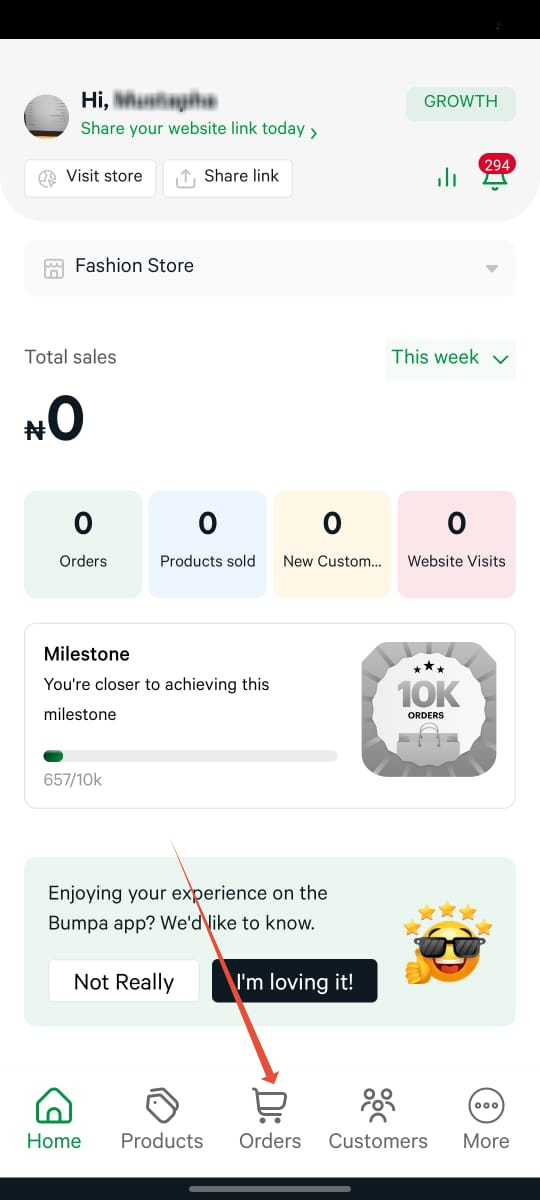
- Open your Bumpa app and tap "Orders" at the bottom of your screen. This opens your full order list.
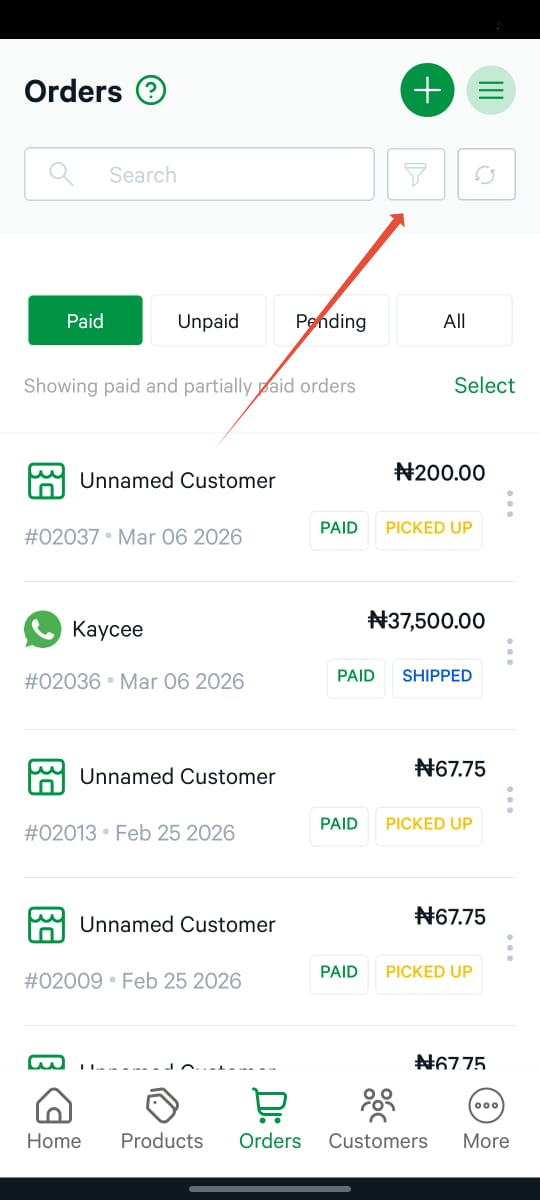
- Tap the Filter icon at the top right of the Orders page.
- Select the filter(s) you want to use. You can choose one or more to narrow your search.
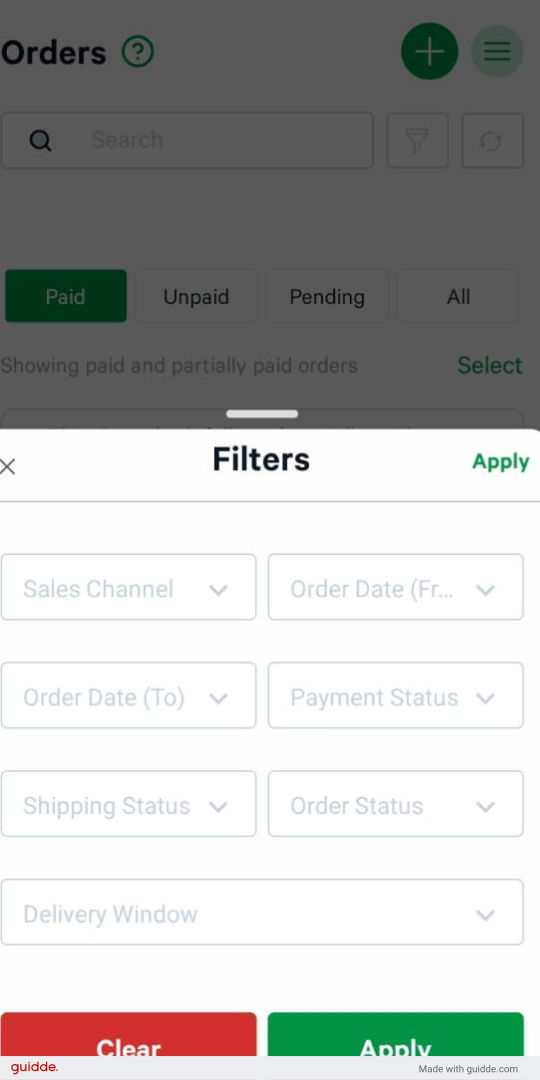
Available Filter Options:
- Sales Channel – Filter orders by where they came from, such as: Website, Instagram, WhatsApp, Facebook, Physical sales (in-person purchases), or other platforms.
- Order Date (From) – Select the starting date for the orders you want to see
- Order Date (To) – Select the ending date for the orders you want to see
- Payment Status – Filter orders by their payment status (e.g., Paid, Unpaid, Pending, Partially Paid)
- Shipping Status – View orders based on their delivery stage (e.g., Shipped, Pending, Delivered)
- Order Status – Filter by the current state of the order (e.g., Completed, Cancelled, Processing)
- Delivery Window - Filter orders by when delivery is due.
You can combine multiple filters to get more specific results. For example, you can filter for "Paid orders from Instagram in the last 7 days."- Tap "Apply" Only the orders that match the selected criteria will be displayed.
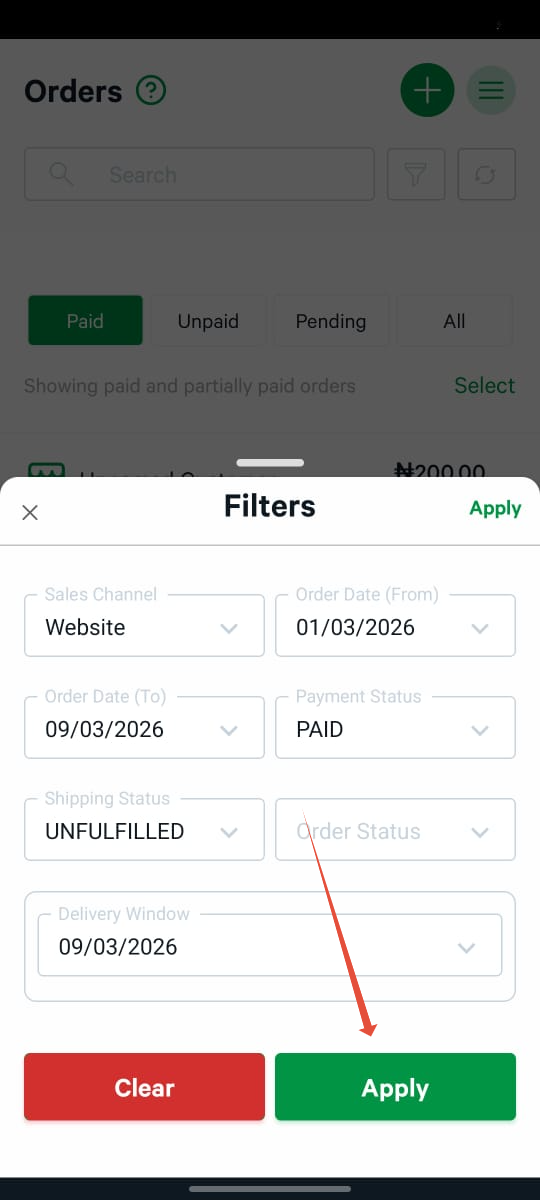
- Clear the filters when you are done.
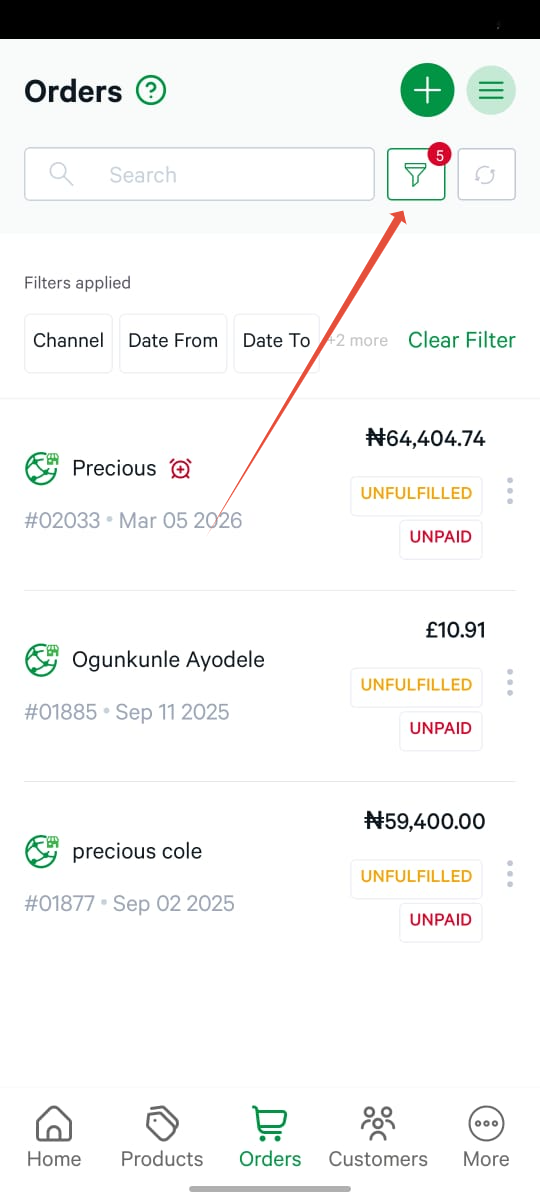
When you apply filters, you will see “Filters applied” at the top of your Orders page, along with the specific filters you selected (e.g., Date From, Date To, or Channel).
To remove filters and view all your orders again, you can either tap the green “Clear Filter” button at the top right of the Orders page, or open the Filters menu again and tap the red “Clear” button at the bottom. This will remove all active filters and show your complete order list.
If you need help using Order Filters, kindly reach out to our support teamWas this article helpful?
That’s Great!
Thank you for your feedback
Sorry! We couldn't be helpful
Thank you for your feedback
Feedback sent
We appreciate your effort and will try to fix the article