Introduction
Managing orders that require attention is now easier with Bumpa’s Attention Orders feature. You can review and resolve unfulfilled orders, process full refunds directly through Paystack or issue refunds via gift cards. The feature also supports automatic customer email notifications and refund transaction references, helping you keep customers informed and streamline your order resolution process.
This guide explains how to manage attention orders from your mobile app and resolve them using the available refund options.
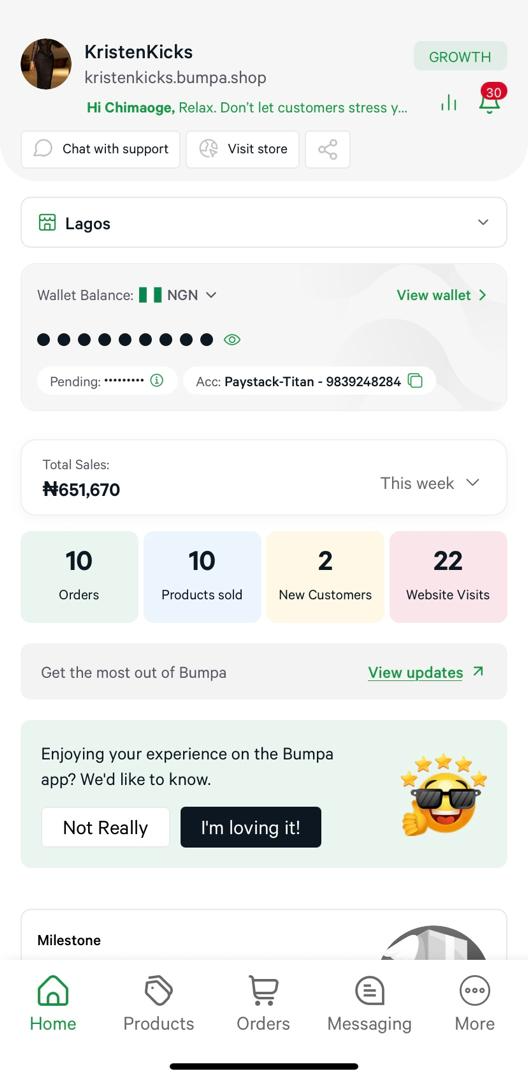
- Log in to your Bumpa Account
Log in to your Bumpa mobile app to access your business dashboard.
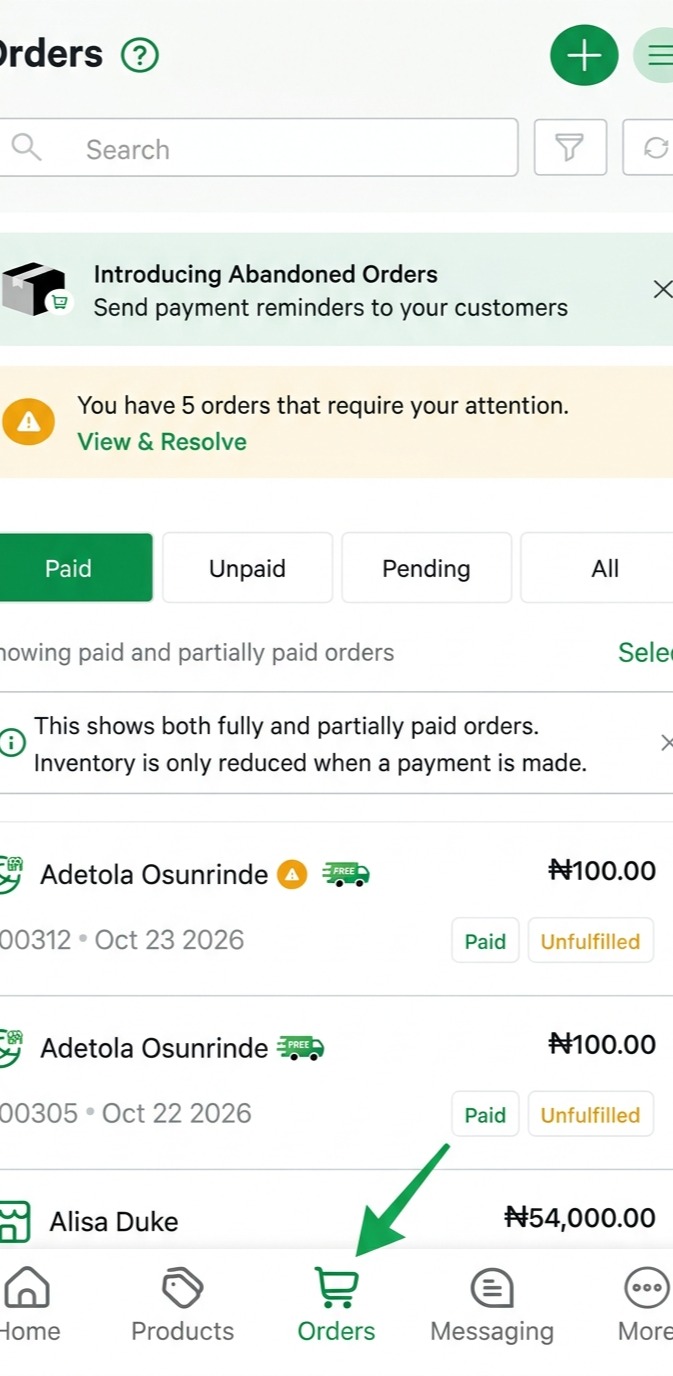
- Open Orders Section
Select the Orders tab to view and manage customer orders.
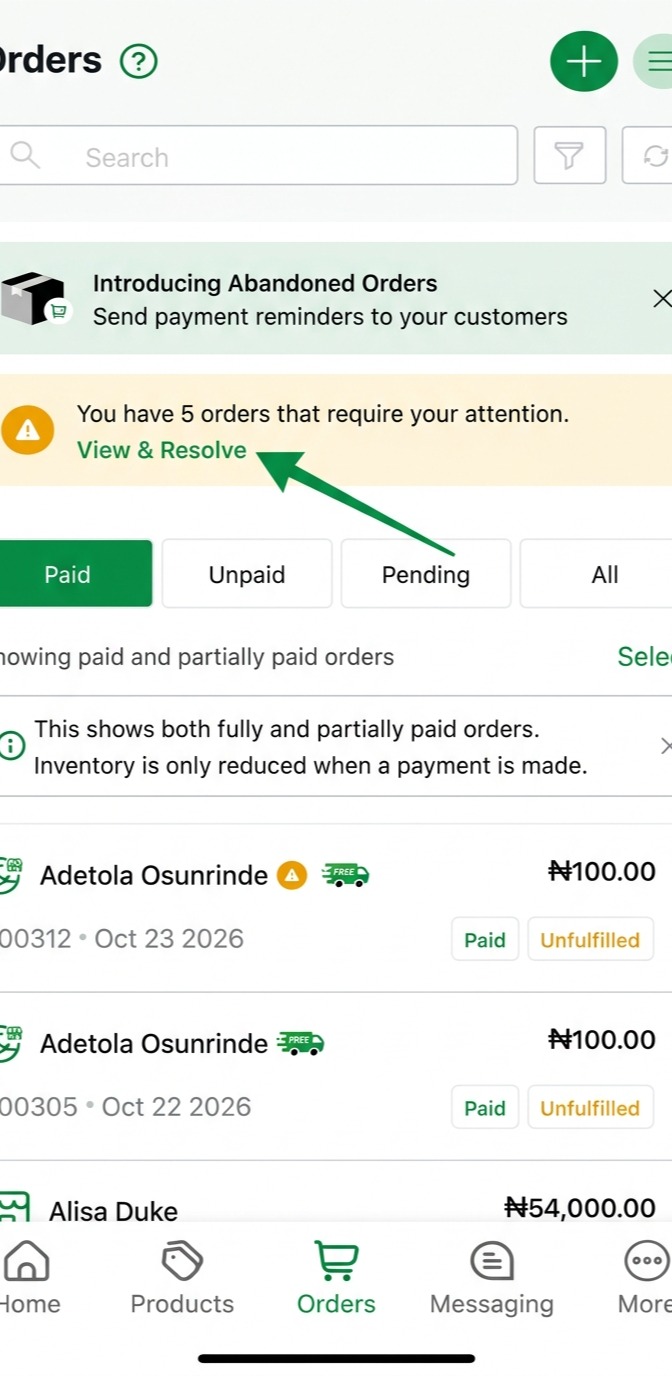
- Access View & Resolve
Click View & Resolve to identify orders that require attention or action.
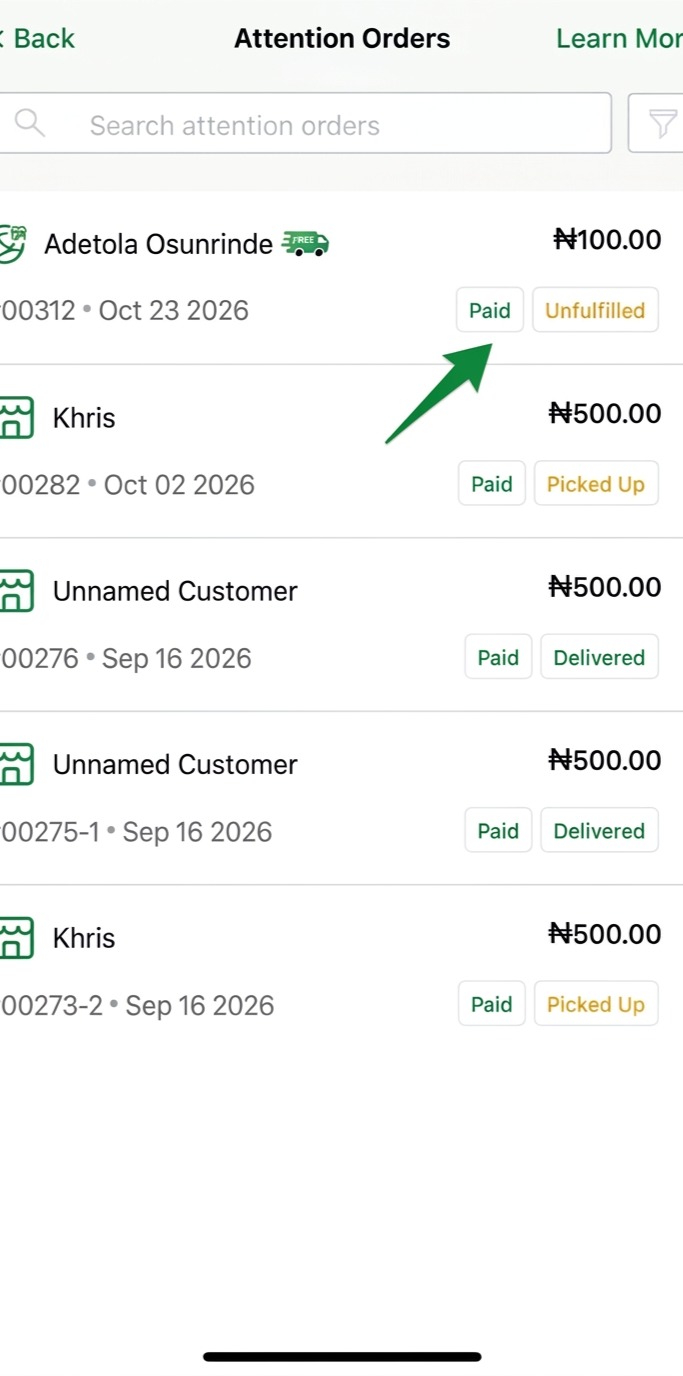
- Filter Unfulfilled Orders
Select the Unfulfilled order you want to resolve
.
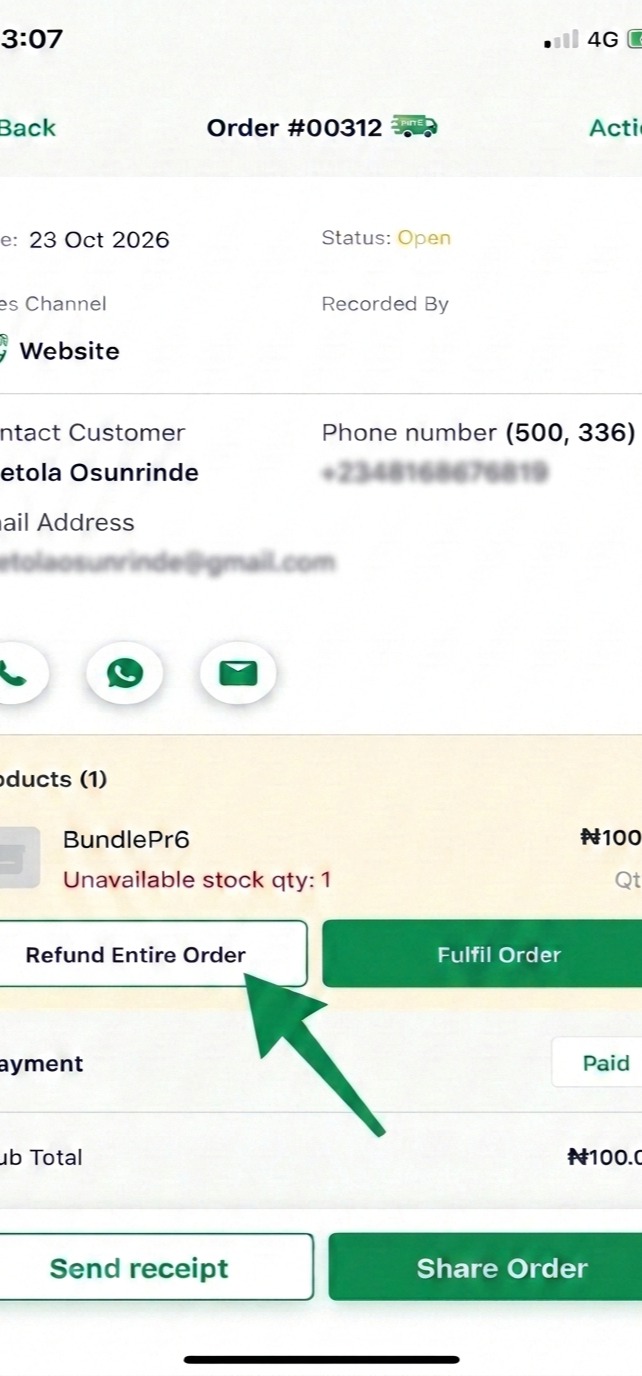
- Initiate Full Order Refund
Locate the order you want to refund and click Refund Entire Order to begin processing a full refund.
For Refund via Paystack
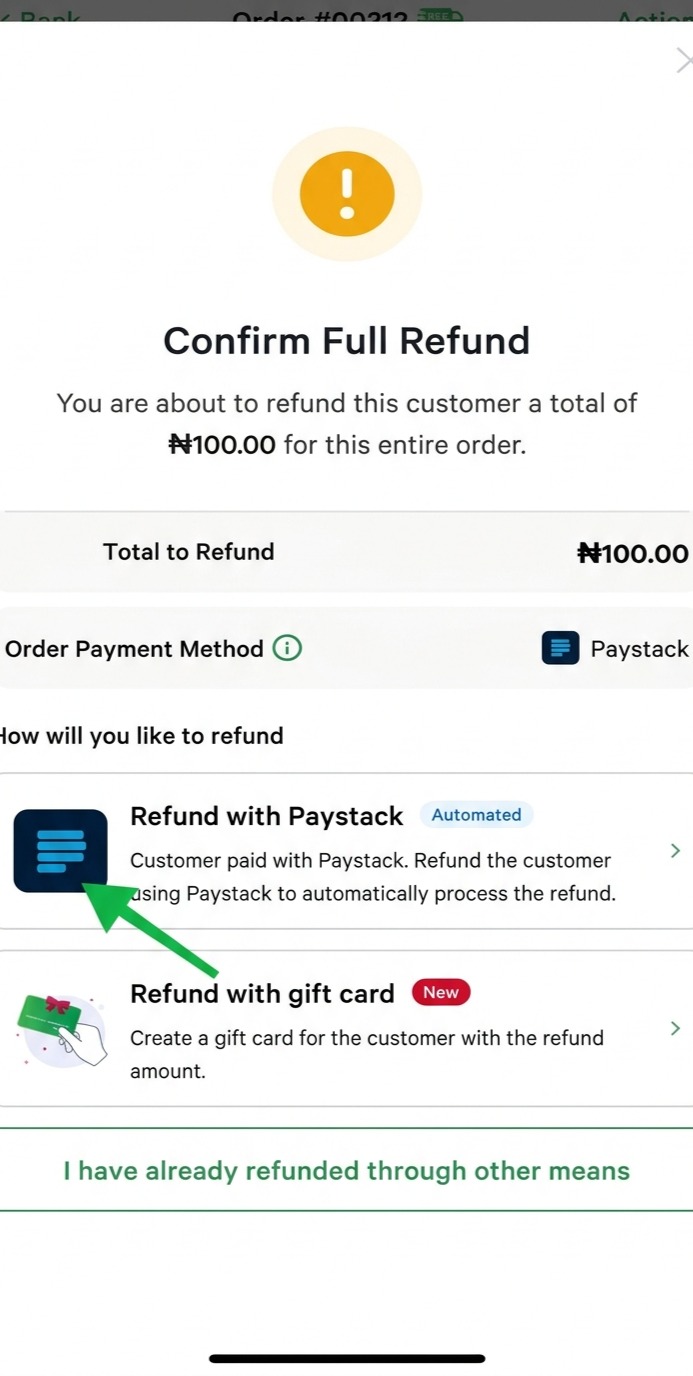
- Select Paystack Refund Method
Click the option to refund the customer using Paystack, (If the Order was processed with Paystack), which will automatically process the refund securely.
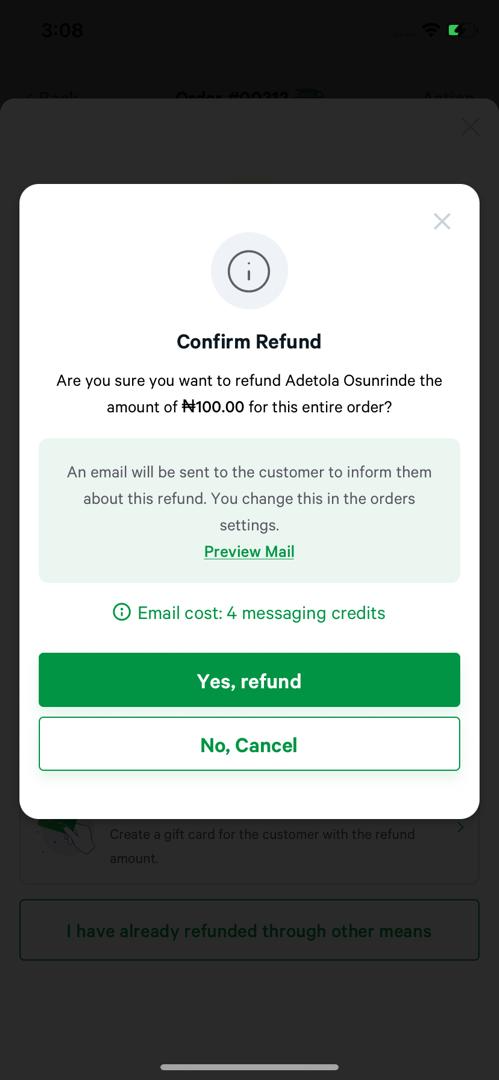
- Preview Refund Email
Click Preview email to review the email notification that will be sent to the customer regarding their refund.
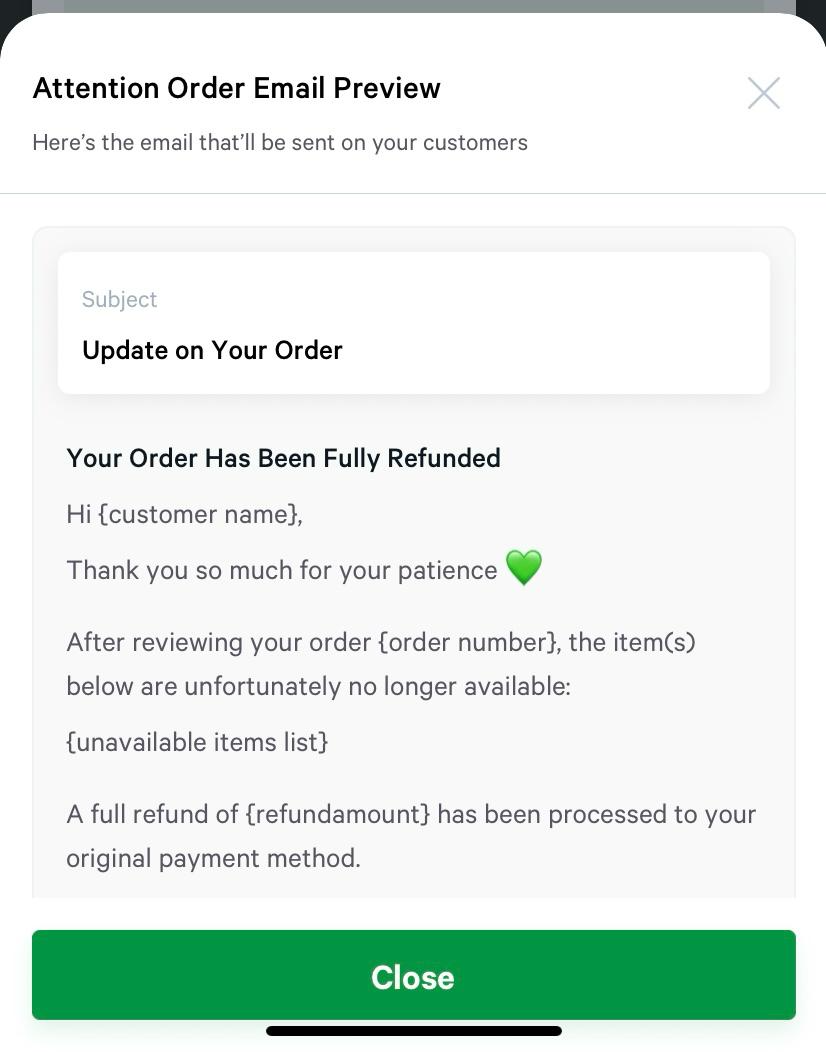
- View Email
Note: Email cost 4 Bumpa Credit
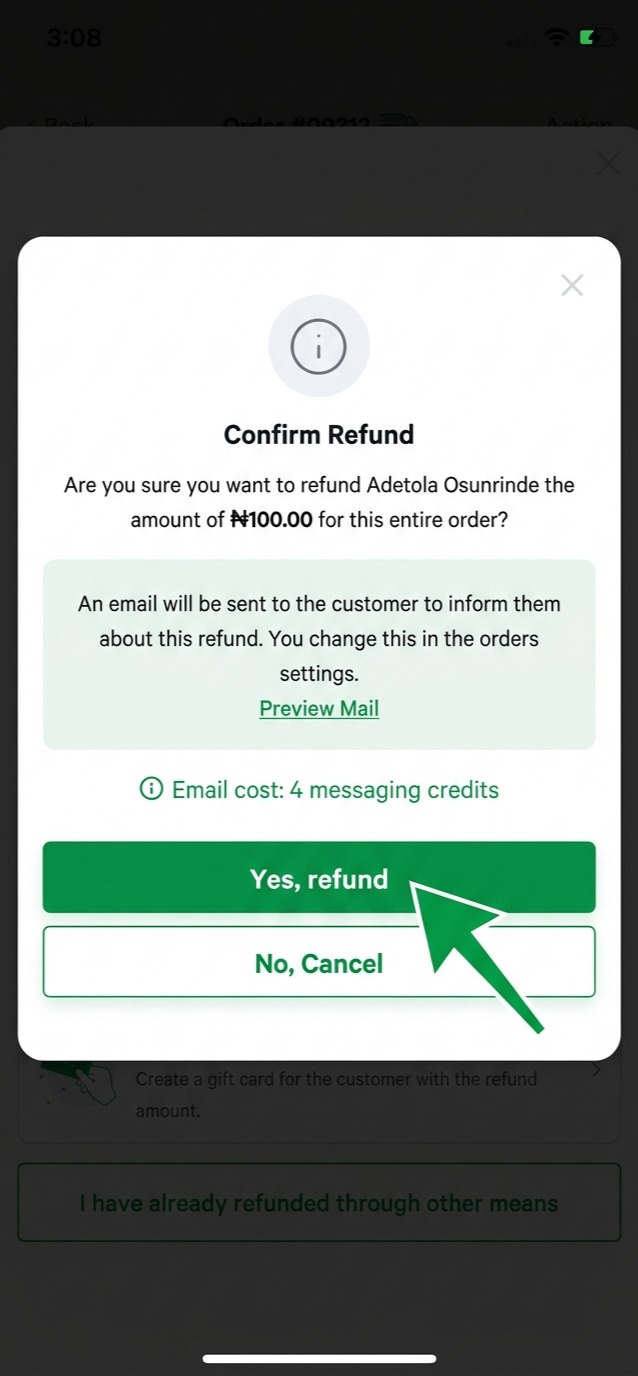
- Confirm Refund Submission
Click Yes, refund to finalize and submit the full refund for the customer's order.
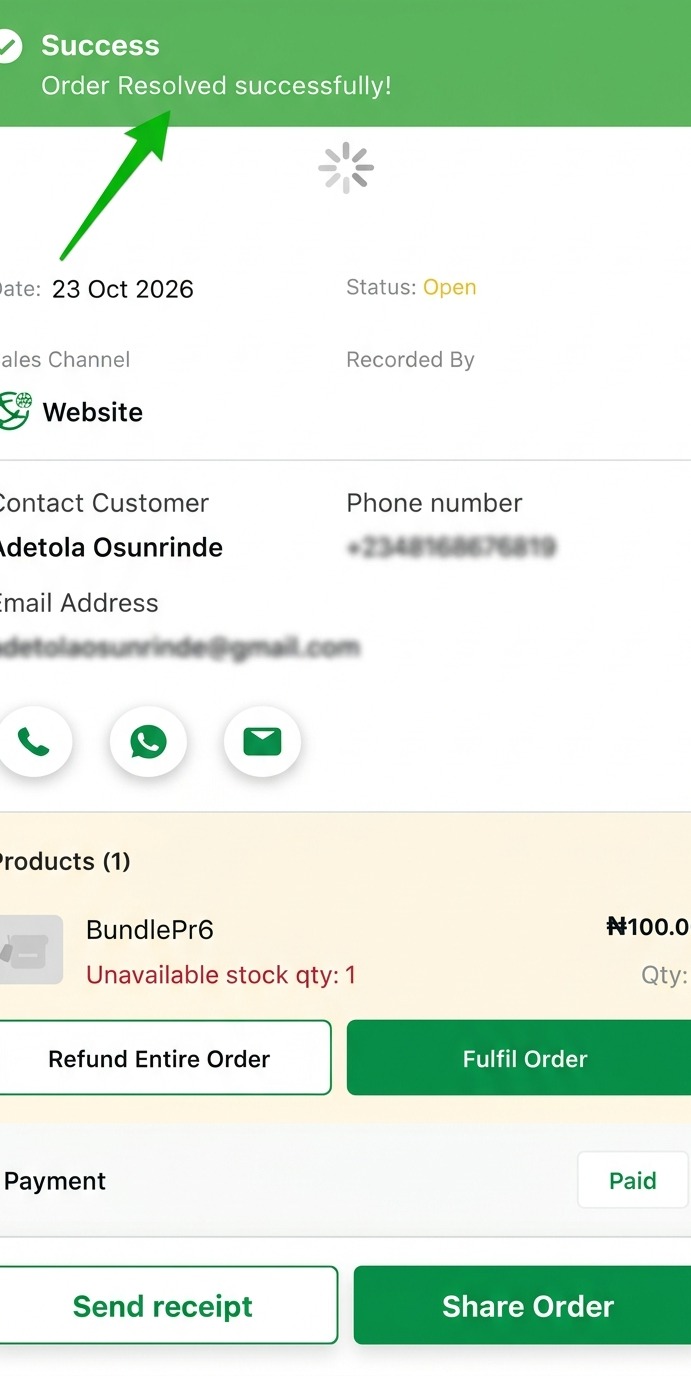
- Notification for a Resolved Order
A success message confirms that the refund has been processed and the order has been resolved.
Note: Once the order is resolved successfully, the Customer receives an email notification confirming that their refund has been processed and order fully refunded.
For Refund with Gift Card Option
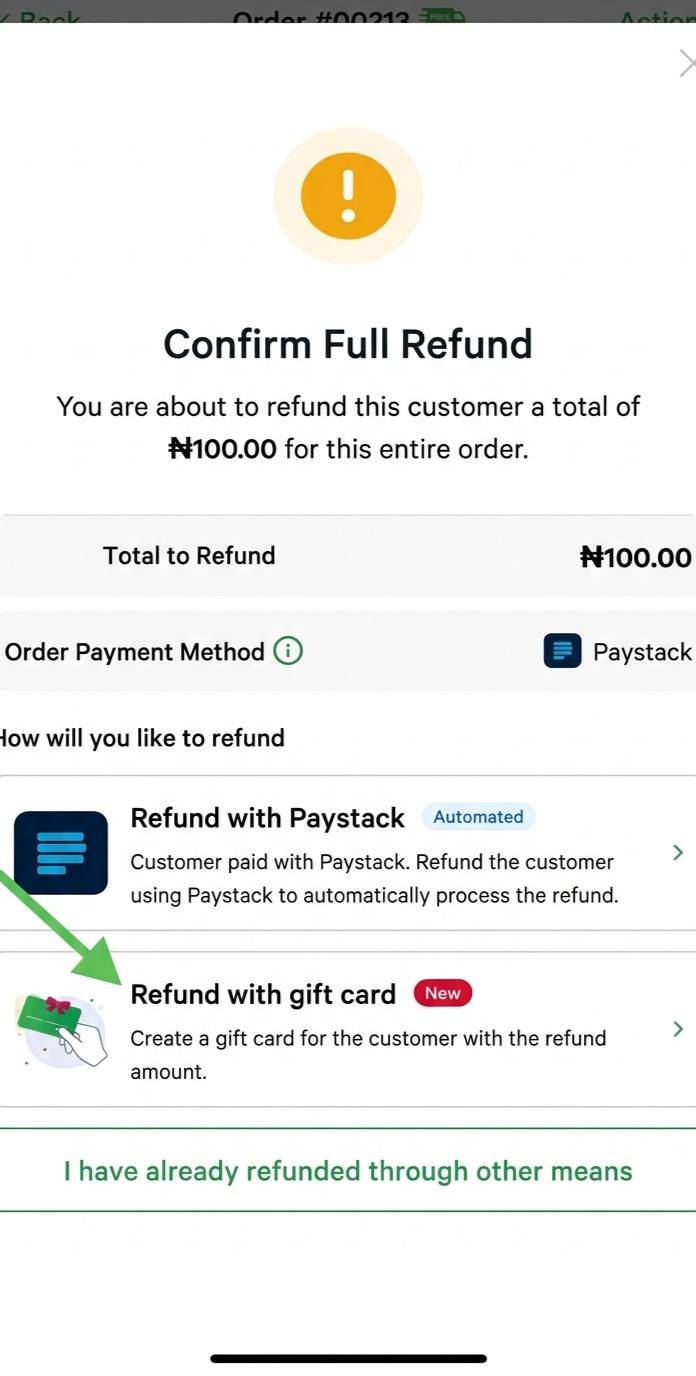
- Choose Refund with Gift Card
Refund can also be processed with a gift card. Click Refund with gift card to issue the refund as a gift card balance for the customer, offering a flexible alternative to a direct refund.
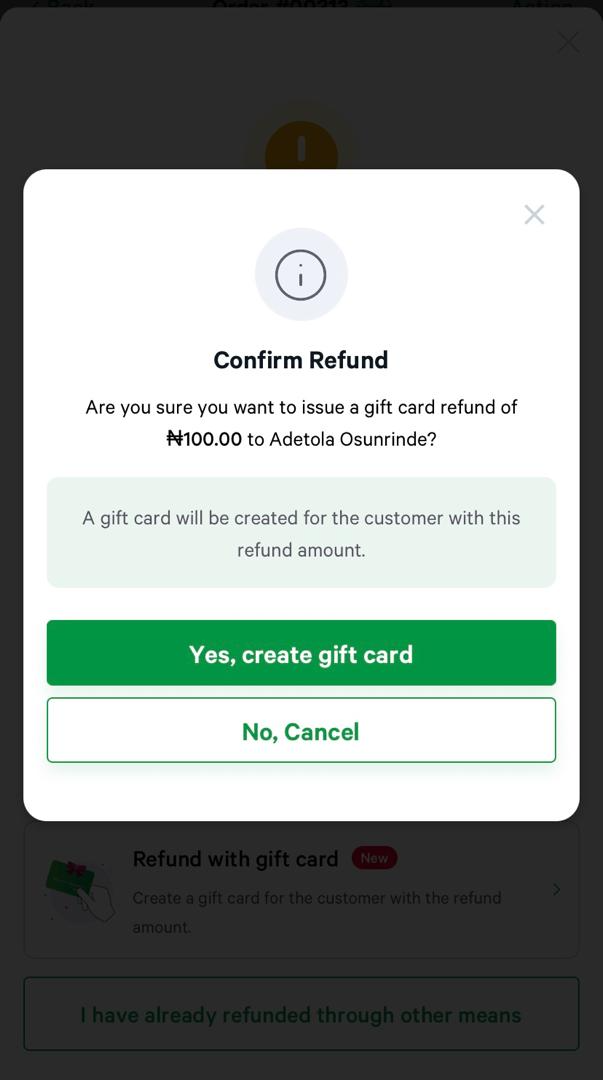
- Confirm Refund Submission
Click "Yes, create gift card" to confirm and submit the refund, completing the gift card refund process securely.
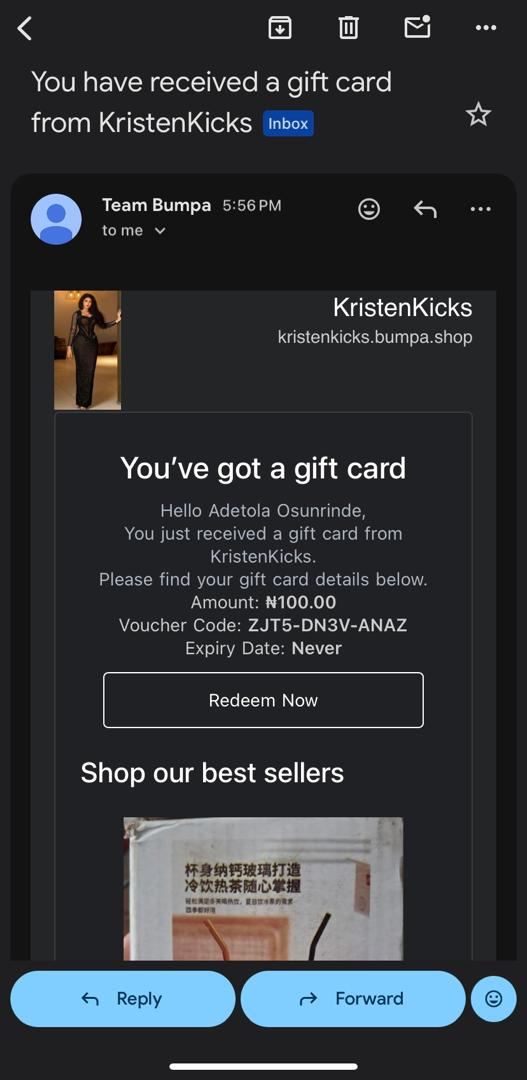
- Customer receives an email notification of refund and Gift Card Details
The customer will receive an email with their refund details and gift card information.
Was this article helpful?
That’s Great!
Thank you for your feedback
Sorry! We couldn't be helpful
Thank you for your feedback
Feedback sent
We appreciate your effort and will try to fix the article