Not every product is ready for delivery immediately. Some personalized items may need extra time to prepare. With Bumpa’s Delivery Day setting, you can specify how many days a product takes to get ready, helping customers know when to expect their orders. In this guide, we'll show you how to set delivery days for your products.
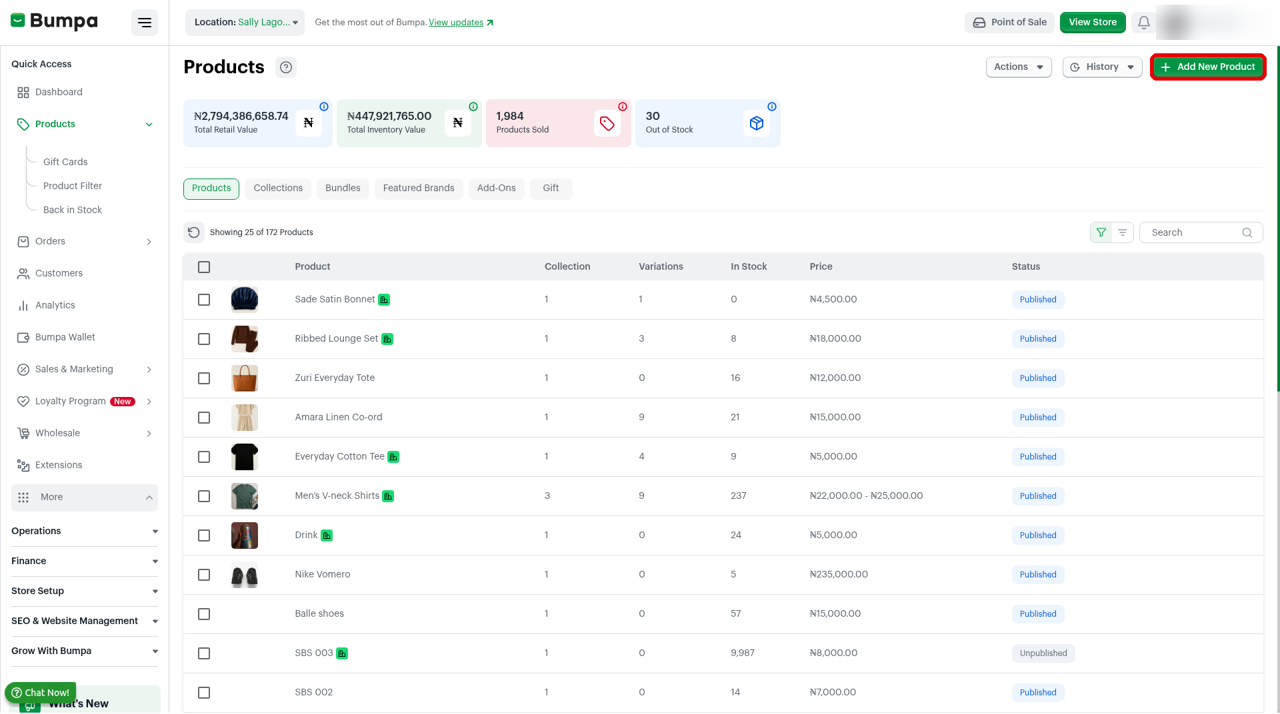
To turn on Delivery Day, follow these steps:
Log in to your Bumpa dashboard at app.getbumpa.com
Click Products.
Click Add New Product.
Fill in the product details, such as Product Name, Price and Stock Quantity.
Scroll down to Product Inventory.
Toggle on Delivery Day.
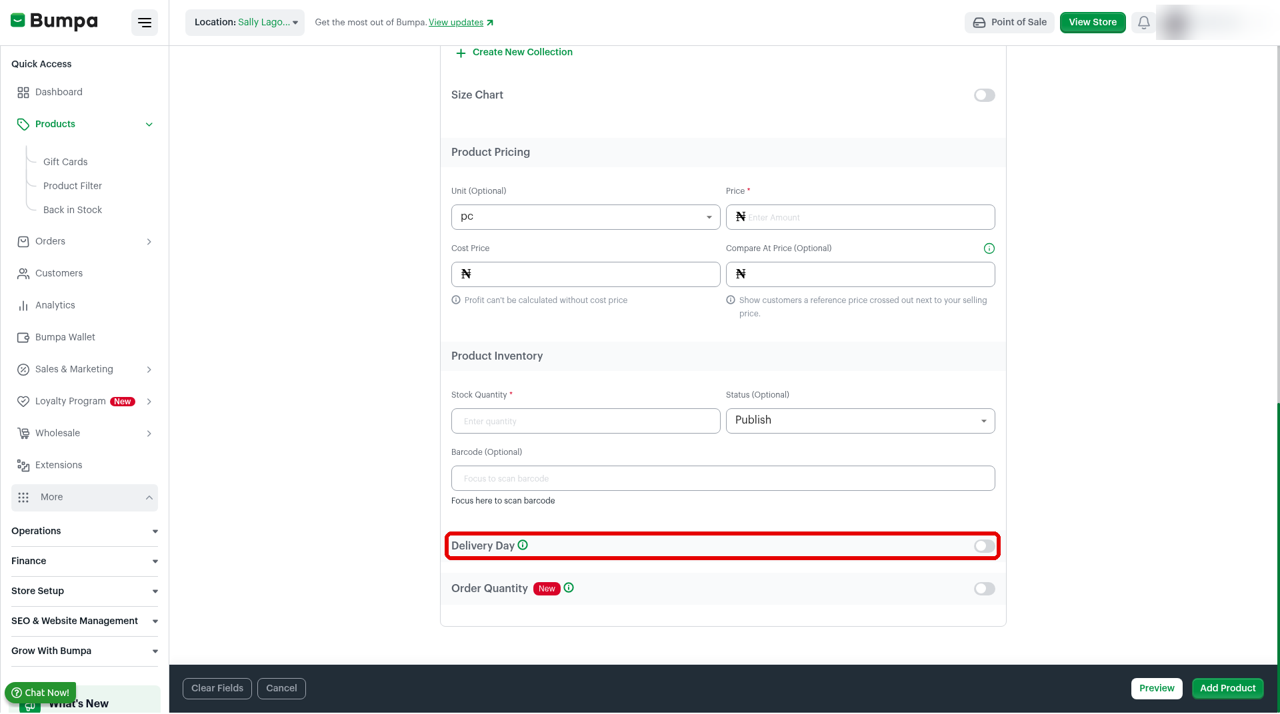
Enter the processing days
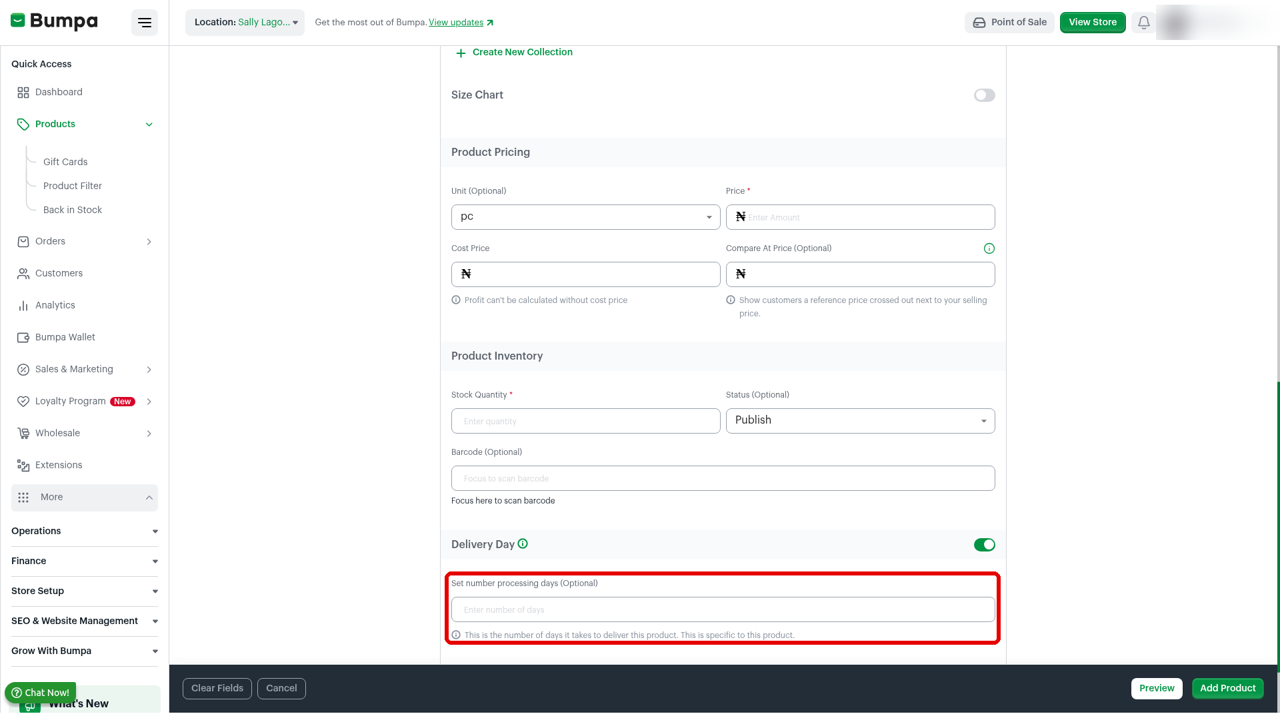
After you turn on Delivery Day, a box appears for the number of days it takes to deliver this product.
To enter the processing days, follow these steps:
Enter the number of days under Set number processing days.
Click Add Product to save the product.
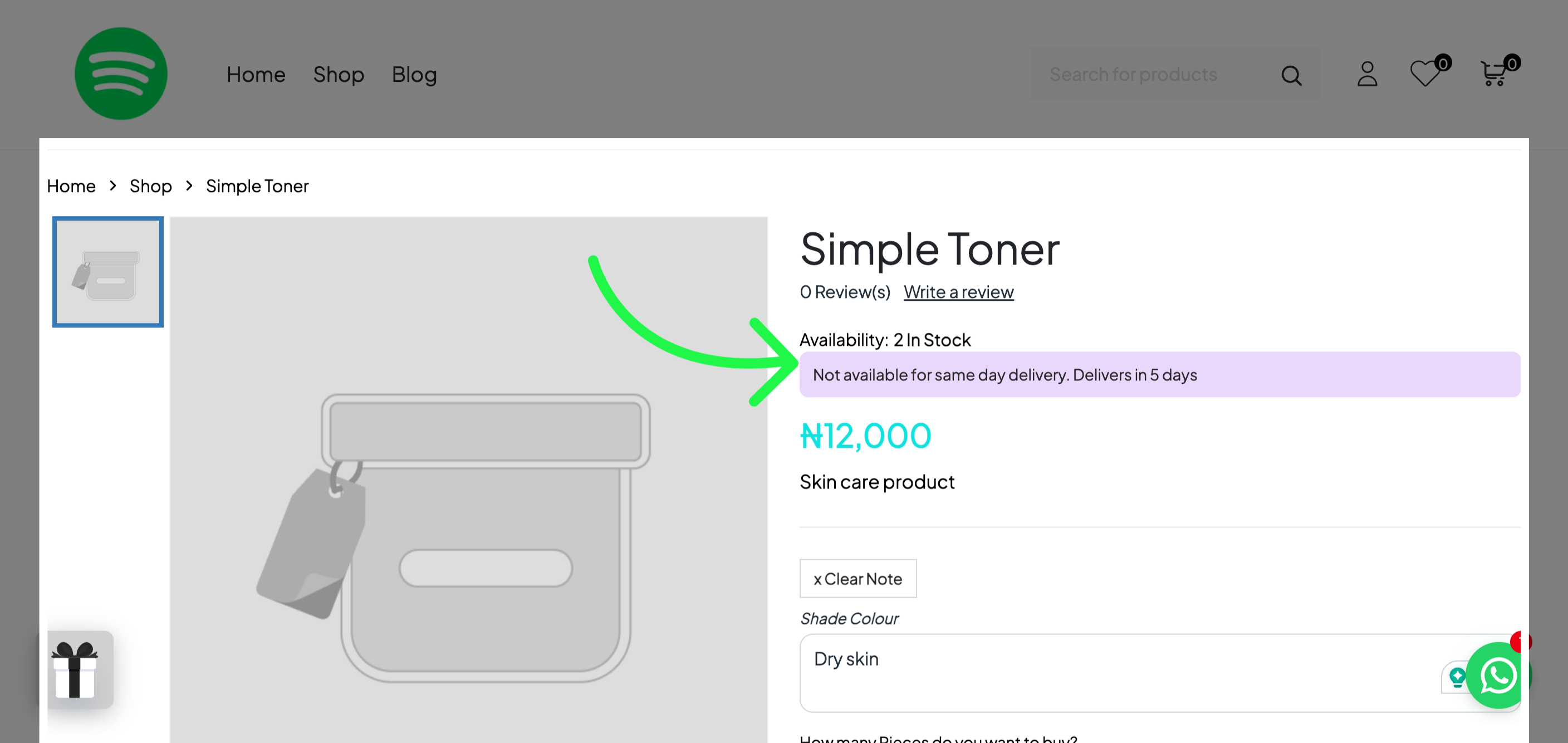
Store front view:
For products with this setting, the customer will see that the product does not offer same-day delivery, and see how long the product will take
Additional Information: Order Notifications
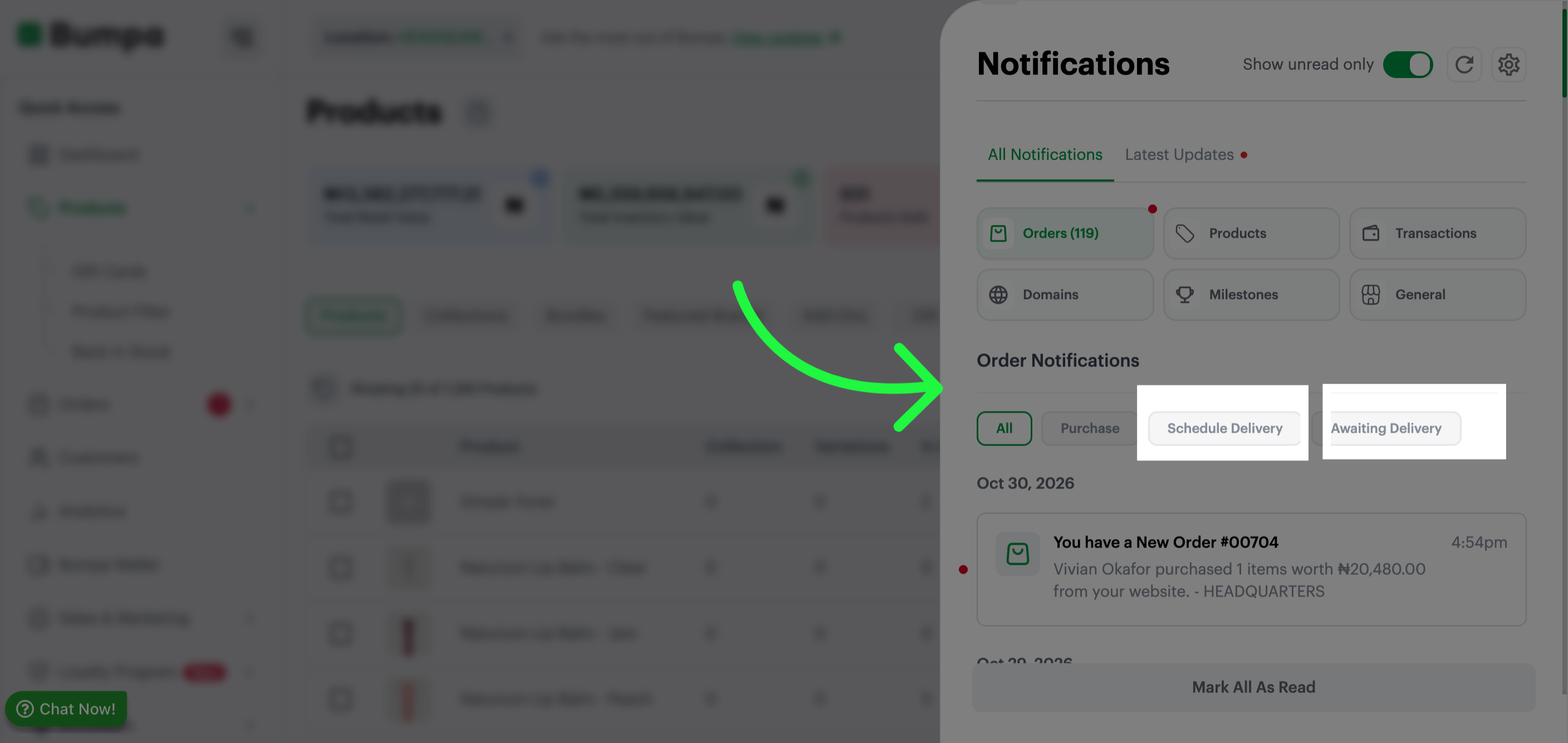
Bumpa has two new order notifications to help you keep track of deliveries:
Scheduled Delivery: This notification is triggered when a customer selects a delivery date at checkout or places a pre-order. It reminds you of the delivery date chosen by the customer.
For example: "Order #25362 is scheduled for delivery on Friday, April 11.
Awaiting Deliveries: This is a reminder for you to prepare and dispatch orders. It groups orders based on your delivery reminder settings and notifies you of deliveries due that day or the following day. For example: "You have 12 deliveries for tomorrow
The key difference: Scheduled Delivery reminds you of the date the customer selected, while Awaiting Deliveries helps you keep track of orders you need to dispatch based on your reminder settings.
Note: Delivery Day is available on the Pro plan and higher plans.
Setting up pick-up and delivery option (web app)
Was this article helpful?
That’s Great!
Thank you for your feedback
Sorry! We couldn't be helpful
Thank you for your feedback
Feedback sent
We appreciate your effort and will try to fix the article