Finding specific customers in your list is now easier with Bumpa’s Customer Filter feature. You can narrow down your customer list using details such as country or gender, making it easier to find the records you need without scrolling through your entire list. In this guide, we'll show you how to filter your customers and clear your filters when you're done.
Open the customer filter
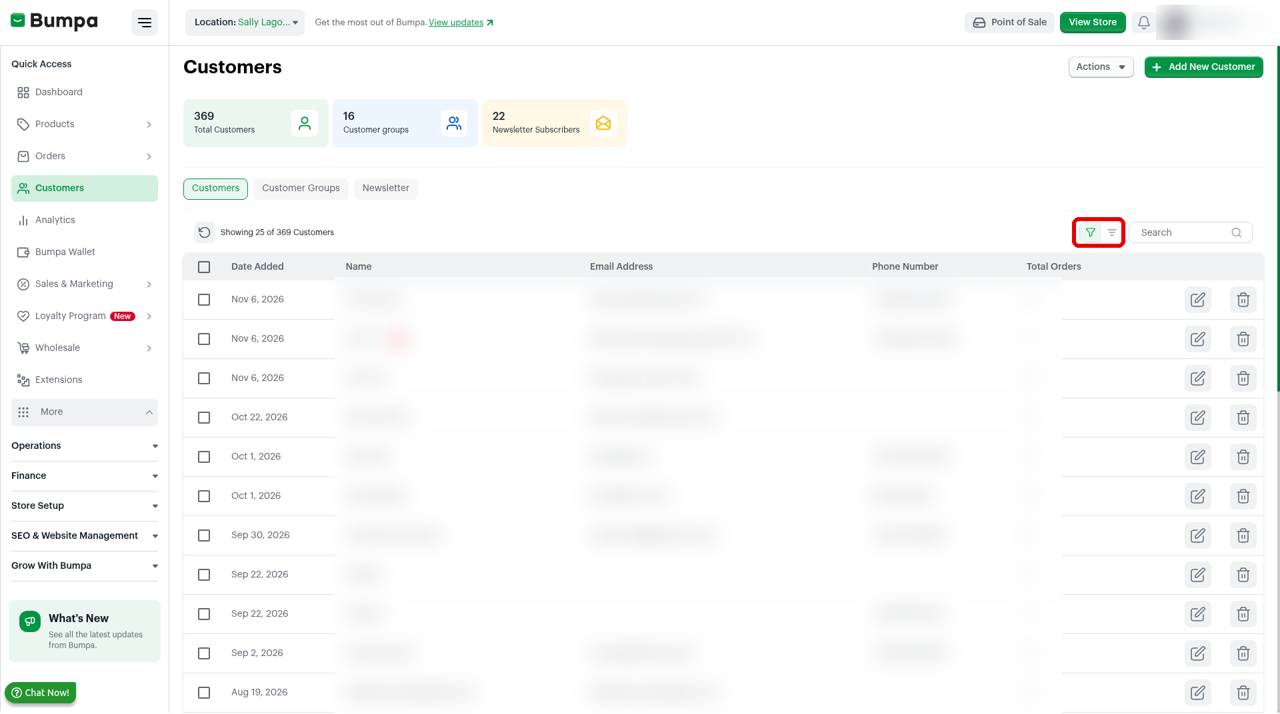
The filter icon is on the Customers tab, next to the Search box.
To open the customer filter, follow these steps:
Log in to your Bumpa dashboard via app.getbumpa.com
Click Customers.
Click the filter icon next to the Search box.
Choose your filters
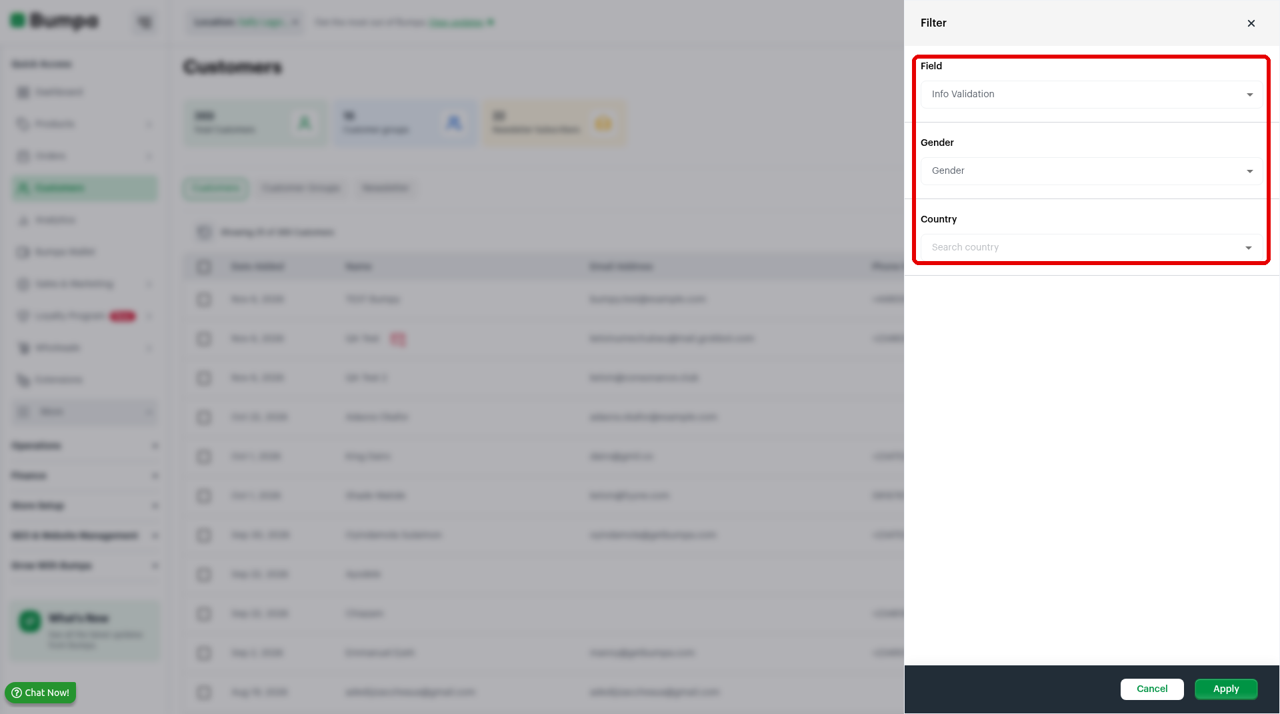
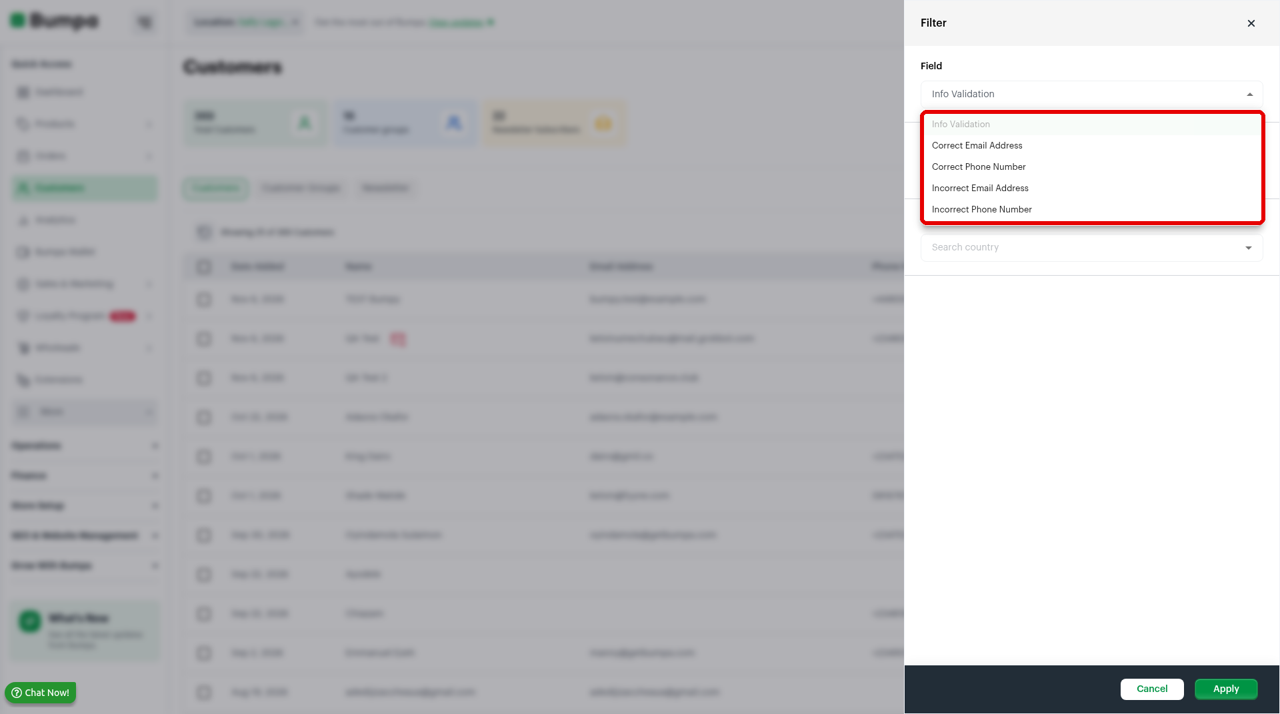
The Filter panel has three filters: Field, Gender and Country. You can use one filter or more than one at the same time. Under Field, you can choose Correct Email Address, Correct Phone Number, Incorrect Email Address or Incorrect Phone Number.
To filter your customer list, follow these steps:
Select an option under Field, such as Correct Phone Number.
Select a gender under Gender.
Search for a country under Country and select it.
Click Apply.
See and clear your filters
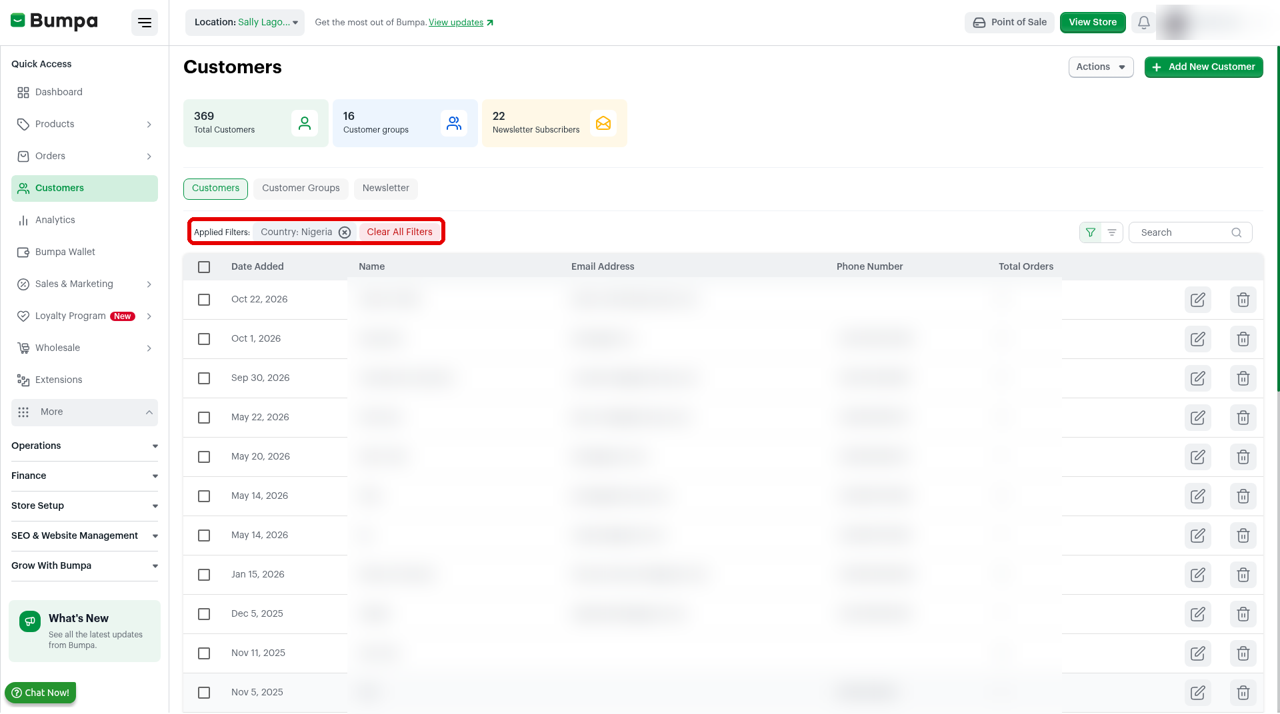
After you click Apply, your filters show next to Applied Filters, above the customer list. The list shows only the customers that match.
To clear your filters, follow these steps:
Click the x next to a filter to remove that filter.
Click Clear All Filters to remove all your filters.
Was this article helpful?
That’s Great!
Thank you for your feedback
Sorry! We couldn't be helpful
Thank you for your feedback
Feedback sent
We appreciate your effort and will try to fix the article