Keeping track of your messaging credits is now easier with Bumpa’s Credits Usage Log. The log gives you a breakdown of how your credits are used, including the date, activity, credits added or deducted, and your remaining balance. You can also view credit top-ups and use the available filters and search options to find specific activities. In this guide, we'll show you how to access the Credits Usage Log and filter your records.
To get started:
Log in to your Bumpa dashboard via app.getbumpa.com.
Click Sales & Marketing, then Campaigns.
Click Actions.
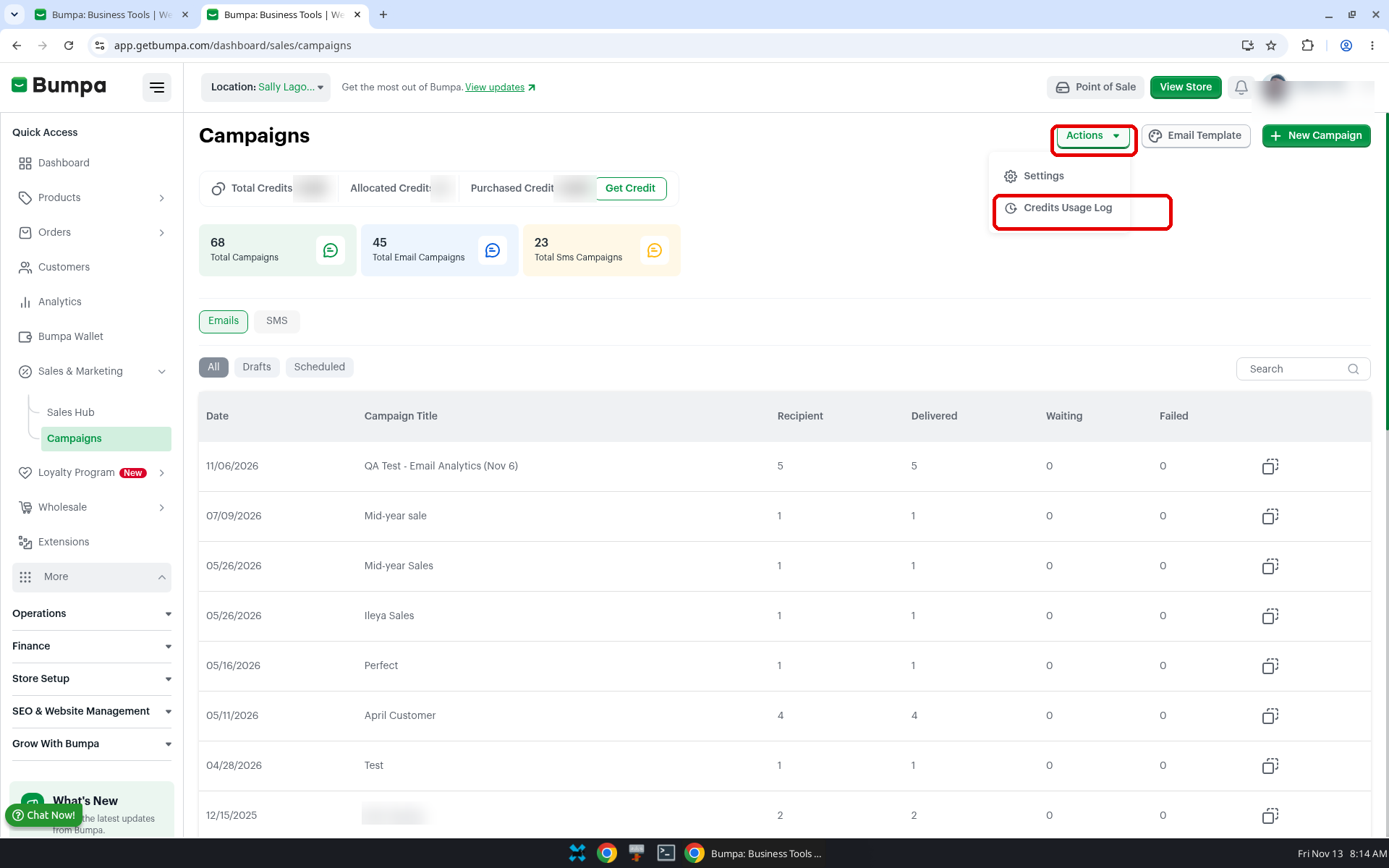
- Open the Credits Usage Log
The columns listed on the page are Date, Type, Classification, Activity, Amount and Balance.
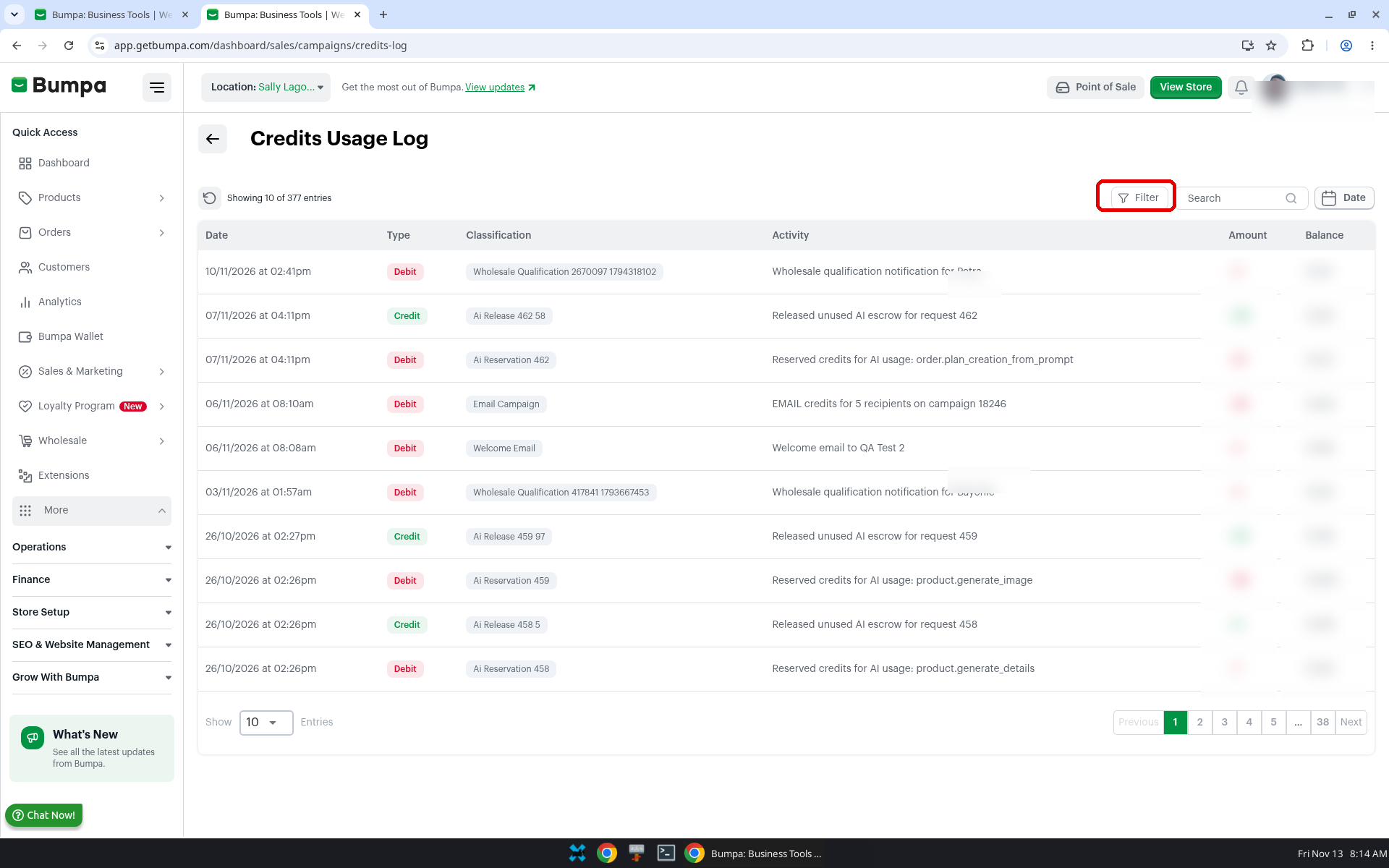
Filter or search the log
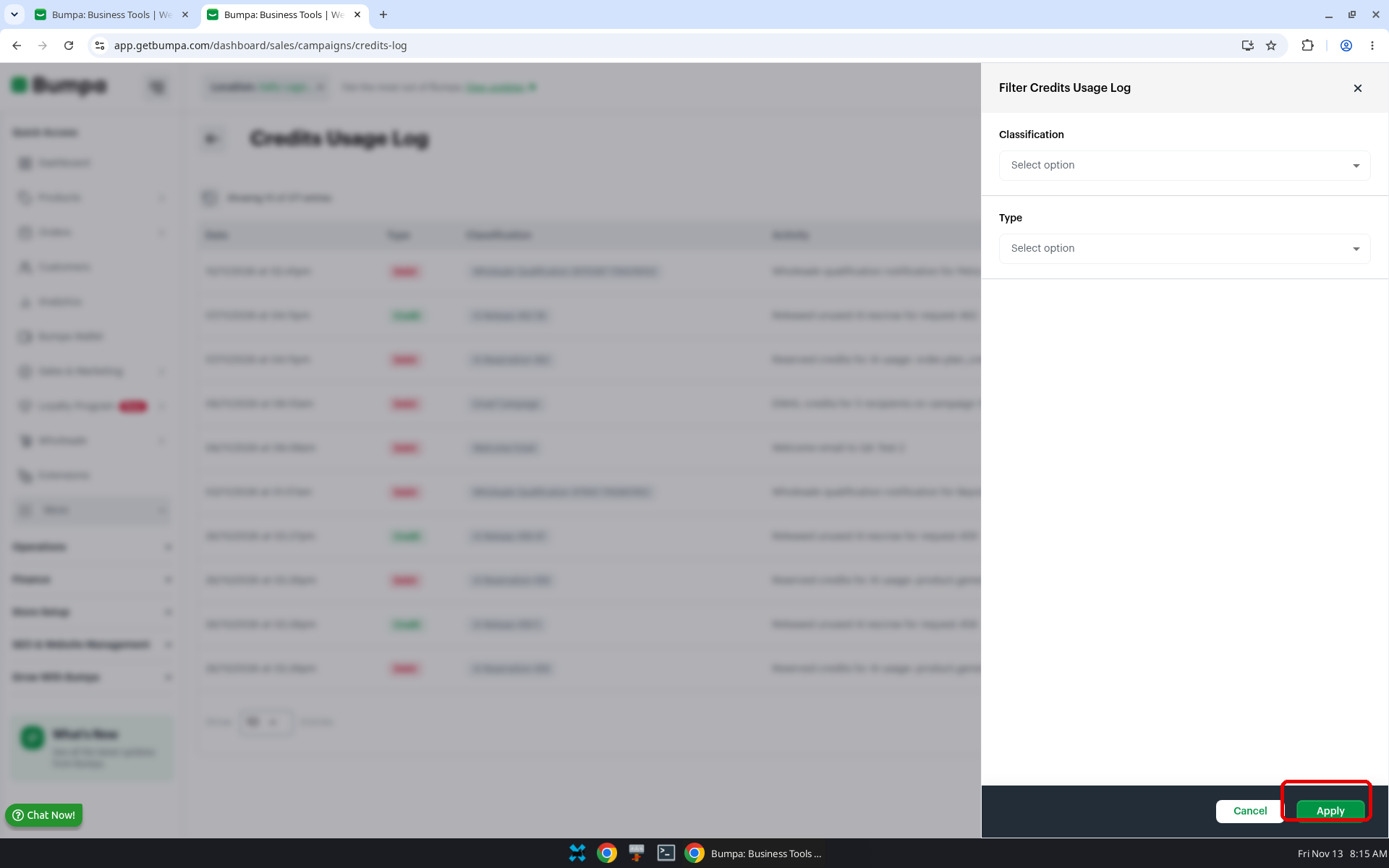
- Click Filter to open Filter Credits Usage Log.
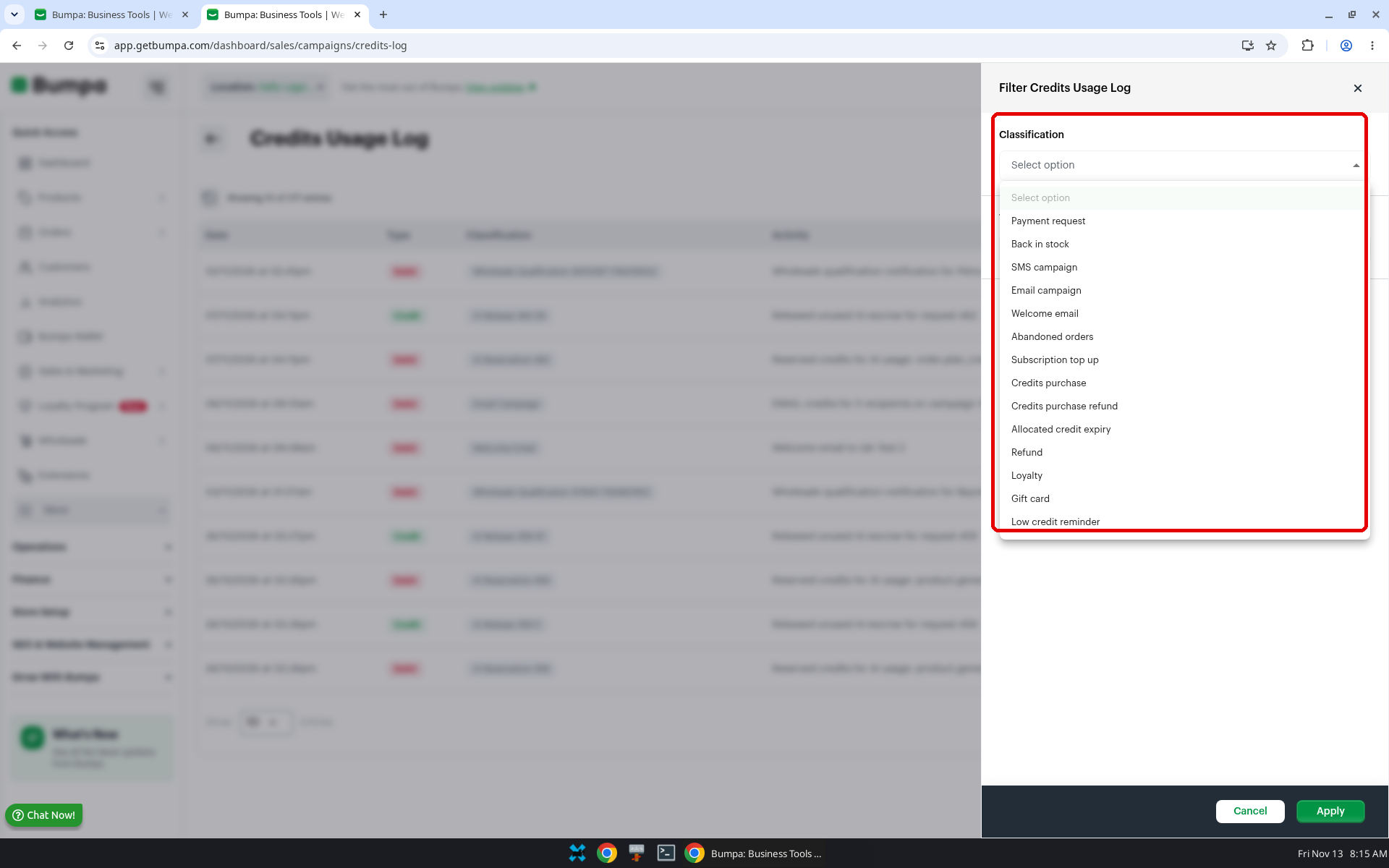
- Choose a Classification or a Type, then click Apply.
Related articles:
Creating SMS Campaigns (Web App).
Low Messaging Credits Reminder
Was this article helpful?
That’s Great!
Thank you for your feedback
Sorry! We couldn't be helpful
Thank you for your feedback
Feedback sent
We appreciate your effort and will try to fix the article