As a business owner, you can pay for Bumpa services from the money already in your Bumpa Wallet. This covers subscription renewal, buying a domain, and buying messaging credits, with no wallet transaction fee. In this article, learn how to pay with your Bumpa Wallet.
At checkout, you now see two payment options:
Pay with Wallet (No processing fee)
Pay with Paystack (1.2% processing fee, capped at ₦3,000)
Selecting Pay with Wallet shows your Available funds (available balance + pending inflows/settlements)
Note: Wallet PIN is required to authorise every wallet payment.
Renew your subscription with Bumpa Wallet
Start on your subscription page, then choose Pay with Bumpa Wallet at checkout.
To renew with your wallet, follow these steps:
Log in to your Bumpa dashboard via app.getbumpa.com.
Click More, then Store Setup, then Subscription.
Click Renew Subscription.
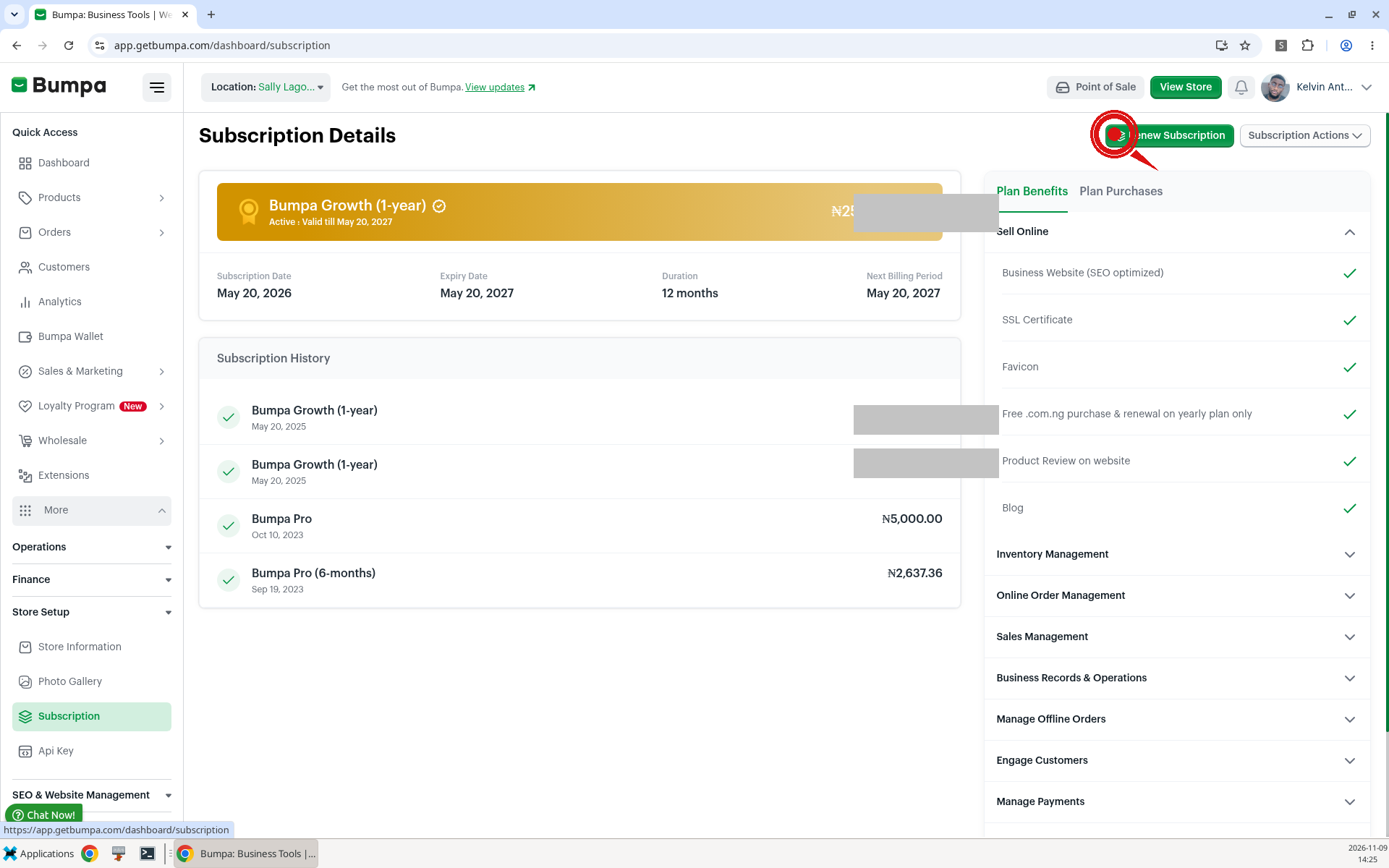
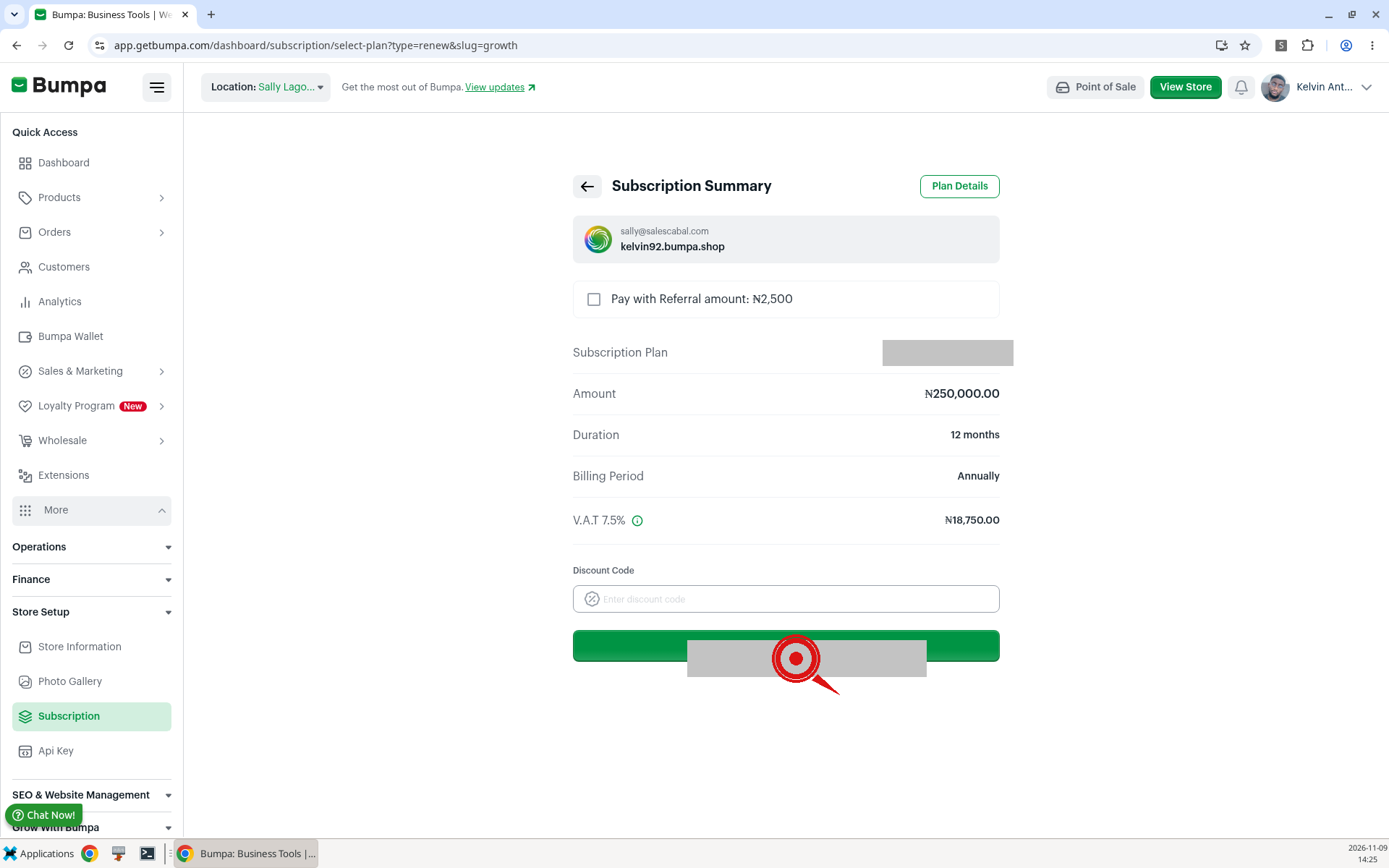
Check the Subscription Summary, including VAT if shown, then continue to payment.
Select Pay with Bumpa Wallet. You will see your available funds, "No transaction fee.", and "Your Bumpa Wallet will be debited."
Optional: tick Set as recurring payment. The note says: "Your wallet will be debited and subsequent payments will be automatically renewed."
Click Make Payment.
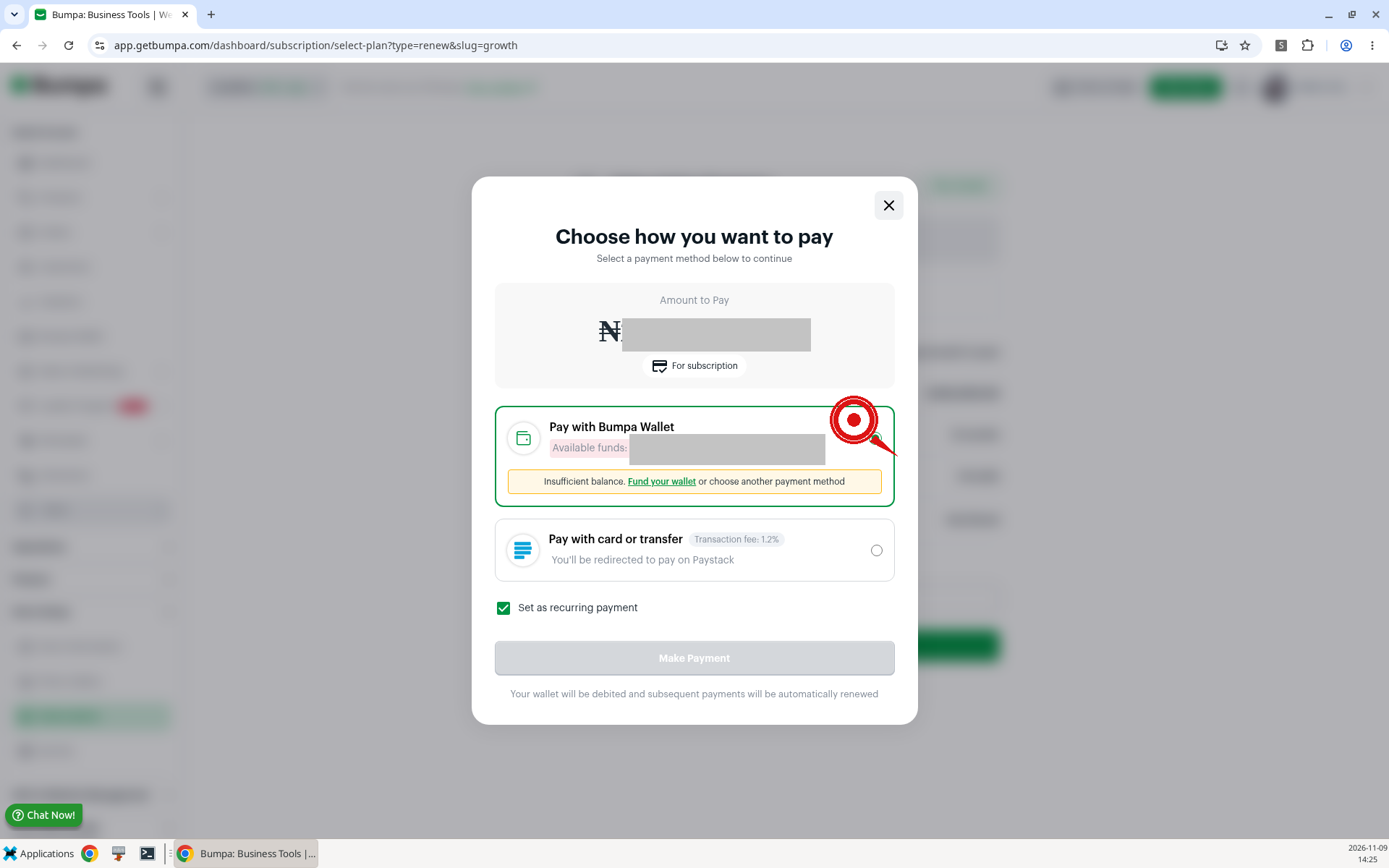
Note: If your wallet doesn't have enough money, you will see an "Insufficient funds" message and a Fund Wallet button. Pay with card or transfer uses Paystack and shows a 1.2% transaction fee.
Buy a domain with Bumpa Wallet
Domain checkout offers the same two payment choices.
To pay for a domain with your wallet, follow these steps:
Click More, then SEO & Website Management, then Domains.
Click Buy domain and complete the domain details until you reach payment.
Select Pay with Bumpa Wallet.
Click Make Payment.
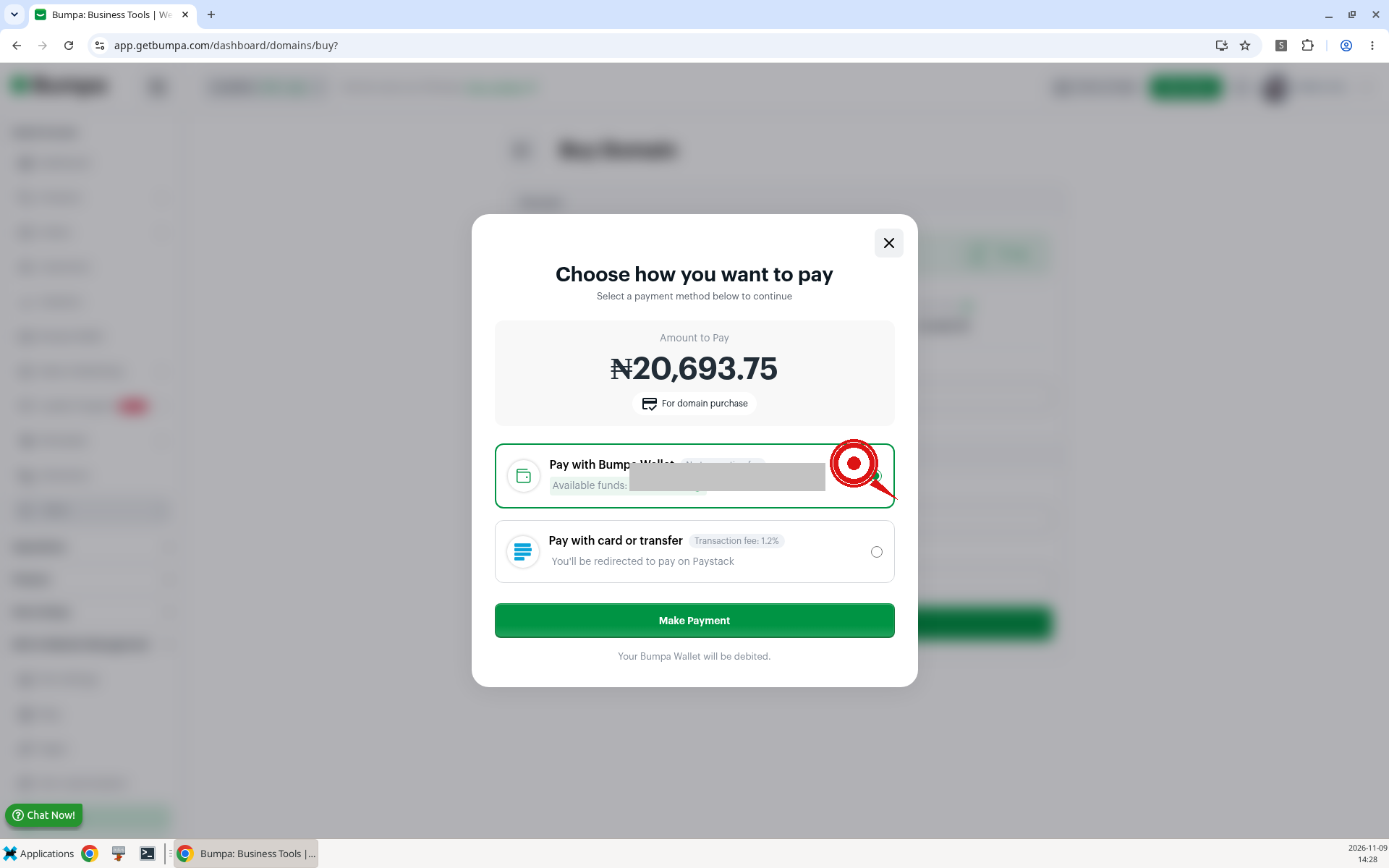
Buy messaging credits with Bumpa Wallet
Credit packs are sold from Campaigns. Prices seen on the walkthrough before 7.5% VAT: 2,000 for ₦3,000; 5,000 for ₦7,000; 10,000 for ₦13,000; 50,000 for ₦60,000; 100,000 for ₦110,000.
To buy credits with your wallet, follow these steps:
Click Sales & Marketing, then Campaigns, then Get Credit.
Choose a credit pack.
Select Pay with Bumpa Wallet.
Click Make Payment.
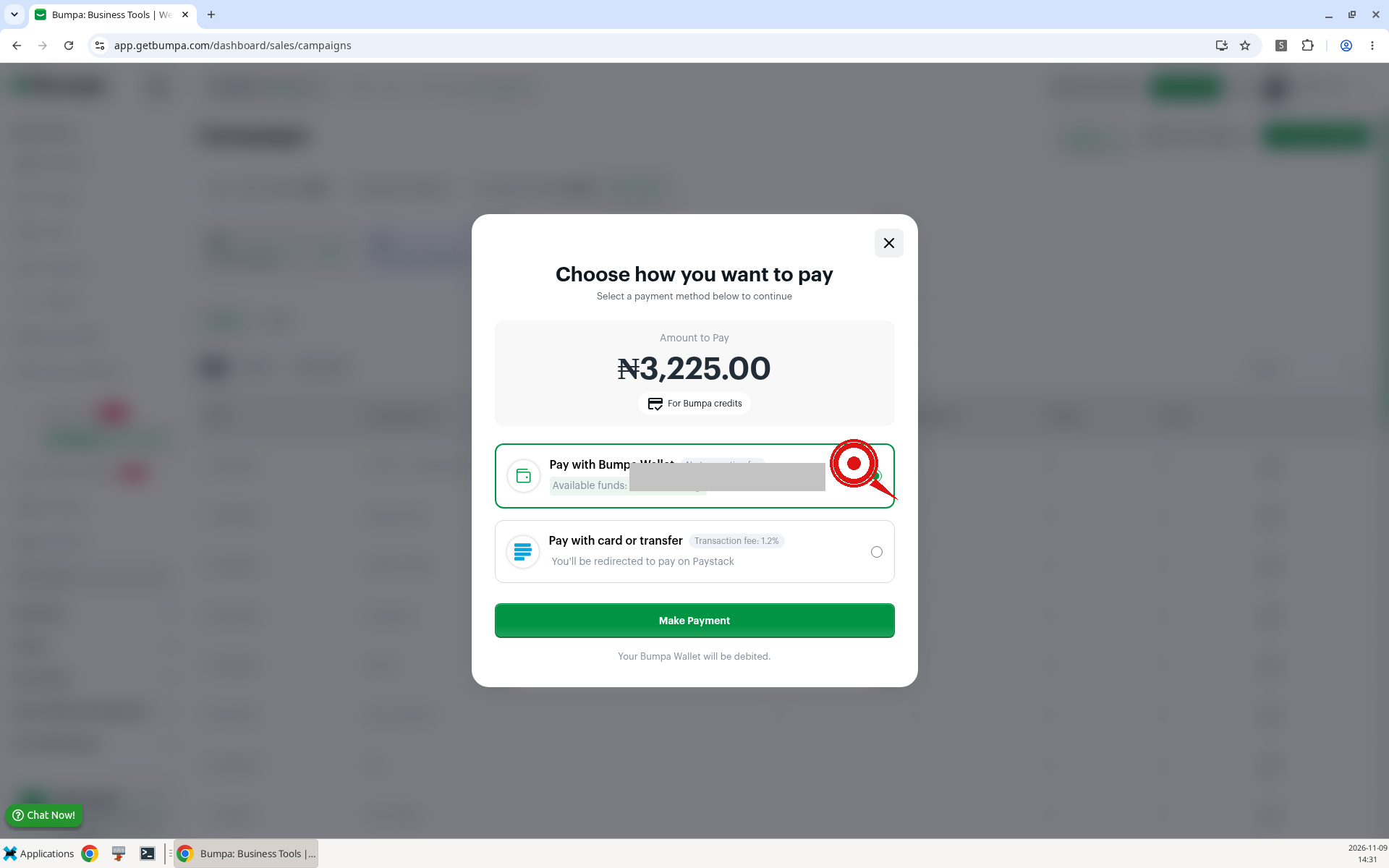
Note: Pay with Bumpa Wallet shows available funds, "No transaction fee.", and "Your Bumpa Wallet will be debited." Paystack shows a 1.2% transaction fee.
How your wallet payment works
When you click Make Payment, Bumpa checks your wallet. What happens next depends on how much money you have.
Enough money in your wallet: the payment is Successful at once. You get the service, and Bumpa takes the amount from your balance.
Pending settlements cover the amount: the payment shows as Pending, but you still get the service at once. Your available balance goes below zero until the settlement arrives. Then the payment changes to Successful.
Not enough money: Bumpa stops the payment and does not create a transaction. You see an "Insufficient funds" message and a Fund Wallet button.
Click Fund Wallet to see your Bumpa Terminal account details and the exact amount to pay. This amount covers the service, VAT and terminal charges. If you don't have a Bumpa Terminal, Bumpa sends you to pay with Paystack instead.
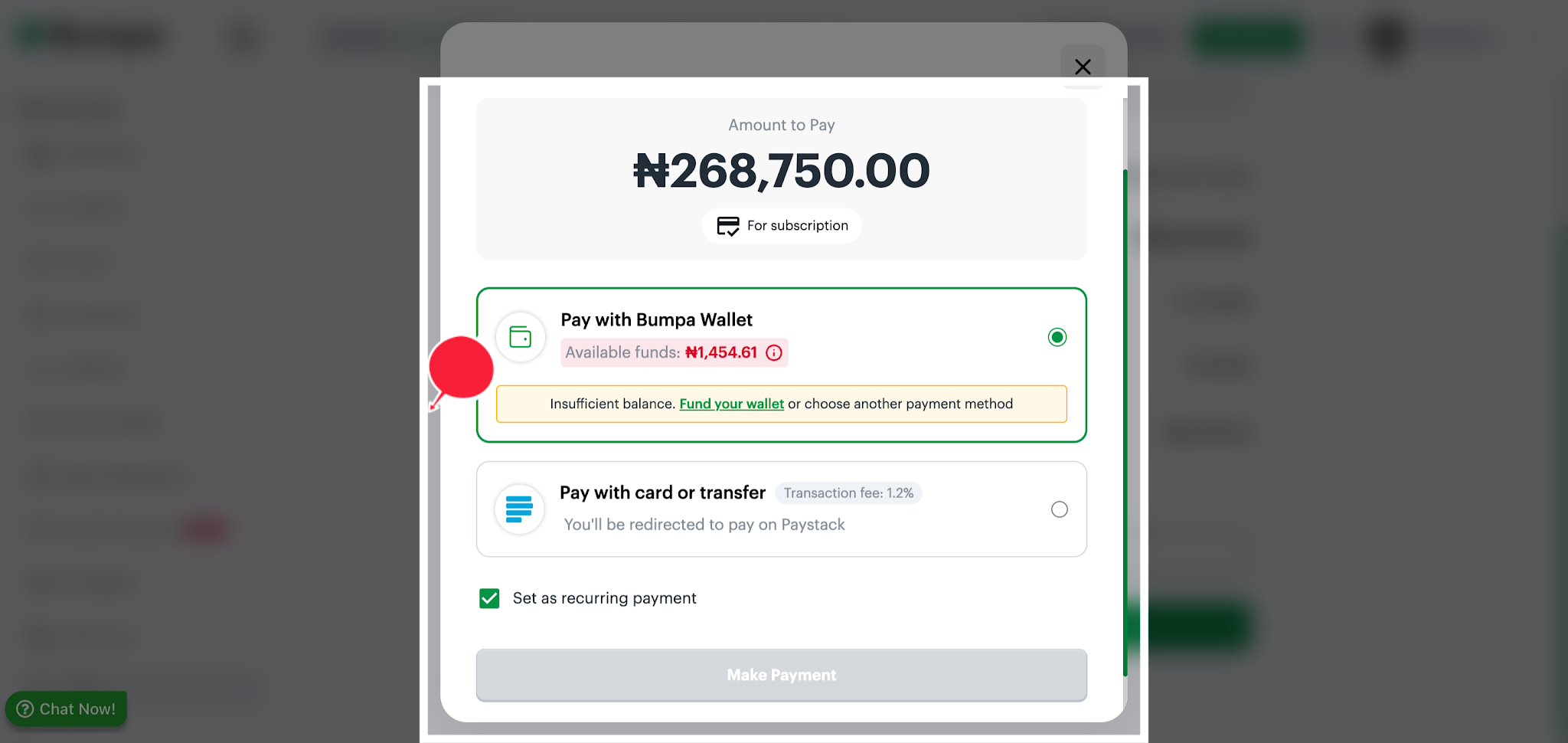
Note: When pending settlements cover a payment, your available balance can go below zero for a while. The payment changes to Successful when the settlement arrives.
Auto-renewal from your wallet
Auto-renewal pays for your next subscription period for you. You turn it on with the Set as recurring payment checkbox at subscription checkout. Untick the box to turn auto-renewal off.
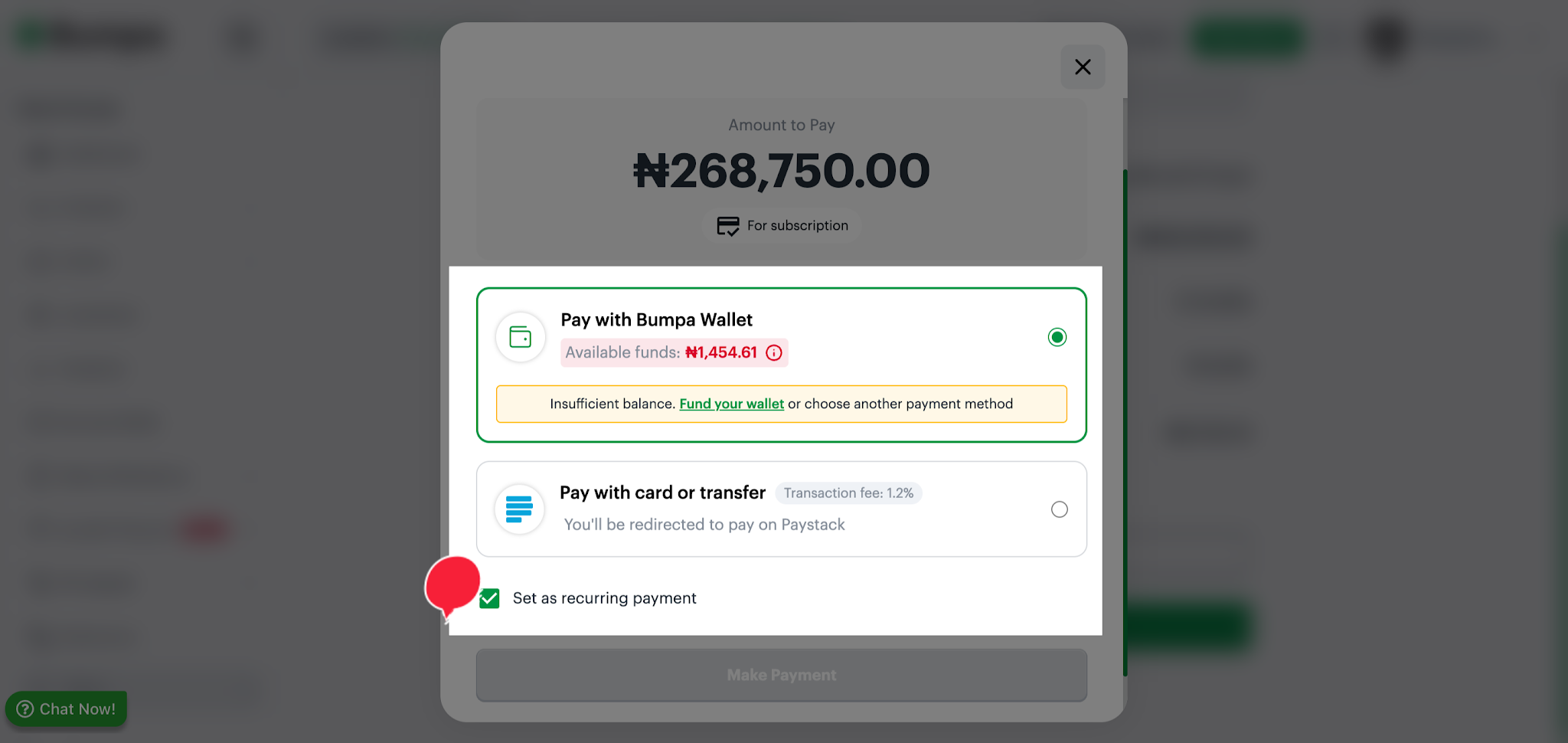
How Bumpa renews your plan depends on how you paid:
Bumpa Wallet: your plan renews from your wallet.
Paystack bank transfer: your plan renews from your Bumpa Wallet.
Paystack card: your plan renews from your card.
Bumpa shows you which renewal method you are on. Wallet auto-renewal starts only after your first successful subscription payment from your wallet.
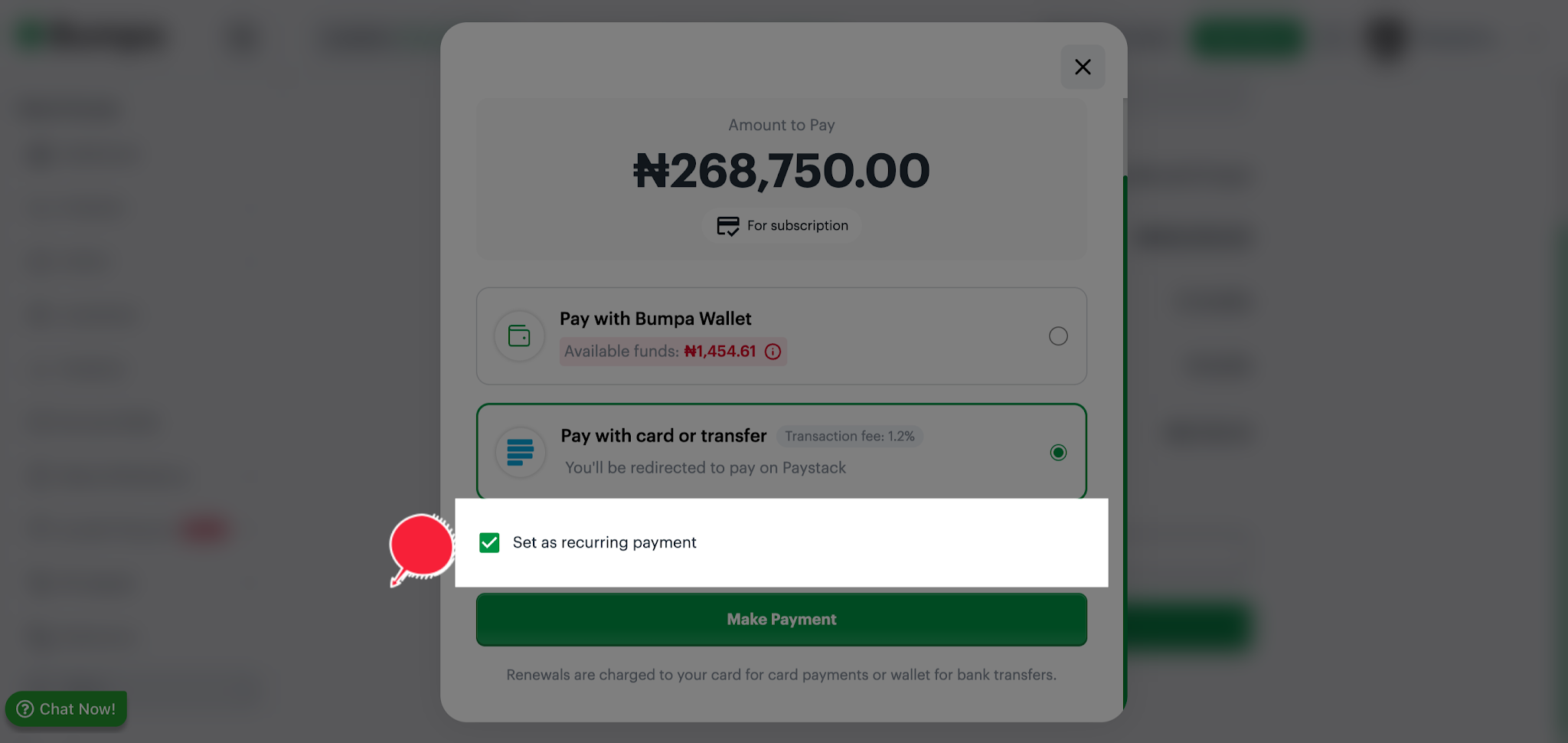
If your wallet doesn't have enough money on renewal day, Bumpa does not take a payment and does not create a transaction. It tries again once a day, up to 2 more times, and tells you each time.
Note: On the third try, Bumpa takes the full amount from your wallet even if there isn't enough money. Your balance goes below zero, and the payment shows as Pending. You don't get the service until the payment is complete.
Your wallet transaction records
Each time you pay for a Bumpa service from your wallet, Bumpa creates a transaction record. Each record shows:
Status: Pending, Successful, Failed, Cancelled or Processing.
Category: the type of service you paid for.
Initiation date and Transaction date.
Total and VAT.
Narration: a short line that says what you paid for.
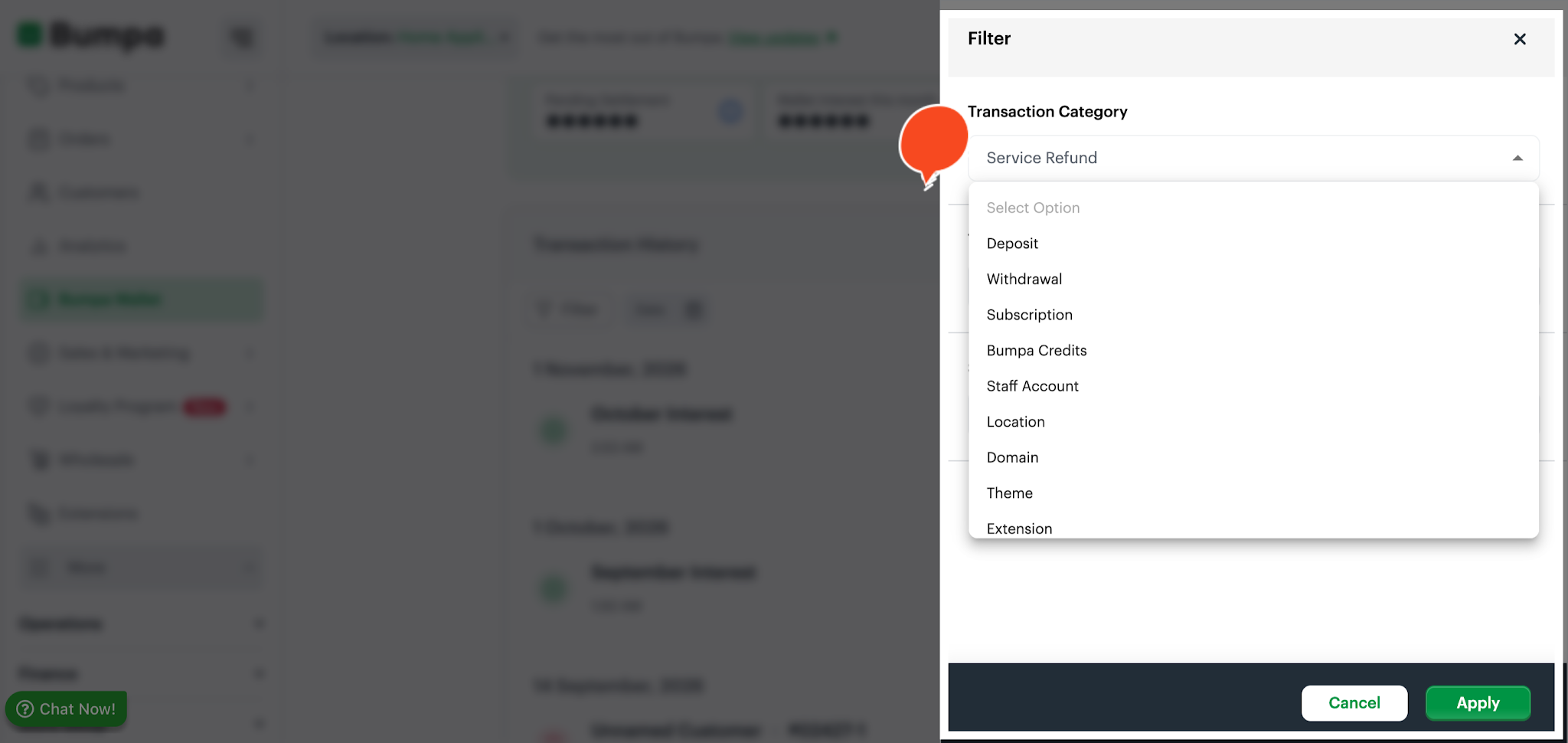
You can filter your records by these categories: Subscription, Messaging credits, Staff account, Location, Domain, Themes, Extensions, Email Template and App purchases.
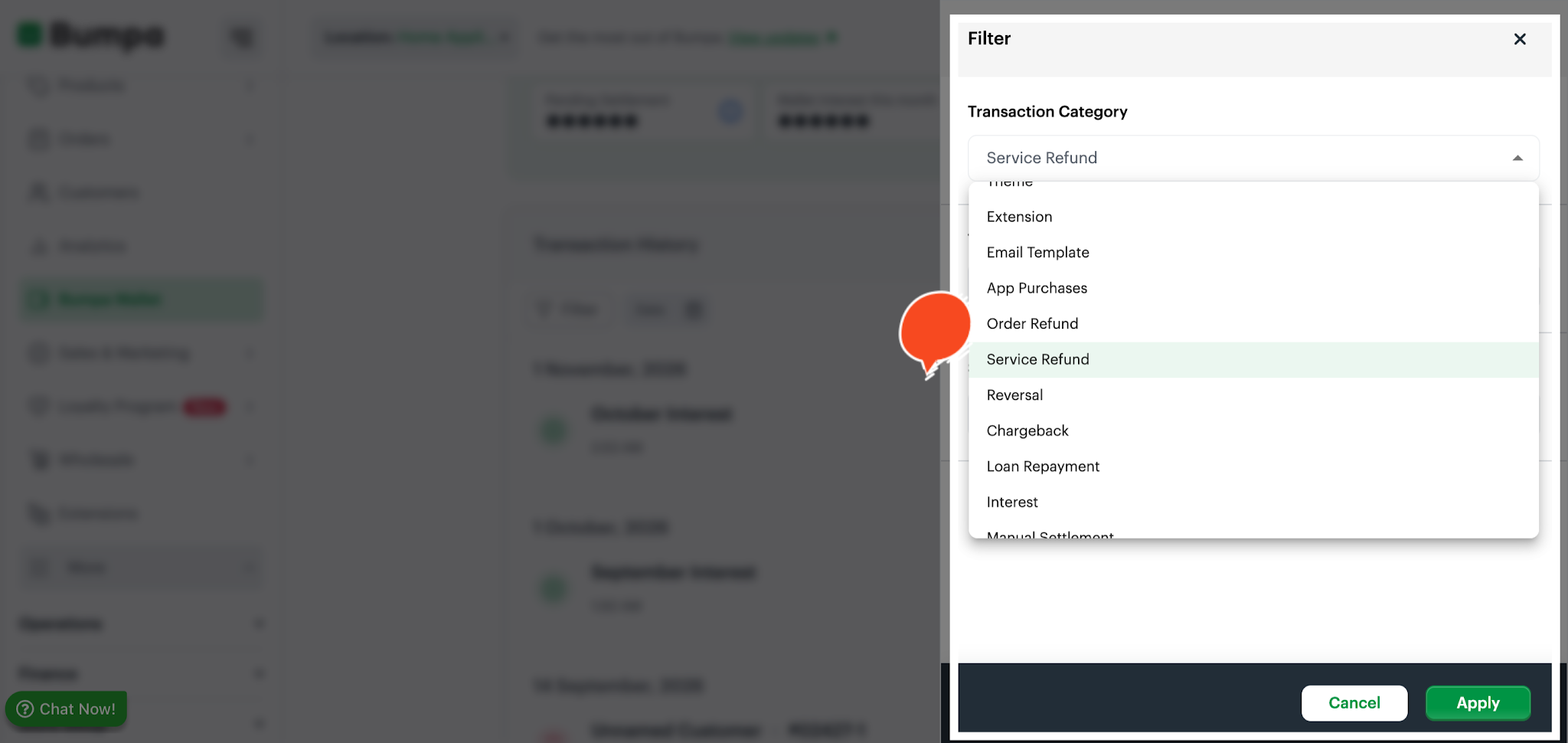
Refunds now have two categories:
Order Refund: refunds for your store orders. This category used to be called Refund.
Service Refund: money returned to you for a Bumpa service you paid for. Each Service Refund links to the original payment.
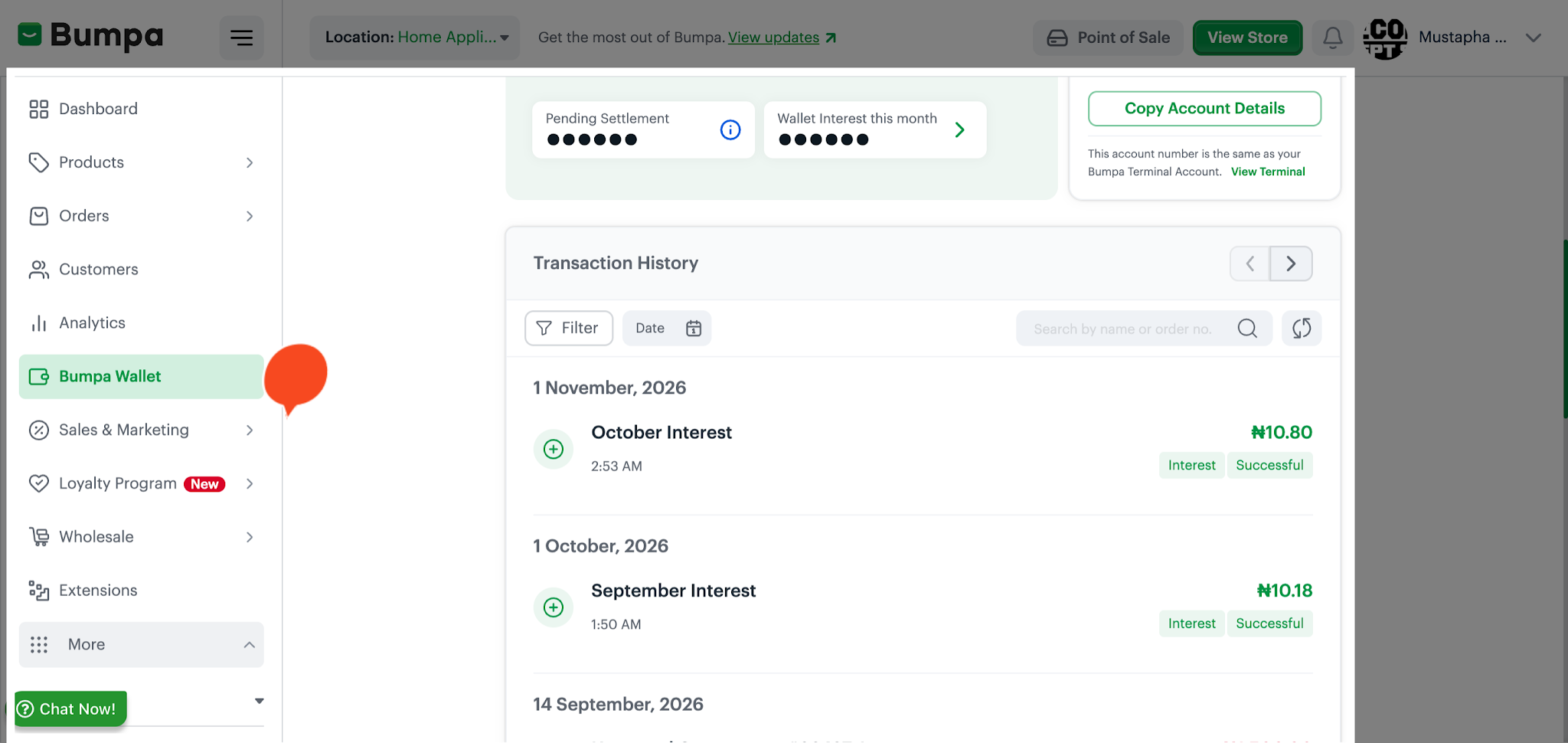
To navigate, log in to your Bumpa dashboard, navigate to Bumpa wallet, and click filter to search for a specific category
Emails and notifications
Bumpa sends you an email and a push notification for these wallet payment events:
Payment pending: shows your Bumpa Terminal account details and the amount to pay.
Payment successful: shows the reference, amount, VAT, service and narration.
Refund processed: links to the transaction details.
Pending payment cancelled: says no money was taken and gives the reason.
Payment successful emails for subscriptions, domains, email templates and Bumpa credits also say how you paid: Paystack or Bumpa Wallet.
Bumpa sends renewal reminders 30 days, 1 week, and 3 days before your plan ends. Each reminder says if the renewal will come from your Bumpa Wallet or your card. The auto-renewal message only shows if auto-renewal is on.
Note: If you were on Bumpa before this update, auto-renewal is on if you paid by card. It is off if you paid by bank transfer.

If an auto-renewal from your wallet fails, the email says your wallet did not have enough money. It shows your Bumpa Terminal account details and the amount to pay. It also says Bumpa will try again over the next few days.Related Articles:
Was this article helpful?
That’s Great!
Thank you for your feedback
Sorry! We couldn't be helpful
Thank you for your feedback
Feedback sent
We appreciate your effort and will try to fix the article