Managing a growing number of orders can get overwhelming, especially when you need to track deliveries, follow up on unpaid orders, or find a specific customer's purchase. The good news? You don't have to go through your orders one by one!
With the order filtering feature on the Bumpa Web App, you can quickly find the orders you need, keep track of payments and deliveries, and manage your daily business operations more efficiently
How to Access Your Orders
Visit app.getbumpa.com and log in to your account
From your dashboard, click on Orders
On the orders page, you'll find several filter options to help you narrow down your search
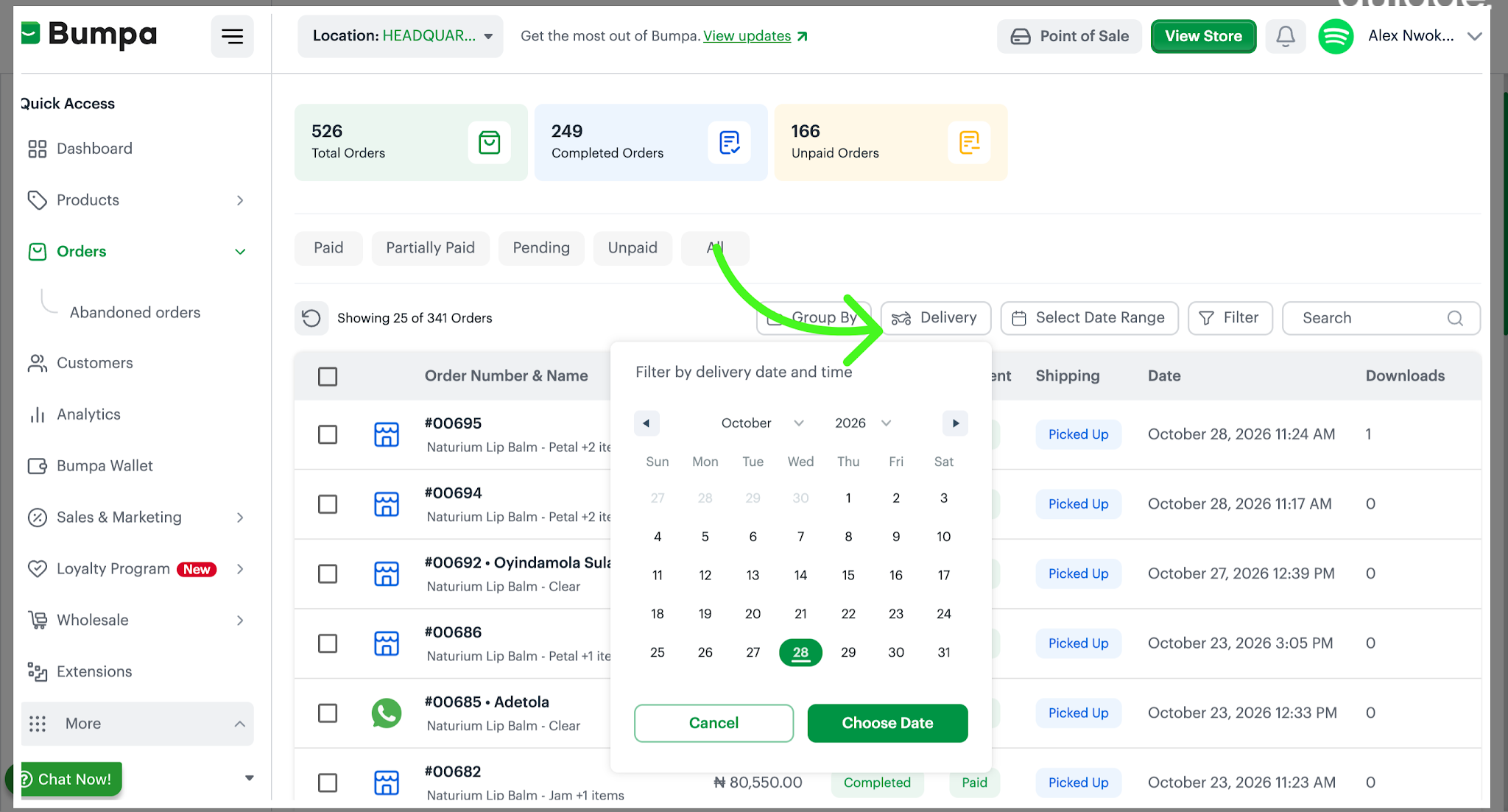
Use the Delivery filter to find orders based on their scheduled delivery dates. This makes it easier to plan deliveries and keep track of upcoming orders.
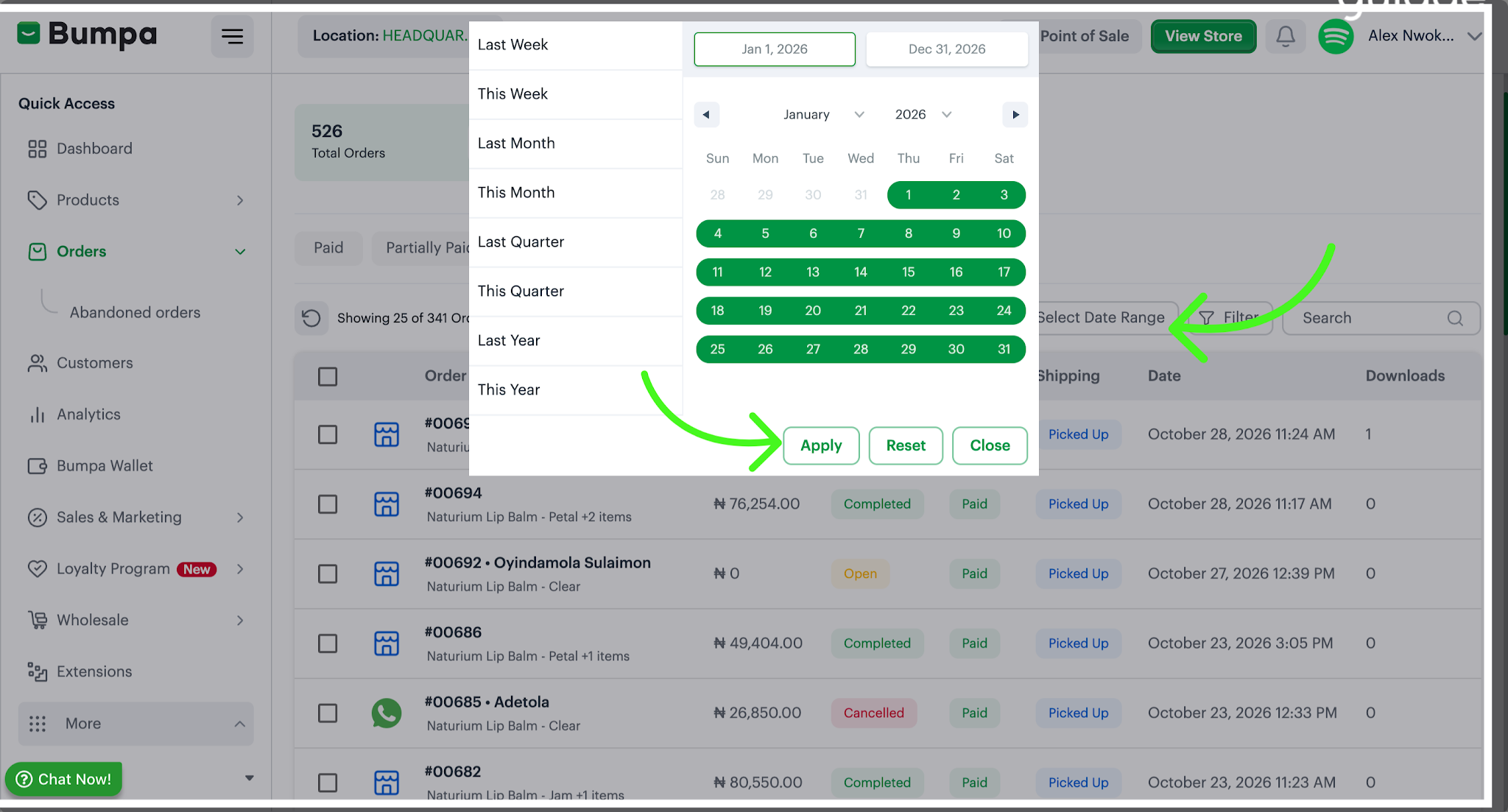
Utilize the "Select date range" filter to view orders created within a specific period. Select your preferred dates from the calendar to see the relevant orders.
Filter by Staff, Product, and More - NEW!
You can now filter orders by Staff, Product Search, Tracking ID, and other criteria, making it easier to find specific orders without scrolling through the entire list.
See the options below for how each filter works:
Looking for orders that contain a particular product? Enter the product name in the Product Search field and apply the filter to find the relevant orders.
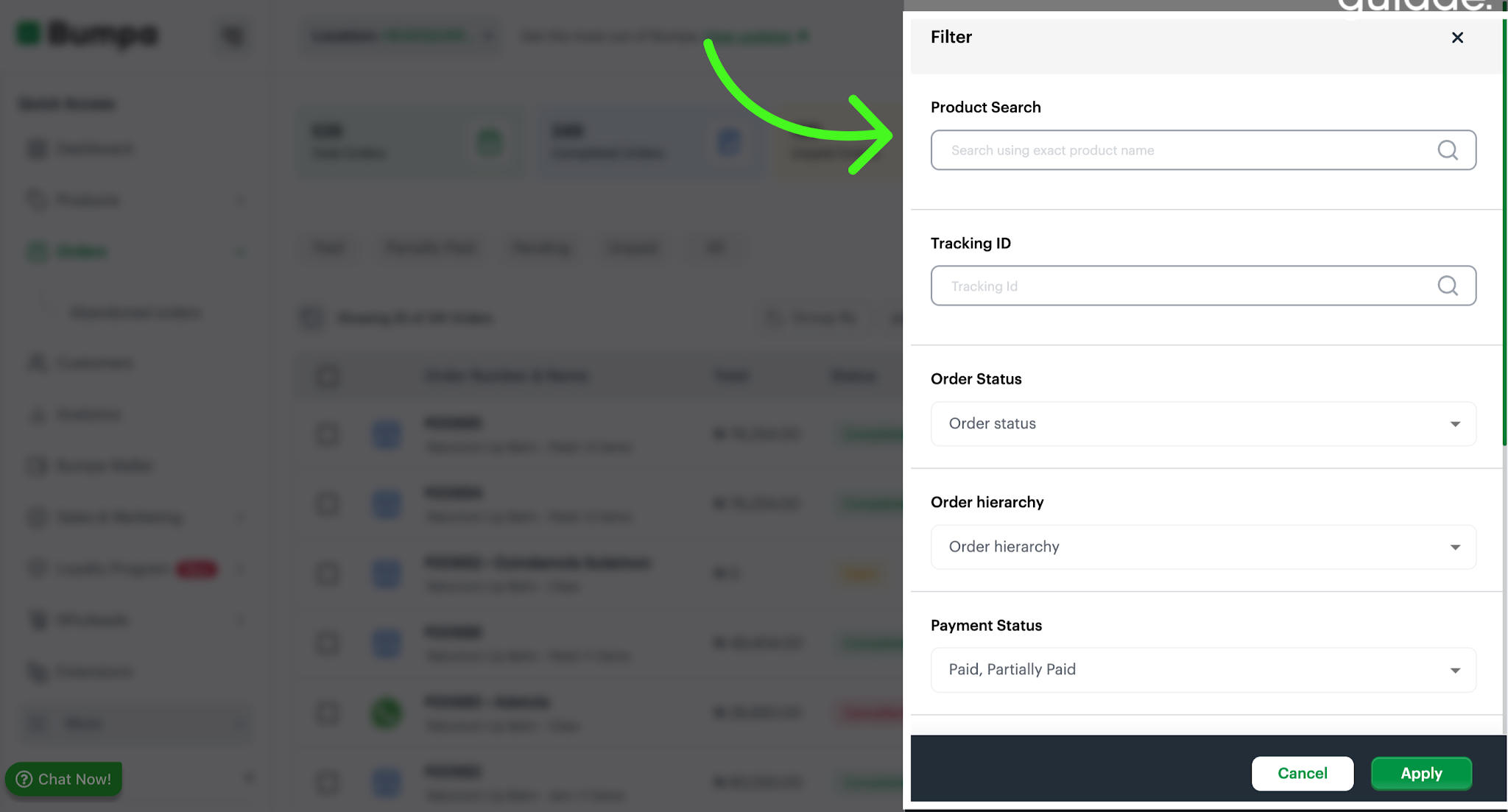
This is useful when you want to track purchases of a specific product, especially during promotions or when managing a popular item.
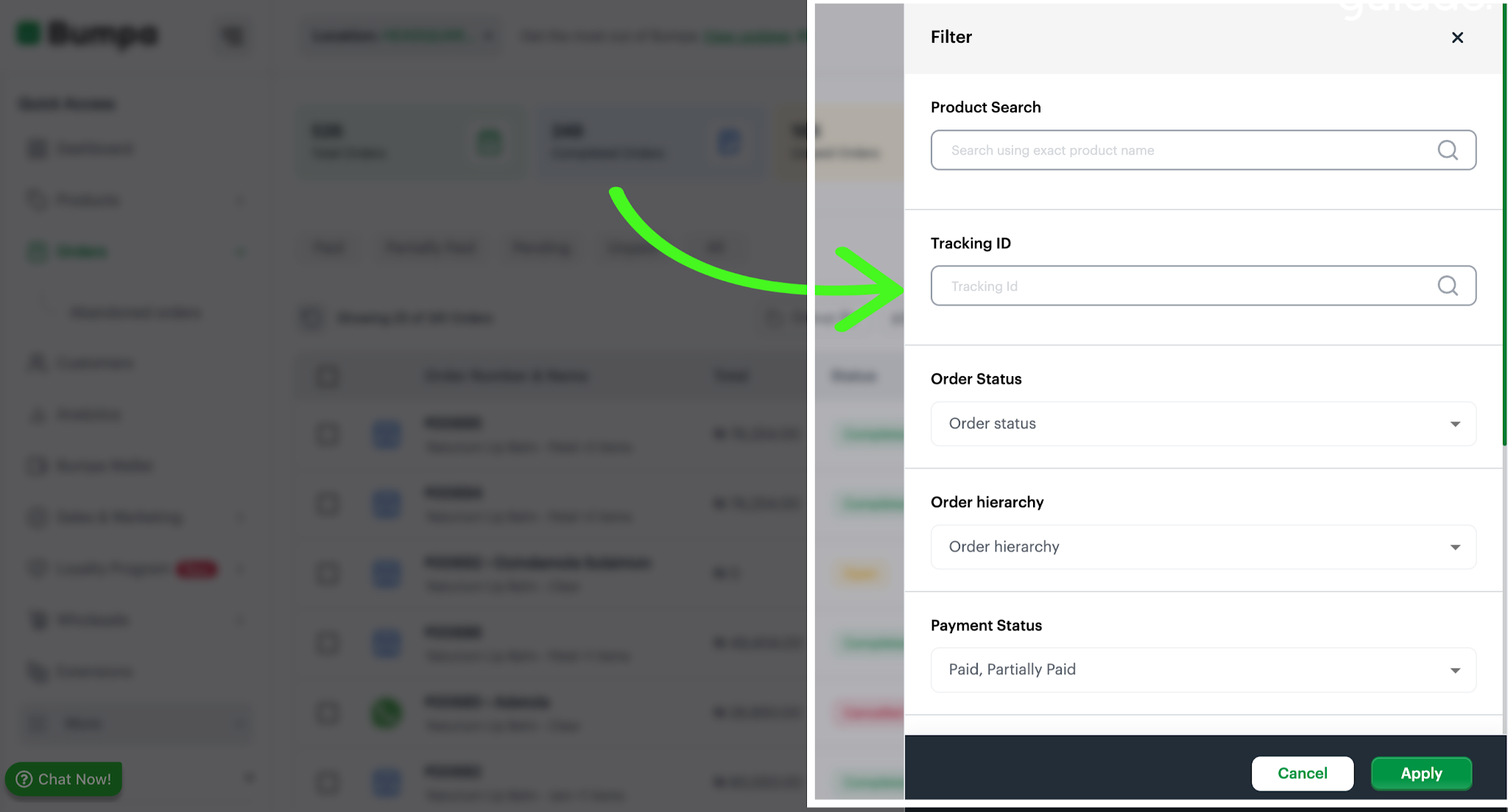
To filter by tracking id, search for the order by entering its unique "Tracking ID" This is especially helpful for resolving customer inquiries quickly or tracking specific orders.
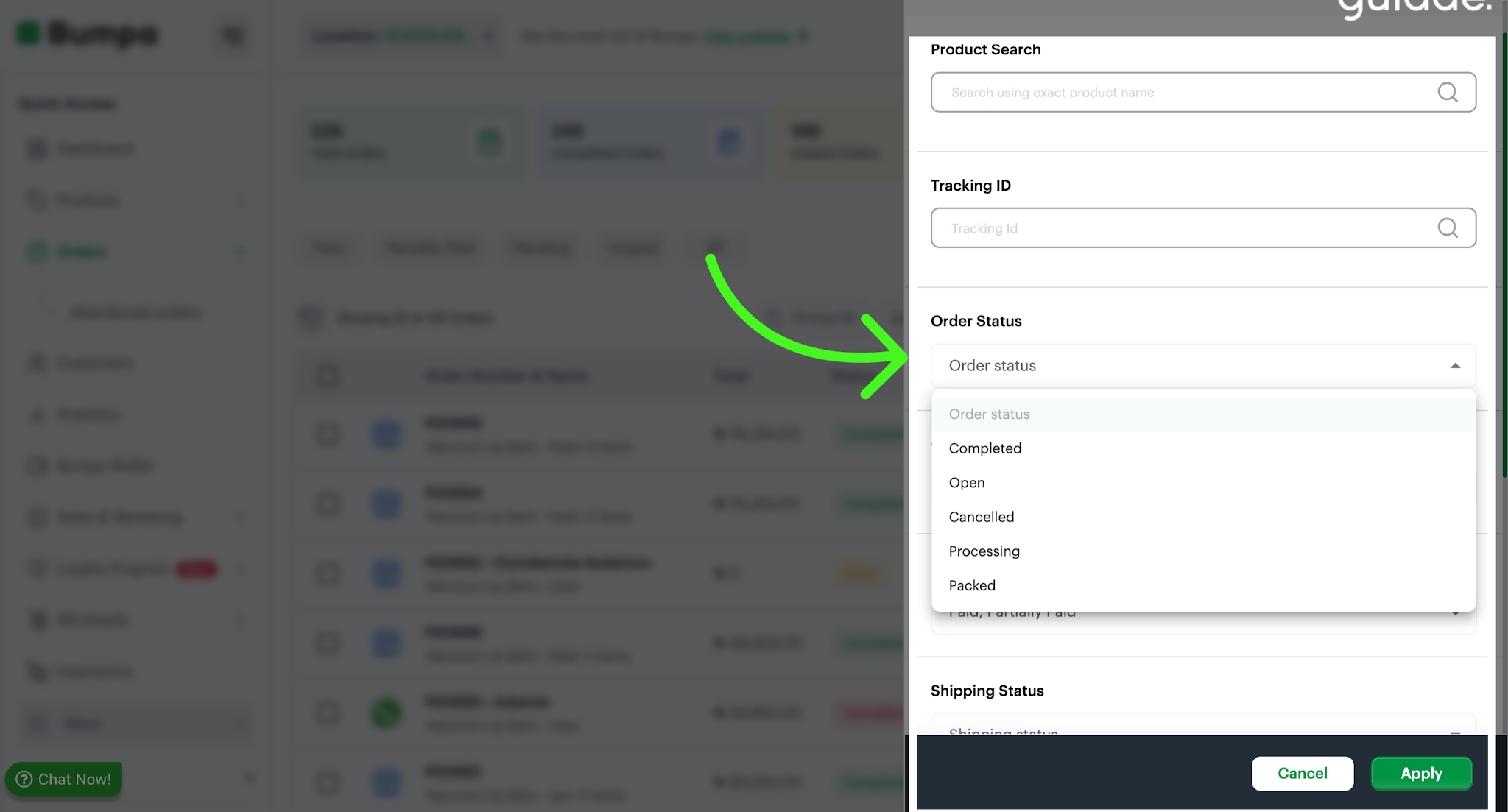
Utilize the "Order Status" filter to categorize orders based on their current status (e.g., pending, processing, completed).
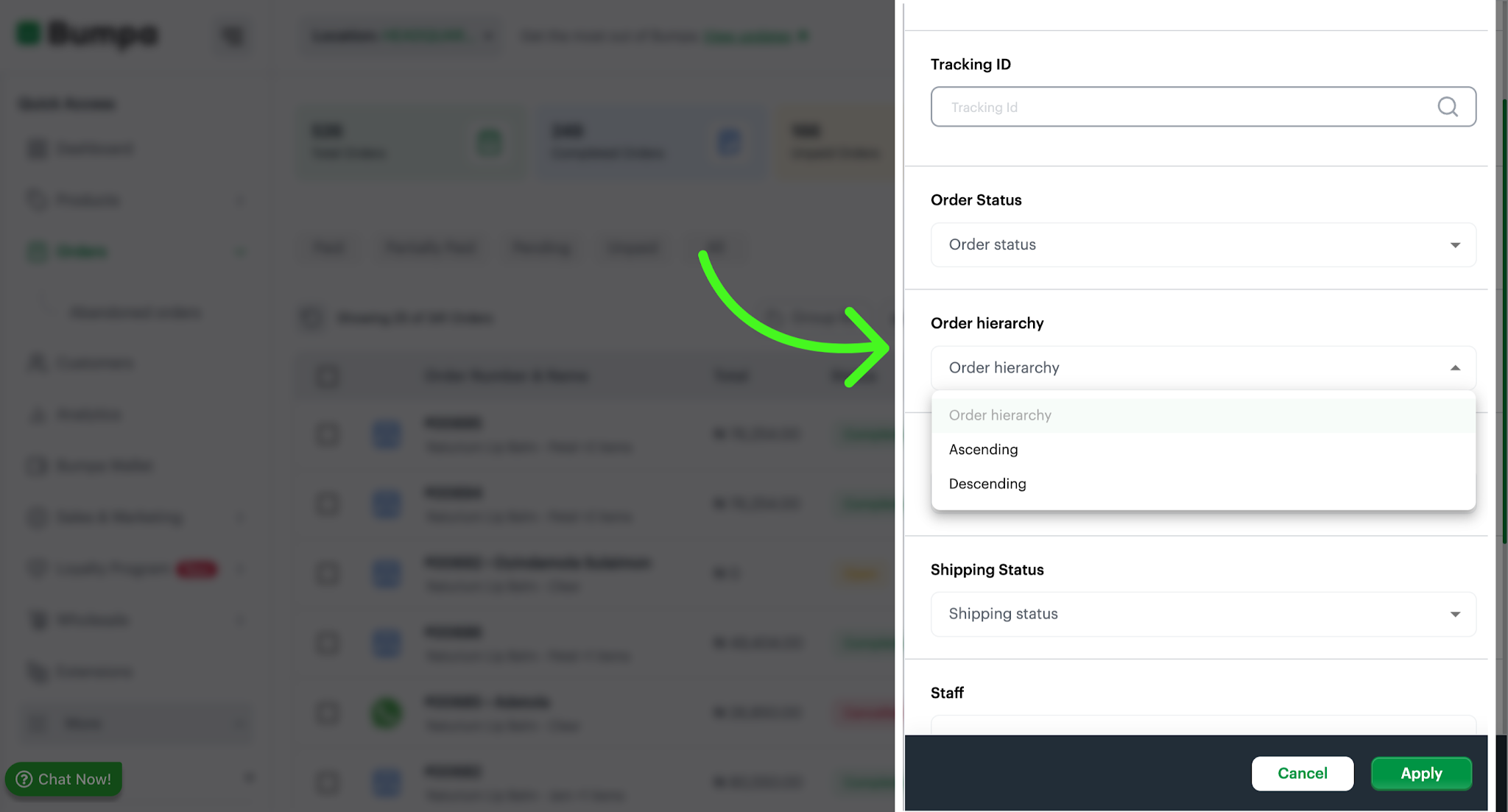
Use the Order Hierarchy option to filter based on the hierarchical display preferences for orders.
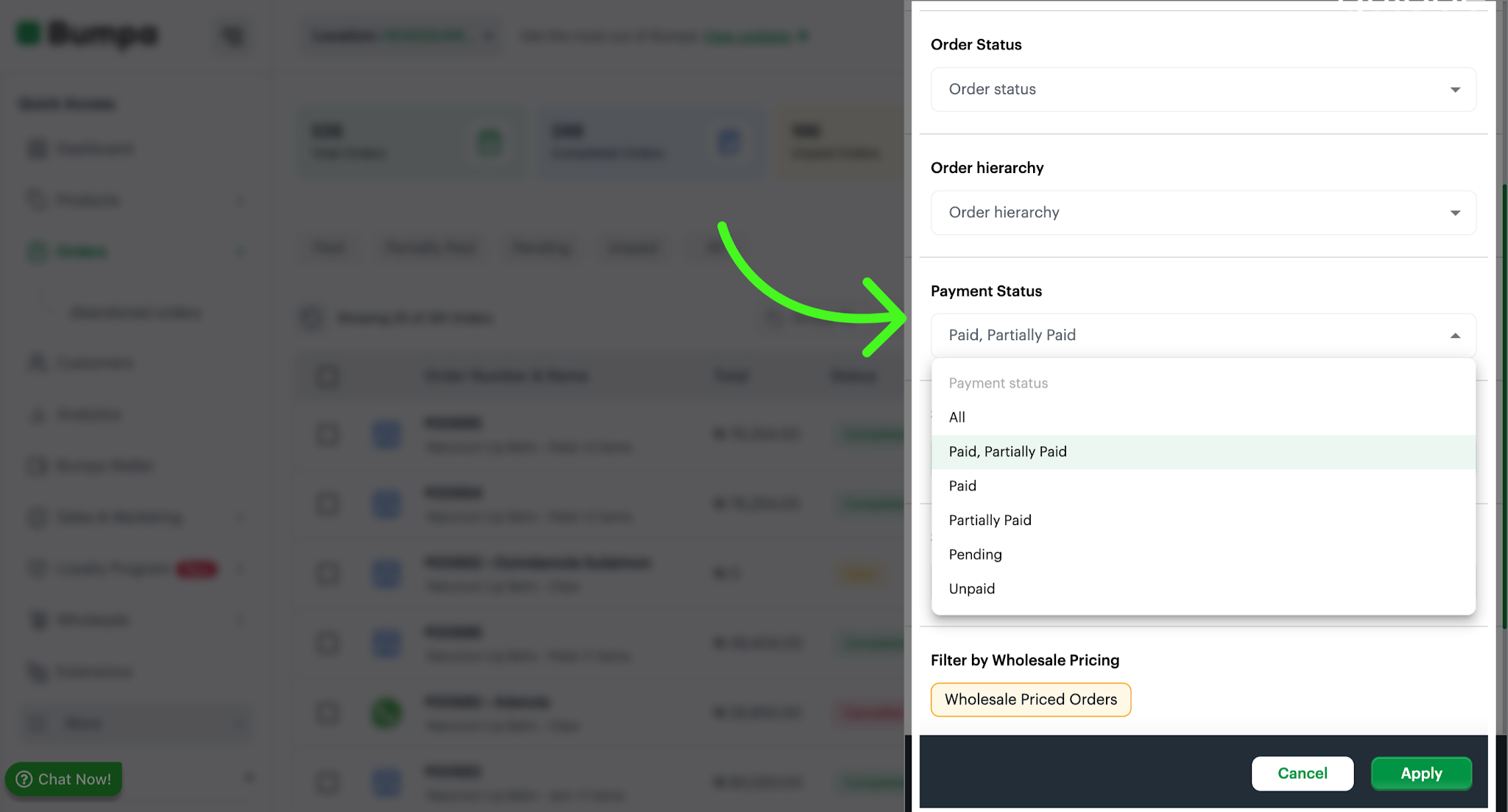
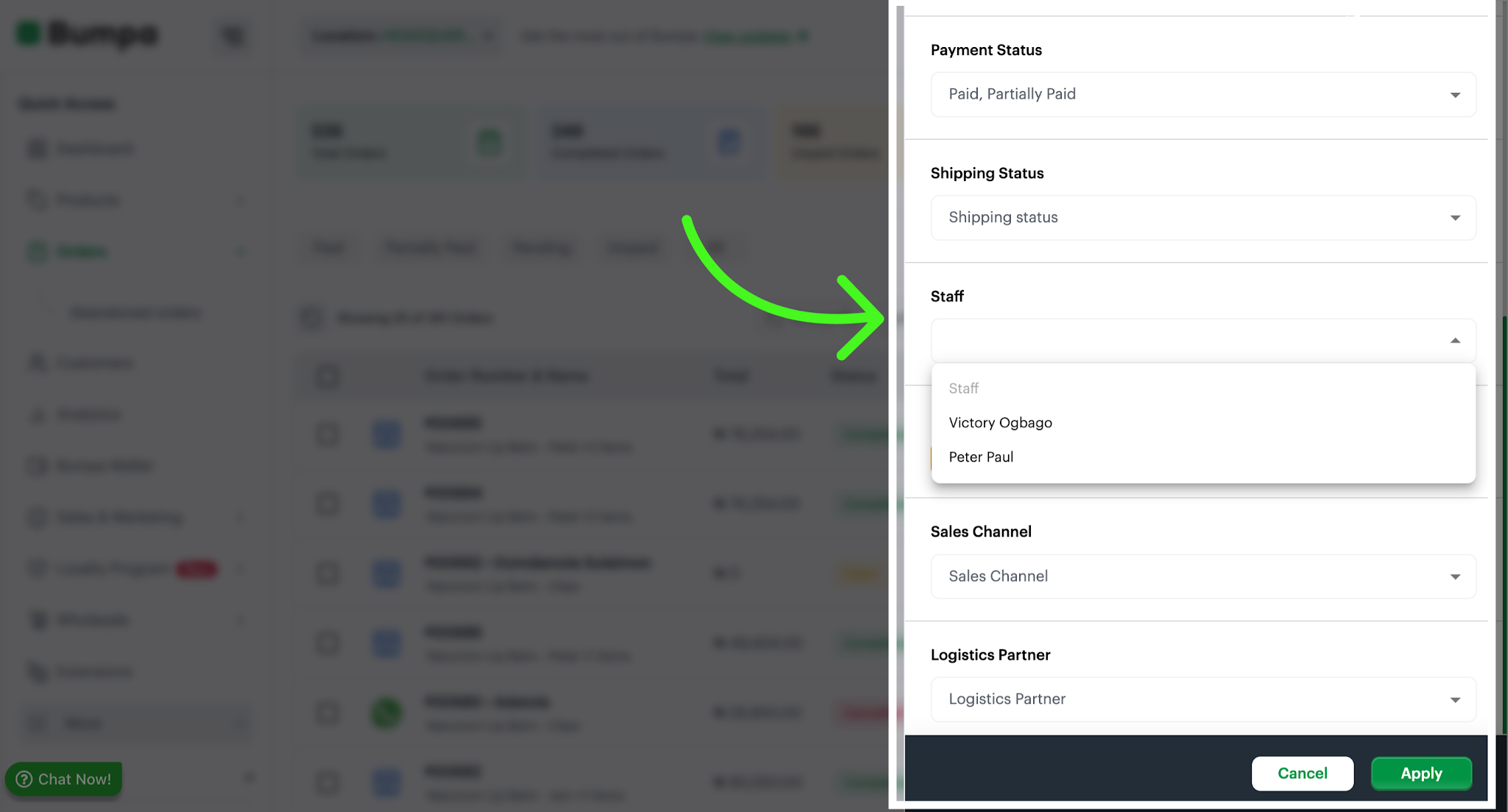
The "Payment Status" filter helps you identify orders with different payment statuses (e.g., paid, unpaid, pending).
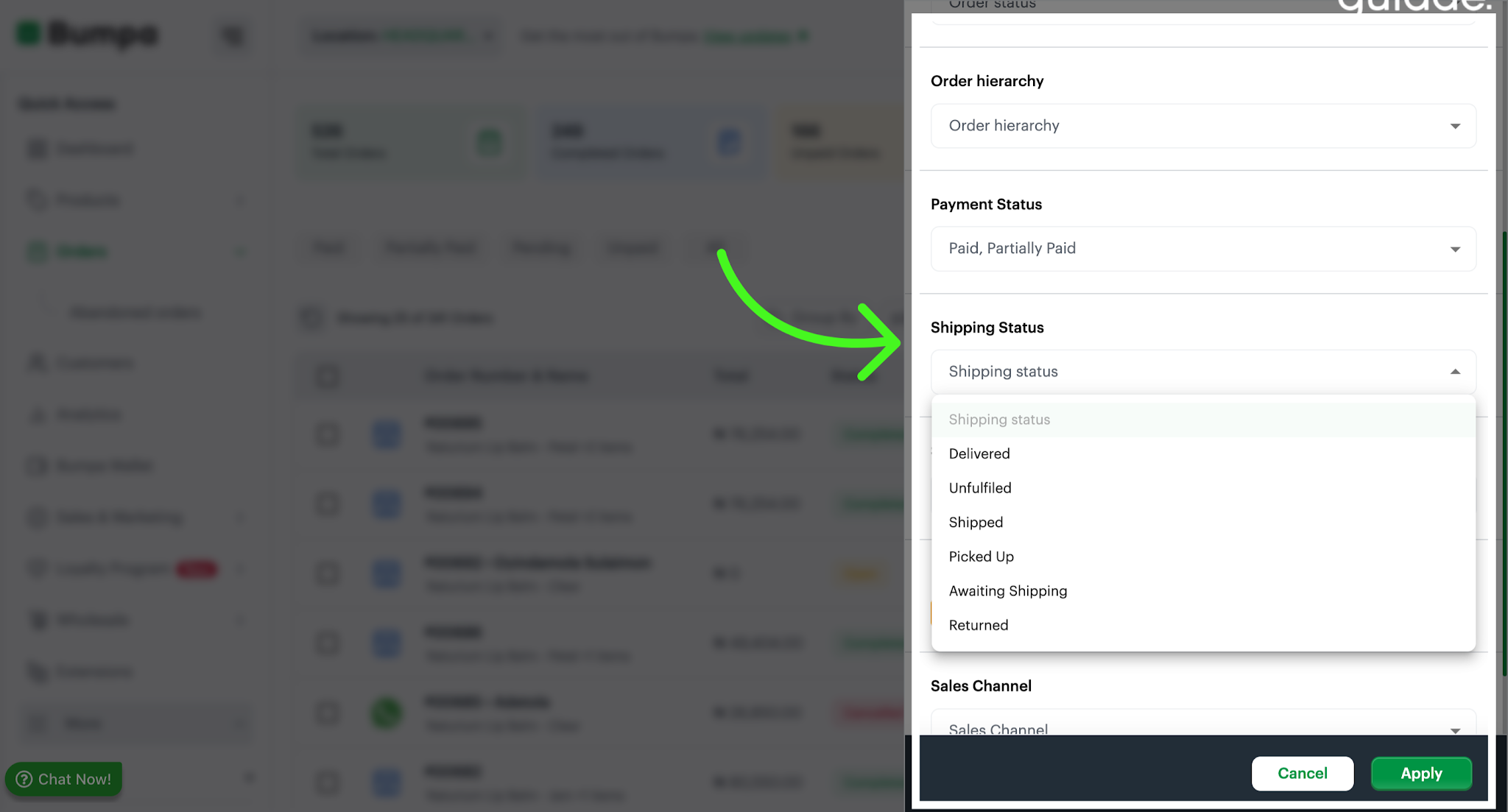
The "Shipping Status" filter enables you to sort orders based on their shipping progress (e.g., awaiting shipping shipped, delivered).
The Staff option allows you filter Orders by the staff member that created the order
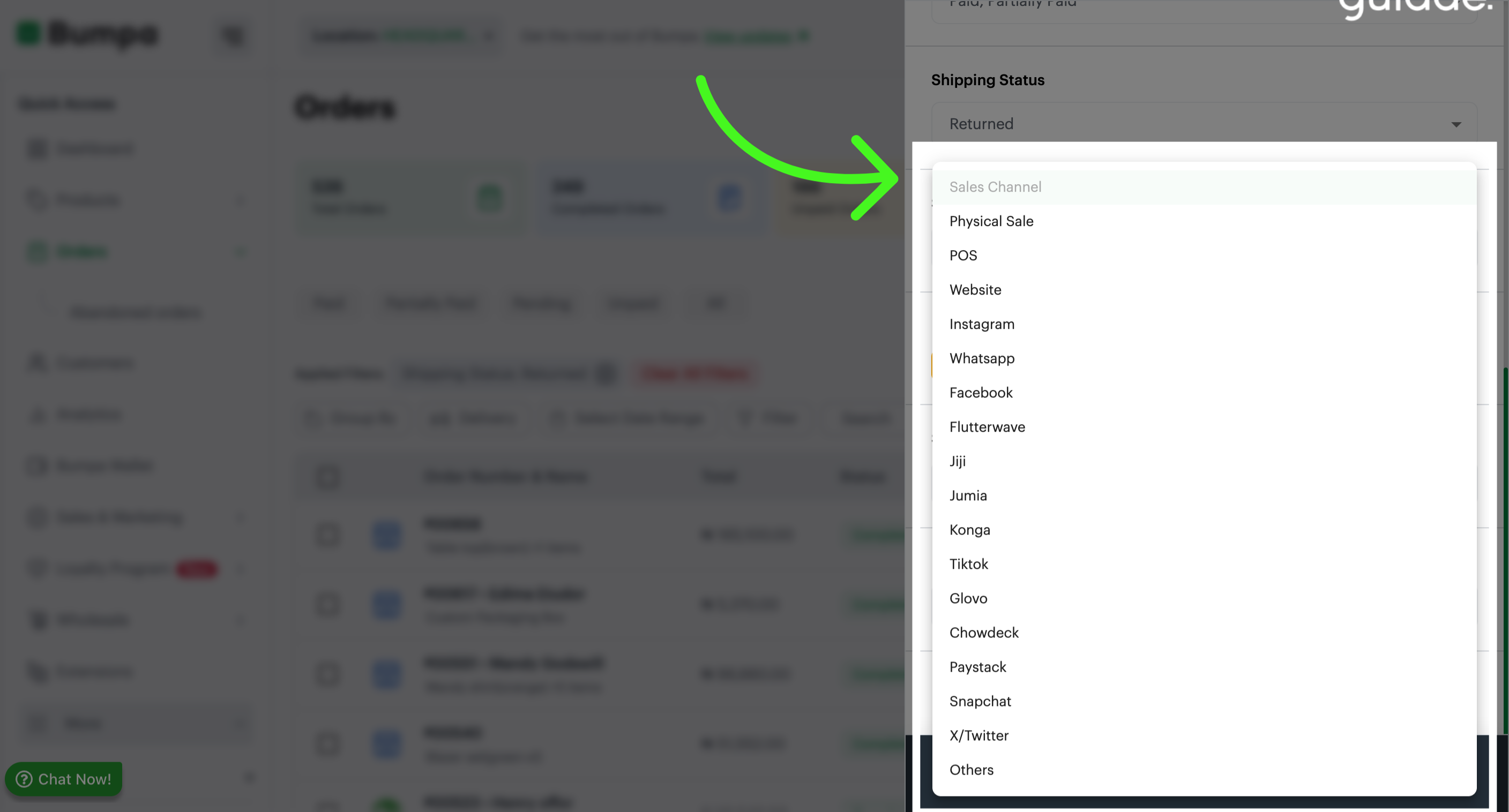
To view orders from a specific sales channel, use the "Sales Channels" filter.
Viewing the Shipping Type of an Order
You can identify the type of shipping used for an order directly from the order list.
Here's how:
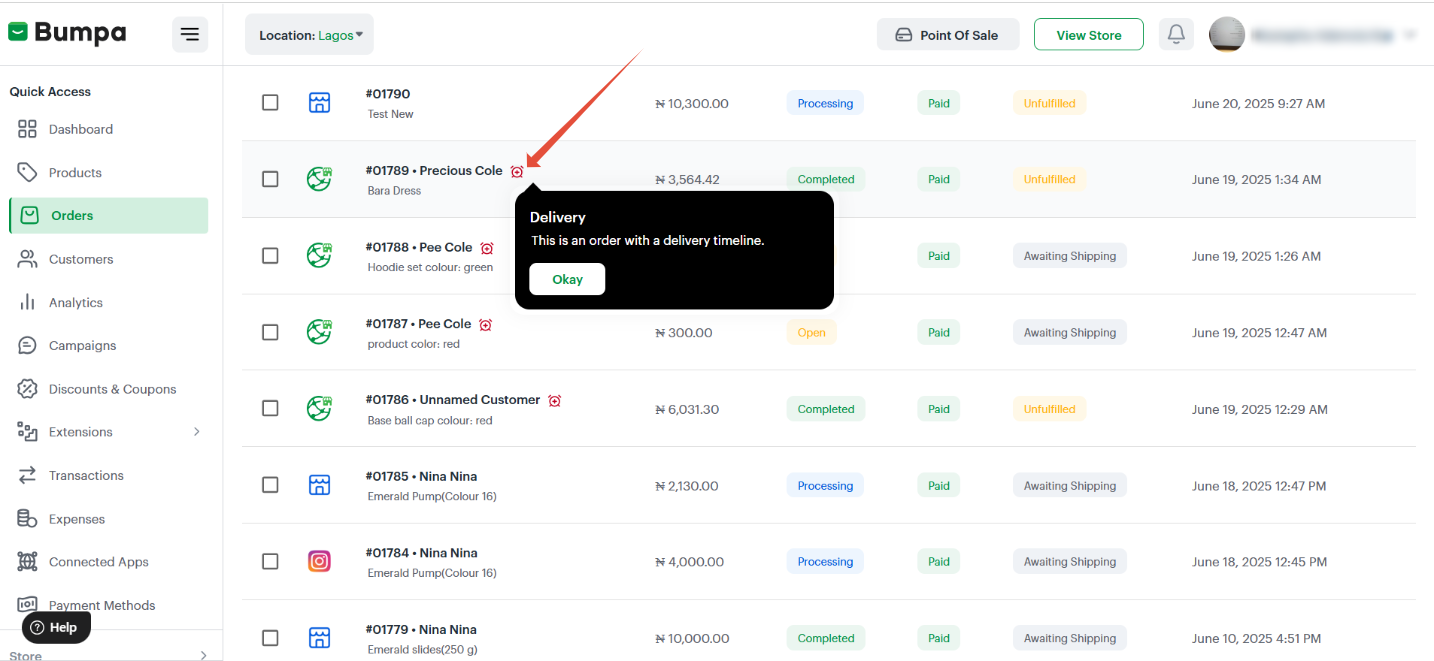
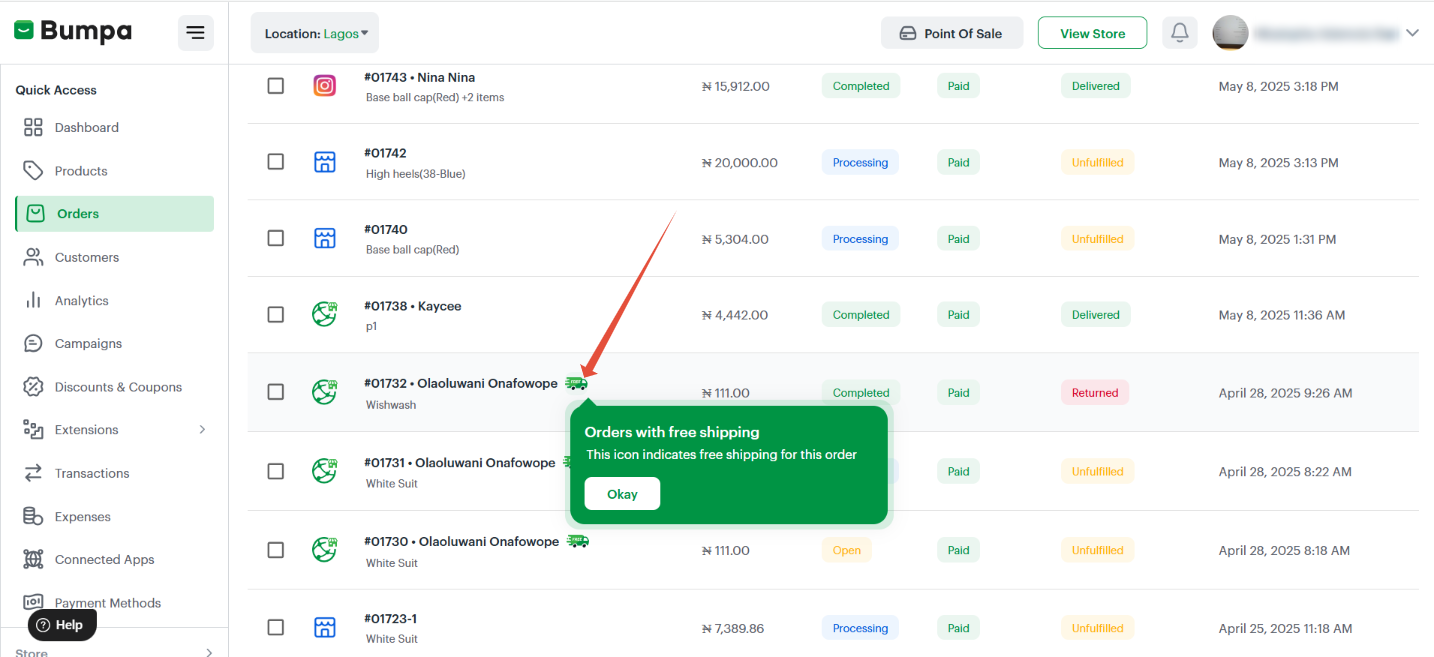
Tiny icons are displayed beside each order ID and customer name:
Delivery Timeline Icon – indicates the order has a set delivery schedule.
Free Shipping Truck Icon – shows that this order qualifies for free shipping.
Pick up Icon - indicates that this order would be picked up by the customer.
Hovering over these icons provides tooltips with more details:
Tips for Using Order Filters Effectively
- Use multiple filters together to narrow down your results. For example: Paid + Shipped.
- Use the date filter at the end of the week or month to see how your store is performing.
- Quickly spot unpaid or partially paid orders to follow up with customers.
Filtering orders provides several benefits such as:
Efficient order fulfillment: By filtering orders based on date range, you can focus on fulfilling orders from a specific period, ensuring timely delivery and customer satisfaction.
Tracking unpaid orders: The ability to filter by payment status allows you to identify unpaid orders quickly, enabling you to follow up with customers and resolve payment issues.
Streamlining operations: Filtering orders by various criteria helps you streamline your business operations by focusing on specific subsets of orders and optimizing your workflow.
Resolving customer inquiries: With filtered orders, you can easily locate and retrieve information for addressing customer inquiries or updating their specific orders.
By leveraging the filtering capabilities in the Bumpa web App, you can effectively manage your orders, enhance customer satisfaction, and streamline your business processes.
Related Articles:
Was this article helpful?
That’s Great!
Thank you for your feedback
Sorry! We couldn't be helpful
Thank you for your feedback
Feedback sent
We appreciate your effort and will try to fix the article