The Notifications feature on Bumpa has been improved to make it easier for merchants and staff to stay updated, organized, and in control. You’ll now receive clearer, more relevant notifications—so you’re not distracted by unnecessary updates.
The notifications page has also been redesigned to be easier to use. Notifications are now better organized, easier to filter, and you can even turn on sound alerts for paid orders. There are also more settings available, so you can choose which notifications you, your staff, and your customers receive.
These updates are especially helpful if you manage multiple store locations (for Growth, Scale, and Premium users). Notifications are also location-based, so you can quickly see where an activity is happening and only receive updates for the locations you’re assigned to.
In this article, you will learn how to manage notifications for orders, customers, accounts, and staff to stay informed about your business activities.
To set up your notifications,
- Access your dashboard on getbumpa.com
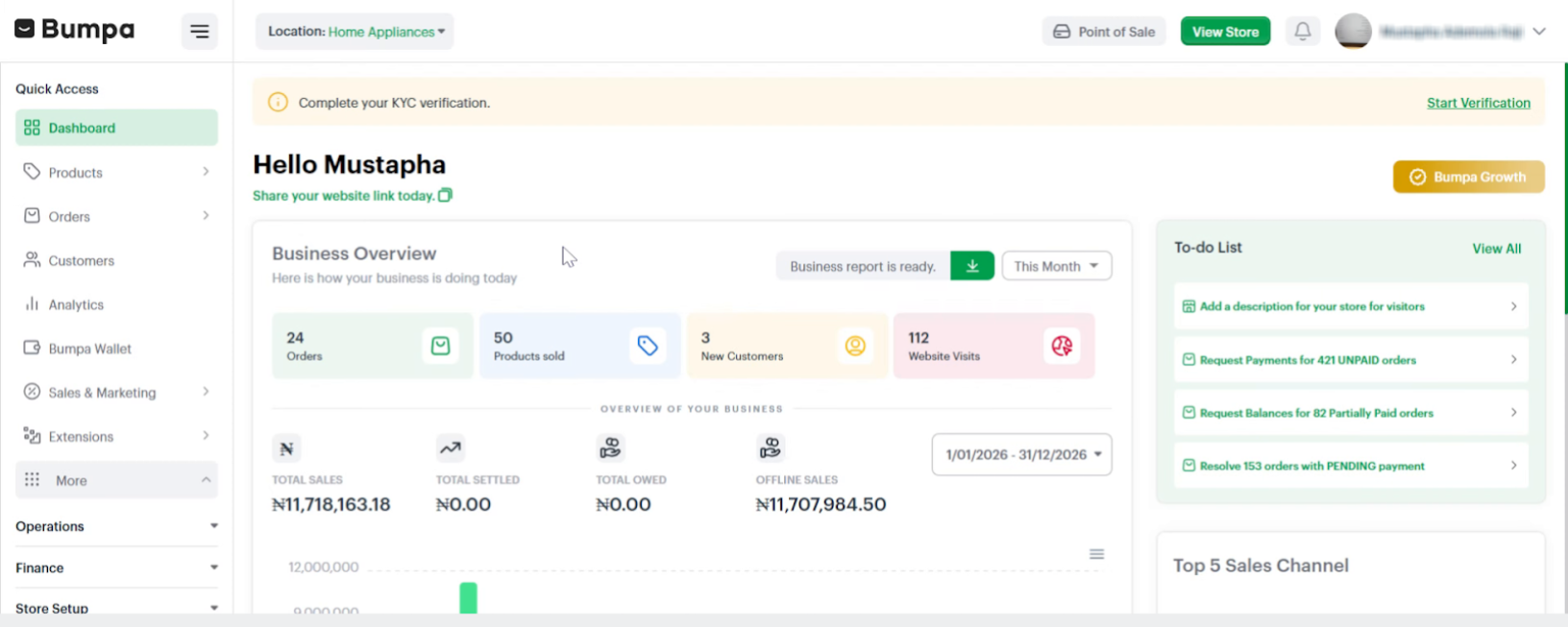
- Access Notification Settings
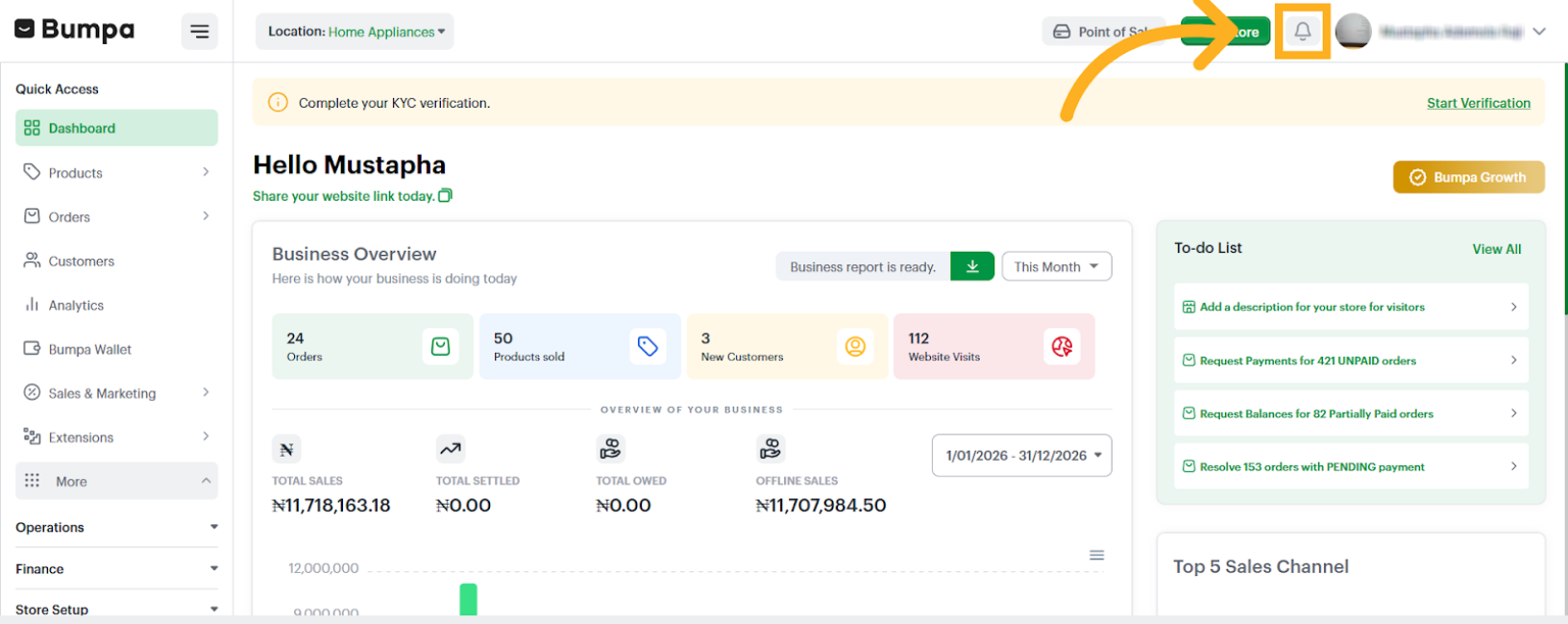
- Click on the Notification Settings
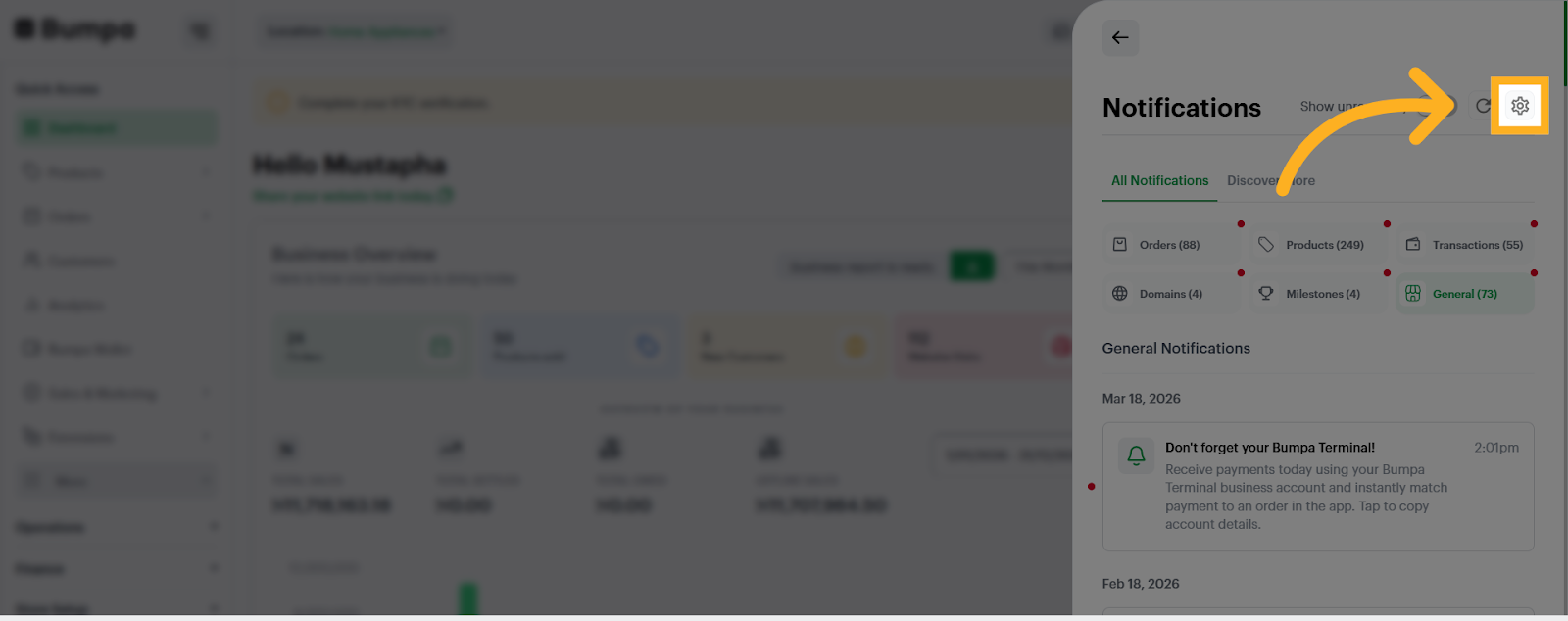
Customer Notifications
- Click "Customer notifications" to manage notifications sent directly to your customers.
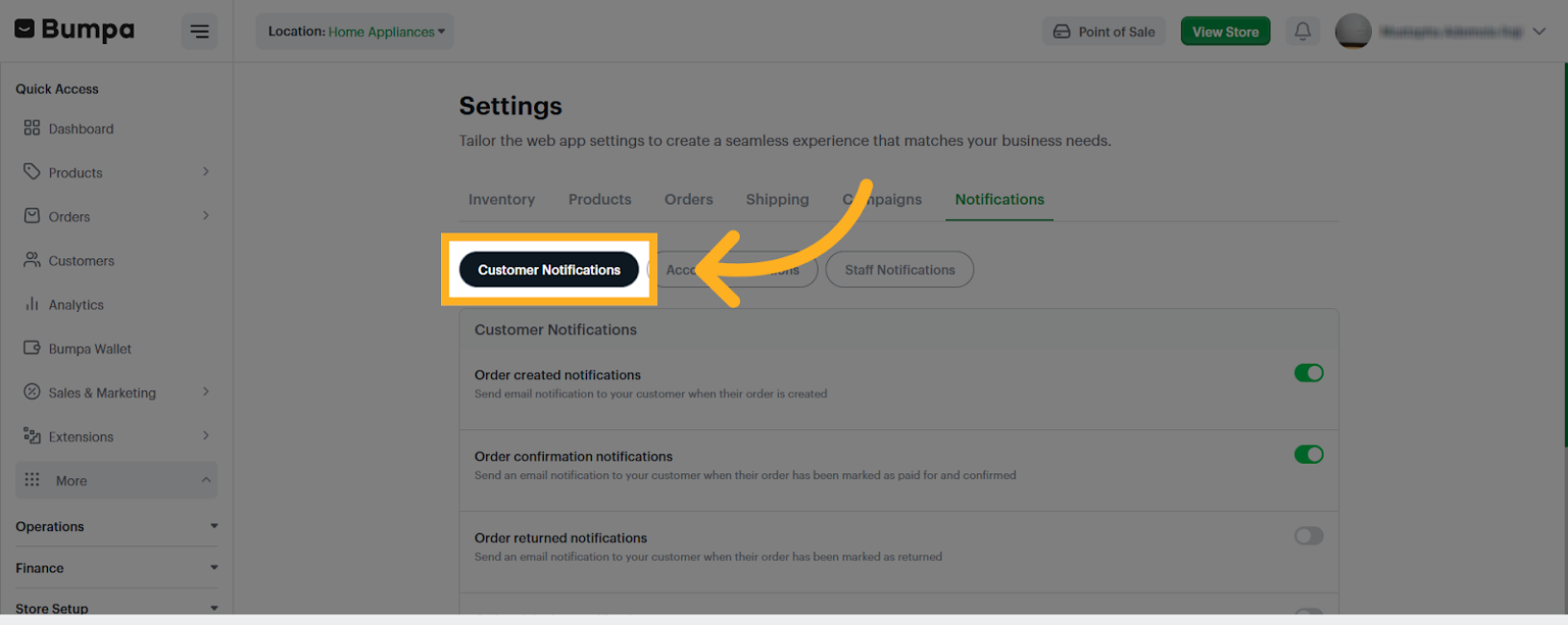
- Toggle on Order Created Notifications to send email notification to your customer when their order is created
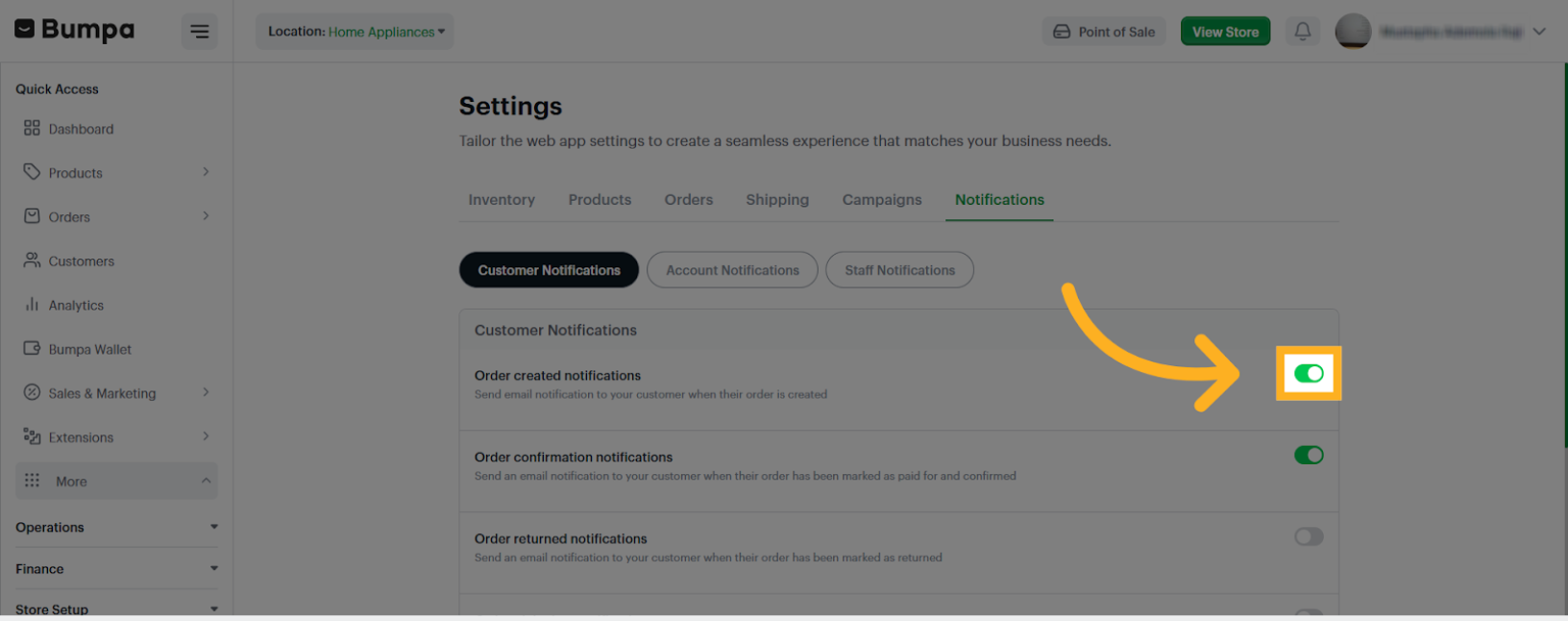
- Toggle on Order Confirmation Notifications to send email notification to your customer when their order is confirmed
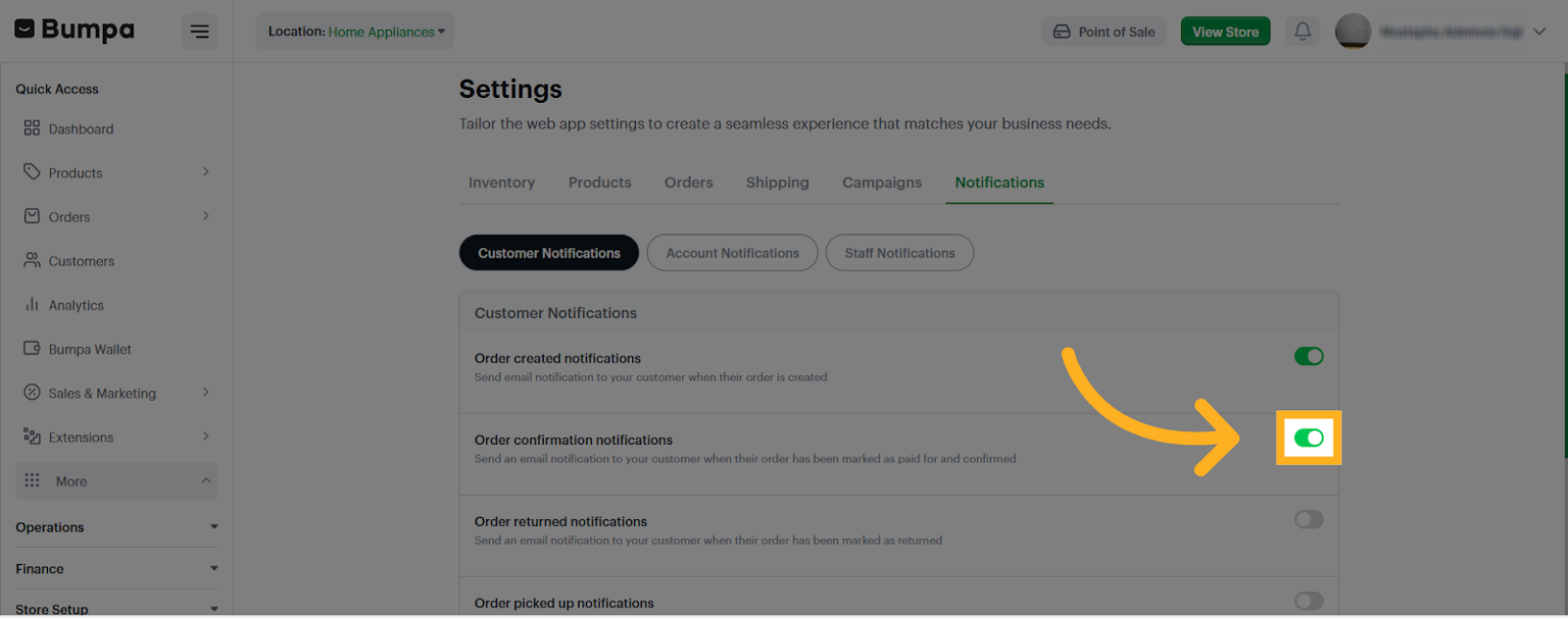
- Toggle on Order Returned Notifications to send email notification to your customer when their order is returned
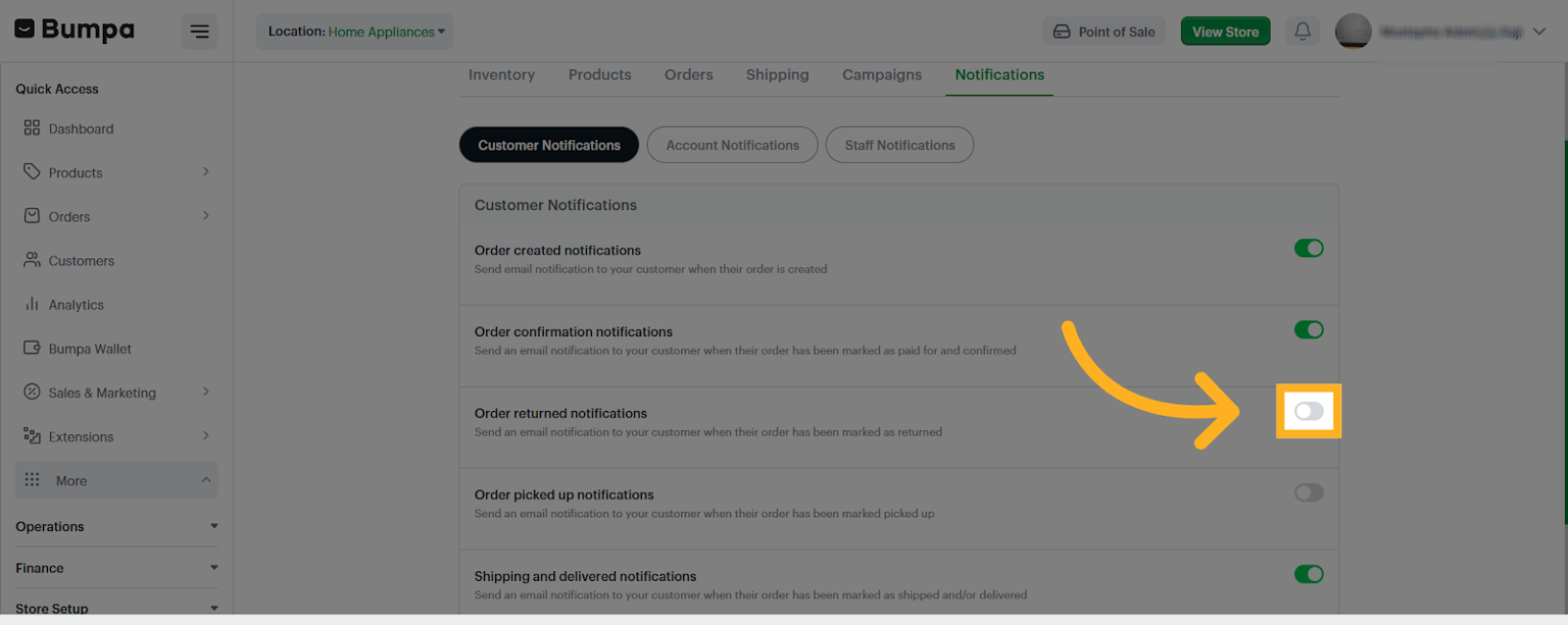
- Toggle on Order Picked Up Notification to send email notification to your customer when their order is picked up
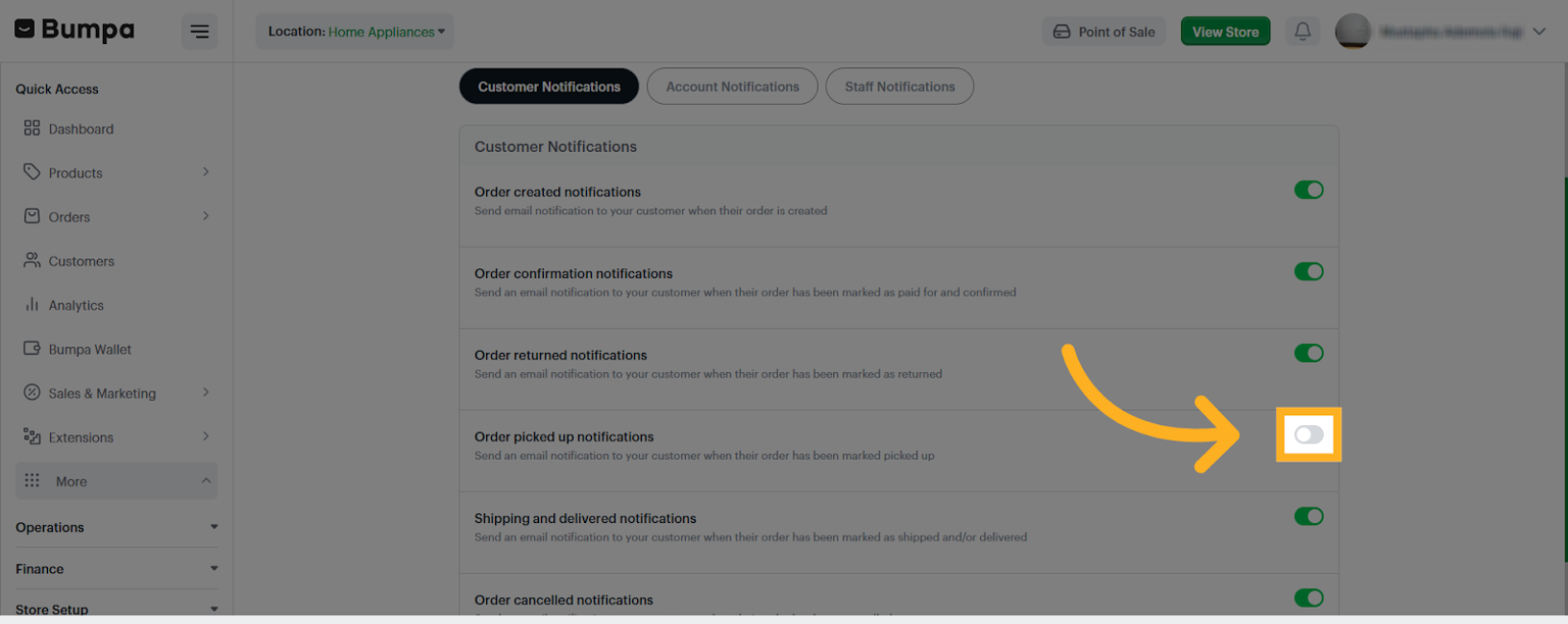
- Toggle on Shipped and Delivered Notification to send email notification to your customer when their order is shipped and/or delivered
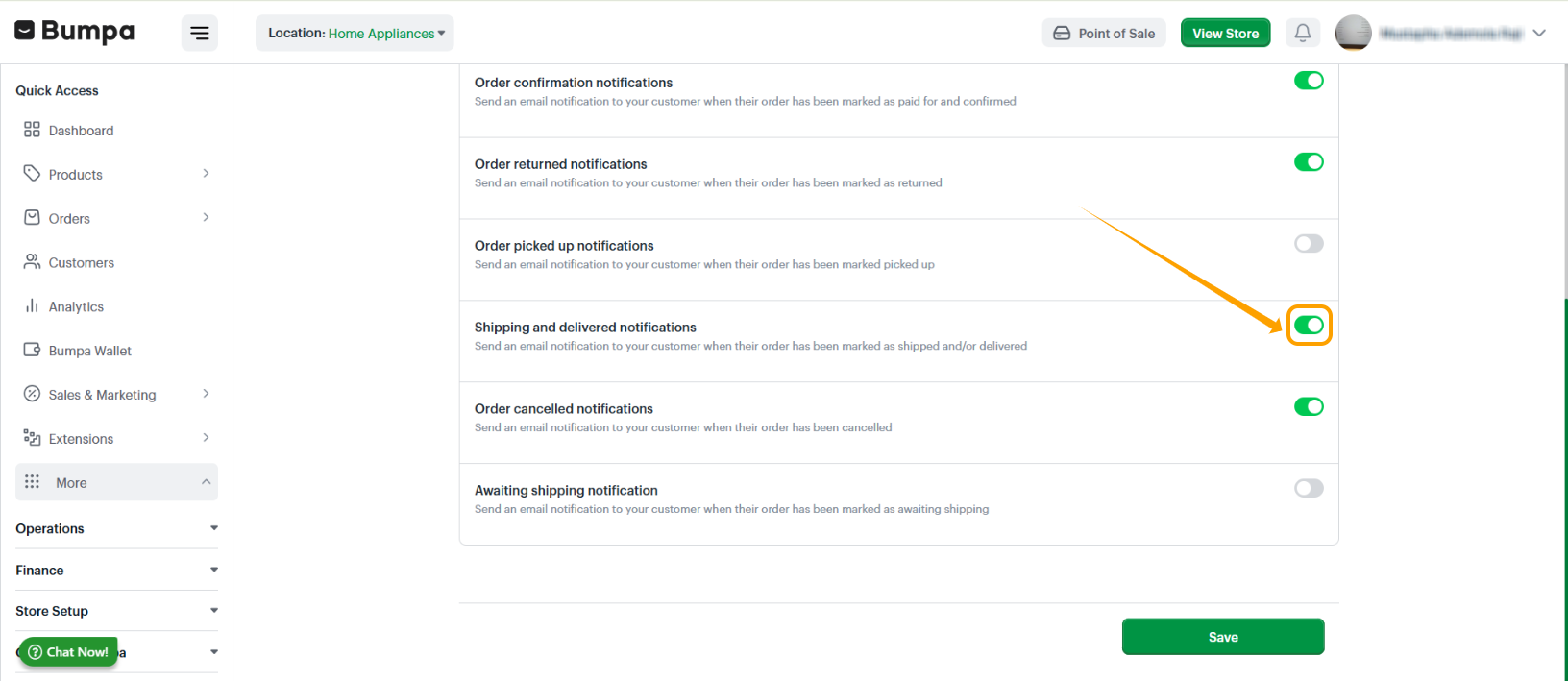
- Toggle on Order Cancelled Notification to send email notification to your customer when their order is cancelled
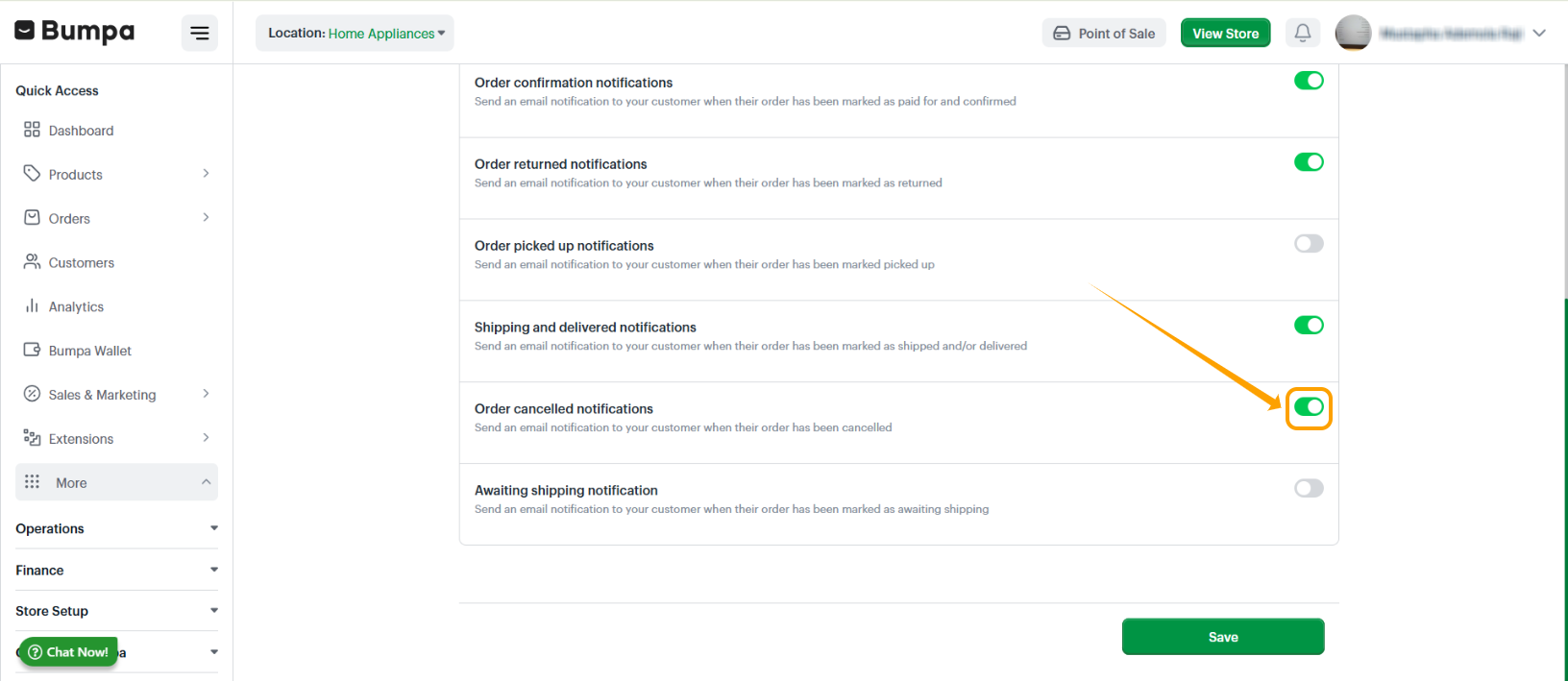
- Toggle on Awaiting Shipping Notification to send email notification to your customer when their order is awaiting shipping
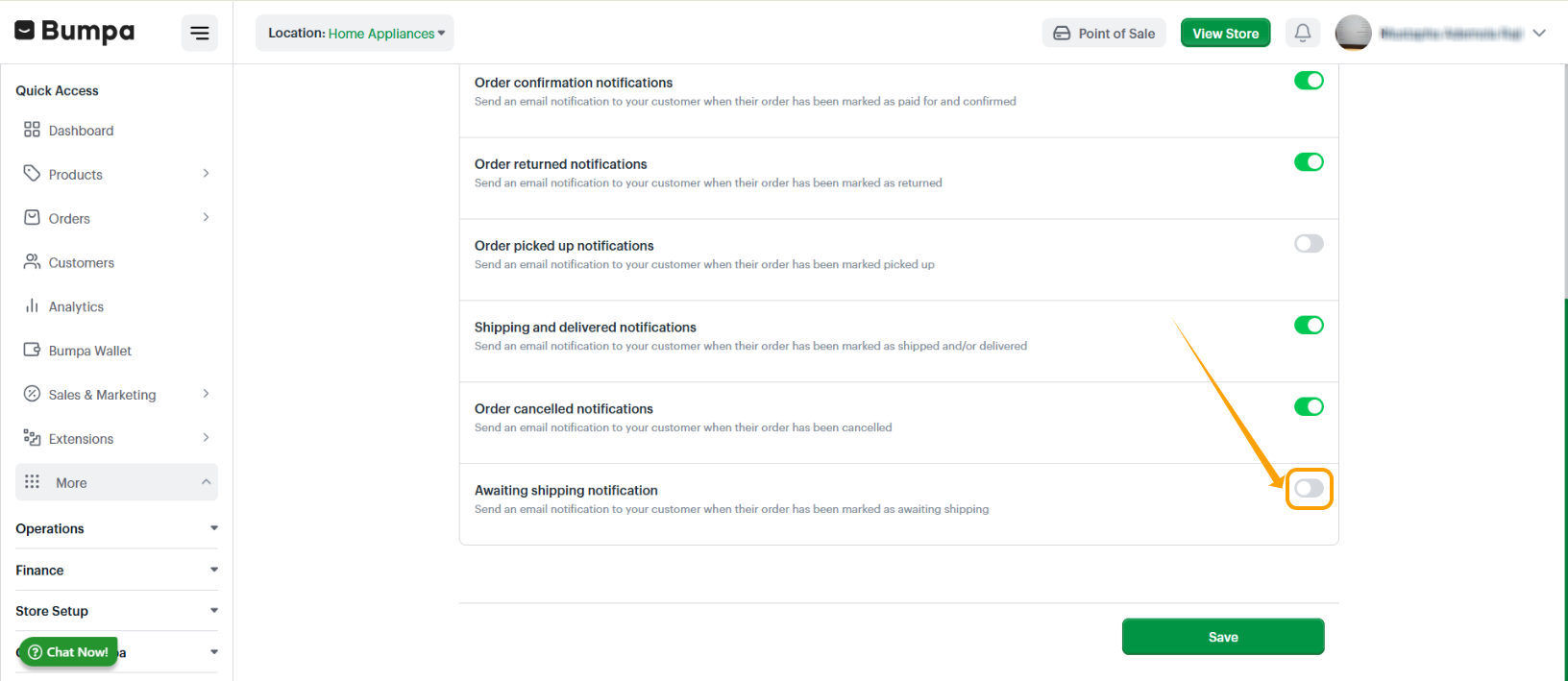
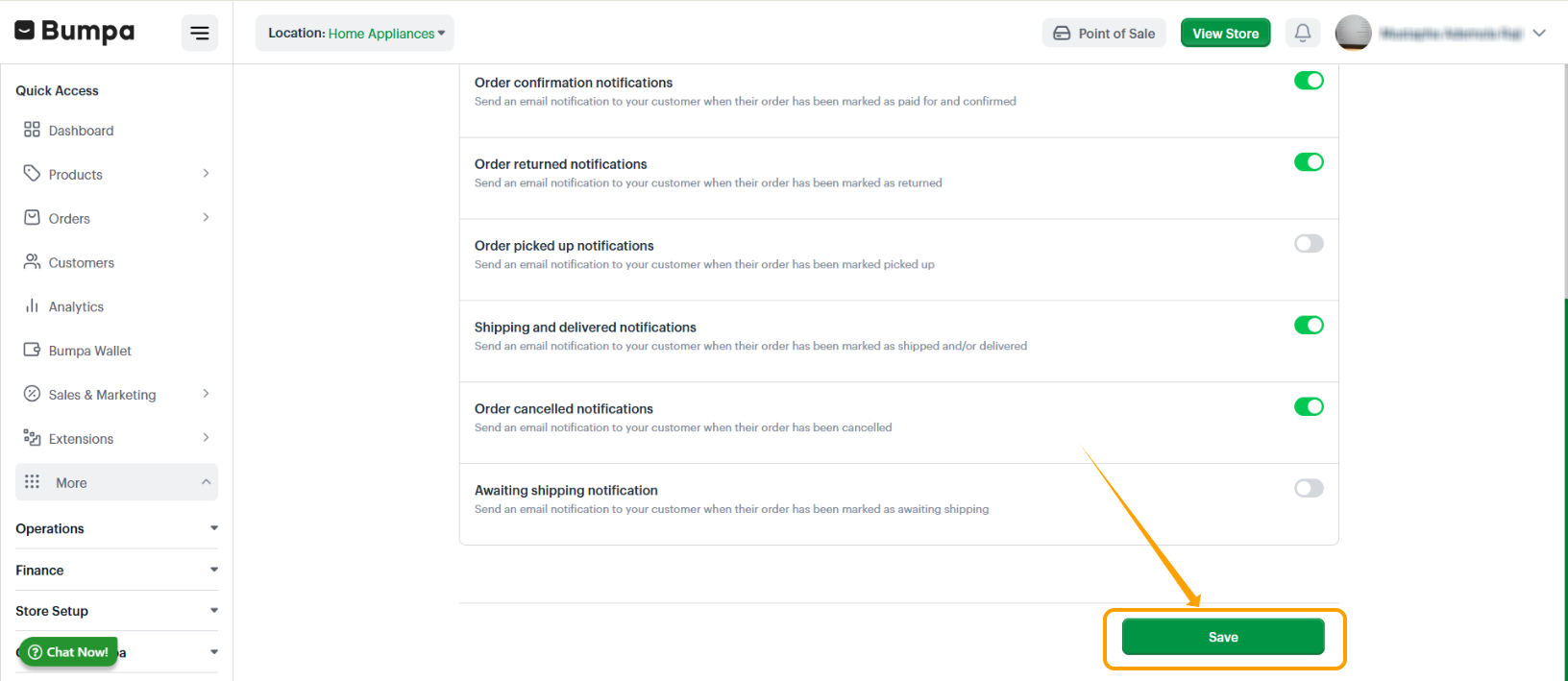
- Click "Save" to apply all changes made to customer notification settings.
Account Notifications
- Click "Account notifications" to manage notifications related to your account and store activities.
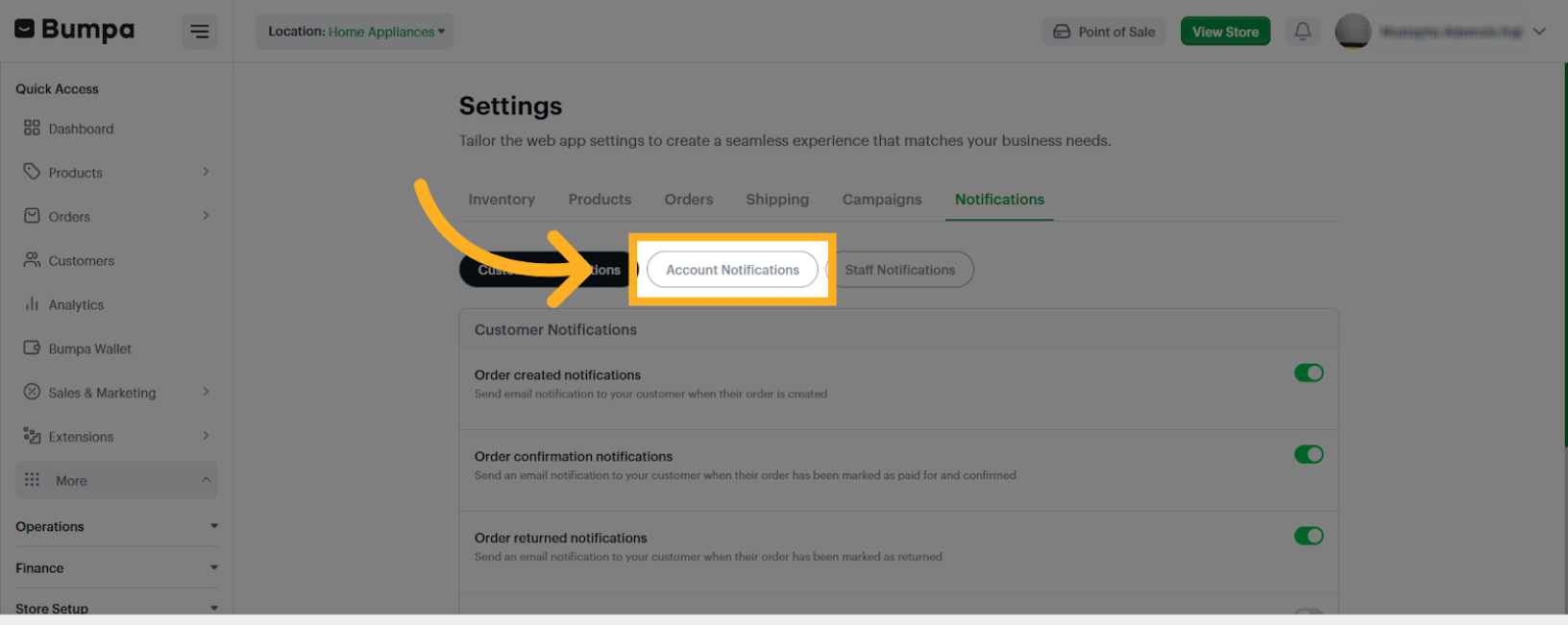
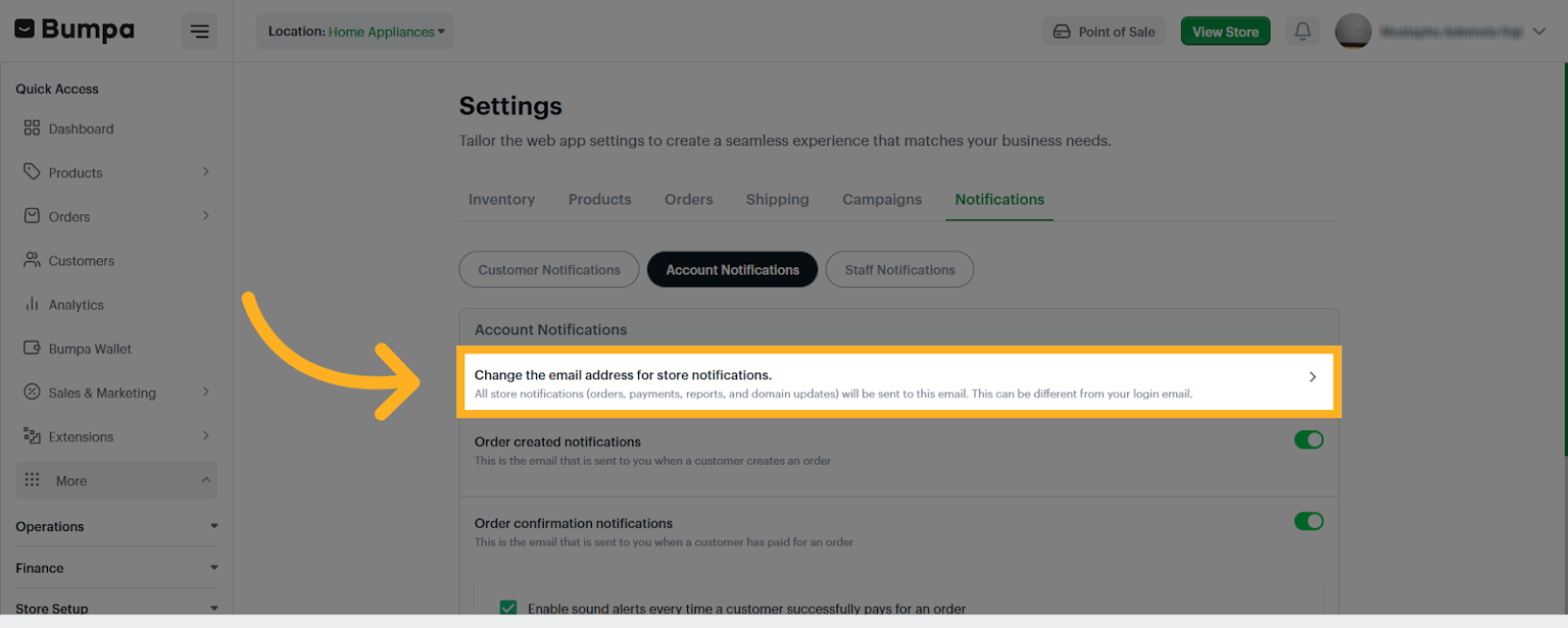
- You can click on the option to "Change the email address for store notifications."
All store notifications (orders, payments, reports, and domain updates) will be sent to this email. This can be different from your login email.
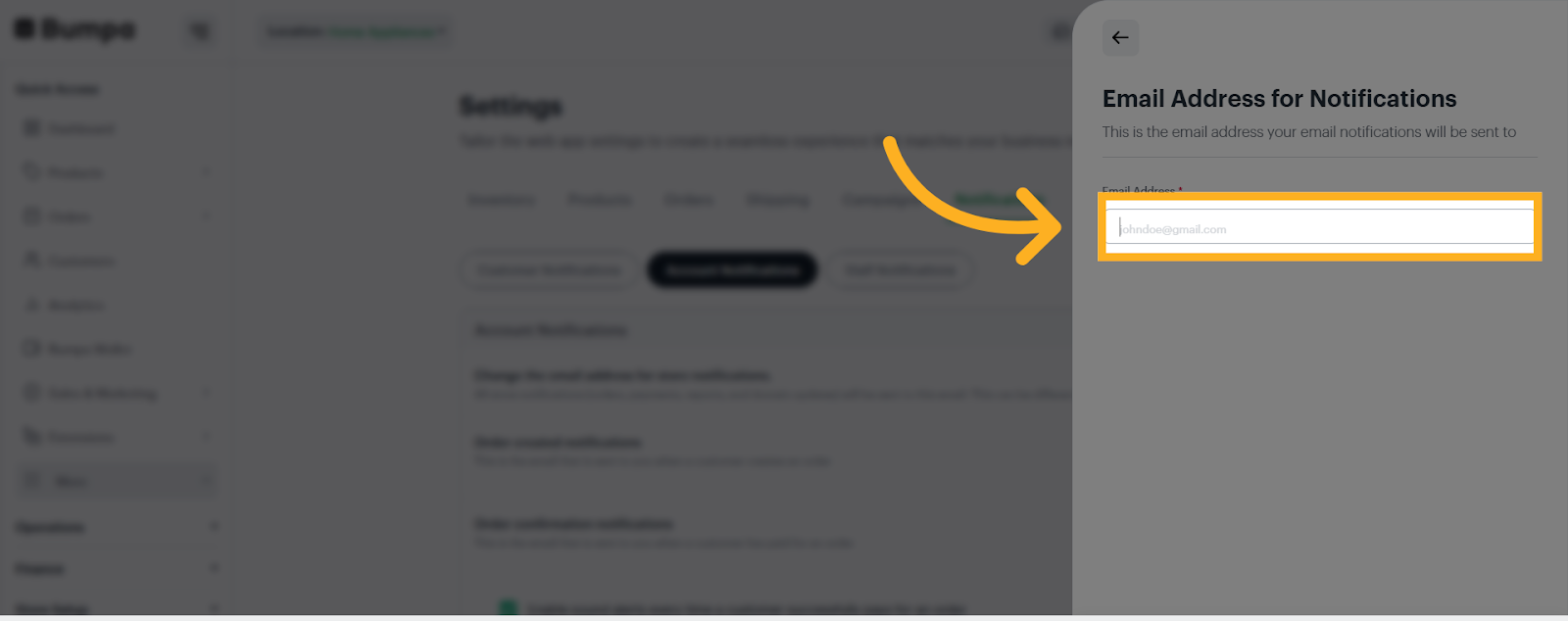
- Input Email Address
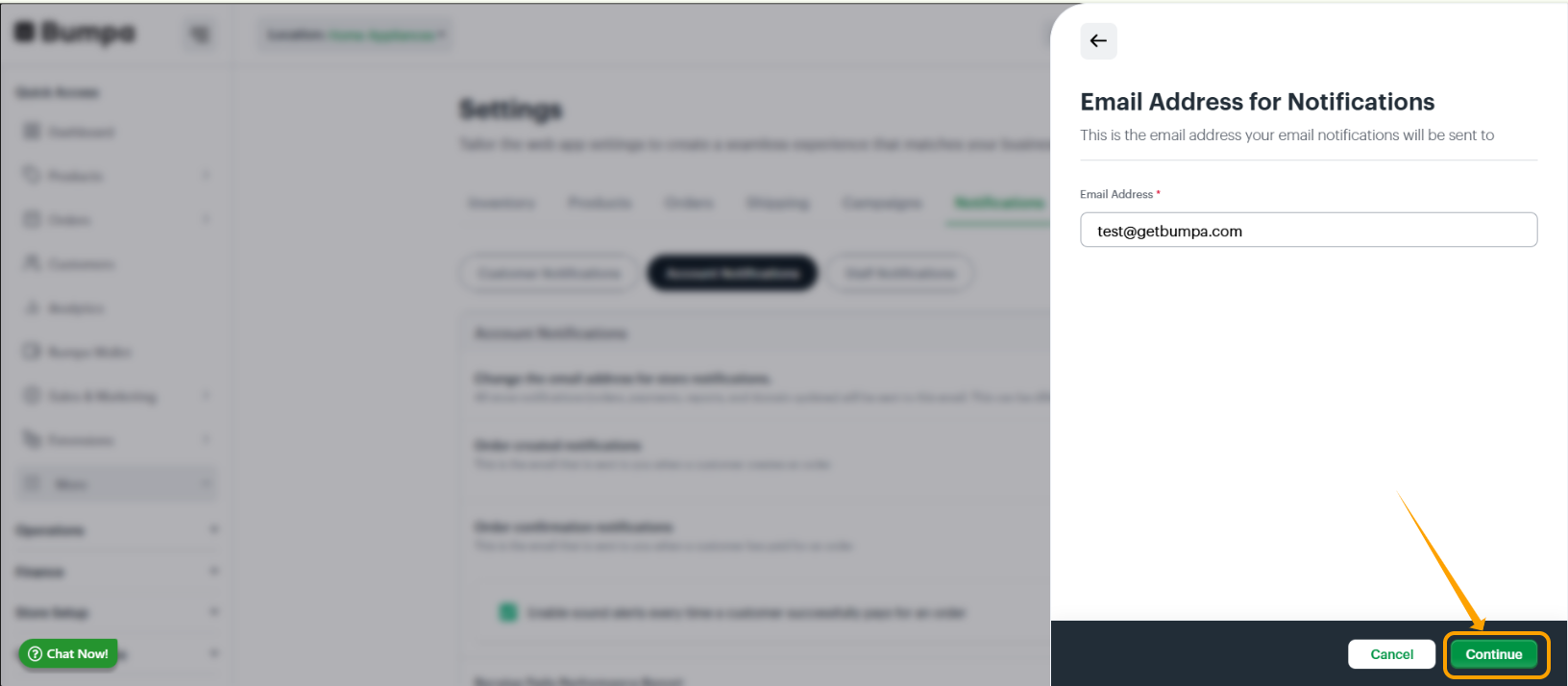
- Click Continue to Save Changes
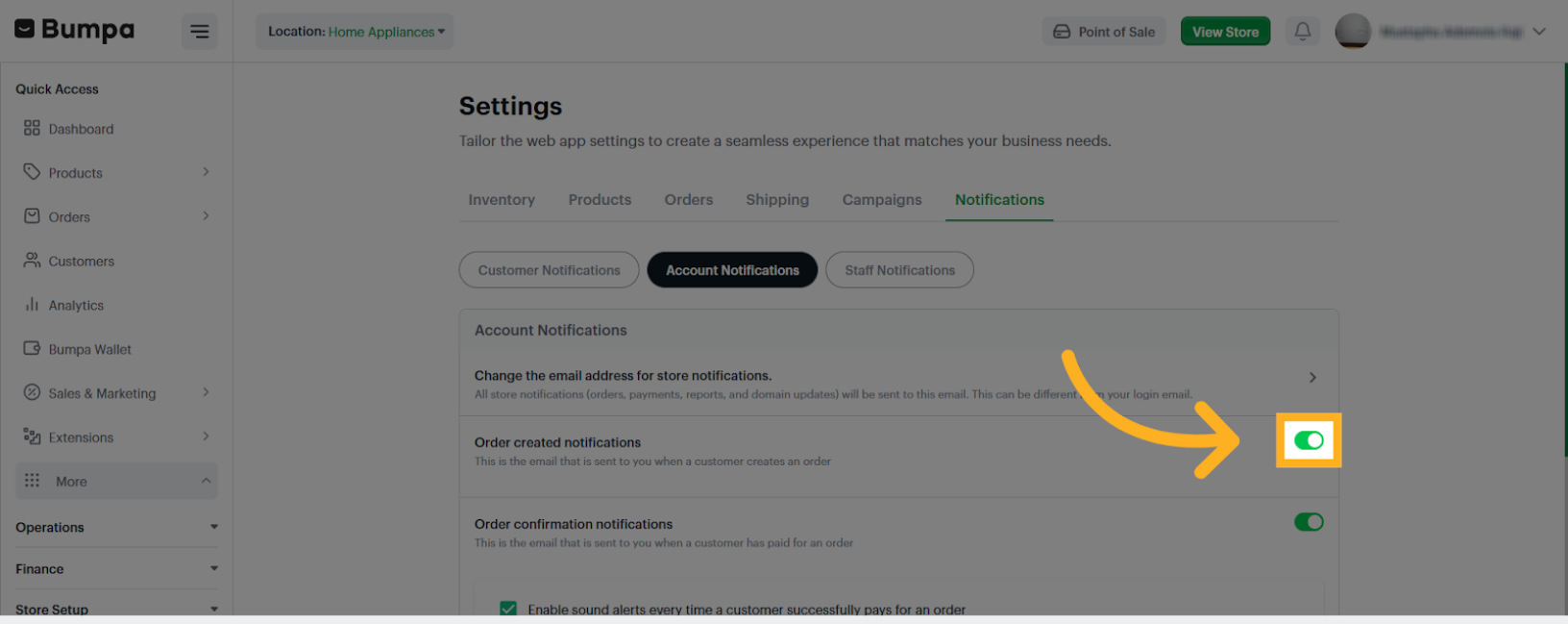
- Toggle on Order Created Notification to receive an email notification when a customer creates an order on your website
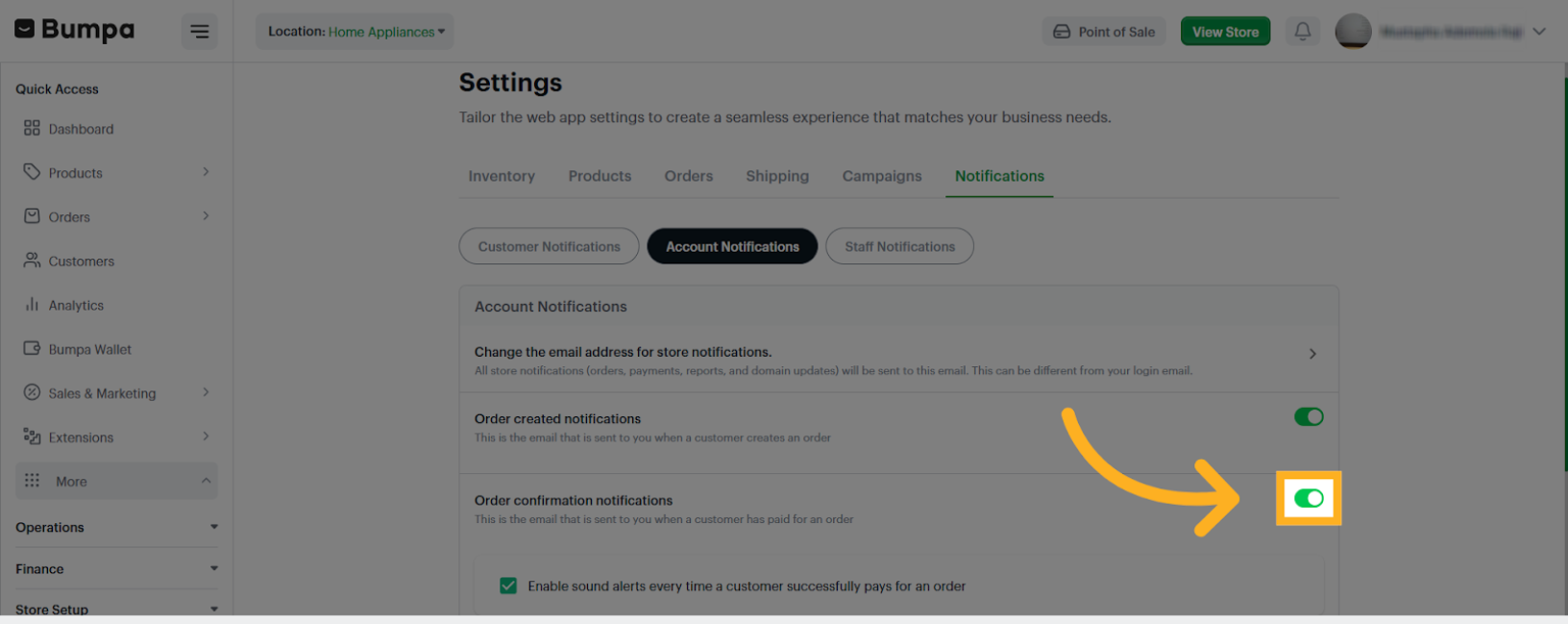
- Toggle on Order Confirmation Notification to receive an email notification when your customer pays for their order
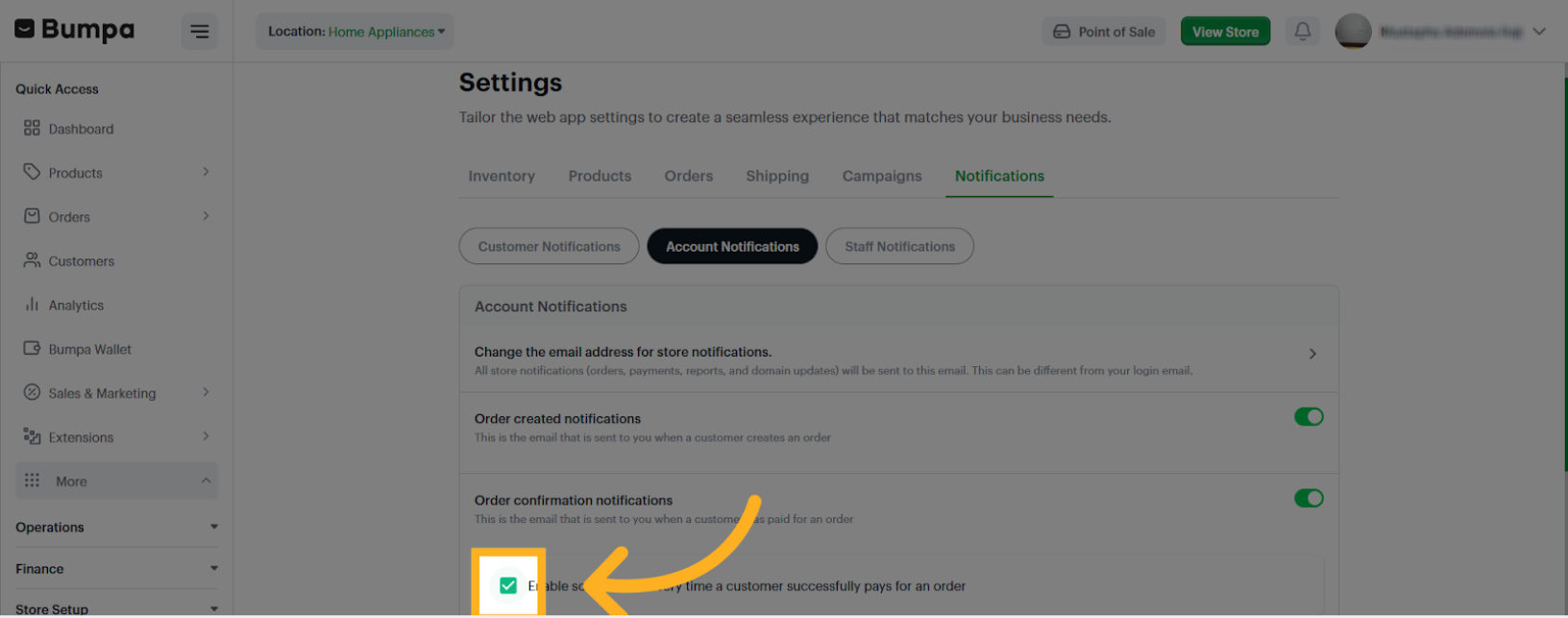
- You can choose to enable or disable the sound alert for order payment notification
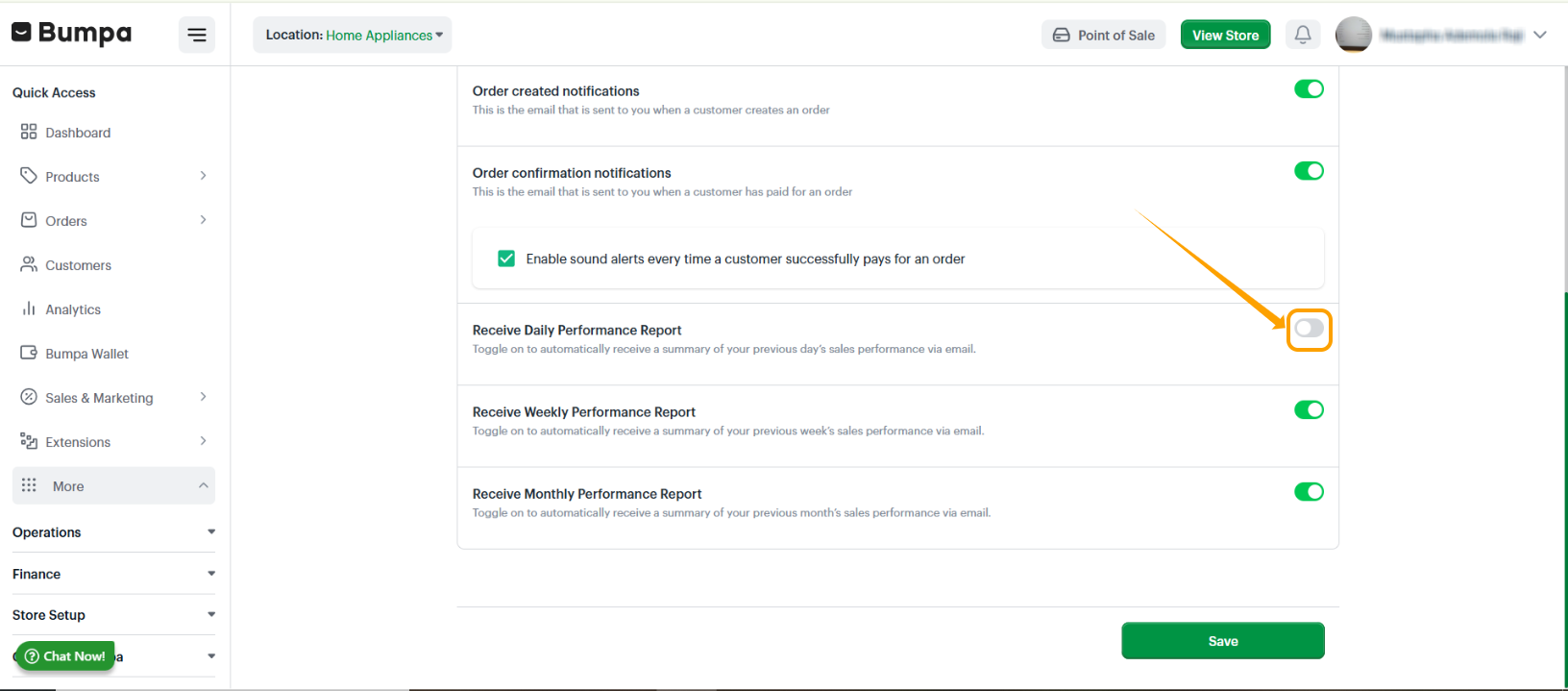
- Toggle on notification for daily performance reports.
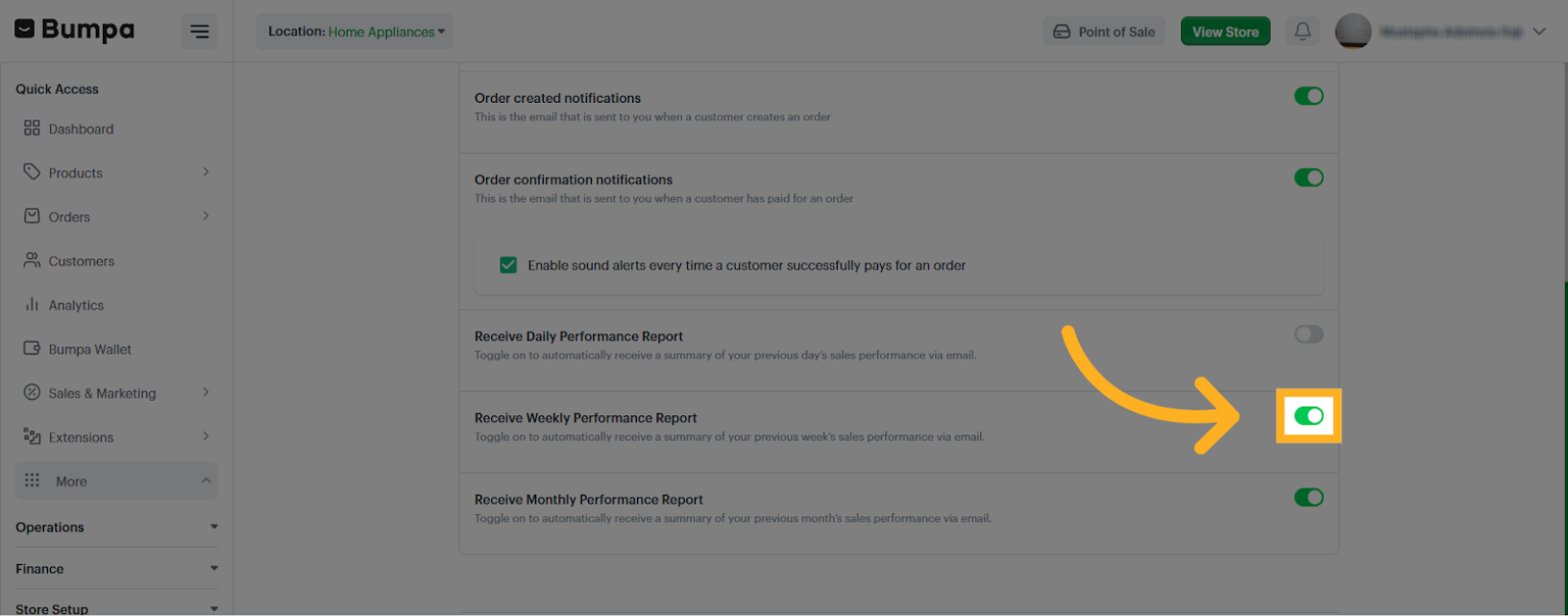
- Toggle on notification for weekly performance reports.
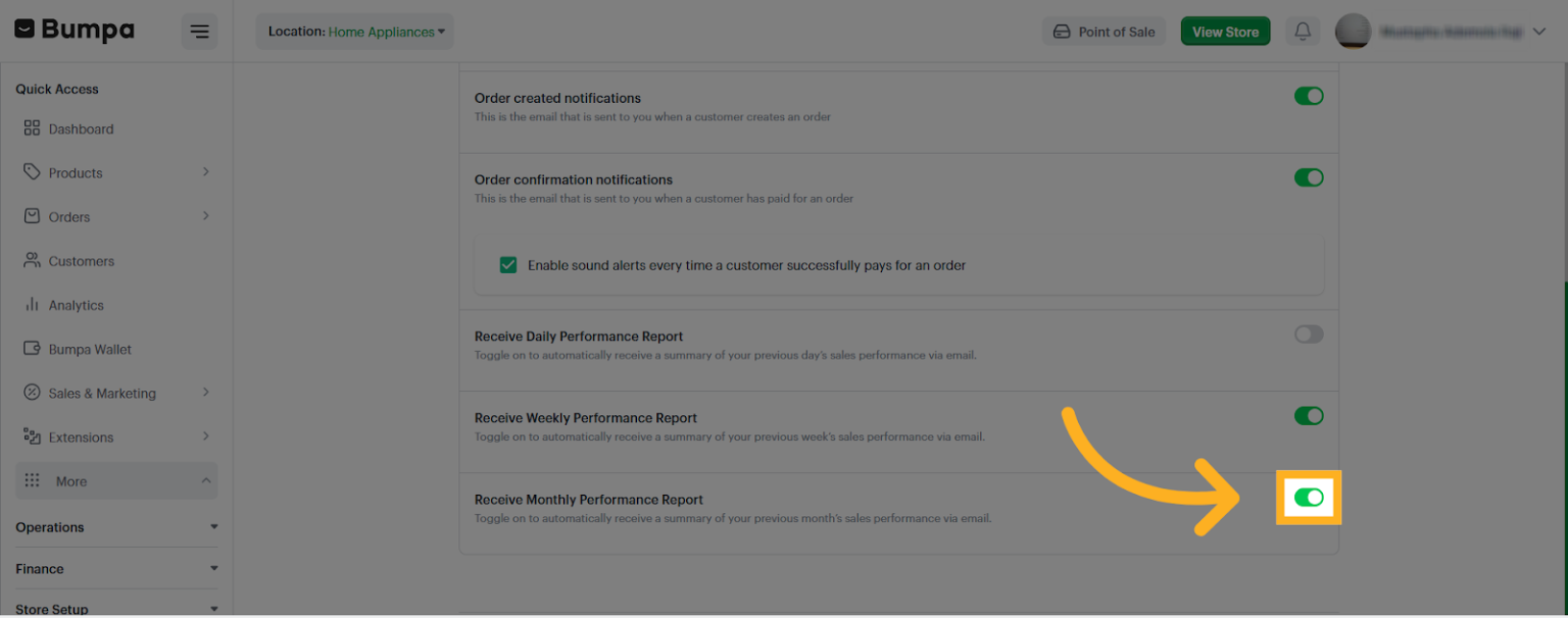
- Toggle on notification for monthly performance reports.
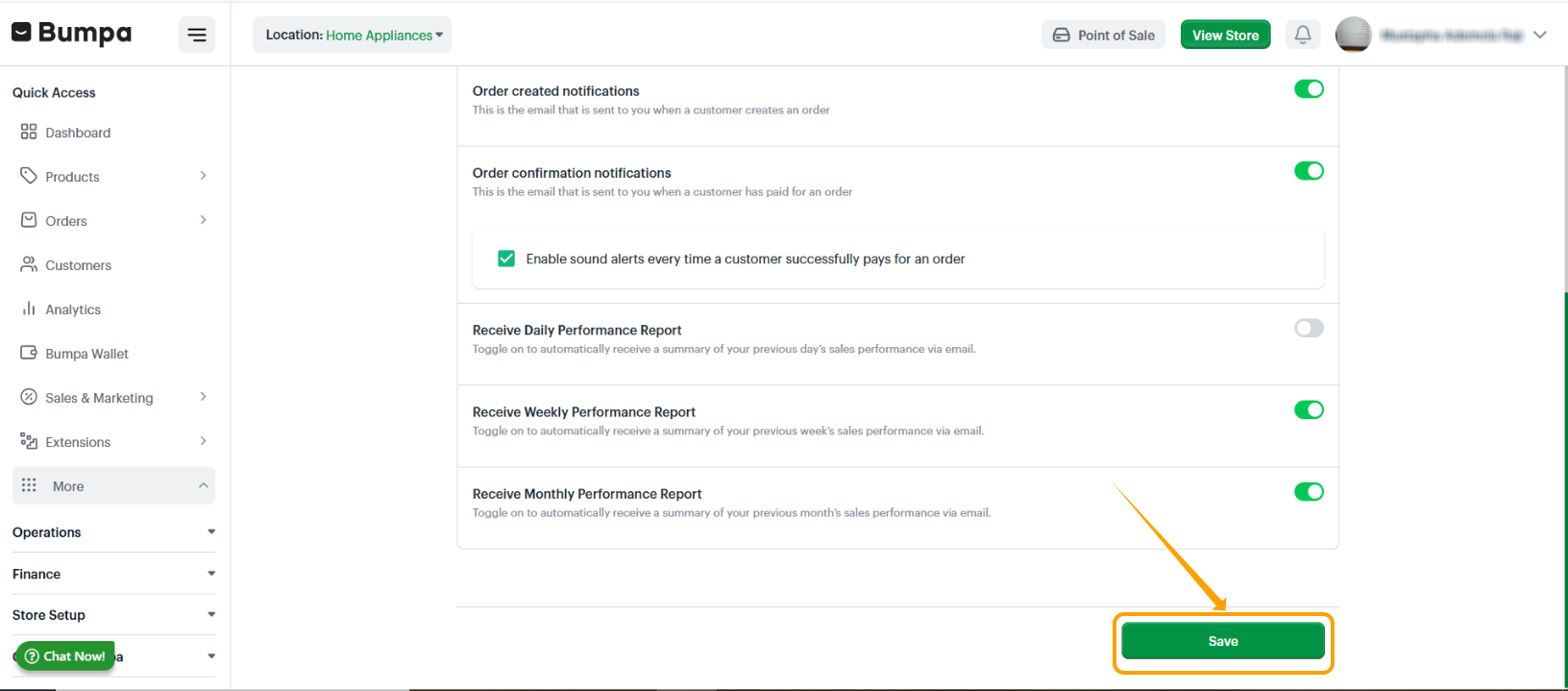
- Click "Save" to apply all changes made to your notification preferences.
Staff Notifications
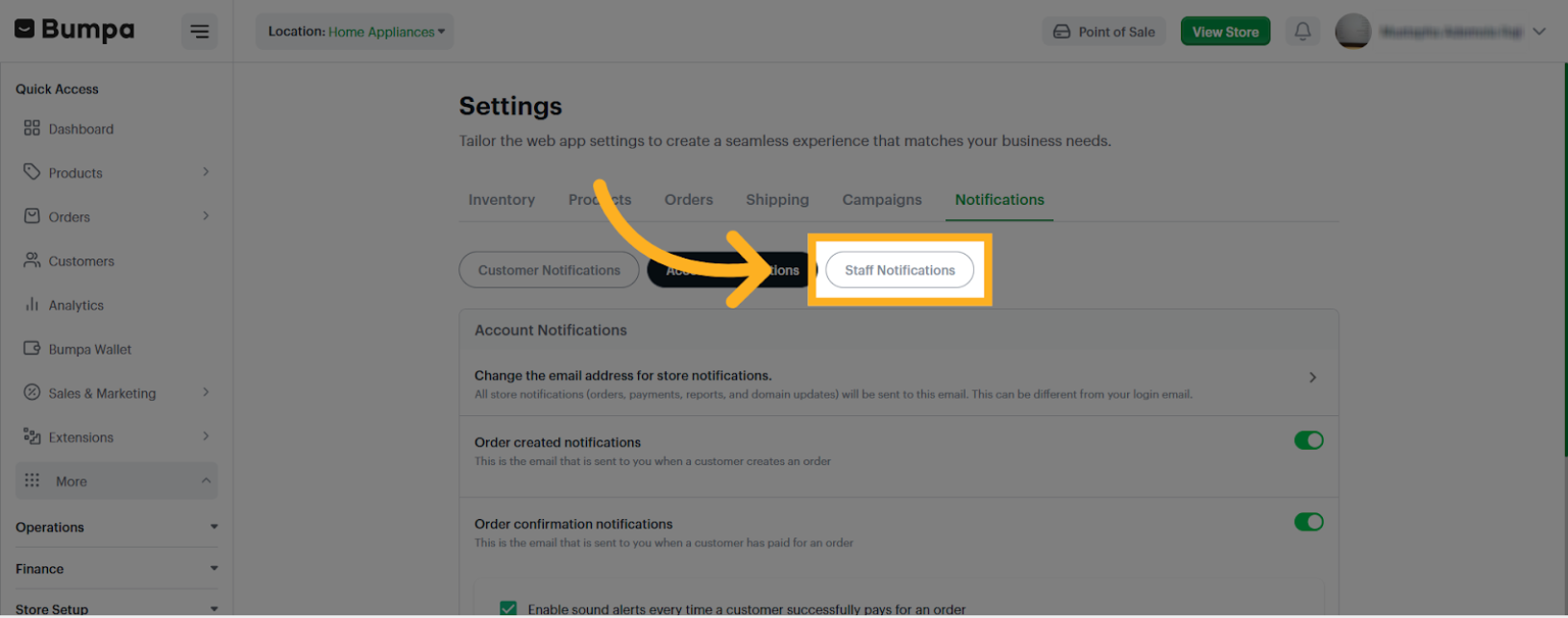
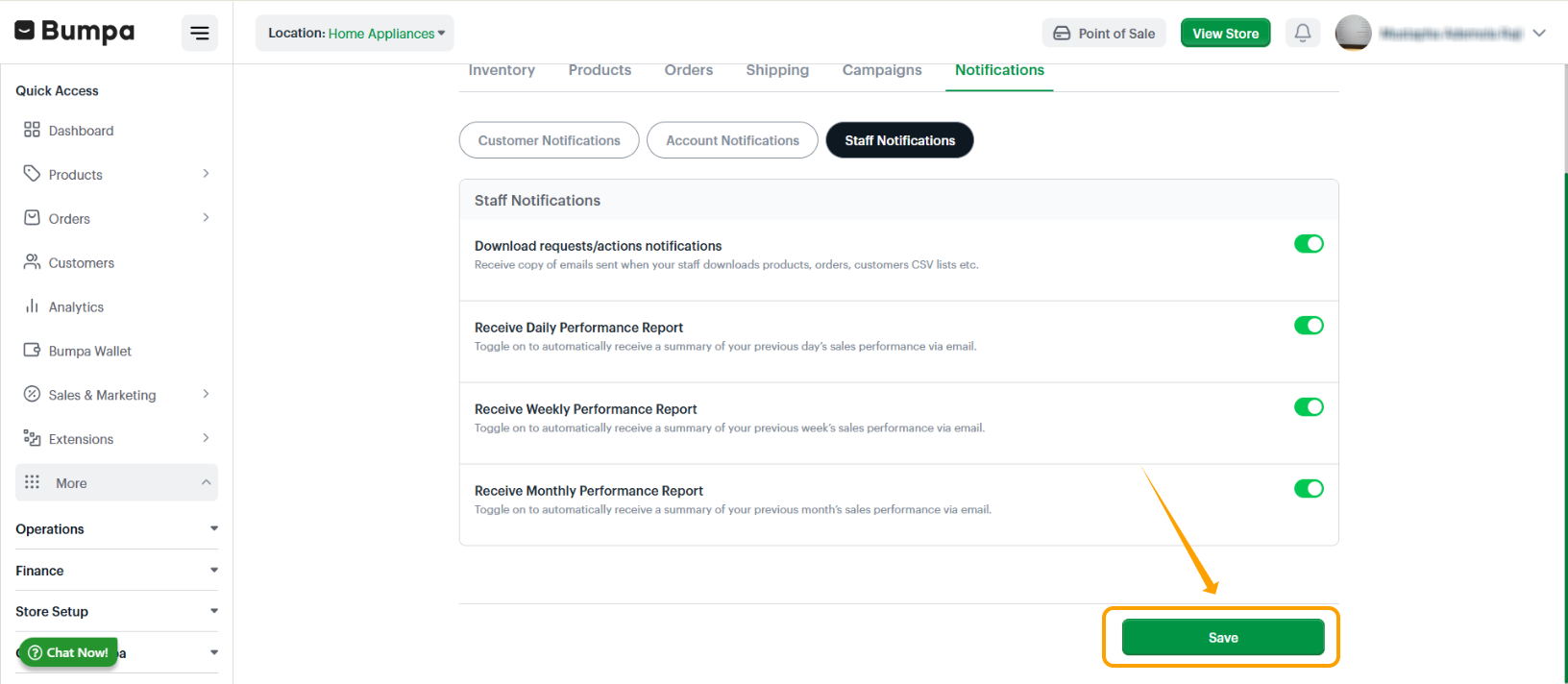
- Click "Staff notifications" to manage notifications sent to your staff members.
- Toggle on Download requests/actions notifications to receive copy of emails sent when your staff makes a downloads request for products, orders or customers' CSV
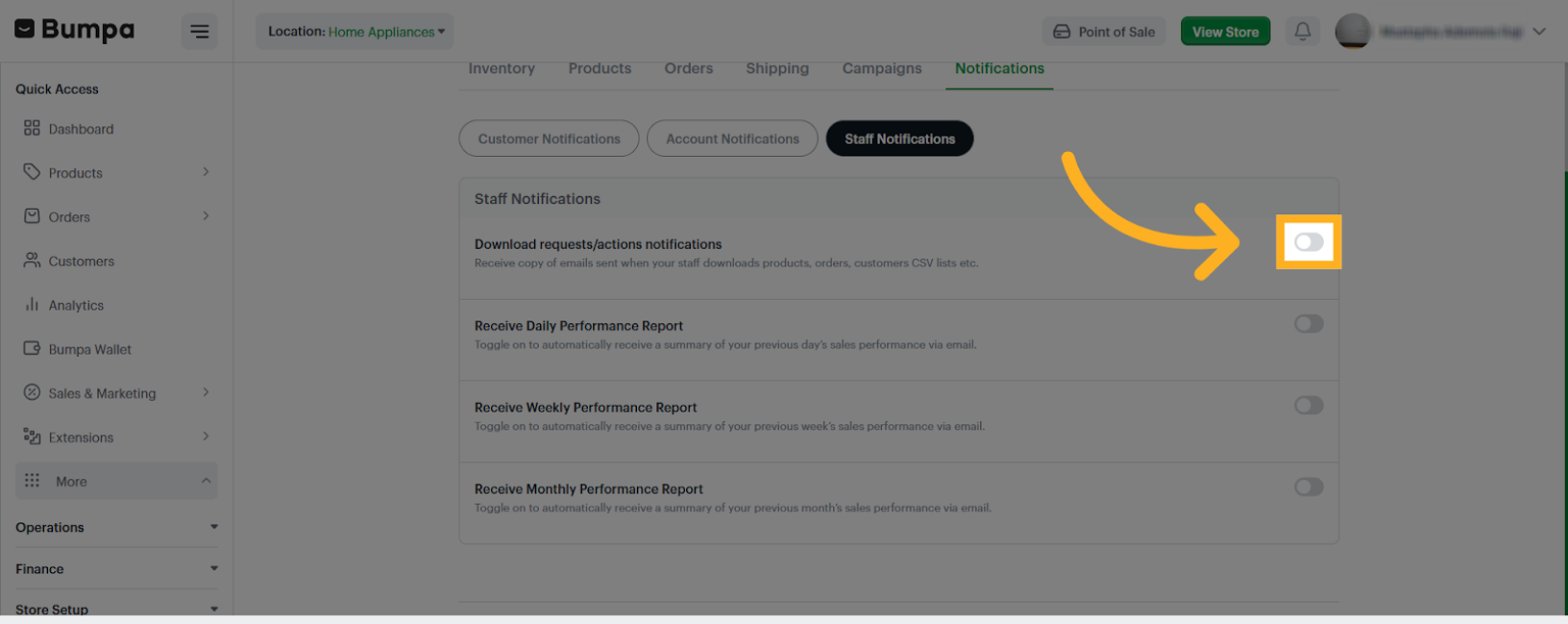
- Toggle on to automatically receive a summary of your previous day’s sales performance via email when your staff download's it
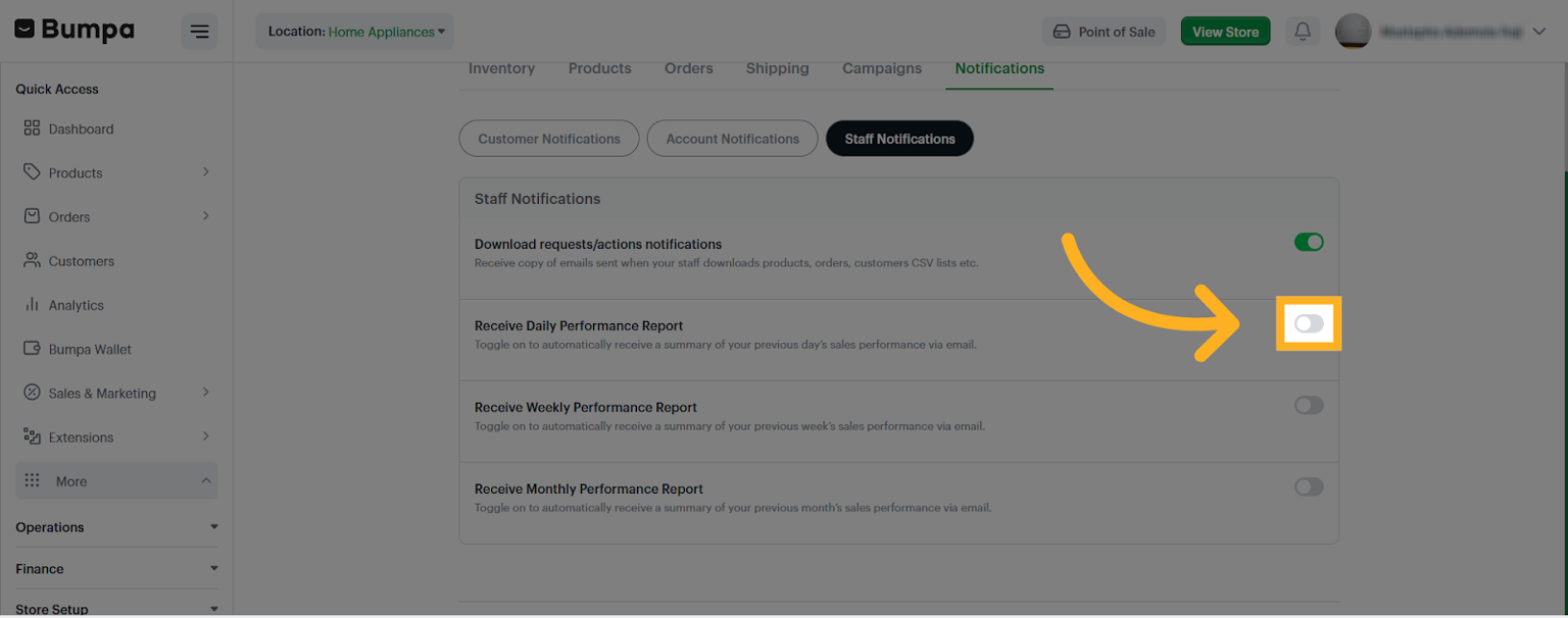
- Toggle on to automatically receive a summary of your previous week’s sales performance via email when your staff download's it
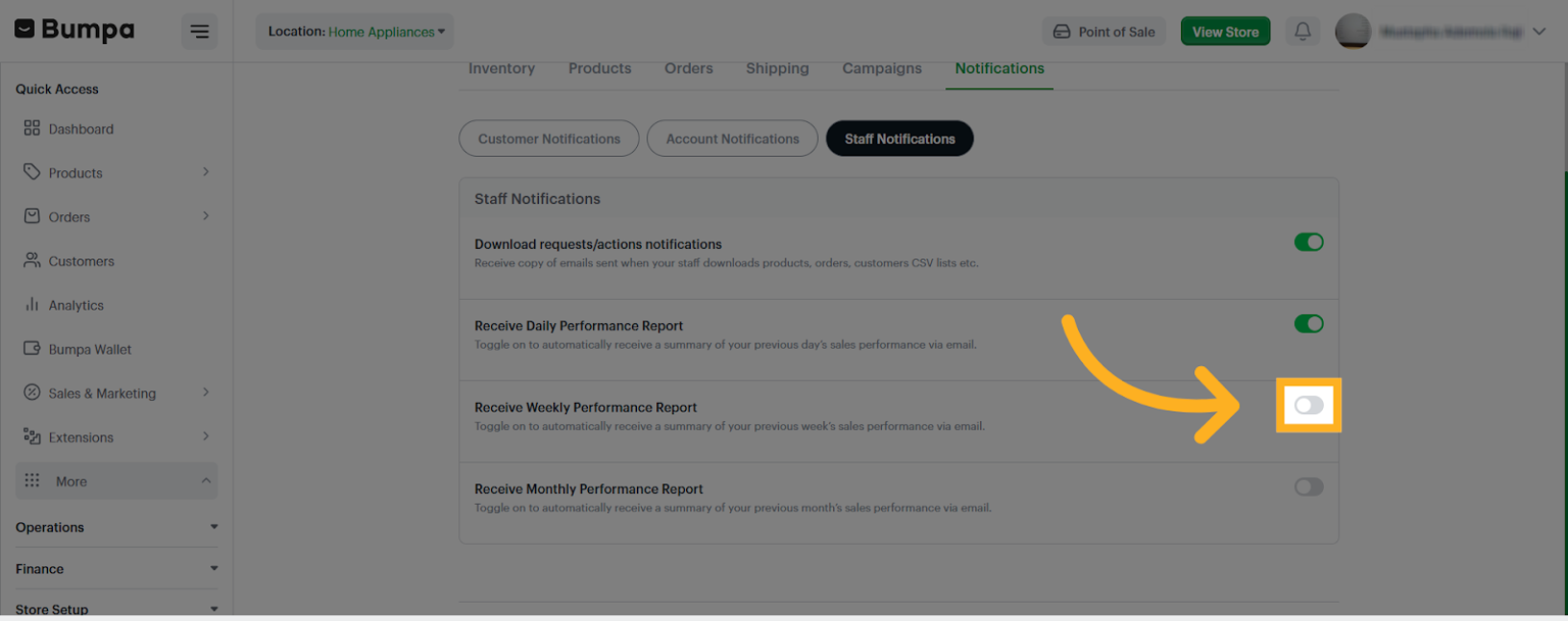
- Toggle on to automatically receive a summary of your previous month’s sales performance via email when your staff download's it
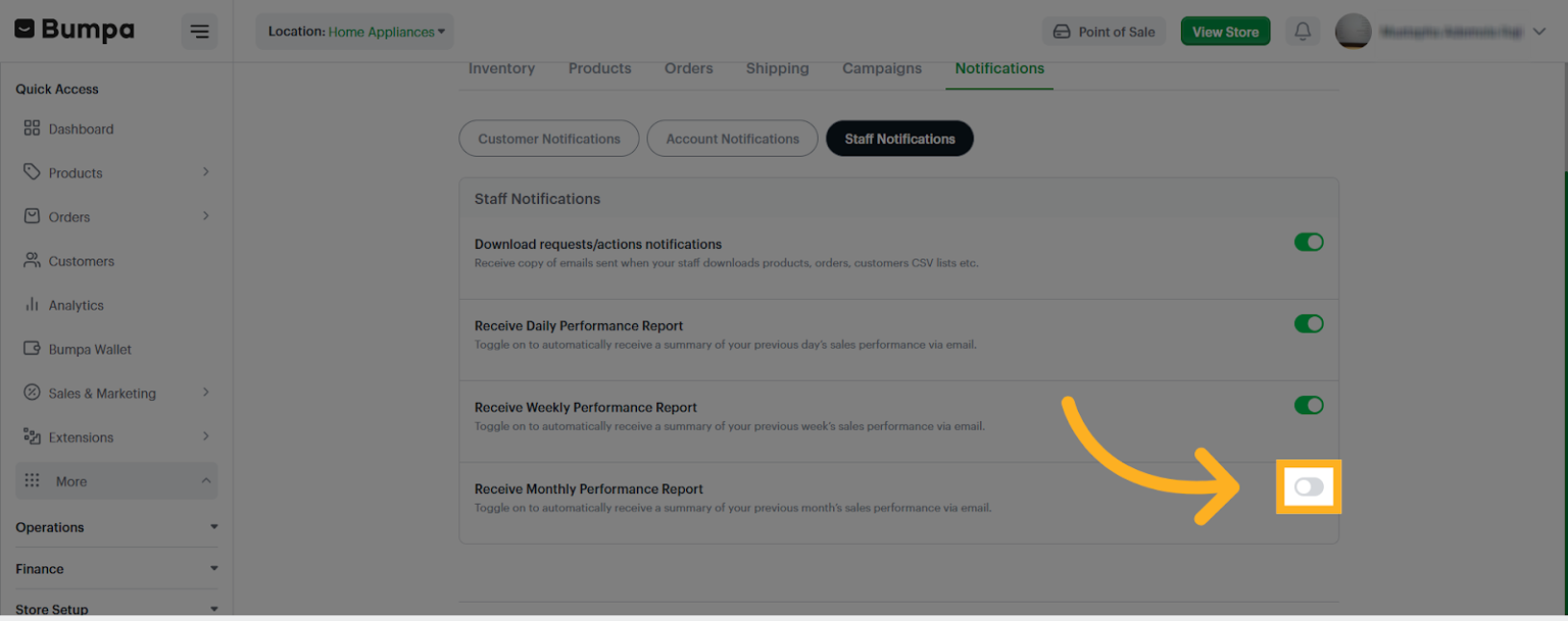
- Click "Save" to save all changes made to staff notification preferences.
Additional Actions
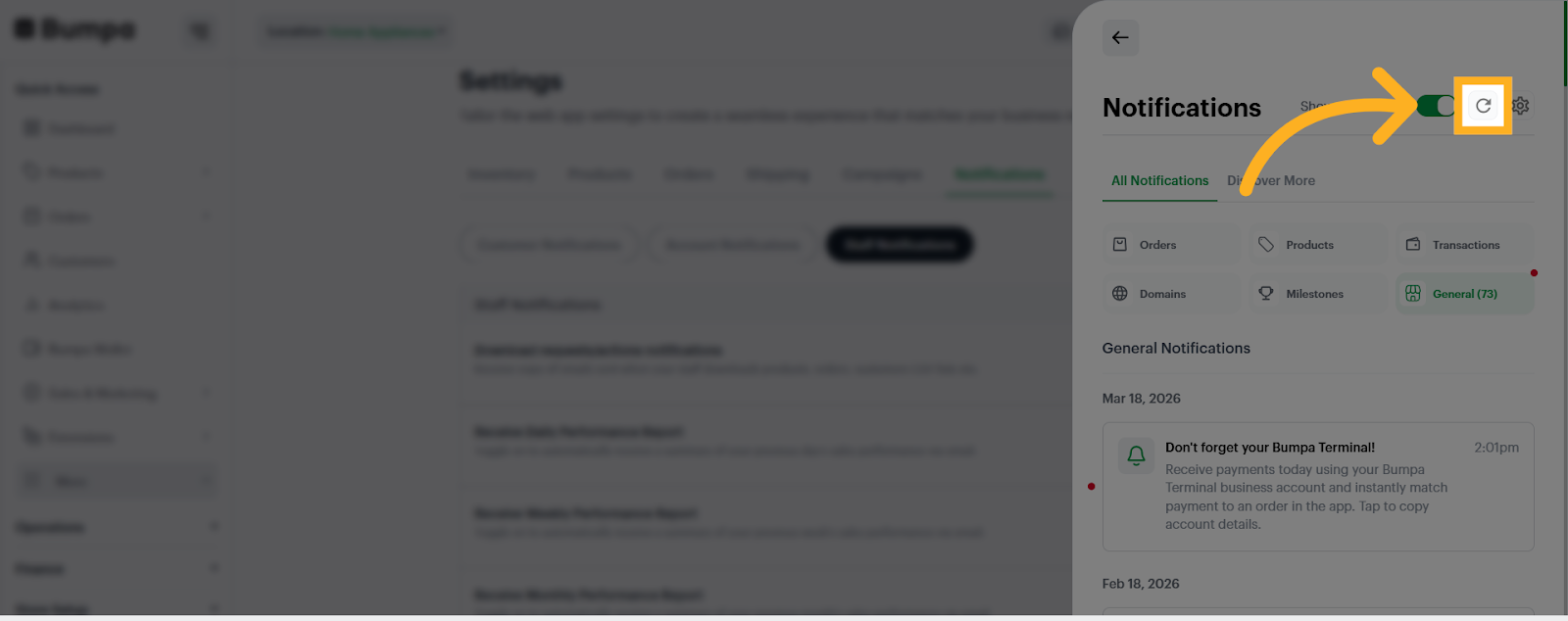
- Click the Refresh button to refresh your notifications and ensure they are up to date
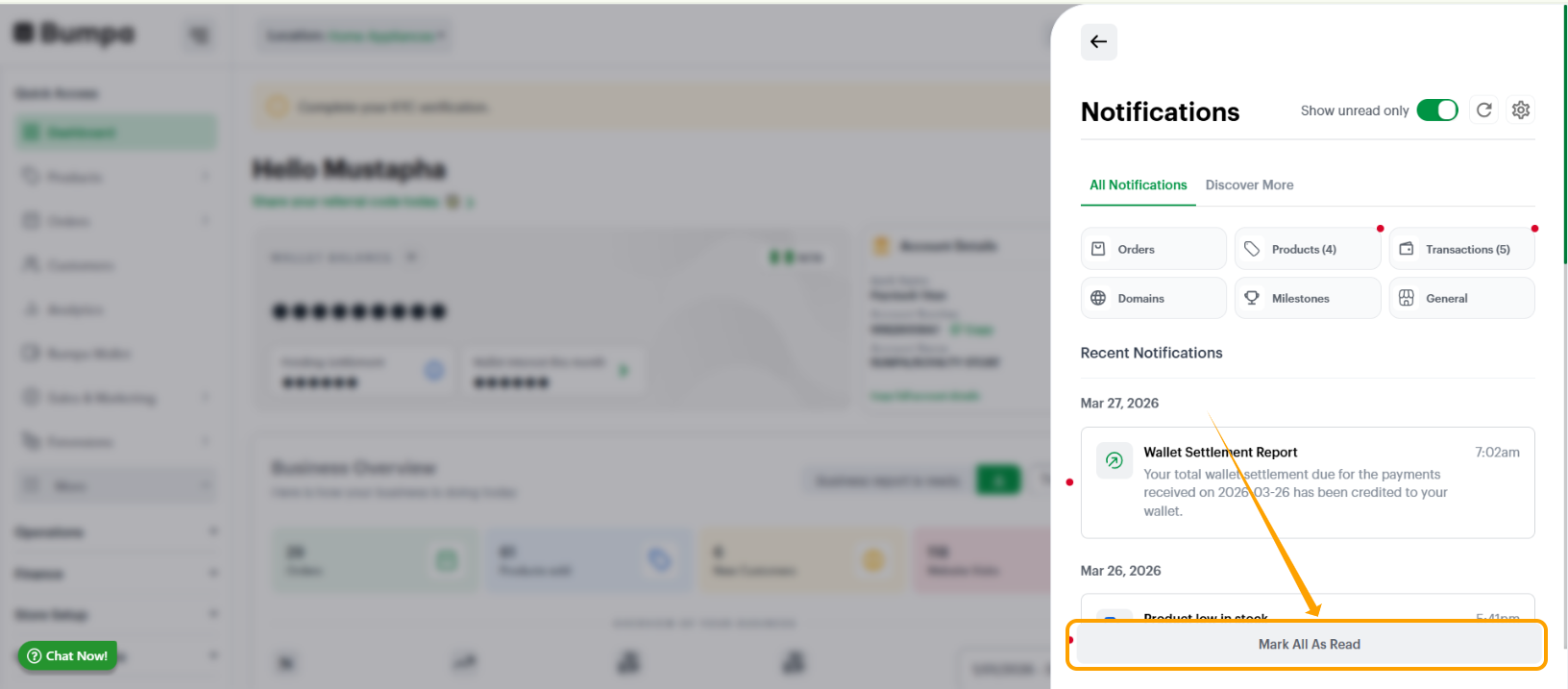
- Click "Mark All As Read" to clear all unread notifications and keep your inbox organized.
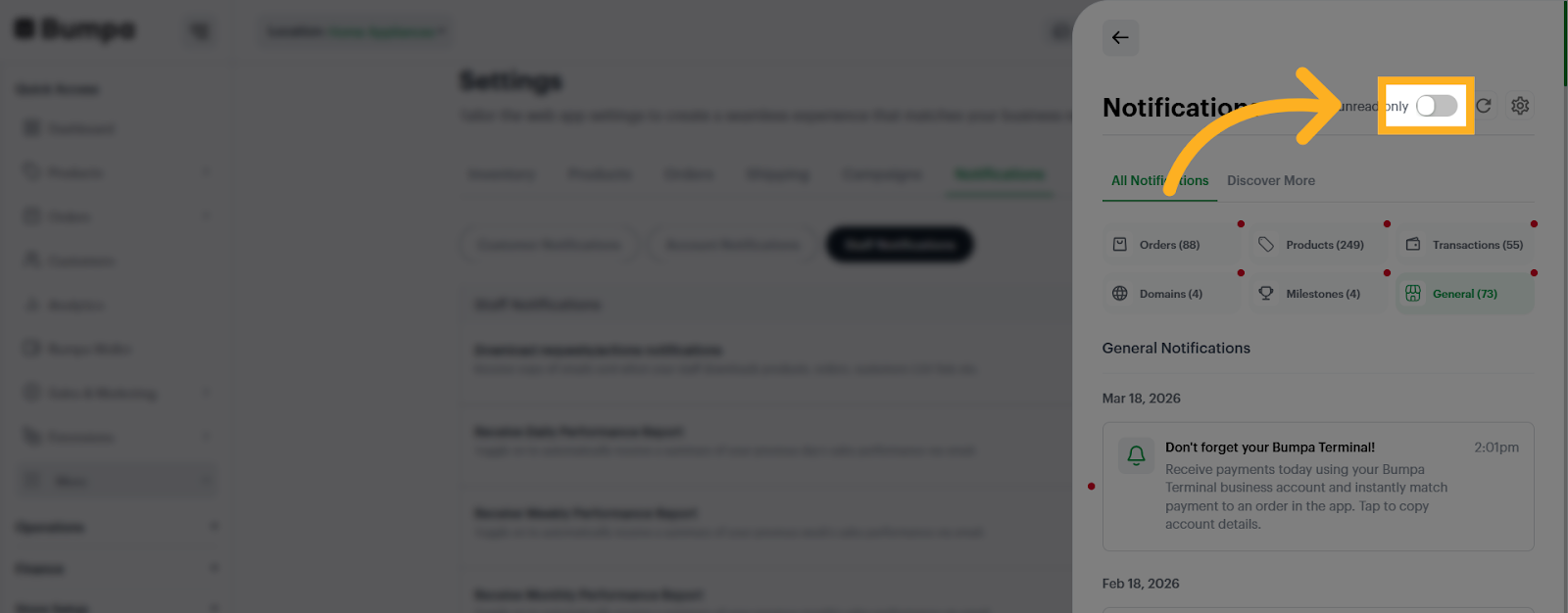
- Toggle the Unread only button to view only unread Notifications
- Click "All Notifications" to view all notification settings in one place.
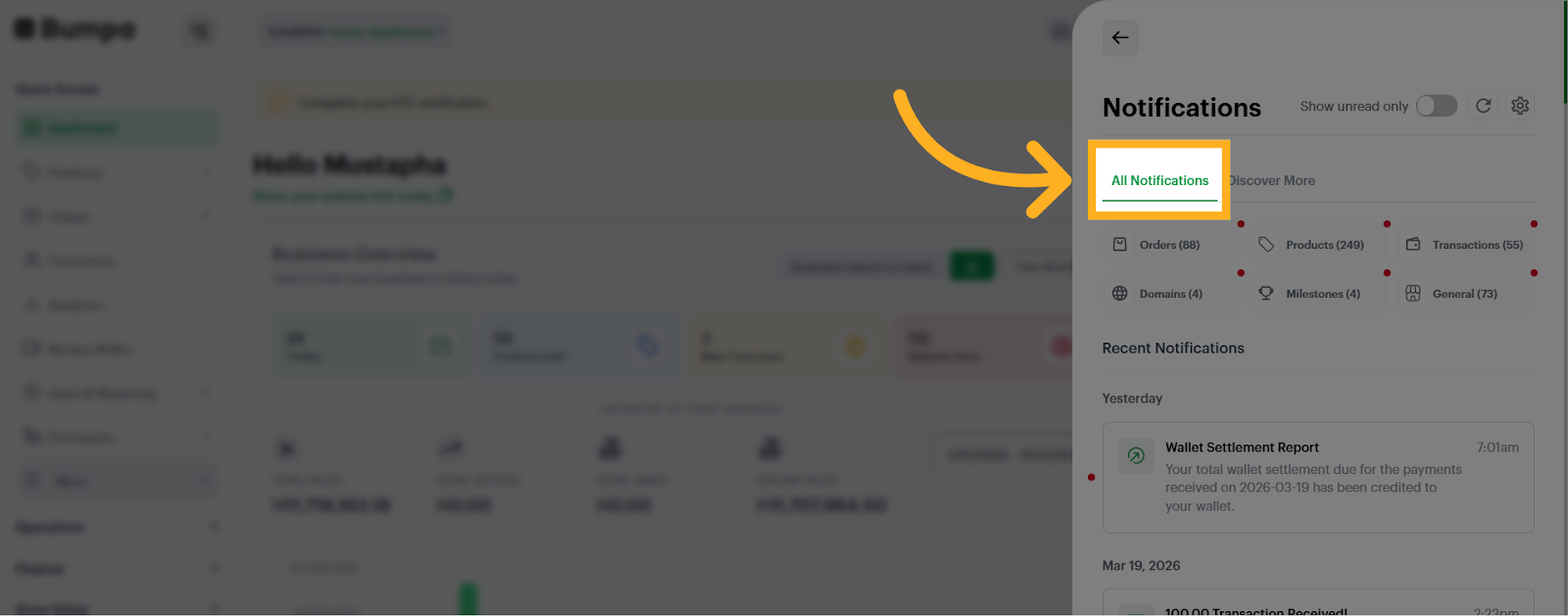
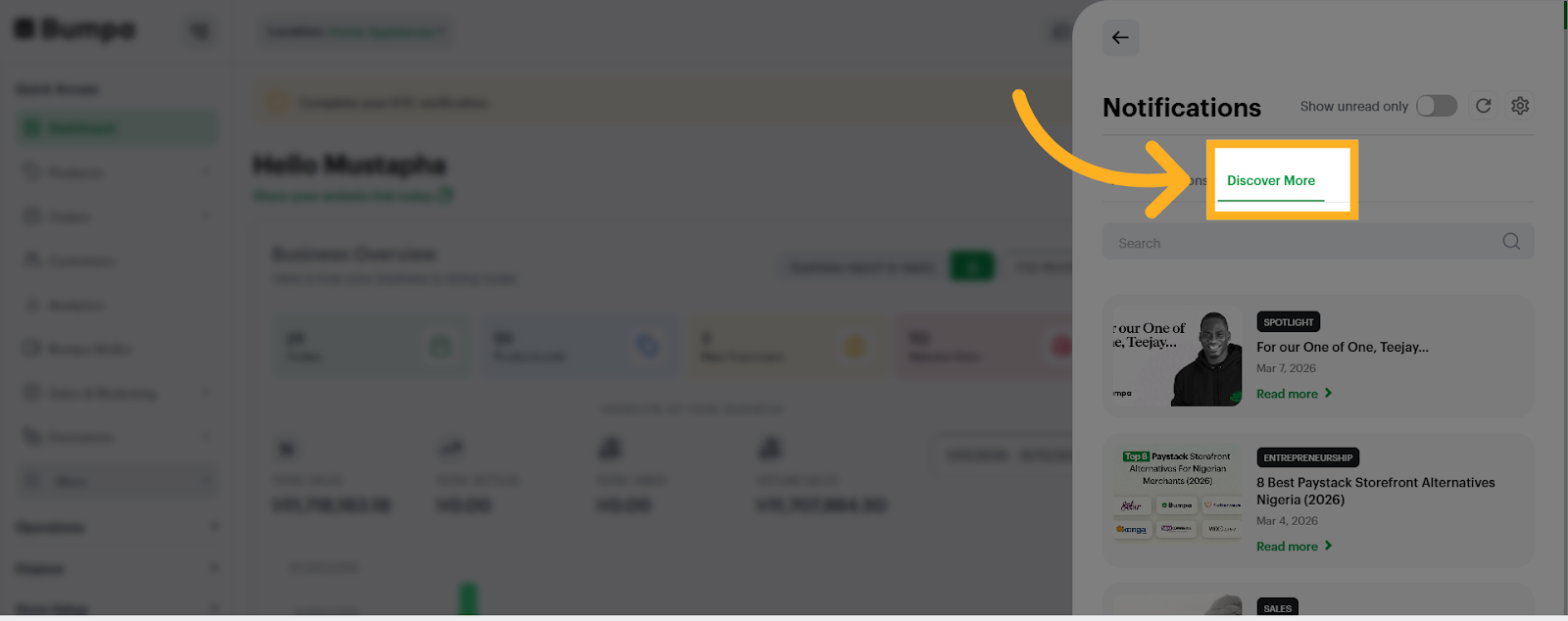
- Click "Discover More" to explore additional updates and information.
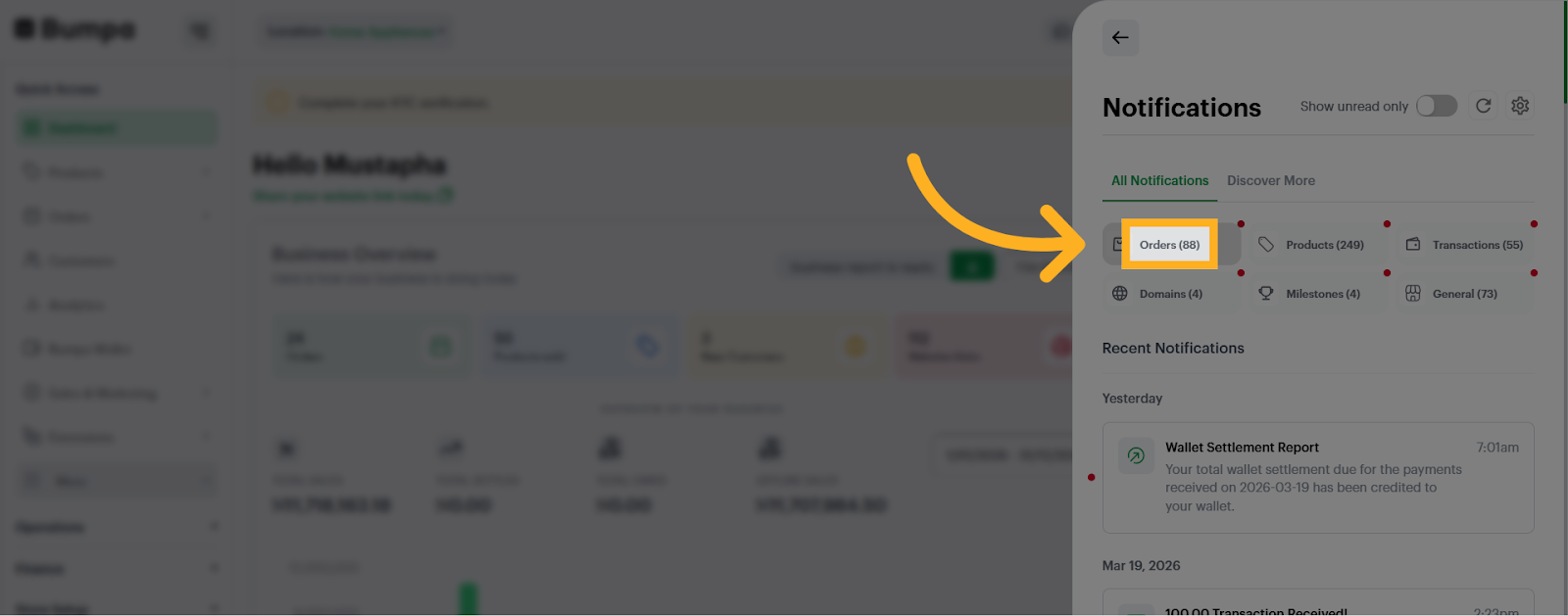
- Click "Orders" to access notifications related to customer orders and their statuses.
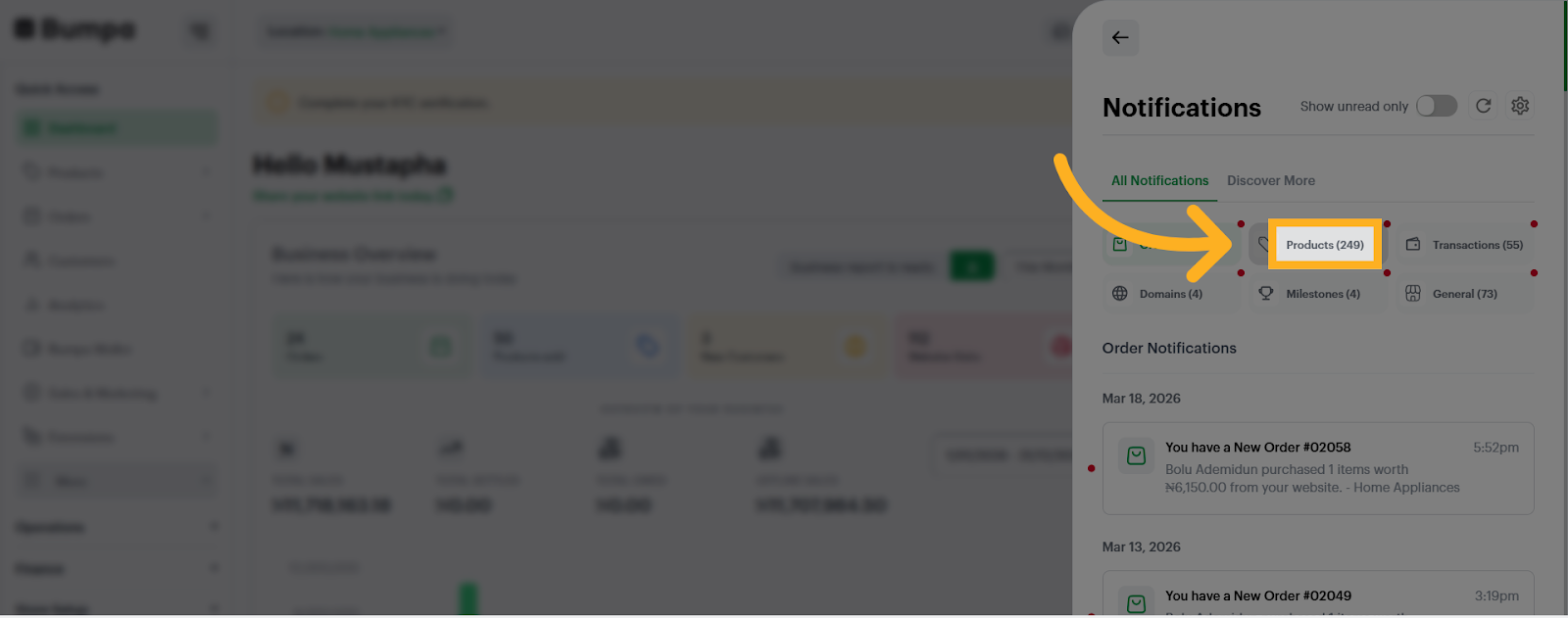
- Click "Products" to manage notifications concerning your product inventory and updates.
- Click "Transactions" to review notifications about financial transactions and payments.
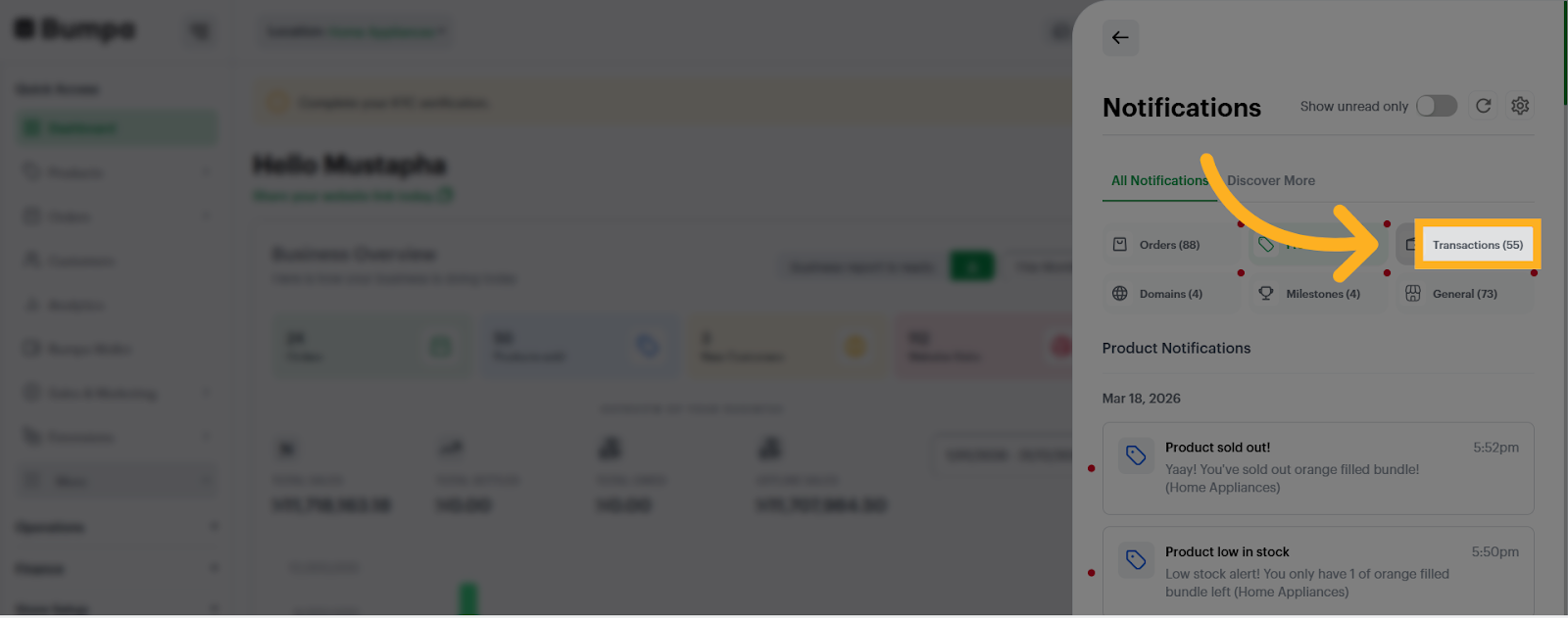
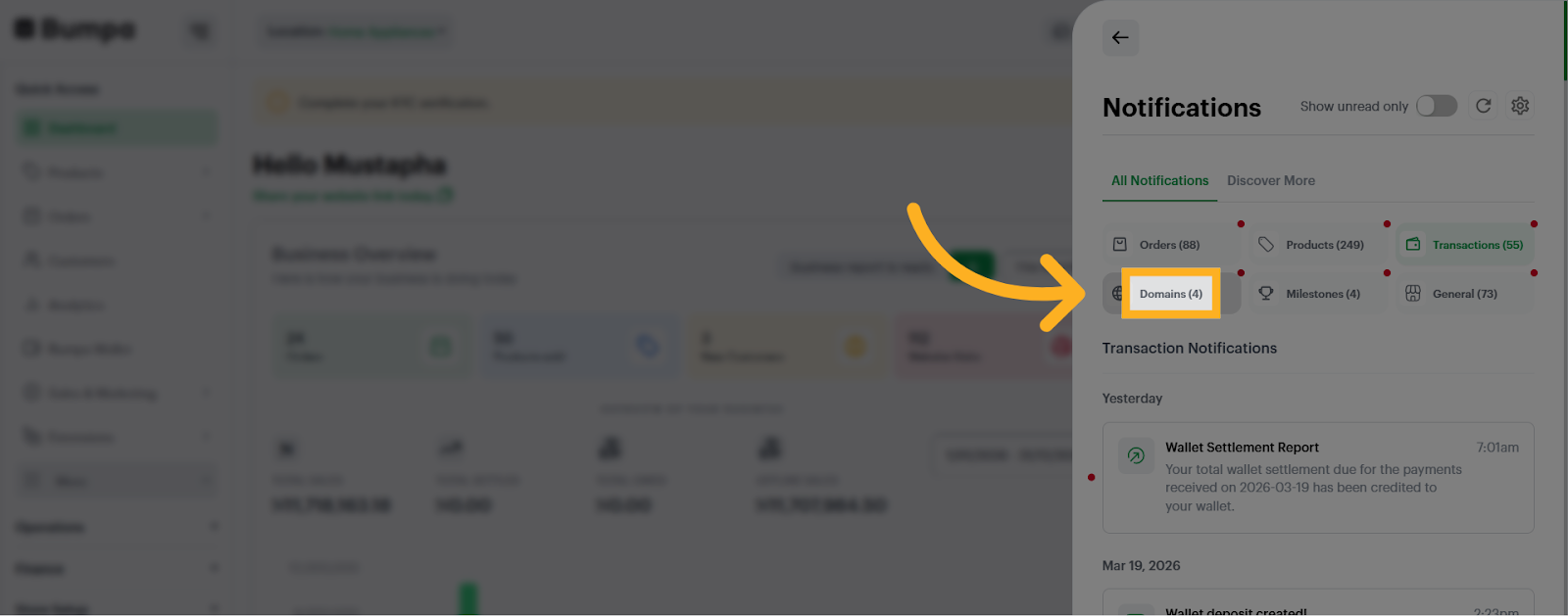
- Click "Domains" to see notifications related to your domain settings and updates.
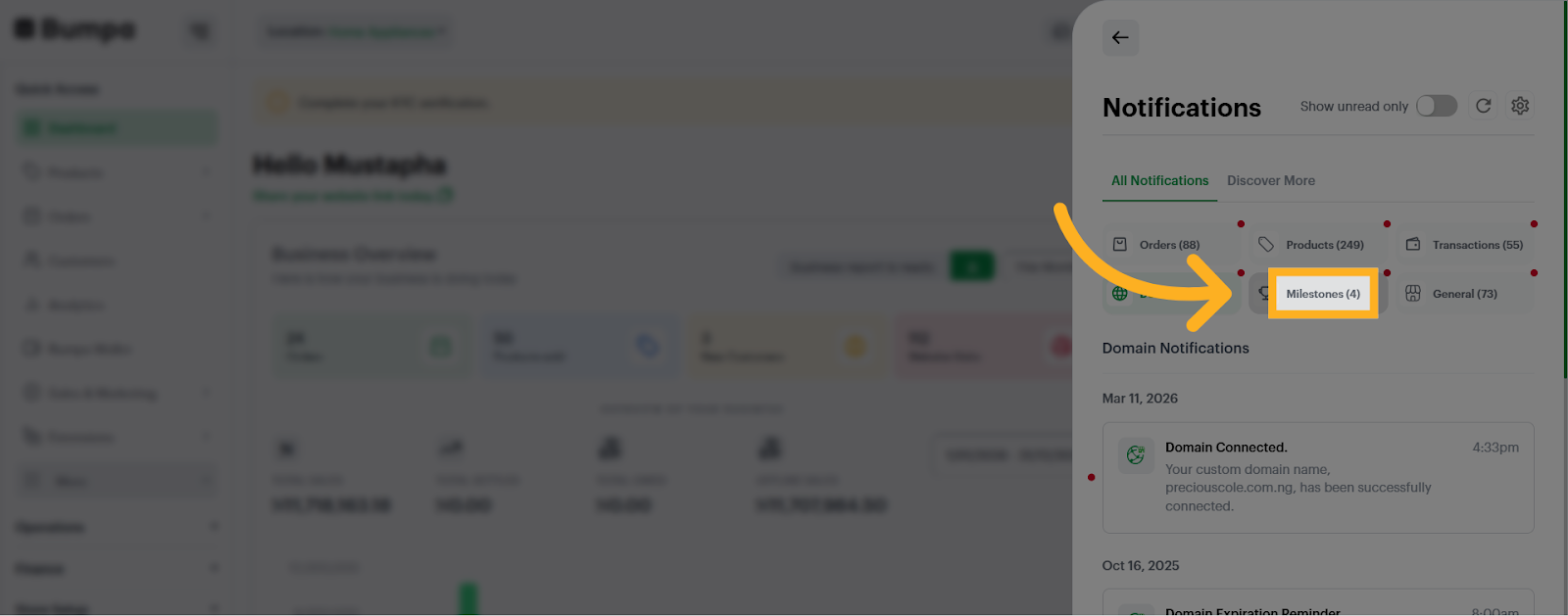
- Click "Milestones" to see notifications about important business milestones and achievements.
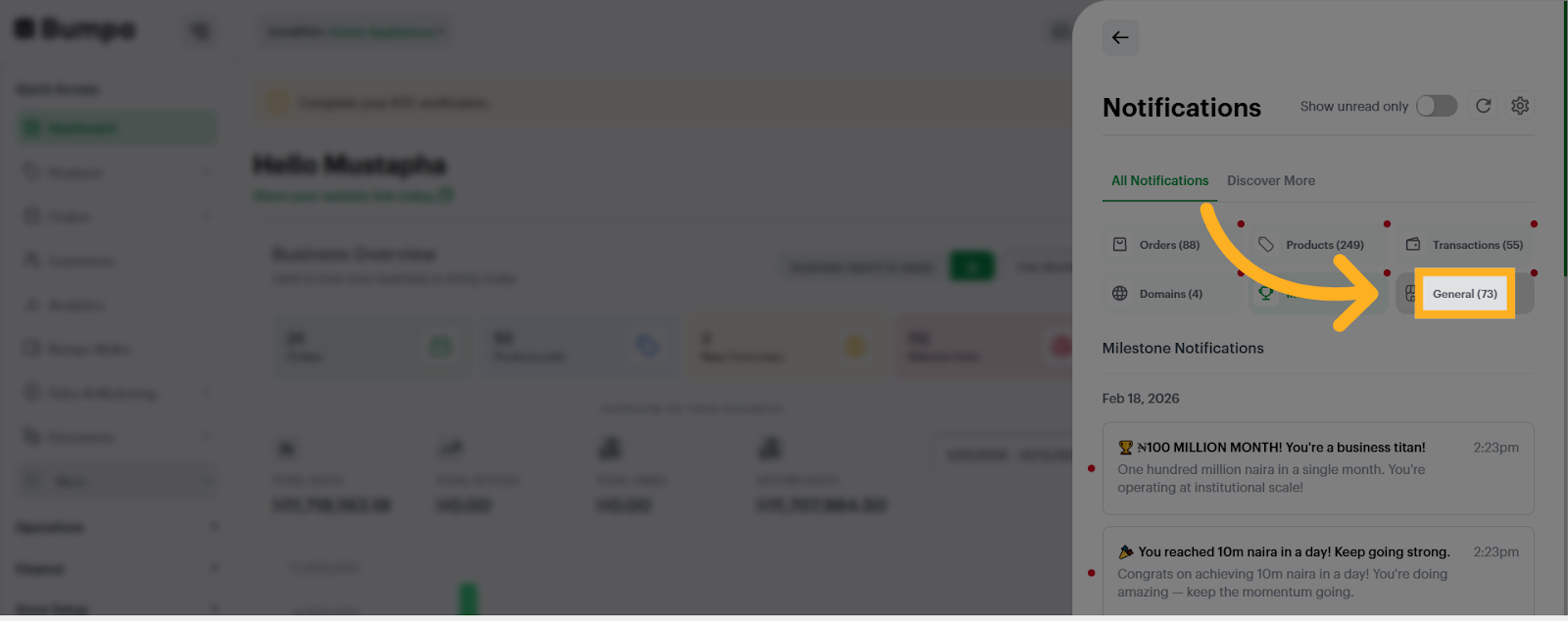
- Click "General" to access general notification settings that apply across your business tools.
This feature is available on all plans
If you have any issues setting up your notification, kindly contact Bumpa Support through the:In-app chat or Email: [email protected]
Was this article helpful?
That’s Great!
Thank you for your feedback
Sorry! We couldn't be helpful
Thank you for your feedback
Feedback sent
We appreciate your effort and will try to fix the article