Keeping track of changes made to your orders is now easier with Bumpa’s Order History feature. Each time an order is edited, the changes are recorded, allowing you to view previous versions and track updates over time. The order page also displays the most recent version by default, so you can always see the latest order details.
In this guide, we'll show you how to view an order's history and keep track of all changes made to it.
- Open an order and find Order History
Order History is at the bottom of the Order Details page. The heading is Order History, with the line "Timelines of activity as they happen".
To get started:
- Log in to your Bumpa dashboard via app.getbumpa.com
Click Orders.
Click the order you want to view.
Scroll down to Order History.
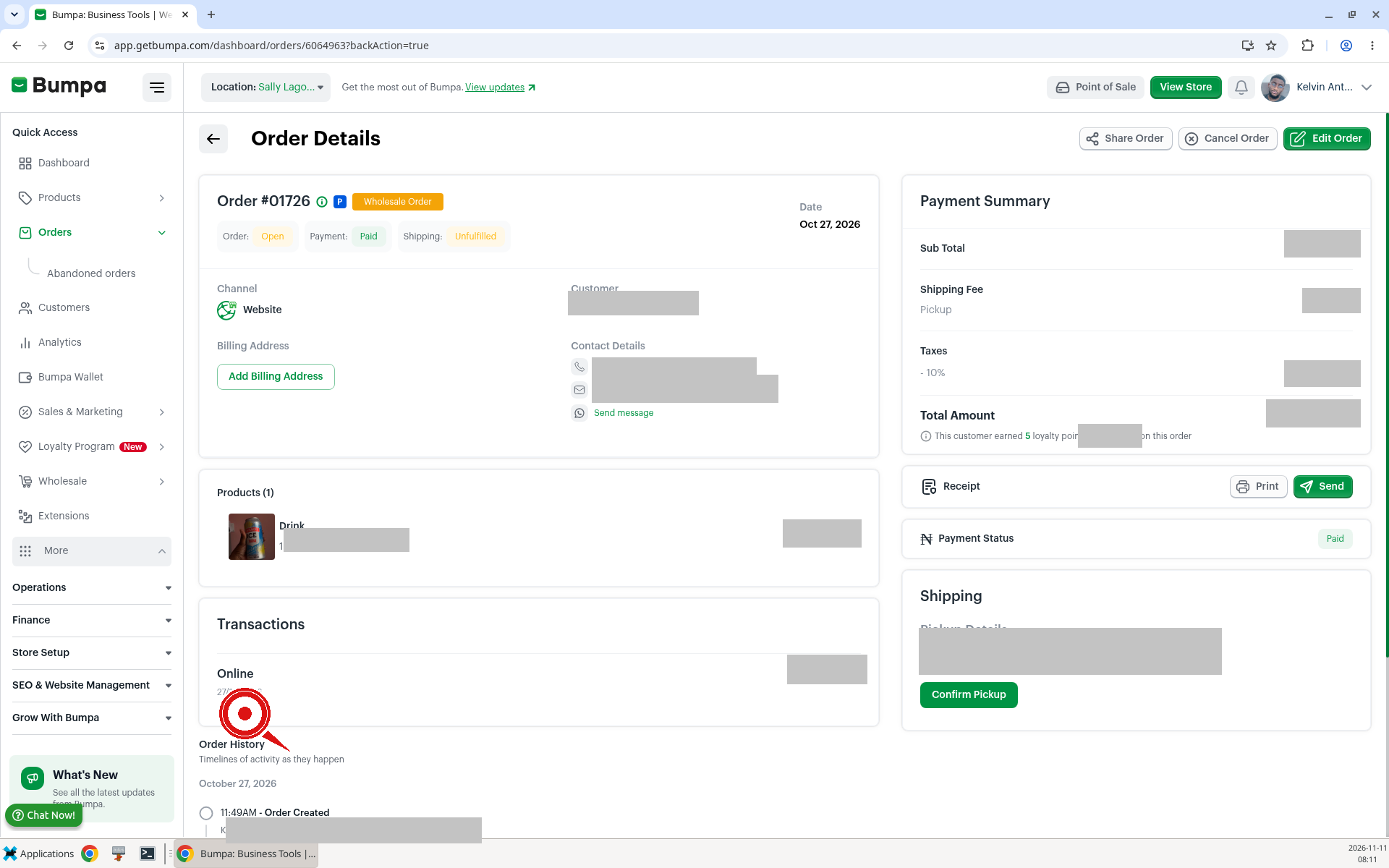
- Read the activity timeline
To read the timeline, follow these steps:
Open the order, then scroll to Order History.
Read each entry from the top, starting with Order Created.
Each entry has a time. On the orders checked below, these entries were shown:
Order Created, with a person's name and the line that they placed the order via the website.
Inventory reserved, with "Action taken by System Background Process".
A payment received entry, which named the payment method and showed a payment reference and an amount.
Merchant payment confirmation mail sent, with "Action taken by System Background Process".
Payment confirmation email, with a line that the email was sent to the customer..
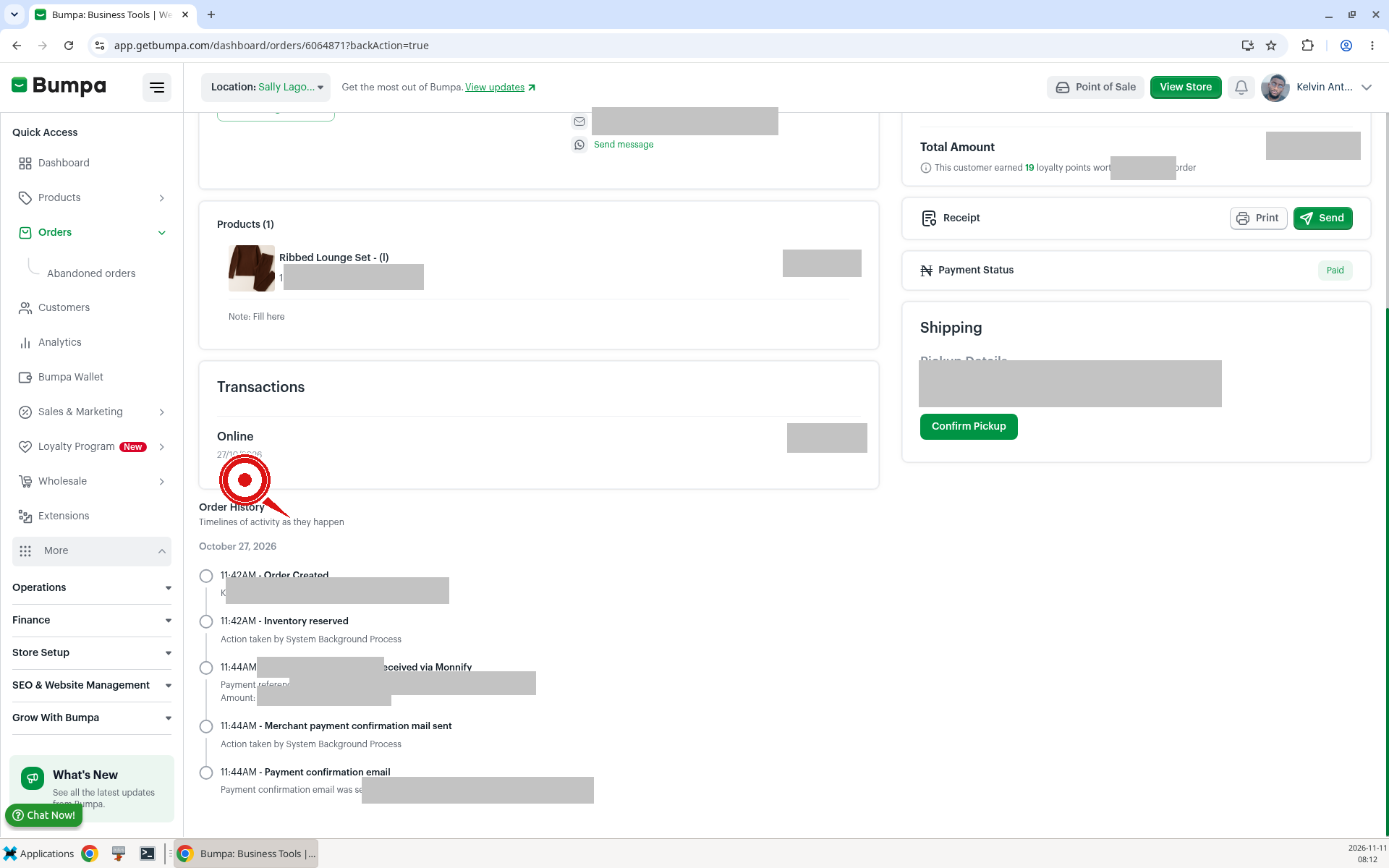
Example: Zainab in Kano opens a paid website order and checks that payment was received and that the confirmation emails were sent.
Related Article:
Editing an already-created order
Was this article helpful?
That’s Great!
Thank you for your feedback
Sorry! We couldn't be helpful
Thank you for your feedback
Feedback sent
We appreciate your effort and will try to fix the article