Choosing the right size is a common challenge for online shoppers, especially for products like clothing and shoes. Unclear sizing often leads to hesitation, incorrect orders, and avoidable returns.
The Size Chart feature on Bumpa helps solve this by allowing you to add a clear size guide to products with size variations. Customers can view the size chart directly on the product page, understand how each size fits, and make confident purchase decisions without needing to ask for clarification.
Once added, the size chart is automatically attached to applicable products, giving customers an easy reference point before adding items to their cart.
To add a size chart, simply follow the steps below
- Log in to your account via app.getbumpa.com
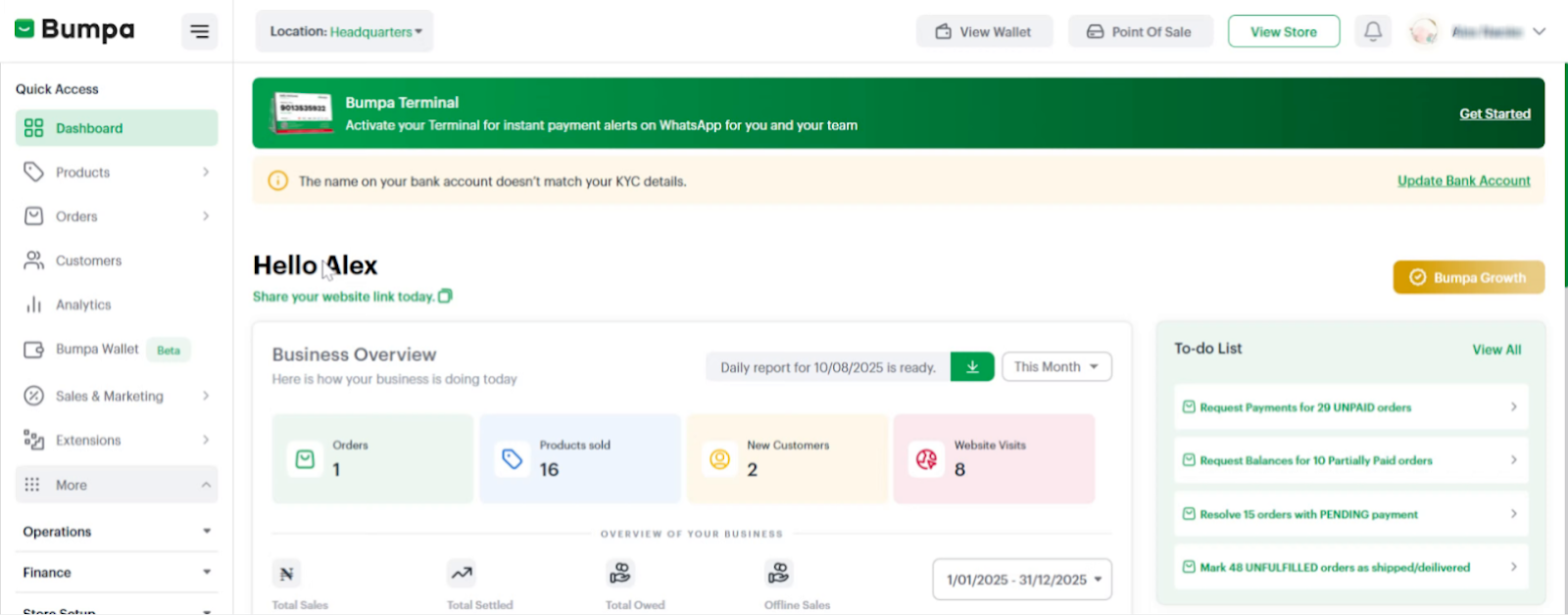
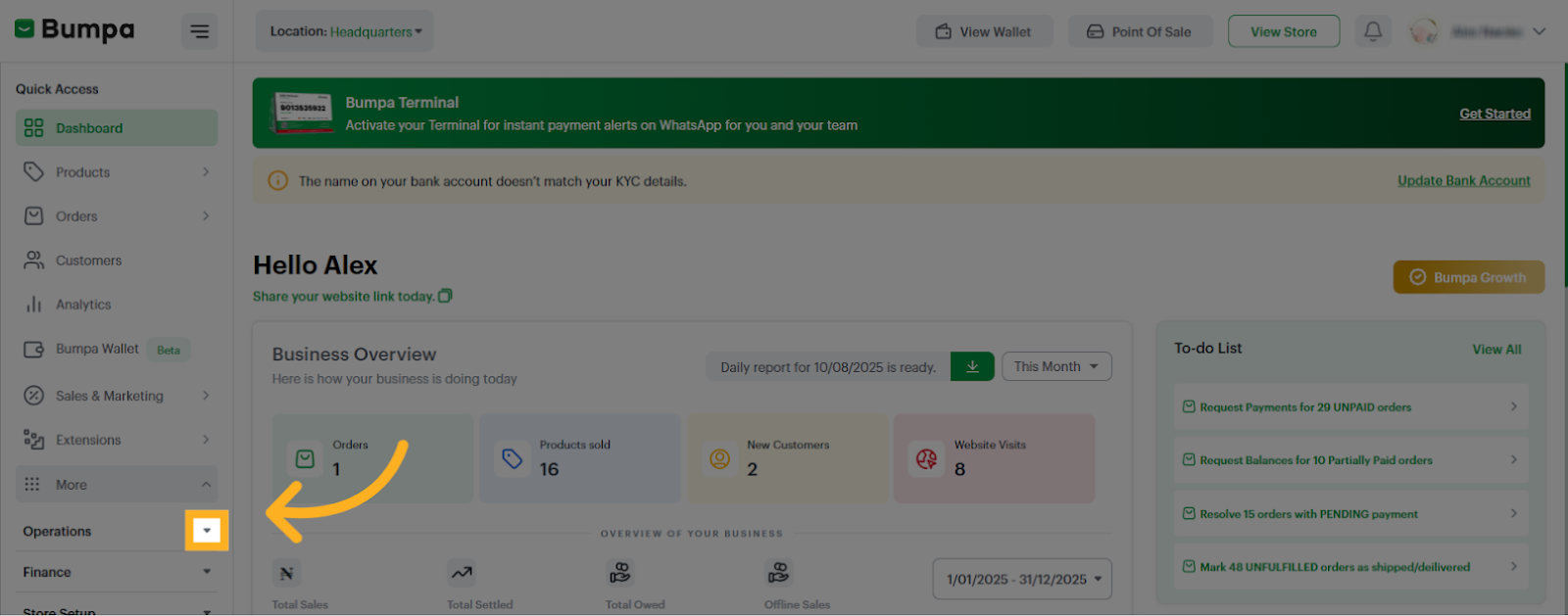
- Click the Operations dropdown
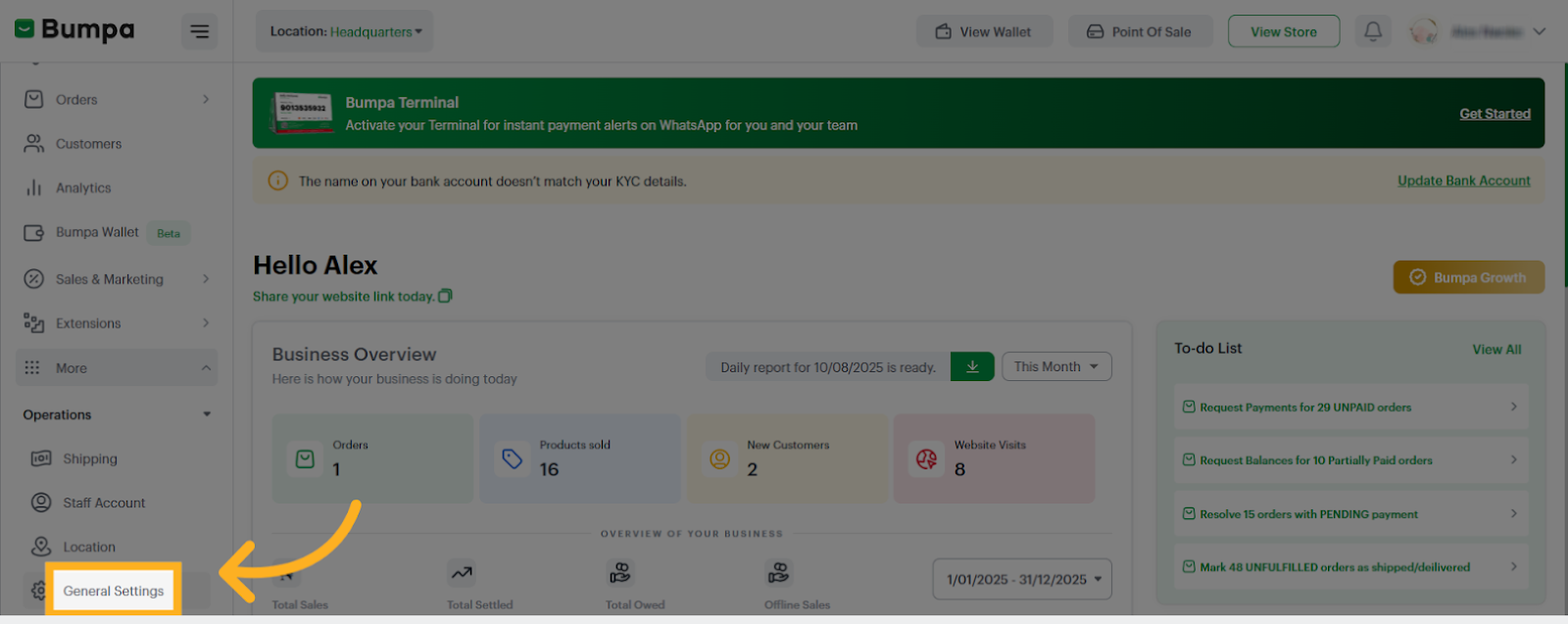
- Access General Settings
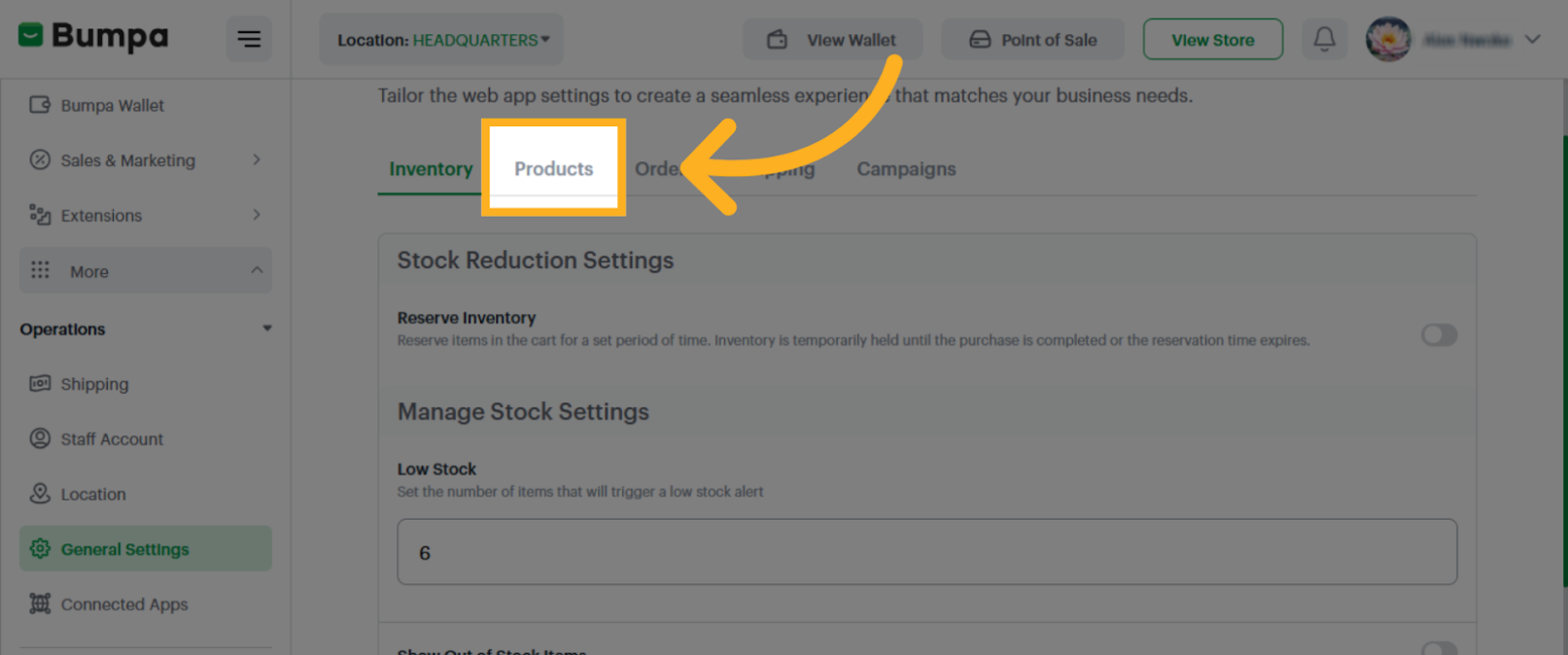
- Click "Products" to manage product-related settings, including size charts.
- Toggle on the “Product Size Chart” option
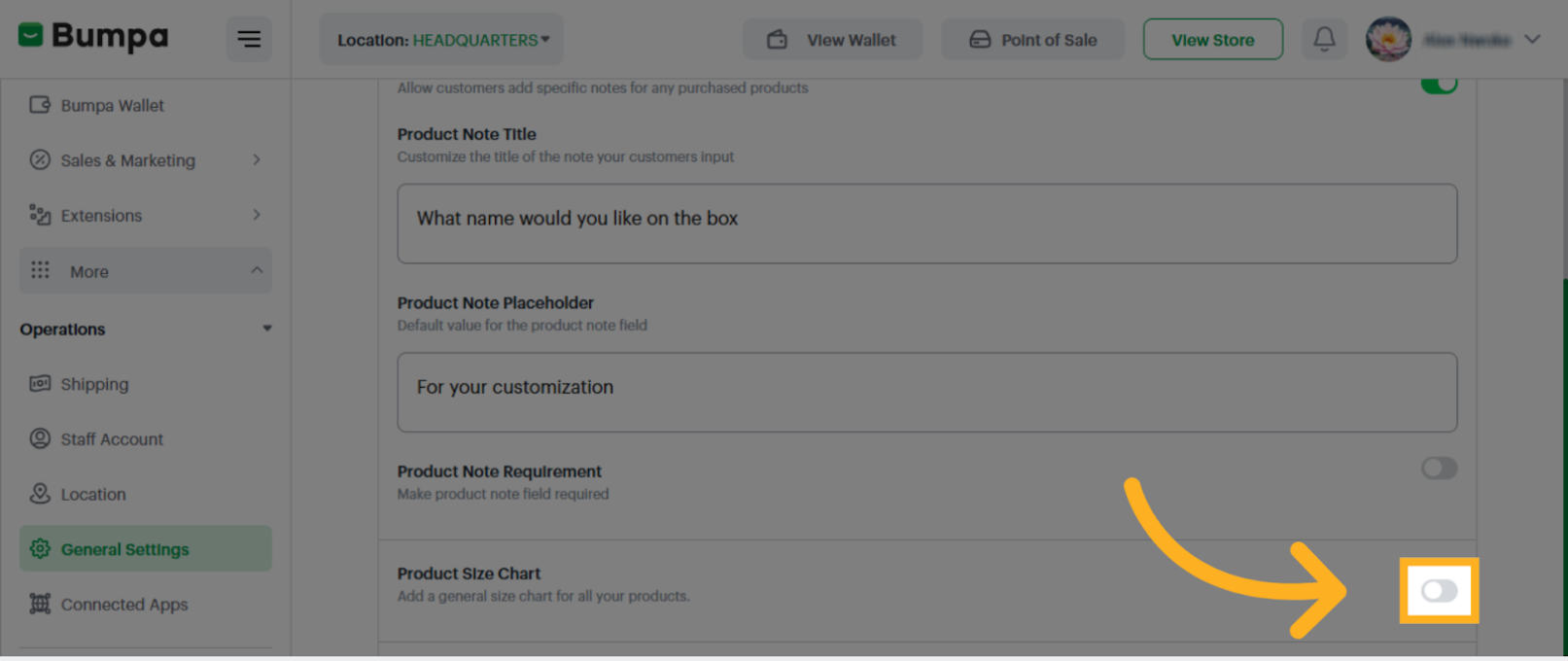
- Once toggled on, you can access the full-size chart page
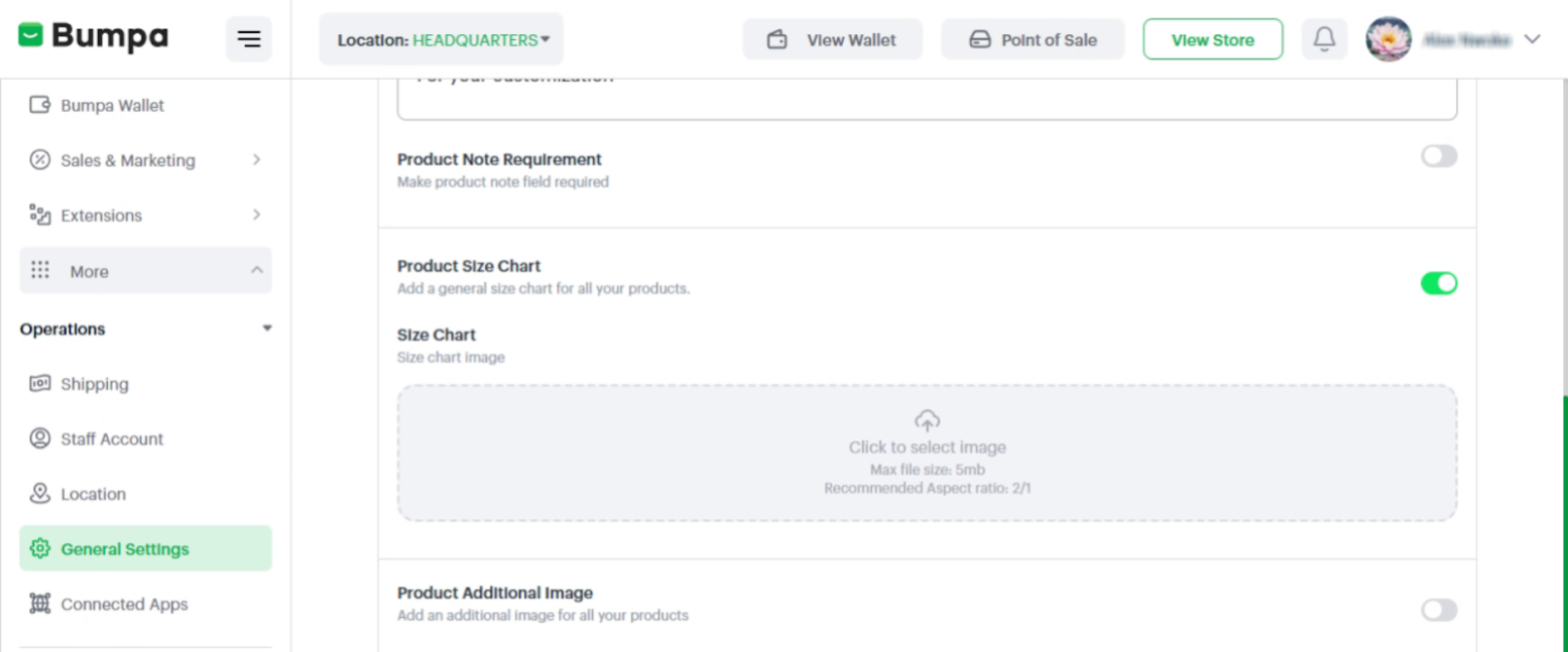
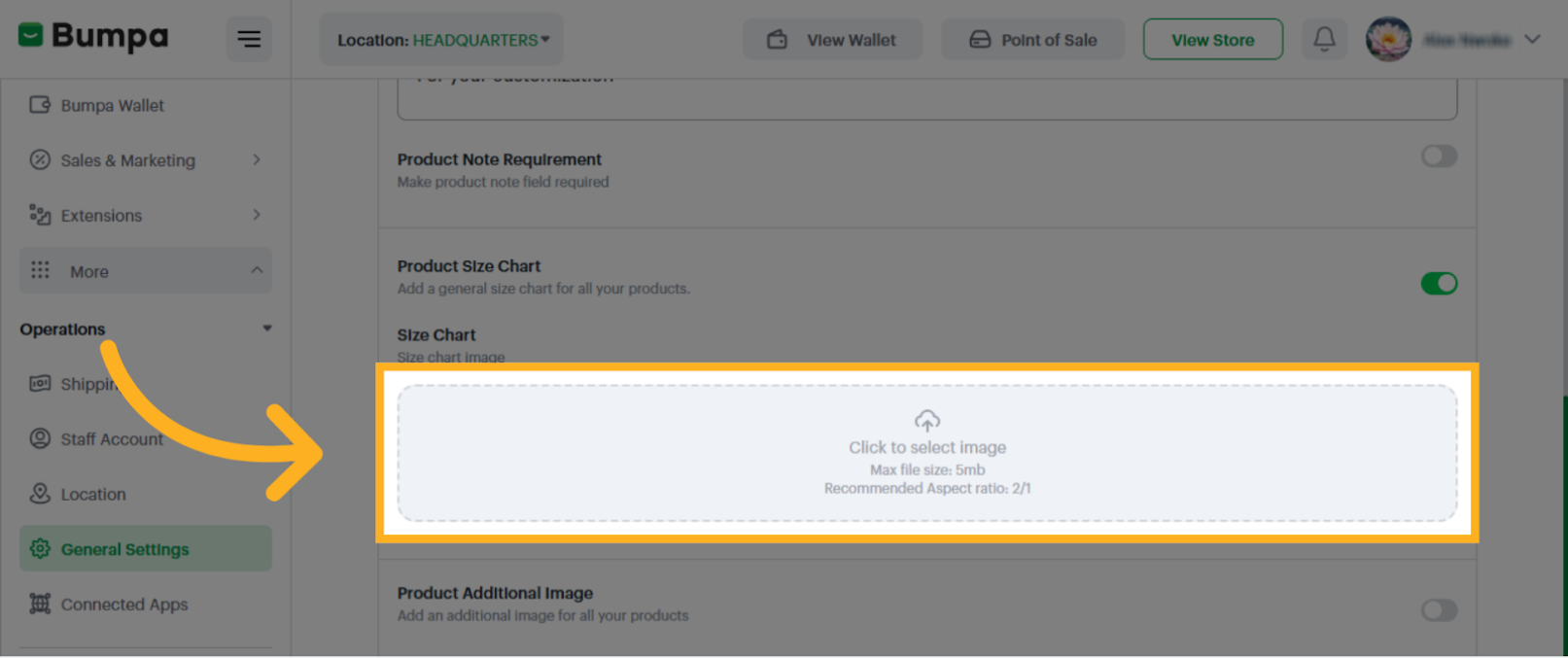
- Upload the Size Chart Image from your device.
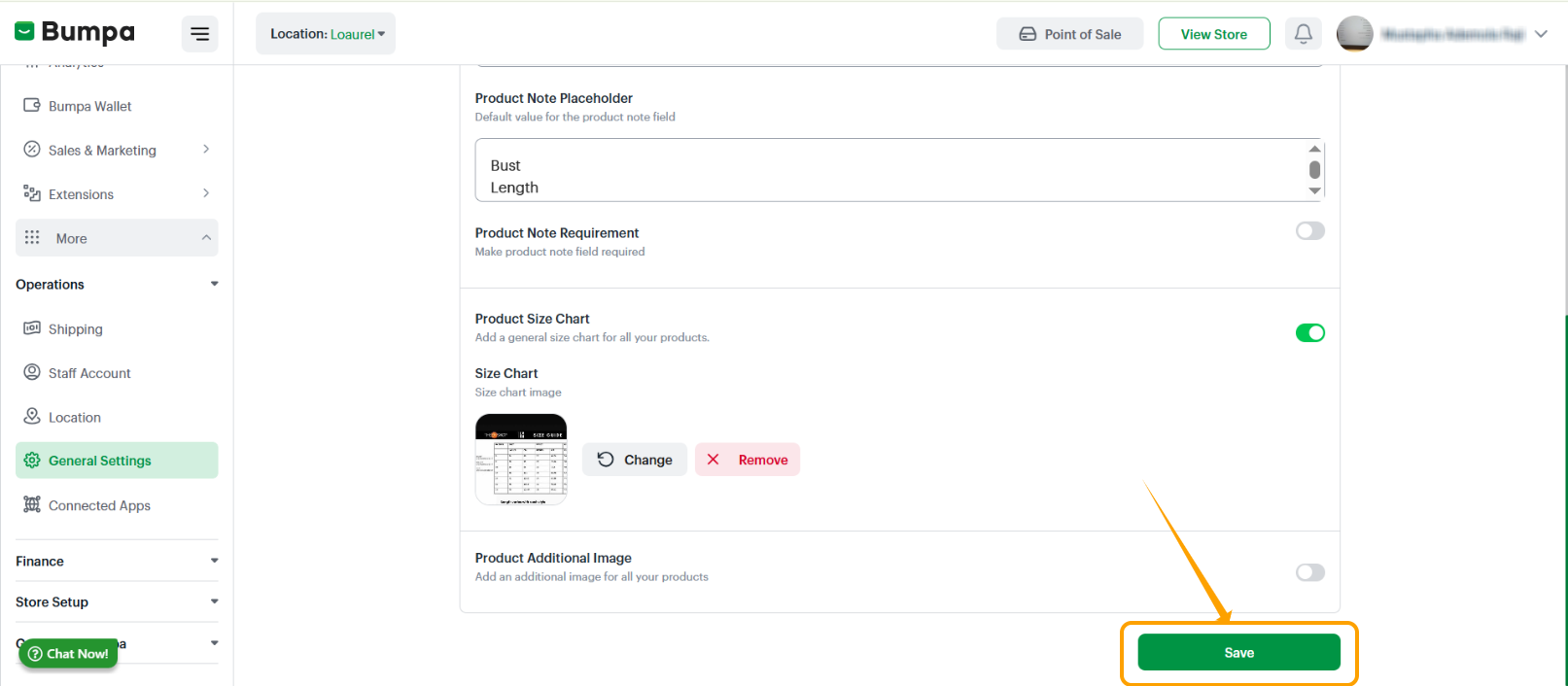
- Click "Save" to save changes.
If you need help setting up your size chart or have any questions about this feature, contact Bumpa Support through: In-app chat or email: [email protected]Was this article helpful?
That’s Great!
Thank you for your feedback
Sorry! We couldn't be helpful
Thank you for your feedback
Feedback sent
We appreciate your effort and will try to fix the article